








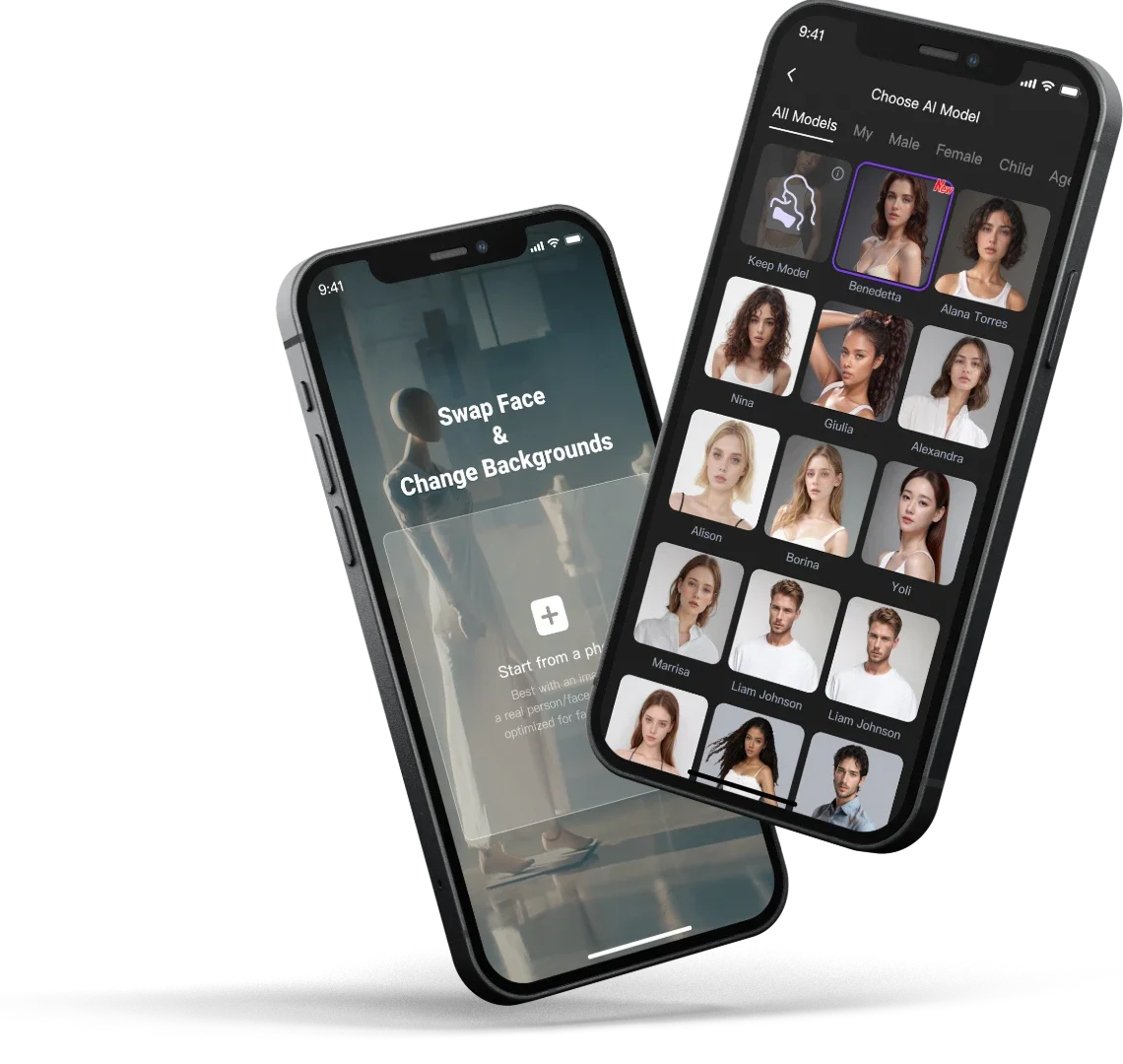


How to Create Brand Ads, Movie Trailers, and Creative Short Films with MiniMax H3
How can you create a strong brand visual video? Traditionally, producing a brand video means planning a shoot, finding models and locations, preparing props, and creating different assets for every marketing channel.
How can you create a strong brand visual video? Traditionally, producing a brand video means planning a shoot, finding models and locations, preparing props, and creating different assets for every marketing channel. But with WeShop AI’s MiniMax H3 video generation technology, the whole process can be much simpler. Just upload a product image or reference image, describe the style you want, and quickly generate promotional videos, advertising visuals, social media content, and other branded assets. With just one creative direction, you can build a complete set of visual content for websites, ecommerce platforms, Instagram, TikTok, digital ads, and seasonal marketing campaigns.
|
|
|
Create Campaign-Ready Brand Images
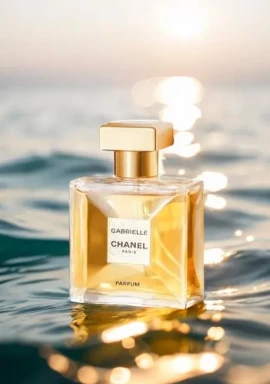
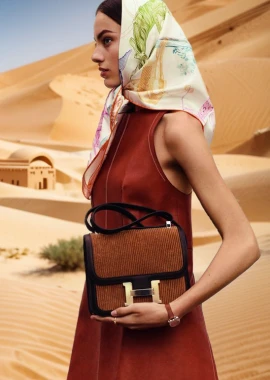
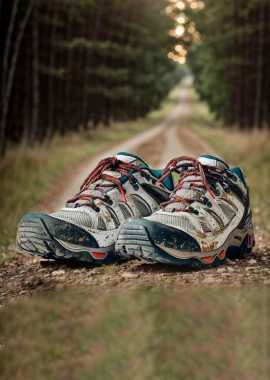
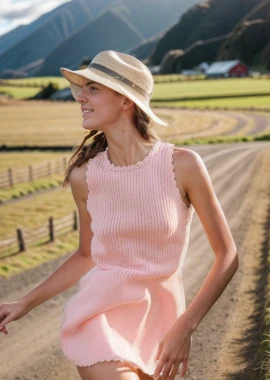
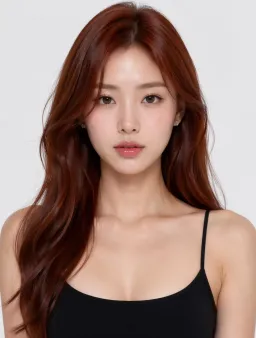
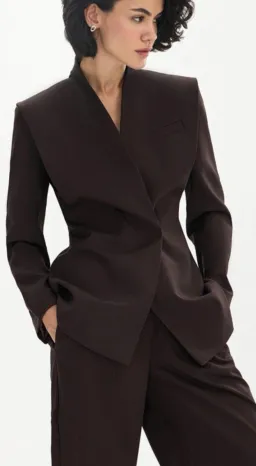
Start with a simple product image and turn it into a polished commercial visual. You can place products in lifestyle environments, add suitable models, adjust lighting and composition, or create a completely new campaign atmosphere while keeping the product as the visual focus. Whether you need a clean luxury look, a colorful summer campaign, a cinematic outdoor scene, or a minimalist studio image, AI makes it easier to test different creative directions without rebuilding the entire shoot.

|
|
|

|
Movie Trailers and Title Sequences
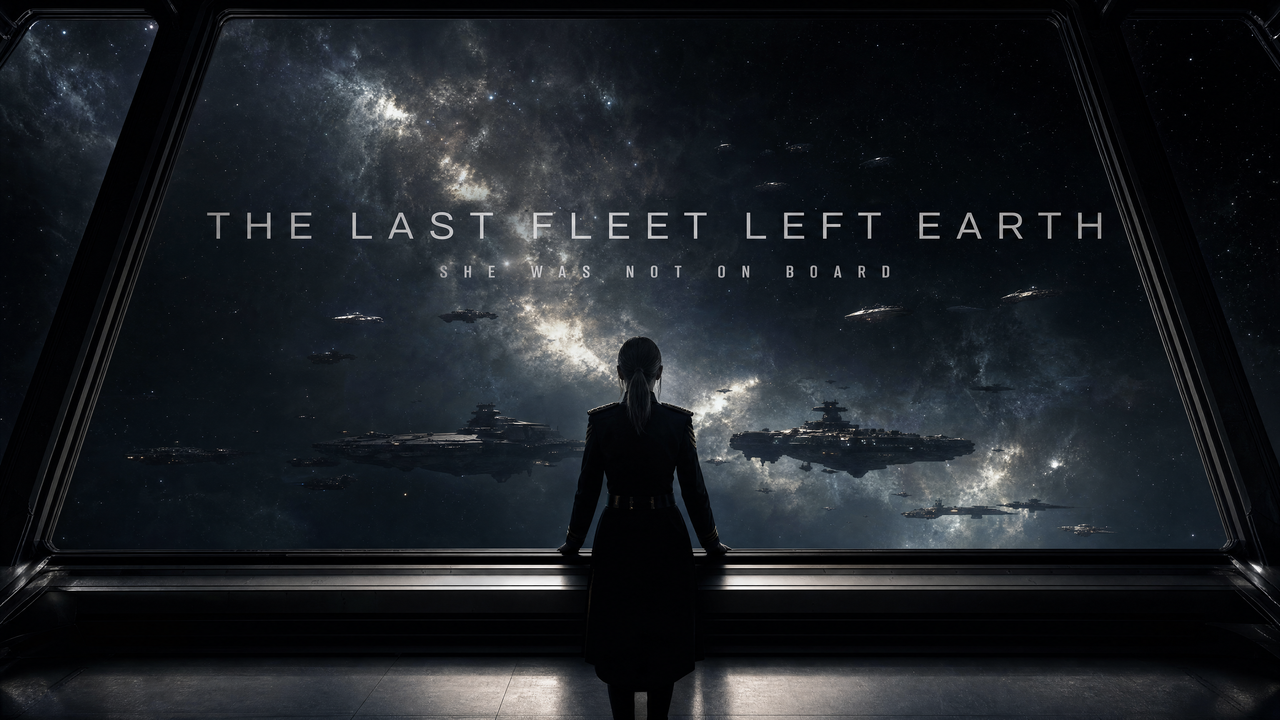
H3 can handle fast hard cuts, black screens, title graphics, bright flashes, low-frequency sound effects, and cinematic camera movements. For a sci-fi trailer, you can use environment reference images to establish the world and character images to keep the main character consistent, then use the timeline to plan establishing shots, suspenseful title cards, and climactic transitions. For title sequence design, you can work with geometric color blocks, split screens, comic-style collages, silhouettes, and English credits. Transitions can be synced to the beat of the music, while the number of text appearances, spelling, and animation effects can all be clearly defined in the prompt.
|
Motion Graphics, MG Animation, and “After Effects-Style” Effects
Creators can add tracking boxes, scan lines, particles, animated text paths, and infographic elements directly to an existing video while keeping the original subject, actions, scene, and camera movement unchanged. For this type of task, the most effective prompt is not simply something like “make it look more futuristic.” Instead, clearly describe the shape, color, transparency, and movement of the graphic elements, specify what they should track, and define which parts of the original video should remain unchanged.
From One Product Image to a Full Brand Campaign
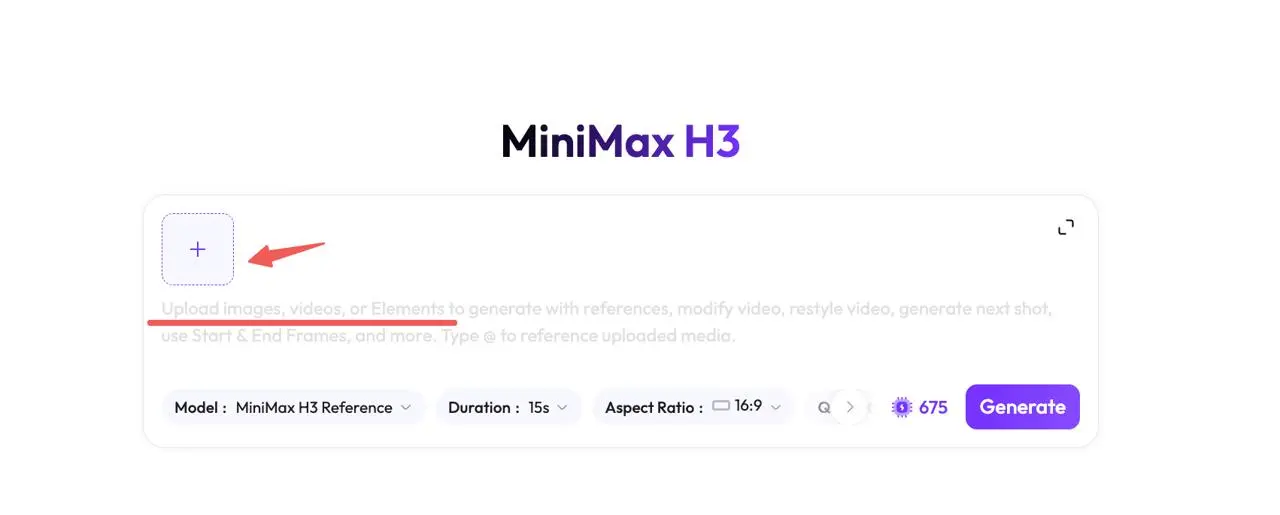
Step 1 — Upload Your References
Upload product images, model images, scene references, logos, or reference videos. Clearly define what each reference should control, such as the product appearance, character look, visual style, or editing rhythm.
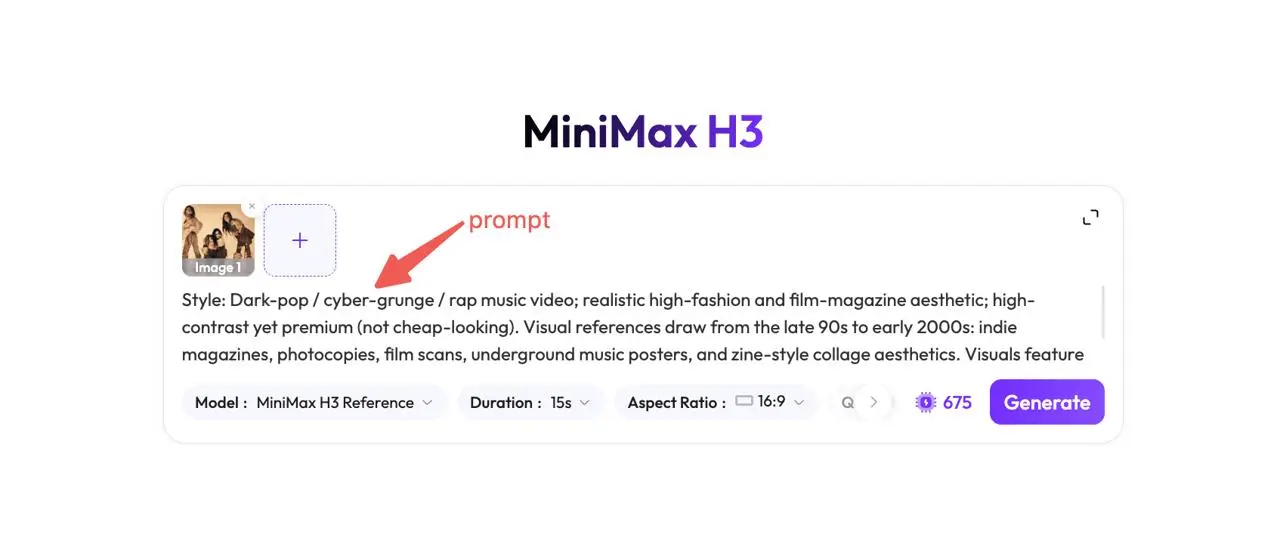
Step 2 — Define the Creative Direction
Describe the main idea of the video, including the mood, setting, visual style, lighting, camera language, and overall campaign feel. For example: 15-second fashion brand film, desert highway, vintage car, cinematic lighting, cool and minimal mood, premium editorial style.
Step 3 — Plan the Video Timeline
Break the video into a few clear shots and define what happens in each time range. For example: 0–3s: Establish the scene. 3–7s: Introduce the model and product. 7–11s: Show a product close-up. 11–15s: End with the hero shot and brand logo.
Step 4 — Generate and Refine
Generate the first version and check the product details, character consistency, camera movement, timing, text, and overall visual style. If the result works well, refine individual details or create more versions for ads, social media, ecommerce campaigns, and other channels.
One Workflow, Multiple Marketing Uses
Ecommerce
Create lifestyle images, product storytelling visuals, category banners, and promotional content for online stores.
Brand Campaigns
Explore seasonal campaigns, product launches, holiday promotions, and new creative concepts.
Social Media
Turn campaign visuals into Instagram posts, Reels covers, TikTok creatives, Pinterest images, and other social content.
Advertising
Create multiple visual directions for paid ads and quickly test different backgrounds, compositions, and campaign messages.
Create More Brand Content from the Images You Already Have
You don’t need to start every campaign from zero.