Sign In or Create an Account
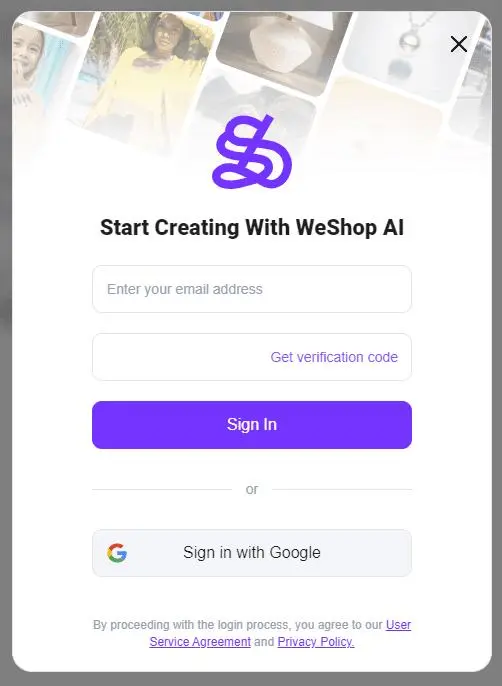
Open WeShop AI, select Sign in, and follow the email verification flow to sign in or register.
Open Your Workspace
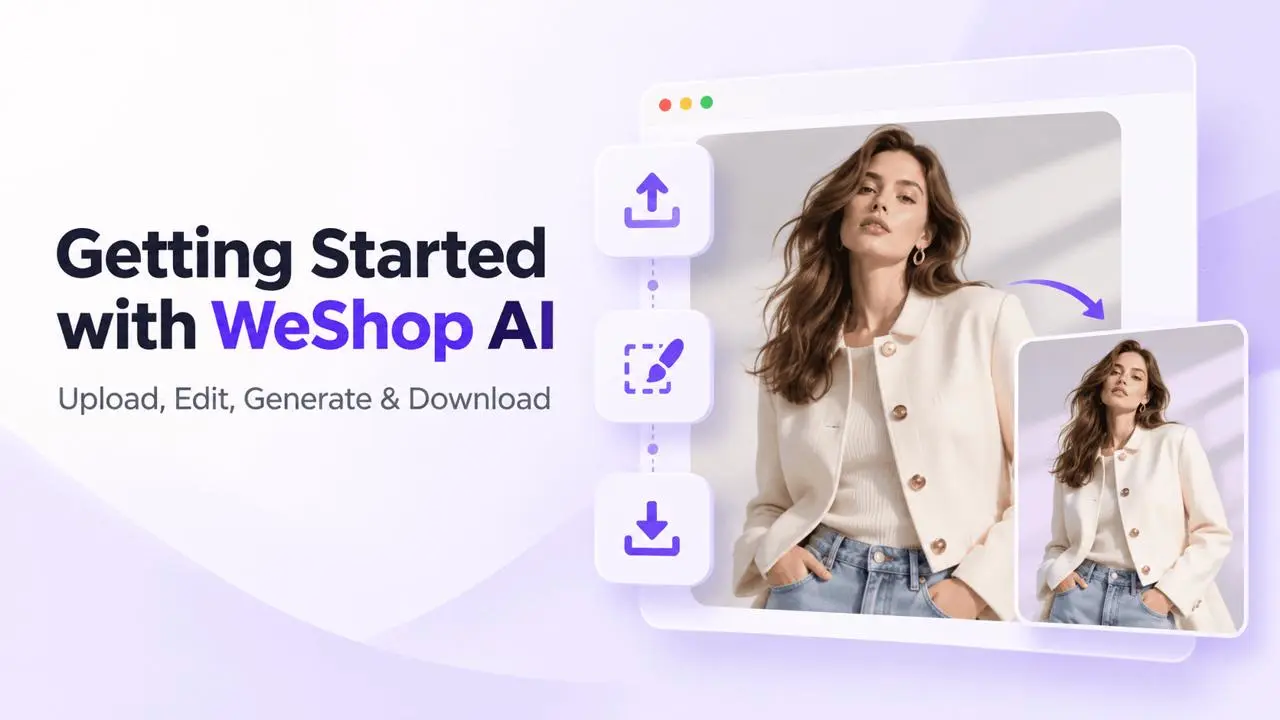
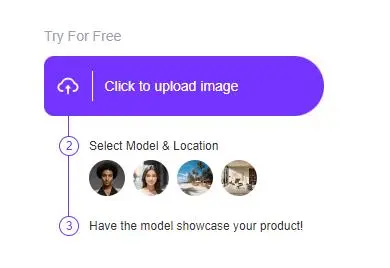
Choose My Workspace or Upload Image to begin. Use AI Model for model and fashion imagery, or AI Product for product scene images.
Create Your First AI Model Image
Step 1: Upload a Photo
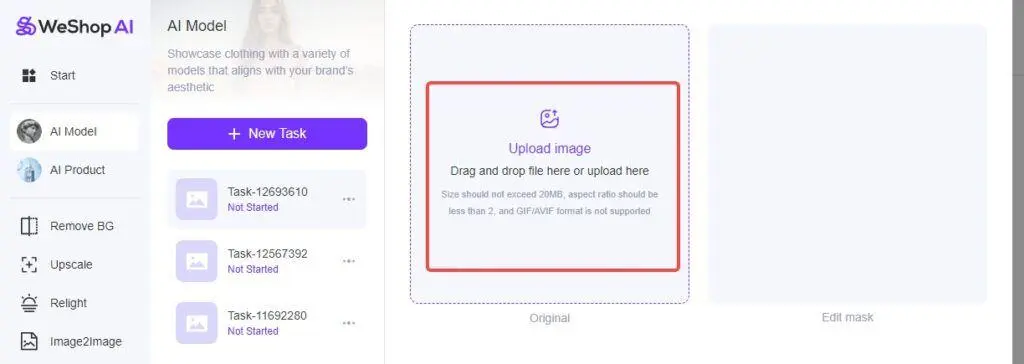
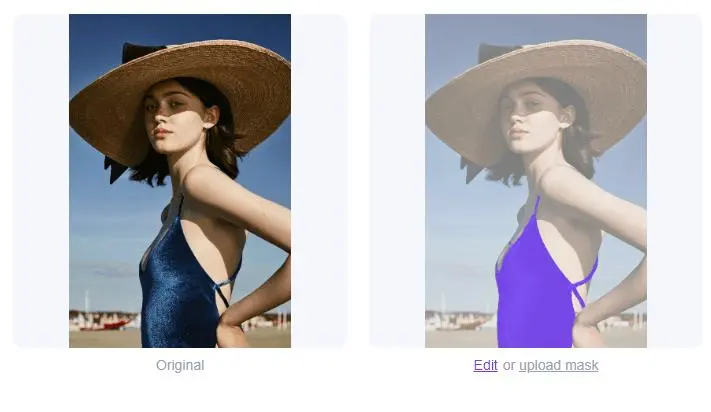
Upload the original image. The AI Model workflow detects clothing automatically. Use Edit if the selection needs adjustment.
Step 2: Select What to Keep
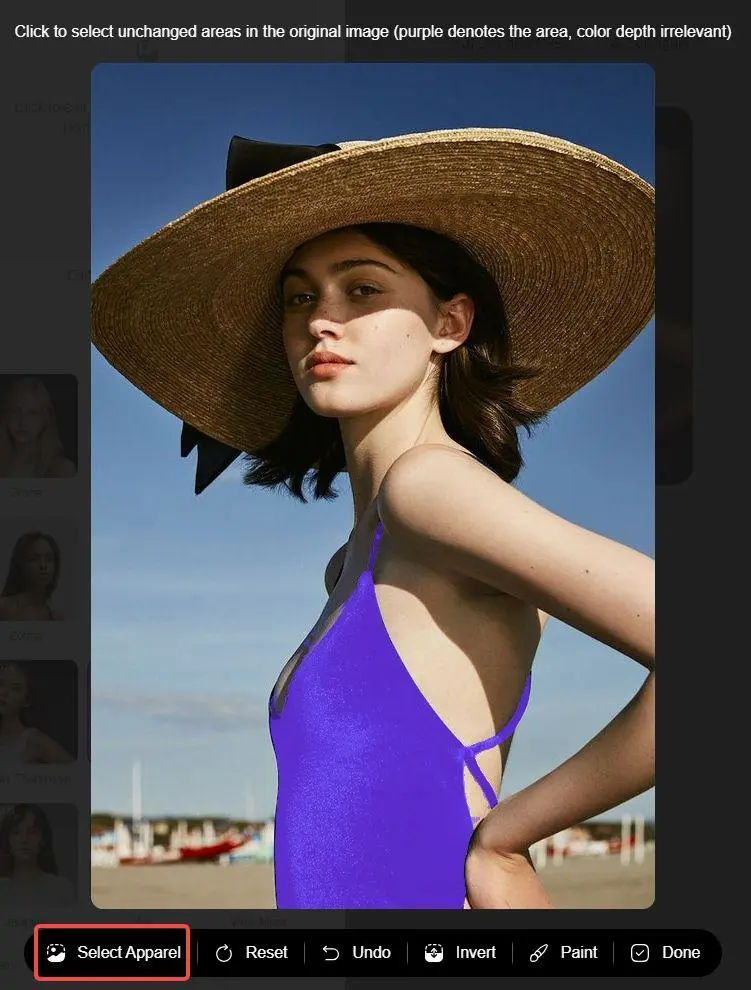
In this AI Model workflow, the selection identifies content to keep unchanged. Review it before generating. Use the brush and eraser for fine adjustments; use Reset to start again.
To preserve most of an image, select the area you want to change and use Invert to select the rest. For example, selecting the face and body and then inverting can preserve the clothing and background while changing the model.
Step 3: Choose a Model
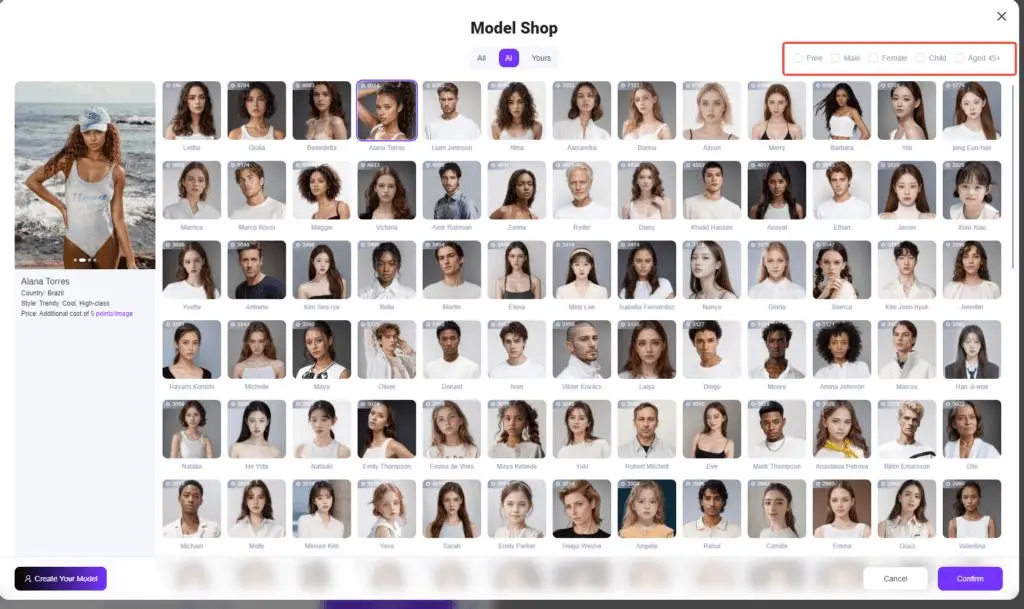
Open Model Shop and select a model. Named consistent models are intended for a recurring appearance; numbered random models generate varied faces. Choose the type that fits your task.
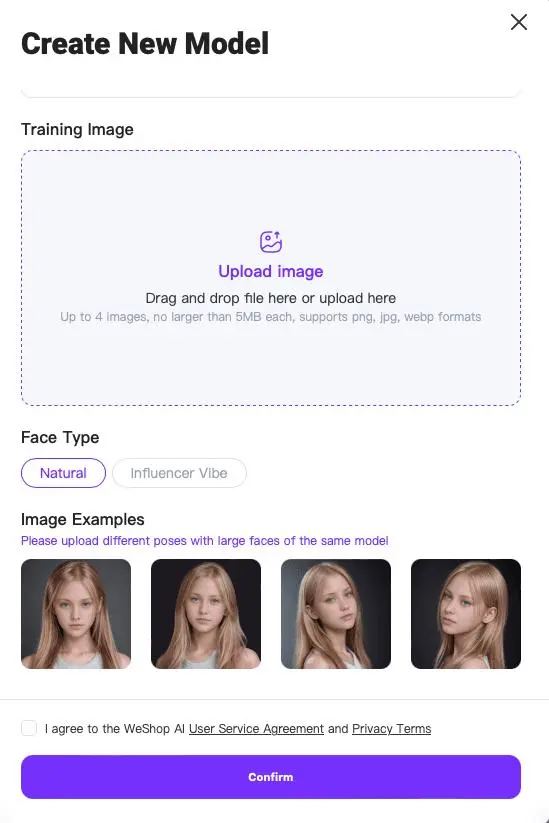
You can also use Create Your Model to add a model from your own reference image. Follow the image requirements shown in that dialog, enter a name, and confirm.
Step 4: Choose a Scene
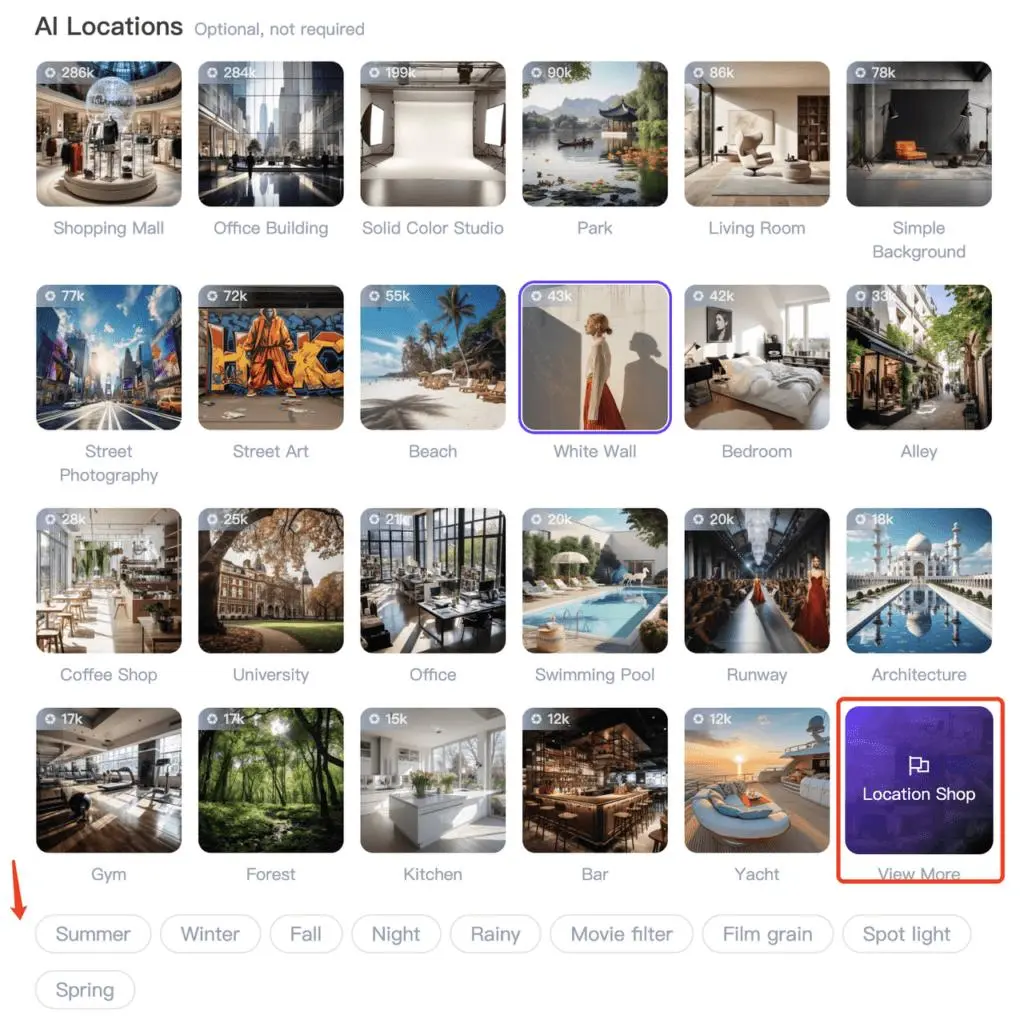
Open Location Shop and select a scene. Browse categories and scene examples, then add any relevant scene tags.
Step 5: Describe the Result
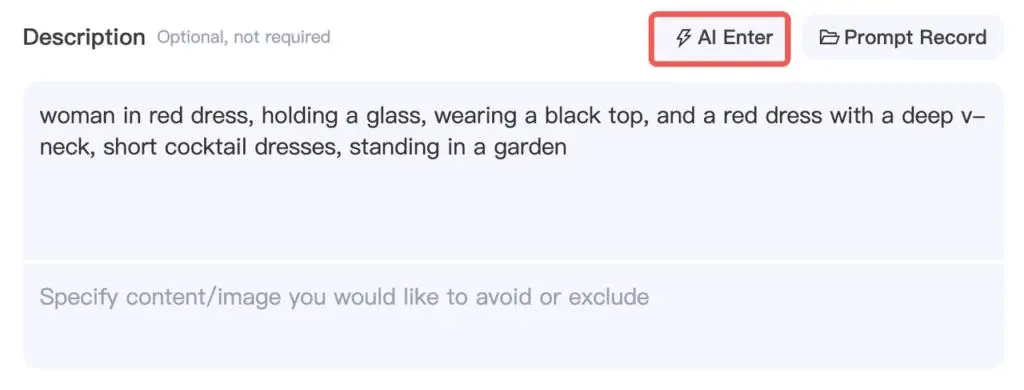
Optionally add a short description of what you want to generate. Keep the model, scene, tags, and prompt consistent. AI Enter can help draft a description, and Prompt Records lets you reuse previous prompts.
Step 6: Check Settings and Generate
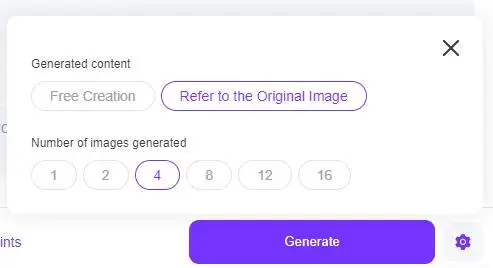
Open the settings beside Generate. In the workflow shown here, Refer to the Original Image follows the original background and style more closely, while Free Creation allows more freedom. Choose the number of output images, check the displayed point usage, then generate.
Step 7: Preview and Download
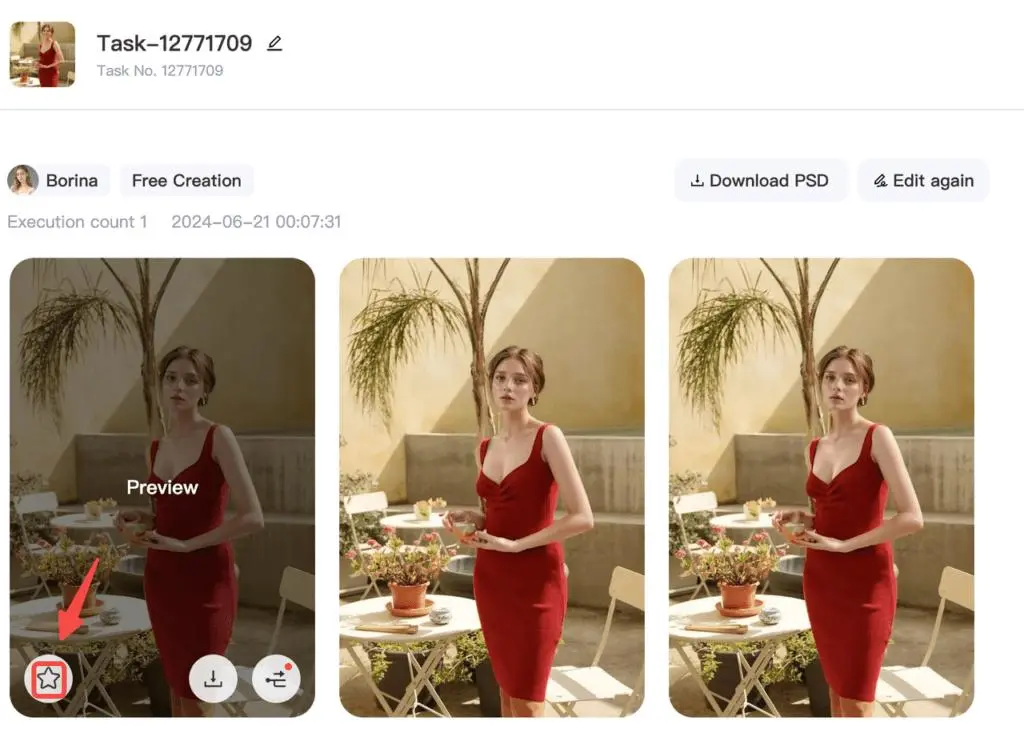
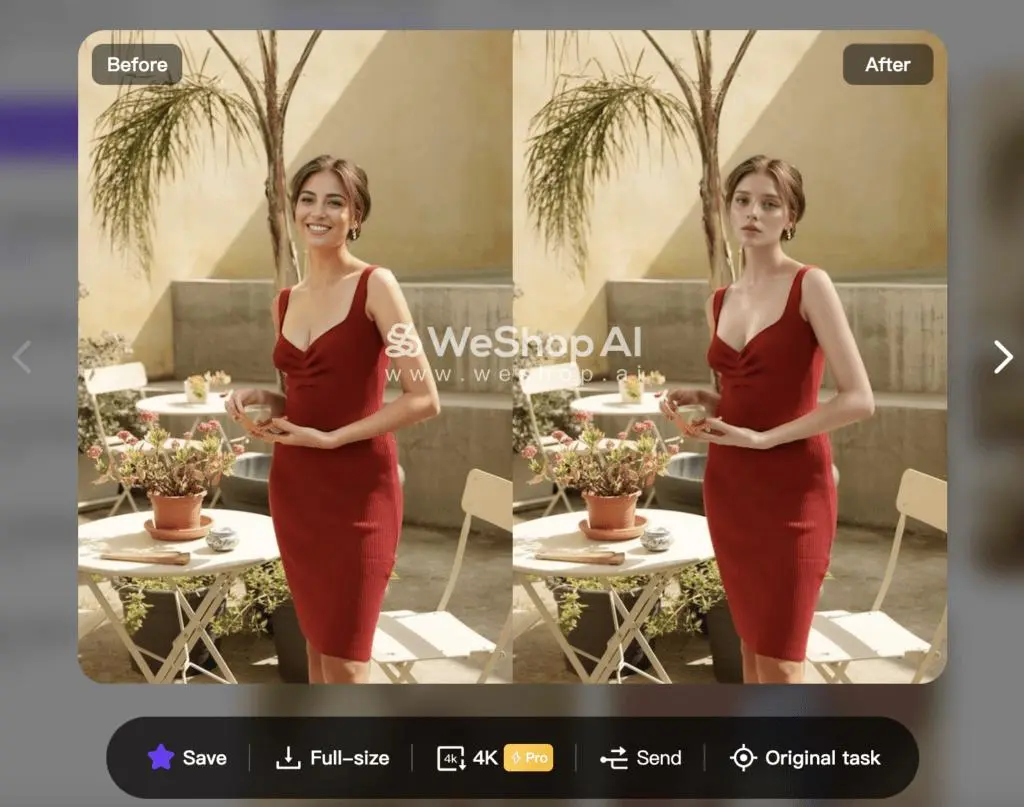
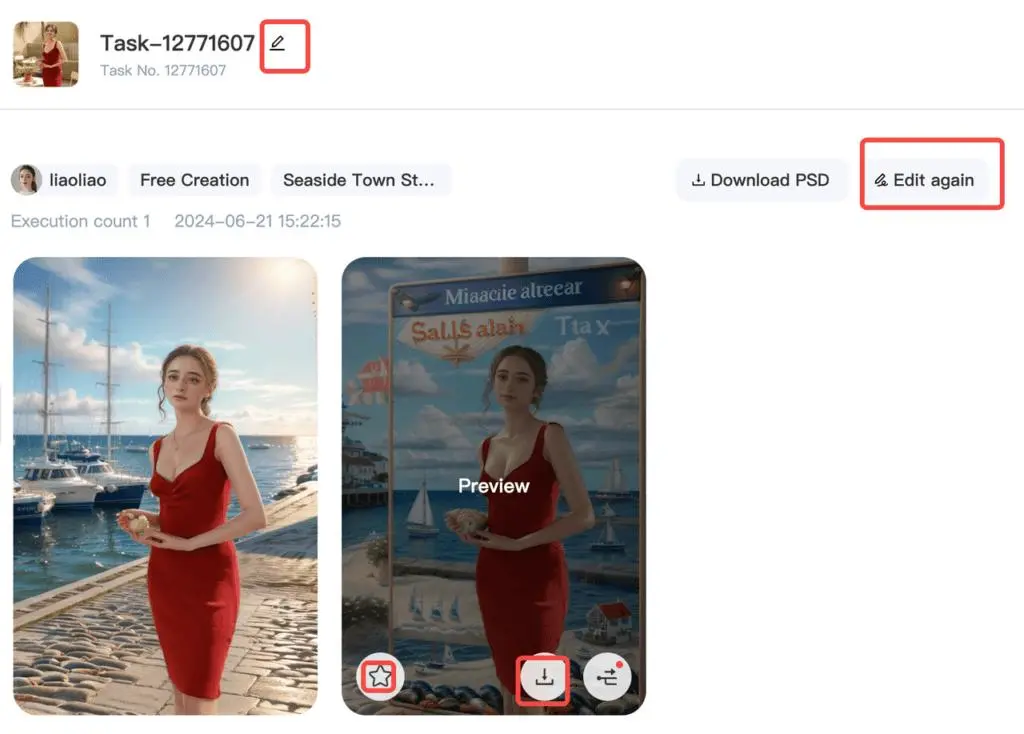
Open a generated image to inspect it. Use Edit Again to adjust the model, scene, or settings. When the result is ready, choose the available download option. Download sizes and access depend on the options shown for your account.
Save Images for Later
Star useful results and find them under Saved Photos. Open a saved image to download it, return to Original Task, or send it to another editing workspace.