
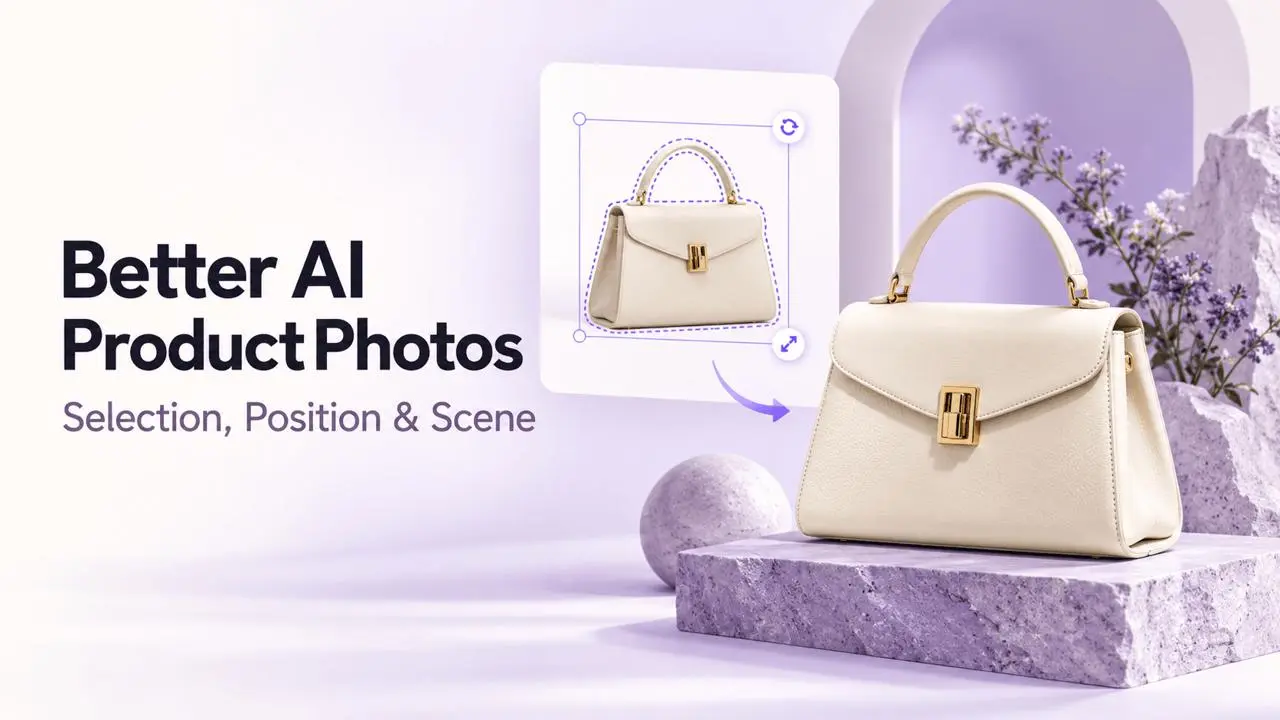
Step 1: Refine the Product Selection
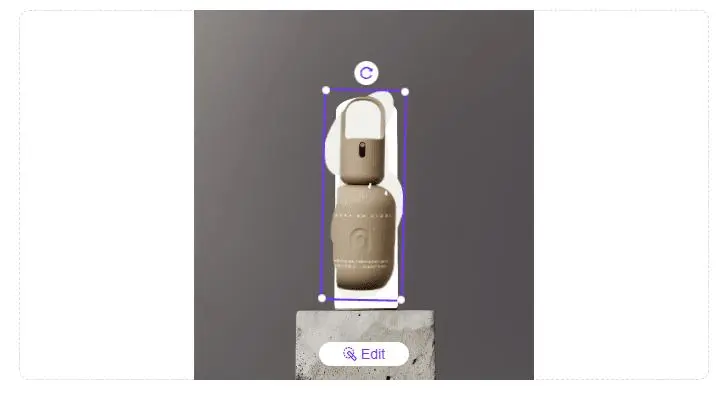
Open AI Product and upload your image. The tool detects the product area automatically. Select Edit to refine the mask so the intended product remains unchanged while the surrounding area can be generated.
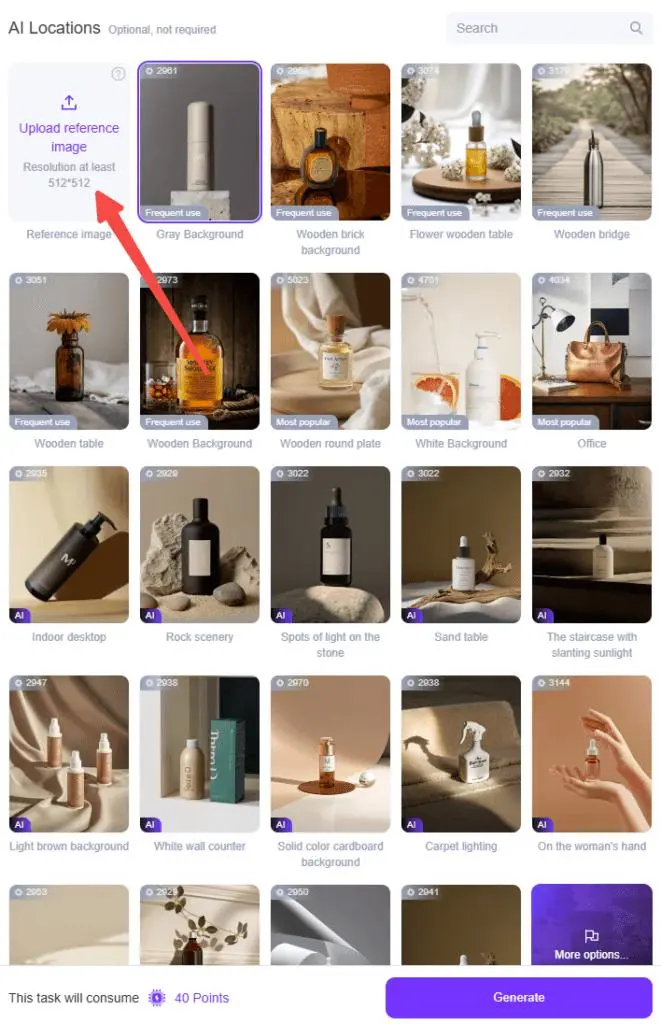
Step 2: Choose or Upload a Reference Scene
Browse Location Store for a scene, or use Upload Your Exclusive Reference Image to add your own. Find uploaded scenes under Yours. Rename scenes to make them easier to find, and use the available scene management controls when organizing references.
Step 3: Position and Size the Product
Move, resize, and rotate the product to fit the reference scene. Check scale, perspective, and where the product should sit. For example, a lamp should align with the desk rather than floating above it or appearing too large for the furniture.
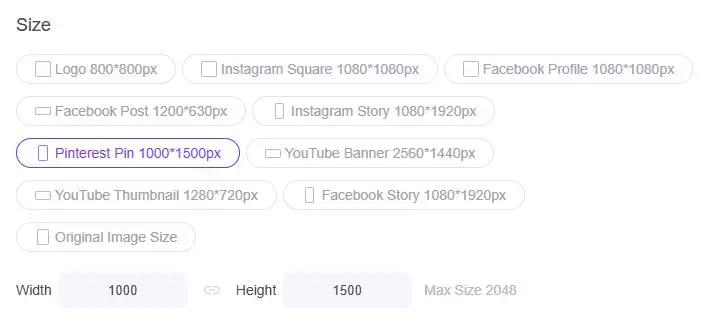
Step 4: Choose Output Dimensions
After selecting a scene, choose a preset or custom image size from the available dimension controls. Use a composition that leaves enough space around the product for its intended display.
Step 5: Generate and Review
Generate the image, then compare the product with the source. Check its outline, material, markings, proportions, and contact with the scene. Review lighting and shadows at the intended display size.
Before-and-After Examples
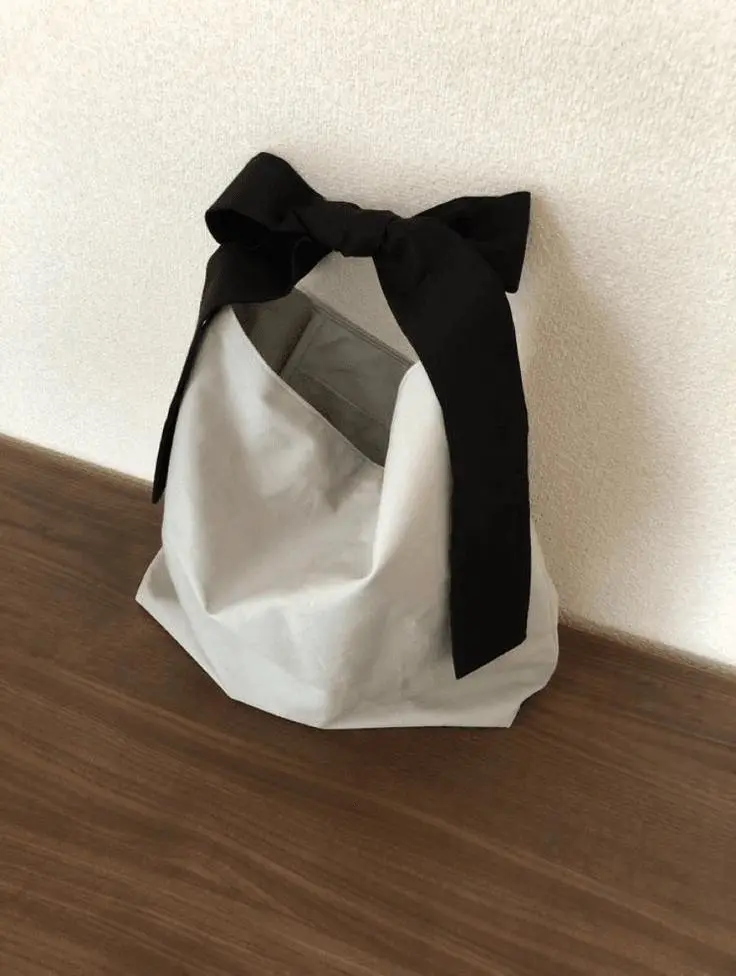
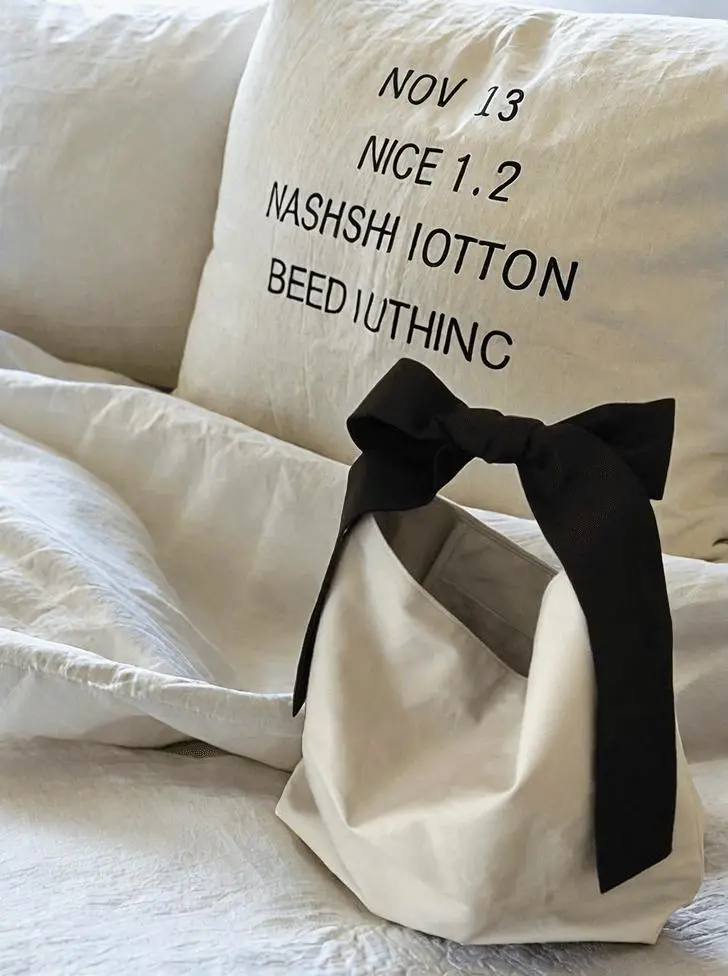
Soft Bedroom Scene
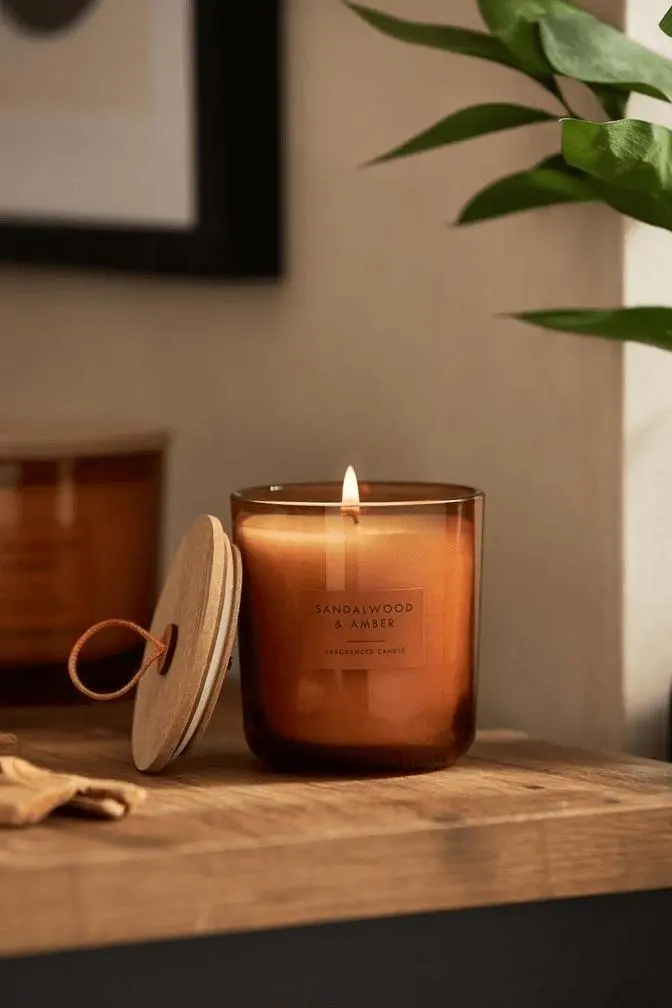
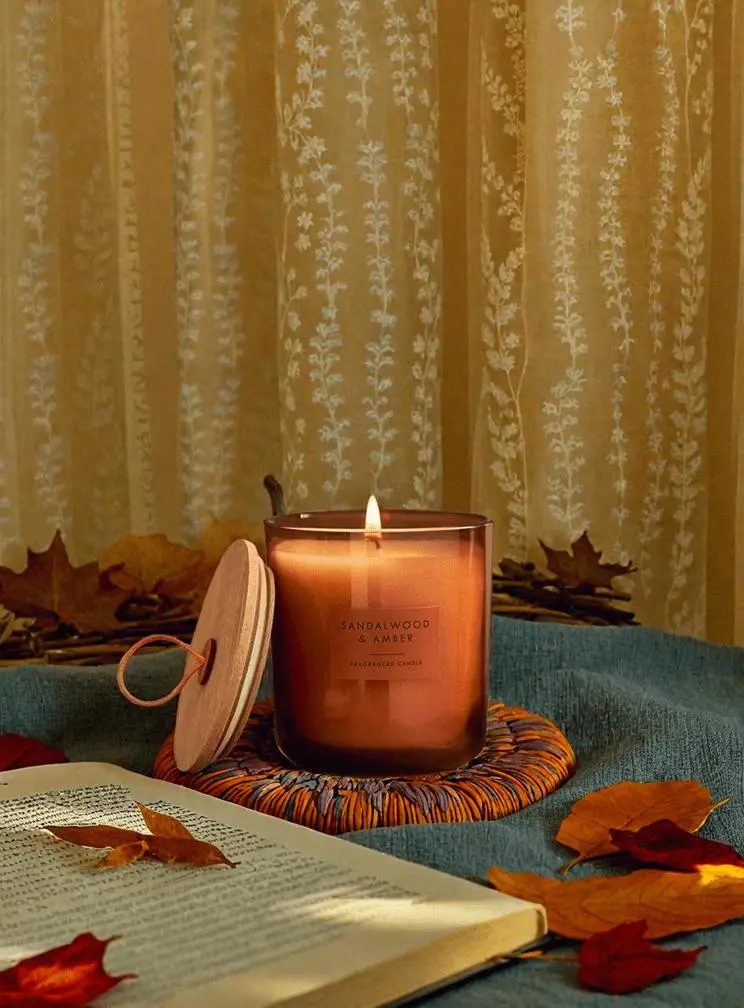
Desk Scene
Find Another Scene
Use the search tools in AI Product and Location Store to locate an environment or theme. Recheck placement and size when switching to a scene with a different perspective.