
Change the Background or Model
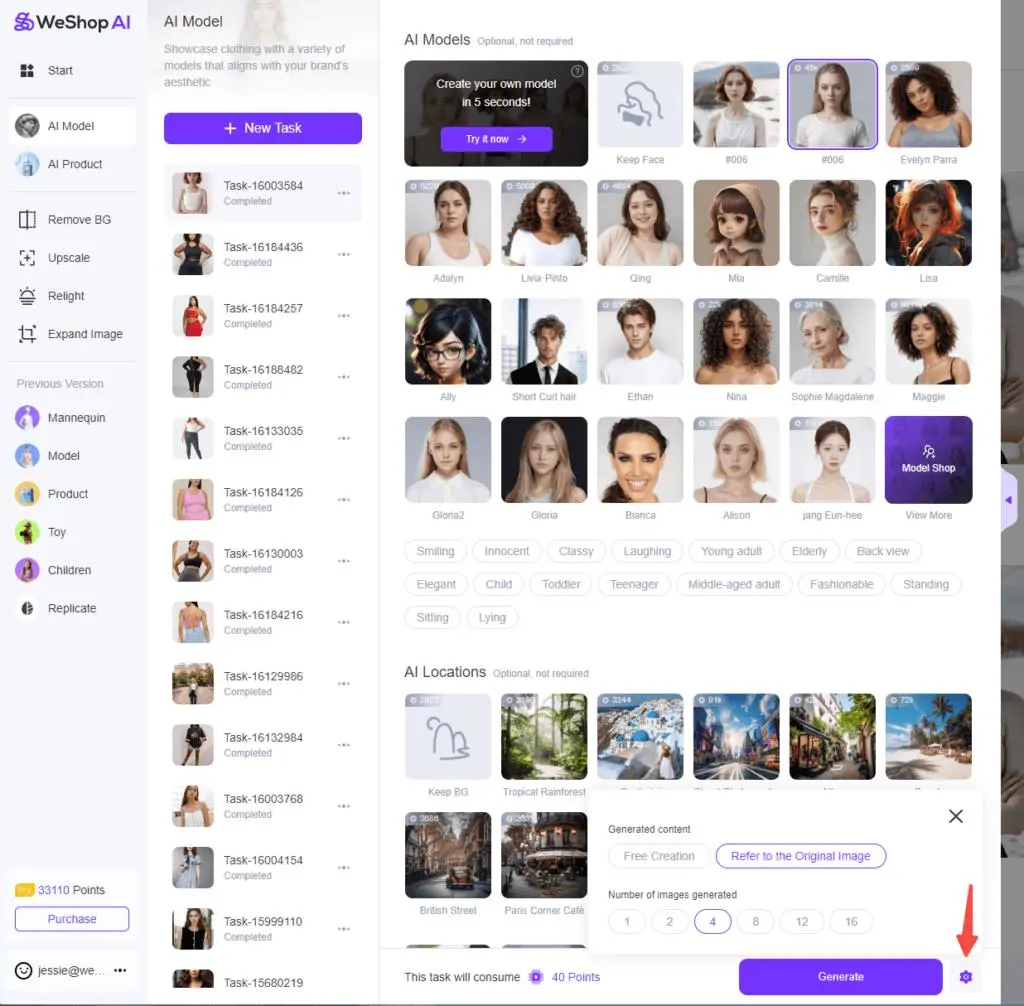
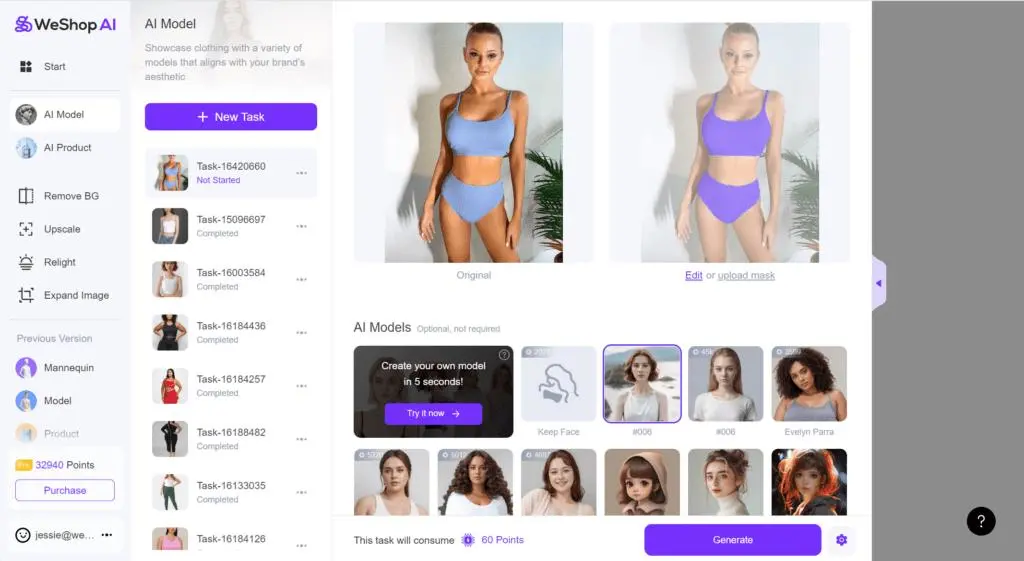
Open the AI Model tool. In Model Shop, choose a model; in Location Shop, choose a background for your image.
For a full walkthrough, see the WeShop AI User Manual and Tutorial.
Keep a Generated Model’s Appearance Consistent
- Generate an image with a random model and save the image with the appearance you want to reuse.
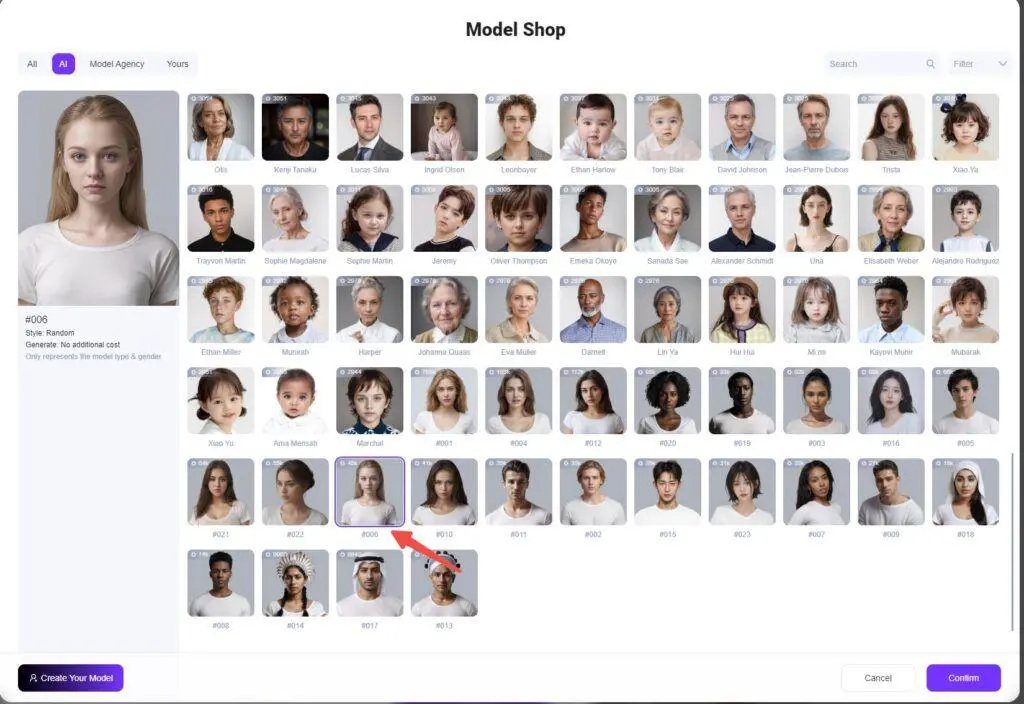
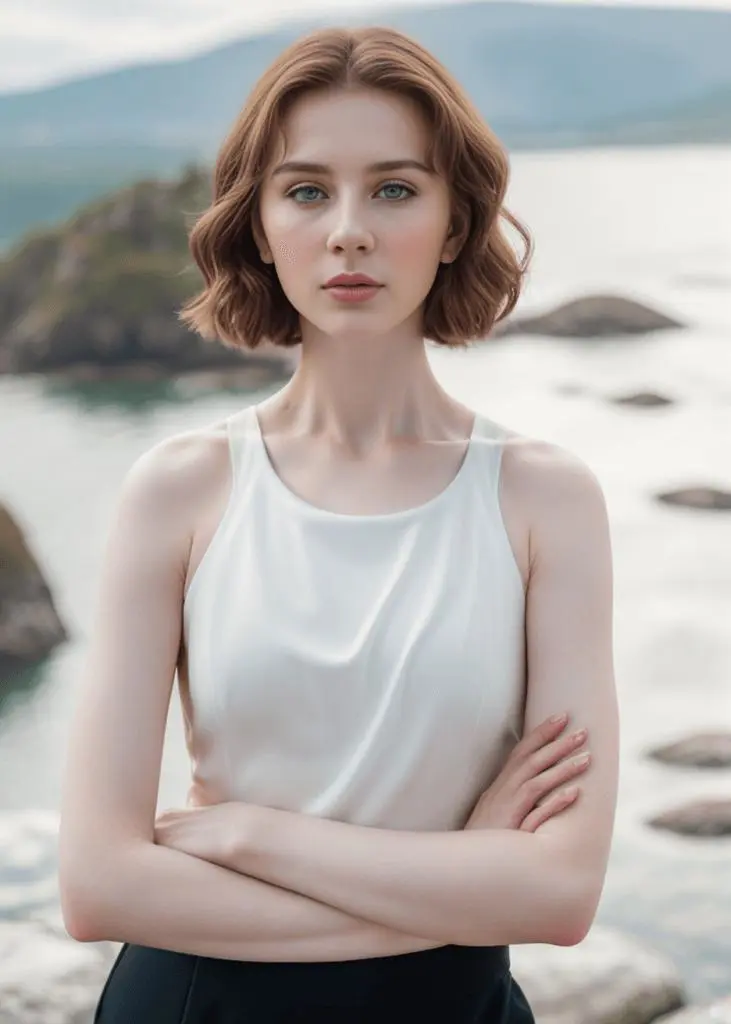
- Return to Model Shop and create a custom model by uploading the saved image.
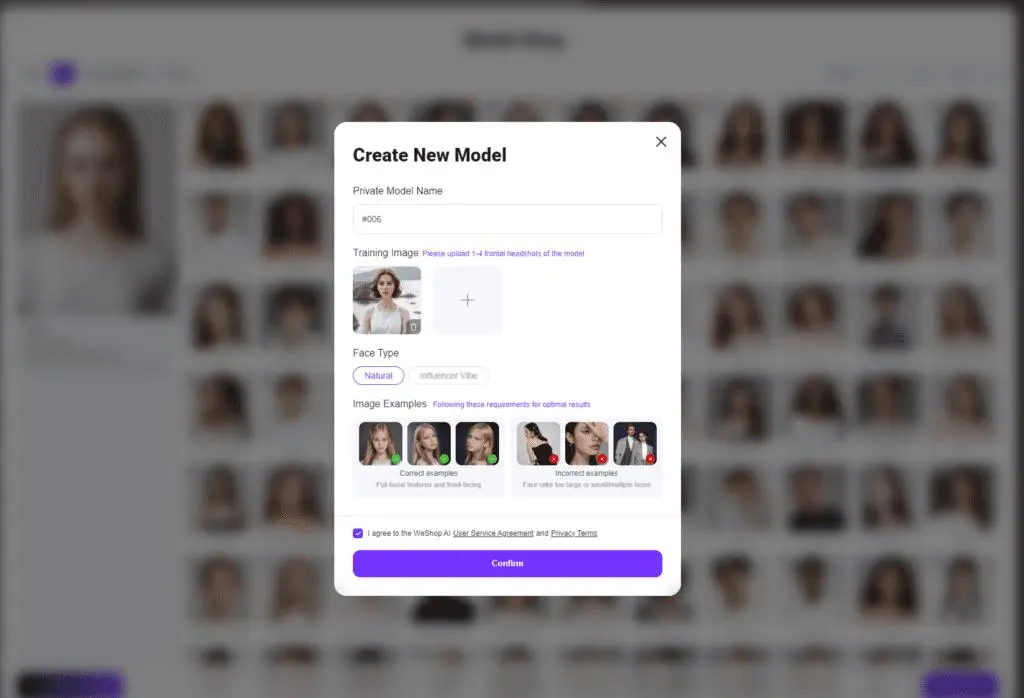
- Find the saved model under Yours and select it for future images.
Generate One Image at a Time
Click the settings icon next to Generate. Set the number of images to one, then generate your image.
Change Clothing with Edit Mask
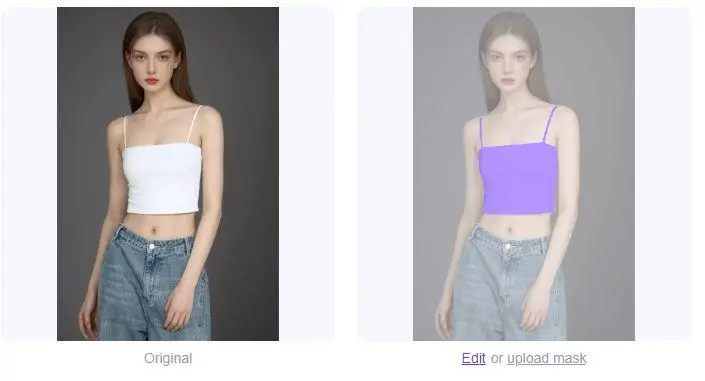
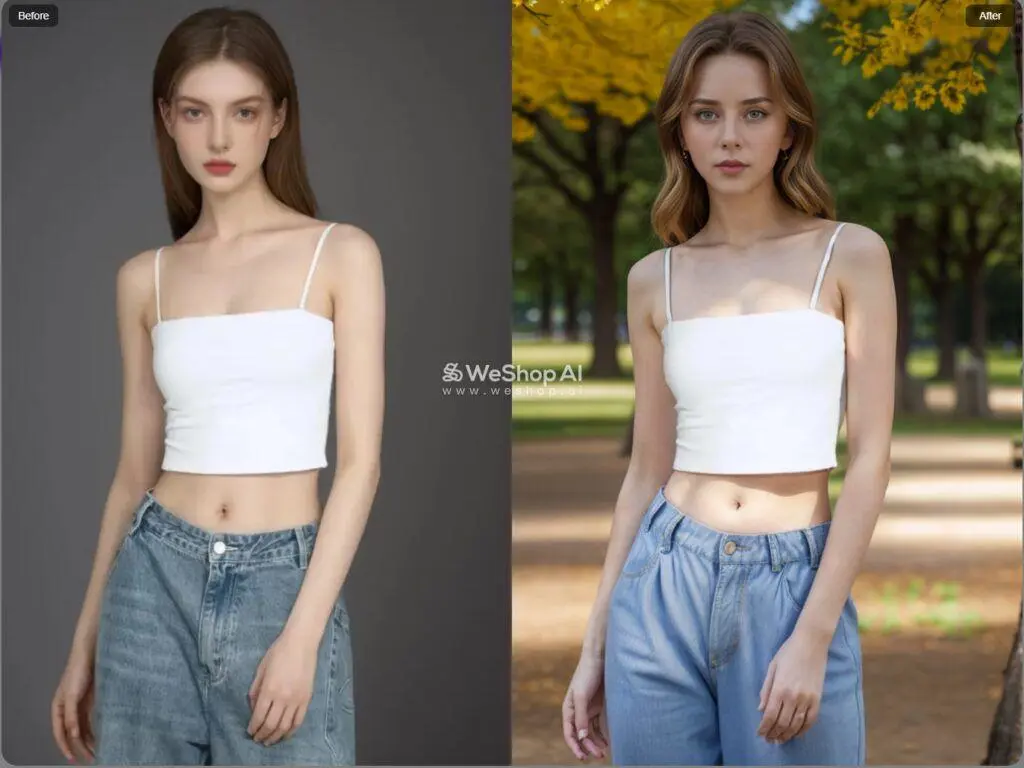
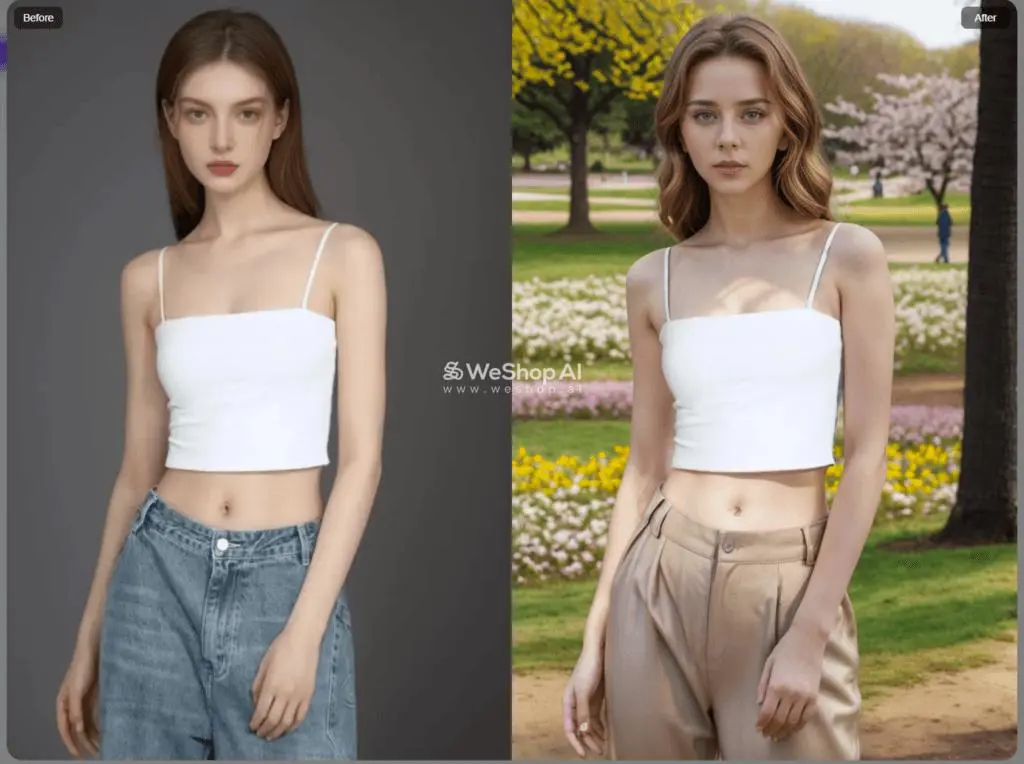
To change the pants while keeping the top, use Edit Mask to select only the top you want to keep. Describe the pants you want in the prompt, then generate the edited image.
Complete an Image with a Missing Head
- Open Expand Image and upload your image.
- Select Instagram Square, then adjust the size as needed to leave room for the missing area.
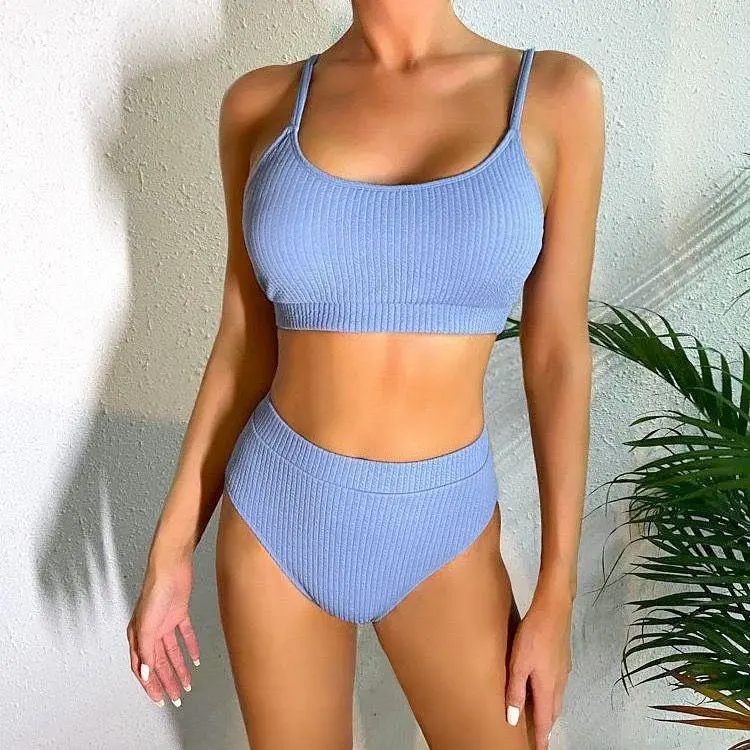
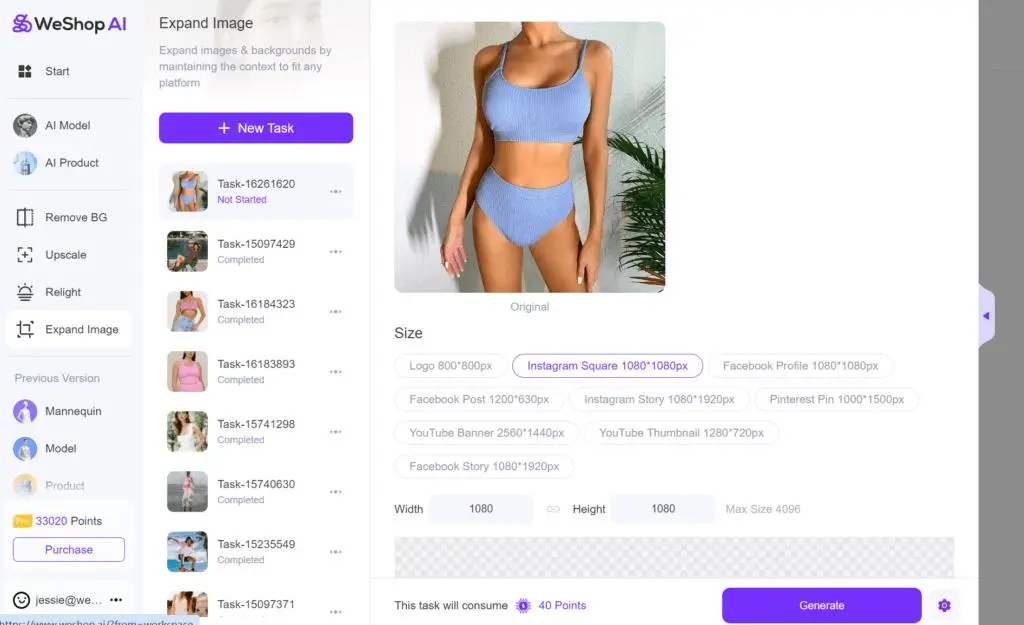
- Generate and save the expanded image.
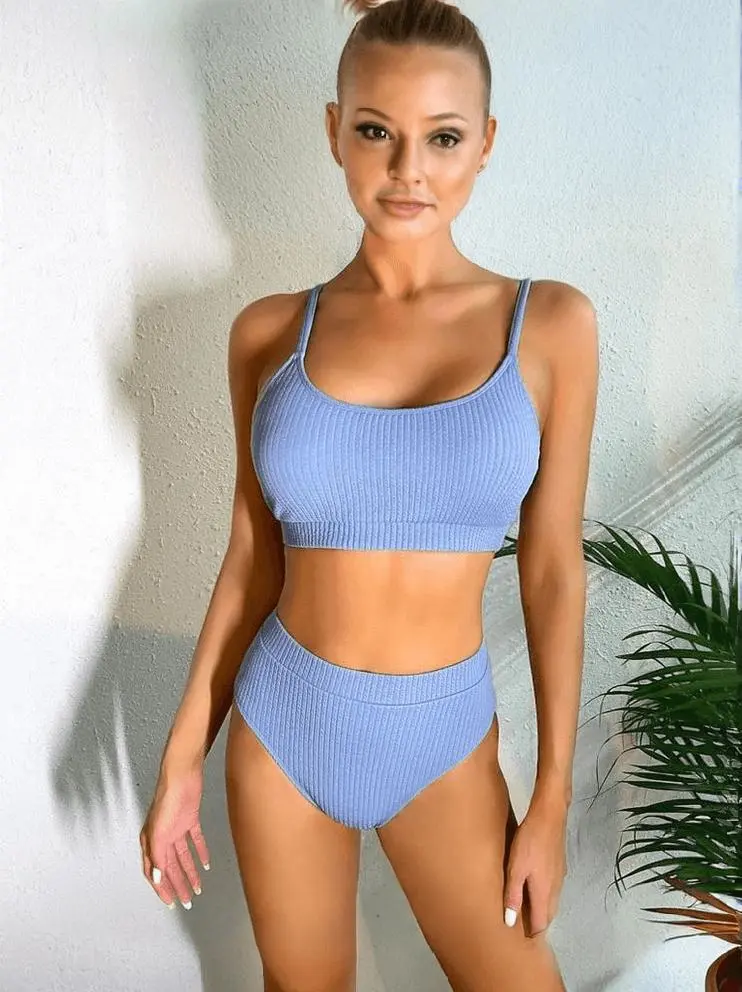
- If you want to refine the face or change the model and background, upload the saved image into AI Model.
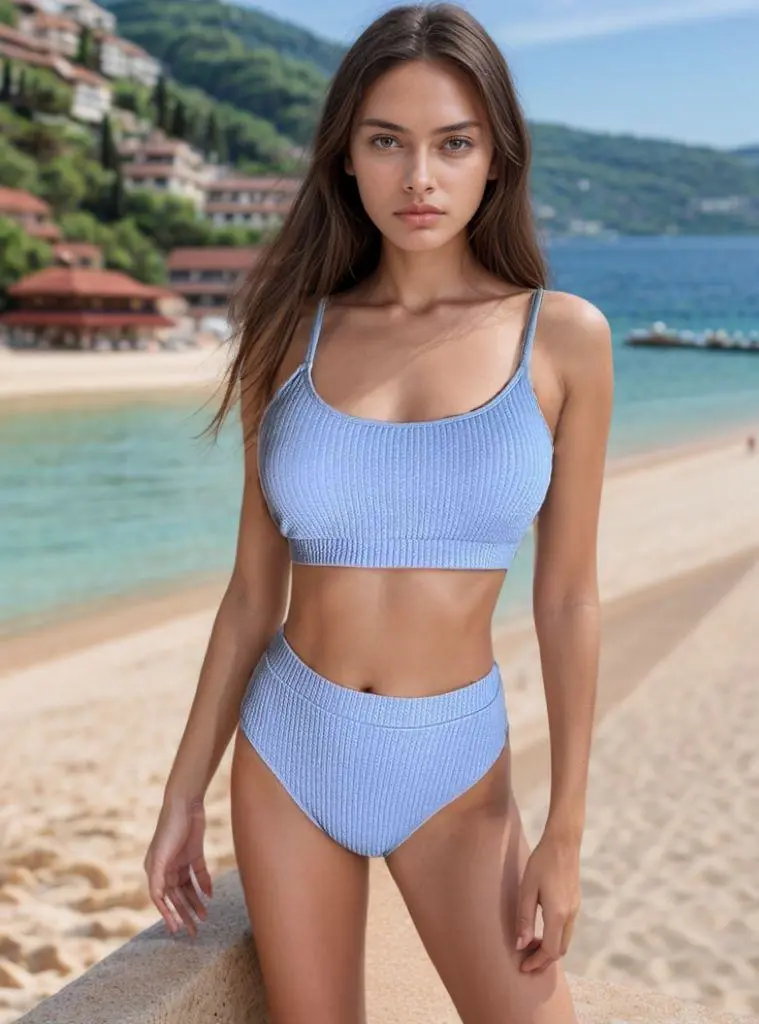
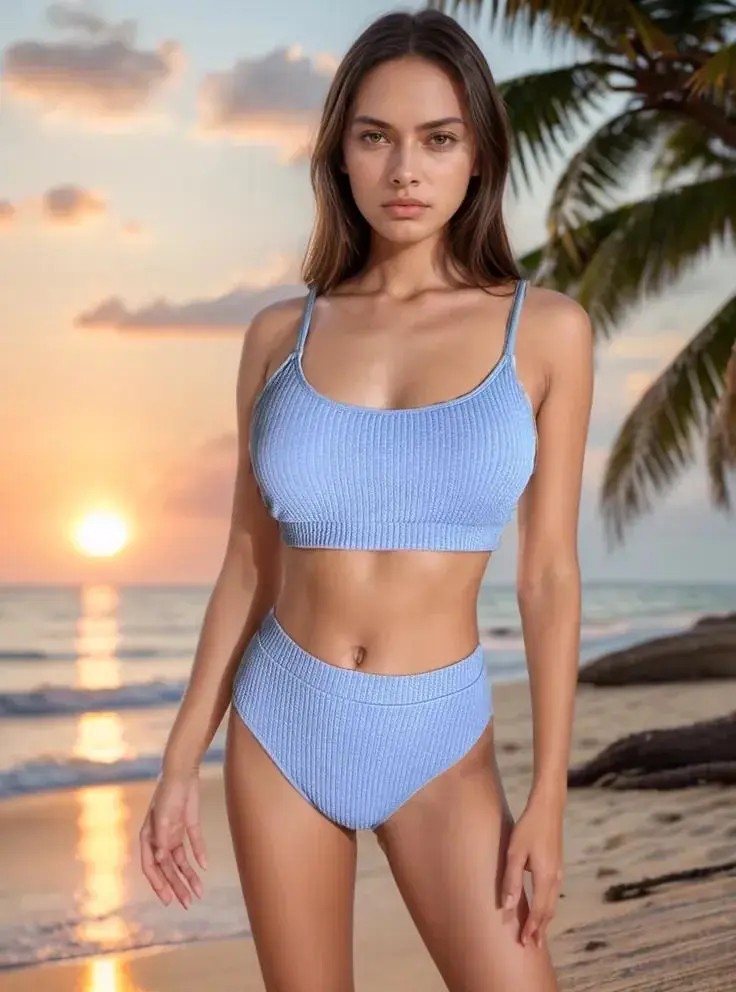
Change a Model’s Hairstyle
Describe the hairstyle you want in your prompt. You can also follow the AI Hairstyle Swap tutorial for more examples.