
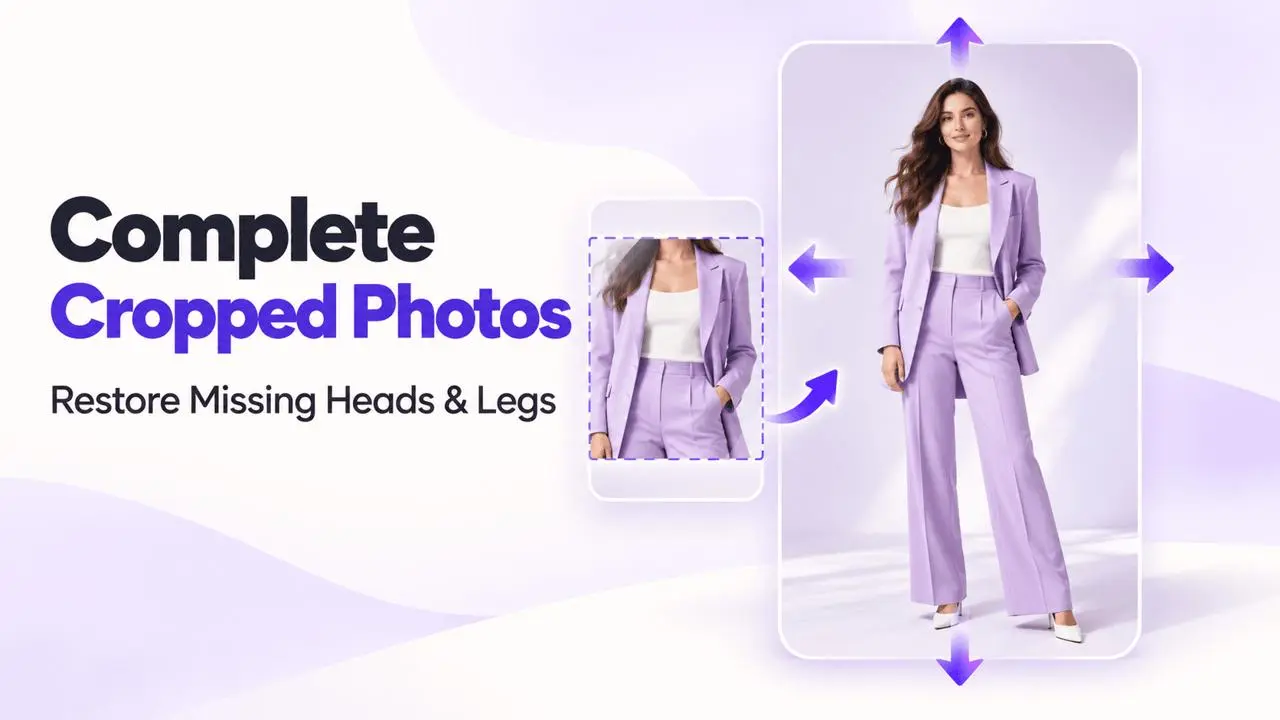
Choose a Completion Method
For a fashion image cropped at the head or legs, the source tutorial uses two workflows: expand the canvas before returning to AI Model, or use a full-body reference with Virtual Try-On.
Method 1: Expand the Image
Step 1: Upload Your Image
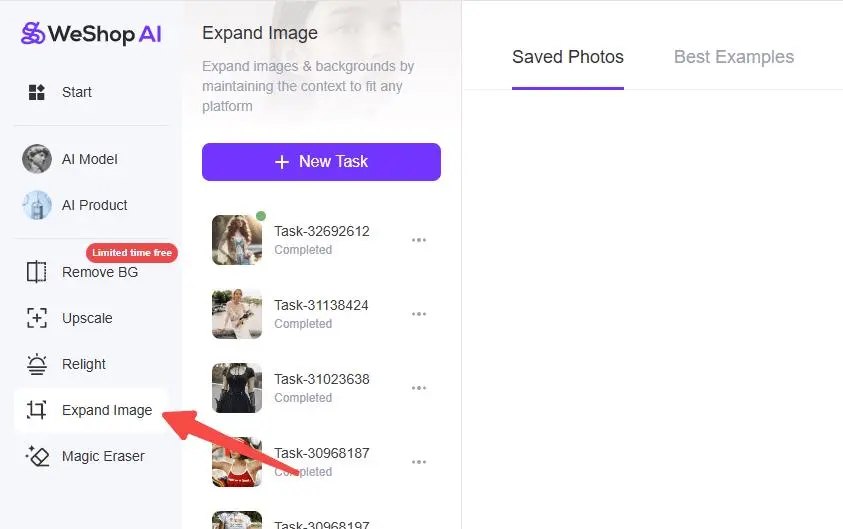
Open My Workspace, choose Expand Image, and upload the incomplete photo.
Step 2: Leave Space for the Missing Area
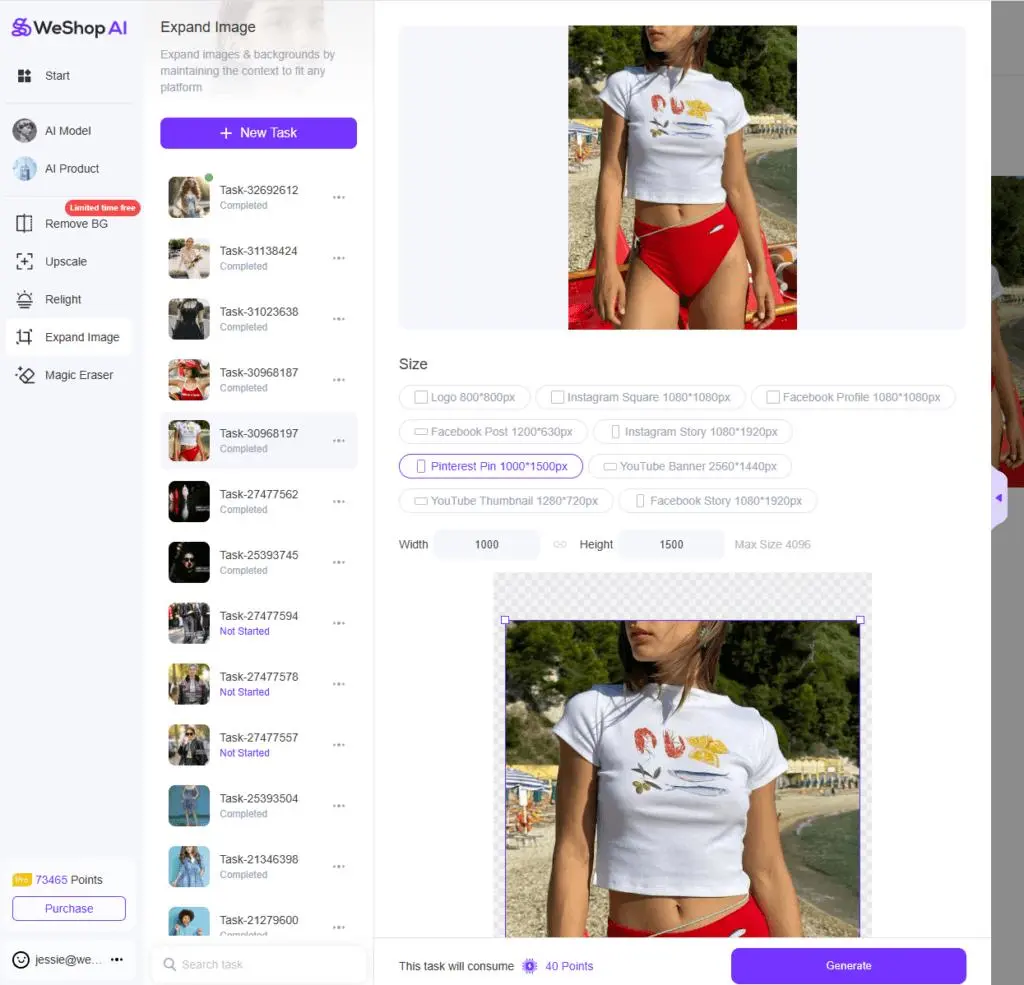
Move and position the image on the canvas. Leave enough space above the shoulders for a head, or below the existing body for missing legs. Choose an aspect ratio that provides room for a natural full-body composition.
Step 3: Save and Open AI Model
Save the expanded result, then upload it into AI Model. Select the model and any additional settings you need.
Step 4: Generate and Review
Select Generate. Review the connection between the existing image and the newly generated head or limbs, along with body proportions and clothing details.
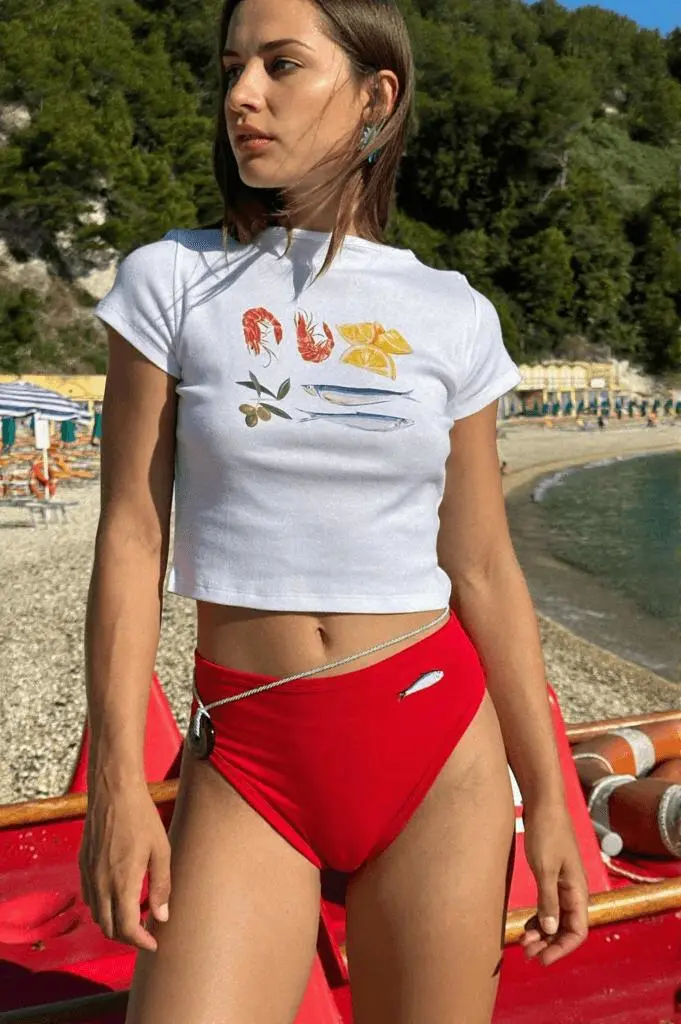
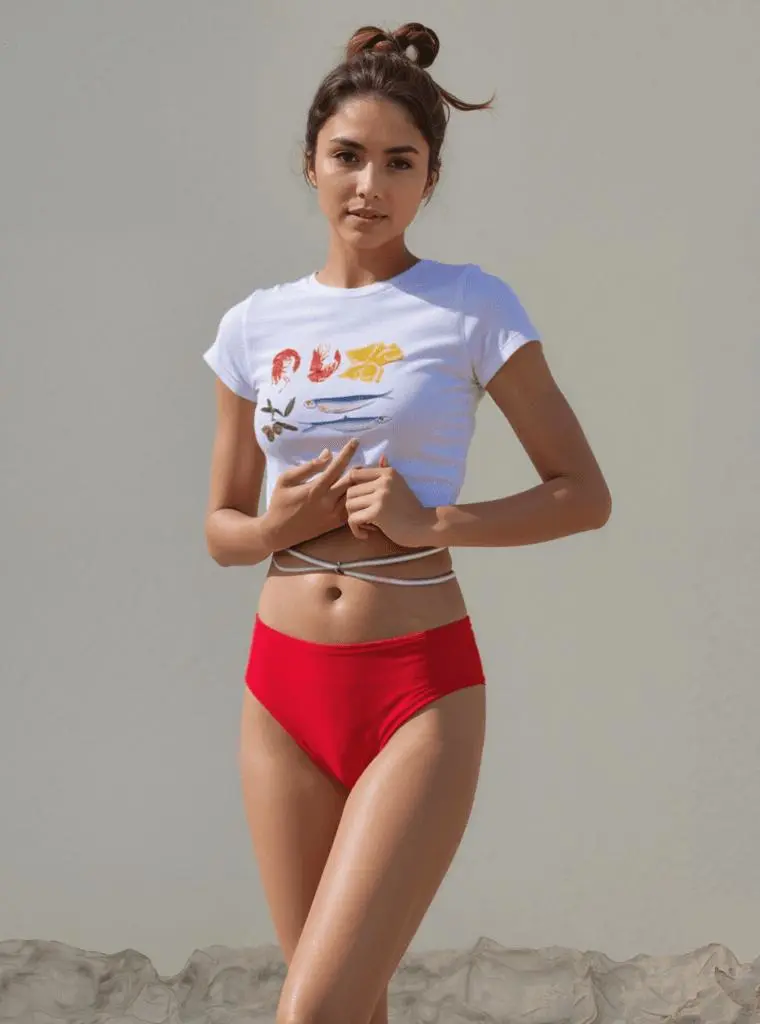
Method 2: Use a Full-Body Reference
Step 1: Upload into AI Model
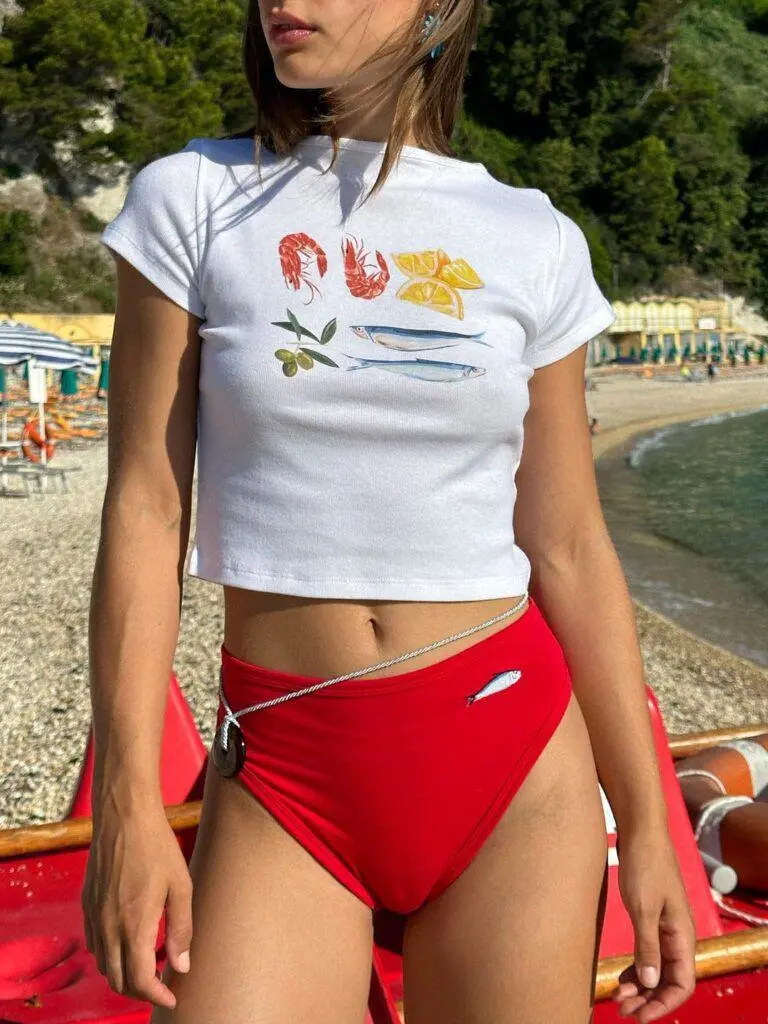
Upload your incomplete mannequin or fashion image into AI Model.
Step 2: Choose a Reference
Select an AI Location Reference Image containing a full-body shot. Use the reference to guide the missing head, limbs, and overall composition.
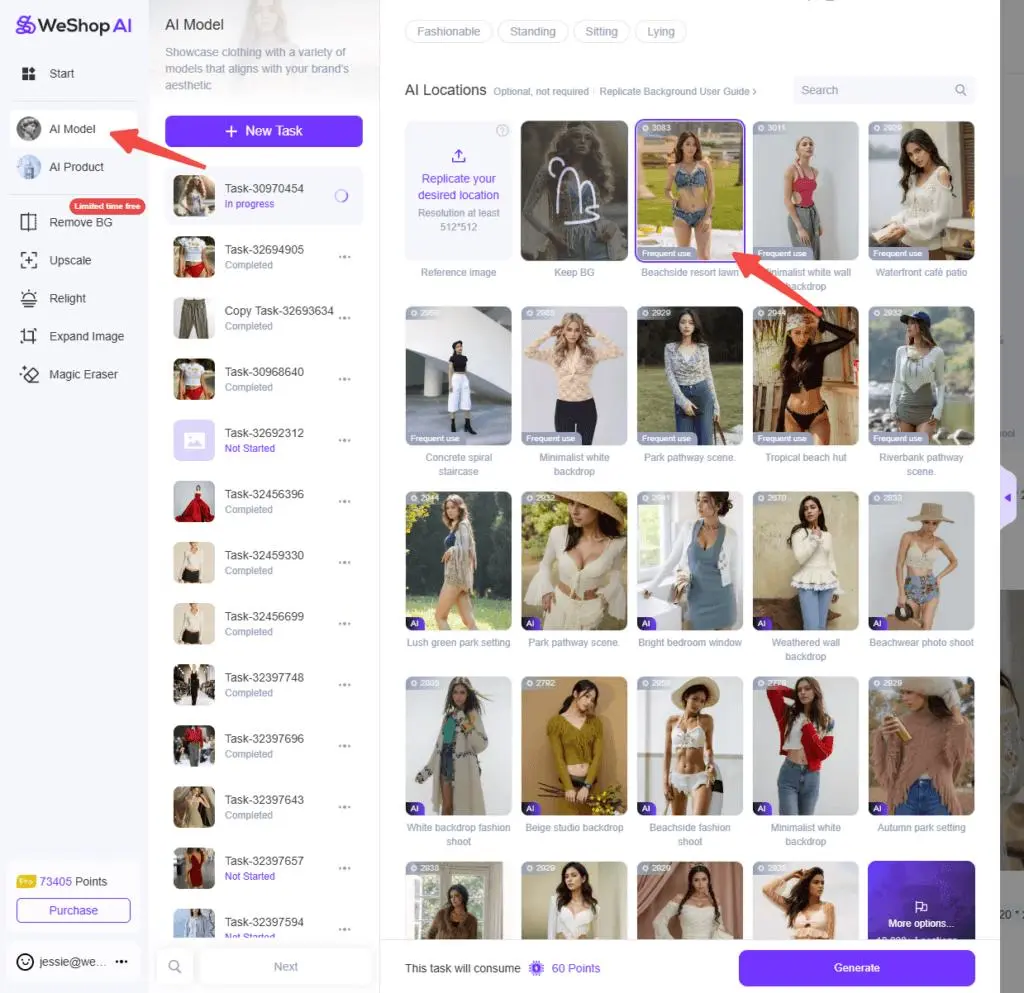
Step 3: Set Pose and Composition
In the source tutorial, Model AI Pose is set to 50%. Under photo composition, choose Refer to the Selected Location.
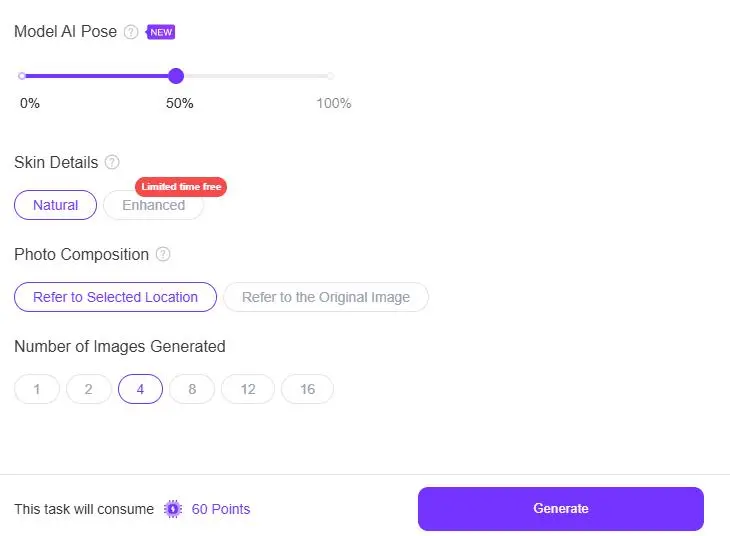
Step 4: Generate and Review
Generate the image. Check that the head and legs fit the pose, the proportions look natural, and important clothing details remain suitable for the intended use.
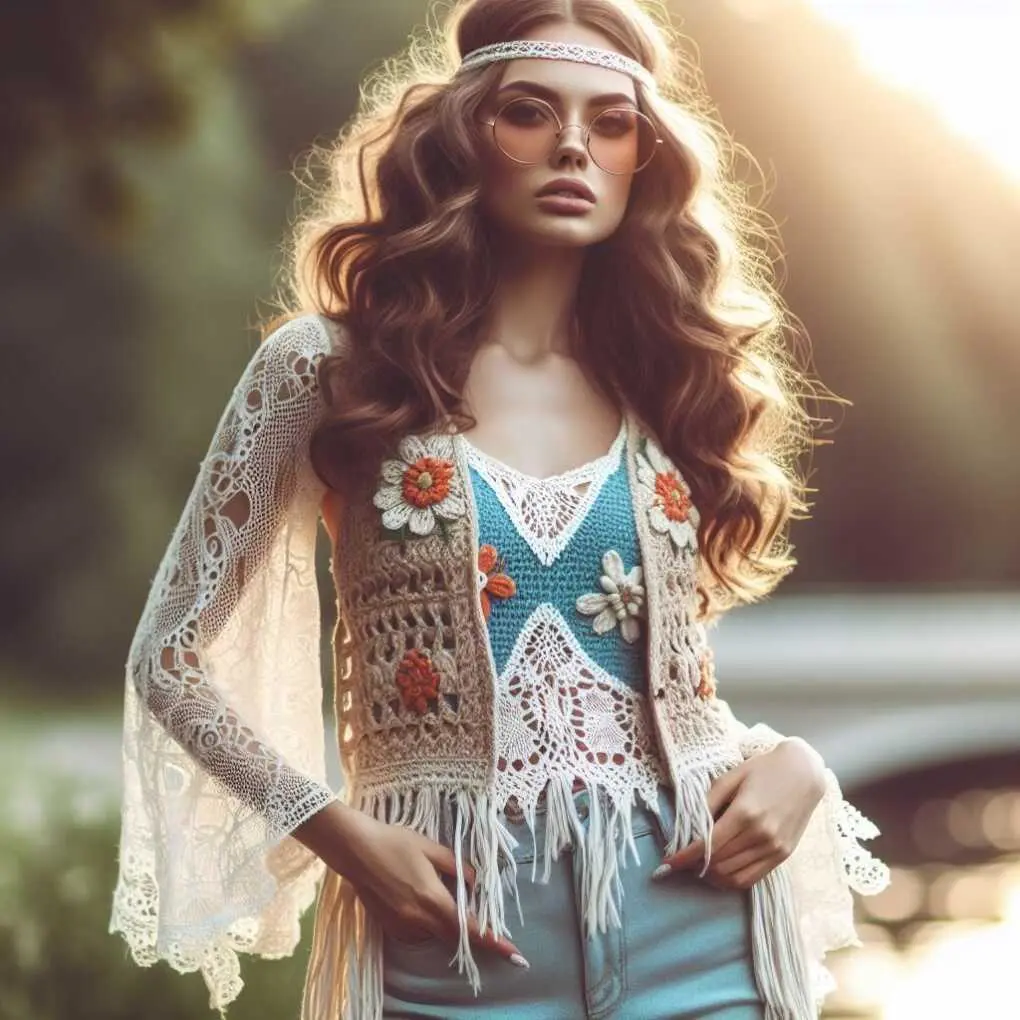
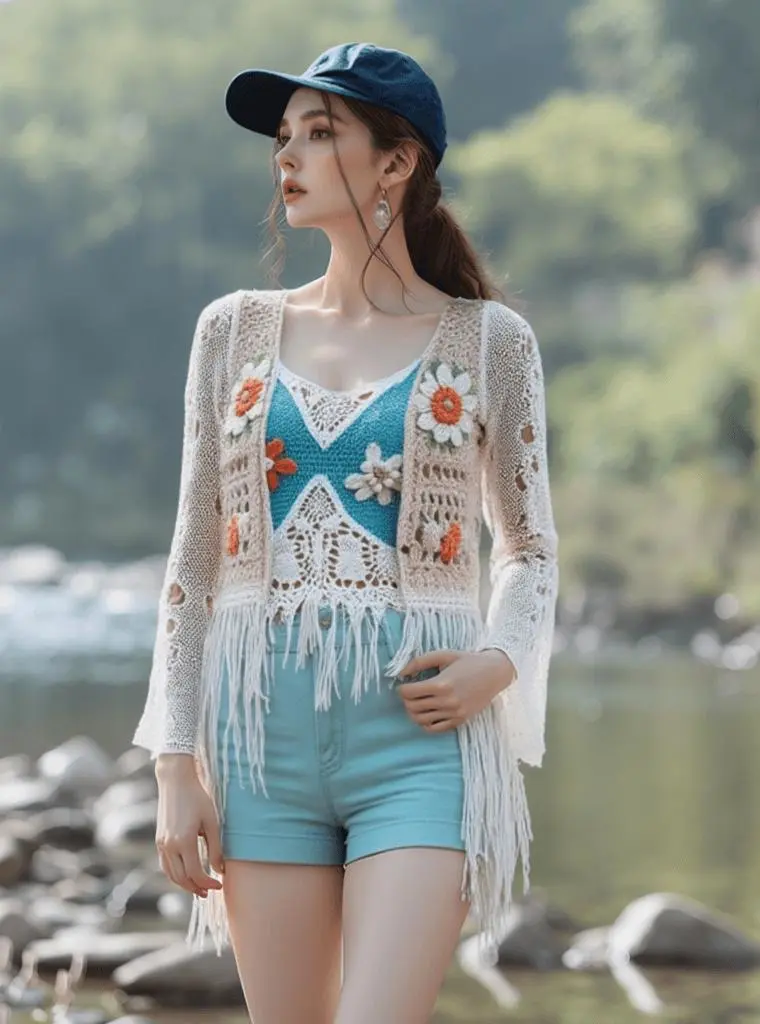
Related Walkthrough
For the video demonstration of the reference workflow, see Restore a Cropped Photo with Virtual Try-On.