

Identify the Hand Problem
Use AI Hands Fixer for a defined local defect such as an extra finger, fused fingers, an unnatural joint, or unclear hand detail. Start with an image whose overall body pose and composition already work.
Repair the Hands
Step 1: Upload Your Image
Open the hand repair tool and upload the image you want to correct.
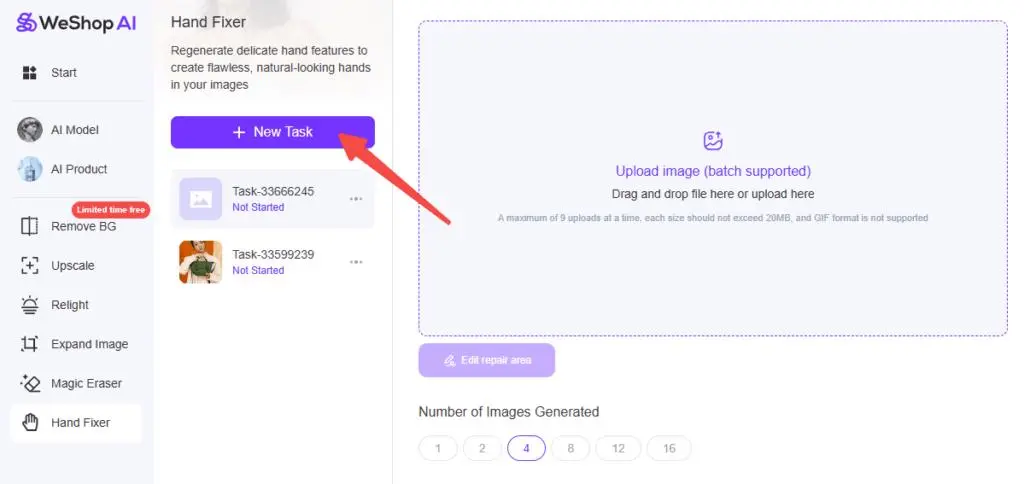
Step 2: Select the Repair Area
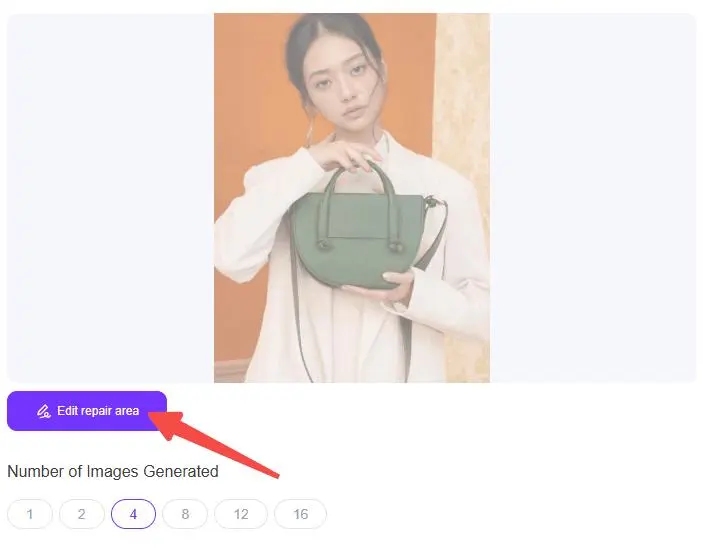
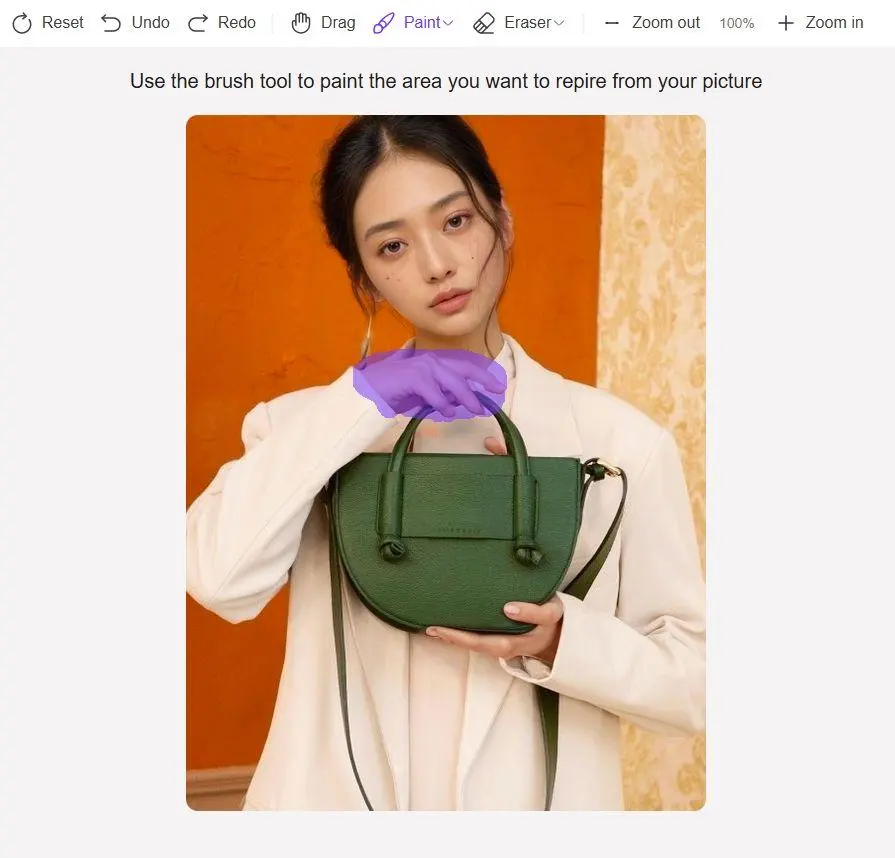
Click Edit Repair Area. Use Paint to mask the hand area that needs correction. Include enough surrounding skin for a clean transition while avoiding unnecessary changes to the rest of the image.
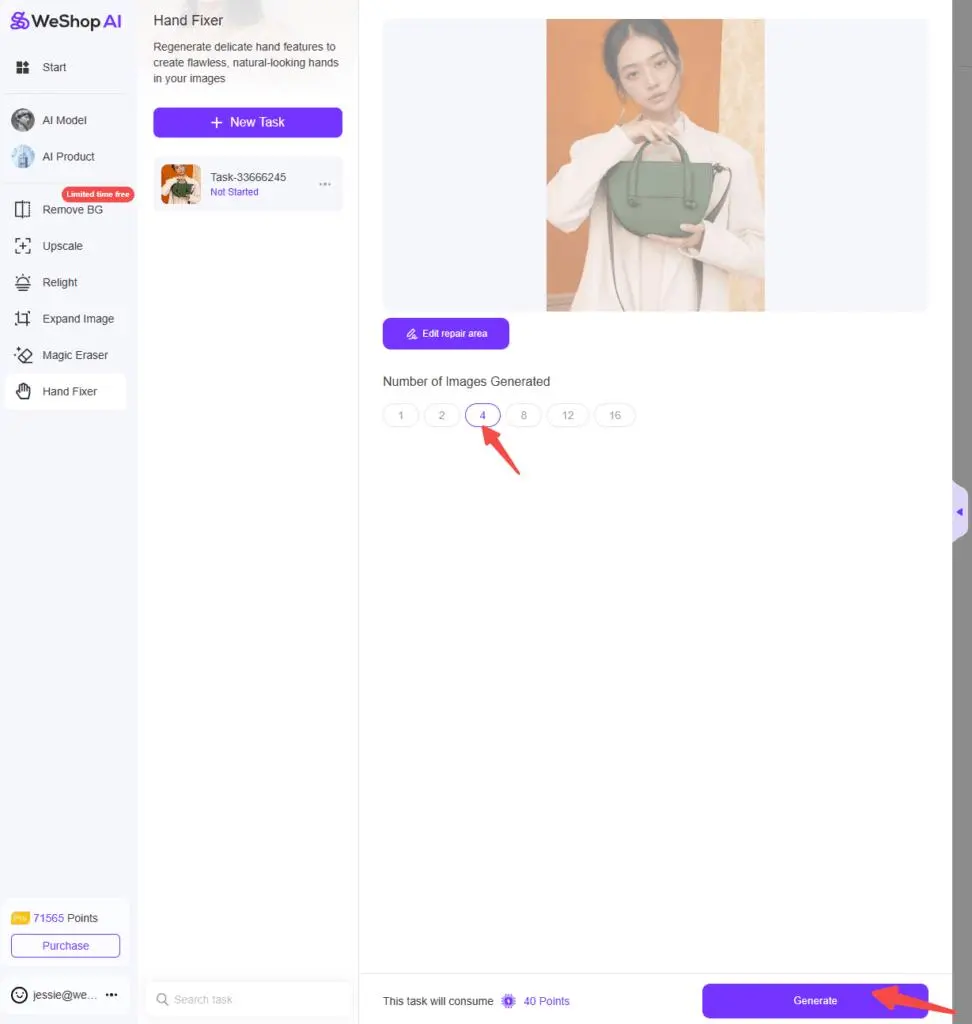
Step 3: Generate
Choose the number of output images, then click Generate. Review each result before deciding which to keep.
Before-and-After Examples
Extra Fingers
Check the number and separation of visible fingers. A sharper result is useful only when the anatomy also looks plausible.


Unnatural Joints
Trace the wrist, palm, and fingers. The repaired joints should follow the pose naturally.


Skin Detail
Compare the repaired skin with the surrounding image for tone, texture, and lighting.

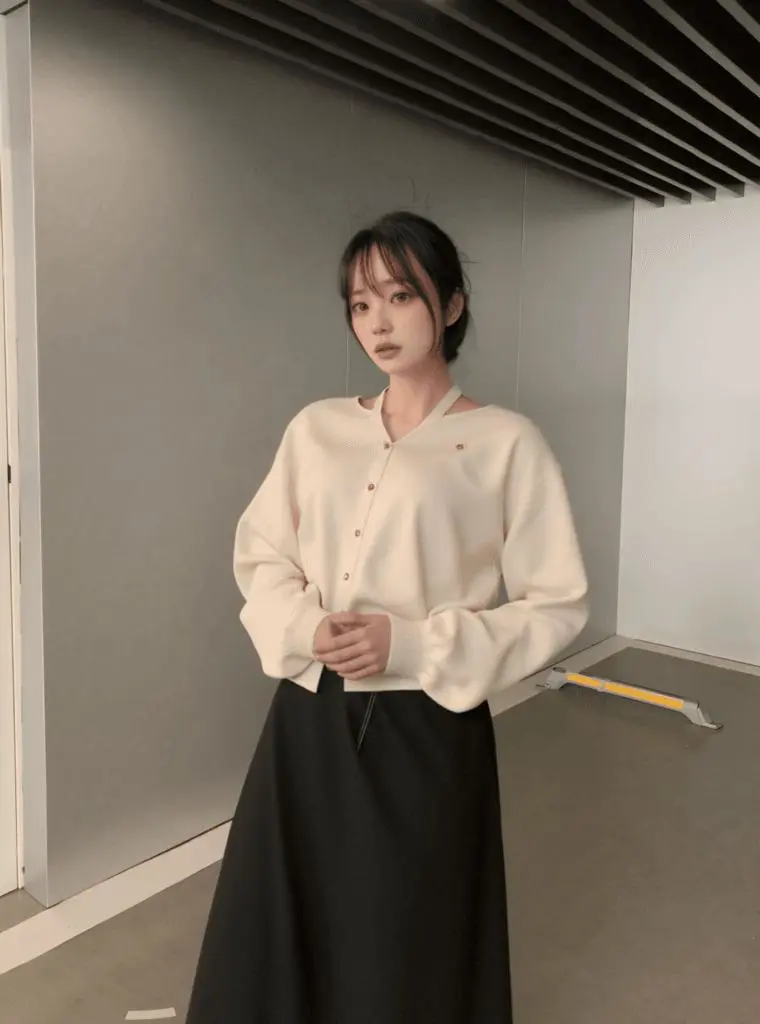
When to Choose a Different Base Image
- Hands that are very small, hidden, or only partly visible may not provide enough detail to assess or repair.
- Complex grips and hands interacting with objects require additional checks of both anatomy and product shape.
- A flat-lay product photo without visible hands is not a hand repair target.
- If the arm direction, pose, or body balance is wrong, return to the base generation instead of repeatedly repairing the hand.


Review Before Publishing
Use the Hands and Feet Fixer Quality Checklist to check anatomy, product contact, lighting, and when to regenerate.