

Choose the Right Cleanup Method
A negative prompt discourages an unwanted item during generation. To remove one specific object from an existing photo, a brush-based mask gives clearer control over the area to rebuild. Choose the method that fits your task, then review the result for changed edges, shadows, reflections, and patterns.
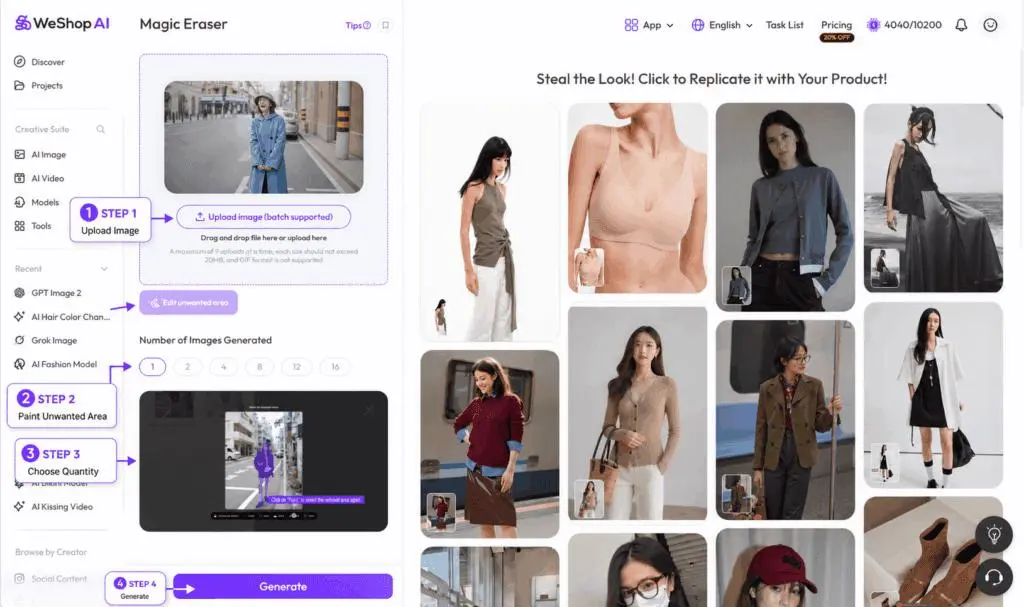
Use Positive and Negative Prompts
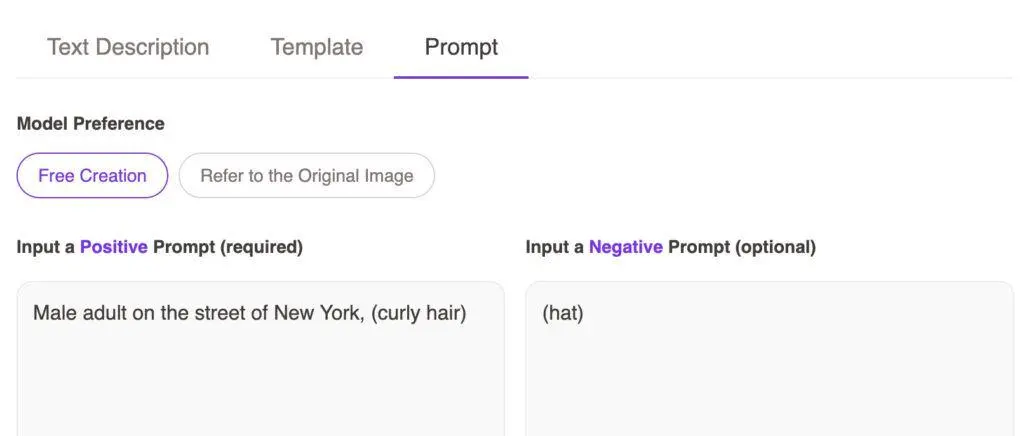
Open the prompt controls beside the text description and templates in the generation workflow shown in the source tutorial.
- Positive prompt: Describe what should appear in the result.
- Negative prompt: Name the object you want to exclude, such as
hatorglasses. - Free Play: Gives the generation more freedom to interpret the prompt.
- Refer to Original Image: Guides generation more closely toward the source image.
In the negative field, use the unwanted object’s name rather than a command such as “do not include hats.”
Example 1: Exclude a Hat
The tutorial uses Male adult on the street of New York, curly hair as the positive prompt and hat as the negative prompt.
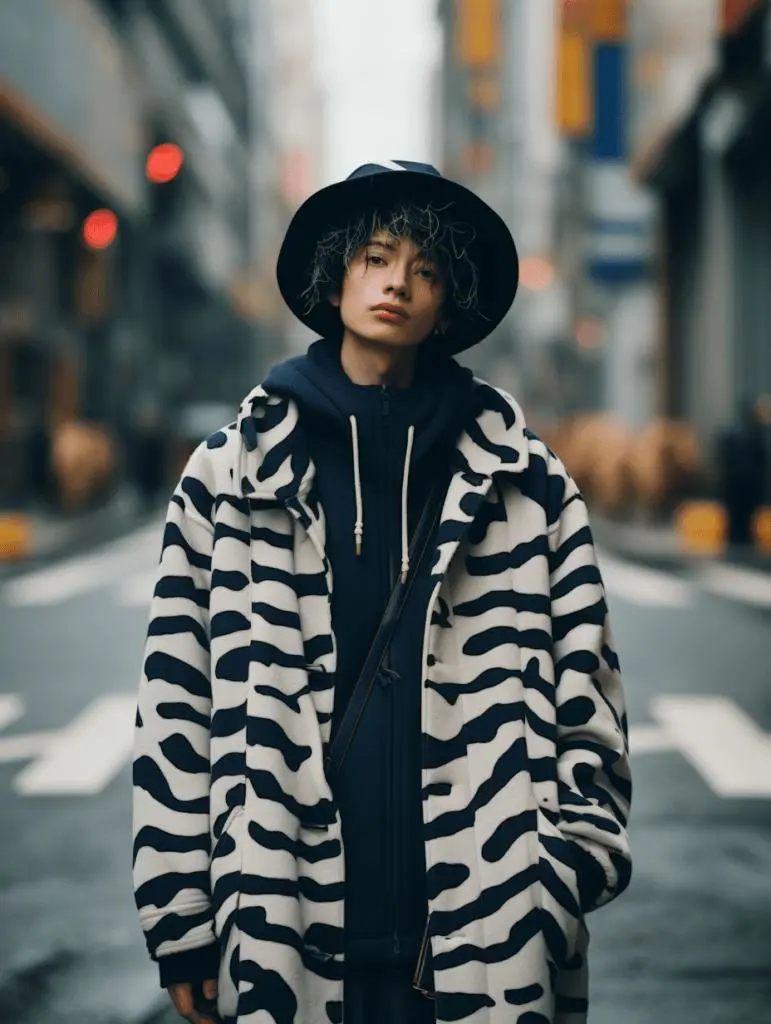
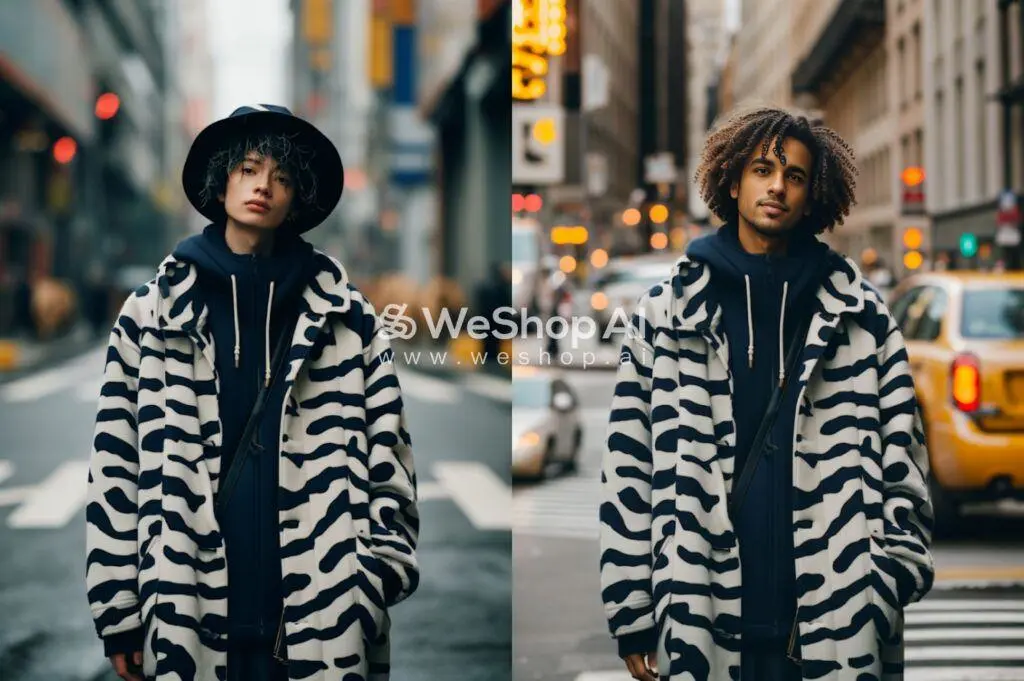
Example 2: Adjust Prompt Emphasis
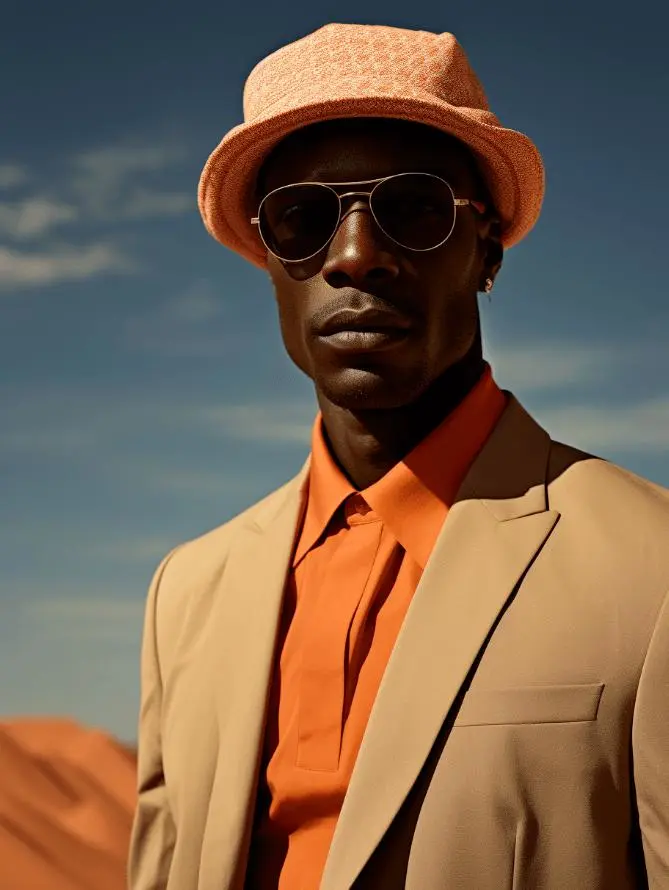
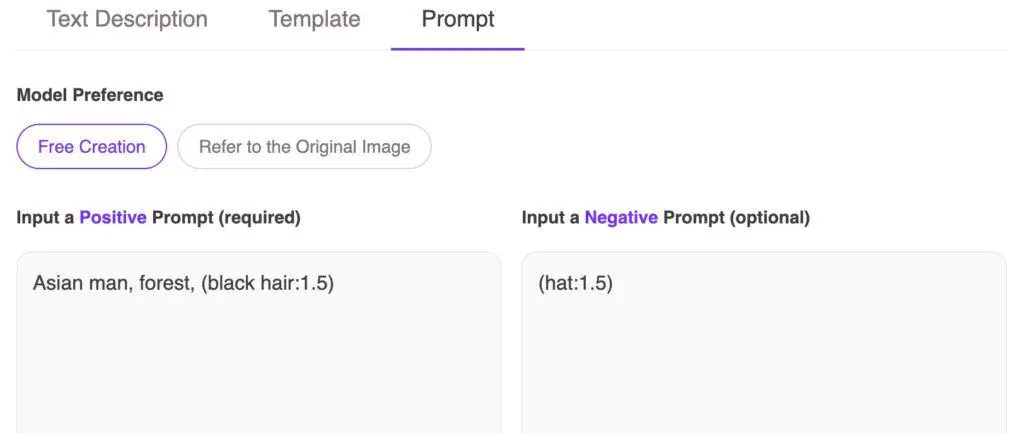
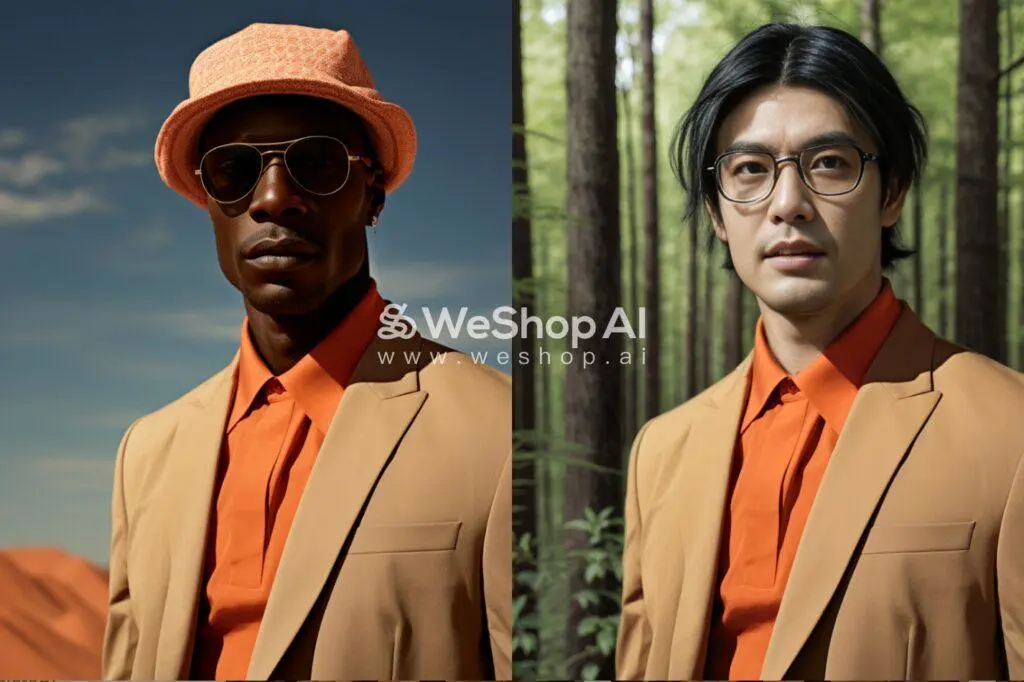
In the tutorial’s AI Model workflow, the garment is selected as the area to keep while the head can be regenerated. The positive prompt is asian man, forest, (black hair:1.5) and the negative prompt is (hat:1.5).
The parentheses and numeric weight are examples from this prompt interface. They emphasize the associated term; they do not guarantee that every generation removes the object.
Example 3: Exclude Glasses
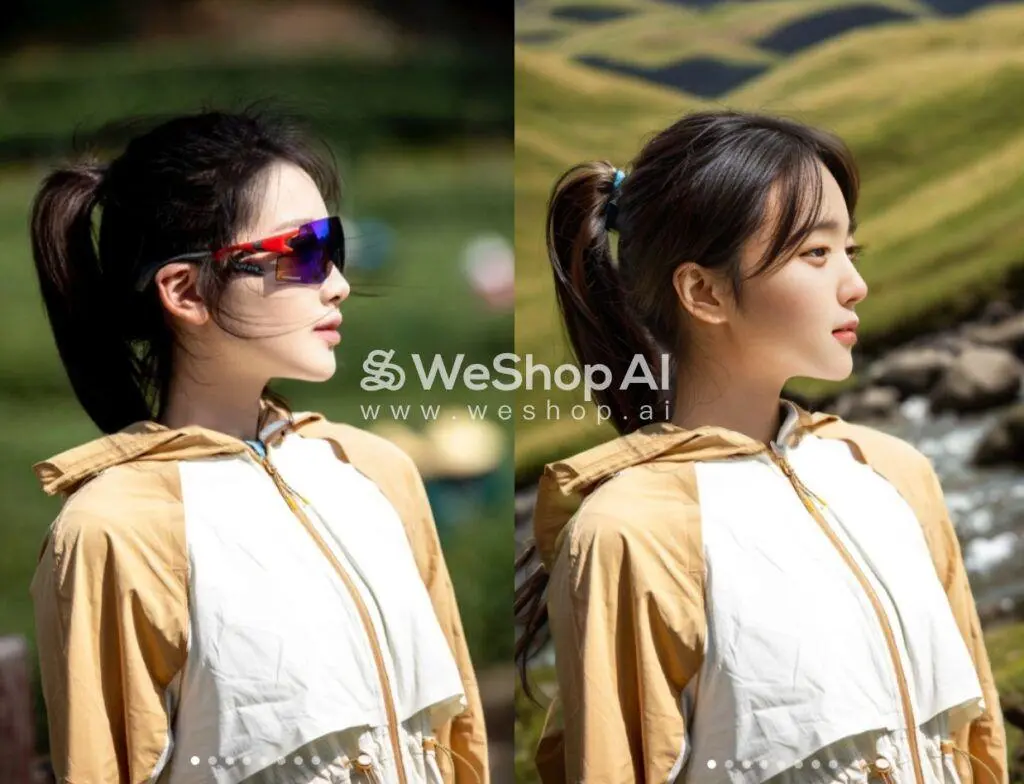
The source example uses asian woman, mountain trails, beautiful eyes in the positive prompt and (glasses:1.5) in the negative prompt.
Check the Result
For exact cleanup in an existing photo, keep the repair area local. Compare the generated result with the source at full size and at the intended display size. Check the reconstructed area, nearby product edges, shadows, reflections, and repeated patterns before saving a result.