
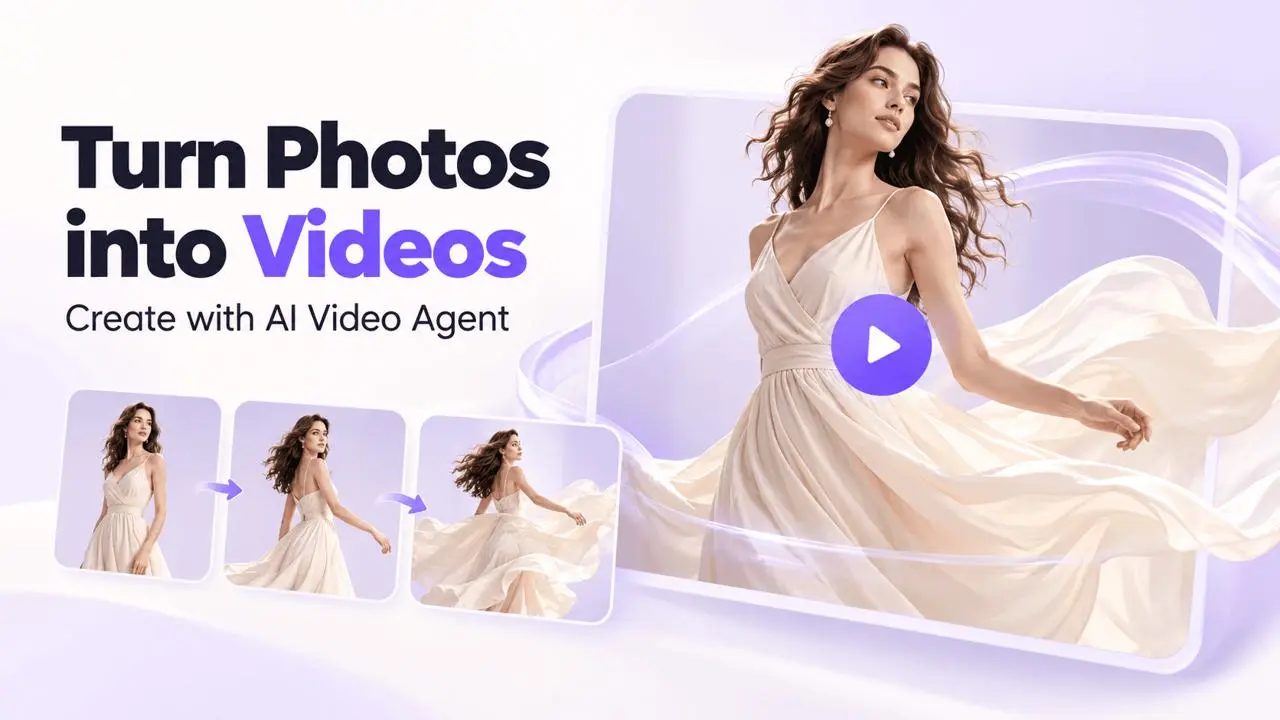
Prepare a Clear Source Image
Use a well-lit product or model photo with a clear subject. Full-body or half-body fashion photos show garment movement well. For flat-lay products, start with subtle camera movement rather than a complex body action.
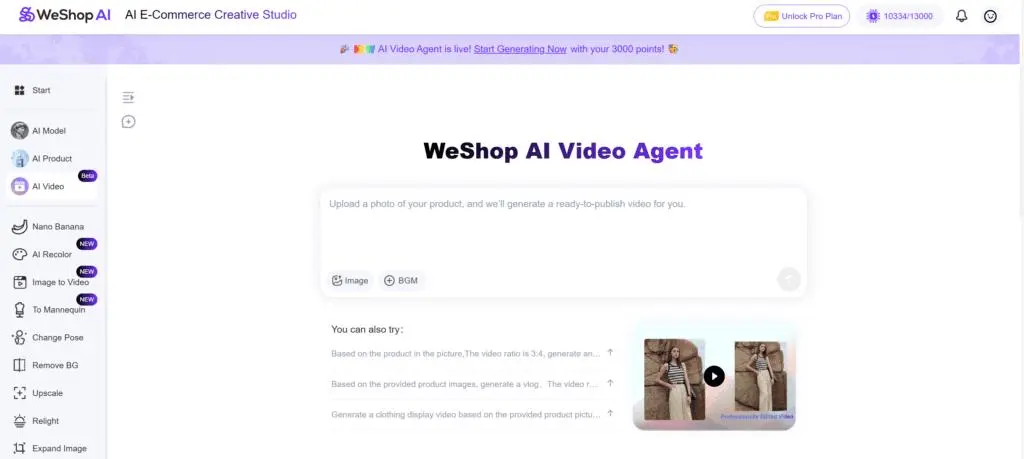
Step 1: Open AI Video
Sign in and select AI Video from the main menu to open the video workflow.
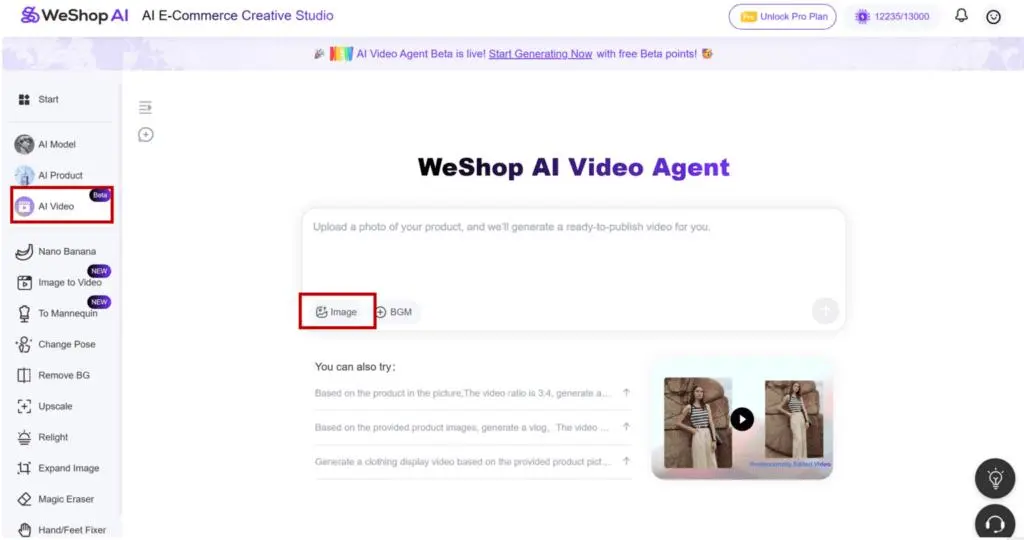
Step 2: Upload the Image
Upload your product or model image. A simple background and even lighting help make the subject easier to interpret.
Step 3: Describe the Motion
Write a prompt covering action + camera + mood, lighting, or style. Describe one clear movement first, such as a gentle turn, a slow walk, or a close-up camera move.
Example:
The model gently turns toward the camera. Add subtle fabric movement and a slow close-up that shows texture and stitching. Keep the lighting soft and the garment details consistent.
Choose duration and aspect ratio from the options available in your workflow. A prompt request does not replace those controls.
Step 4: Review the Storyboard
After submitting the image and prompt, inspect the preview scenes. Edit or replace scenes before continuing. For a product showcase, include a full-body view, an upper-body view, and a detail close-up where appropriate.
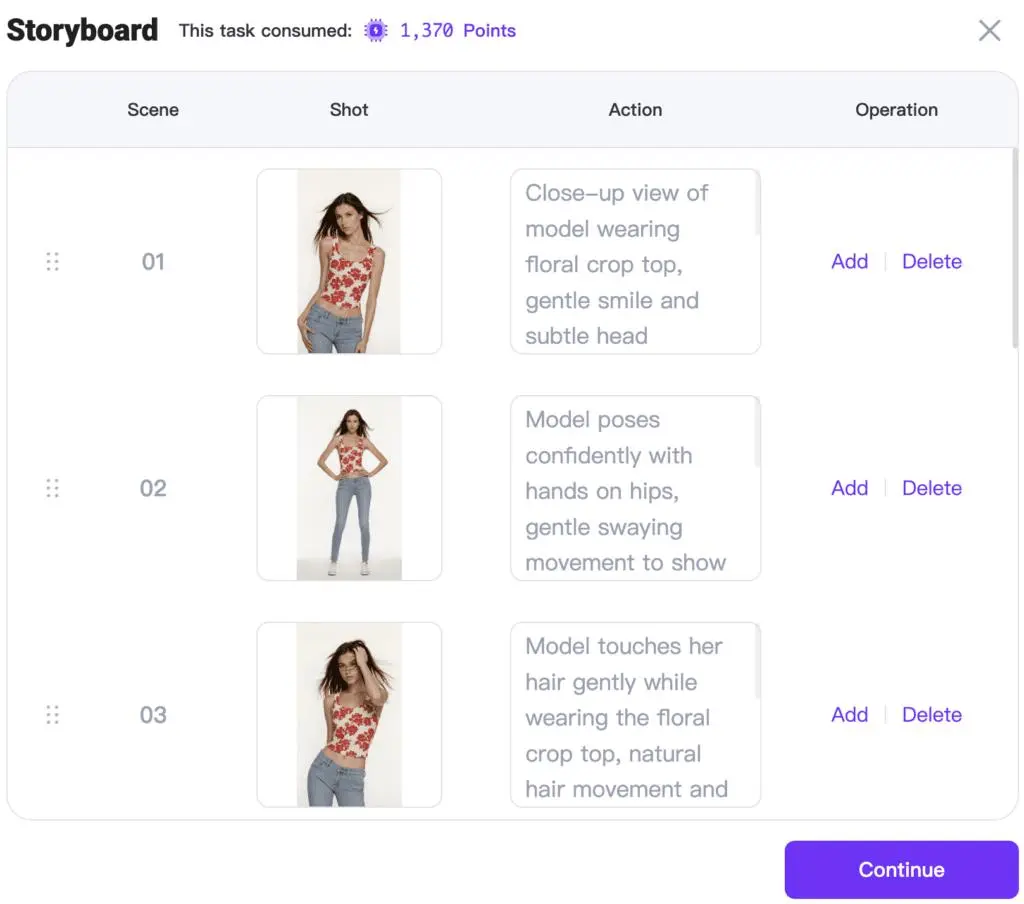
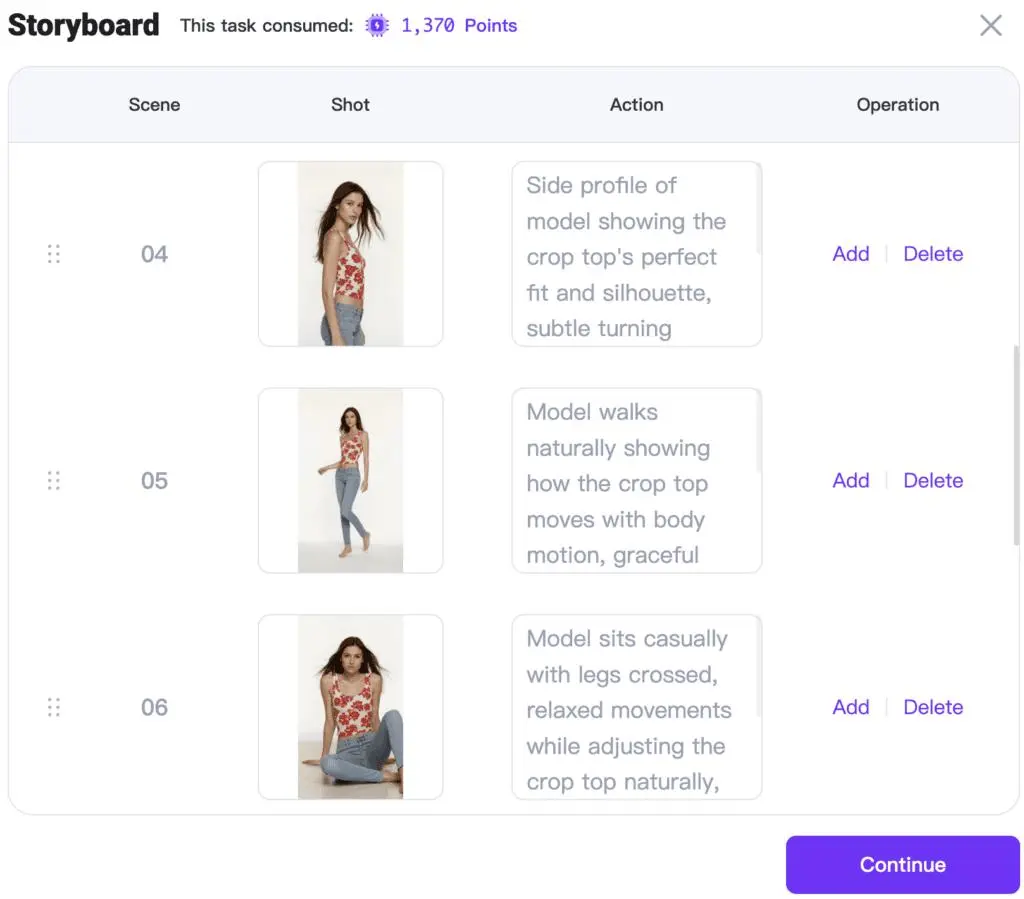
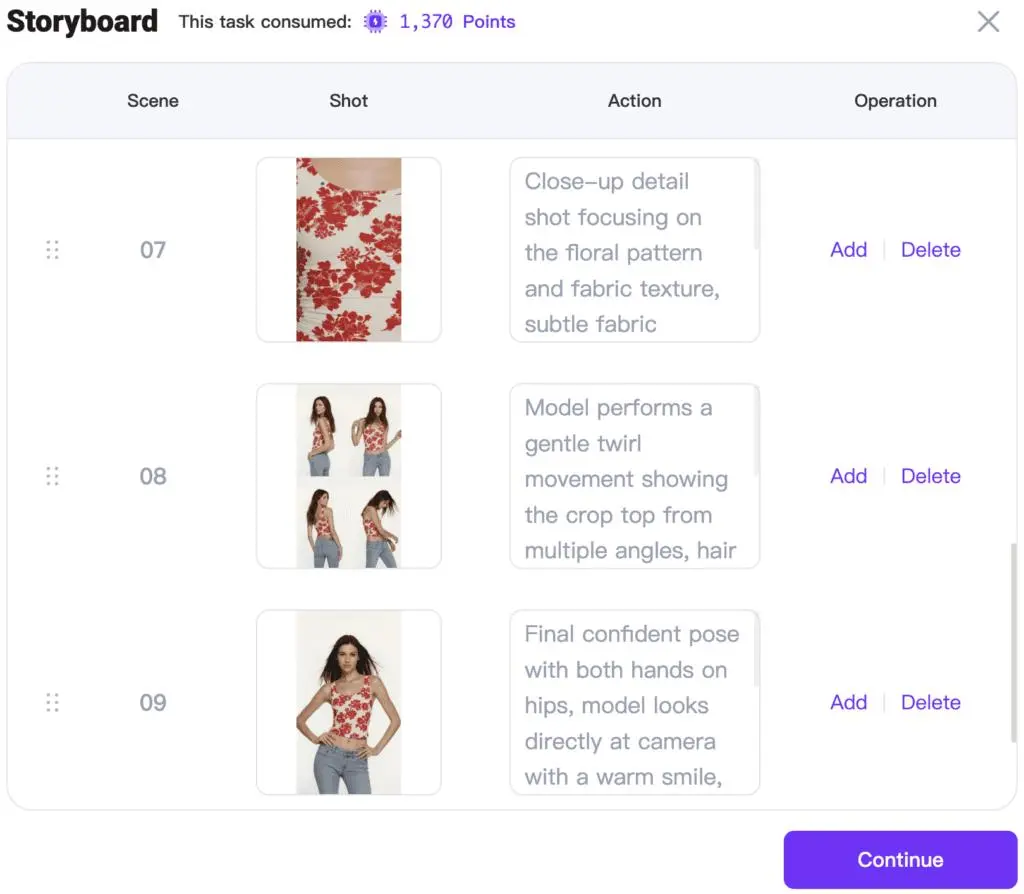
Step 5: Generate and Refine
Select Continue to generate the final clips. Review movement, camera transitions, clothing shape, product details, lighting, and the model’s expression.
If needed, refine one part of the prompt: for example, request subtle fabric flow, a neutral expression, or a softer camera move. Use the available export controls when you are satisfied with the result.
Source Image and Video Examples
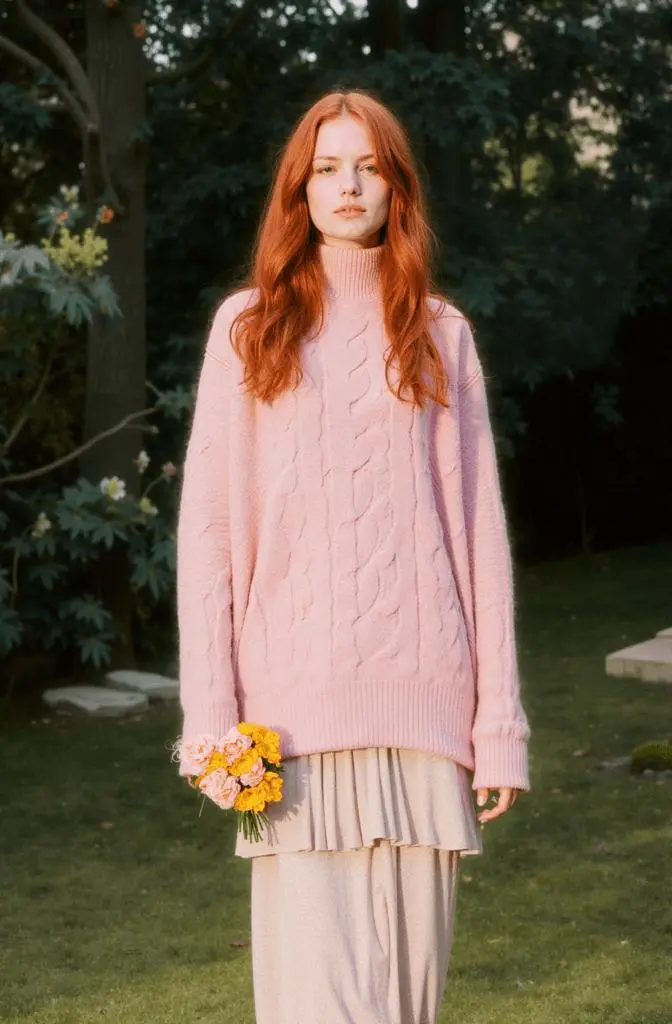
Watch the generated fashion video example (MP4)
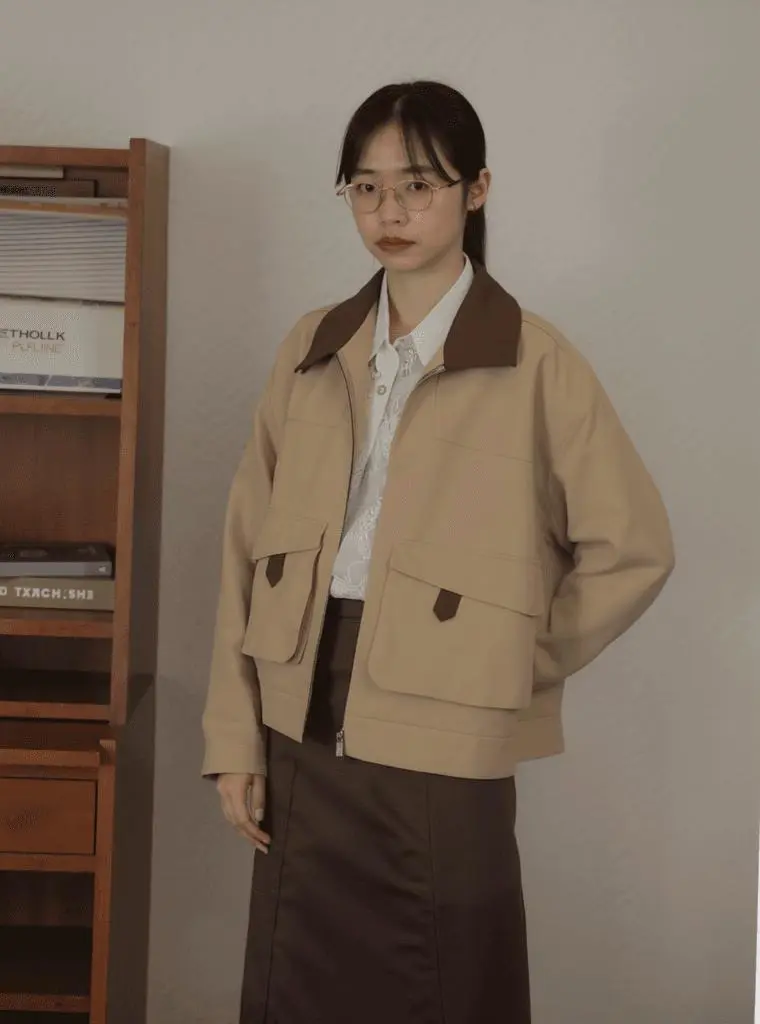
Watch the vest motion video example (MP4)
Match the Clip to Its Use
- Product page: Prefer restrained motion that leaves texture and fit easy to inspect.
- Social video: Use the available vertical format and a clear opening shot.
- Landscape banner: Leave enough space in the frame and keep camera moves controlled.
- Detail clip: Focus on fabric, stitching, or a specific product feature.