
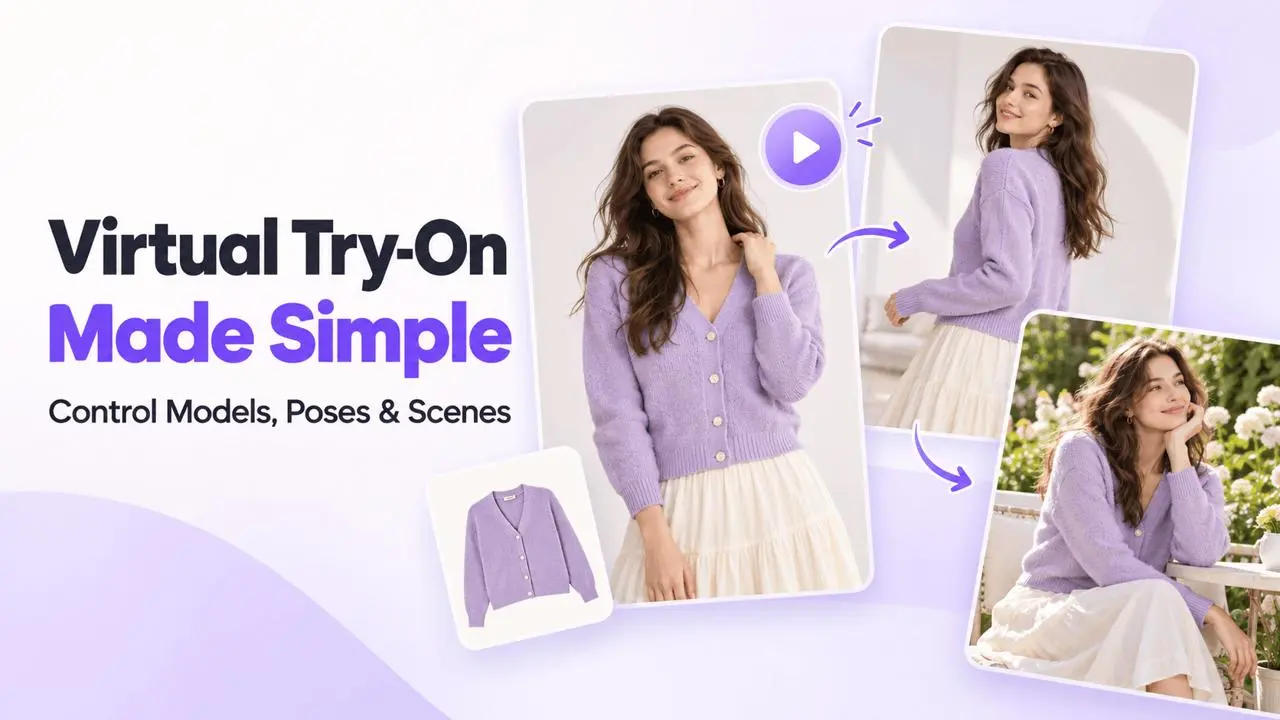
Watch the Video Guide
This walkthrough shows the AI Model Virtual Try-On workflow, including the clothing selection, model, location, pose, and composition settings.
Watch the step-by-step Virtual Try-On tutorial (MP4)
Step 1: Open AI Model
Sign in to WeShop AI, open My Workspace, and choose AI Model. The tutorial uses real-person, mannequin, or flat-lay clothing images as inputs.
Step 2: Upload and Review the Selection
Create a task and upload your images. Review the clothing segmentation and choose the parts you want to keep unchanged. Follow the upload limits displayed in your workspace.
Step 3: Select the Model and Location
Choose an AI model, then an AI Location for the background and composition. A location template with a style similar to your input image can help keep the result coherent.
Step 4: Adjust the Pose
The video demonstrates these Model AI Pose settings:
| Setting in the tutorial | Intended use |
|---|---|
| 50% | Use the reference pose as a guide while balancing the source image. |
| 100% | Allow the AI to generate a new pose. |
Compare the result after changing the setting rather than assuming one percentage works for every image.
Step 5: Set Photo Composition
For an incomplete source image, the tutorial selects Refer to the Selected Location to guide a more complete composition. Review the generated head, limbs, and garment before keeping the result.
Step 6: Generate and Compare
Select Generate. Check clothing, pose, body proportions, and how the subject fits the scene. Try another model, location, or pose setting when needed.
Example Results
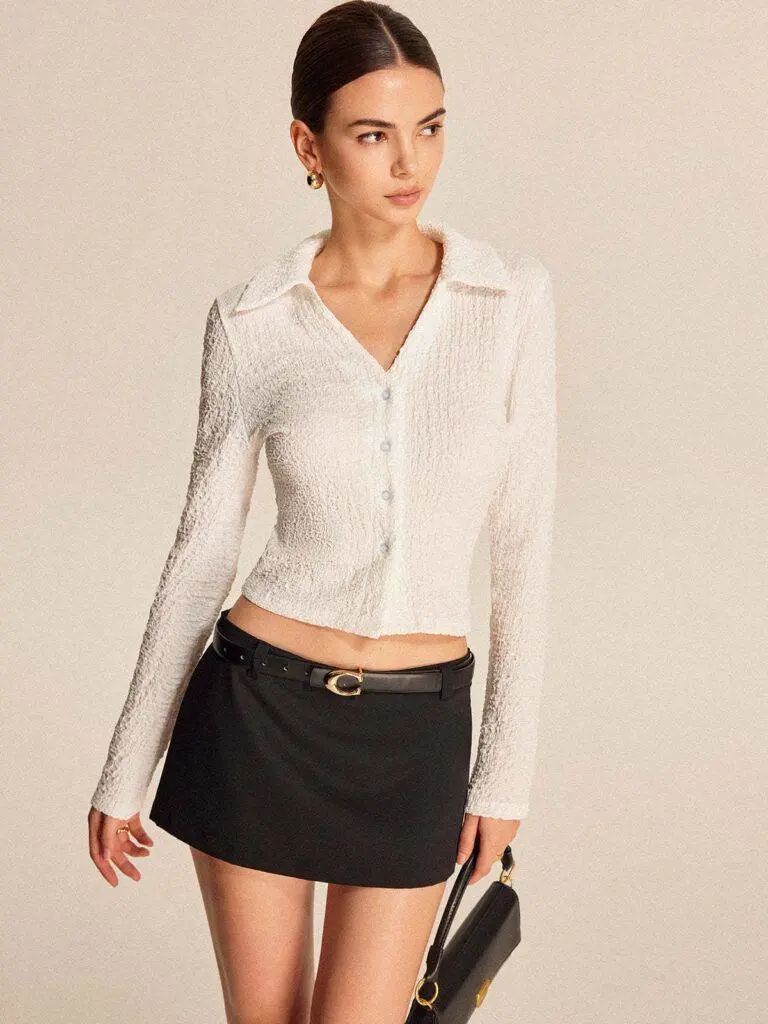
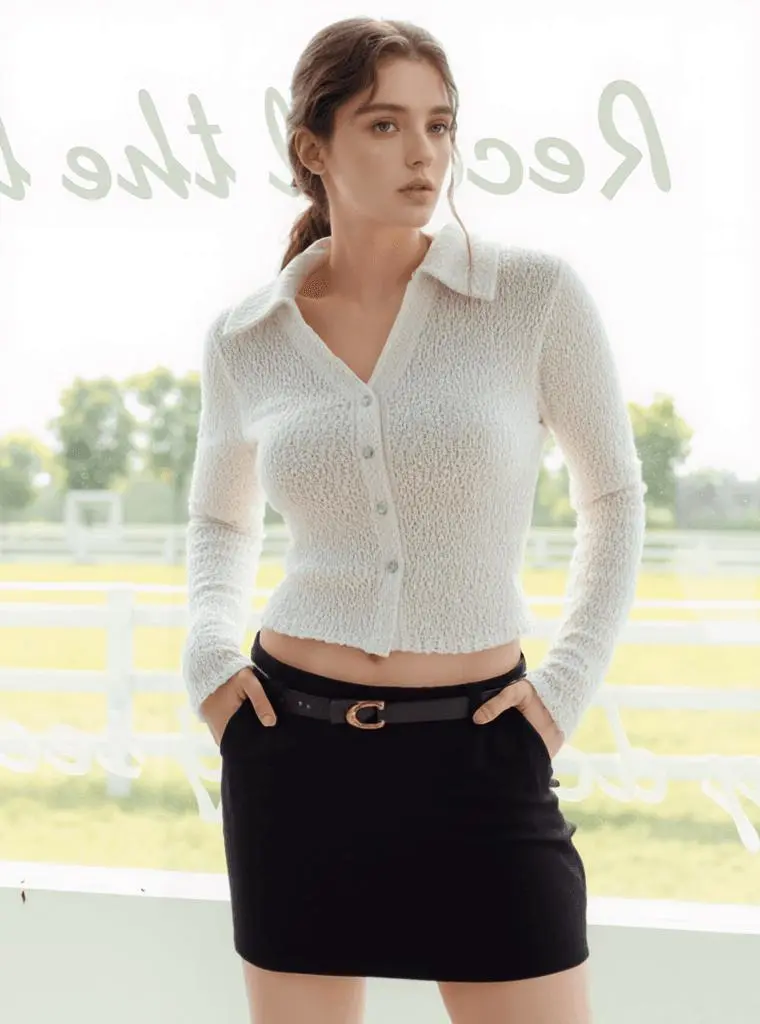
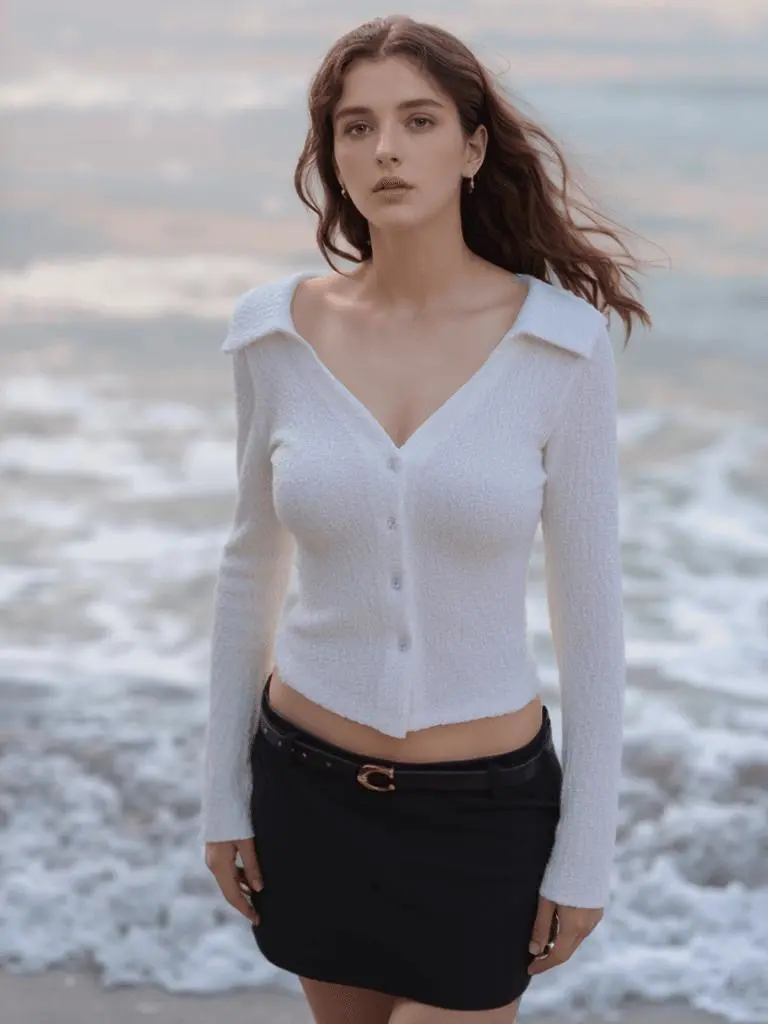
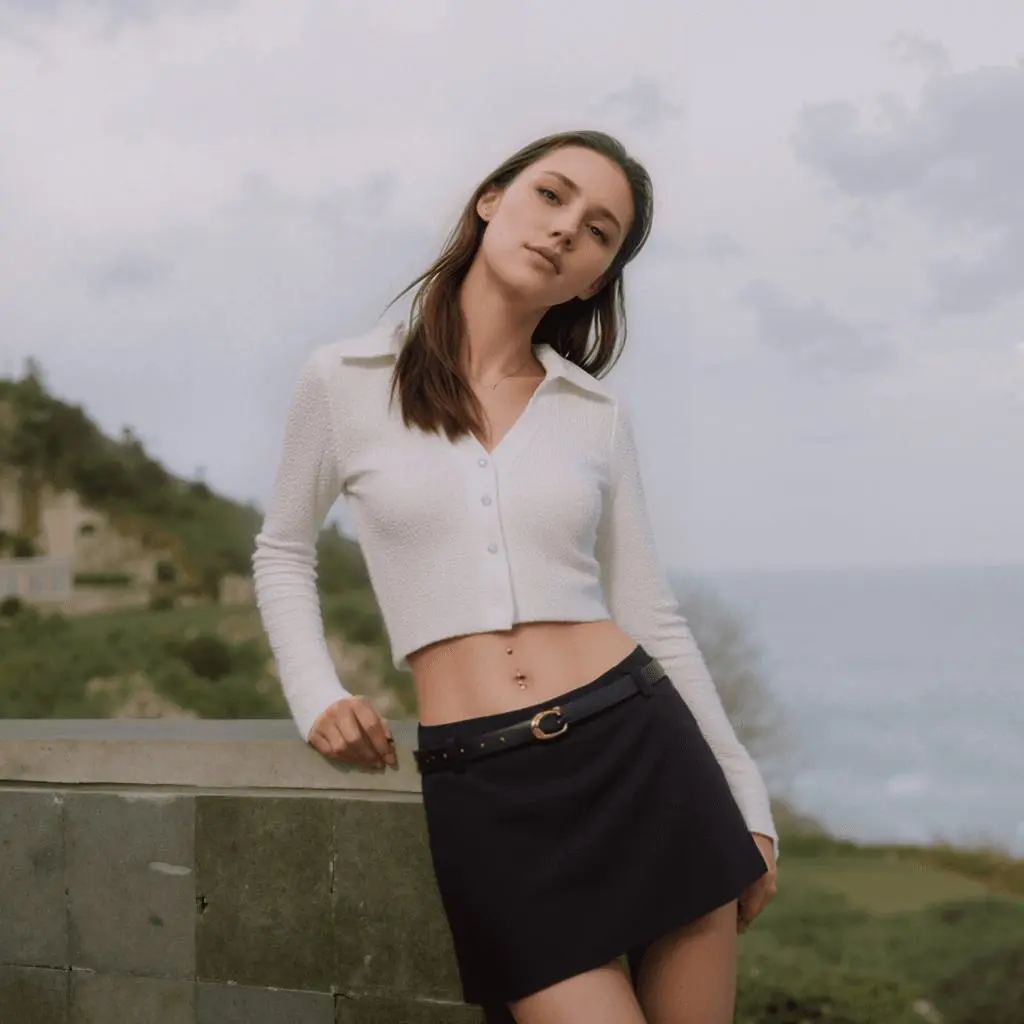
Input Tips
The tutorial recommends trying real-person photos first, then mannequin photos, then flat-lay clothing when comparing input suitability. Use clear images and a reference that fits the garment and desired composition.
For a missing head or cropped body, see Restore a Cropped Photo with Virtual Try-On.