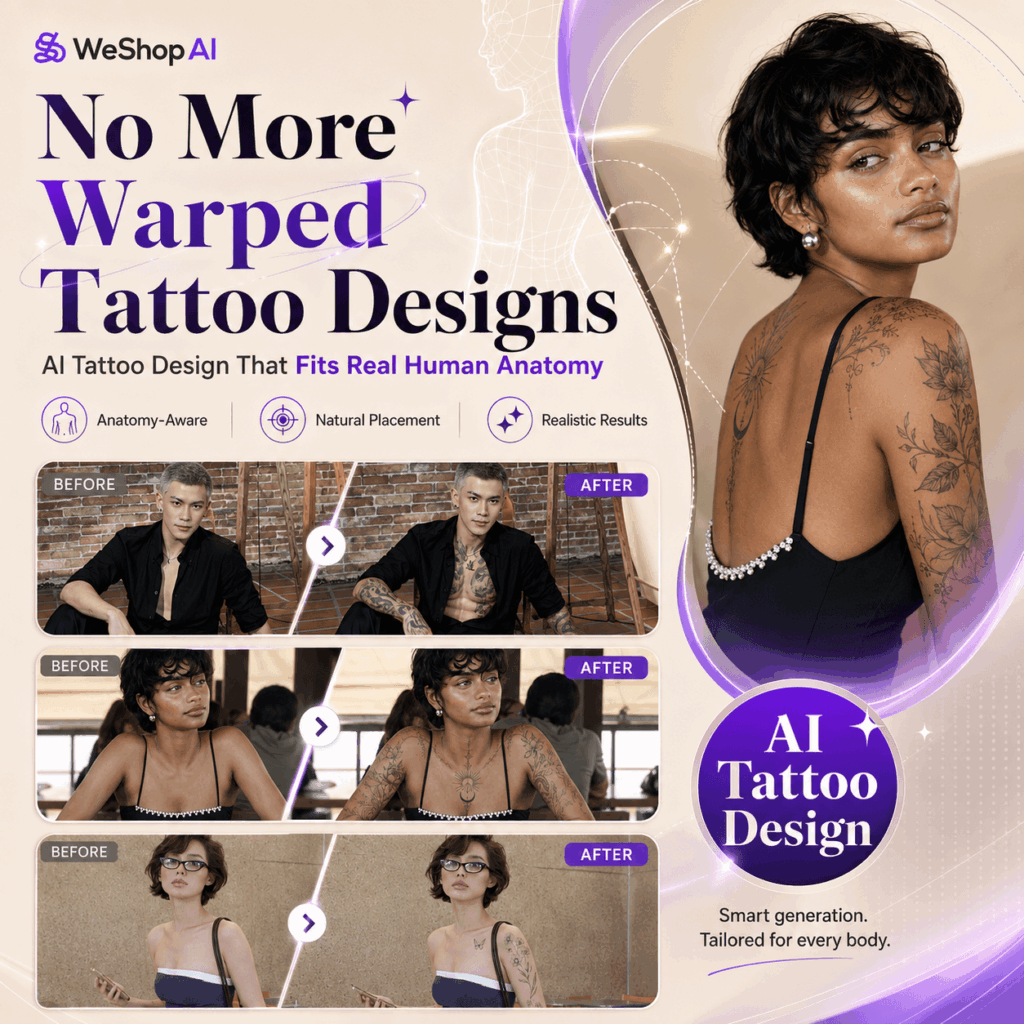
Tattoo design is never just about placing a flat pattern on the skin. A great tattoo should move with the body. It should follow the muscles, respect the bone structure, and match the person’s overall energy.
However, this is where many tattoo ideas start to fail.
A design may look amazing on paper. Yet once it is placed on a real body, it can suddenly feel stretched, awkward, or fake. This usually happens because the human body is not a flat canvas. Arms curve. Shoulders rotate. The chest, back, neck, and wrists all have their own structure and movement.
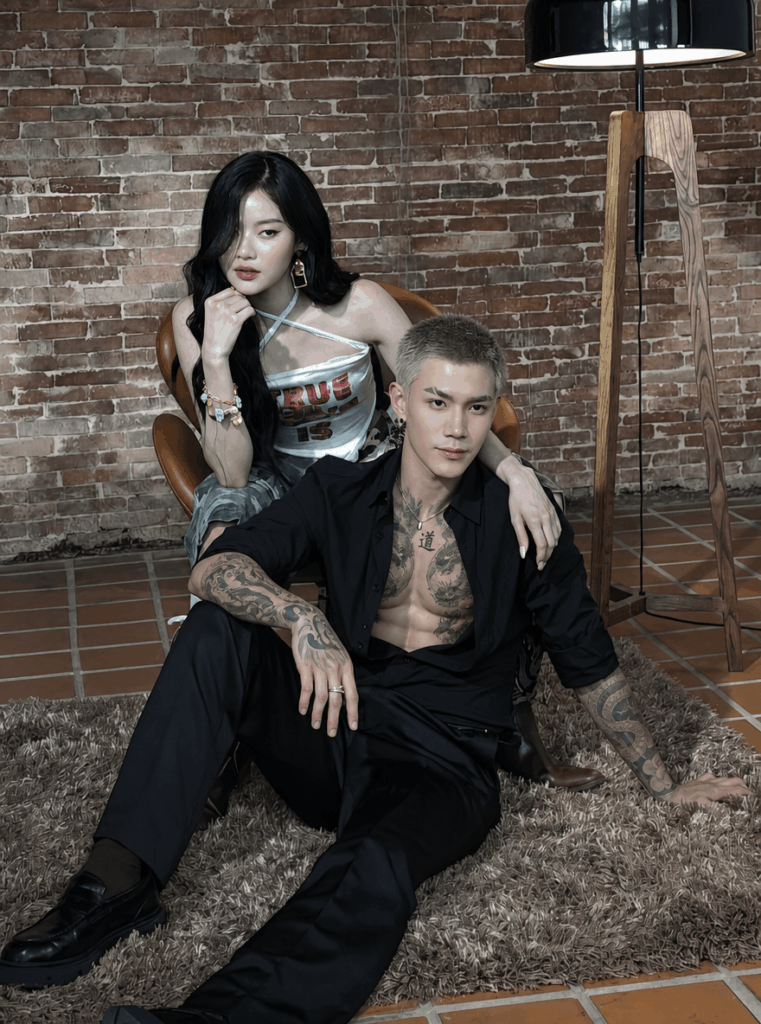
That is why AI tattoo design is becoming such a useful tool. Instead of guessing how a tattoo might look after it is done, you can preview the result before making a permanent decision.
In this guide, we will use WeShop AI image tool and a carefully written anatomy-focused prompt to create a tattoo that naturally fits the person in the image. The goal is not just to generate a cool tattoo. Instead, we want the design to look realistic, stylish, and anatomically accurate.
Whether you are a tattoo lover, a visual creator, a fashion photographer, or a professional tattoo artist, this method can help you test ideas faster and communicate your vision more clearly.
Preparation / Tools You Need
Before getting started, make sure you have the following materials ready.
- Core AI tool:
Open your browser and go to the WeShop GPT Image tool page. - A high-quality portrait or body photo:
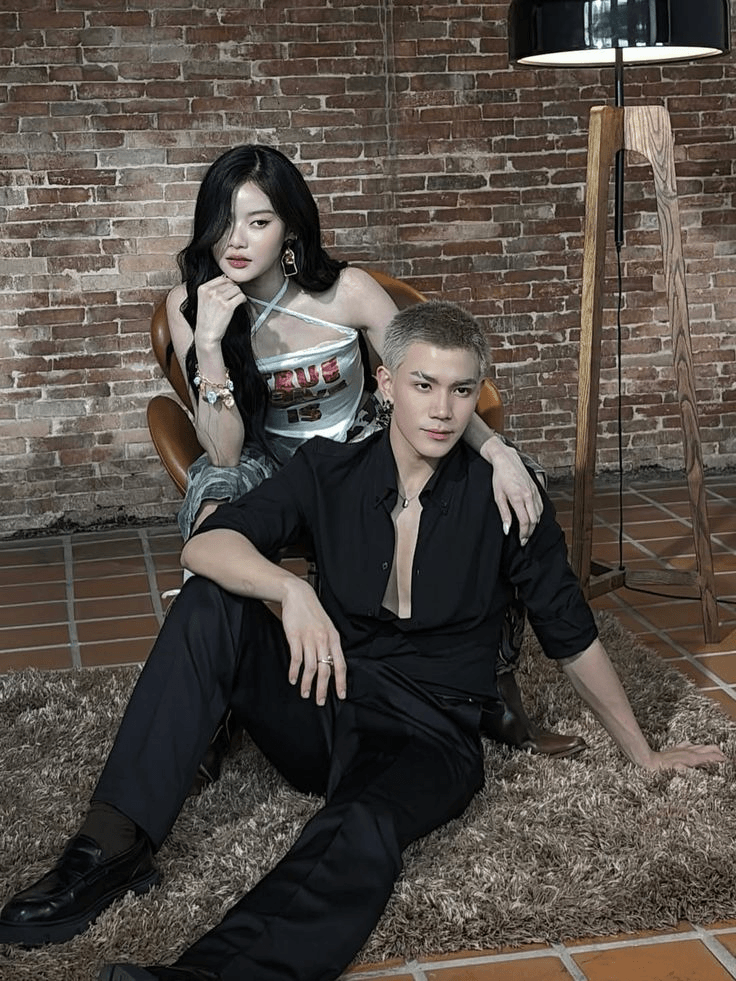
Prepare a clear photo of the person you want to create the tattoo for. A half-body photo, close-up body shot, or full-body photo can all work.
For the best AI tattoo design result, choose an image where the body shape is easy to read. The lighting should be clean, and the target area should be visible.
Photo selection tips:
Choose a photo with clear lighting and visible body structure. It is best if the image shows areas such as the arms, shoulders, back, chest, neck, or legs. Try to avoid oversized clothing, heavy shadows, overexposed highlights, and strong beauty filters. These can make it harder for AI to understand the real muscle lines and body curves.
- Copy the English prompt provided below:
The prompt is the key part of this workflow. It tells AI that the tattoo should not look like a sticker. Instead, it should follow the three-dimensional curves of the body and fit naturally into the skin.
Step-by-Step Guide
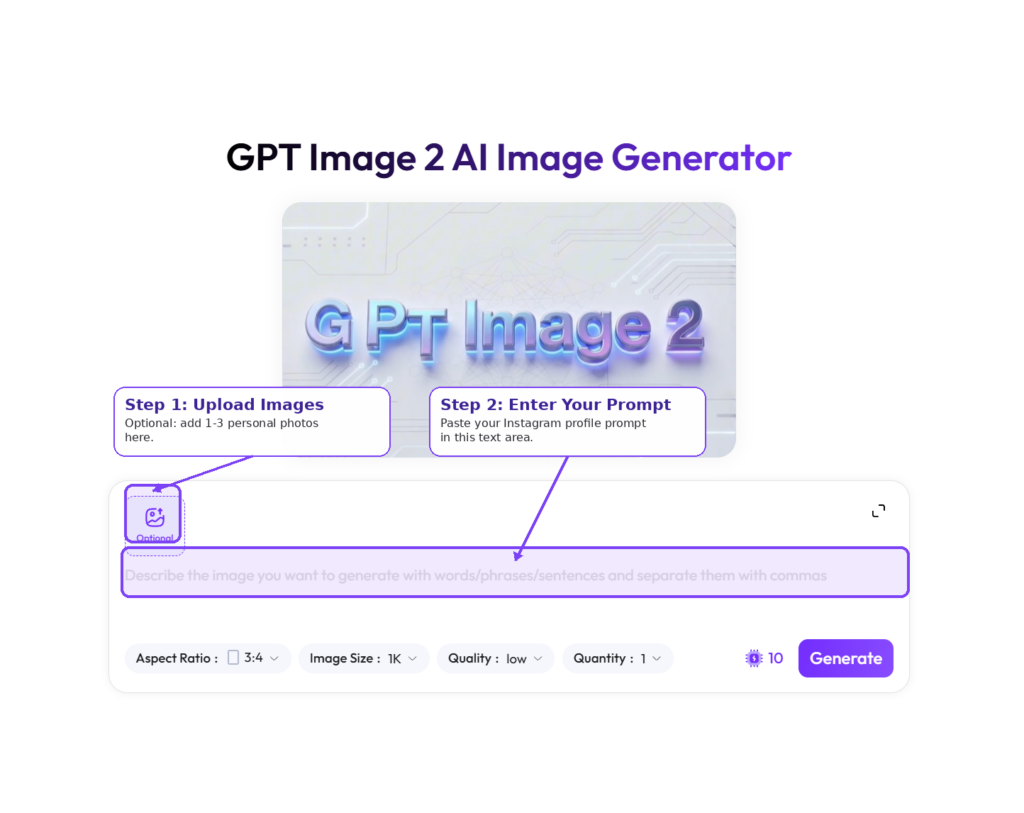
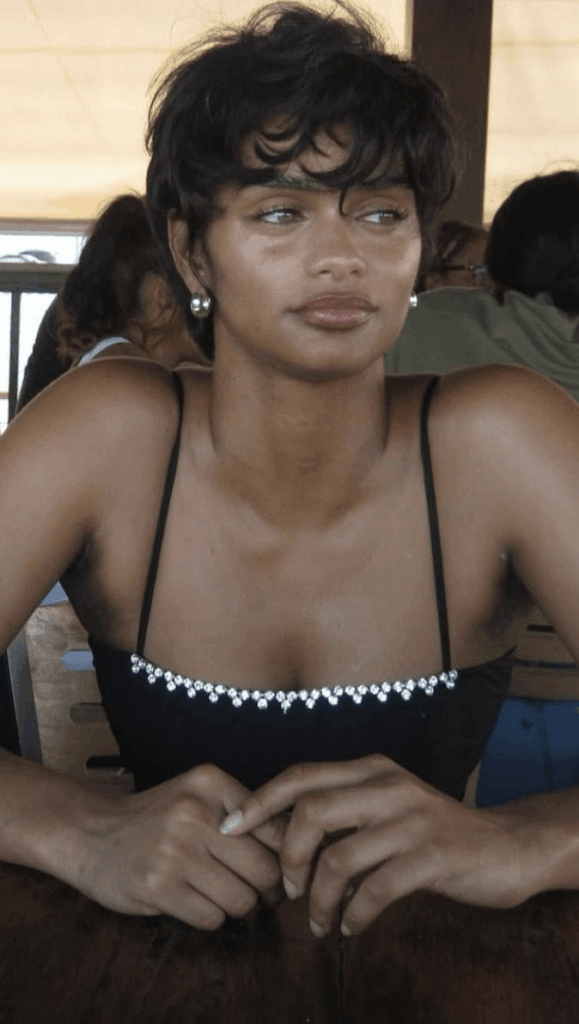
Step 1: Upload the Person’s Photo and Set Up the AI Canvas
Once you enter the WeShop AI interface, the first thing you need to do is give AI a clear reference image.
This image acts as the “model” for the tattoo design. It can be a real person’s photo, a studio portrait, a fashion image, or an AI-generated character image.
- In the input area, find the Upload Image icon. It usually looks like a paperclip, image icon, or upload button.
- Click the upload button and select the photo you prepared earlier. Ideally, the image should show the body area where you want the tattoo to appear.
- Wait for the image to finish loading. Make sure it appears clearly in the chat box or editing area. Once the upload is complete, AI can analyze the person’s pose, skin area, body structure, and possible tattoo placement.
Step 2: Enter the Core Prompt to Control Muscle Flow
This is the most important step.
A simple prompt like “add a tattoo to this person” is usually not enough. It may create a tattoo, but the result can look flat. In many cases, the pattern floats on top of the skin like a temporary sticker. It may also ignore the direction of the muscles, the curve of the shoulder, or the bend of the arm.
So, for a better AI tattoo design, we need to give AI clearer instructions.
The tattoo should meet four key standards:
It should match the person’s vibe. It should follow the muscles. It should align with the bones. And it should be anatomically accurate.
Copy and paste the following English prompt into the WeShop text input box:
Copy & Paste:
Design a tattoo for the person in this image. The tattoo design must perfectly match the person's vibe and temperament. Crucially, the tattoo must naturally follow the flow of their muscles, align perfectly with their bone structure, and be strictly anatomically accurate to wrap around the 3D curves of the body.
This prompt works because it gives AI more than a basic style request. It also gives structure, placement logic, and visual rules.
Here is why each part matters:
match the person's vibe and temperament
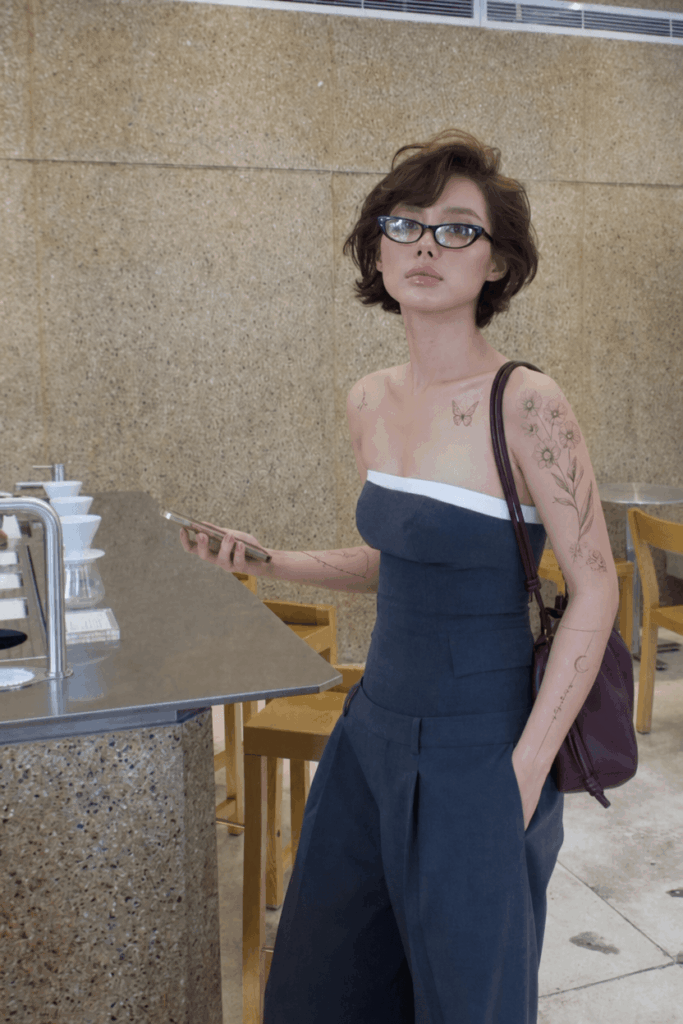
This tells AI to design a tattoo that fits the person’s overall look. For example, a cold and edgy model may need a darker tattoo style. A softer or more elegant portrait may look better with fine line, ornamental, or floral details.
follow the flow of their muscles
This tells AI to let the tattoo move with the body. For example, an arm tattoo should flow along the biceps, forearm, wrist, and elbow instead of cutting across them in a stiff way.
align perfectly with their bone structure
This helps the tattoo respond to key body points, such as the collarbone, shoulder blade, spine, ribs, wrist, or knee. As a result, the design feels more grounded and realistic.
wrap around the 3D curves of the body
This is one of the most important parts. It reminds AI that the body is three-dimensional. The tattoo should bend, curve, and fade naturally with the body shape instead of sitting on top like a flat graphic.
Action tip:
After pasting the prompt, click the Generate button in the lower-right corner of the page.
[Place image showcase here: a split-screen comparison. The left side shows the English prompt entered in the text box, and the right side shows a close-up of the Generate button being clicked.]
Step 3: Wait for Rendering and Review the Result
After you click Generate, WeShop will analyze the uploaded image and start creating the tattoo effect.
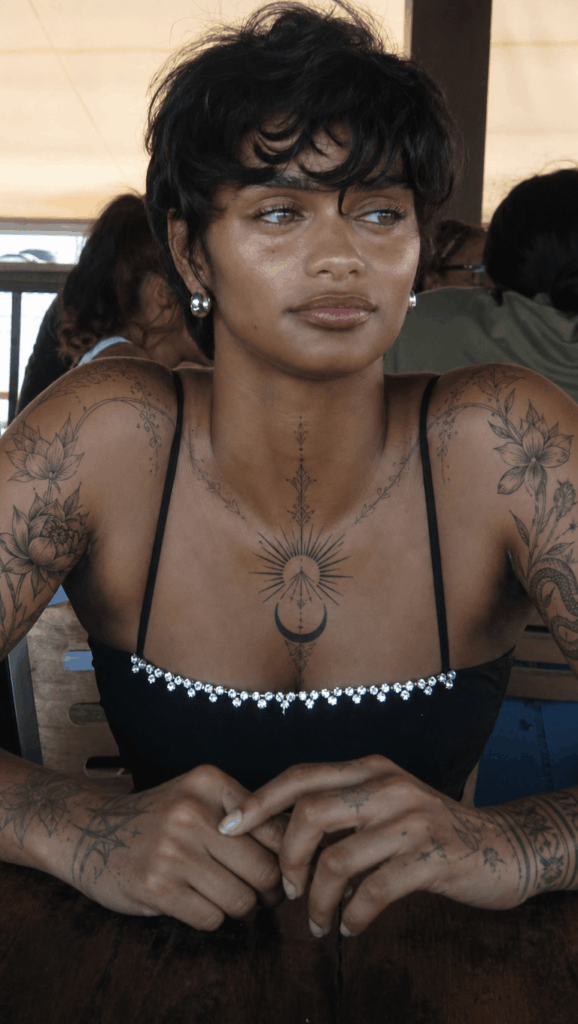
Usually, you only need to wait a short while. Then, AI will return a new image with the tattoo added to the person.
Now, take a moment to review the result carefully.
First, check whether the tattoo matches the person’s style.
If the person has a cool, dark, street-style look, the tattoo should not feel too cute or soft. If the image feels elegant or cinematic, the tattoo should also feel refined and balanced.
Next, check whether the tattoo follows the body structure.
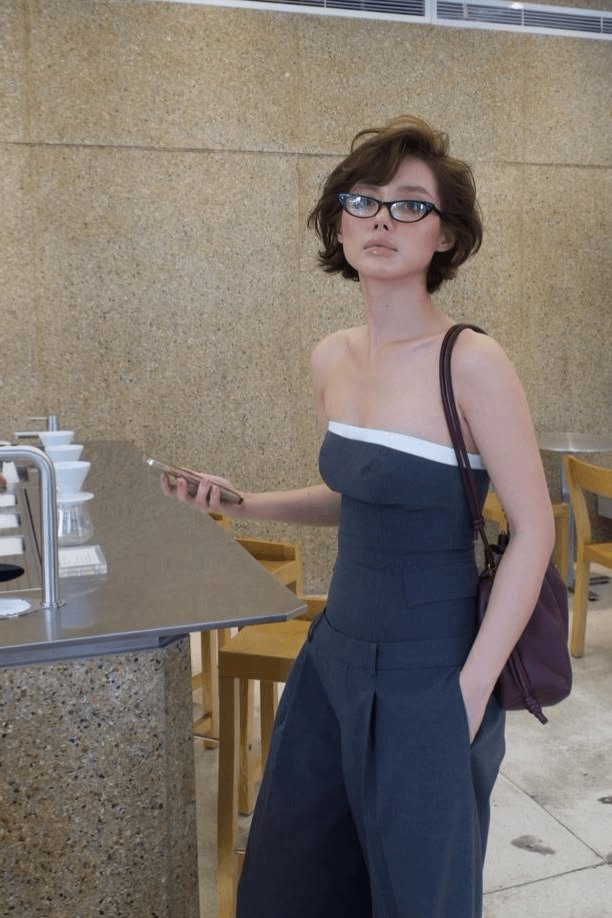
A good result should not look like a flat 2D sticker. Instead, the tattoo should bend with the biceps, shoulder, chest, collarbone, back muscles, waistline, or neck curve.
Finally, look at the lighting and texture.
A realistic tattoo should be affected by skin texture, body shadows, and natural highlights. The ink should feel like it is part of the skin, not pasted above it.
This is where anatomy-focused prompting makes a big difference. With the right prompt, AI tattoo design becomes much more than a quick image effect. It becomes a practical way to preview how a tattoo may actually sit on a real body.
Advanced Tips / FAQ
Q1: How can I choose a specific tattoo style?
The original prompt is a general “muscle and bone adaptive” framework. It is designed to make the tattoo fit the body naturally.
However, you can also add a specific tattoo style after the first sentence of the prompt.
For example, if you want a cyberpunk look, you can write:
Design a cyberpunk style tattoo for the person in this image...
If you want a traditional Japanese tattoo style, you can add:
Traditional Japanese Irezumi style
If you want something darker and more powerful, you can add:
dark ornamental tattoo, blackwork style, high contrast, detailed linework
If you want something more delicate and fashionable, try:
delicate fine line tattoo, elegant ornamental patterns, minimal but detailed
Useful tattoo style keywords:
Cyberpunk style tattoo
Traditional Japanese Irezumi style
Blackwork tattoo
Geometric tattoo
Fine line tattoo
Dark ornamental tattoo
Tribal tattoo
Biomechanical tattoo
Minimalist tattoo
Floral tattoo
For better results, place the style keyword near the beginning of the prompt. This helps AI understand the creative direction before it focuses on anatomy and placement.
Q2: What should I do if the generated tattoo looks slightly distorted?
This can happen for several reasons. The original photo may have complex lighting. The body outline may not be clear enough. The image resolution may be too low. Or the clothing may cover important muscle areas.
To improve the result, try these two methods.
- Use a photo shot with flat lighting.
The body shape should be visible, but the image should not have harsh highlights or deep shadows. - Add this phrase to the end of your prompt:
high quality, clear details, realistic skin texture, clean tattoo lines
This helps AI create cleaner tattoo lines and more realistic skin texture.
You can also add:
Avoid distorted patterns, avoid floating sticker-like tattoos, make the tattoo naturally integrated into the skin.
This extra line is helpful when the previous result looks too flat or too much like a pasted graphic.
Q3: Can I use this method for smaller areas, such as fingers or the neck?
Yes, absolutely.
However, smaller body parts are more complex. Fingers, wrists, necks, collarbones, ankles, and hands all have many small bones, joints, folds, and curves. Because of this, you should upload a close-up photo and name the target body part clearly in the prompt.
For example, instead of writing the person, you can write:
Design a tattoo for the hand in this image...
Or:
Design a tattoo for the neck in this image...
For finger tattoos, you can use:
Design a delicate fine line tattoo for the fingers in this image. The tattoo must follow the finger joints, knuckles, and natural skin folds, while remaining anatomically accurate and realistic.
This makes the target area much clearer. As a result, the AI tattoo design is less likely to appear in the wrong place or ignore the small body structure.
Q4: How can I make the tattoo look like real ink instead of a sticker?
Add a skin-integration instruction to your prompt.
For example:
The tattoo ink should appear naturally embedded in the skin, with realistic skin texture, subtle shading, and no sticker-like effect.
This tells AI to pay attention to skin texture, ink depth, shadows, and the way the tattoo blends with the body.
In most cases, this small addition can make the final image feel much more realistic.
Q5: How should I write the prompt for a full sleeve, half sleeve, or large back tattoo?
For large tattoo areas, be specific about the coverage.
For a full sleeve tattoo, use:
Design a full sleeve tattoo for the person's arm in this image. The tattoo must flow naturally from the shoulder to the wrist, following the muscles, elbow joint, forearm structure, and 3D curves of the arm.
For a back tattoo, use:
Design a large back tattoo for the person in this image. The tattoo must align with the spine, shoulder blades, back muscles, and natural body curvature, while remaining anatomically accurate.
For a chest tattoo, use:
Design a chest tattoo for the person in this image. The tattoo must follow the pectoral muscles, collarbone, sternum, and natural shadows of the body.
The more clearly you define the area, the easier it is for AI to create a believable and well-placed tattoo.
Conclusion
Turning a tattoo idea into a realistic visual preview no longer has to be complicated.
With WeShop AI and the right anatomy-focused prompt, you can quickly test how a tattoo may look on a real body before making any permanent decisions. More importantly, you can see whether the design matches the person’s style, follows the muscle flow, respects the bone structure, and blends naturally with the skin.
Compared with a flat tattoo sketch, this AI workflow is faster, more visual, and easier to share. It is especially useful for inspiration testing, client communication, social media content, and early-stage tattoo planning.
So, if you want to try blackwork, cyberpunk, Japanese Irezumi, geometric patterns, fine line tattoos, or a full sleeve concept, start with a clear photo and a strong prompt.
Open WeShop and test your own AI tattoo design today. You might be surprised by how realistic the result can look.
Go to WeShop AI For Exploration: