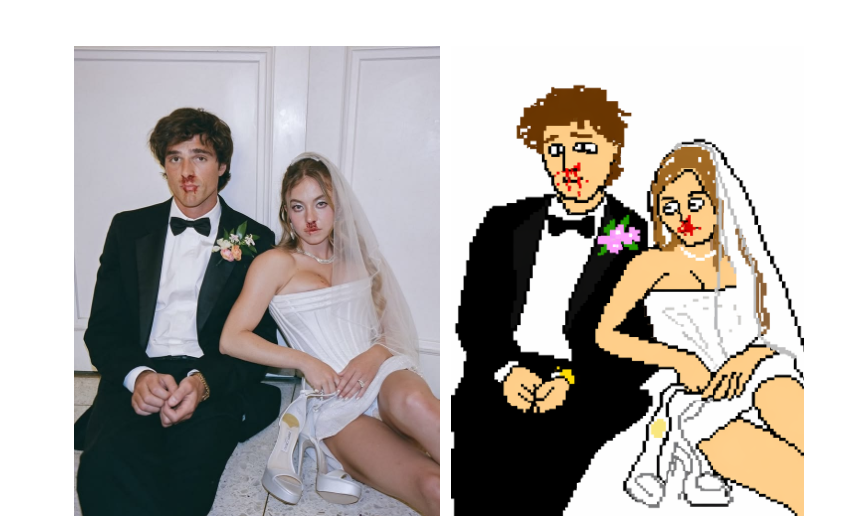
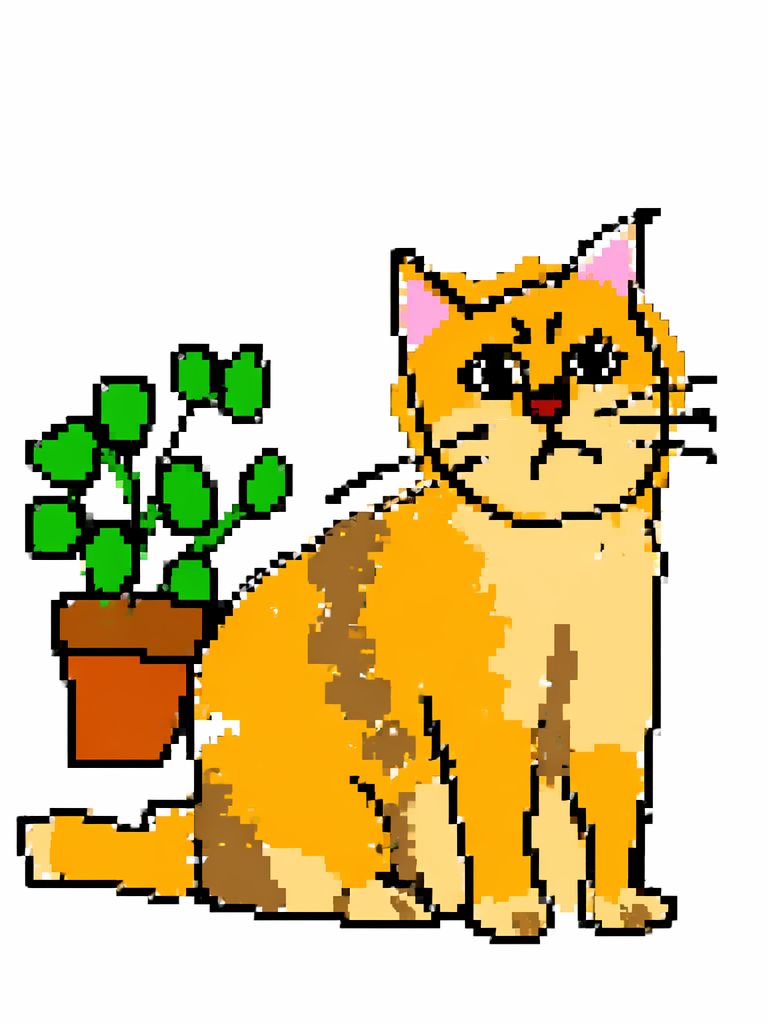
In a world where AI art is constantly pushing for 4K resolution, photorealism, and flawless lighting, a completely opposite trend is taking over social media. People are suddenly obsessed with “low-fidelity” and intentionally bad pixel art. This specific style is all about being awkward, messy, and deeply confusing. It has zero polished details. Instead, it looks exactly like a digital doodle someone struggled to draw with a computer mouse in MS Paint over fifteen years ago.
💡 But why are people loving this reverse trend? Honestly, this intentional roughness carries an incredible comedic effect. That is why these images make the perfect material for viral social media posts, meme reactions, or unhinged profile pictures. In today’s stressful world, these chaotic visuals act as the ultimate digital comfort food to make people laugh.
Best of all, you do not need any drawing skills for this. You just need to copy, paste, and let AI do the work. In less than a minute, you will have your very own viral masterpiece. Let’s dive into how you can use GPT to turn a normal photo into hilarious pixel art that makes people question everything.
🛠️ Getting Ready: Tools You Need for Your Pixel Art
Before you start completely destroying your photos, make sure you have these few essentials ready:
- A computer or smartphone: Any basic device with an internet connection and a browser will work perfectly.
- A reference photo: I highly recommend picking a photo with a clear subject, such as a funny expression on a person, a pet, or an everyday object. The contrast between a nice photo and a terrible AI output makes the final pixel art way funnier.
- The AI tool: For this tutorial, we will be using a fantastic, free, and fast GPT image generator called Weshop GPT-Image.
🐾 Step-by-Step Guide to Lo-Fi Pixel Art
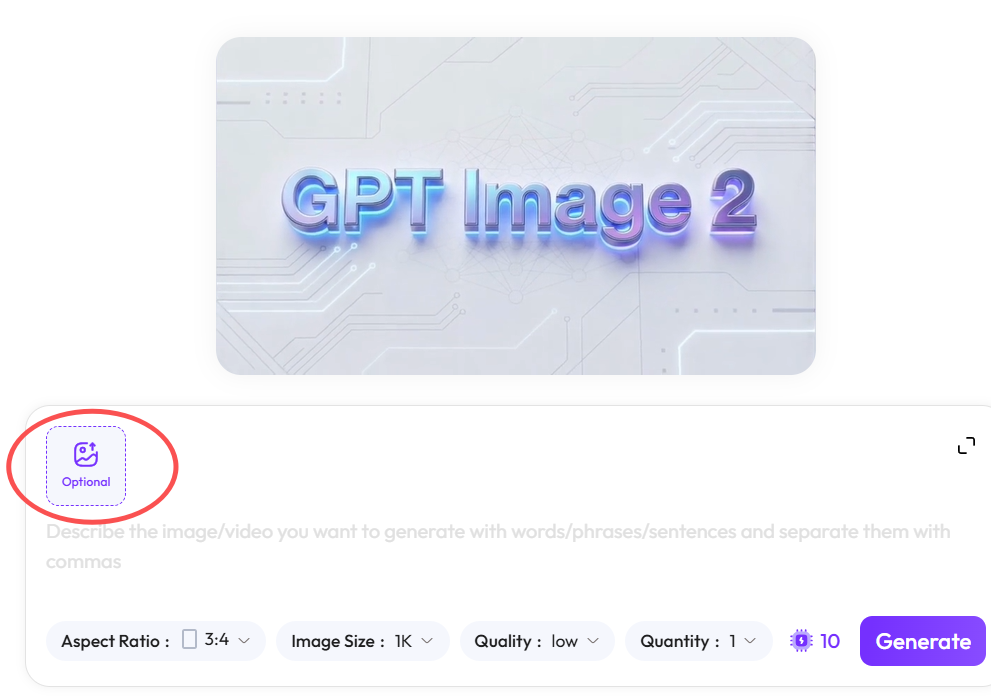
Step 1: Open the AI Tool and Upload Your Photo
First, open your browser and head to the official tool page: [https://www.weshop.ai/tools/gpt-image](https://www.weshop.ai/tools/gpt-image). Once the interface loads, drag and drop your reference photo directly into the chat box or the designated upload area.
Step 2: Input the Secret “Soul Doodle” Prompt
This is the most critical step of the entire guide. Since modern AI is usually too smart, we have to intentionally lower its IQ. We need a very specific prompt to stop it from making things look good.
Simply copy and paste this exact English prompt into the input box to get that perfect low-res pixel art look:
Plaintext
Redraw the attached image using the largest possible color blocks and a heavy doodle style. Make it look as pathetic and chaotic as possible. Use a pure white background. Make it look exactly like it was drawn clumsily with a mouse in a vintage MS Paint program. It should vaguely resemble the original, but at the same time look completely off—so awkward that it’s deeply confusing. Present a low-resolution, pixel-by-pixel generated aesthetic, emphasizing just how ridiculously awful it is. Actually, whatever, just draw it however you want.✨ Pro-Tip: The true magic of this prompt lives in the very last sentence: “Actually, whatever, just draw it however you want.” This gives the AI a hilarious “I give up” attitude. As a result, it generates a brilliantly random and funny style.
Step 3: Generate and Embrace the Chaos
Next, click the “Send” or “Generate” button. Now, you just need to wait about 10 to 15 seconds for the AI to show off its terrible acting skills. Once it finishes, you will be greeted by a masterpiece of blocky, low-resolution pixel art.
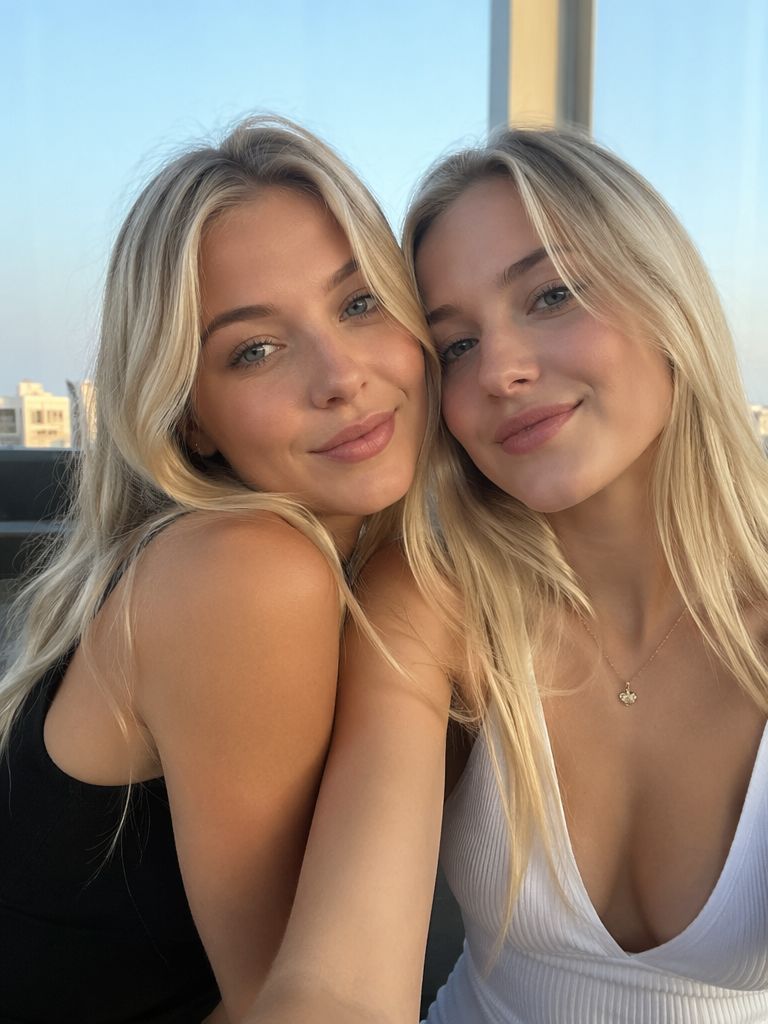
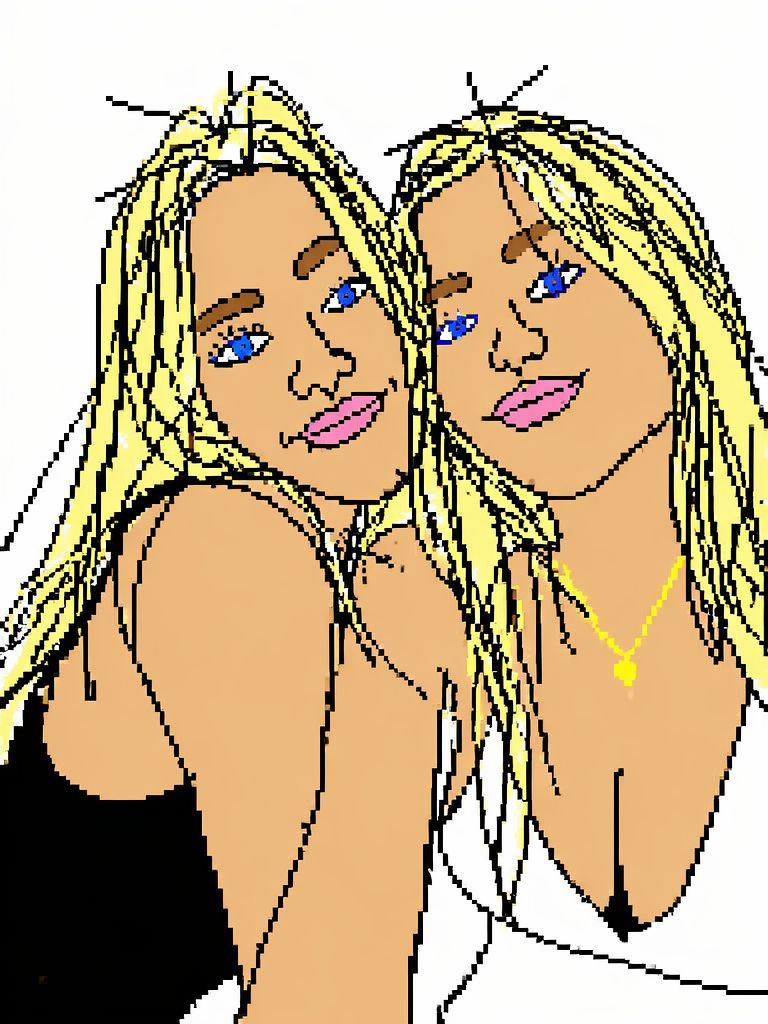
If you love the result, simply right-click the image on your computer or long-press it on your phone to save it to your device.
Step 4: Tweaking and Regenerating Your Pixel Art (Optional)
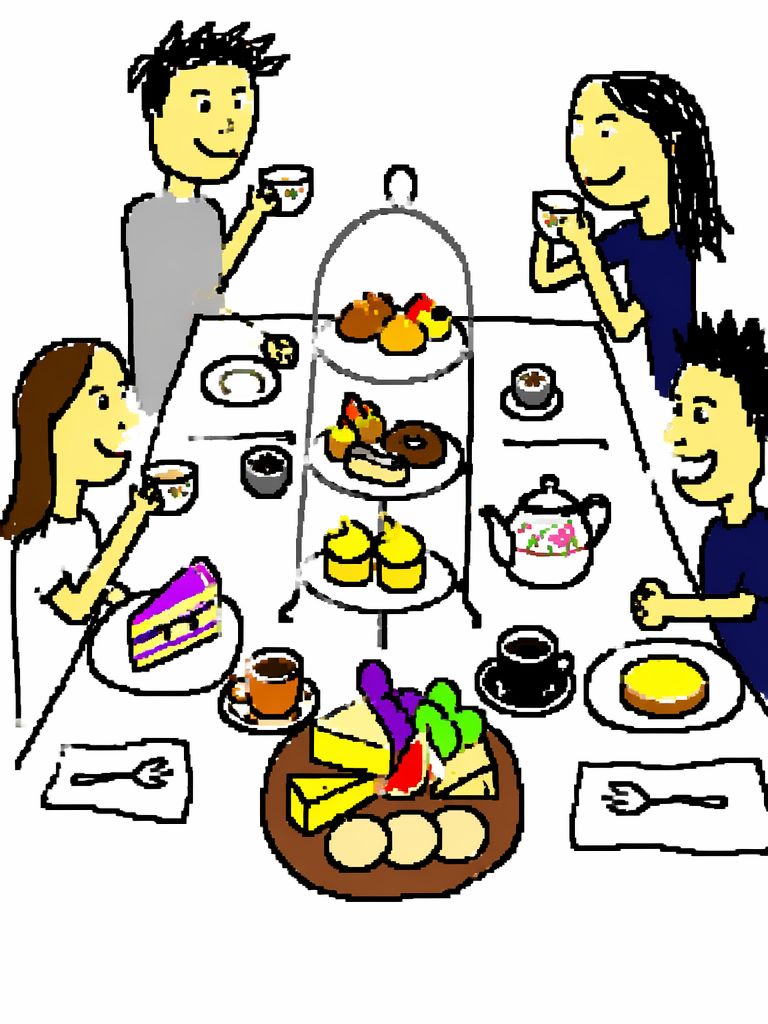
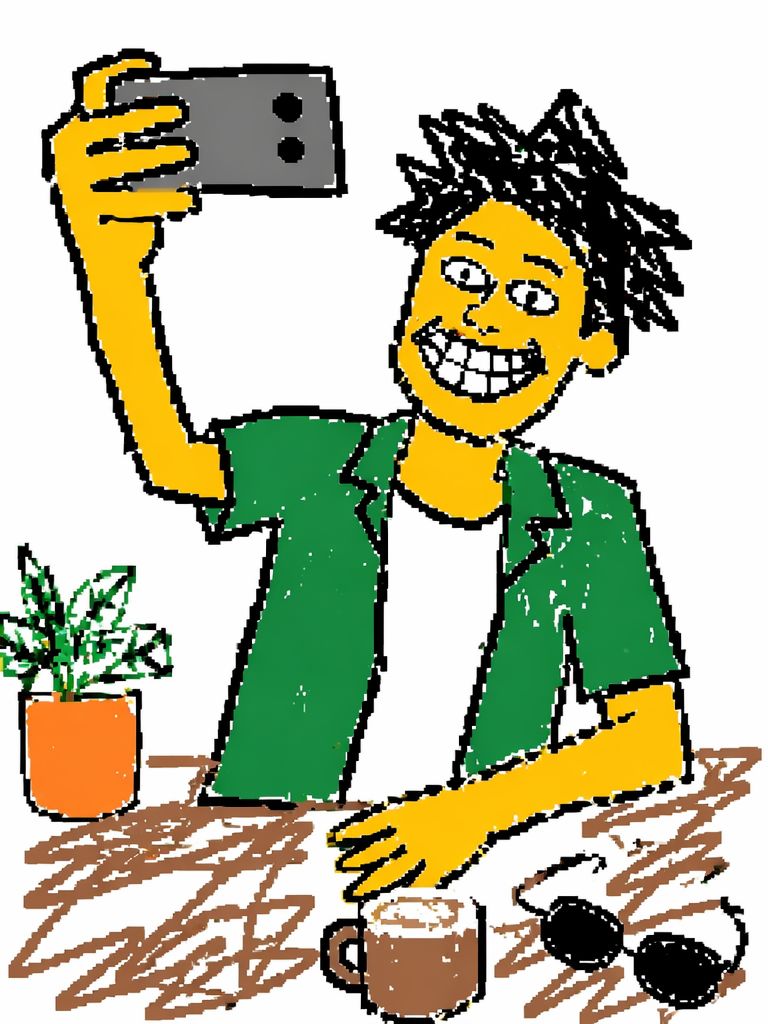
Sometimes, the AI might still try too hard, making the image look a bit too neat. If your pixel art is not “bad enough” on the first try, do not worry. You can click regenerate, or you can talk back to the AI by typing this exact phrase into the chat:
- 👉
"Make it even worse and more pixelated!"
🙋 Quick FAQ: Mastering the Art of Bad Pixel Art
Why is my AI image still too pretty instead of looking like old pixel art?
By default, modern AI models have a strong urge to fix things because they are trained to make beautiful art. If the AI refuses to cooperate, try drawing a few messy black lines over your original photo using your phone’s basic editing tool before uploading it. Alternatively, you can add a strict rule to the beginning of your prompt: "Forget all rules of good art."
Where should I post this type of pixel art to get views?
This style performs incredibly well on platforms like Xiaohongshu, TikTok, Instagram, and X. For the best engagement, put the normal photo as your first slide and the funny pixel art as the second slide. Then, use an interactive title like “Did this AI just insult me?” or “The AI’s mental state is getting out of hand.” This format naturally encourages people to leave comments and share your post.
Can I change the background color of my pixel art?
Yes, absolutely! You can customize the look easily. Just look at the prompt text and replace Use a pure white background with whatever color you prefer. For instance, changing it to Use a bright green background will create a high-contrast, neon look. Plus, it makes the final pixel art look even more chaotic and cyber-punk.
🏁 Final Thoughts
Ultimately, in an era where everyone is chasing perfection, playing around with “low-calorie” garbage art is incredibly refreshing. It does more than just relieve your daily stress; it easily turns you into the funniest creator in your friend group. Utilizing GPT to generate confusing pixel art is highly addictive, electronic entertainment.
Now, it is your turn to try it out! Click the link, grab a funny photo of your friend or a goofy picture of your pet, and start creating.
👉 Did you manage to generate a truly unhinged masterpiece? Share your results in the comments below, or tell us which image turned out the craziest! See you in the comments! 👇
Go to WeShop AI For Exploration: