A Beginner-Friendly WeShop.ai Tutorial
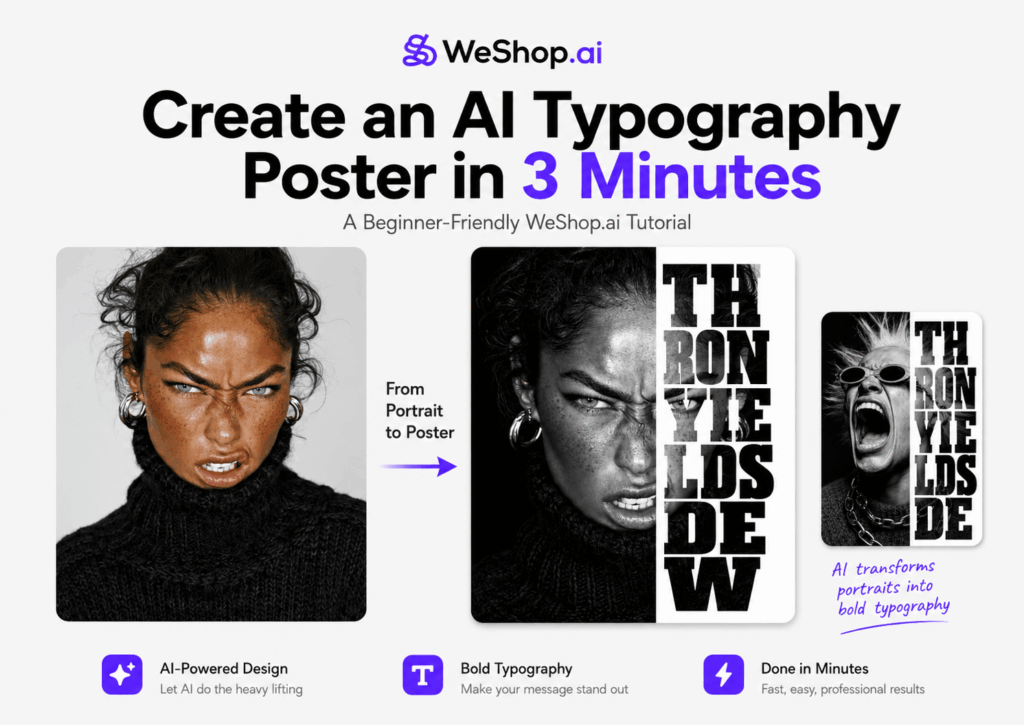
Have you ever stopped scrolling because of a bold black-and-white portrait poster?
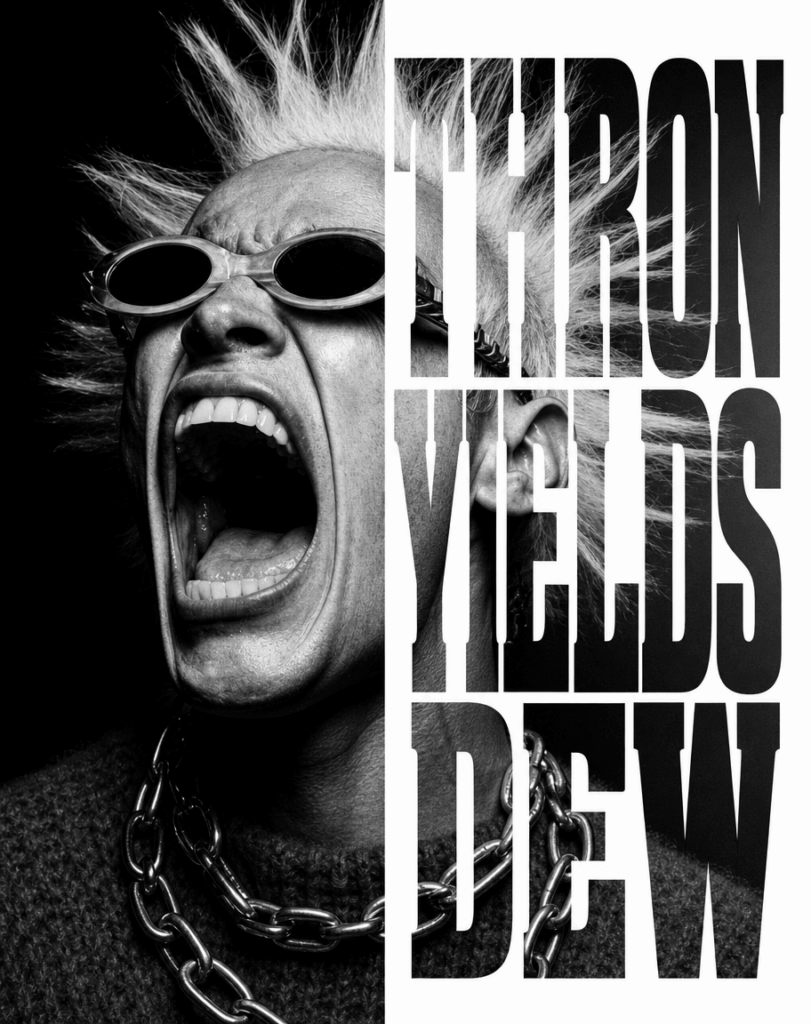
You know the style. One side shows a dramatic close-up portrait. The other side features huge stacked letters. Inside those letters, you can still see parts of the person’s face, skin texture, hair, or facial details.
That visual effect is often known as typographic masking. It blends portrait photography with bold editorial typography. The result feels clean, cinematic, and instantly eye-catching.
In the past, creating this kind of poster usually required Photoshop skills. You had to cut out the portrait, adjust the lighting, create the text layout, mask the image, and fine-tune every detail. It could easily take hours.
Now, with AI, the process is much easier.
In this tutorial, you’ll learn how to create a high-contrast AI typography poster using WeShop.ai. You only need one portrait photo, one ready-to-use prompt, and a short English word or phrase.
In just a few minutes, you can turn a simple portrait into a bold black-and-white poster that looks like it belongs on a fashion magazine cover.
This method is great for:
- Personal branding portraits
- Social media profile visuals
- Creative posters
- Brand campaign images
- Editorial-style content
- Portfolio visuals
Let’s get started.
What You Need Before You Start
Before creating your AI typography poster, prepare these four things:
- AI image tool: Open WeShop.ai GPT Image in your browser. You can use it directly online.
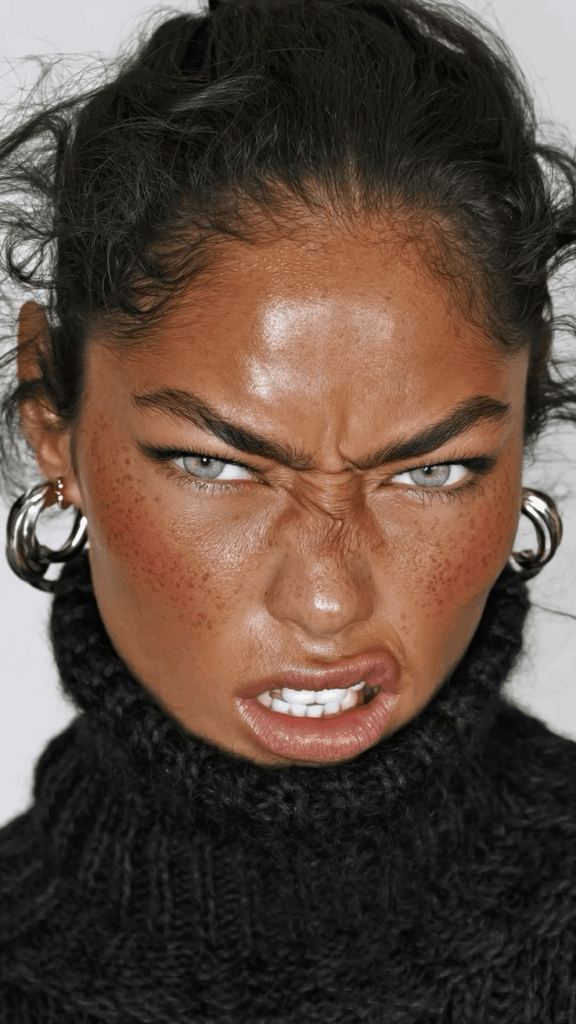
- One portrait reference image: Choose a clear portrait photo. For the best result, use a front-facing or slightly side-facing image with visible facial features.
- The core prompt: You can copy the full English prompt in Step 2.
- Your custom text: Prepare a short English word or phrase, such as your name, brand name, slogan, or personal motto.
A quick tip: short words usually work better. They give the letters more breathing room and make the final poster easier to read.
Step-by-Step Guide
Step 1: Upload a High-Quality Portrait Reference
A strong output starts with a strong input.
Choose a portrait photo with good clarity and visible facial details. The person’s face should be easy to recognize. If the image already has some side lighting or natural shadows, the final result will usually look more cinematic.
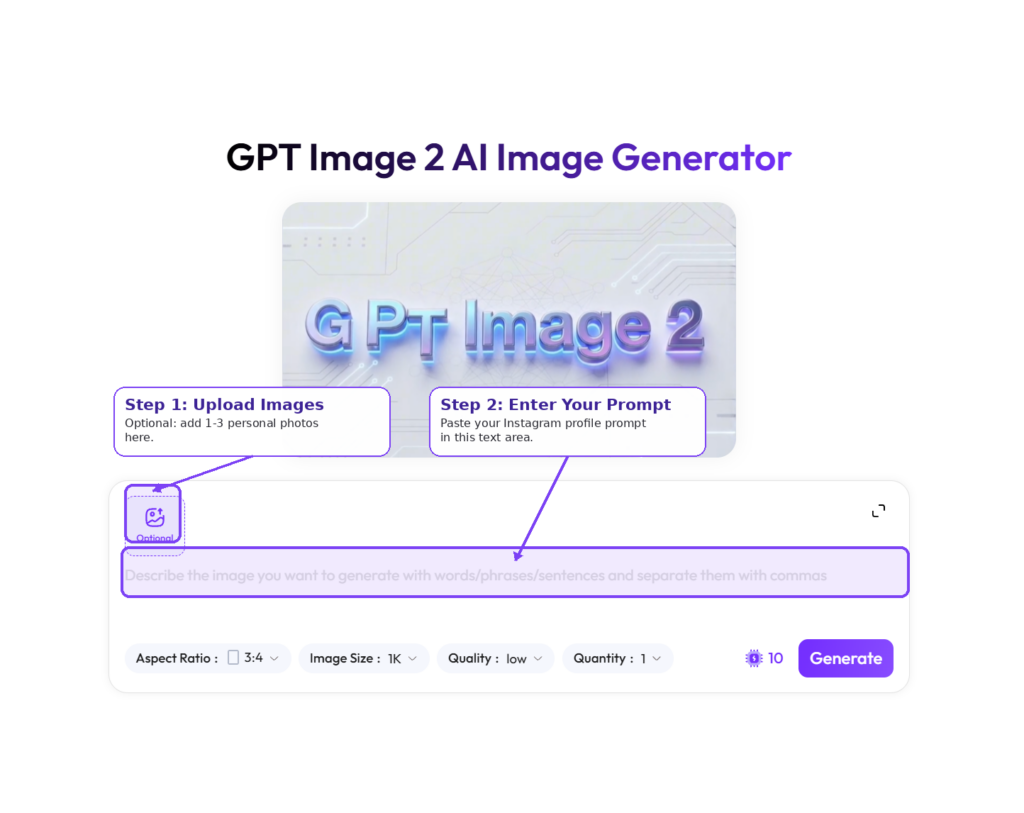
- Open WeShop GPT Image.
- Find the image upload area. It is usually marked with “Upload” or a “+” icon.
- Upload your portrait photo.
WeShop.ai will use this image as the main subject reference. It will try to preserve the person’s facial features, identity, and overall likeness while generating the final AI typography poster.
Step 2: Copy the Core AI Typography Poster Prompt
Now it’s time to use the prompt.
This prompt tells the AI to create a split poster design. The left side becomes a dramatic black-and-white portrait. The right side becomes a clean typography layout with bold stacked letters.
Copy the full prompt below:
Use the uploaded reference image as the primary subject reference. Create a high-contrast black-and-white digital composite portrait in a vertical poster format. The final image should replicate the split-design typographic effect while preserving the uploaded person’s facial features and identity.

Composition:
Split the image vertically down the center.
Left half: Dramatic, realistic close-up of the subject’s face (use the uploaded reference image). Use hard studio-style chiaroscuro lighting (light from one side, deep shadows on the unlit side). Eye-level close-up framing. Emphasize natural skin texture, slight stubble or facial details if present. Deep focus throughout.
Right half: Pure white background with bold uppercase slab-serif letters stacked vertically.
- Each letter filled with the photographic skin, hair, or facial texture from the left half.
- Typographic masking reveals the left half of the uploaded subject’s face.
- Text content: replace with user-specified phrase, e.g., "THRON YIELDS DEW".

Style & Lighting:
Strictly monochromatic black-and-white palette. High contrast with deep shadows and bright highlights. Maintain realistic textures and subtle imperfections. Eye-catching, editorial-grade poster quality.

Text Customization:
Allow the text on the right half to be user-specified. Letters should be uppercase, bold slab-serif, stacked vertically. Ensure the typographic masking uses the subject’s face from the left half.

Output Requirements:
Aspect ratio: adapt to the uploaded reference image’s original ratio unless specified otherwise. Keep the uploaded person recognizable. Maintain dramatic, cinematic, and editorial black-and-white aesthetic.
This prompt is the key to the whole AI typography poster effect. It gives the AI clear instructions about composition, lighting, text style, texture, and final image quality.
Step 3: Paste the Prompt and Customize Your Text
Next, paste the prompt into the Prompt input box in WeShop.ai.
Then, find this line in the Composition section:
- Text content: replace with user-specified phrase, e.g., "THRON YIELDS DEW".Now replace “THRON YIELDS DEW” with your own text.
For example:
- Your English name: “ALEXANDER”
- A short attitude slogan: “STAY REAL”
- A brand-style phrase: “NOIR MODE”
- A personal motto: “KEEP GOING”
For the cleanest result, use uppercase letters. Also, try to keep the text short. A simple word or short phrase often creates a stronger poster than a long sentence.
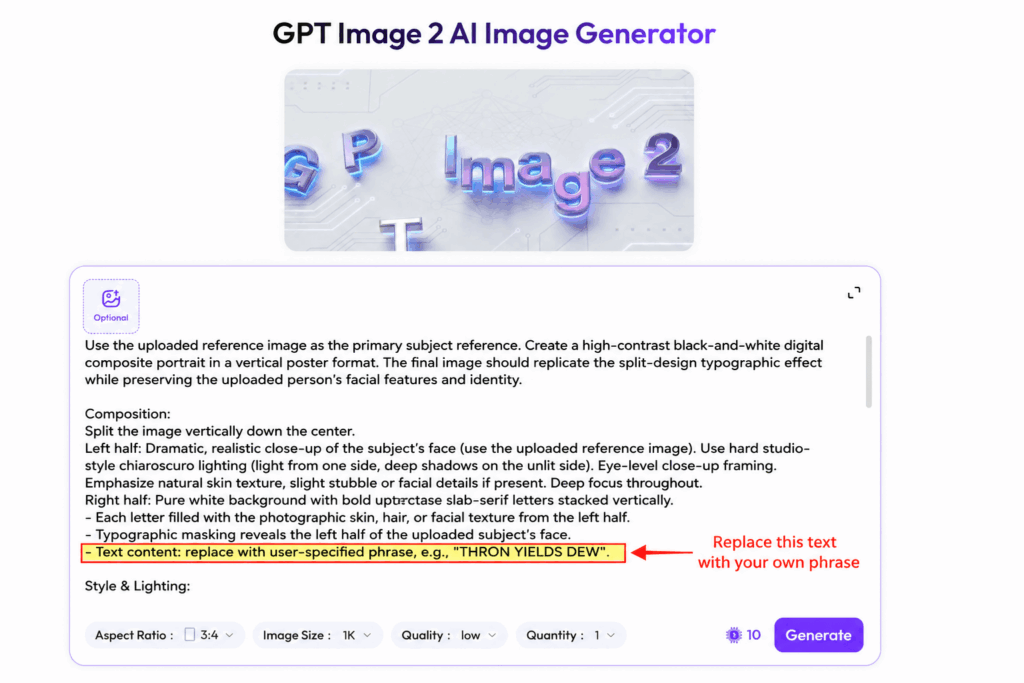
Step 4: Generate and Save Your Poster
Once everything is ready, click Generate.
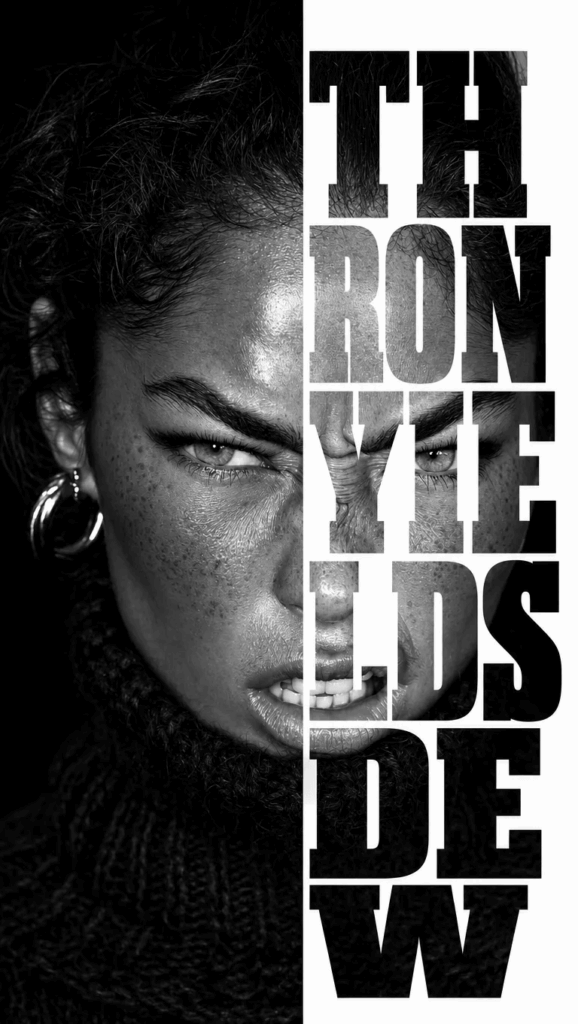
After a short wait, WeShop.ai will create a black-and-white AI typography poster based on your uploaded portrait.
The final image should include:
- A dramatic close-up portrait on the left
- Strong black-and-white contrast
- Chiaroscuro-style lighting
- Bold stacked letters on the right
- Facial, hair, or skin textures revealed inside the letters
If you like the result, click the download button and save the image to your device.
And that’s it. You now have a clean, bold, editorial-style AI typography poster made from your own portrait.
Advanced Tips and FAQ
Q1: Why does the text on the right side look crowded?
This usually happens when the custom phrase is too long.
The prompt asks the AI to stack the letters vertically. If you use a long phrase, the AI may compress the layout. As a result, the letters can feel crowded or hard to read.
To improve the result:
- Use short words
- Choose 3–8 letter words when possible
- Avoid long sentences
- Keep the phrase bold and simple
For example, “STAY REAL” will usually work better than a long quote.
Q2: Why does my poster not look dramatic enough?
The original photo matters a lot.
The prompt asks for chiaroscuro lighting, which means strong contrast between light and shadow. However, if your uploaded portrait has very flat lighting, the AI may have less visual information to work with.
To get a more premium-looking AI typography poster, try using a portrait with:
- Side lighting
- Clear facial structure
- Visible shadows
- Sharp facial details
- A clean background
Avoid overly flat ID-style photos if you want a cinematic result.
Q3: Why are the textures inside the letters not obvious?
If the typographic masking effect is too subtle, adjust your text.
Uppercase letters usually work better because they take up more space. Bold slab-serif letters also give the AI more area to show skin, hair, and facial texture.
Try these fixes:
- Use all uppercase text
- Choose shorter words
- Avoid thin or delicate letter styles
- Use bold words with strong shapes
In simple terms: the bigger and bolder the letters are, the easier it is for the texture to show through.
Final Thoughts
You don’t need a full design team to create a strong visual poster anymore.
With the right AI tool and a clear prompt, one simple portrait can become a bold editorial-style AI typography poster in minutes. This technique is especially useful for personal branding, social media visuals, fashion-style edits, and creative brand campaigns.
The best part is that the workflow is easy to repeat. Once you understand the prompt structure, you can swap in different portraits, names, slogans, and visual directions.
So, what word would you place inside your own AI typography poster?
Open WeShop.ai, upload your portrait, paste the prompt, and try it for yourself. If you create a result you love, share it in the comments. And don’t forget to save this tutorial so you can come back to it later.
Go to WeShop AI For Exploration: