
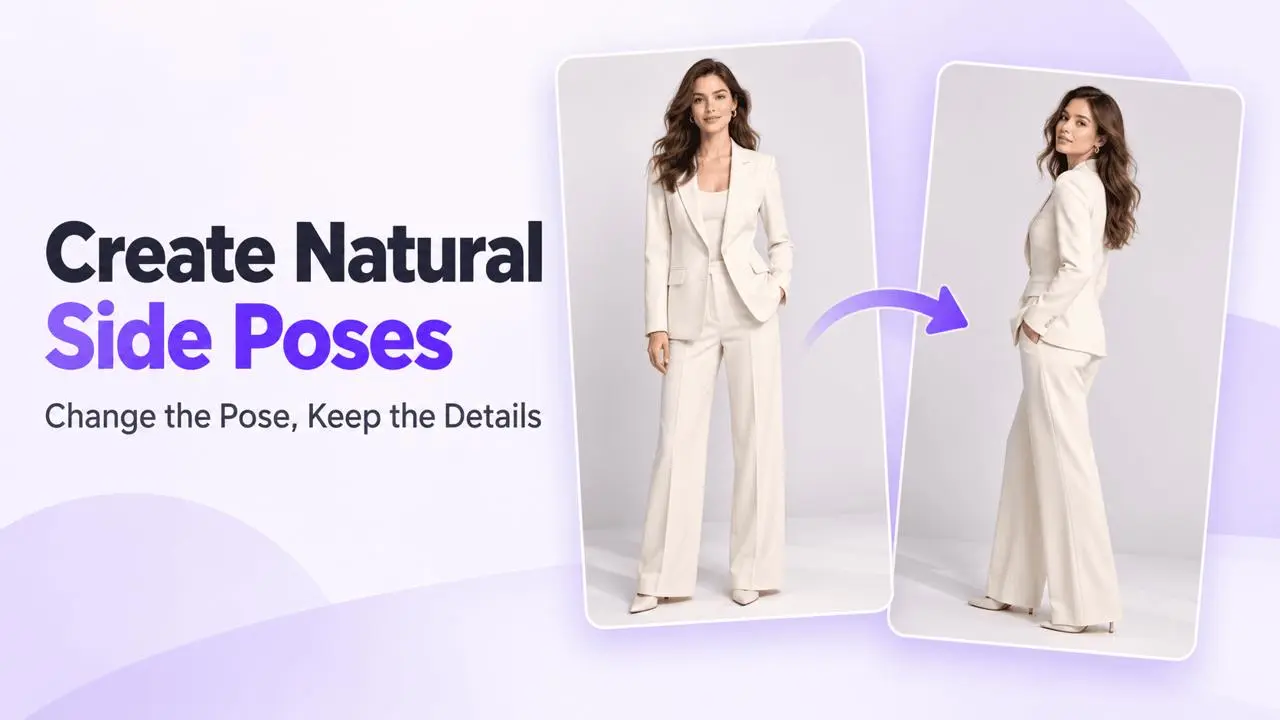
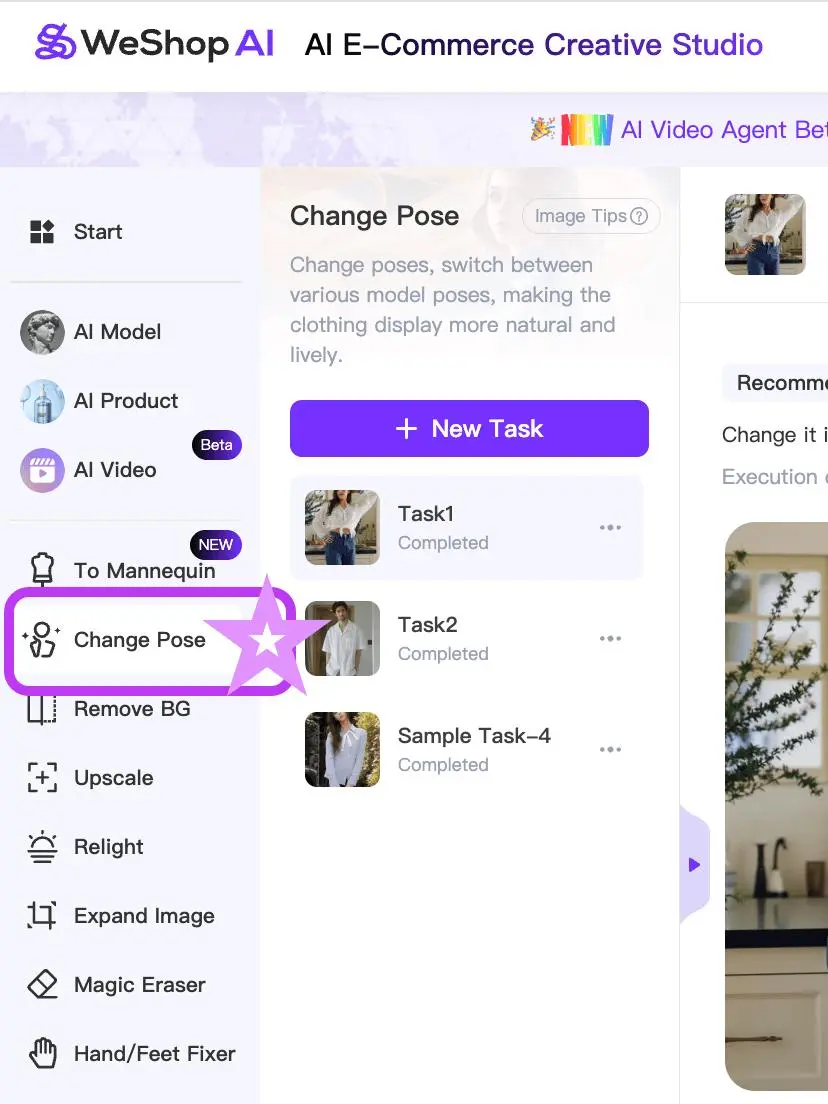
Step 1: Open Change Poses
Choose Change Poses and select your original photo. A clear full-body image gives the workflow more information about body structure and the outfit.
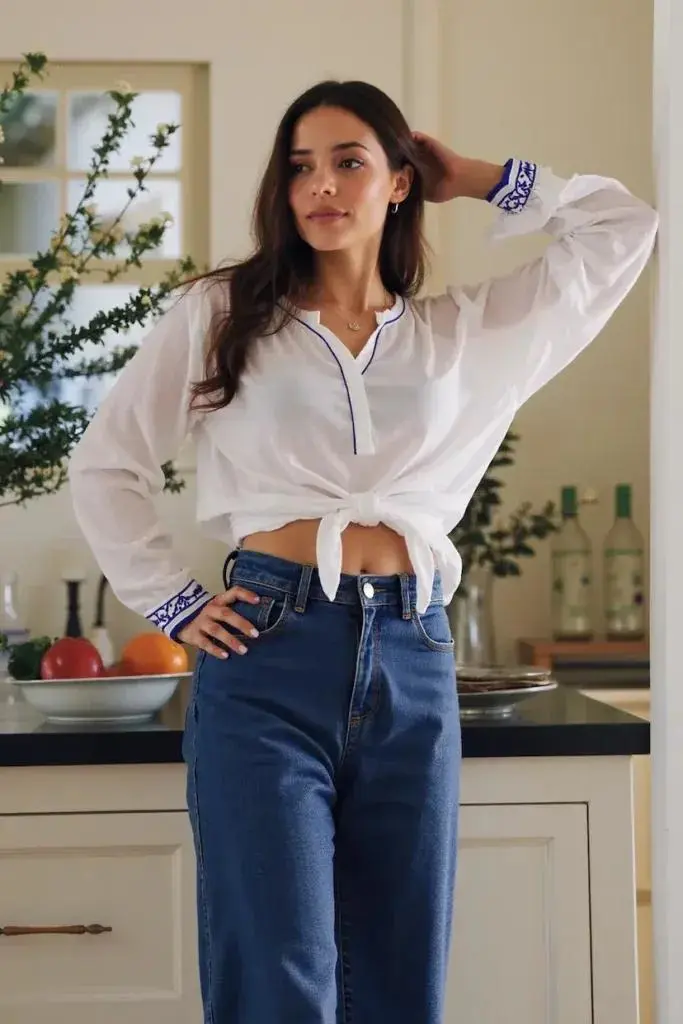
Step 2: Describe the Pose and What to Preserve
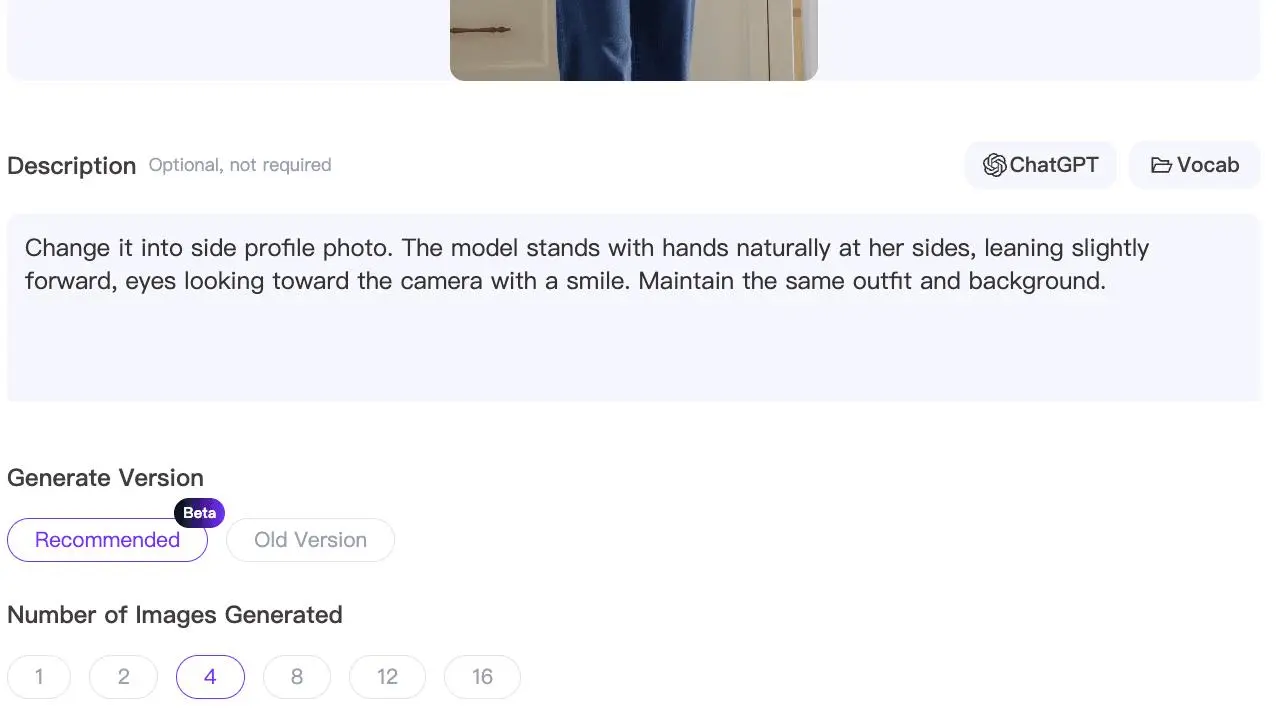
Write both the pose change and the elements that should stay consistent. Specify the body angle, head direction, hand position, and expression you want.
Example:
Turn the model’s body sideways. Keep her hands naturally at her sides and let her glance toward the camera with a gentle smile. Preserve the outfit, lighting, and background.
Step 3: Generate and Refine
Generate the pose and inspect the body angle, face, hands, outfit, and scene. Select Edit Again to refine an angle or correct an unwanted change.
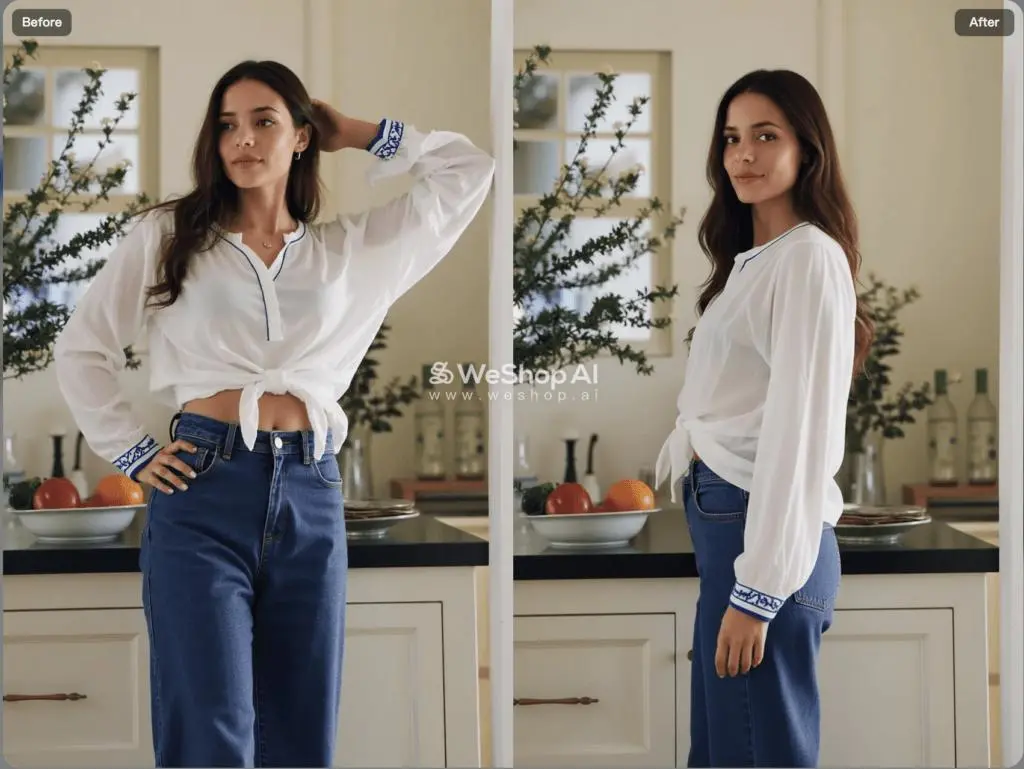
Step 4: Download the Result
When the result is ready, use the available download controls. Check the image at the size and crop where you plan to use it.
Control What Changes
- Keep the scene: Ask to preserve the same background and lighting.
- Keep the outfit: Explicitly request the same garment and inspect details afterward.
- Change the expression: Describe a specific natural expression rather than adding unrelated style instructions.
- Change the background: State the exact scene change separately from the pose request.
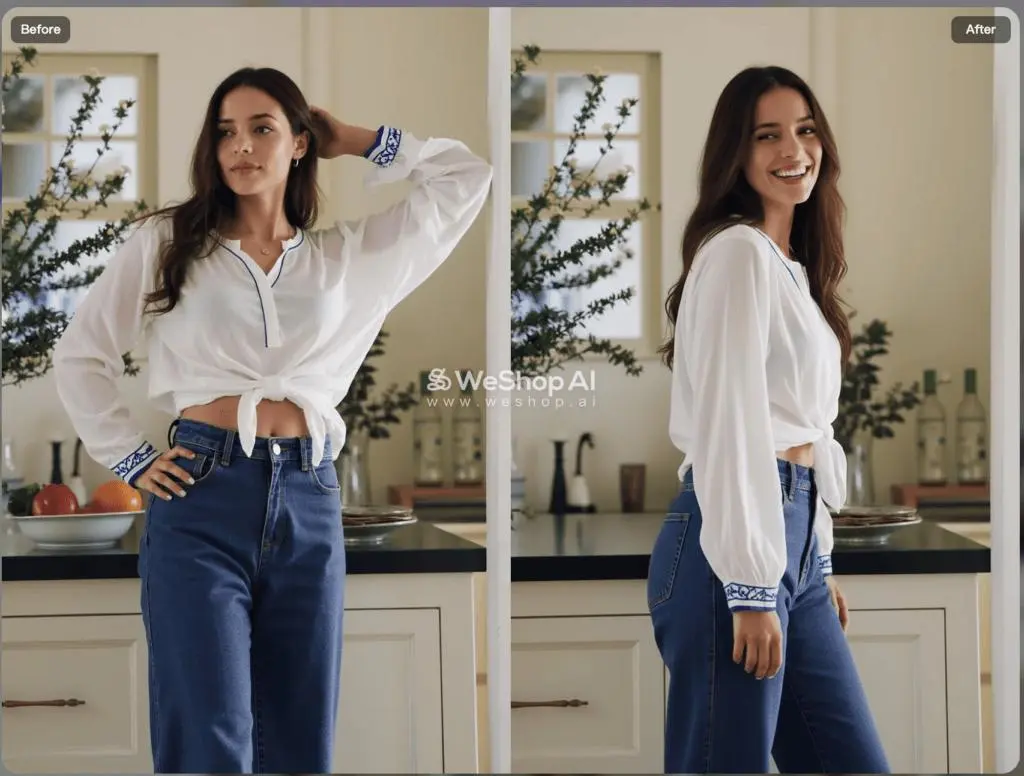
Side-Profile Examples
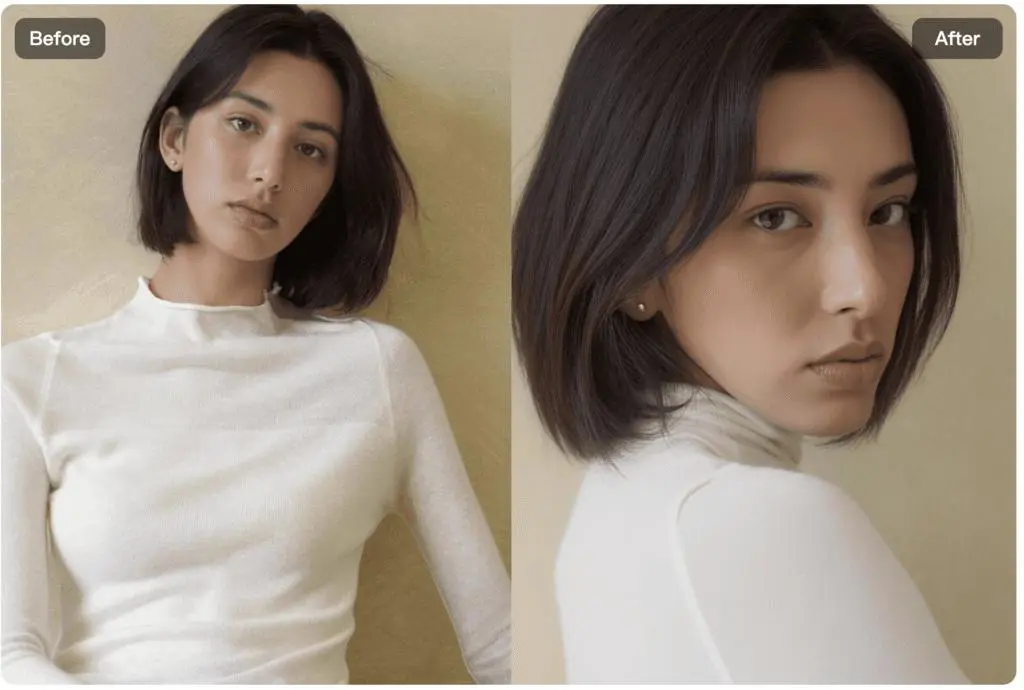
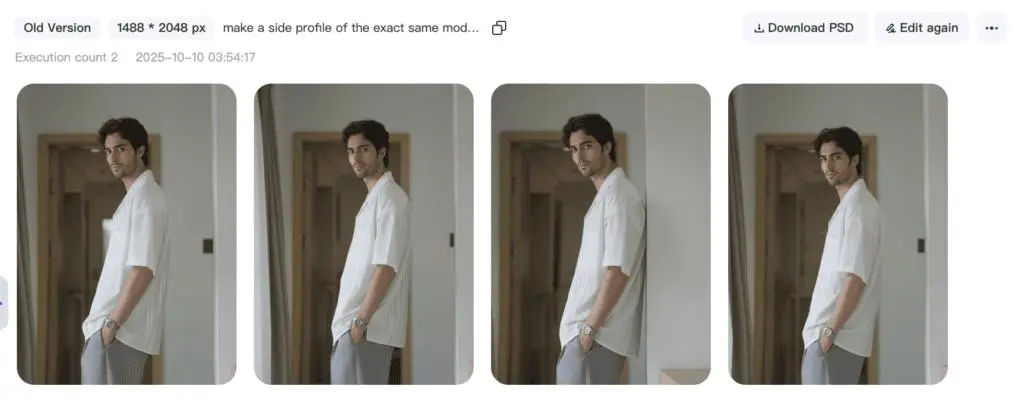
Review Anatomy and Clothing
A prompt is guidance rather than a guarantee. Compare the generated image with the source. If hands or body proportions need attention, see the Hands and Feet Quality Checklist or Head-to-Body Ratio Guide.