
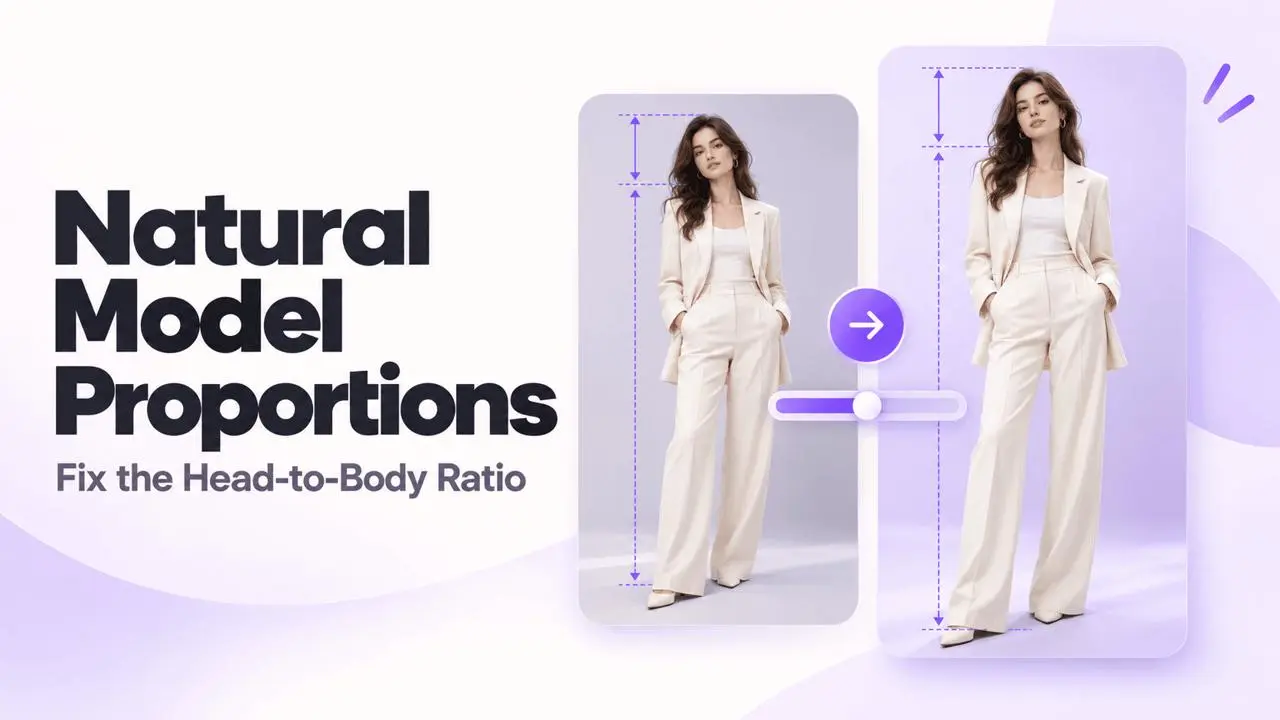
Adjust the Head-to-Body Ratio
If a generated model’s head looks too large or the overall proportions look unnatural, use Reduce Head Size on the AI Model generation page.
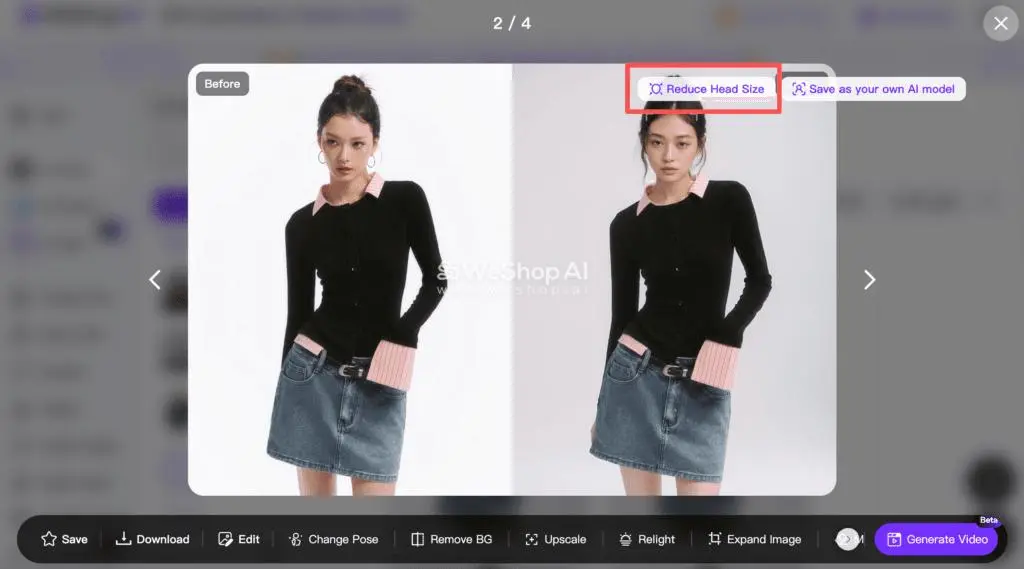
Step 1: Open the Adjustment
Hover over the generated image and click Reduce Head Size.
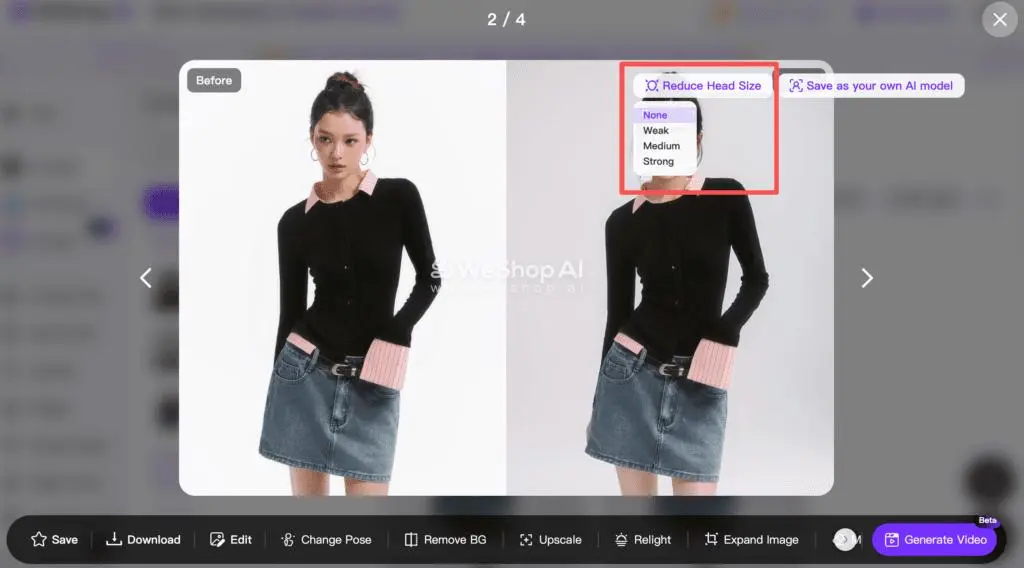
Step 2: Compare the Adjustment Levels
Choose Weak, Medium, or Strong. Select None to return to the original proportions.
Step 3: Review and Save
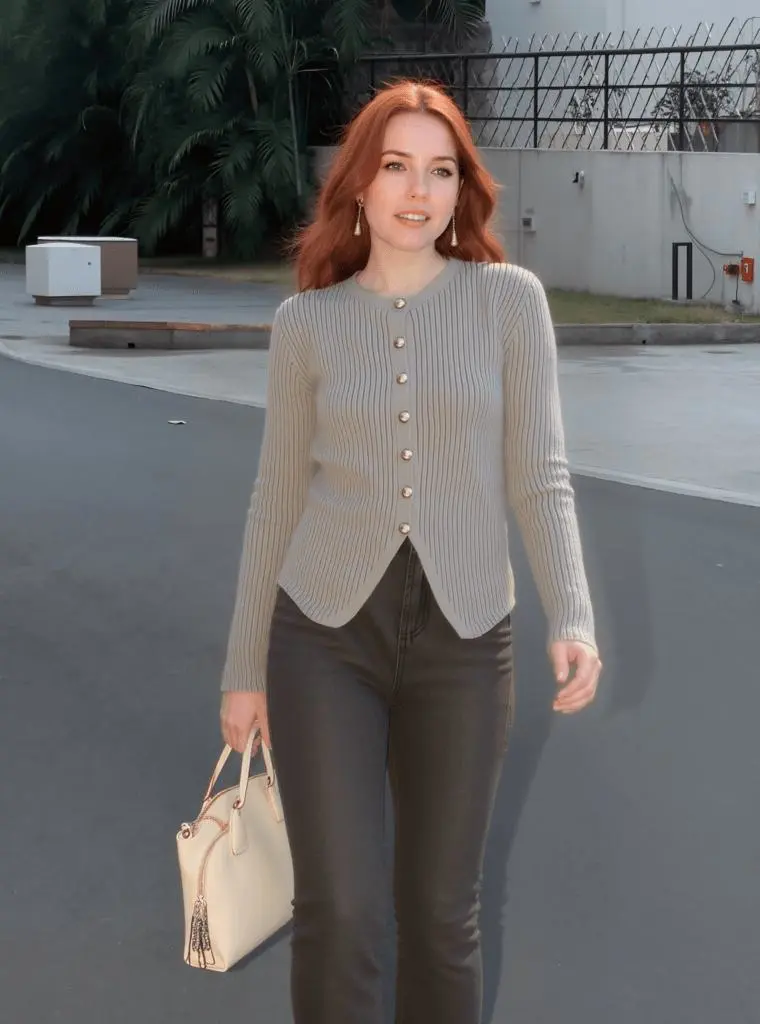
Compare the adjusted image with the original at full-image size. Check the head, shoulders, body balance, clothing, and composition before choosing a result.
If you want to reuse the adjusted model, select Save as your own AI Model. Find it under AI Models in the Model Store for future images.
Comparison Example
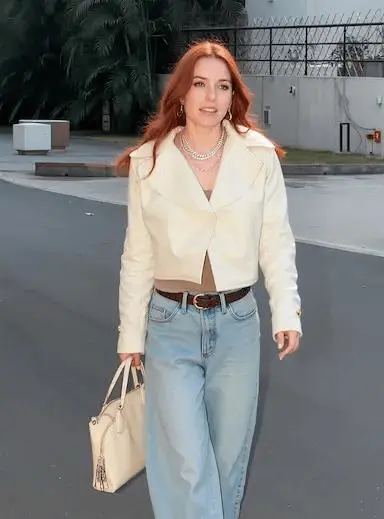
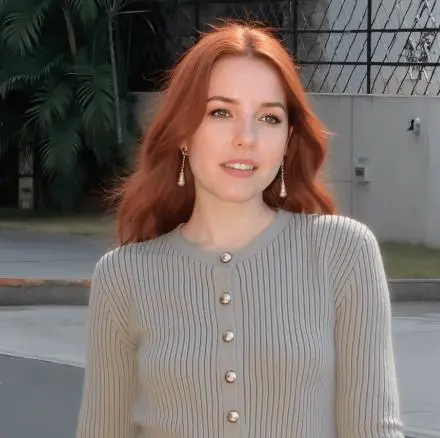
The source tutorial shows the original image, a scene reference, the generated image, and the proportion adjustment:

Frequently Asked Questions
Can I fine-tune the adjustment?
Yes. Compare Weak, Medium, and Strong to choose the amount of correction. None restores the original.
What should I check before using the image?
Review the full composition and product details as well as the head size. Choose the version with the most natural proportions for your image.