




AI Inpainting
User Guide
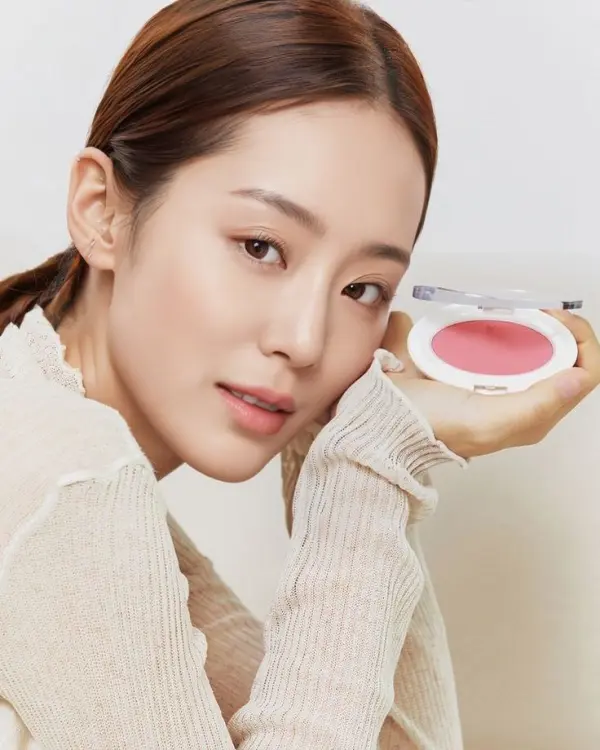
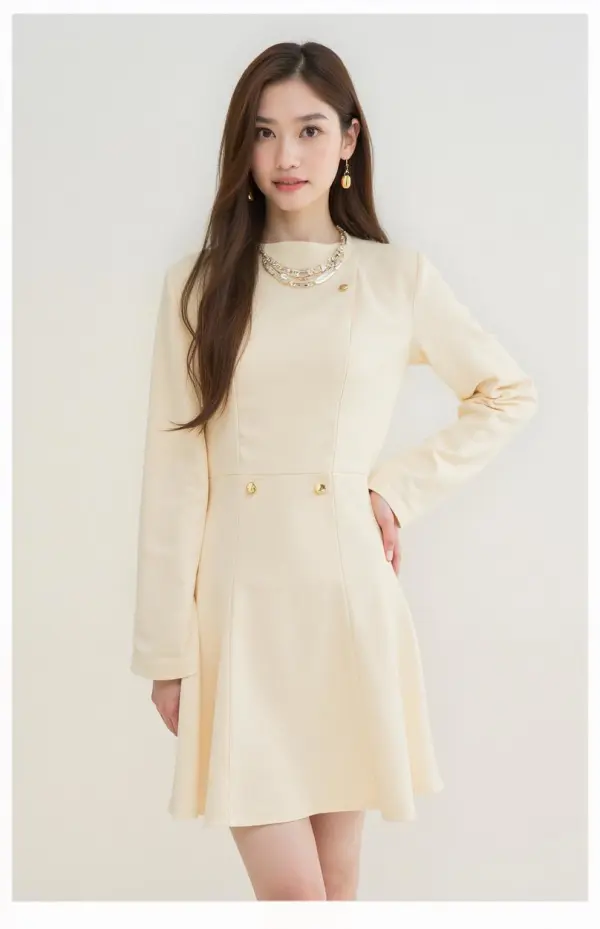
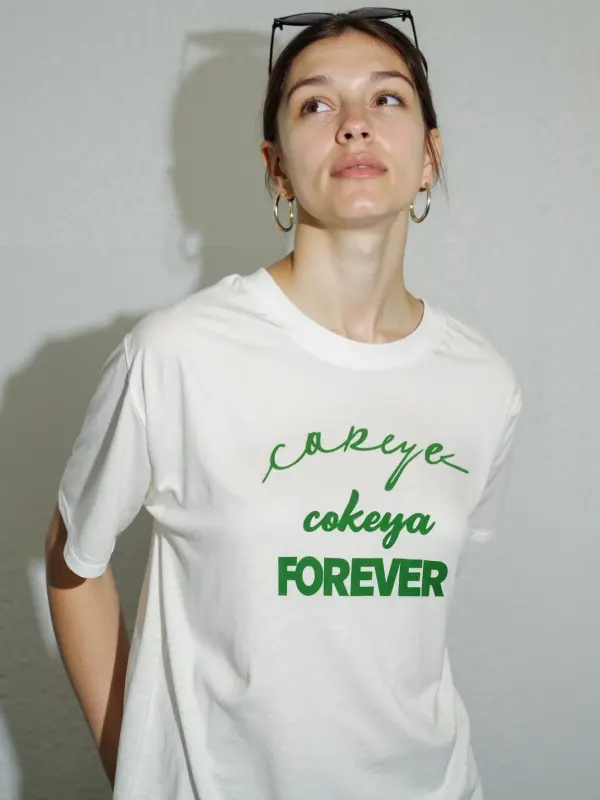
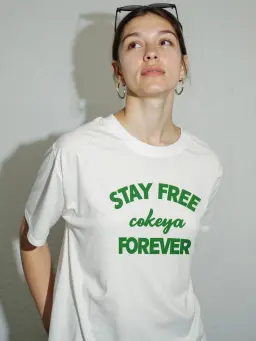
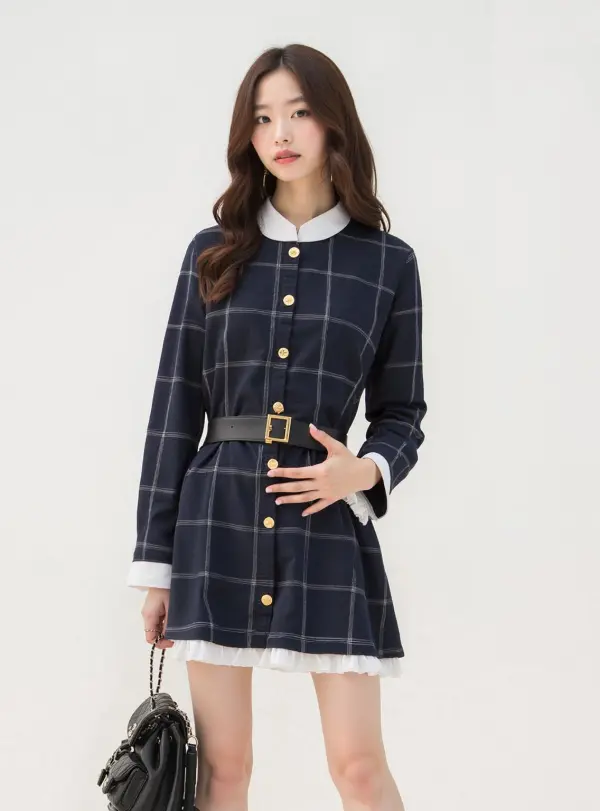
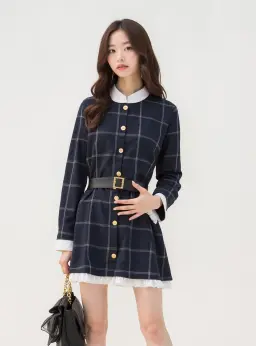
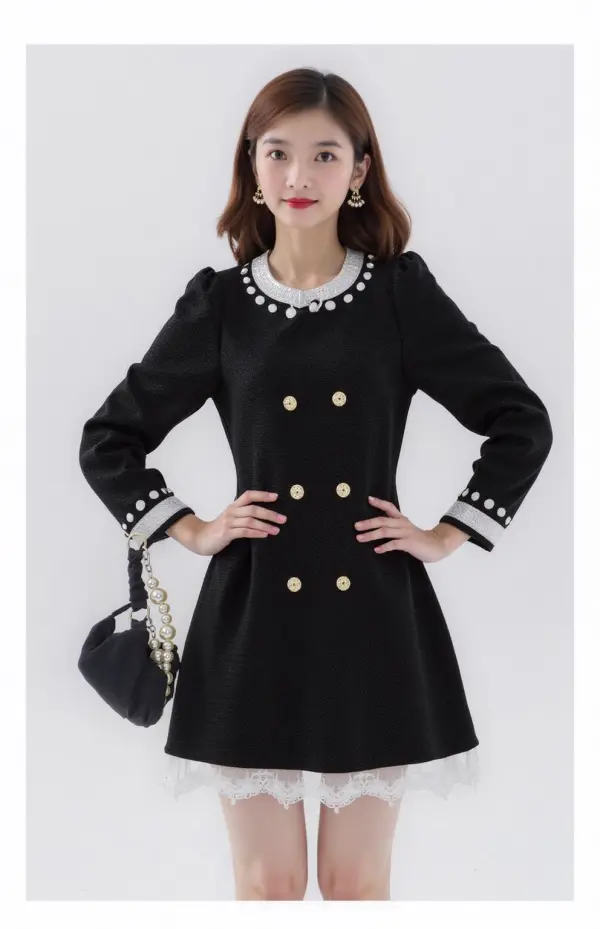
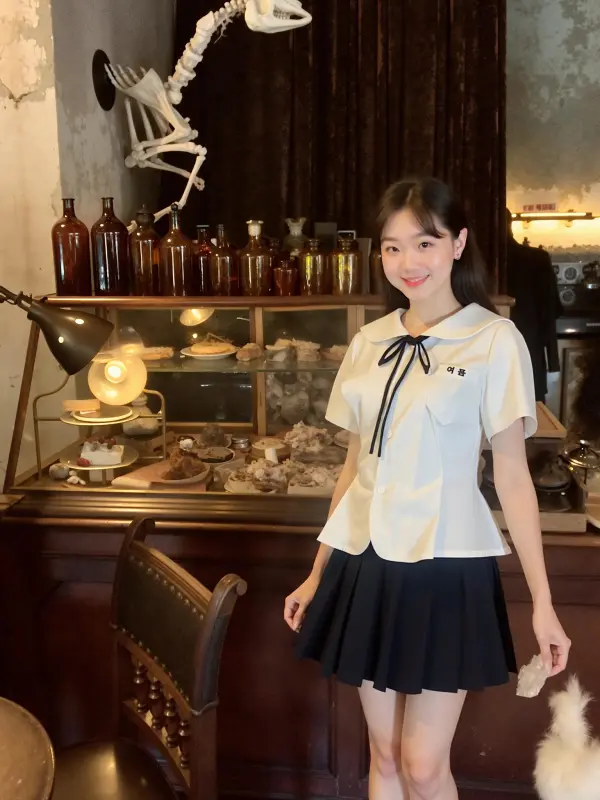
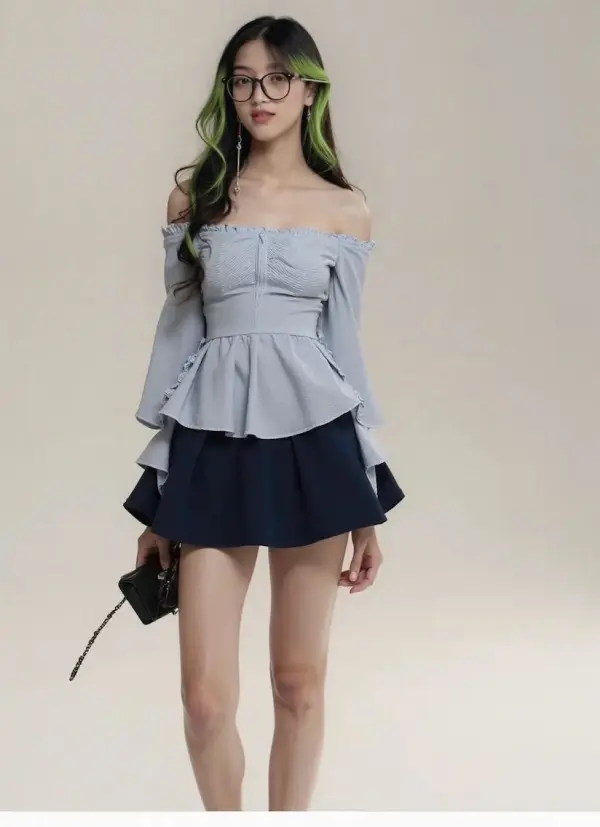
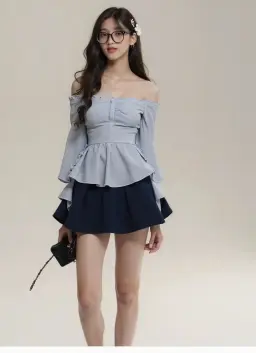
Seamless AI-Powered Inpainting
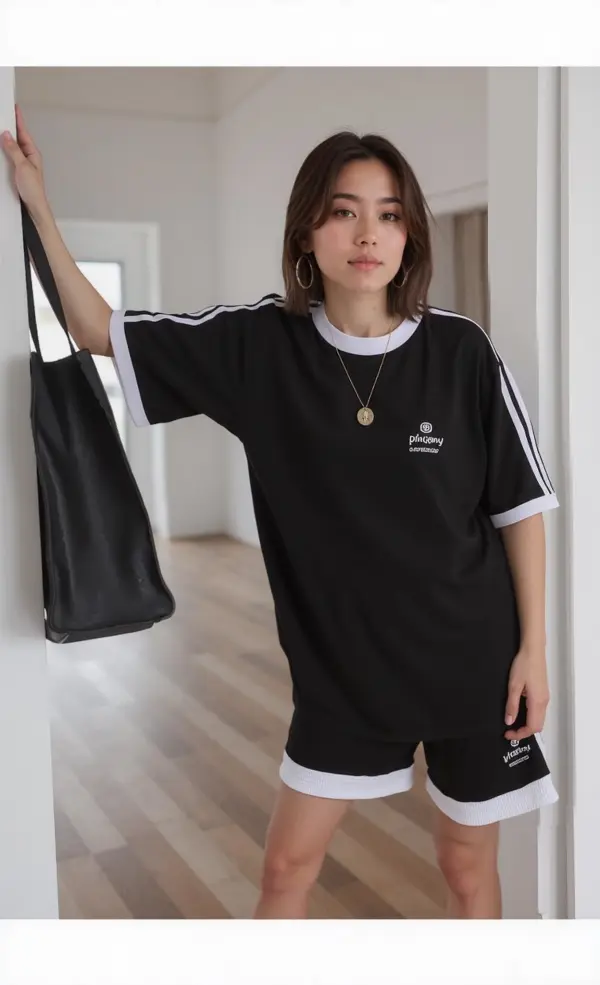
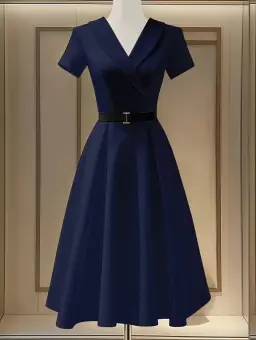
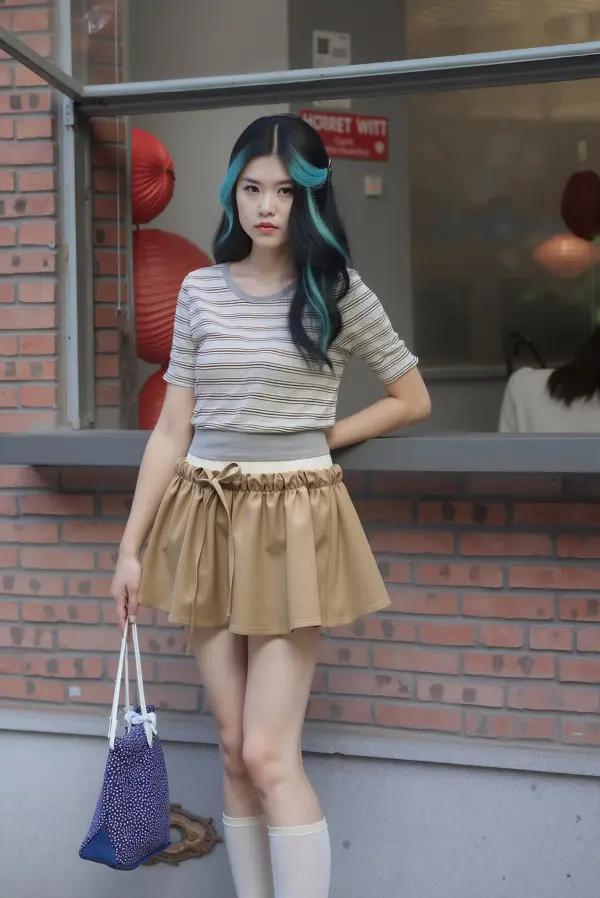
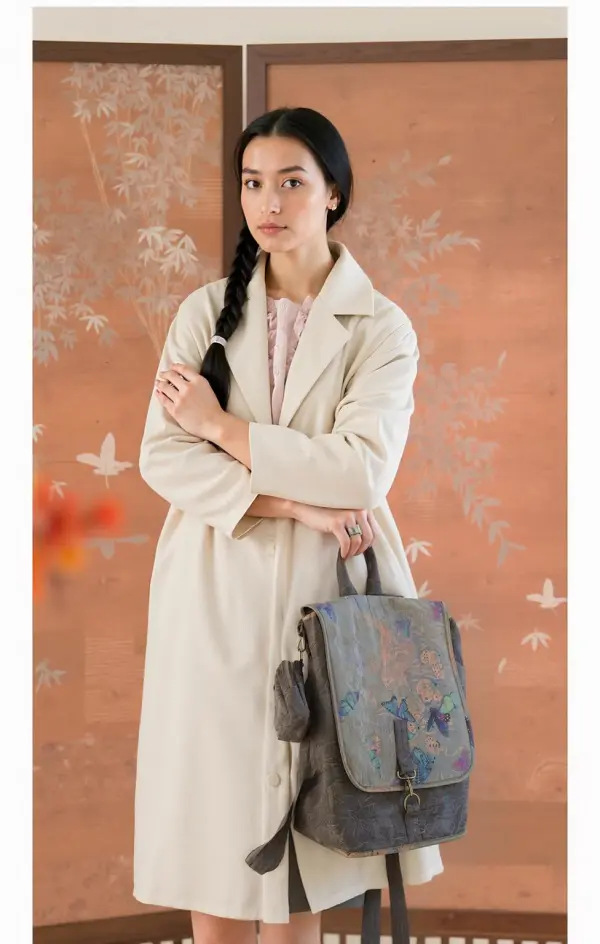
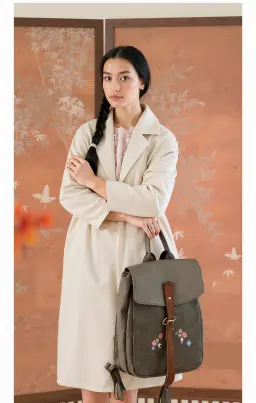
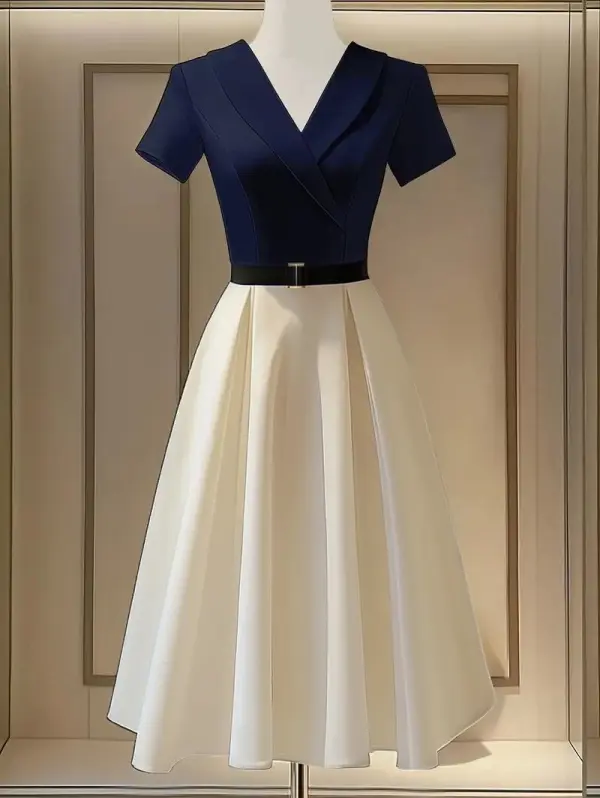
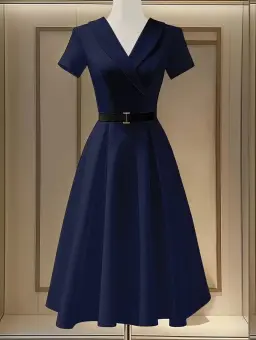
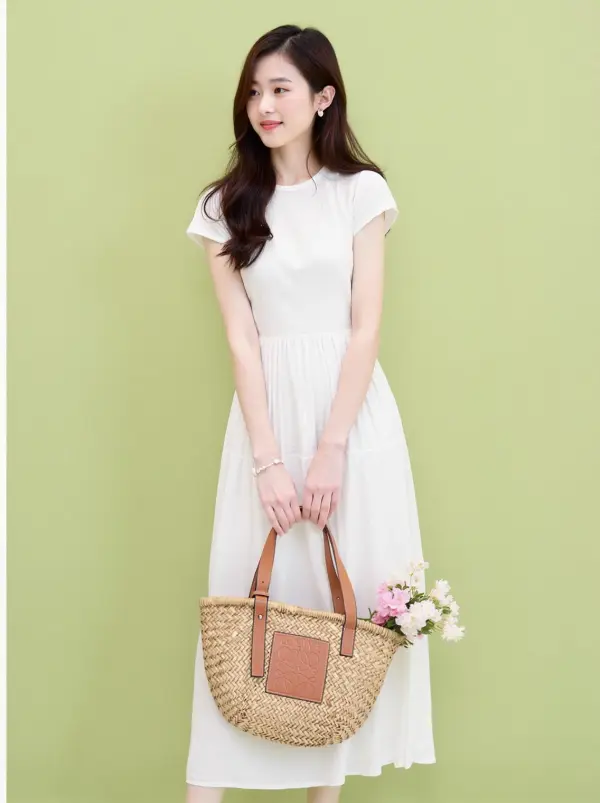
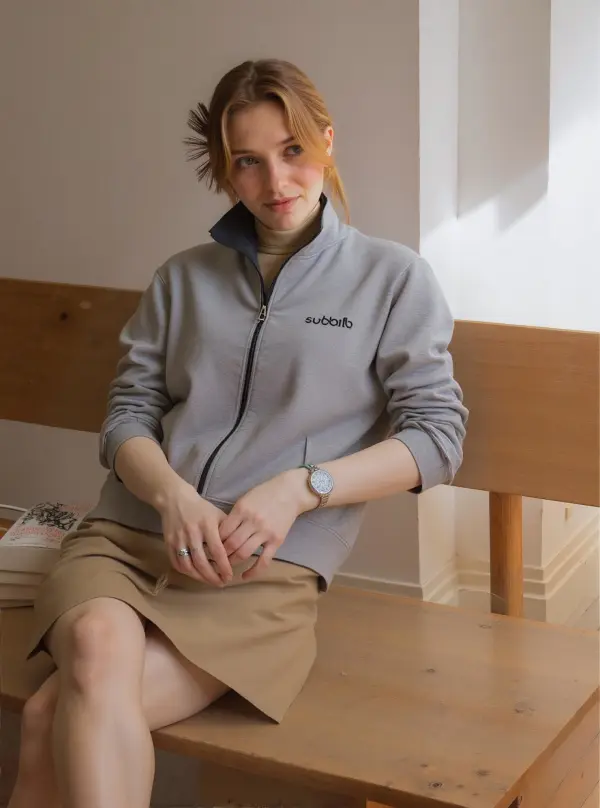
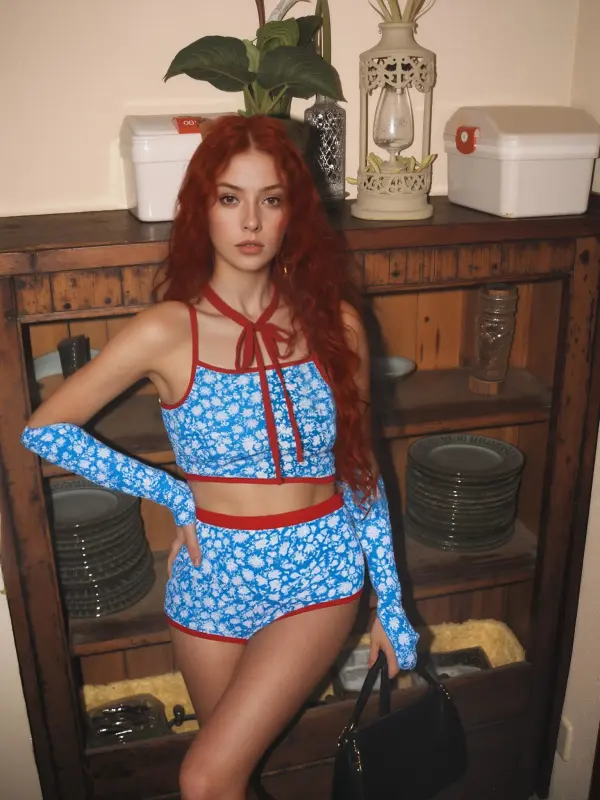
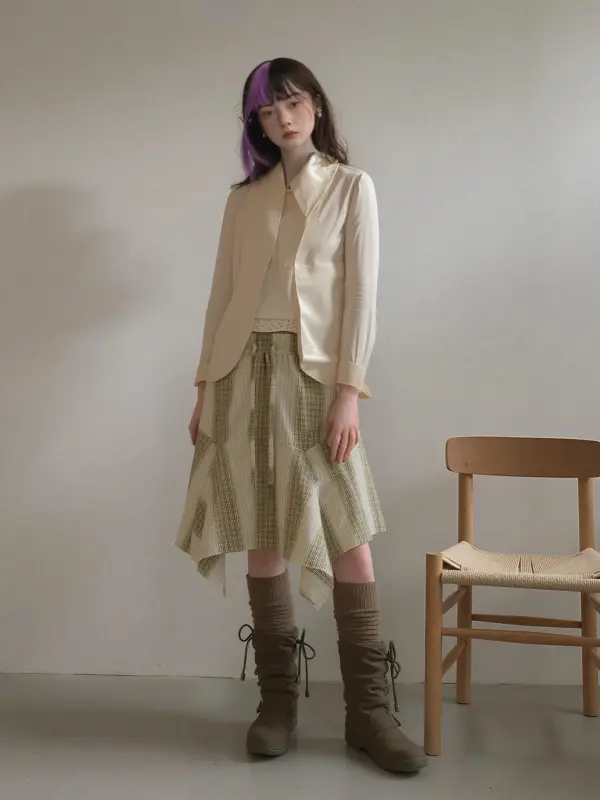
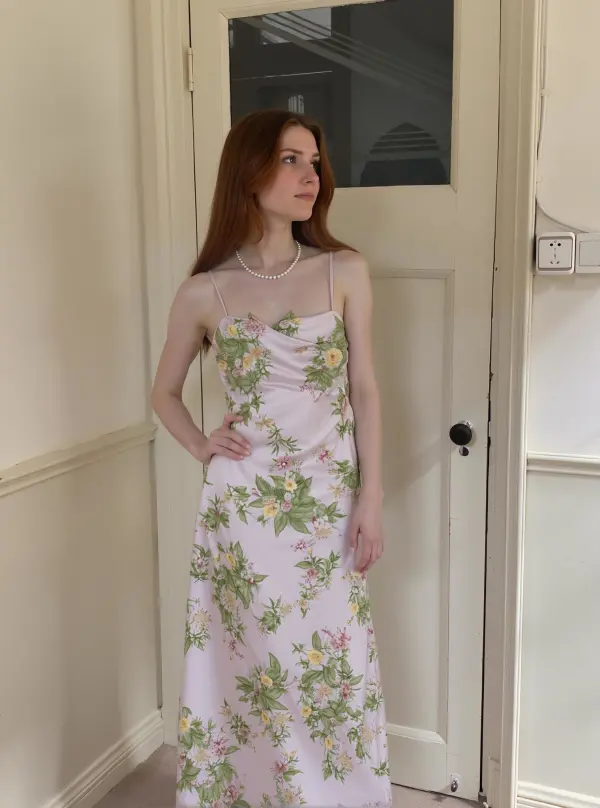
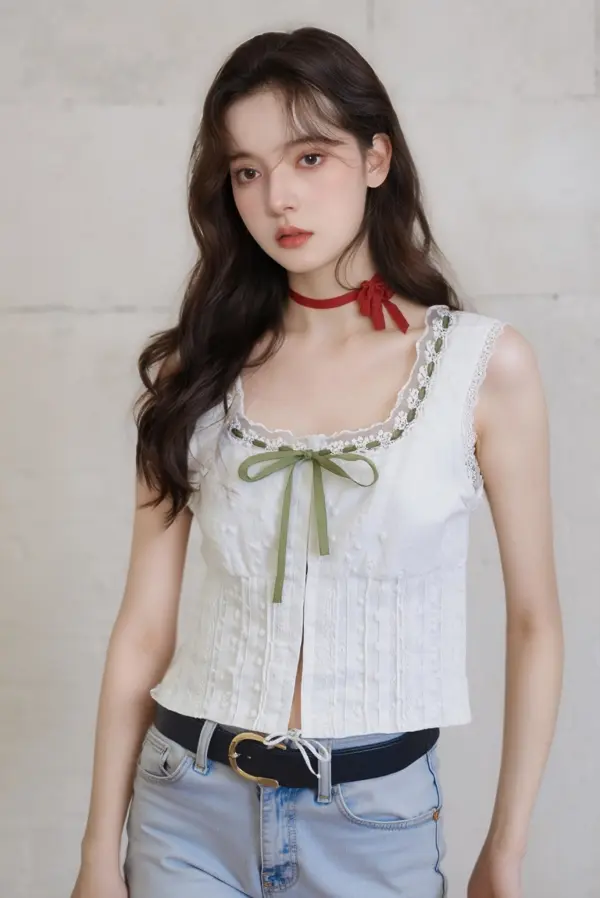
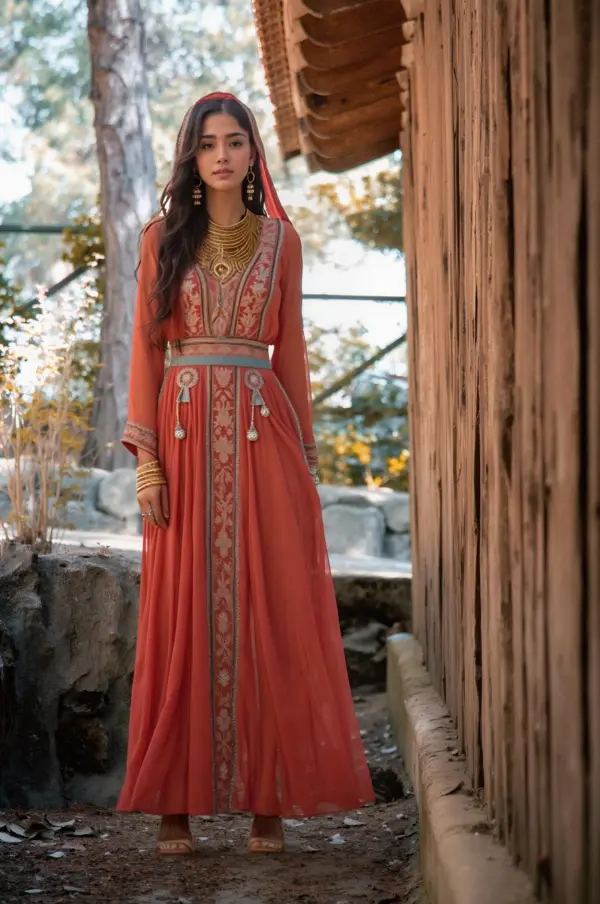
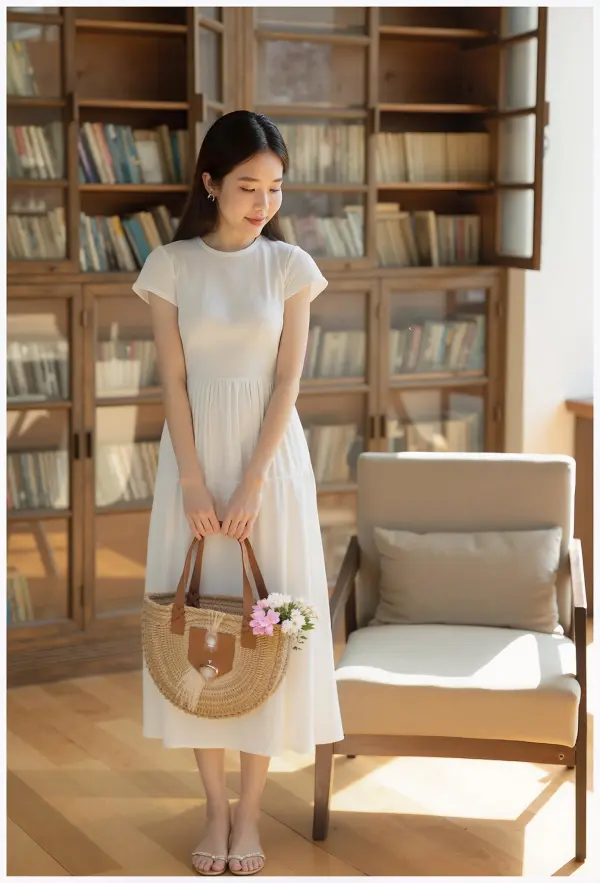
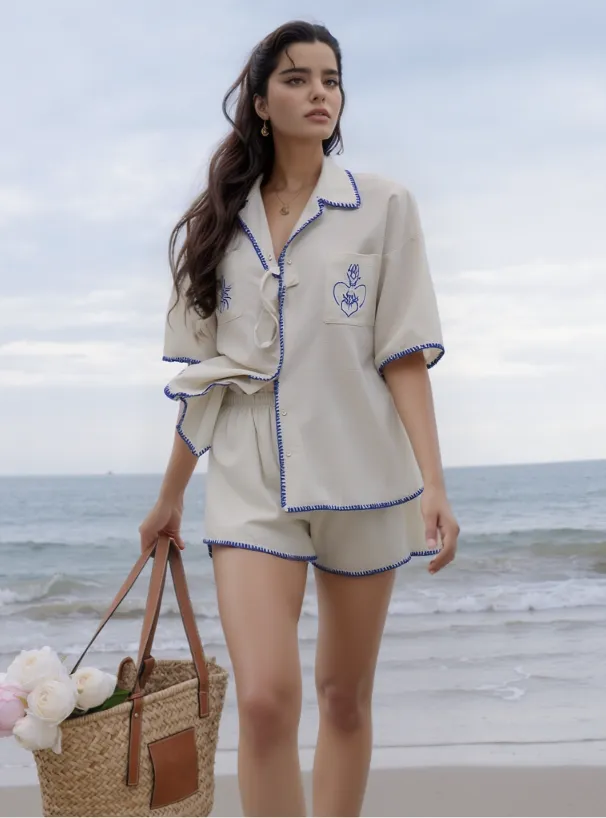
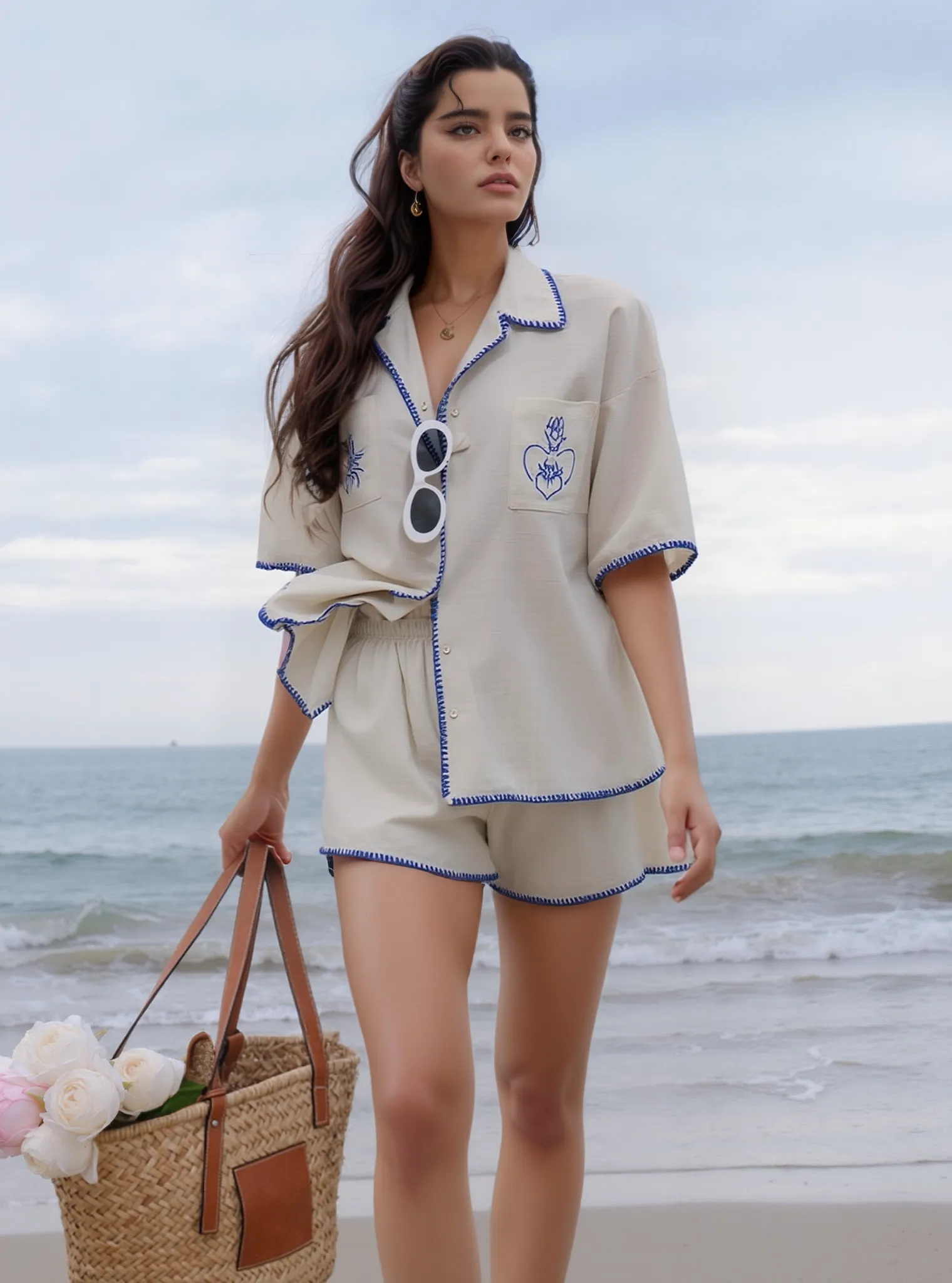
Ensure that the masked regions are accurately replaced using your target reference image.
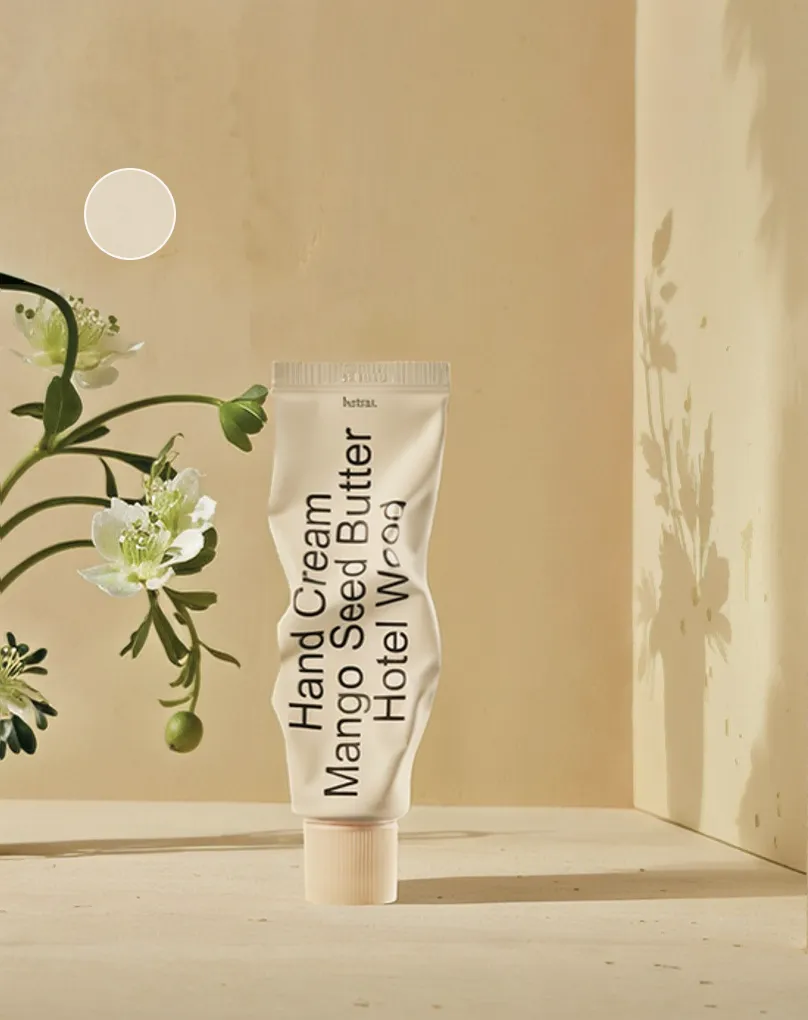
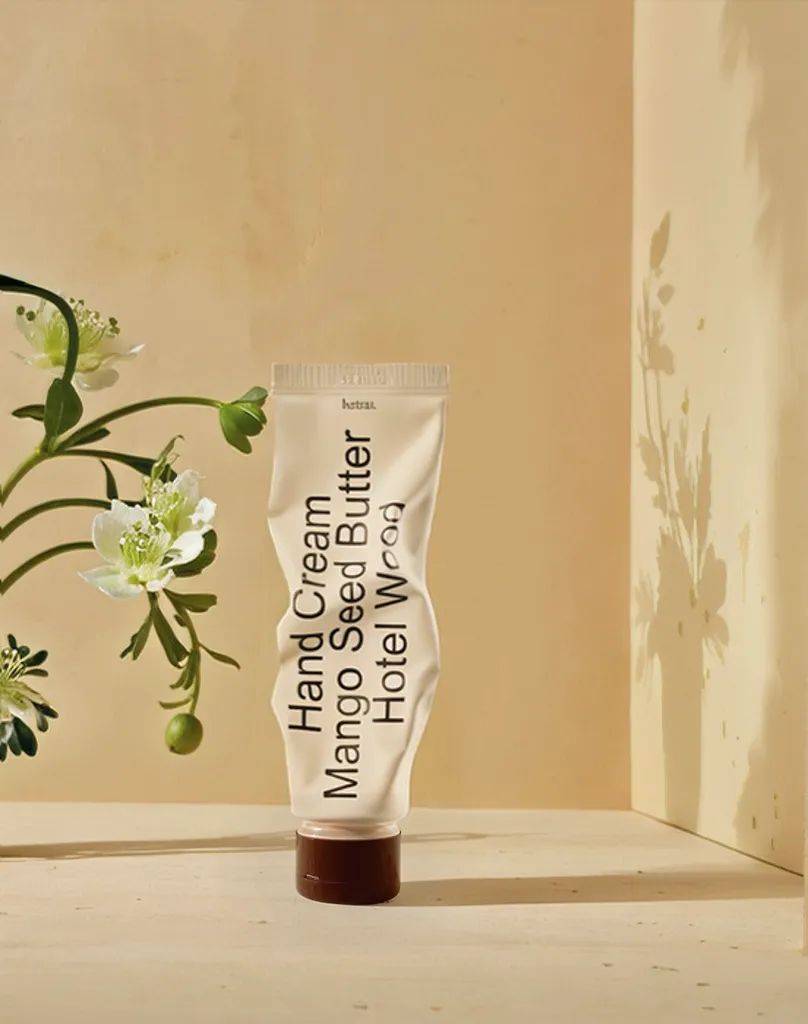
Versatile Applications
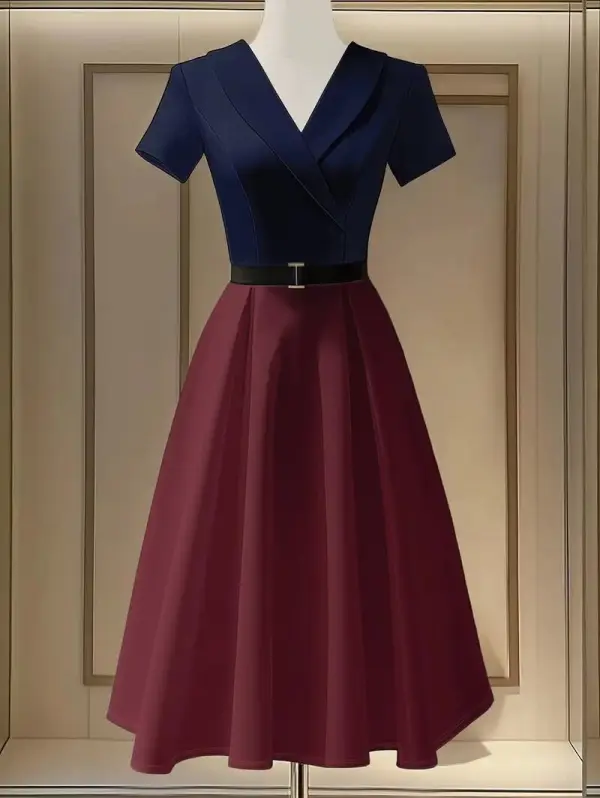
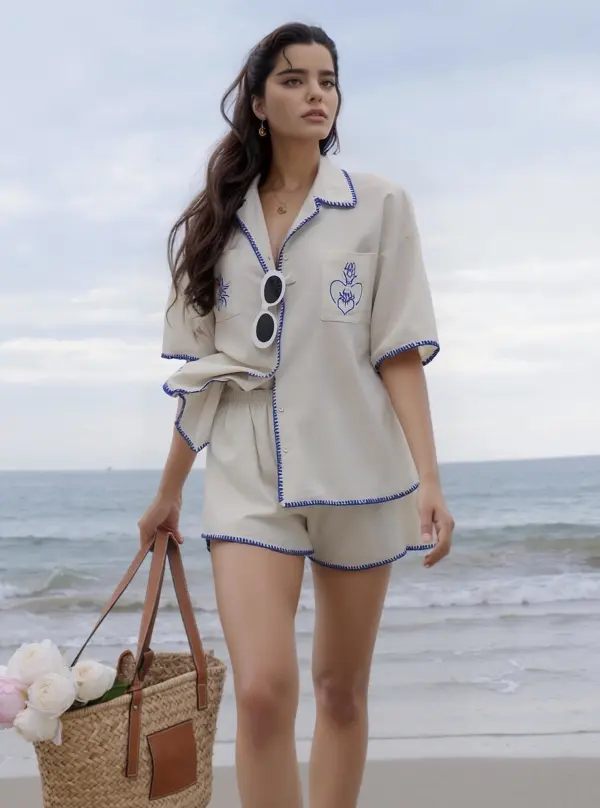
Ideal for apparel, footwear, cosmetics, and more, ensuring every product image meets your brand's standards.
FAQs
What is Design Repair – AI Inpainting?

When should I use it?
How does it work?
Does the result look natural?
Do I need advanced editing skills?
What kinds of flaws can it fix?
Are there limitations?
How fast is the process?
Is this tool suitable for commercial use?
Explore More AI Tools

HappyHorse AI Video Generator
Create Cinematic Text-to-Video and Image-to-Video Content
GPT Image 2 AI Image Generator
Create High Quality Images, Text Rich Visuals, and Product Photography
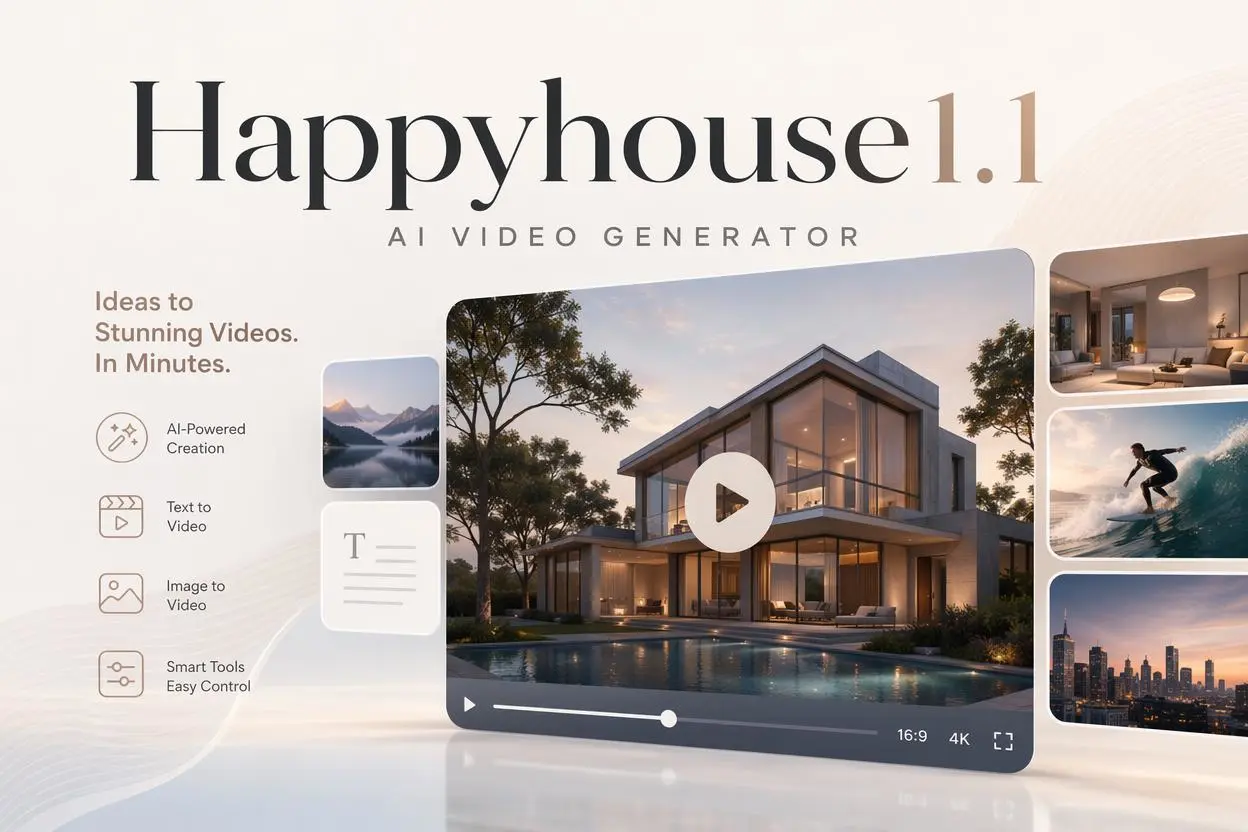
HappyHorse 1.1 AI Video Generator
Create Campaign-Ready Videos Online
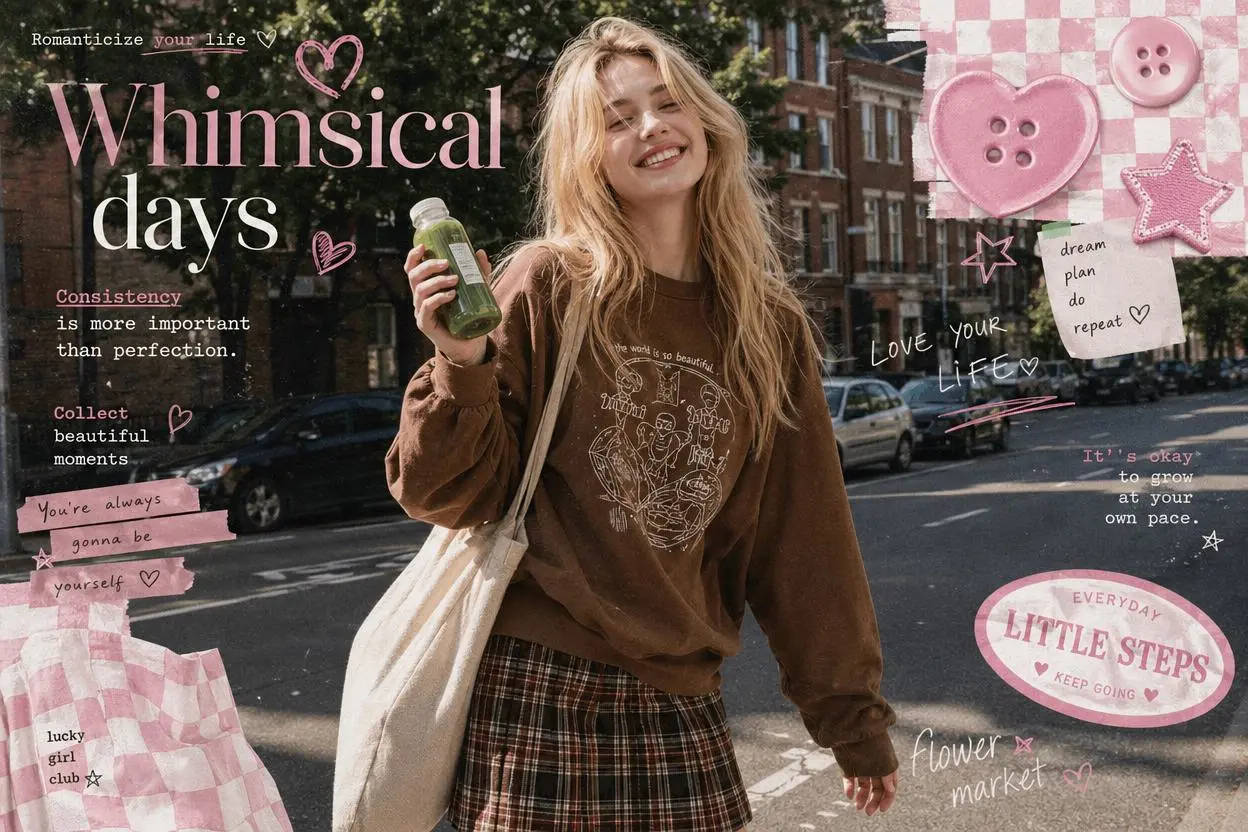
Nano Banana
Google's Next-Gen AI Image Model for Instant Professional Creativity
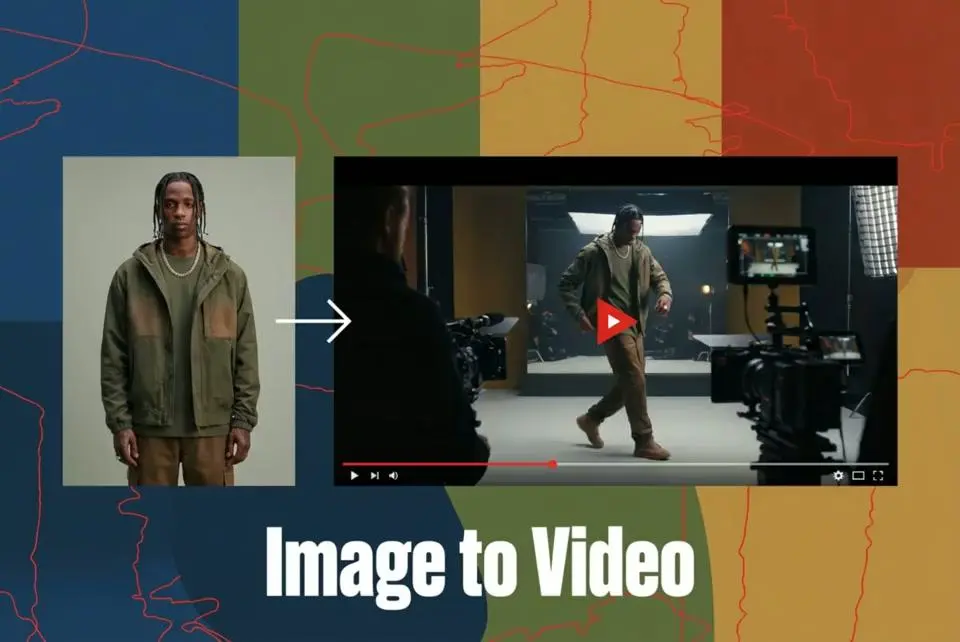
AI Video Generator
Turn Images into Stunning AI Videos for Free
Virtual Try-On
Try On Clothes Online with AI Virtual Try Technology
Swap Model & BG
Realistic Model & Background Swapping Online with AI
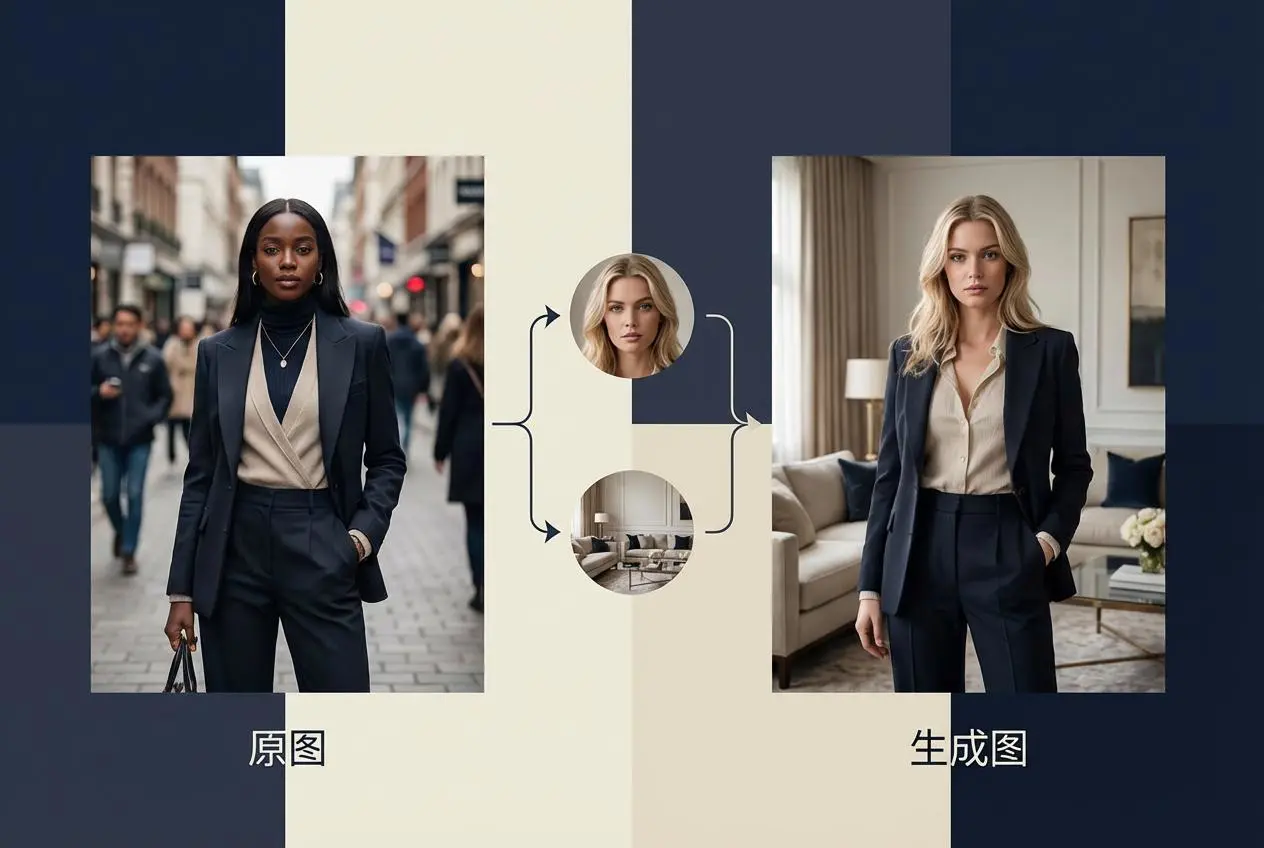
AI Fashion Model
Showcase clothing with a variety of models
AI Product
Create stunning product images with few clicks from anywhere
Face Forge
AI Face Morph & Face Swap Generator Online
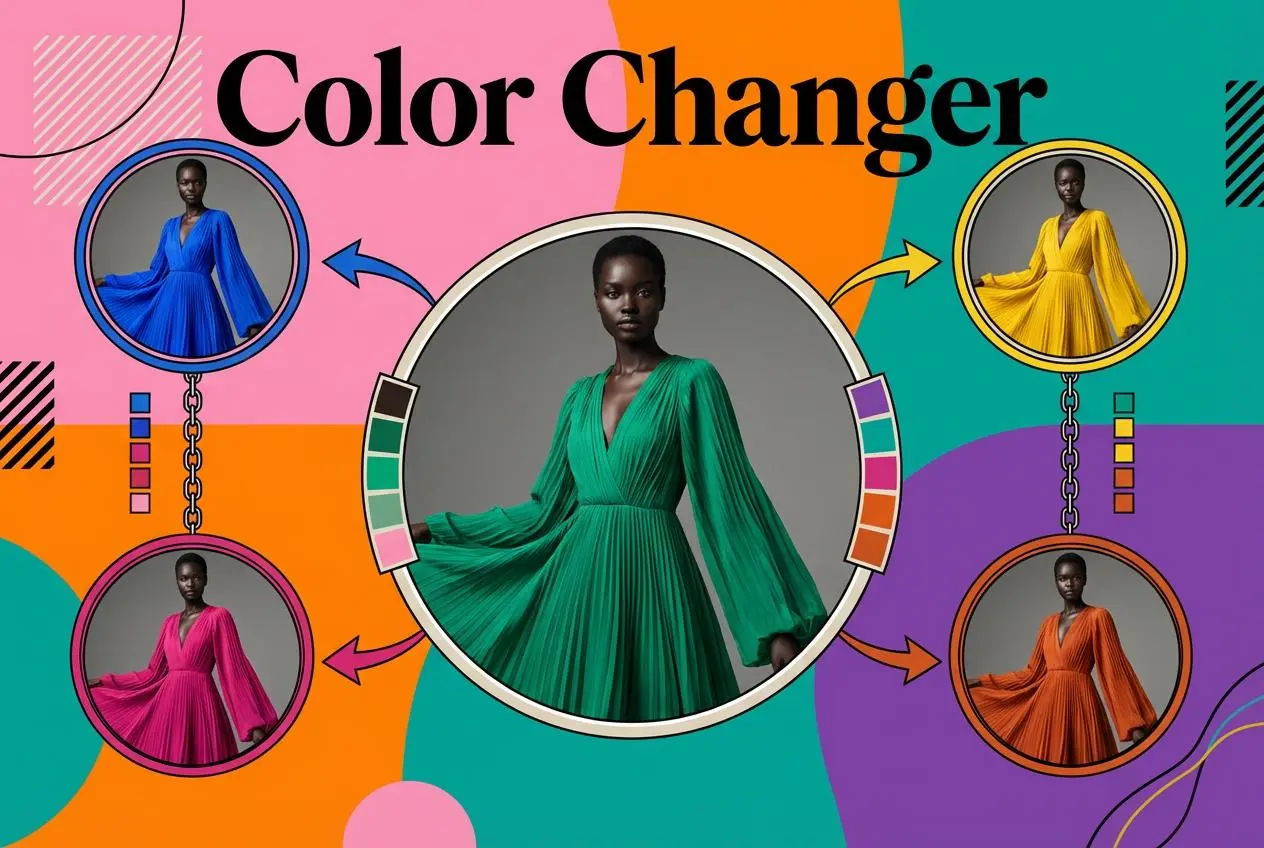
Product Recoloring
Recolor Image Online Free - Color Changer in WeShop AI
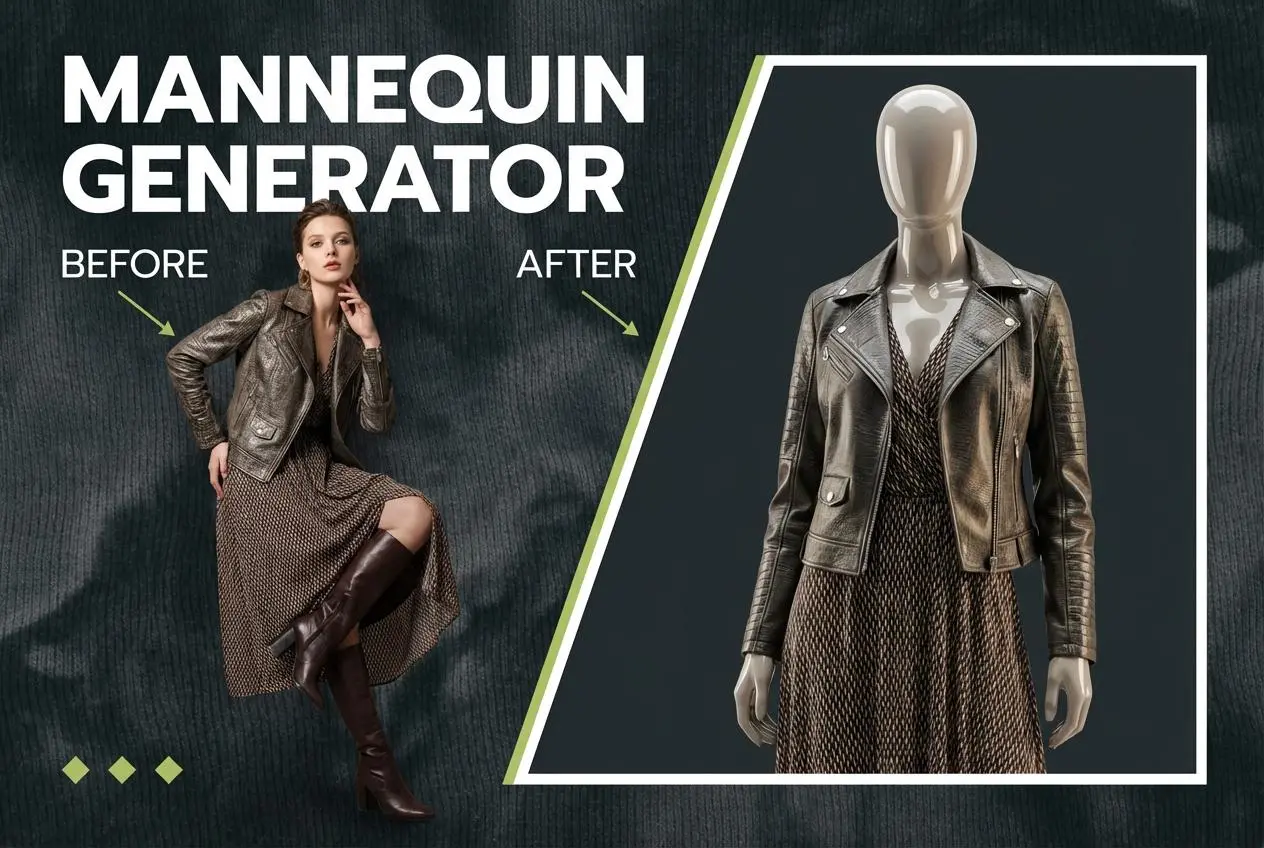
To Mannequin
Convert real model photos into mannequin displays
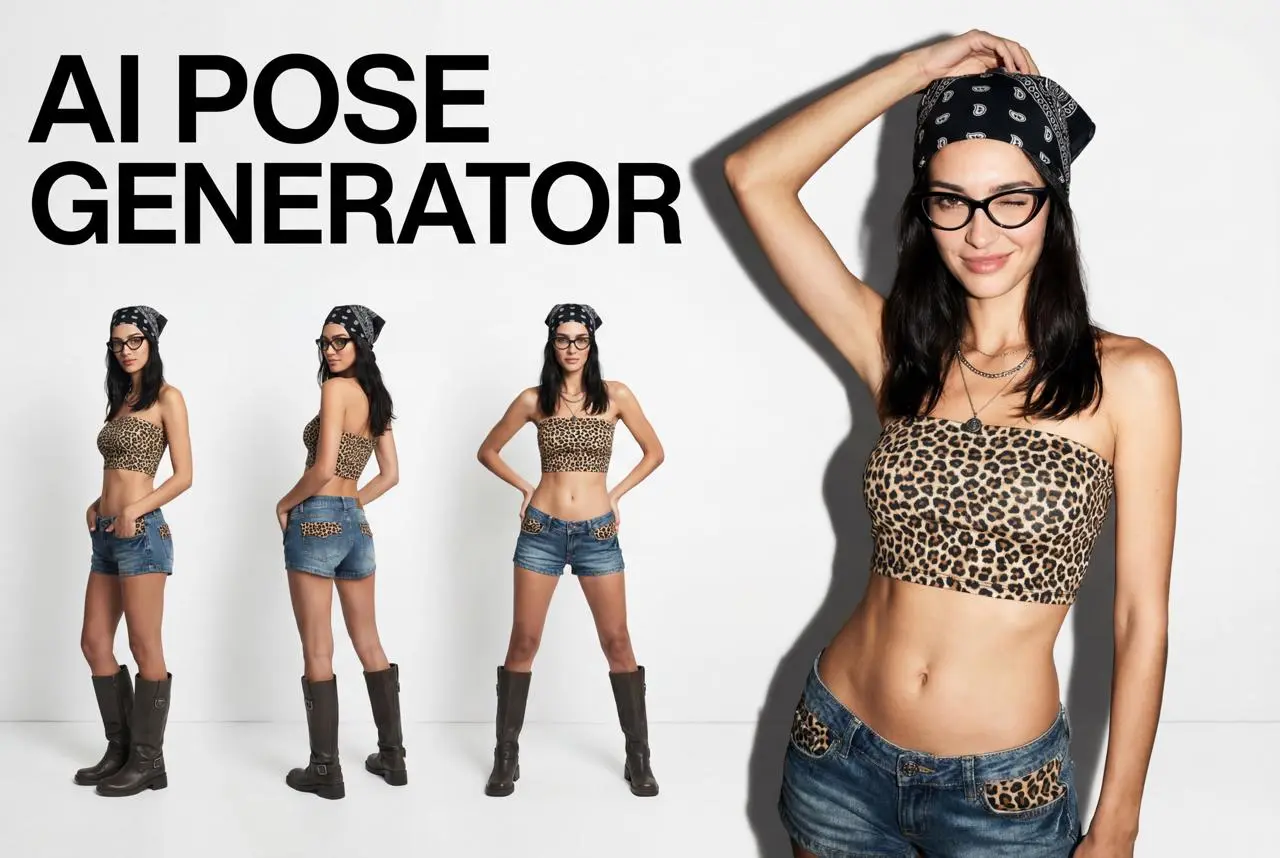
Change Pose
Change poses, switch between various model poses, making the clothing display more natural
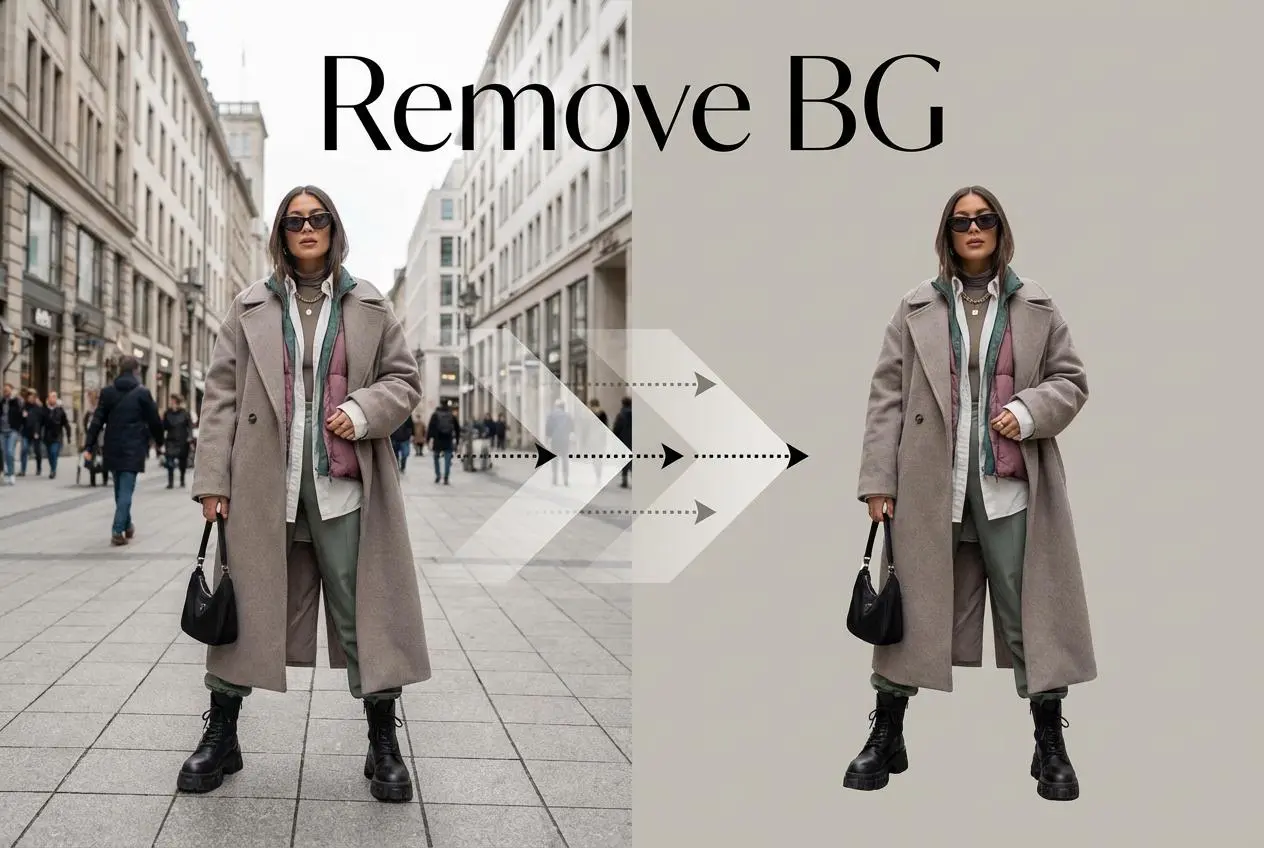
Remove Background
Removing background with lightning speed and ease
AI Photo Enhancer
Enhance Photo Quality Online with Free AI
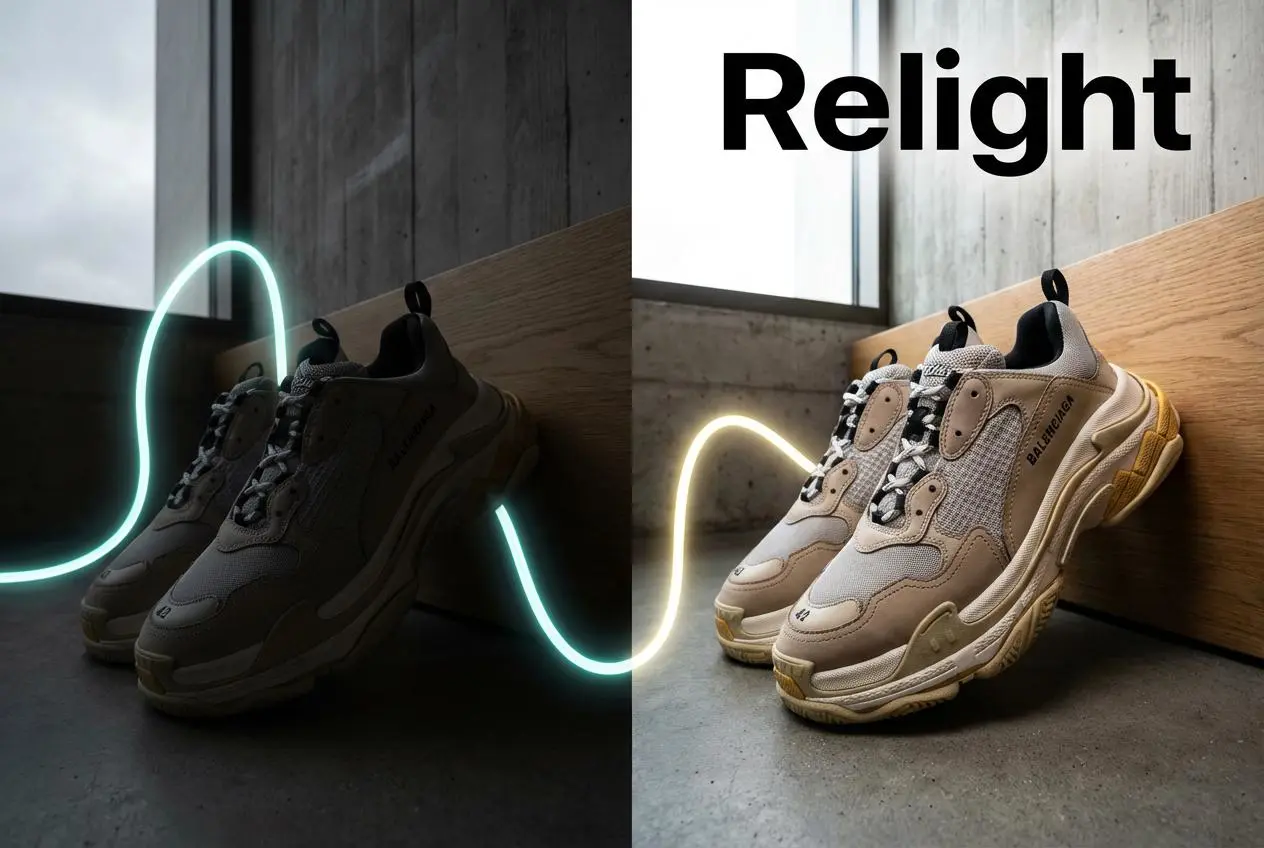
Relight
Relight your images automatically and efficiently
Expand Image
Expand images & backgrounds to fit any platform

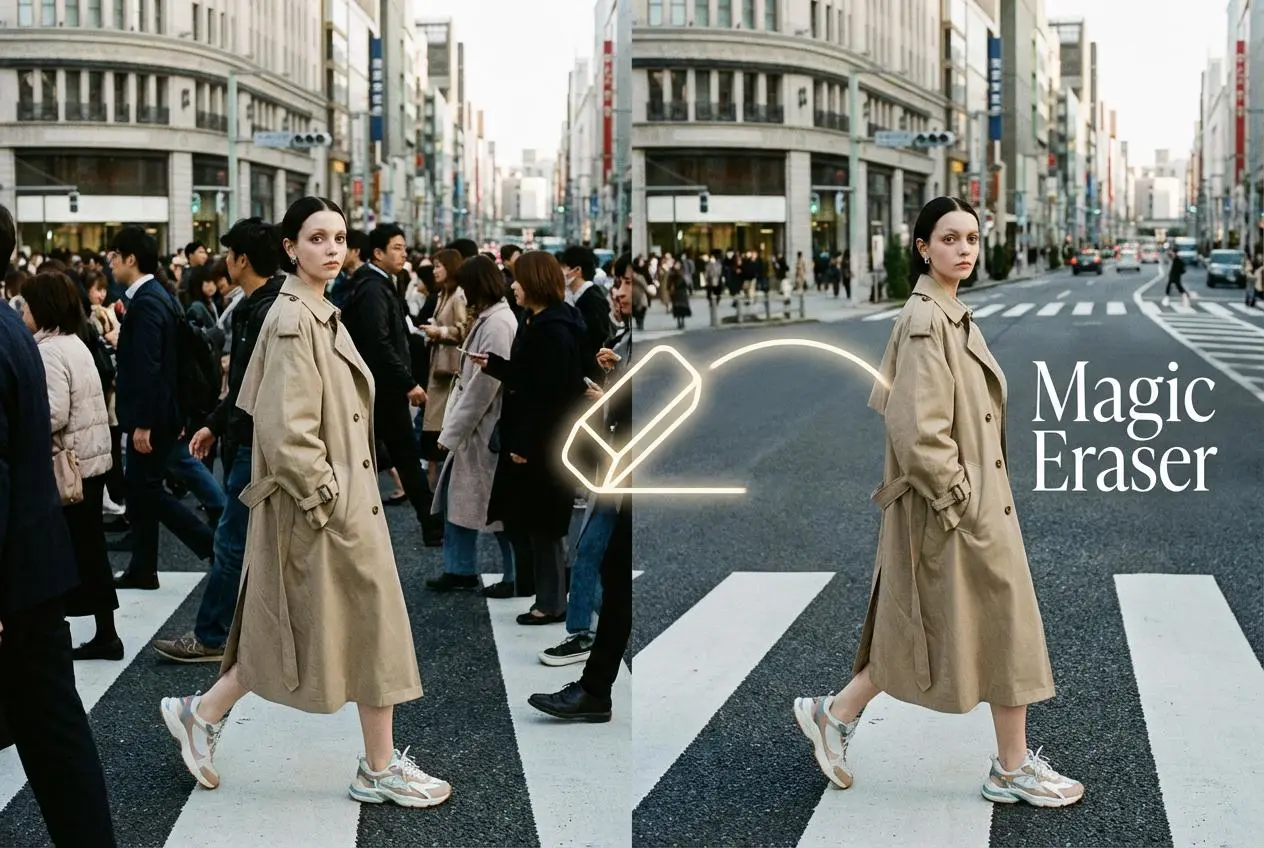
Magic Eraser
Remove unwanted objects from your photos with AI
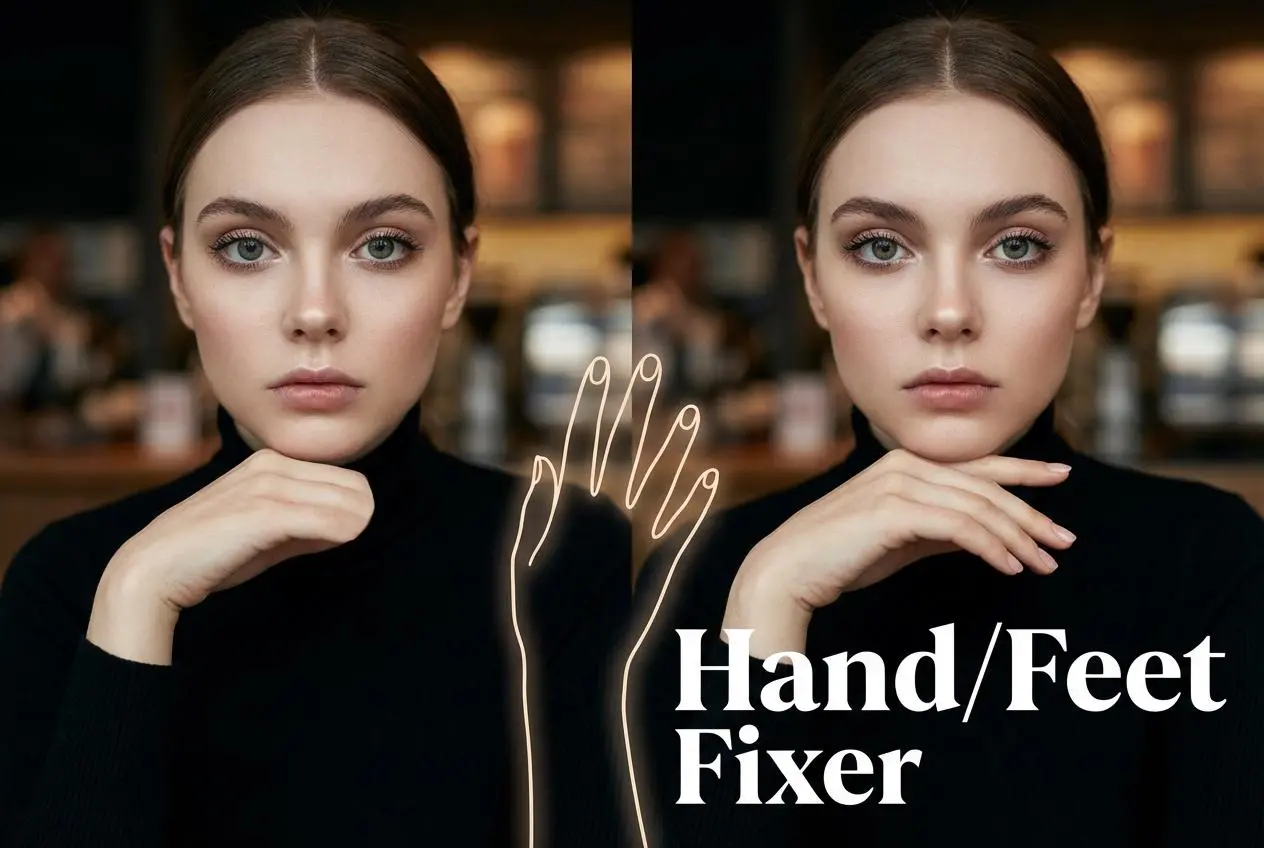
Hand/Feet Fixer
Regenerate natural-looking hands and feet in AI-generated images
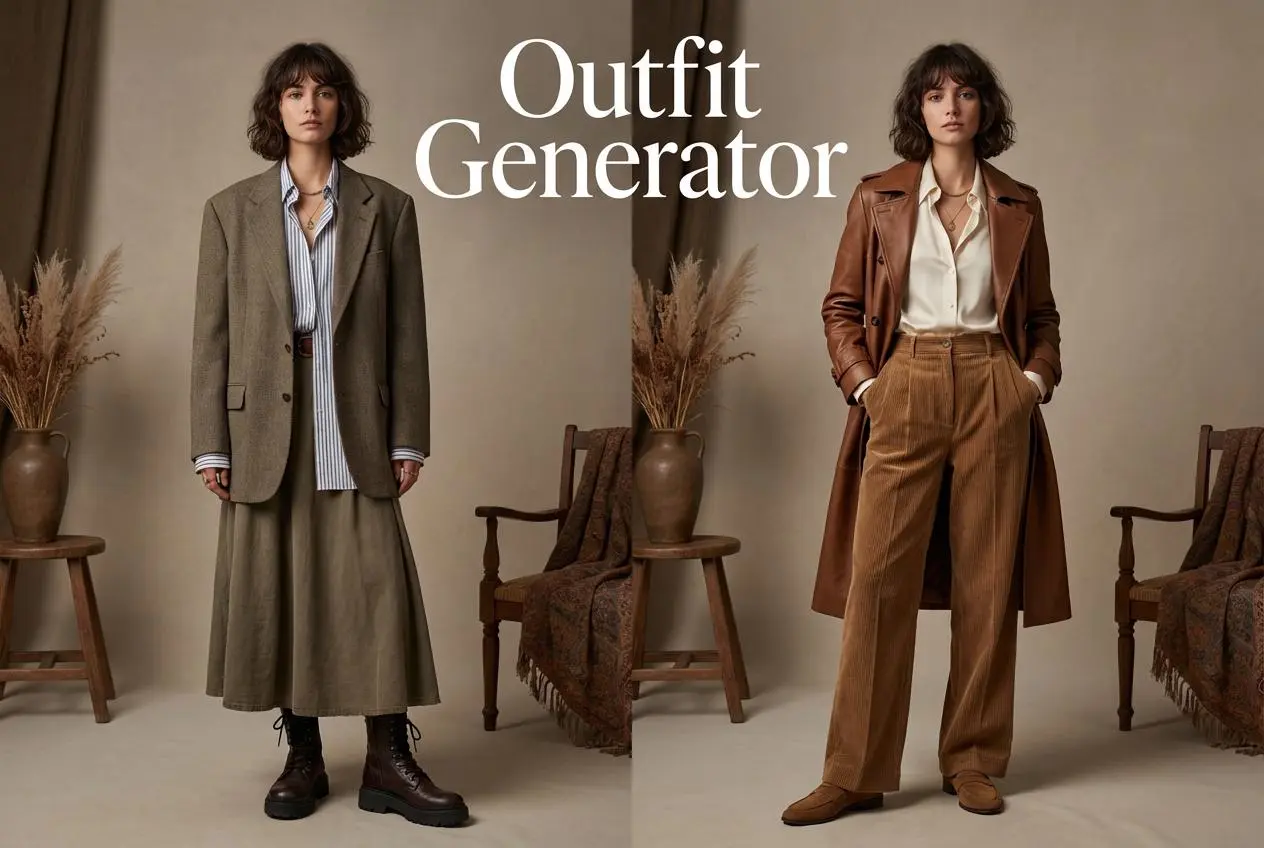
Outfit Generator
Create AI clothes styling from any model photo, garment, or style prompt.
Video Agent
Create and publish videos from a photo or description—instantly, in any style.
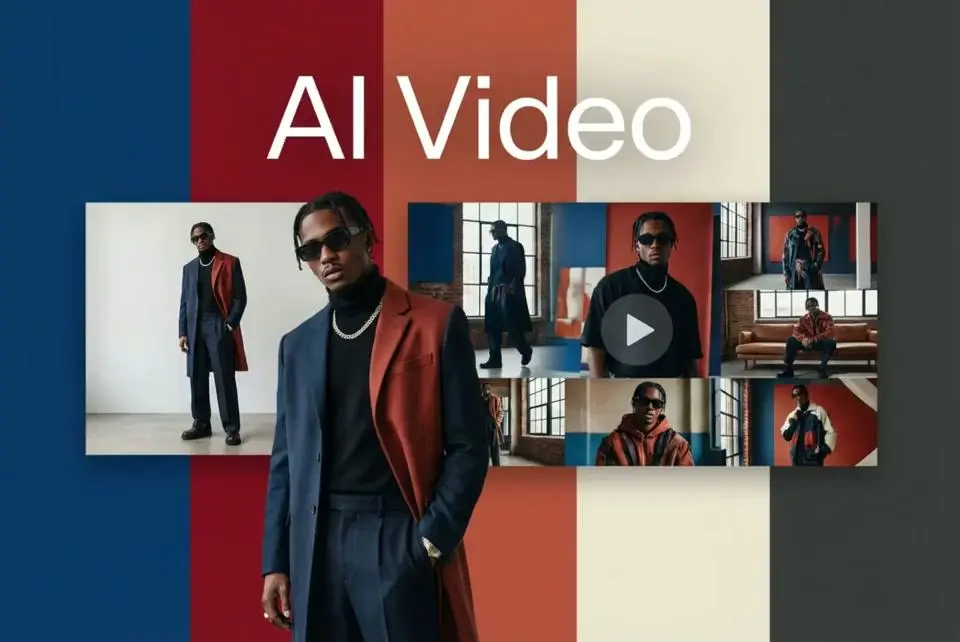
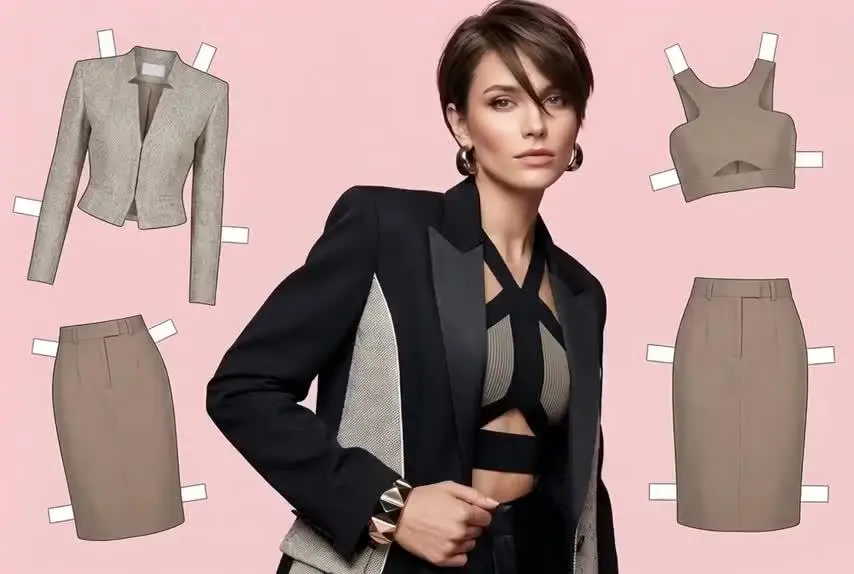
AI Clothing Piece Generator
Create Professional Flatlay Clothing Images From Any Photo or Idea
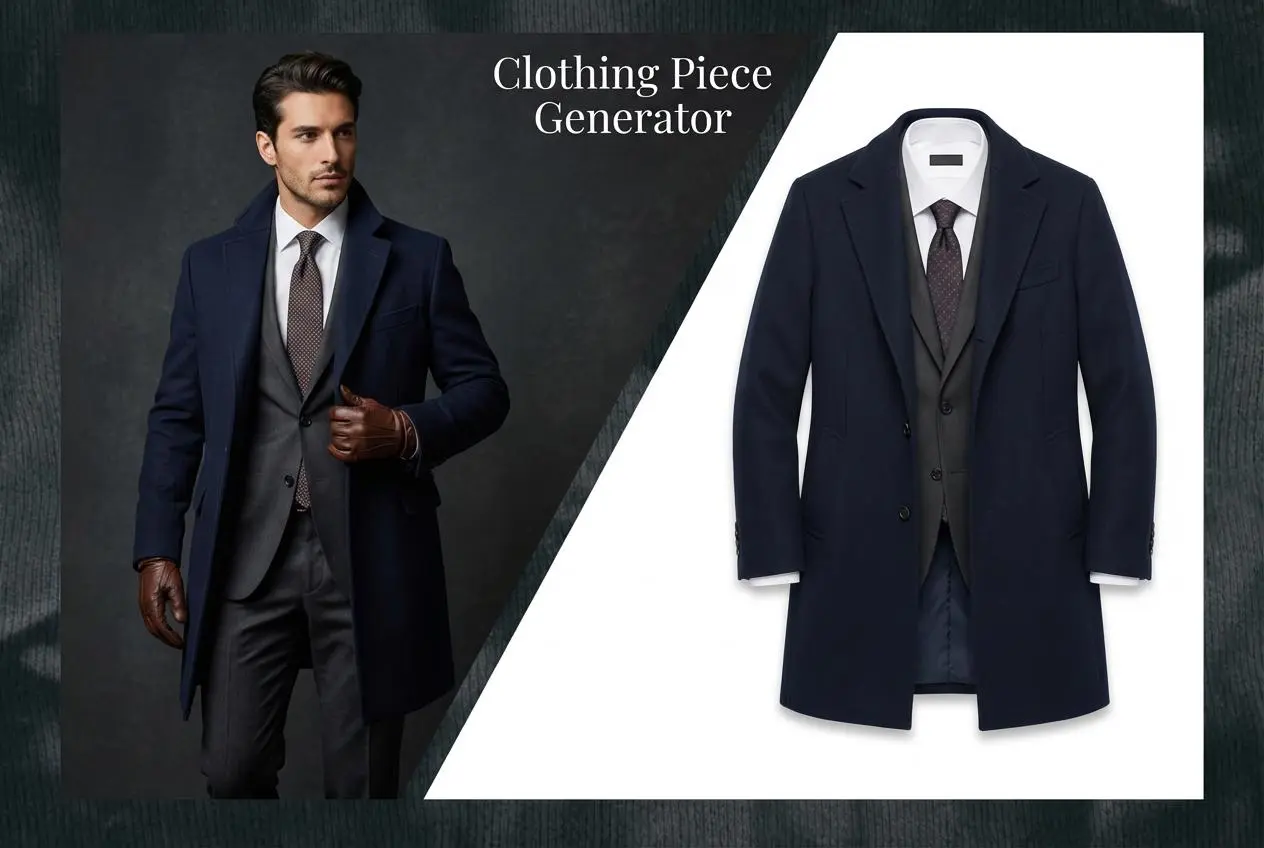
Watermark Video Remover Free Online
Remove Watermark from Video
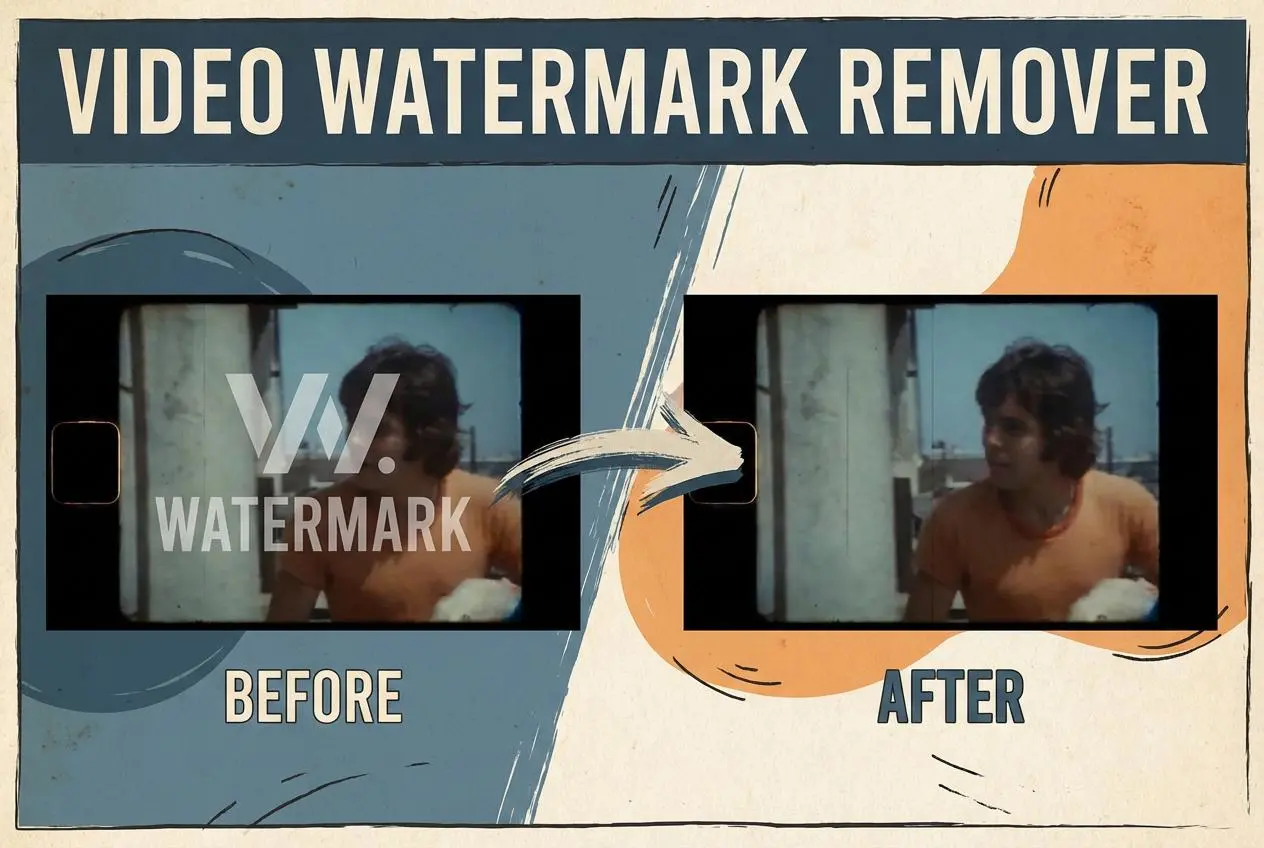
AI Video Enhancer
Enhance Video Quality Online with AI

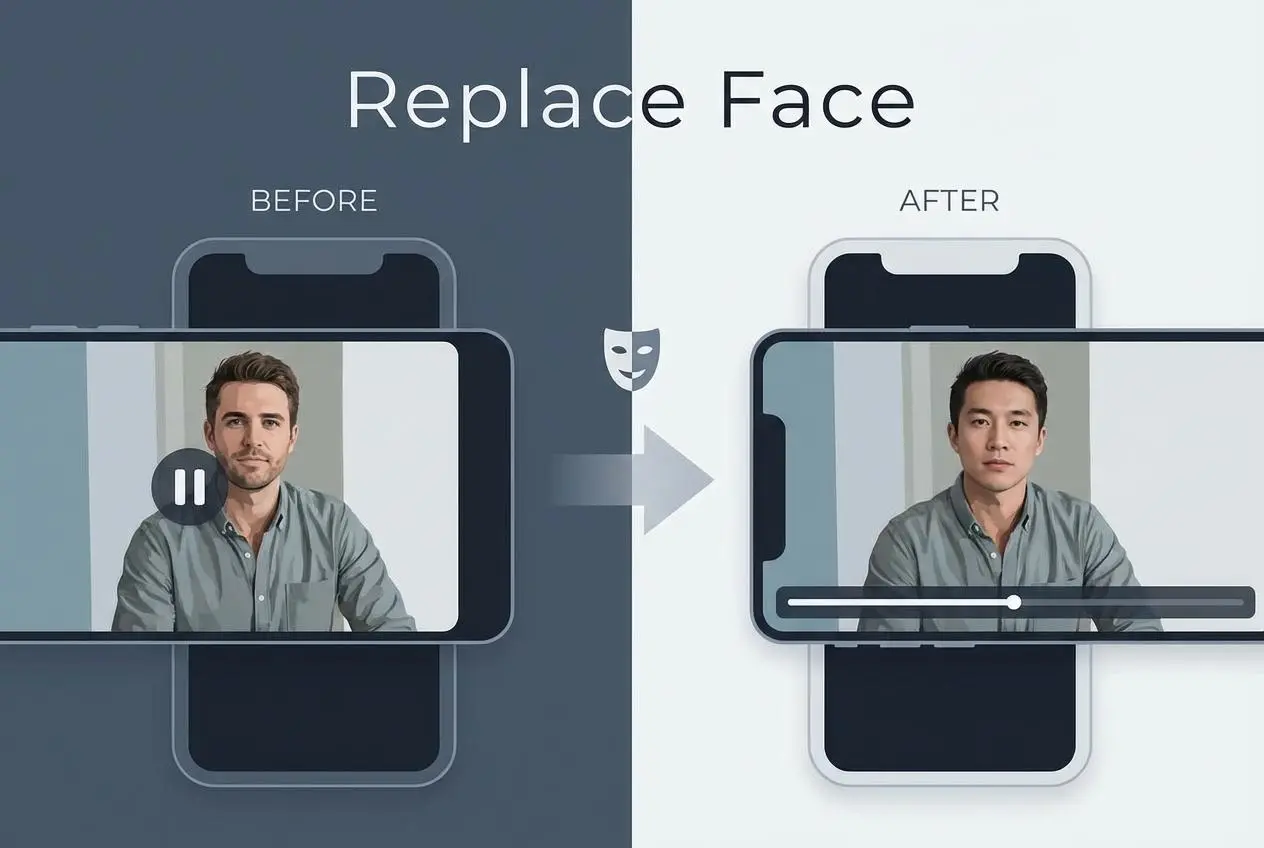
Replace Face in Video Online Free
AI Video Face Swap for Realistic Clips
Seedream 5.0 Pro
Create Grounded Edits and Infographics Online
Seedance 2.0
A Multi-Modal AI Video Creative Engine for Cinematic Storytelling
Sora 2
Next Generation AI Video Generator with Realistic Physics & Storytelling
Wan AI Video Generator
Advanced AI Image & Video Generation Model
Midjourney Image Generator
Use Midjourney v7 to Create AI-Generated Images
Kling O1 AI Video Generator
Create Cinematic Videos with Omni One Control
Kling 3.0 Omni
Create Multimodal Videos with Native Audio ---
Kling 3.0
AI Director Video Model with 4K Cinematic Storytelling
Kling Motion Control
Create Realistic Motion Videos from Reference Images and Videos
Qwen Image Edit
A Revolutionary Tool for Seamless Image Editing
Z-Image AI Image Generator
Create High-Quality Images from Text Instantly
FireRed Image Edit
Open Source AI Image Editing Model for High Fidelity Edits
Grok Imagine AI Image Generator
Create High-Resolution Images from Text with Aurora AI
Grok Imagine AI Video Generator
Create Cinematic AI Videos with Native Audio & Scene Control
Hailuo AI Video Generator
Create Cinematic AI Videos from Text or Images
Veo 3 AI Video Generator
Create Cinematic Videos from Text or Images
Vidu Q3 AI Video Generator
Create Cinematic Short Videos with Turbo and Pro Modes
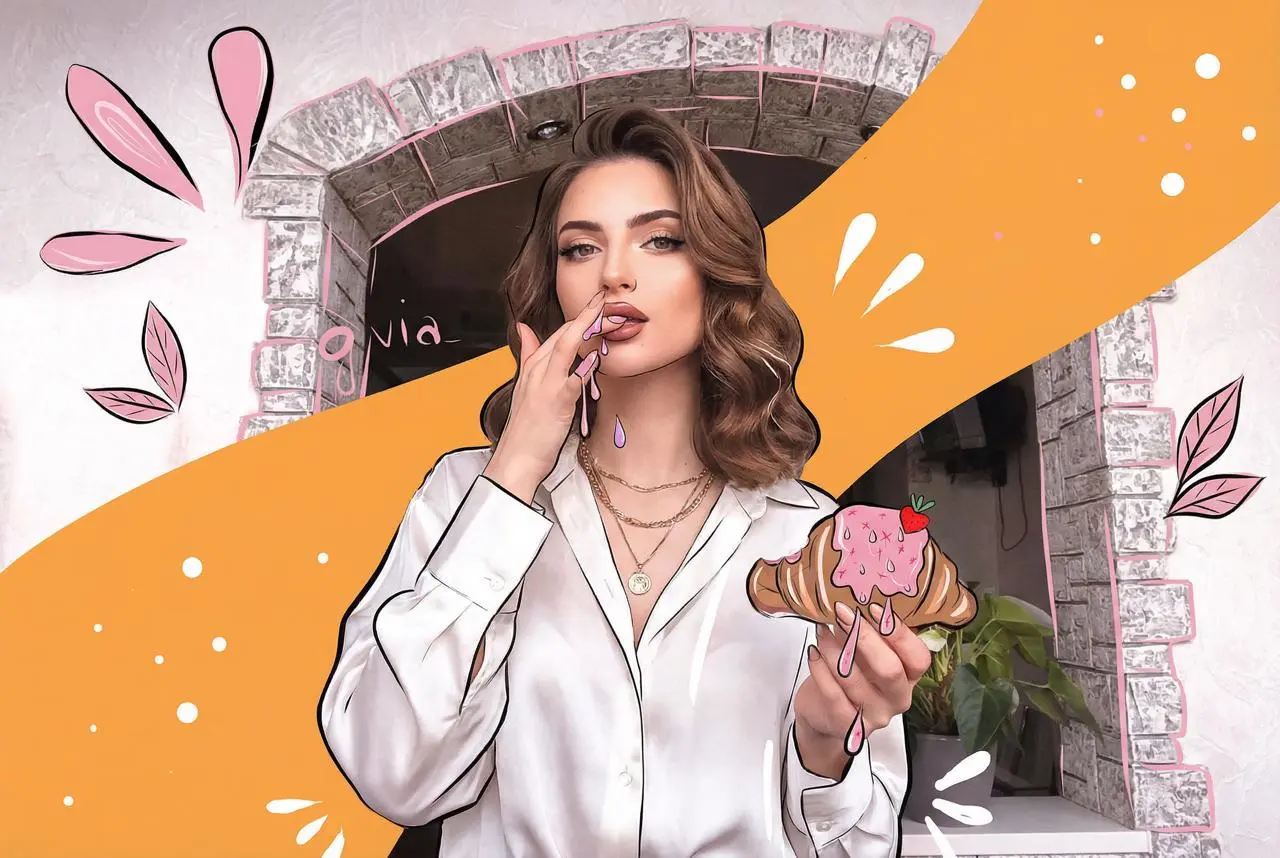
Imagen 4
Create Photorealistic Images and Accurate Text Visuals with AI
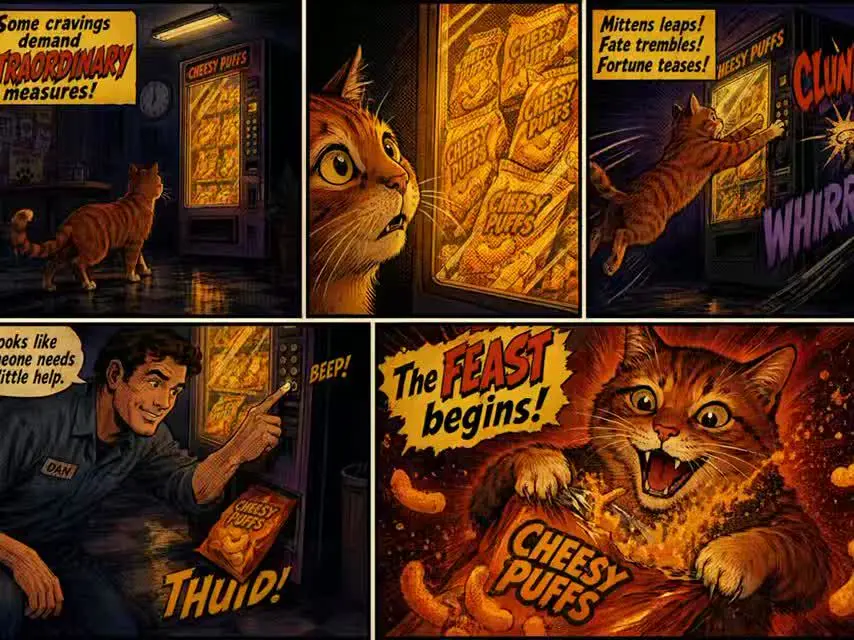
HiDream AI Image Generator
Create Stunning AI-Generated Images Online
Sulphur2
Create Cinematic AI Videos from Text and Images
PixVerse AI Video Generator
Create Cinematic Videos with V6 and V5.5
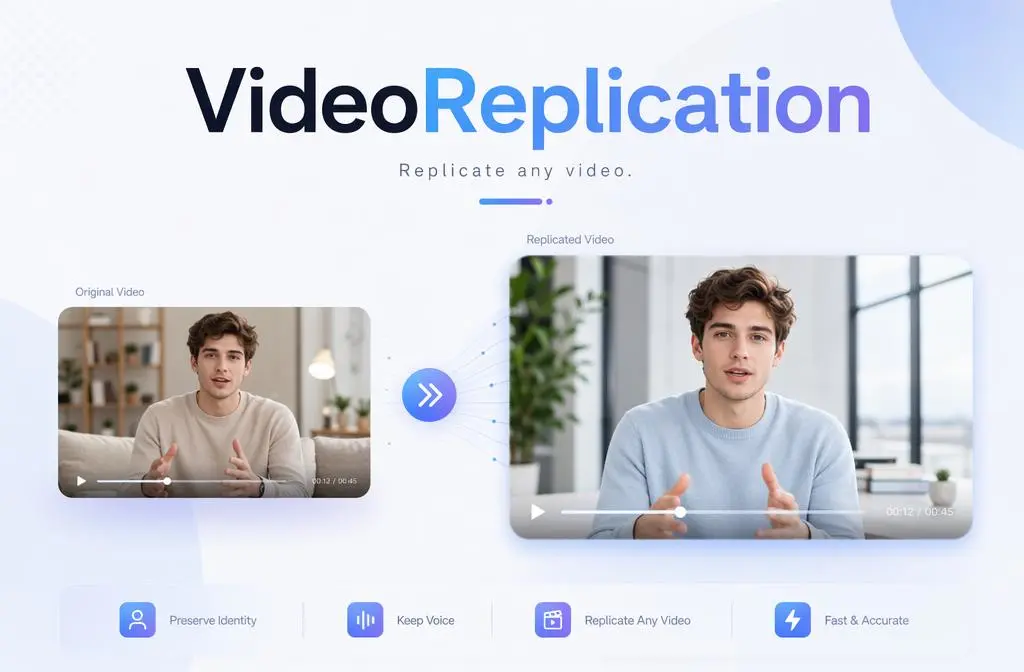
Video Replication
Recreate Video Styles, Motion, and Scenes with AI
Runway Gen 4 AI Video Generator
Create Consistent AI Videos Online