GPT Image 2.6 is OpenAI’s image generation and editing family, with Flare for quick iteration and Sunburst for detailed visual work. Create images from text, edit with image references, and generate SVG artwork or short GIF animations through the OpenAI API. GPT Image 2.6 generation is not available in WeShop yet.
GPT Image 2.6 Examples: Illustration, Animation, and Photography
Explore three official OpenAI Sunburst examples: a layered paper-cut celebration, a short lantern animation, and a natural-looking fishing-boat portrait. Each illustrates a different visual task.
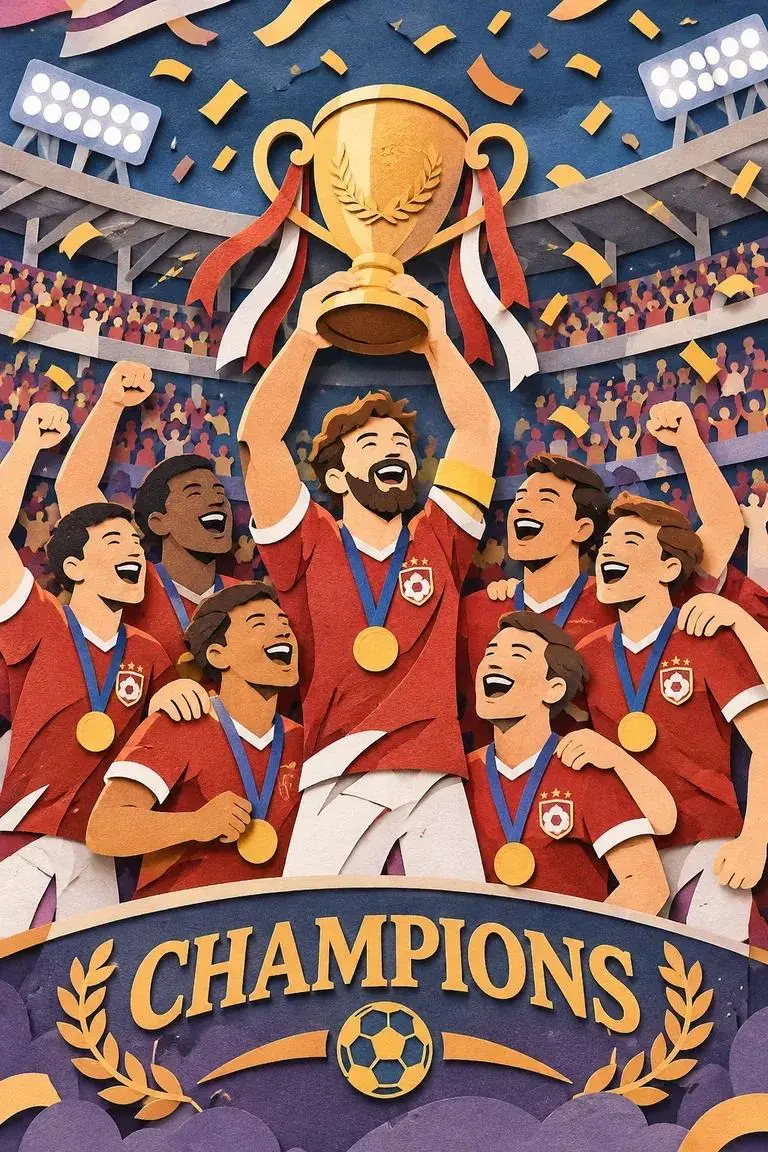
Layered Paper-Cut Championship Scene
Red-shirted players lift a gold trophy amid stadium crowds and confetti. Paper textures and a foreground banner establish the illustration’s visual style. The prompt names the material and scene to guide the composition.
A premium handcrafted layered paper-cut illustration of a football team celebrating a championship victory inside a packed stadium.
A Lantern Lift in a Snowy Forest
A monkey raises a lantern, looks upward, blinks, and lowers it in a 1.8-second action. Play the preview to see the movement, then adapt the reference prompt below with your own character, prop, and setting.
Animate a bundled-up monkey carrying a warm lantern outdoors among snowy trees near a lit cabin. It raises the light, gazes upward, briefly closes its eyes, then brings the lantern down. Keep the viewpoint fixed and return to the opening pose for a continuous loop.
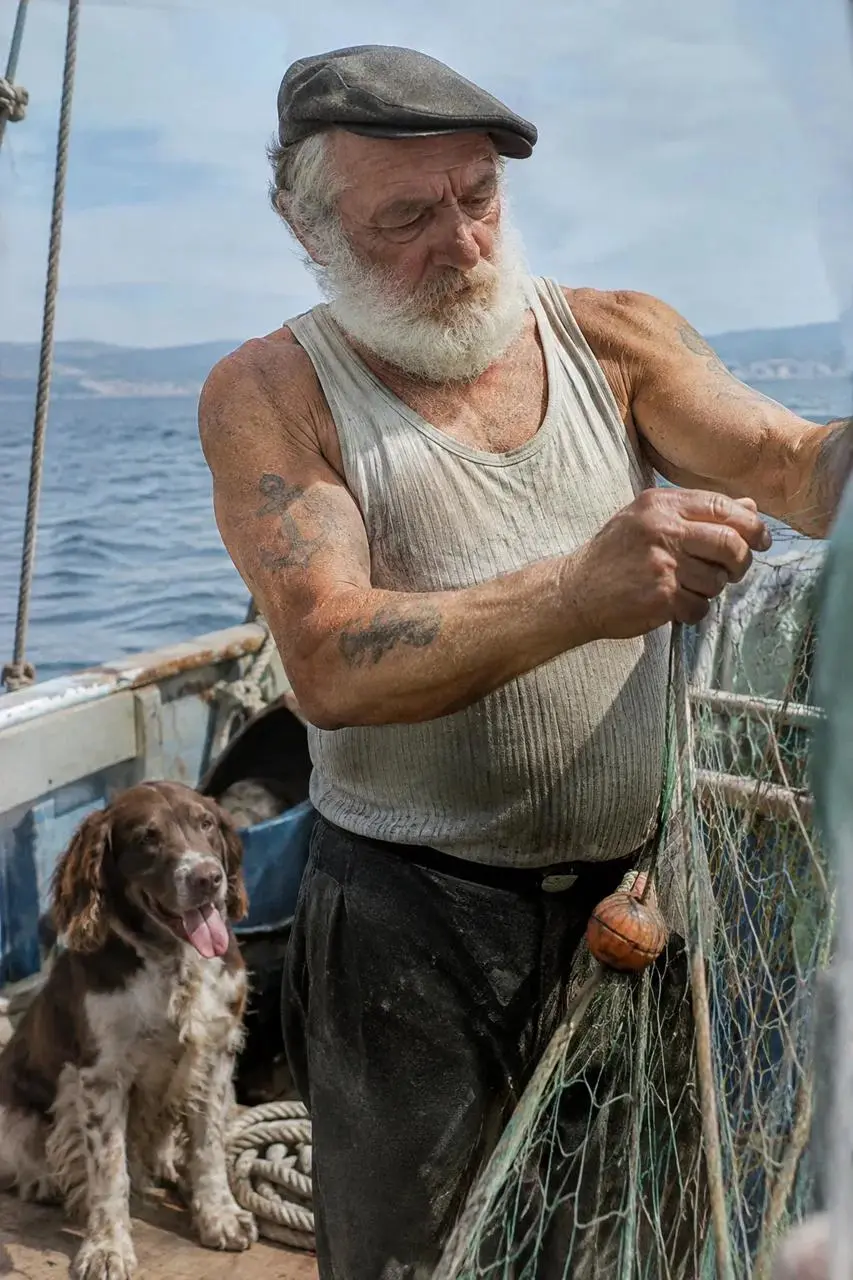
A Sailor, His Dog, and the Fishing Nets
Weathered skin, netting, and worn boat materials give this scene a candid photographic look. Use the reference prompt to explore how subject detail, soft light, and texture work together.
Photograph an older sailor working with fishing nets aboard a small boat, with a dog close by. Emphasize weathered skin, faded arm tattoos, practical clothing, and worn equipment. Use gentle coastal daylight, eye-level framing, shallow focus, subdued colors, and a restrained film-like texture. Keep the scene candid rather than glamorous.
MODEL CAPABILITIES
What Are GPT Image 2.6’s Core Features?
OpenAI released GPT Image 2.6 on November 4, 2026, with a focus on faster iteration, editing consistency, and new ways to deliver visual assets. Choose Flare or Sunburst, then tune planning, quality, and output format for the task.
Move through Creative Iterations Faster
OpenAI’s launch reports 50% faster image generation than before, with Flare taking as little as six seconds at low quality. Timing varies with the task and settings. Start with Flare to explore alternatives, then consider Sunburst for demanding detail.
Keep Revisions Focused on the Same Subject
When revising a character, product, or brand asset, specify the features, shapes, and wording to retain. Sunburst targets more demanding generation and editing work. Compare each revision with the source to check important details.
Control Planning and Rendered Detail Separately
OpenAI recommends starting most edits at low complexity, paired with the quality your result needs. Try medium or high complexity for scenes with many elements or constraints. Change one setting at a time to compare the effect.
Deliver Still Images, Vector Artwork, or Short Animations
Use raster images for visual content, SVG for artwork that needs to scale, and GIF for brief character actions or social loops. Choose the destination first, then select the output format.
CREATION MODES
What Can You Create with GPT Image 2.6?
Create Posters and Visual Concepts from Text
Describe the subject, style, composition, and intended use. For a poster, specify the required wording and its placement, then check spelling, hierarchy, and readability.
Edit People and Products from References
Supply the source image and separate the desired changes from the details to preserve. Give each reference a clear role. For a local edit, the API can accept a transparent PNG markup overlay matching the first input image’s dimensions.
Prepare Brand Marks and Scalable Artwork
Define the silhouette, brand wording, palette, and spacing before choosing the output. Request SVG through the OpenAI API for artwork used at different sizes across web, app, or print layouts. Check lettering and edges in raster logos as well.
Animate Characters, Reactions, and Storyboards
Describe one clear action, its starting state, how it changes, and how it returns to the beginning. Use GIFs for brand characters, reactions, social content, or animated storyboard exploration. The lantern example shows how a brief action can be organized.
PROMPT GUIDE
GPT Image 2.6 Prompt Guide: Six Ways to Make a Brief Clearer
Use these six official OpenAI results to study text placement, diagrams, logo shapes, local edits, clothing references, and product cutouts. Each card includes a copyable reference prompt you can adapt to your own task; editing examples also show the relevant source images.
State the task, subject, composition, and visual style.
For edits, name each reference’s role and separate the changes from the details to retain.
For text or transparent assets, state the required wording or background and check the result.
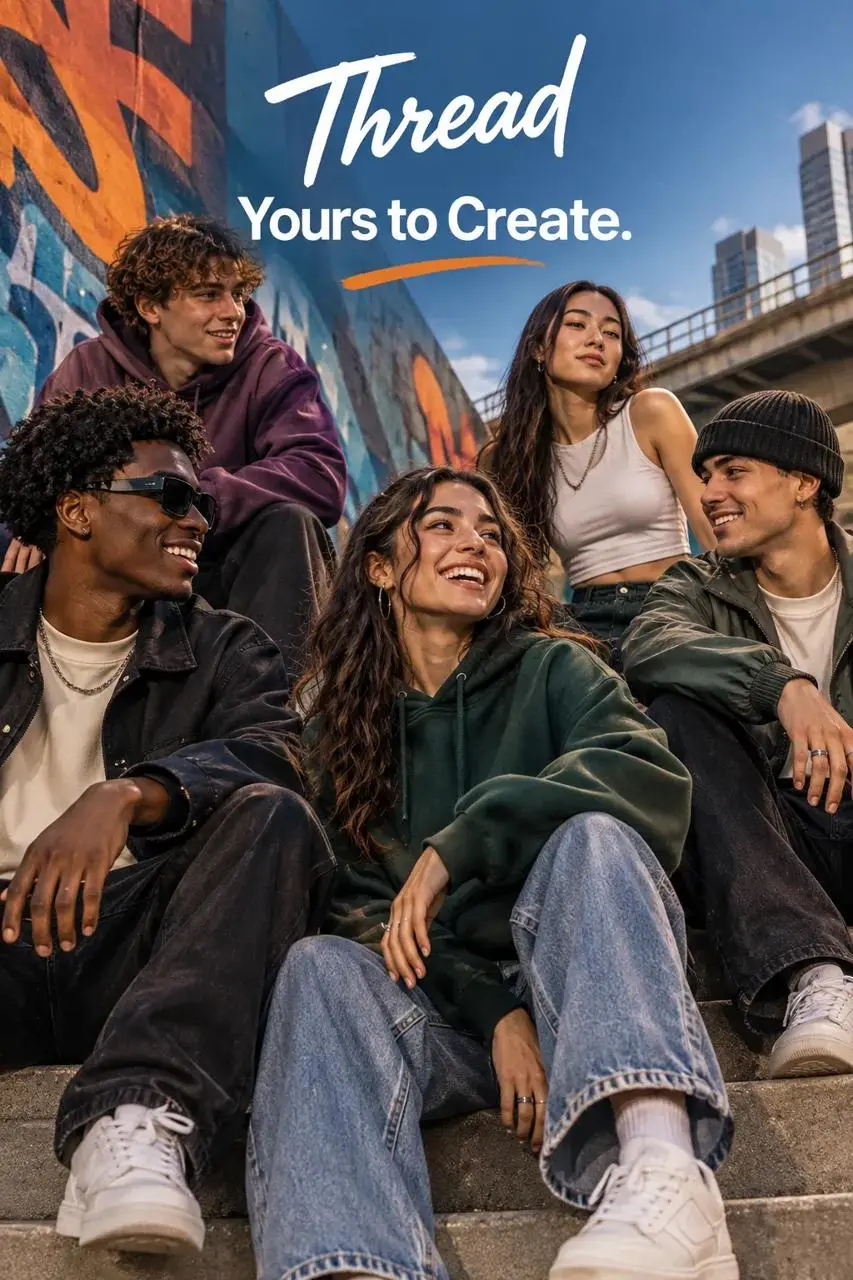
Specify Exact Wording and Placement
Name the required words, say how often they appear, and define their placement. This Flare example combines a streetwear scene with a clear slogan. Use the reference wording below as a starting point, then proofread the finished image.
Design a polished fashion campaign for Thread featuring a relaxed group of young adult friends in an urban setting. Place the words "Yours to Create." once in a prominent, readable position. Keep clothing contemporary, poses natural, and the color palette deliberate. Include no additional slogans or unrelated brand marks.
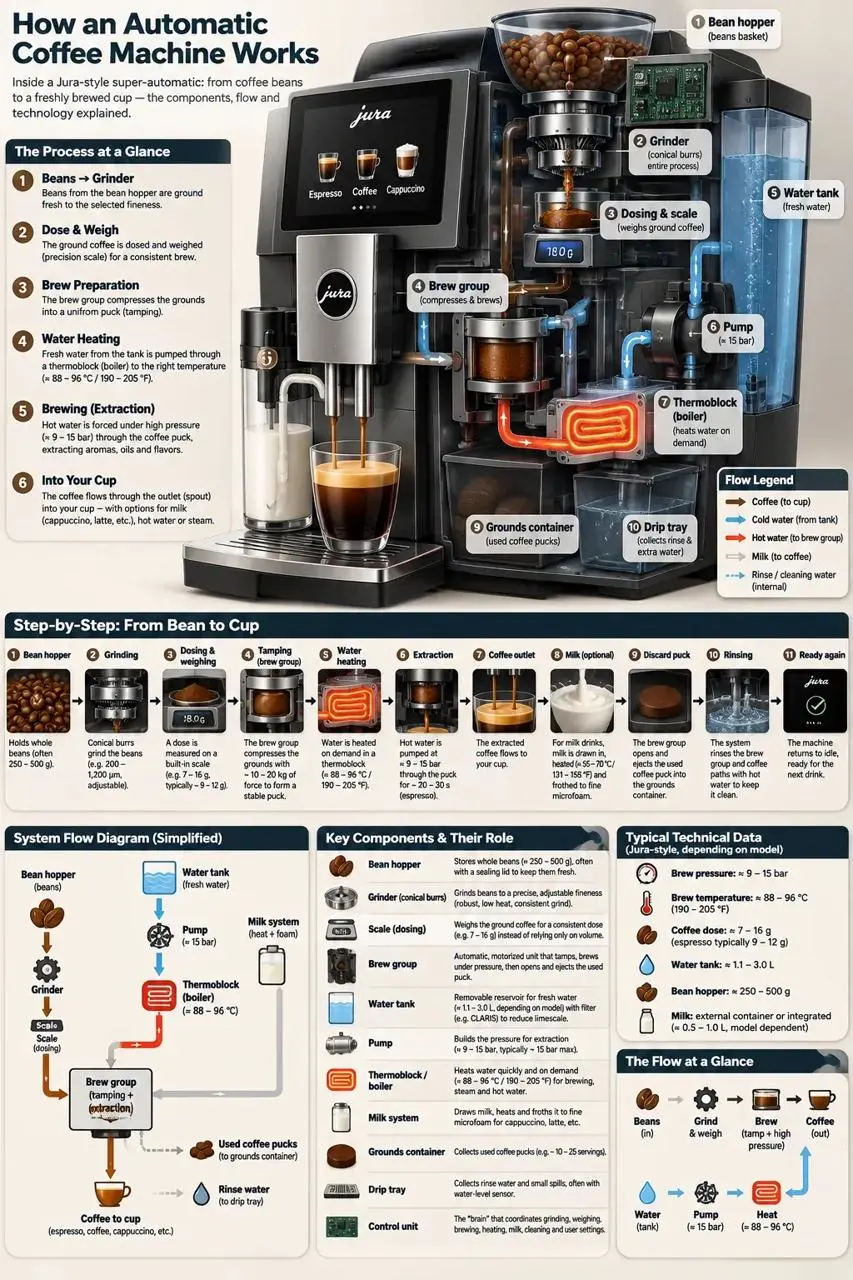
Describe the Flow of Information
List the parts and explain which connections or arrows the graphic should show. The Sunburst coffee-machine example combines a main diagram with supporting labels and panels. Check the technical relationships as well as the appearance.
Build a labeled educational diagram explaining an automatic espresso machine. Arrange the bean container, grinding mechanism, brewing chamber, water supply, heating system, and coffee outlet so the viewer can follow the process. Use arrows for flow and short, readable explanations beside the relevant parts. Separate the main diagram from supporting detail panels.
Define a Recognizable Logo Shape
Describe the brand, main silhouette, palette, and spacing before adding decorative detail. This Sunburst logo uses a loaf, wheat, and a wordmark, shown on white so the artwork is easy to inspect. Request SVG separately when you need vector output.
Create a simple bakery identity for Field & Flour using a bread-loaf silhouette and wheat motifs. Use warm brown and gold, generous spacing, and a balanced arrangement above the brand lettering. Favor clear flat shapes that remain readable at small sizes. Place the artwork on a transparent background without a mockup, scene, border, or watermark.
Locate the Edit and Name What Stays
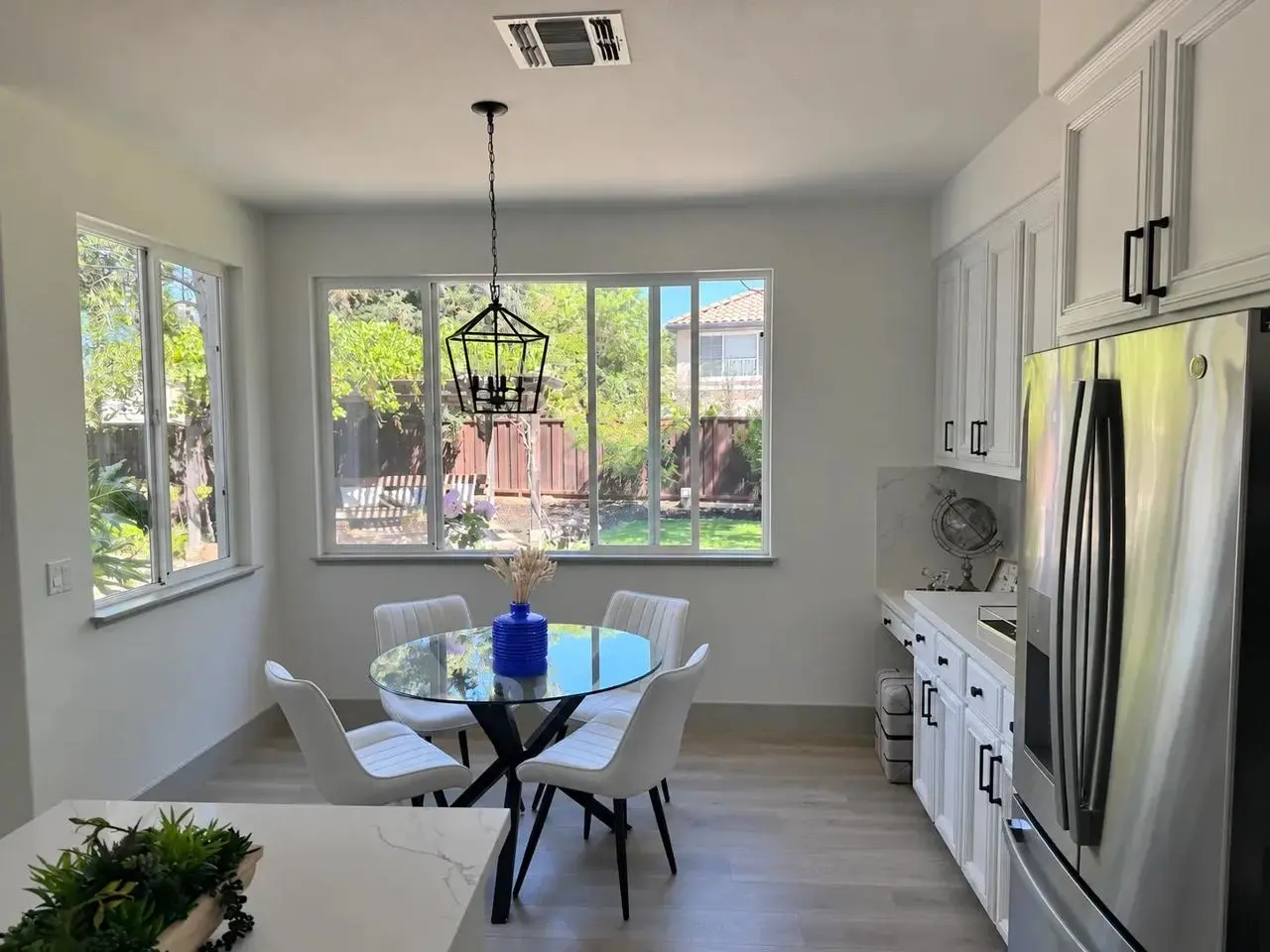
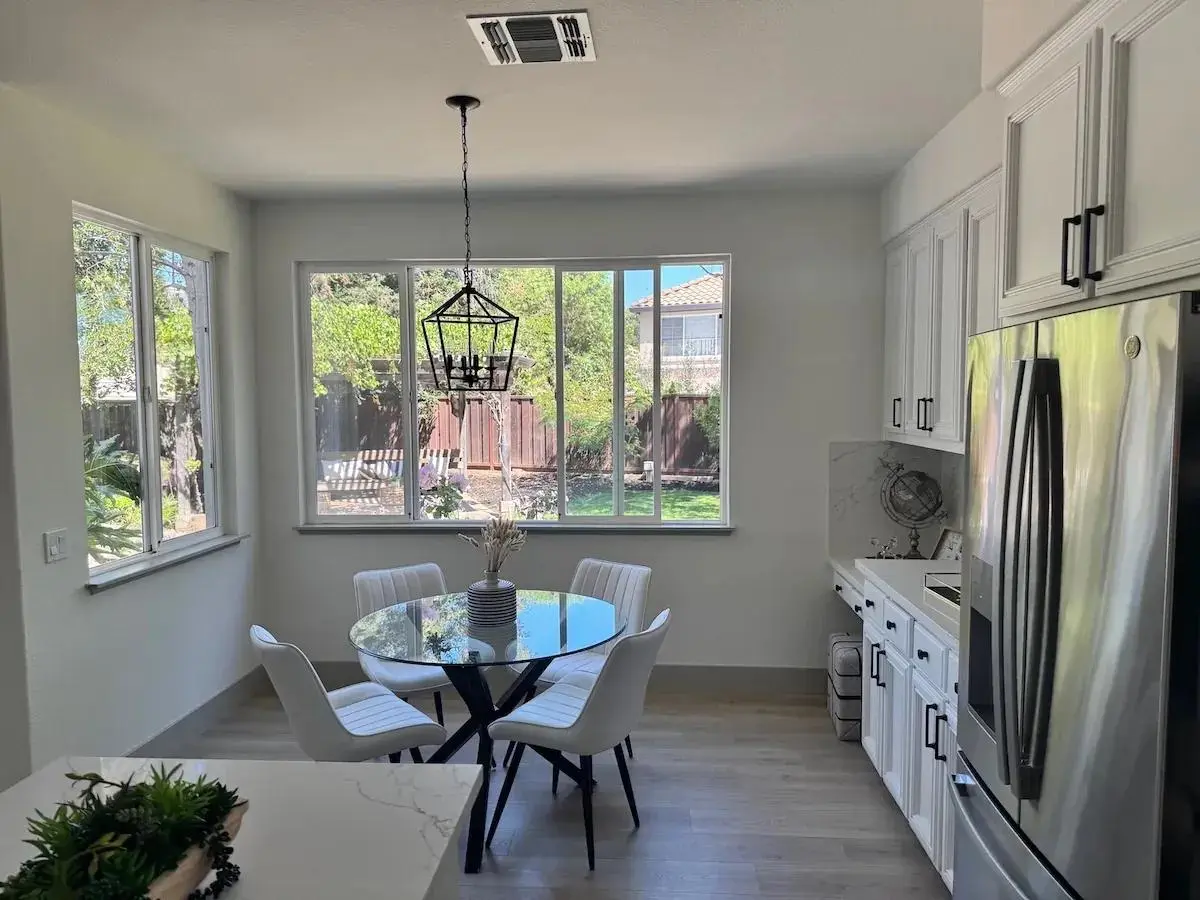
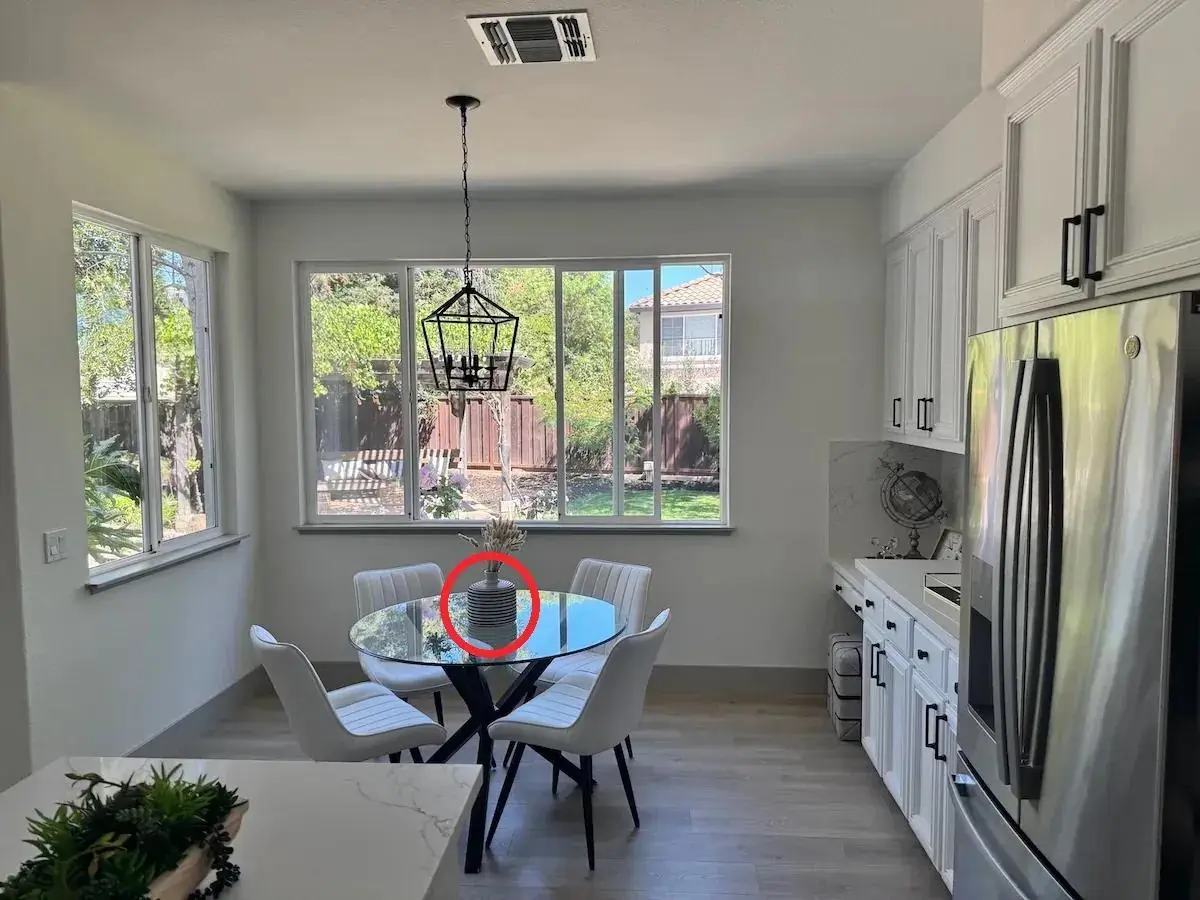
Use a same-size transparent markup overlay to identify the target, then separate the change from the details to retain. The Sunburst result recolors the vase. The references show the source kitchen and a combined view of the red-circle annotation.
Use the kitchen photograph as the scene and the transparent red-circle overlay to locate the vase. Make that vase a uniform cobalt-blue ceramic color while retaining its outline and the arrangement of dried stems. Leave the surrounding kitchen, furniture, lighting, and framing intact. The locator circle must not appear in the completed image.
Assign a Role to Every Reference
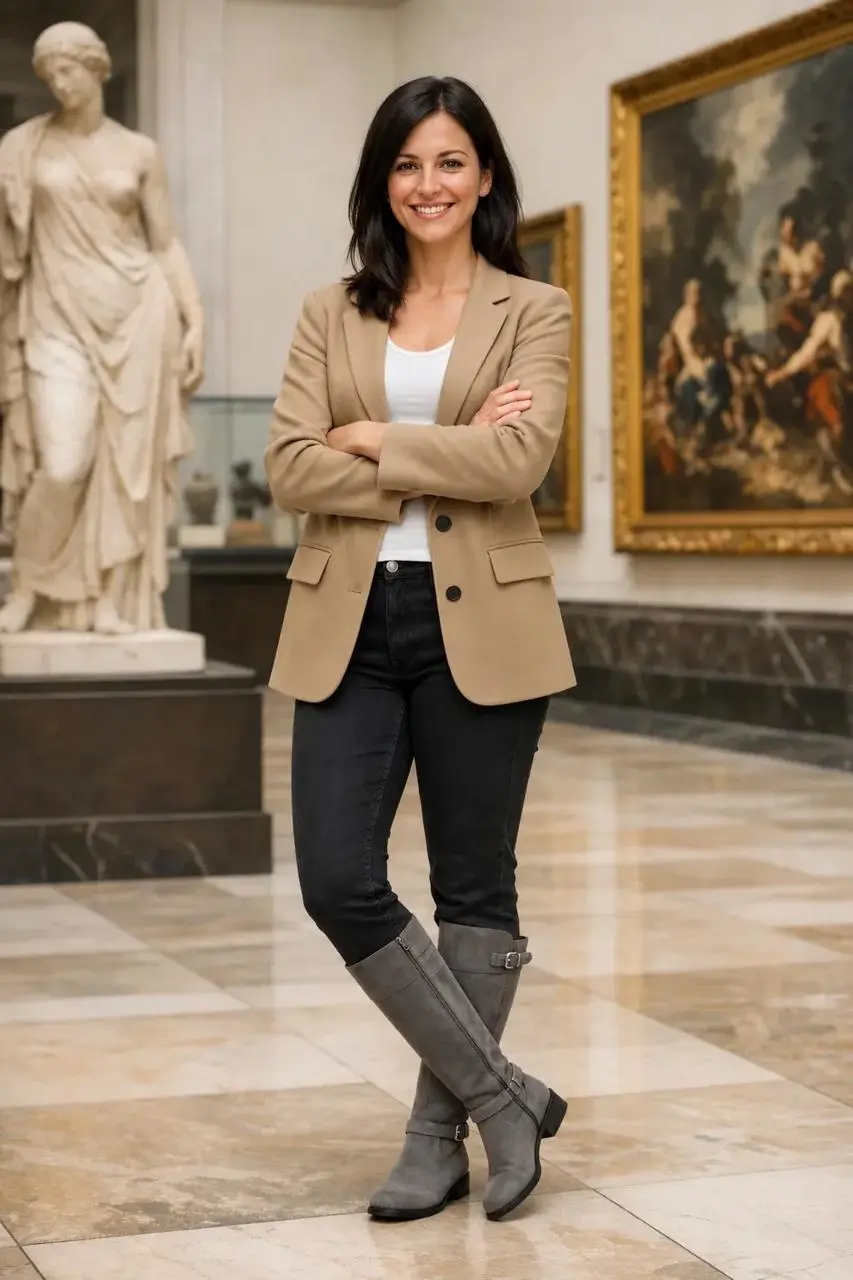
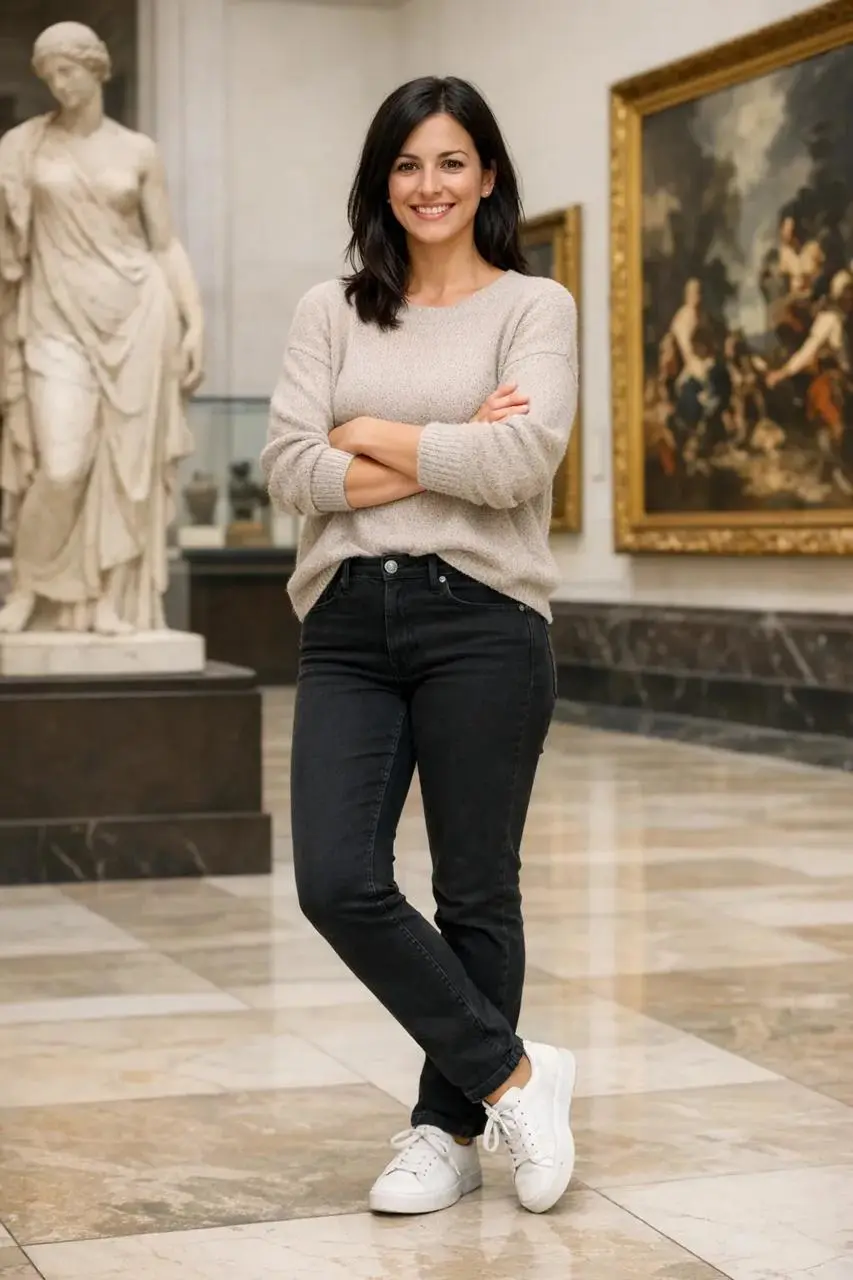
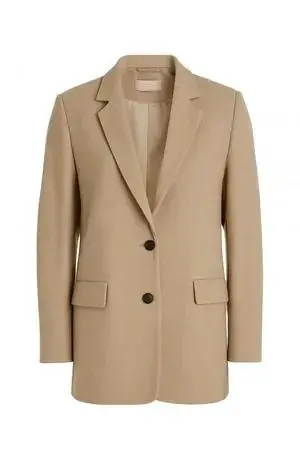
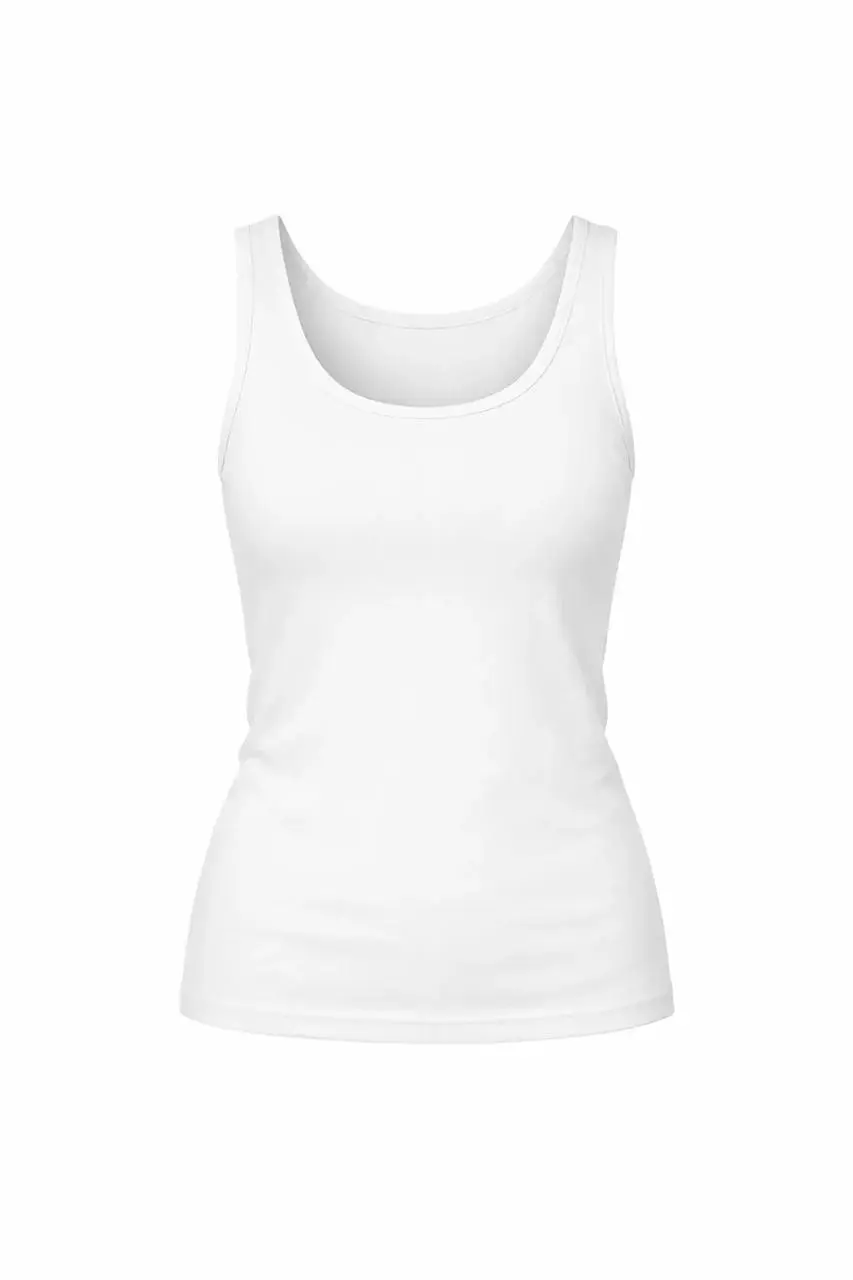
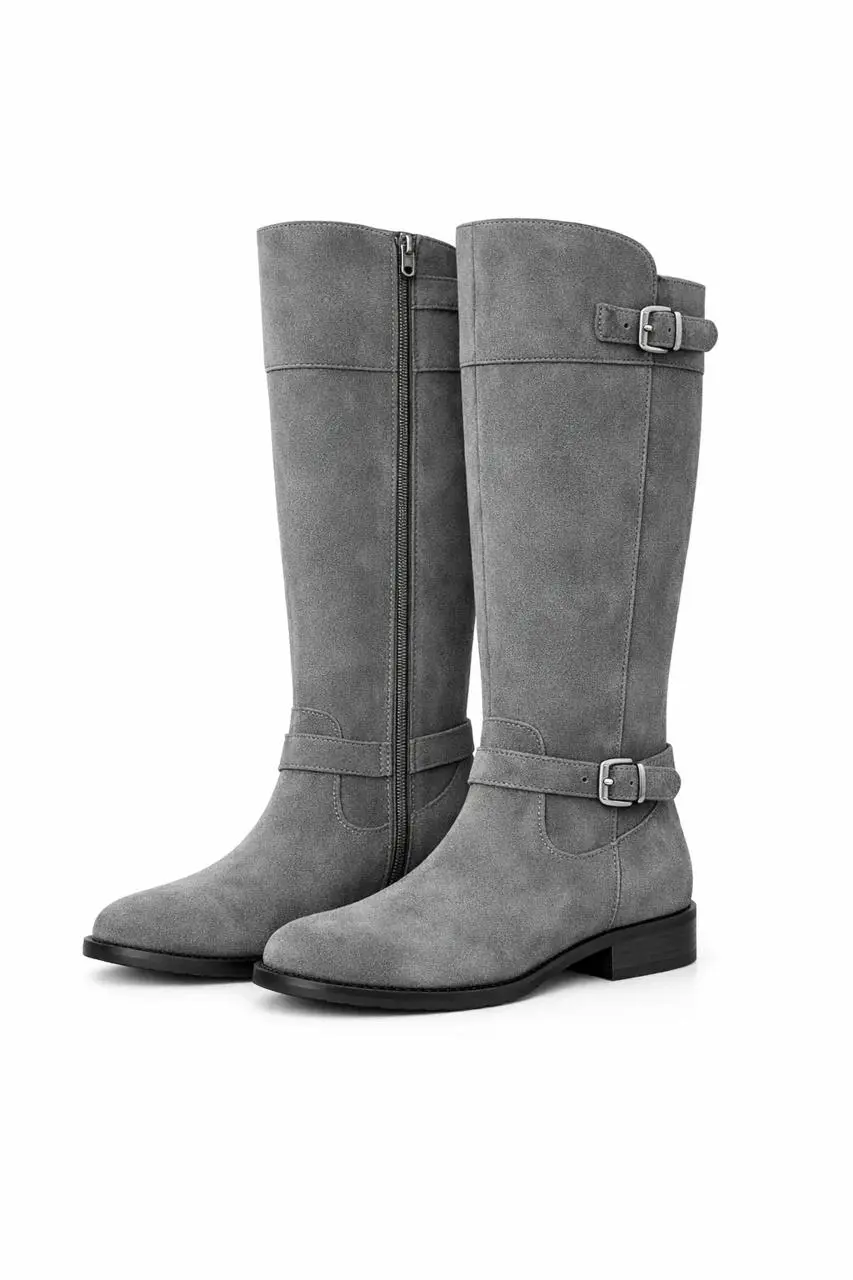
Identify the person and each garment separately. This Sunburst example uses one portrait and three clothing images. Compare the face, pose, clothing details, and lighting with the inputs instead of relying only on the overall impression.
Treat the museum portrait as the person reference and the other three pictures as the jacket, top, and boots to wear. Change the clothing to those items while keeping the woman recognizable in the same pose and museum setting. Fit each garment to her body naturally and match the existing light. Retain the original facial expression, hairstyle, framing, and background.
Separate the Product from Its Background
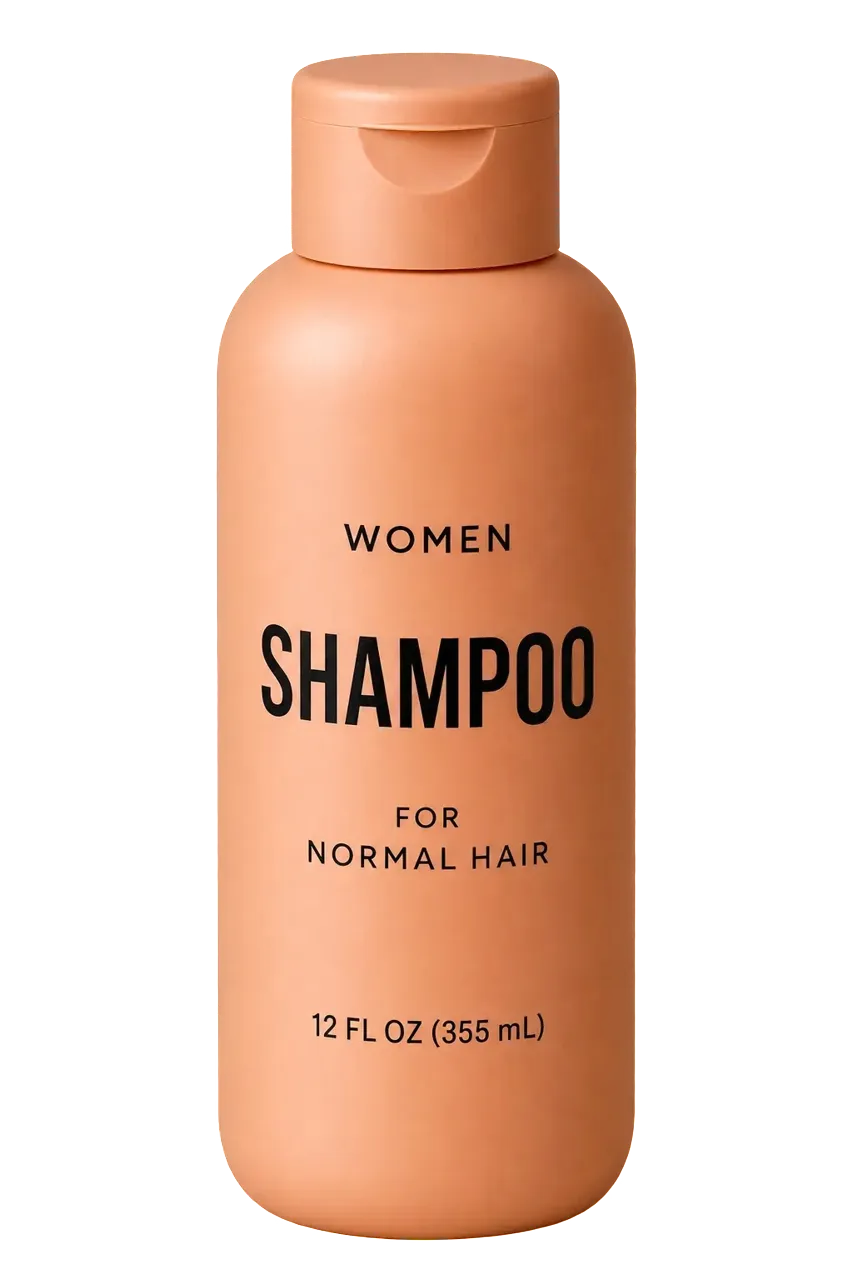
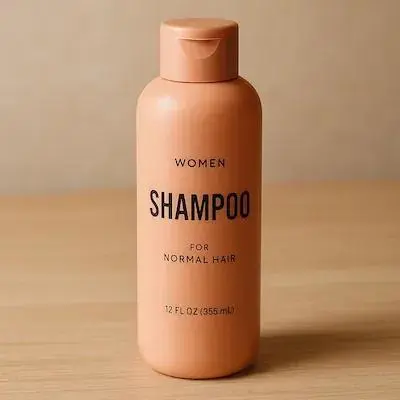
Ask for an isolated subject and choose a transparent output setting. The Sunburst example starts from the supplied shampoo photo. Check the alpha channel, edge quality, bottle proportions, and label details before placing it in a new design.
Isolate the shampoo bottle from the supplied photograph for use as a transparent product asset. Keep the package upright and centered, preserve its silhouette and readable label, and remove the surrounding set. Request a clean alpha edge with no colored backdrop, decorative scenery, checkerboard pattern, or added shadow. Inspect the bottle details against the original.
HOW TO USE
How to Plan Your First GPT Image 2.6 Creation
Define the result, prepare the inputs, and choose a model and output format. When using the OpenAI API, set dimensions, quality, and file format in the request.
Define the Result and Gather References
For a new image, describe the subject, purpose, style, and composition. For an edit, prepare the source image and list what should change and which details must remain.
Choose a Model and Output Format
Start with Flare for quick exploration or Sunburst for demanding detail and precise edits. Choose a still image, SVG, or GIF for the intended use, then set the dimensions and quality.
Inspect the Result and Refine One Thing
Check wording, layout, character features, and product details. Review motion and the loop transition for animation, or the background for transparent assets. Adjust one requirement at a time while retaining the parts you like.
Compare GPT Image 2.6’s controls and output formats with the existing GPT Image 2.5 models in WeShop. Flare focuses on fast everyday creation; Sunburst targets demanding generation and editing work.
Decision
GPT Image 2.6
GPT Image 2.5 Flare
GPT Image 2.5 Sunburst
Model identity
OpenAI 2.6 family; Flare and Sunburst
OpenAI GPT Image 2.5 Flare
OpenAI GPT Image 2.5 Sunburst
When to consider it
Complexity control, markup-guided edits, SVG or GIF output through OpenAI
Fast everyday image creation and reference editing
Detailed generation and precise reference edits
Inputs
Text; images for editing
Text; optional image references
Text; image references
WeShop image size / quality
No 2.6 generation controls yet
1K, 2K, 4K; low, medium, high, xhigh, max
1K, 2K, 4K; low, medium, high, xhigh, max
Model identity
GPT Image 2.6
OpenAI 2.6 family; Flare and Sunburst
GPT Image 2.5 Flare
OpenAI GPT Image 2.5 Flare
GPT Image 2.5 Sunburst
OpenAI GPT Image 2.5 Sunburst
When to consider it
GPT Image 2.6
Complexity control, markup-guided edits, SVG or GIF output through OpenAI
GPT Image 2.5 Flare
Fast everyday image creation and reference editing
GPT Image 2.5 Sunburst
Detailed generation and precise reference edits
Inputs
GPT Image 2.6
Text; images for editing
GPT Image 2.5 Flare
Text; optional image references
GPT Image 2.5 Sunburst
Text; image references
WeShop image size / quality
GPT Image 2.6
No 2.6 generation controls yet
GPT Image 2.5 Flare
1K, 2K, 4K; low, medium, high, xhigh, max
GPT Image 2.5 Sunburst
1K, 2K, 4K; low, medium, high, xhigh, max
Choose GPT Image 2.6
Consider GPT Image 2.6 for its complexity controls, markup-guided edits, SVG artwork, or short GIF animations through OpenAI. Use the prompt guide to prepare your brief; WeShop generation is not available yet.
Use the existing WeShop Flare page for everyday image creation, visual alternatives, and reference edits when a quick feedback cycle matters. Check its current settings and points before generating.
Use the existing WeShop Sunburst page for detailed images, demanding layouts, or precise reference edits. Compare important details with your inputs before using the result.
GPT Image 2.6 is OpenAI’s image generation and editing family, with Flare and Sunburst versions. It accepts text and image inputs for new images and reference edits, and supports SVG and GIF output through the OpenAI API.
Can I use GPT Image 2.6 in WeShop now?
OpenAI provides Images 2.6 in ChatGPT, Codex, and the API. WeShop has not integrated it yet. Use this page for capabilities, examples, and prompts; for image creation or editing in WeShop today, explore GPT Image 2.5 Flare and Sunburst in the comparison section.
Can GPT Image 2.6 edit an existing image?
Yes. Both versions accept images and written edit instructions. Specify the change and the details to retain. When using markup to direct a local change, also check that the surrounding image still meets your requirements.
How can GPT Image 2.6 output GIF and SVG files?
Select gif or svg as the output format on the OpenAI Image API’s generation endpoint. GIF also supports frame count and frame duration controls. The original lantern GIF shown on this page has nine frames at 200 milliseconds each, lasting 1.8 seconds.
How are quality and complexity different?
Quality affects visual detail and rendering fidelity. Complexity controls planning before rendering, with low, medium, and high levels. Compare quality settings for unclear detail and complexity settings for difficult layouts. Change one setting at a time to understand its effect.
Which dimensions can GPT Image 2.6 generate?
The OpenAI API accepts auto and supported pixel dimensions, including 1024 × 1024, 1536 × 1024, and 1024 × 1536. Set dimensions in the request. A web preview may be smaller than the generated file, so check the downloaded file’s actual dimensions.
How can I reduce changes to people, products, or text during edits?
List the character features, product proportions, labels, and wording to retain, then compare each edit with the source. For regions that must remain pixel-identical, keep the original and composite the approved change into it.
Should I choose GPT Image 2.6 Flare or Sunburst?
Flare focuses on quick iteration and exploring alternatives. Sunburst targets detailed visual work and precise editing. Compare them using the same prompt, references, and output settings to decide which version suits your task.
How should I write a GPT Image 2.6 prompt?
Start with the intended result, subject, style, and composition. For an edit, name each input’s role and list the changes and retained details separately. The prompt guide shows six reference approaches with official results and the relevant inputs.