Build a scene from a brief
Describe the subject, setting, lighting, and composition in one prompt. Start with a single visual idea, then vary one detail to explore a different direction.
Build a scene from a brief
Create images from clear visual briefs with Grok Imagine on WeShop AI, using text prompts and optional reference images.
Build a scene from a brief, bring a reference into the task, or explore a clear visual direction.
Describe the subject, setting, lighting, and composition in one prompt. Start with a single visual idea, then vary one detail to explore a different direction.
Build a scene from a briefAdd an image when your starting point already exists. Explain which details matter, such as the subject, color palette, or arrangement, and describe the result you want.
Bring a reference into the briefDevelop product-scene concepts, illustrated posters, or social graphics. Compare the output with your brief and adjust the prompt before producing another variation.
Explore a visual direction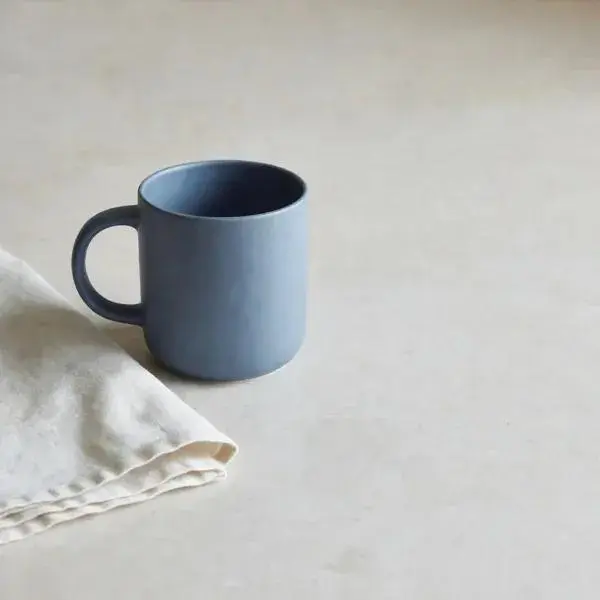
Create a focused product composition and review the handle, object count, lighting, and negative space.
A matte blue ceramic mug on pale stone beside a folded linen napkin, soft side light, eye-level composition, generous empty space on the right, no lettering.Build a product-scene concept
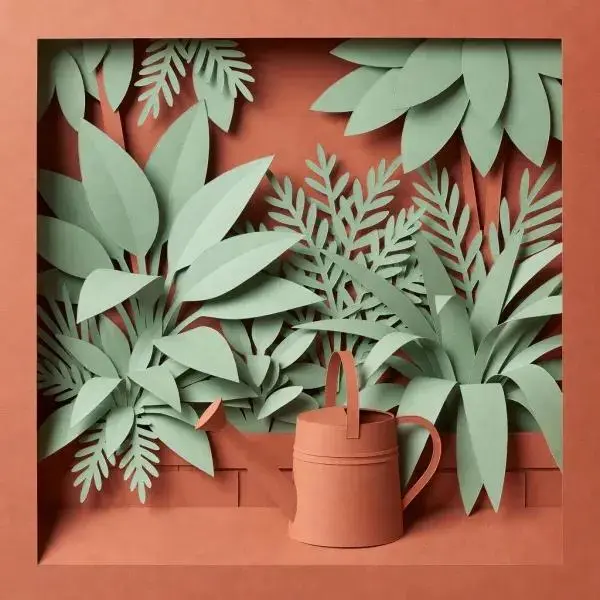
Explore a paper-cut campaign direction and review the palette, layered style, and subject separation.
An editorial paper-cut illustration of a small city garden, terracotta and sage palette, layered foliage, a single watering can, clean square composition, no text.Explore an illustrated campaign
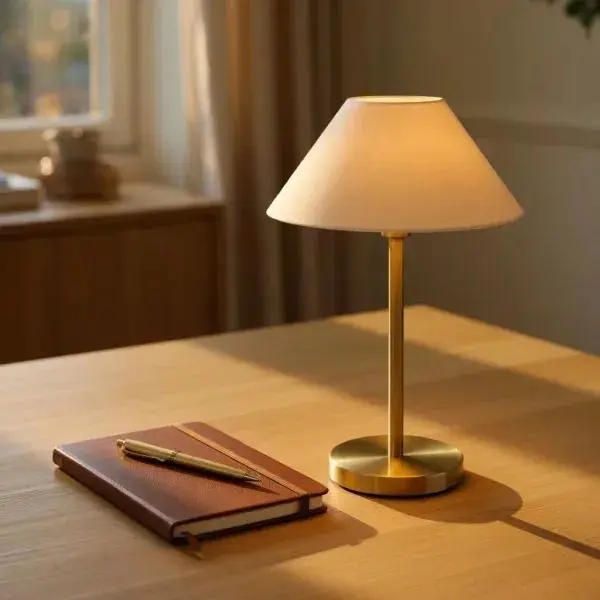
Use a lamp reference to preserve the silhouette and finish while placing the subject in a new setting.
Use the uploaded lamp as the subject. Place it on a light oak desk beside a closed notebook, warm evening light, keep the lamp silhouette and finish recognizable.Start from a reference image
Enter your image idea or upload a reference for the task.
1. Start with a briefDescribe the scene or edit and name the details that should stay consistent. Review the displayed output options.
2. Make the instruction specificGenerate an image, inspect it, then make a focused revision to develop the next result.
3. Create and refineCheck the selected model and available options before you generate. Review the point cost displayed for your selected settings before generating.
Review Generation SettingsDirect answers about model inputs, workflows, settings, and availability.
Enter a description of the image you want, add a reference if your idea needs one, and choose the quantity. Review the displayed point cost, then generate and inspect the result.
Name the subject, its surroundings, the lighting, and the desired composition. For a product scene, describe the material and viewing angle; for an illustration, specify the medium and color palette.
Yes. This page has an optional image input. Upload the reference and explain its role in your prompt so the requested result is clear.
Use the Grok Imagine AI Video Generator page for moving clips. This page focuses on image creation; the video page provides its own inputs and video settings.