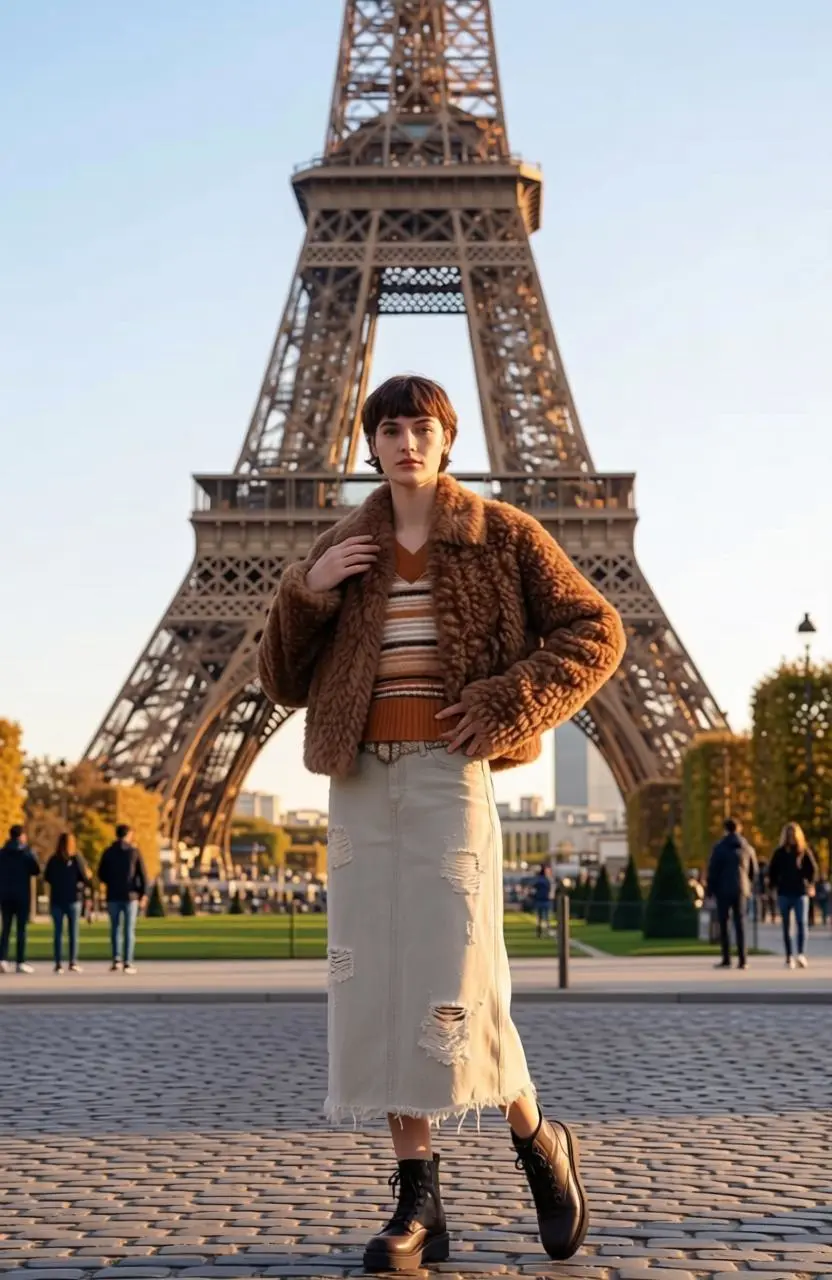
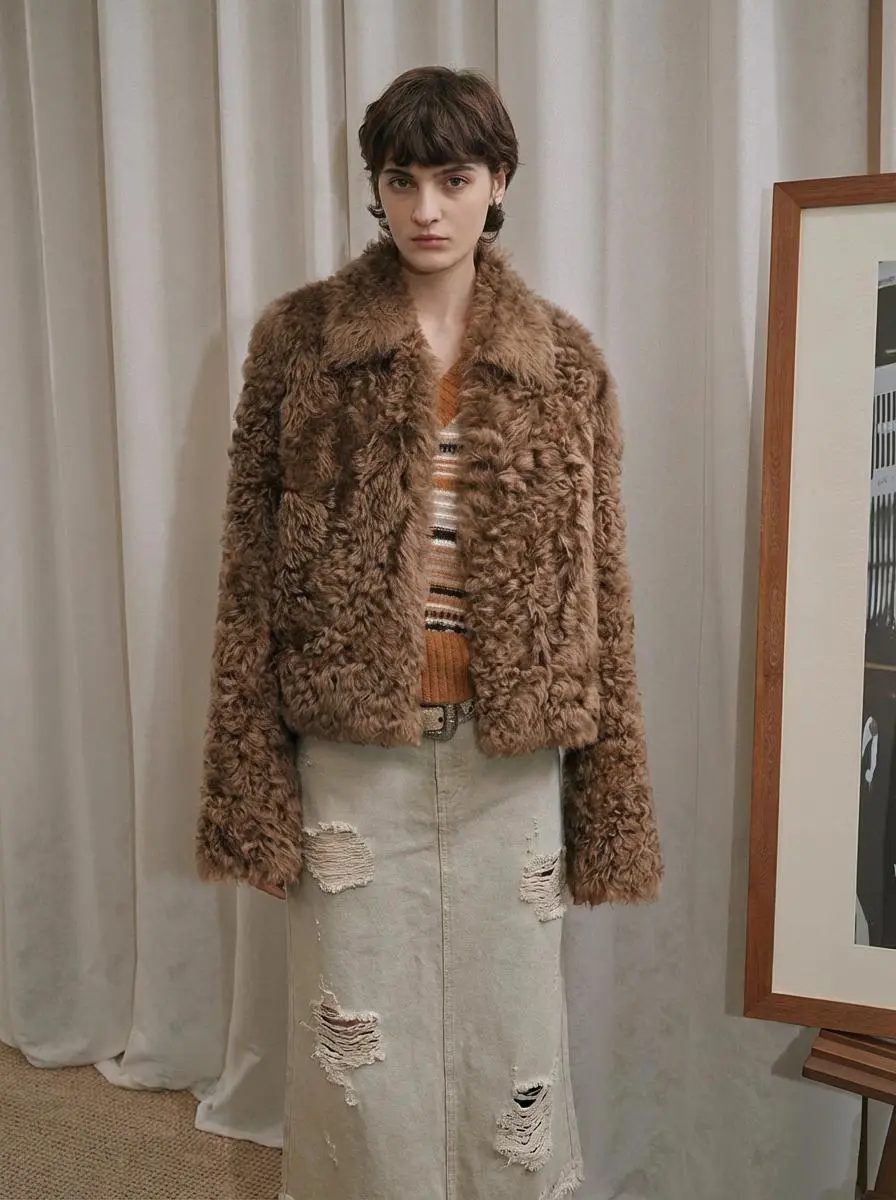
Portrait in a New Paris Setting
Move a portrait reference into a Paris landmark scene and adjust the pose, separating the person from the new setting.
Change the background, stand in front of the Eiffel Tower in Paris, France, and adjust your pose.

Qwen-Image-Edit is Qwen’s instruction-based image editing model. Its original release distinguishes visual appearance changes, semantic transformations, and Chinese-English text editing. On WeShop AI, create a new image from text or upload an image to edit.
Explore the reference-image edits of a Paris portrait, sunny city, and workshop poster. For creation without uploading an image, see the text-only lighthouse example in the prompt guide below.
Move a portrait reference into a Paris landmark scene and adjust the pose, separating the person from the new setting.
Change the background, stand in front of the Eiffel Tower in Paris, France, and adjust your pose.
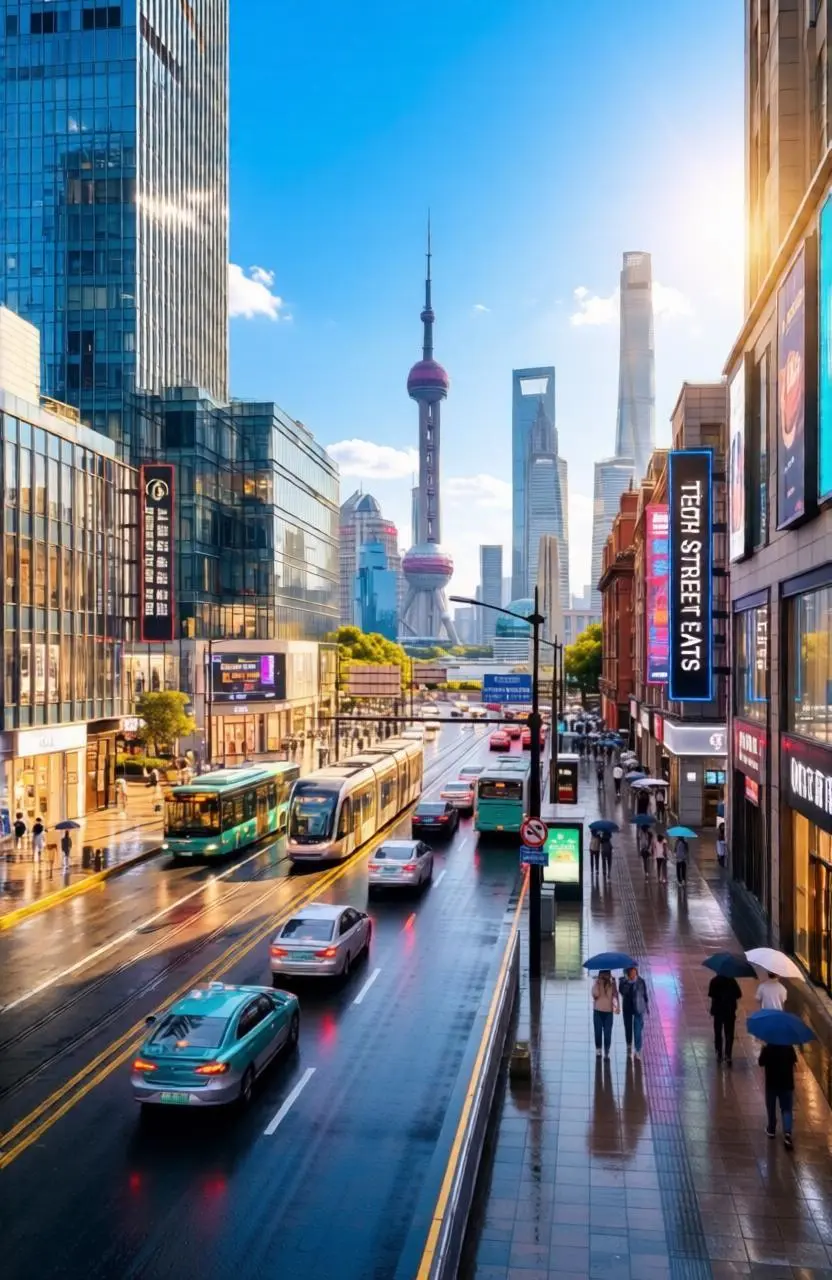
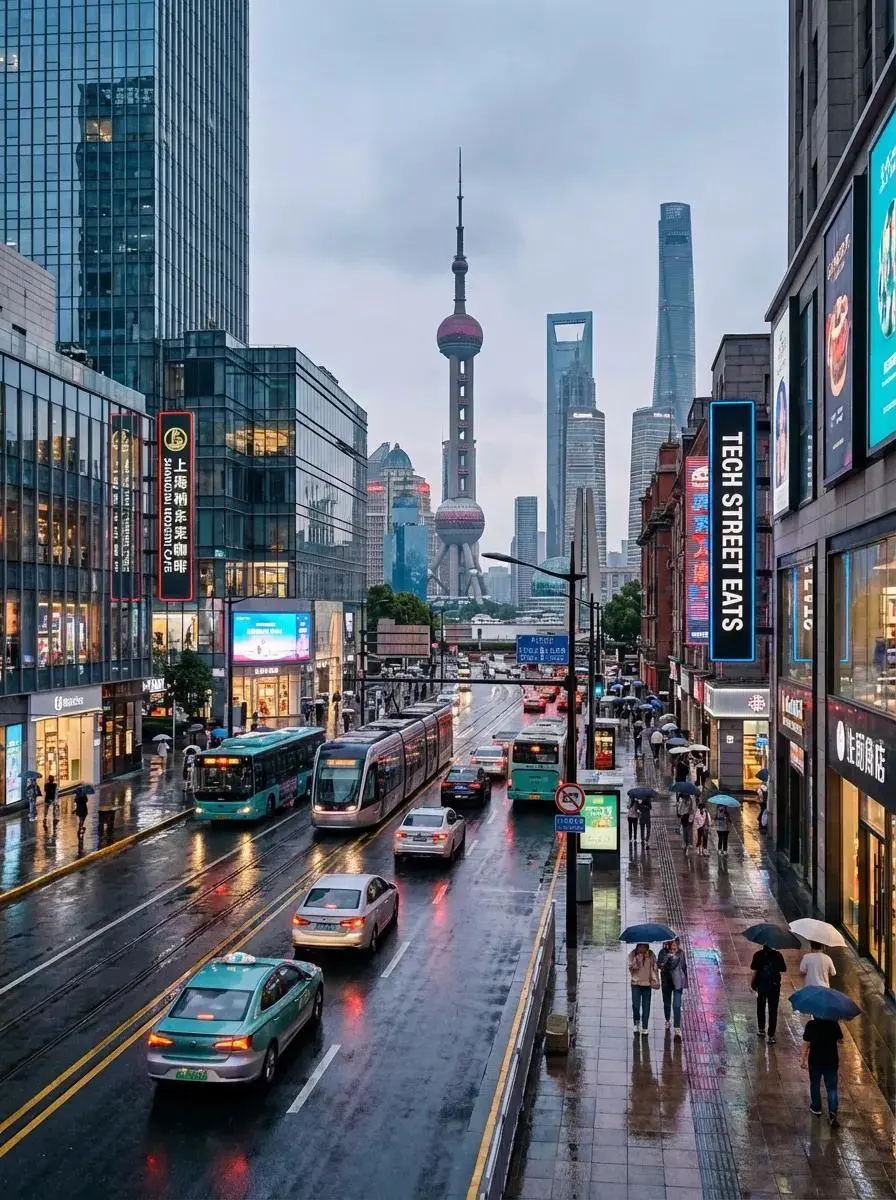
Change the light and mood of a city image toward a sunny treatment while requesting that the city’s appearance remain recognizable.
Help me turn the city into a sunny, vibrant place without changing its appearance.
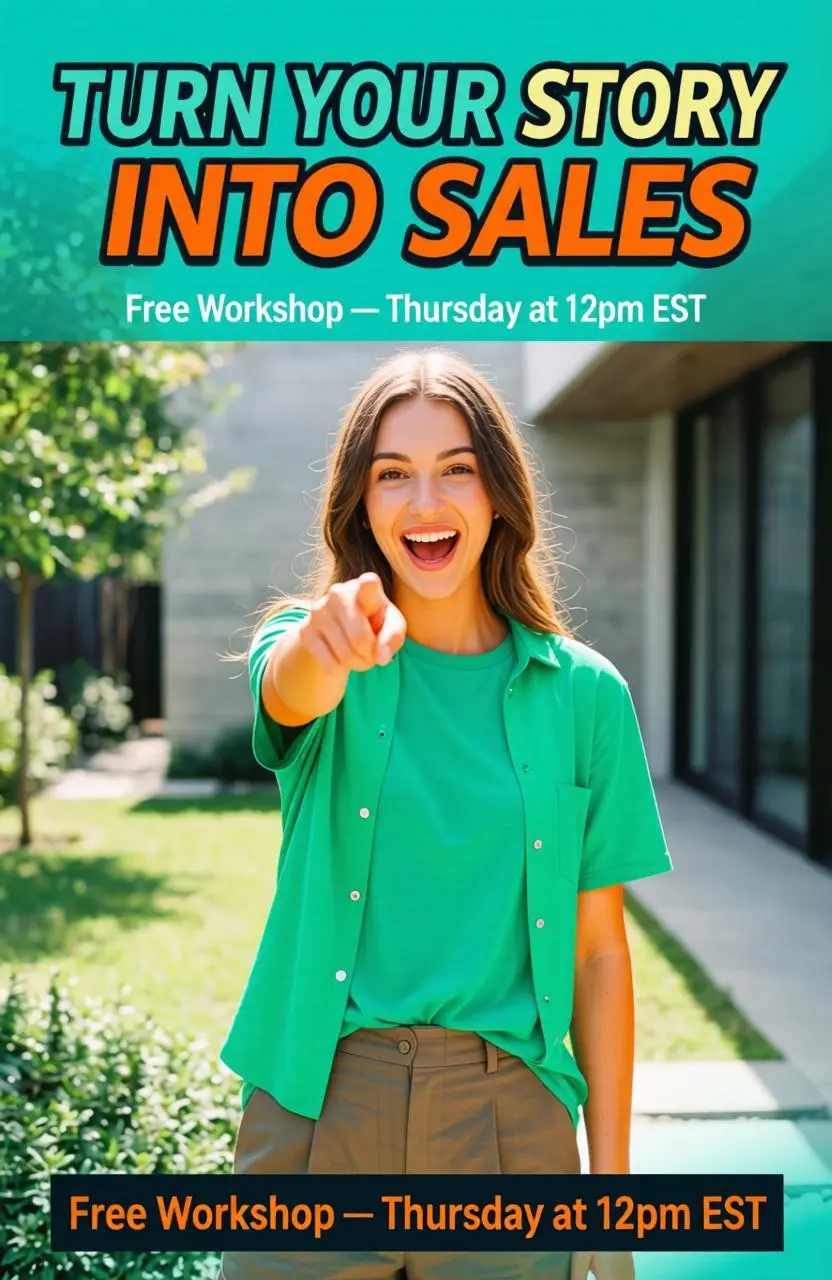
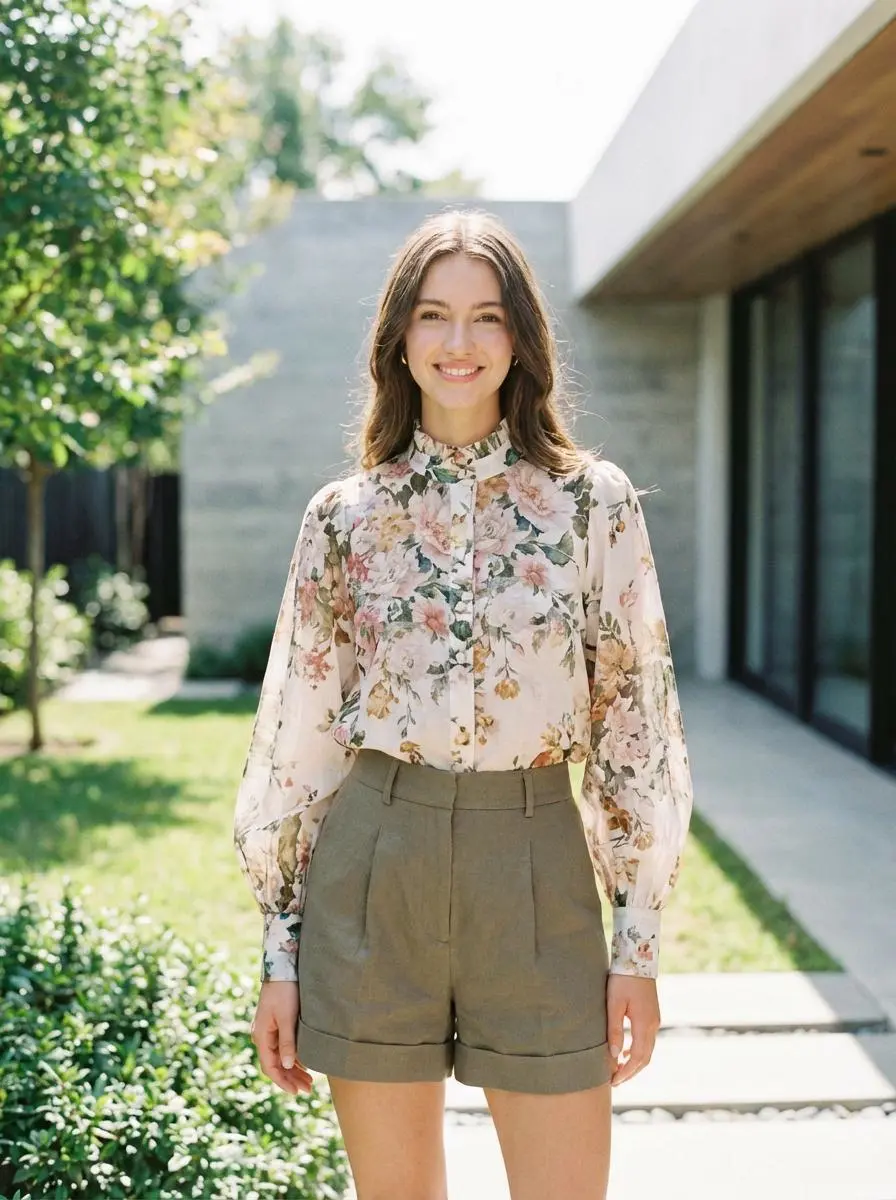
Build a promotional poster around a portrait, with specified headline, call-to-action text, pose, and clothing direction.
- **Pose**: Pointing to the camera, energetic smile - **Apparel**: T-shirt + button-up - **Text**: - Title: *“Turn Your Story into Sales”* - CTA: *Free Workshop — Thursday at 12pm EST* - **Theme**: Actionable and vibrant - **Colors**: Bright teal, orange - **Vibe**: Friendly and bold
Qwen-Image-Edit is Qwen’s instruction-based image editing model. Its original release distinguishes visual appearance changes, semantic transformations, and Chinese-English text editing. Qwen-Image-Edit is useful for changing an existing image’s appearance, meaning or embedded Chinese/English text. The Paris portrait, relit city and portrait-led poster illustrate separate changes to inspect against the sources.
Add, remove, or change an element while specifying the surrounding details to retain.
Change a style or object presentation while using the source image to preserve the intended subject meaning.
The official release documents Chinese and English text editing. Identify the exact text and styling that should be changed.
Use the generator at the top of this page for either path: leave the optional image upload empty to create from text, or add the picture you want to edit.
Leave Add Image empty and enter the image description in Describe your image. Describe the subject, setting, and visual style. Choose the quantity, review the displayed points, then select Generate. No source image is required.
Select Add Image to upload the picture you want to edit. In Describe your image, say what to change and which details to retain. Choose the quantity, review the displayed points, then select Generate.
Compare four reference-image edits to learn how their prompts describe changes and details to retain, then explore the text-only lighthouse landscape for a written description of subject, setting, light, and composition. Each card keeps its complete original English prompt and actual result.
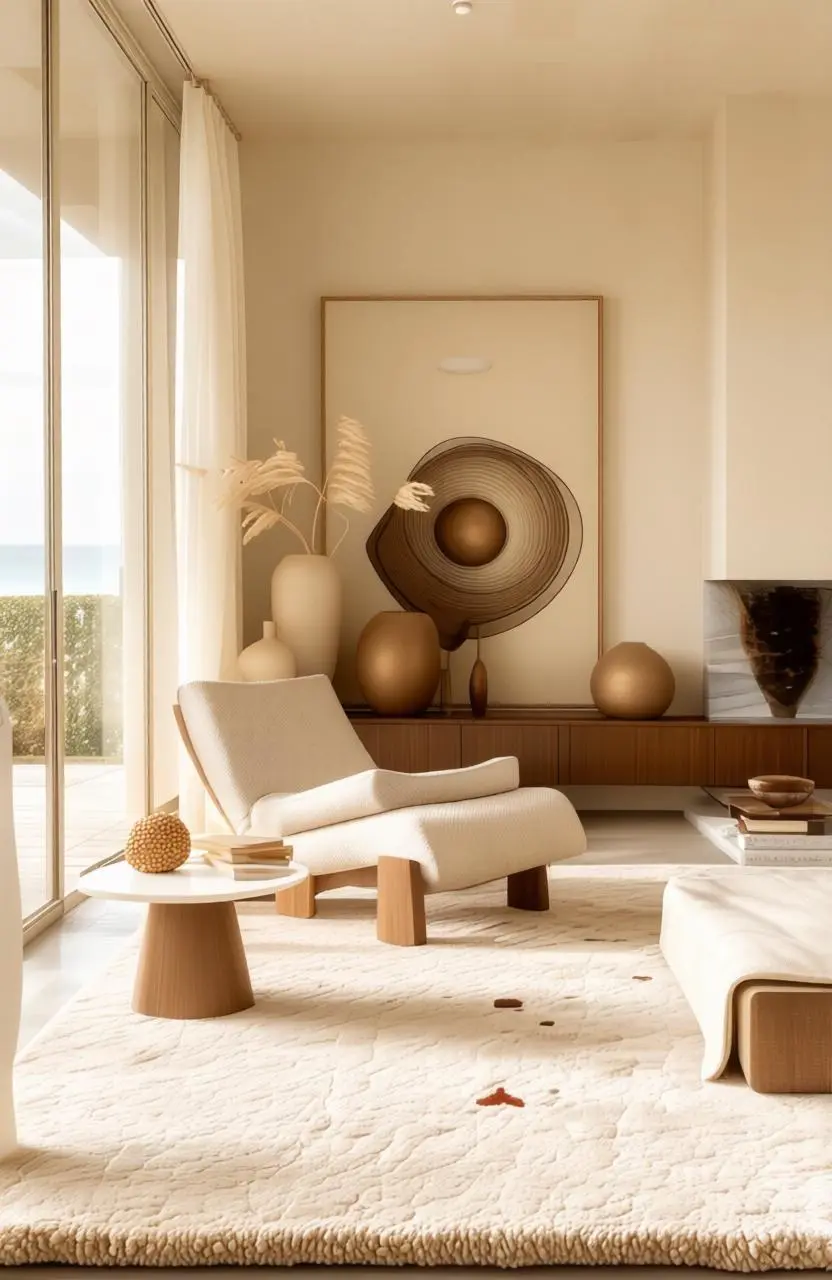
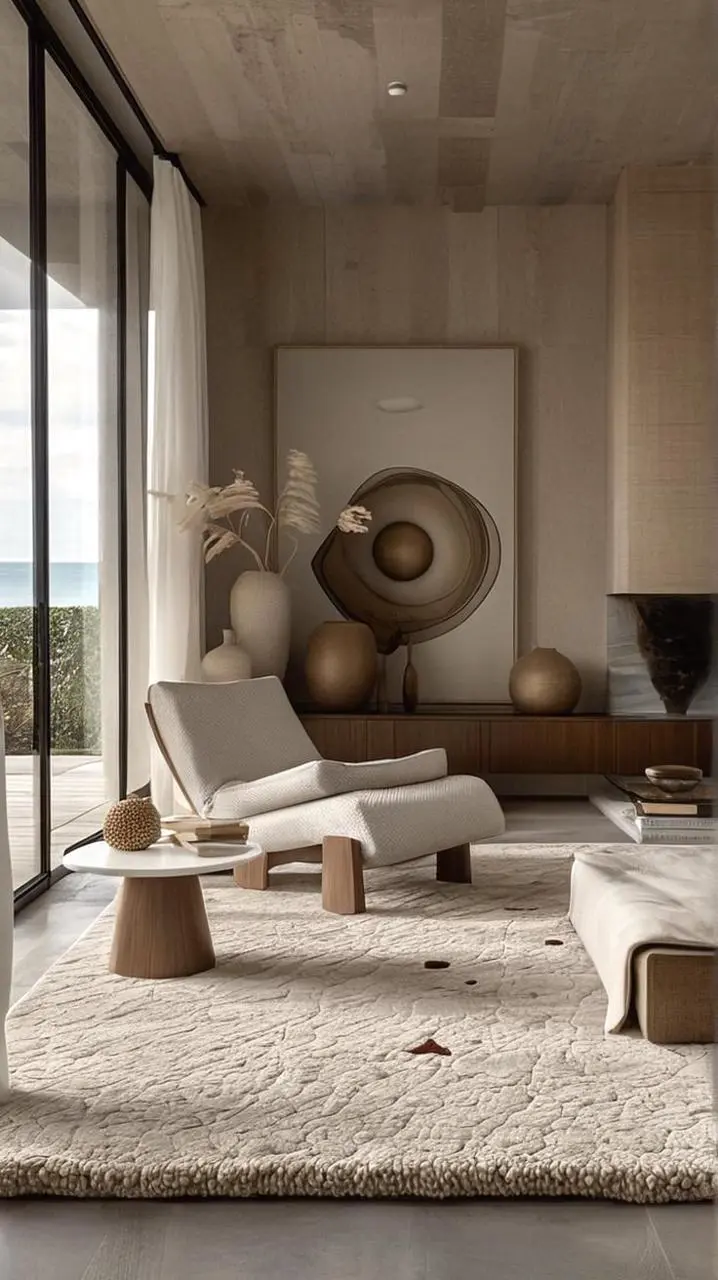
Distinguish the requested transformation from the subject or composition supplied by the image. In this case: “Generate a creamy French-style effect from my uploaded image with one click, keeping the objects in the scene unchanged.”
Generate a creamy French-style effect from my uploaded image with one click, keeping the objects in the scene unchanged.
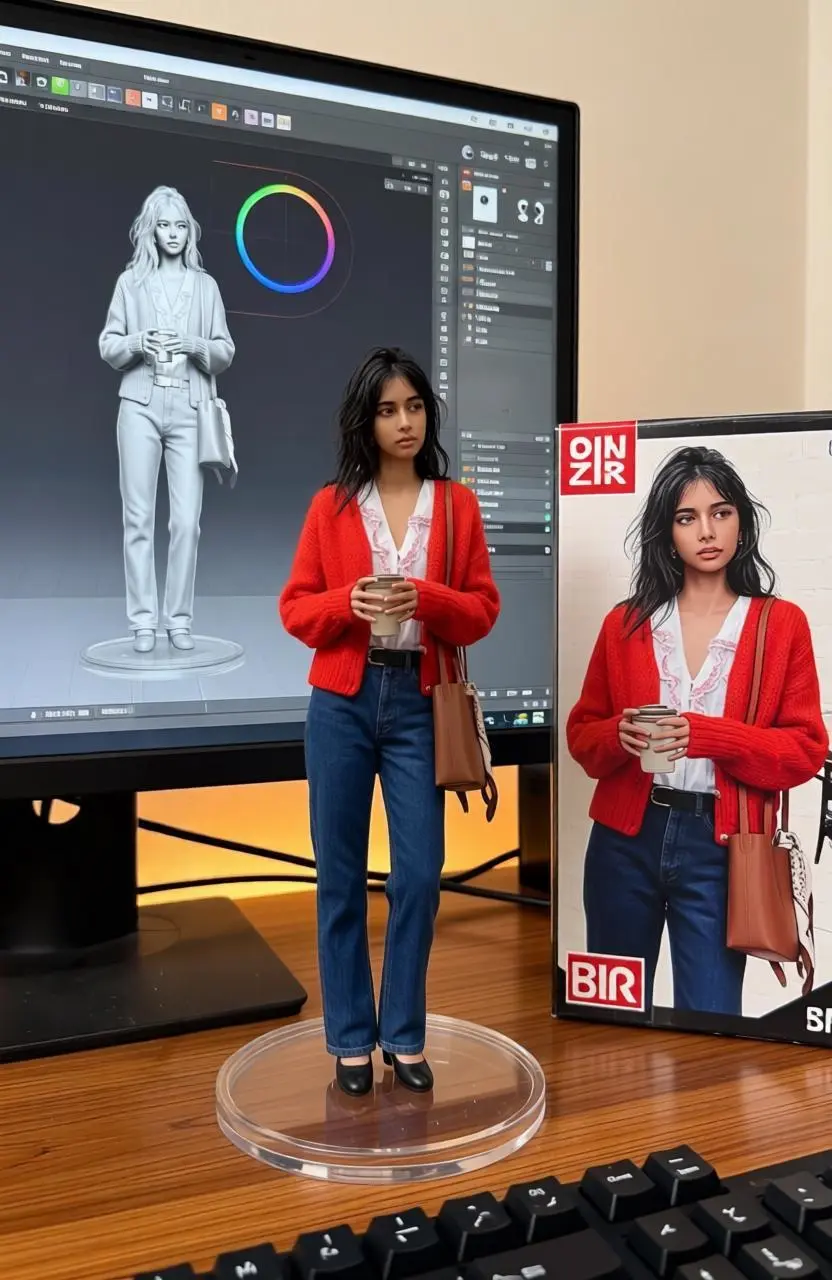
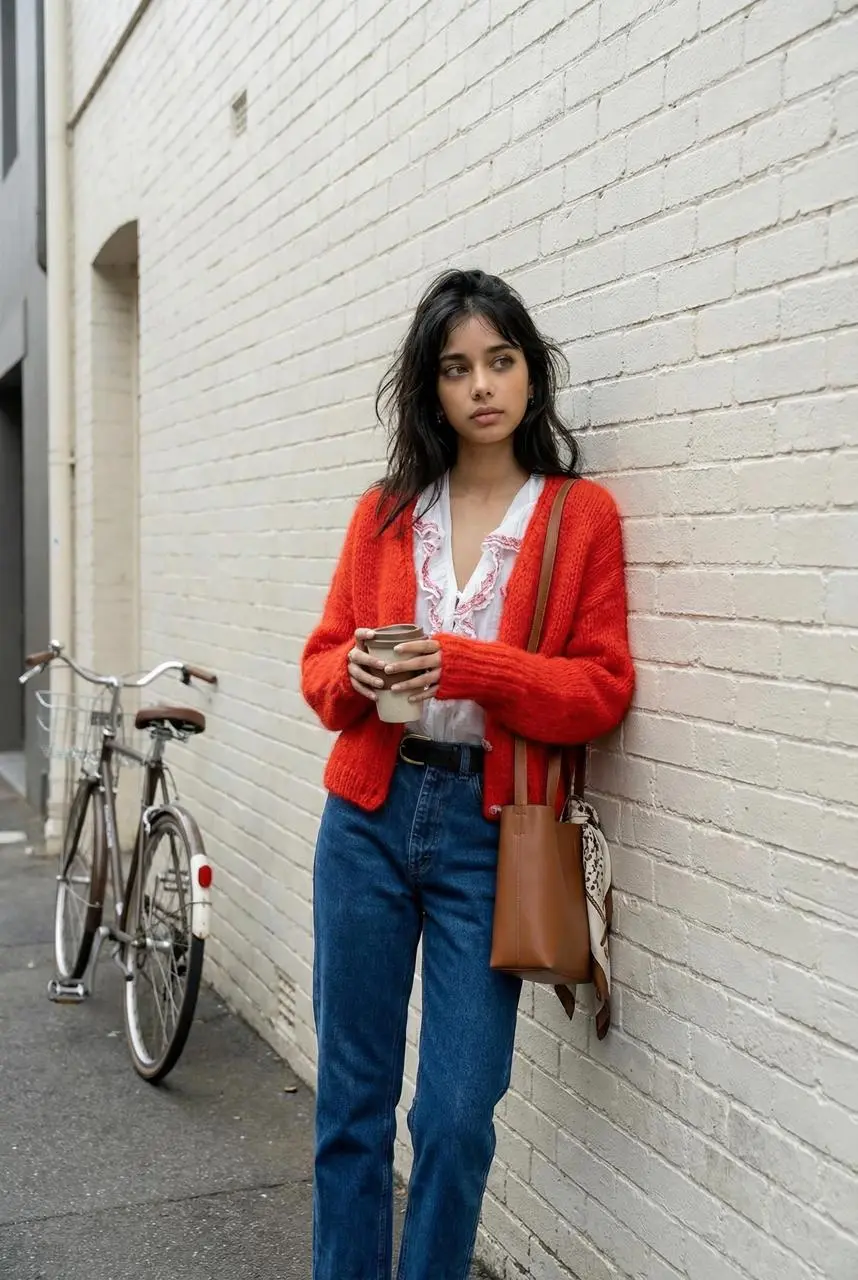
Describe the subject’s visible details and its position in the image. In this case: “A commercially available figure of the character from the illustration is produced in 1/7 scale, featuring a realistic style and environment.”
A commercially available figure of the character from the illustration is produced in 1/7 scale, featuring a realistic style and environment. The figure is positioned on a computer desk with a round, clear acrylic base that has no text. The ZBrush modeling process of the figure is shown on the computer screen. Beside the computer screen, a BANDAI-style toy box printed with the original illustration is placed.
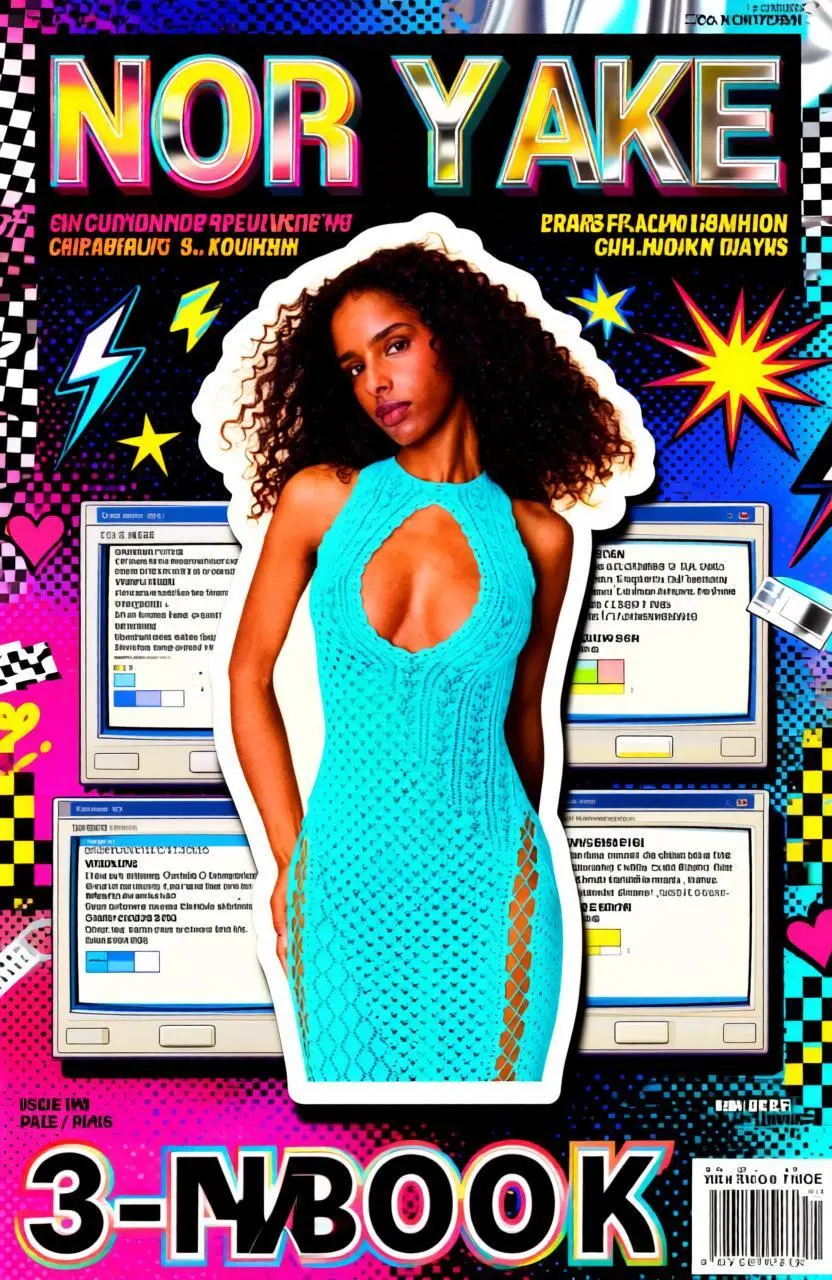
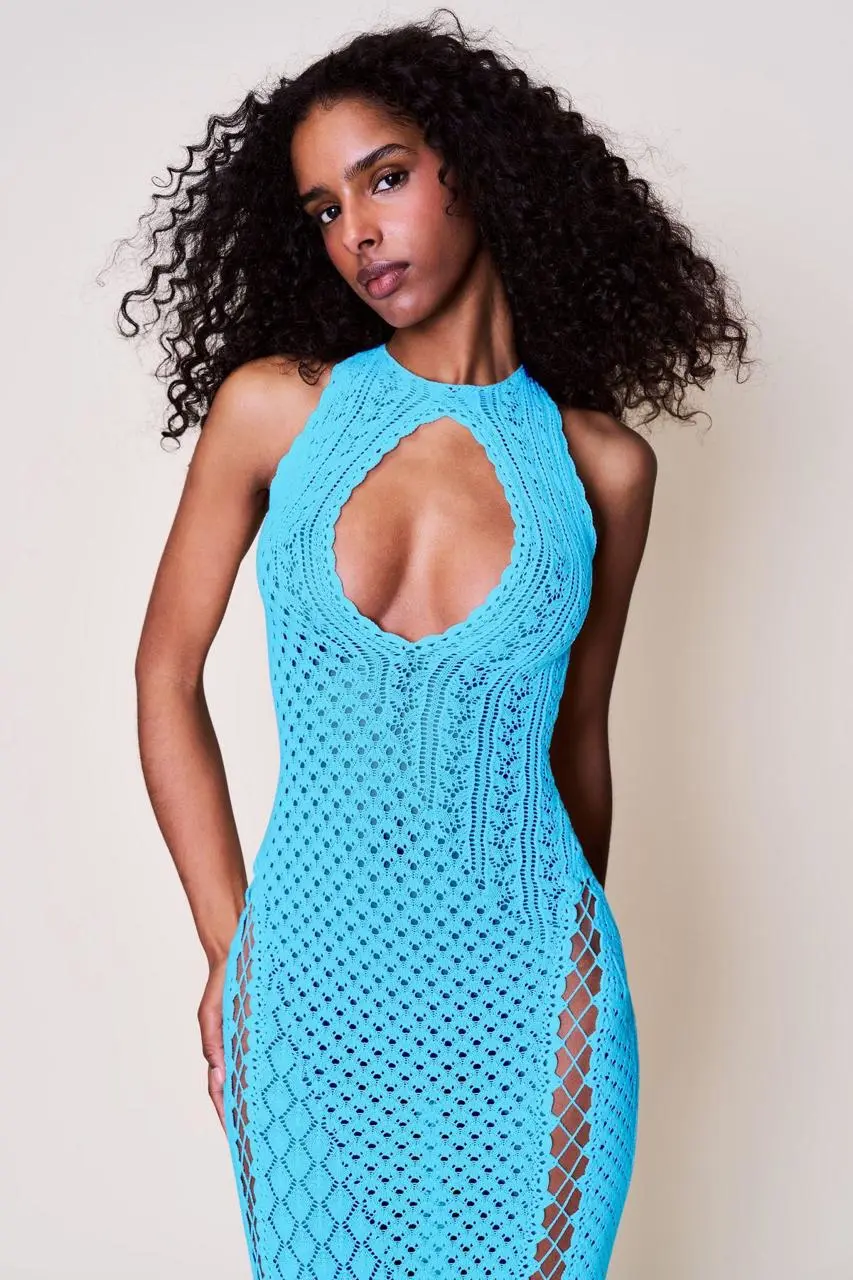
Specify the portrait as the central cut-out, then place the graphic layers around it. This request describes a white sticker border, a slight shadow, neon accents, and retro interface windows while keeping the person prominent.
Convert the uploaded photos into a Y2K collage-style magazine cover poster. Keep the identity features and expressions of the main subject consistent, with the main subject clearly and prominently displayed, like being cut out and turned into a sticker placed in the center of the picture, with clean white borders and slight shadows, with distinct layers, with the main subject having the highest priority, and not being obscured. Color scheme rules: Extract the color from the main subject's largest proportion in the uploaded photo and enhance it to a higher saturation and brighter Y2K neon version; then automatically pair a set of strong contrasting colors / adjacent colors / complementary colors as embellishments for the title, stickers, and UI windows. Background uses common Y2K elements combinations: neon gradients, dot halftones, pixel textures, shiny plastic / chrome reflective textures; make a collage decoration around the edges but without competing with the main subject: hand-drawn graffiti lines, stars, hearts, lightning, checkered patterns, exploding star rays, tape stickers, arrows, sticker borders, etc., with high information density but in an orderly manner. Generate the publication name at the top (please design appropriate title text based on the nature of the subject, in English, bold, 3D border, candy color or metallic chrome effect). Generate several short subheadings / slogans above and on the sides of the picture (automatically randomly created, in English, please design appropriate subheading text based on the nature of the subject, short and powerful, like magazine cover copy). Generate a large main title at the bottom (please design appropriate text based on the nature of the subject, 3-6 words, in English, all in capital letters). Generate a magazine information module in the corners: issue number / date / price / small labels, and add a clear barcode area. Retro Windows elements: Overlay multiple layers of Windows 98 / Windows XP era-style window collages around the main subject. The text content and prompt information in the windows are randomly generated, but in line with the tone and layout of the system prompts from that era (in English, short sentences, prompts, percentages, paths, dialog box buttons, etc.), overall realistic and credible. Overall texture leans towards the trendy poster printing and scanning style: slight particles, a little misalignment / overlay effect, sharp edges, strong contrast, bright color grading, high-contrast highlights. The overall picture is clear, clean, and has layers, suitable for magazine covers.
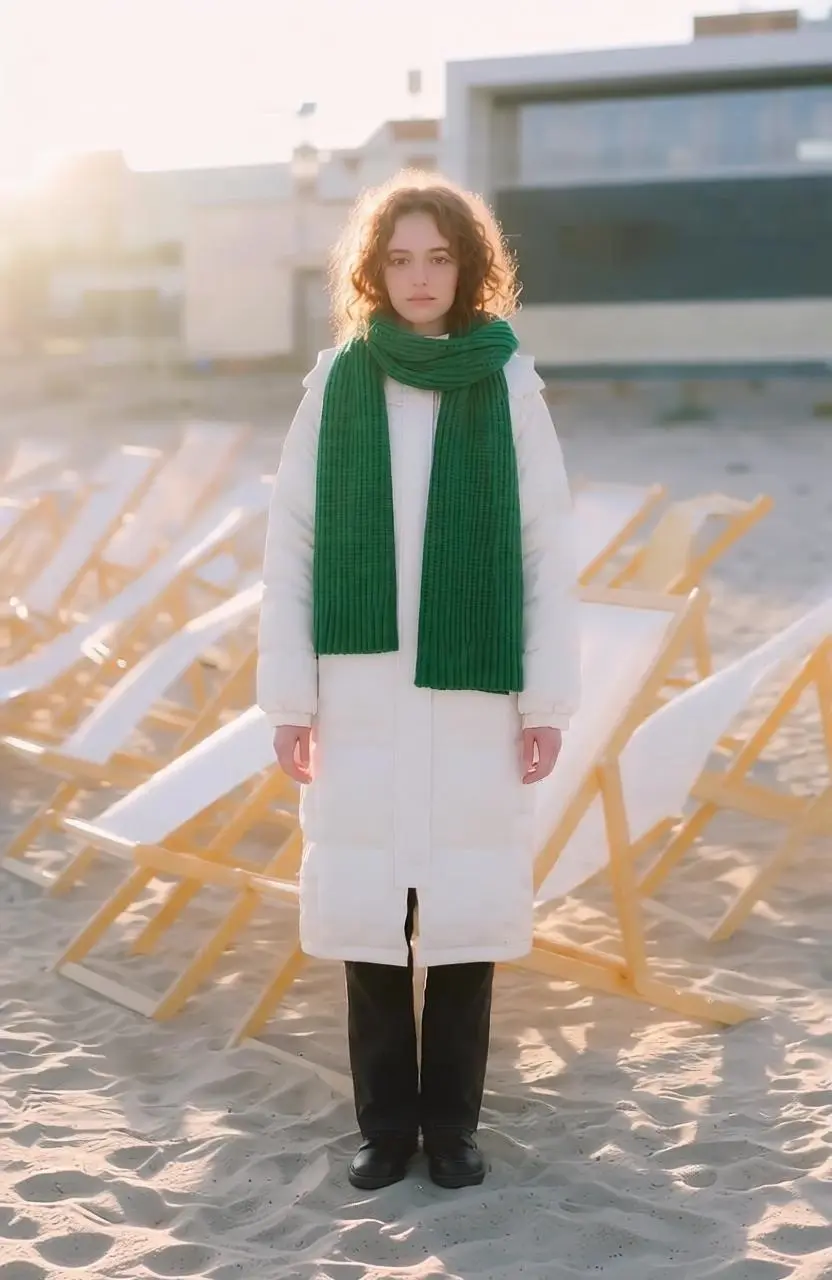
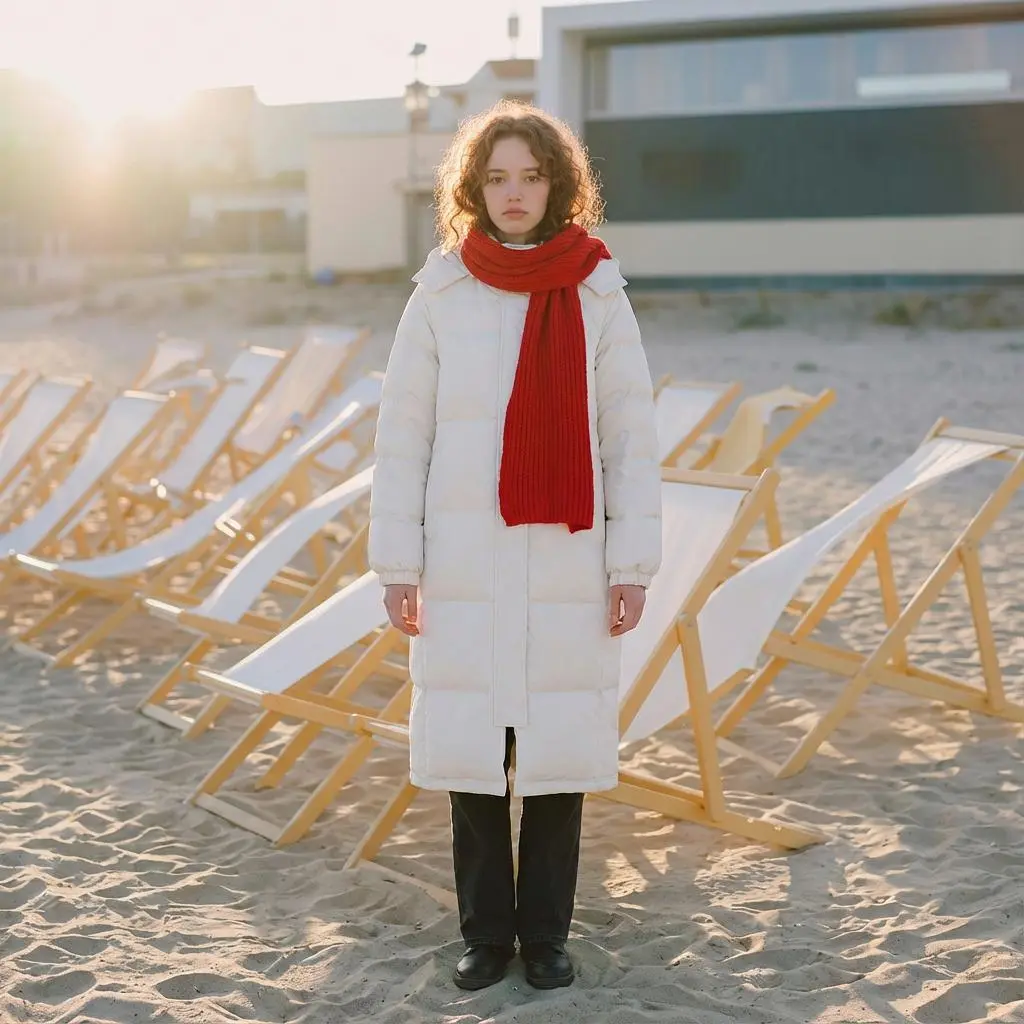
Identify the item and its replacement color rather than requesting a complete restyle. In this case: “Change to a green scarf.”
Change to a green scarf.
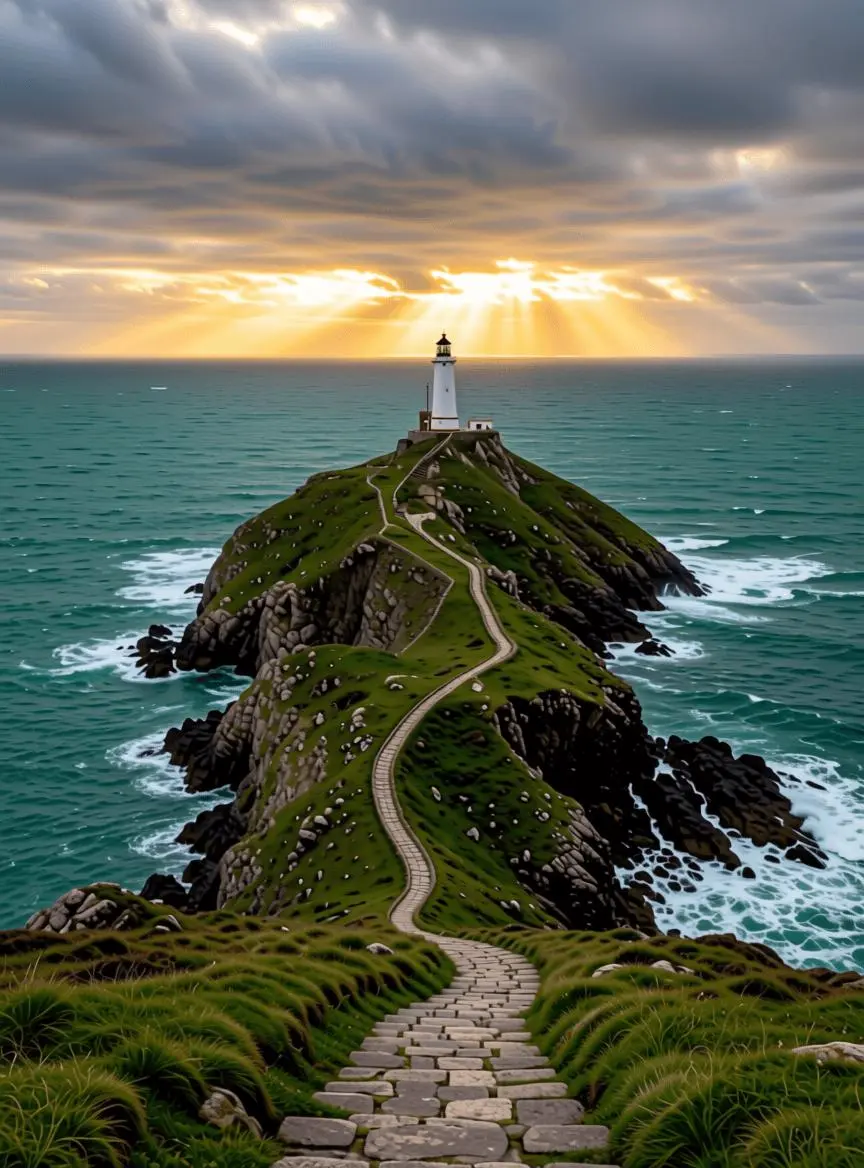
No reference image was uploaded for this request. The prompt describes a white lighthouse, green headland, a stone path leading toward the subject, teal sea, and golden sunlight through storm clouds. Inspect these scene elements and the foreground-to-horizon depth in the result, then read the complete prompt to see how the new scene was described.
A solitary white lighthouse on a rugged green headland above a deep teal sea just after a storm. A winding stone path leads from the bottom foreground to the lighthouse in the upper third. Golden sunlight breaks through layered gray clouds, and white waves foam against dark rocks. Photorealistic landscape photography, detailed natural textures, a clear foreground, middle ground and distant horizon. Vertical composition. No people, lettering, logos, border or watermark.
Use the generator at the top of this page. Start with text alone for a new image, or add a source image for an edit, then check the quantity and points before generating.
For a new image, leave Add Image empty and type your description in Describe your image. To edit an existing picture, select Add Image, upload it, and describe the change and details to retain.
Choose how many images to generate and review the displayed points and your account’s model access. This form has no image-size or aspect-ratio selector. Select Generate when your input is ready.
Open the result and check the composition and original file’s pixel dimensions for your intended use. For an edit, compare the changed region and surrounding details with the source. For posters or text edits, proofread the words and layout.
Open a related model page to review its capabilities, examples, and current generation options.
Answers about text-only creation, image editing, output dimensions, and getting started.
Qwen-Image-Edit is Qwen’s instruction-based image editing model. Its original release distinguishes visual appearance changes, semantic transformations, and Chinese-English text editing.
Qwen-Image-Edit is useful for changing an existing image’s appearance, meaning or embedded Chinese/English text. The Paris portrait, relit city and portrait-led poster illustrate separate changes to inspect against the sources.
The original Qwen-Image-Edit release documents Chinese and English text edits, alongside appearance and semantic changes. Specify the exact replacement text and check the result.
In the generator at the top of this page, leave Add Image empty and type a description in Describe your image. Choose the quantity, review the displayed points, then select Generate. Upload a source image only when you want to edit an existing picture.
The current Qwen Image Edit form on WeShop AI has no image-size or aspect-ratio selector. Check the original result file’s pixel dimensions before using it in your layout; the page preview is not a specification of the output file’s dimensions.
The current WeShop Pricing table lists a limited Free allowance for this model. Check your account’s access and remaining allowance, then review the points estimate for the selected request. This page does not quote a fixed per-request price or transfer another provider’s subscription quota to WeShop.
For edits, compare the changed region, its boundary, and the details you asked to retain with the source image. Results may change details you wanted to keep. For posters or text edits, proofread spelling and layout before use.
The Paris portrait, sunny city, and workshop poster demonstrate source-image edits. The prompt guide also includes a lighthouse landscape created from text without a reference image. Read each complete prompt alongside its inputs and result to understand the different requests. Check details and any text in your own results.
Distinguish the requested transformation from the subject or composition supplied by the image. In this case: “Generate a creamy French-style effect from my uploaded image with one click, keeping the objects in the scene unchanged.” Read the complete paired prompt and actual inputs in the guide, then adapt them to your own task.