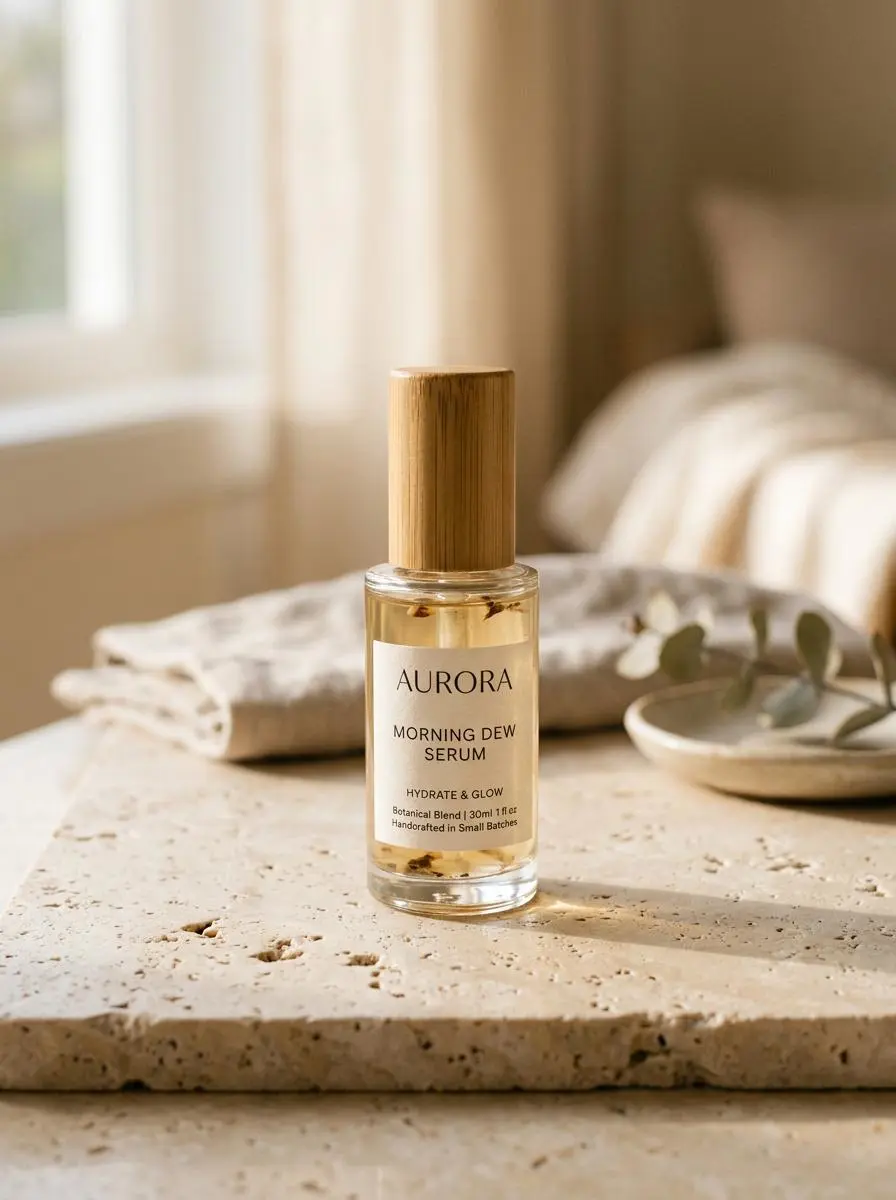
Product Background Concept
Build a product composition from a written brief.
A glass skincare bottle on a pale limestone surface, soft morning light from the left, subtle shadows, warm neutral background, centered product composition.

Create and edit images with Nano Banana on WeShop AI. Start with a prompt or reference photo, then explore versions for your creative task.
Describe a new image or upload a photo to guide your next variation. Explain the subject, setting, lighting, and the changes you want to make before generating.
Build a product composition from a written brief.
A glass skincare bottle on a pale limestone surface, soft morning light from the left, subtle shadows, warm neutral background, centered product composition.
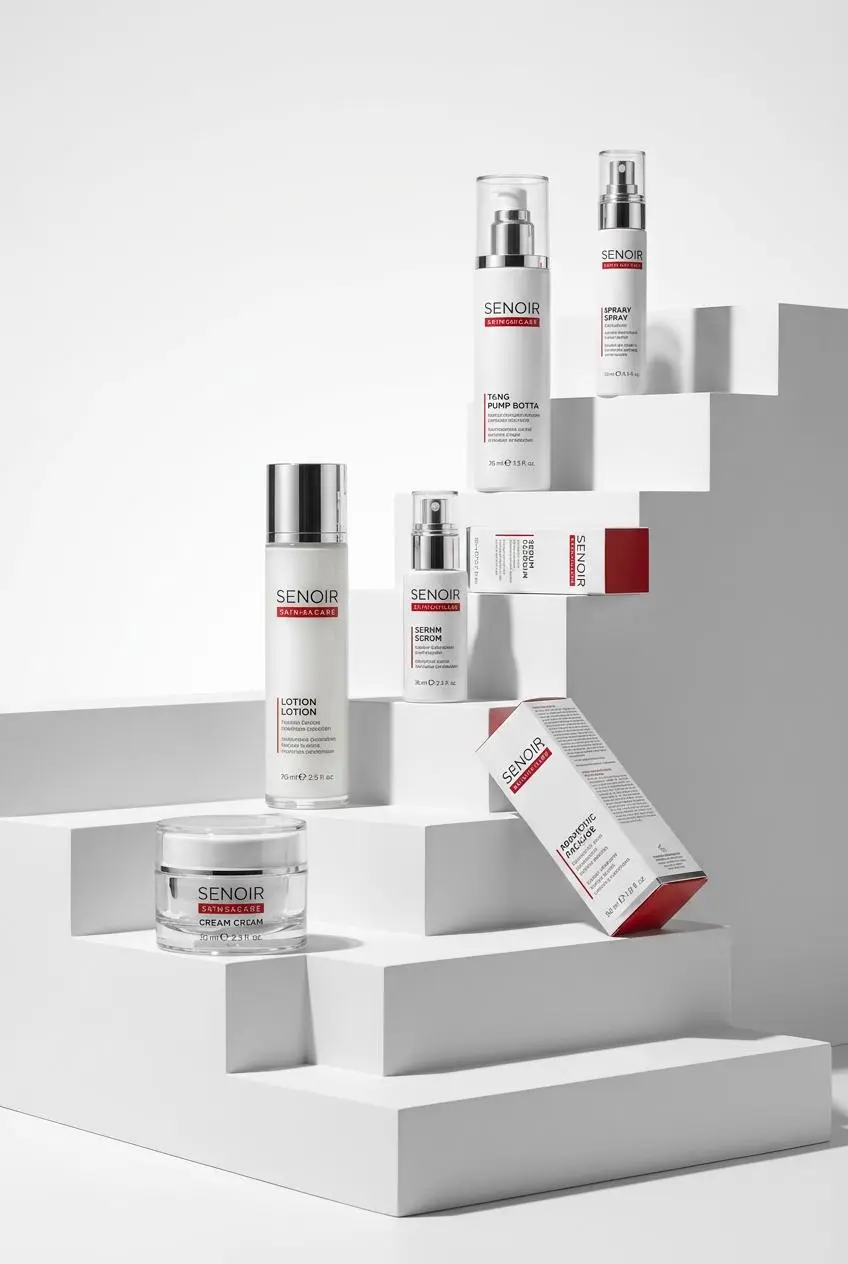
Use your own product photo as the starting point.
Use the uploaded product photo as the reference. Explore a light blue studio background with gentle side lighting and a clean composition around the product.
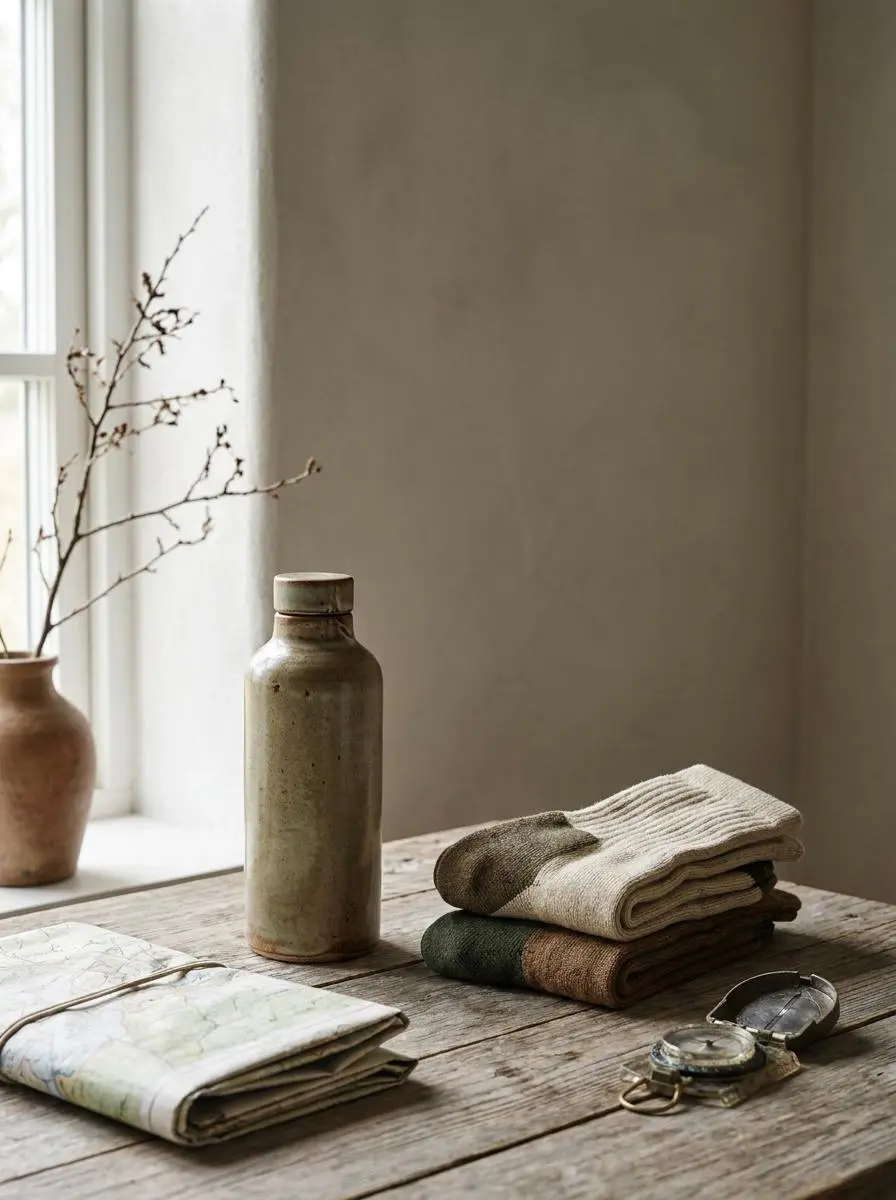
Leave intentional space for campaign copy.
An editorial still life of a reusable water bottle beside folded hiking gear, natural daylight, earthy colors, open space at the top for campaign copy.
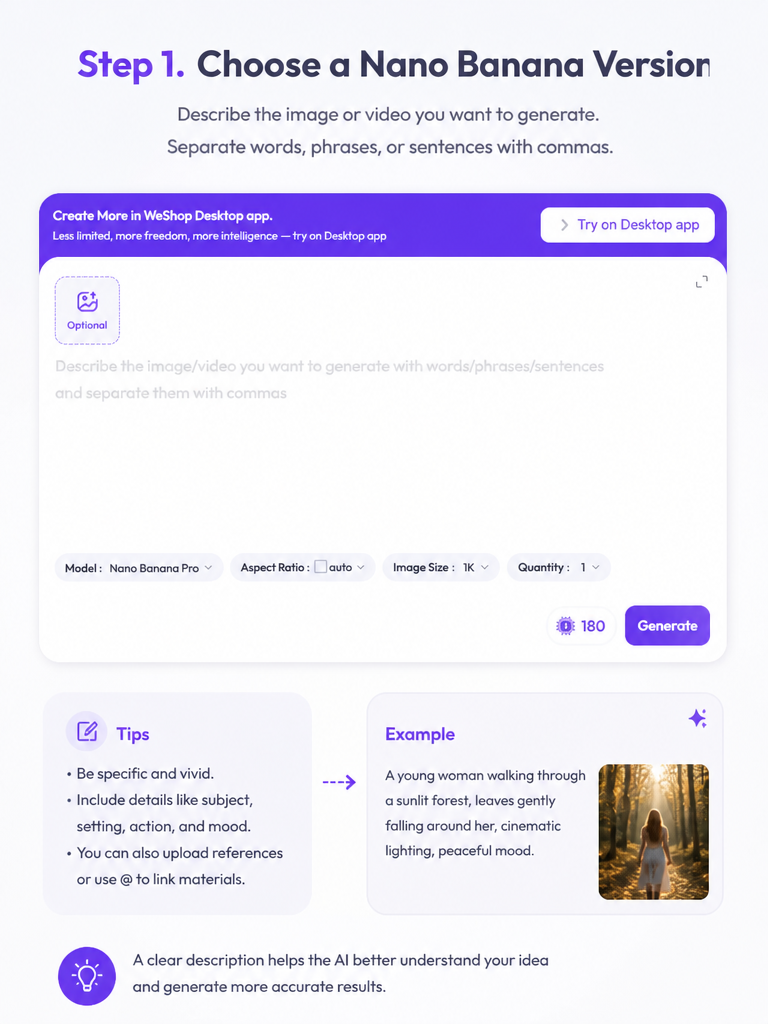
Review the version shown in the creation panel or open a version page for its details.
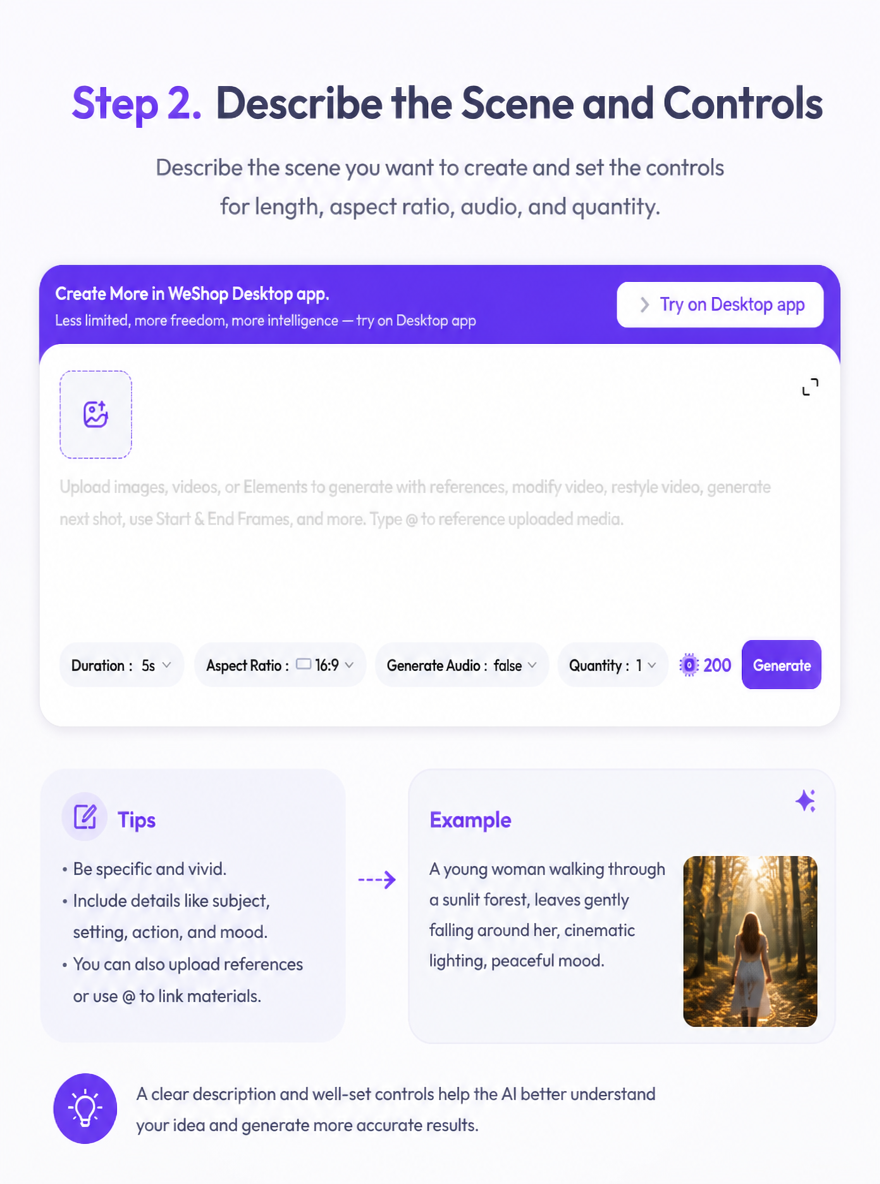
Describe your image or upload a reference. State what to change and which details matter to the result.
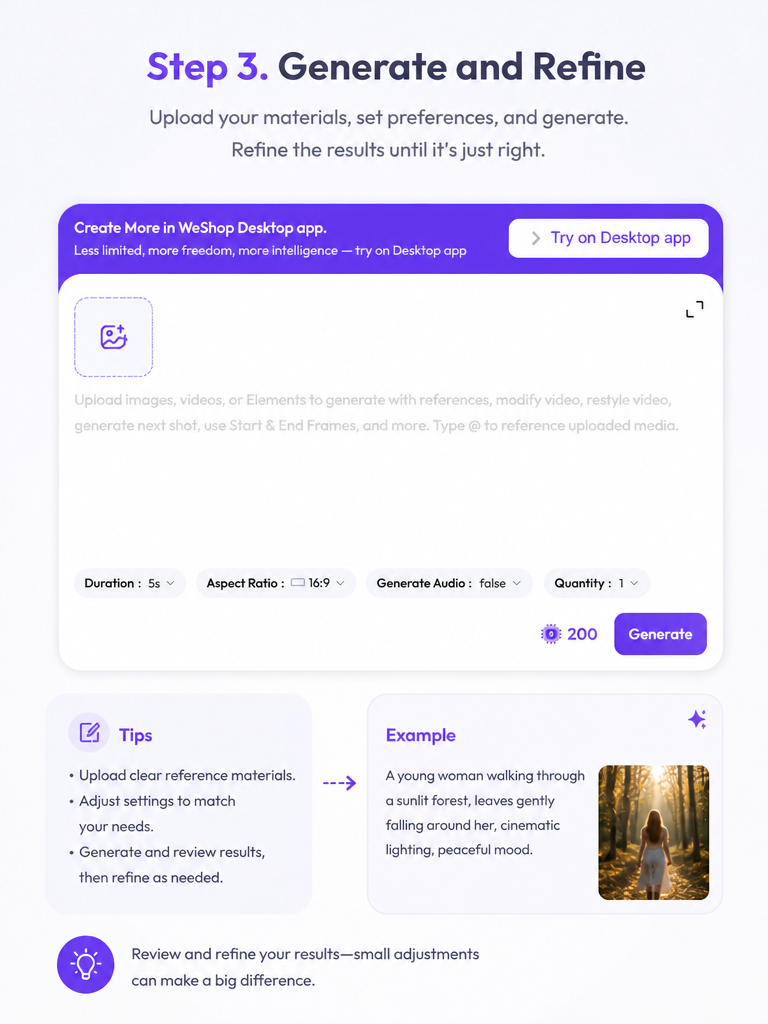
Review the selected settings and points, then generate. Compare the output with your brief and refine one element at a time.
Explore the Nano Banana family and open the version that fits your workflow. The creation panel shows which version is active for your next image.
Review Generation Settings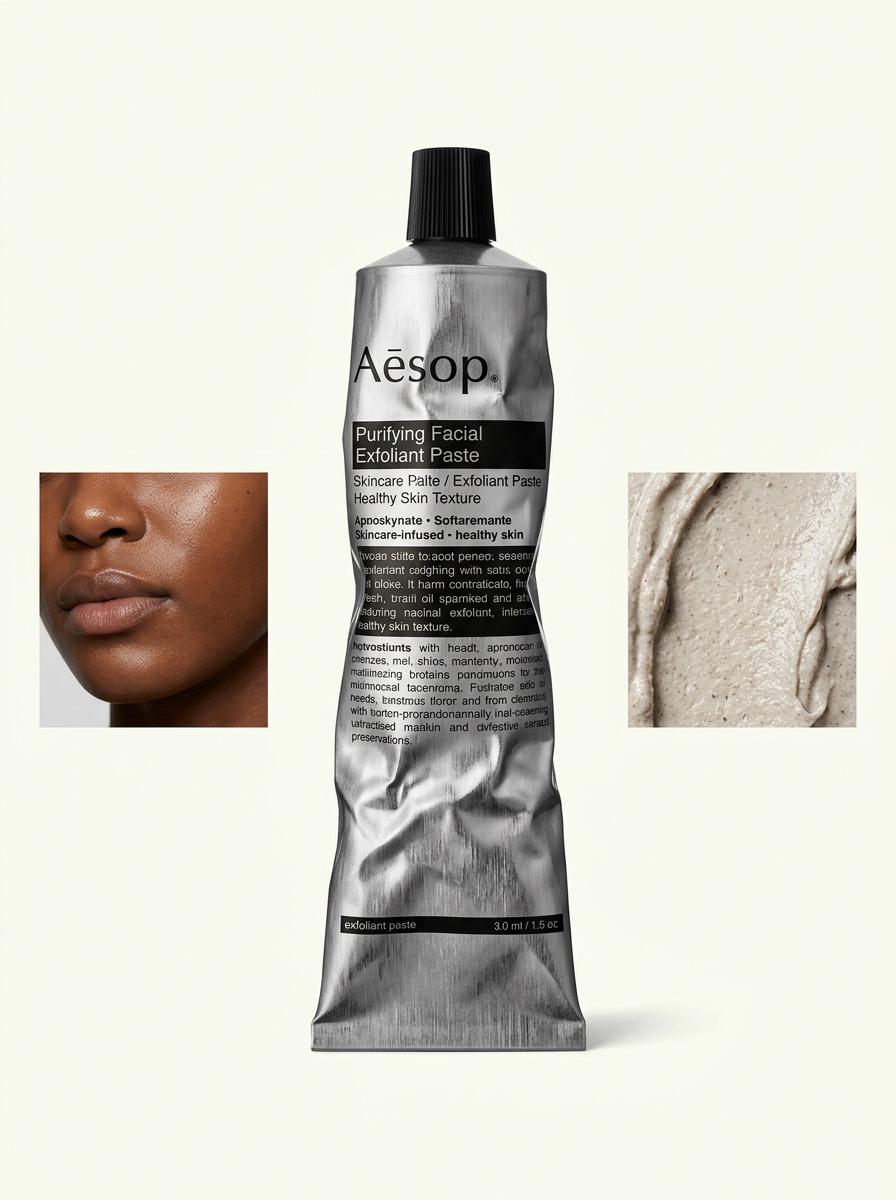
Explore backgrounds and lighting before selecting a direction for your product imagery.
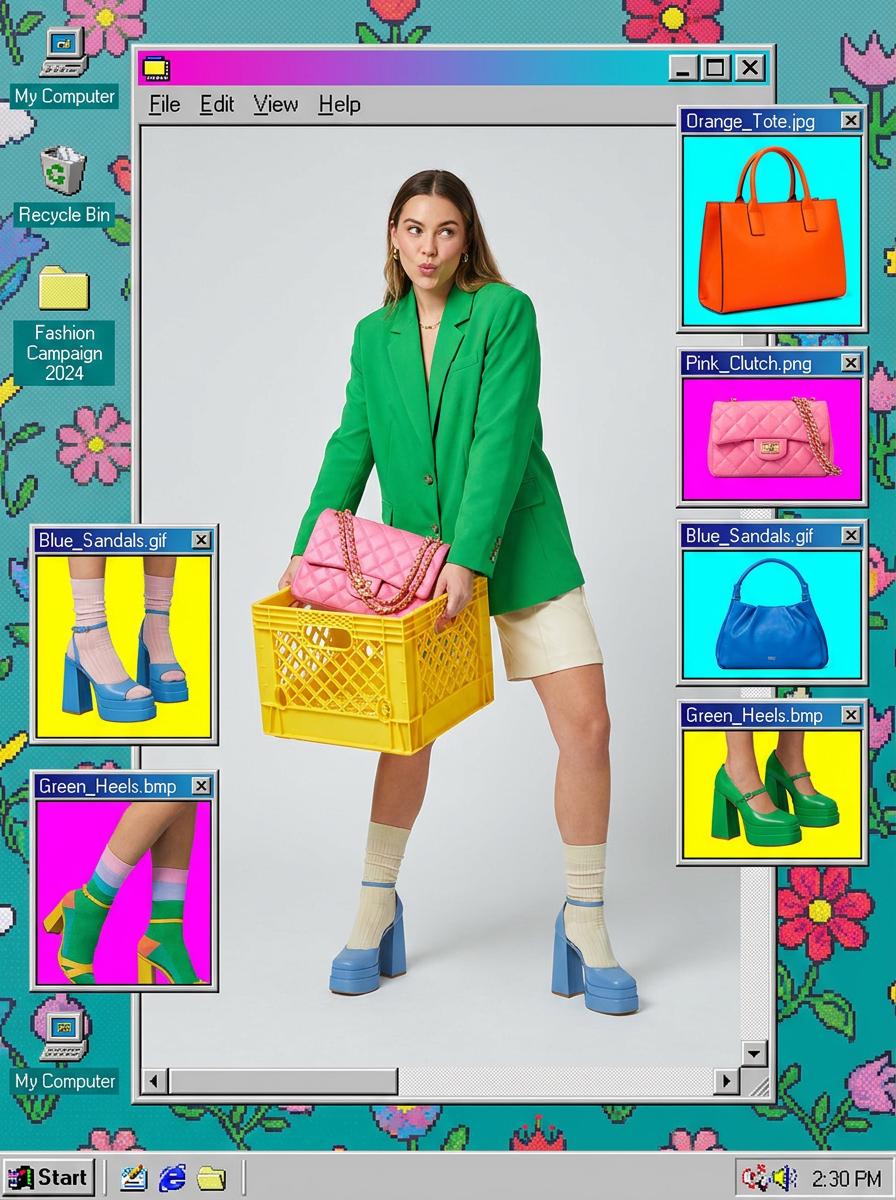
Develop compositions, settings, and visual styles from a written brief or reference photo.
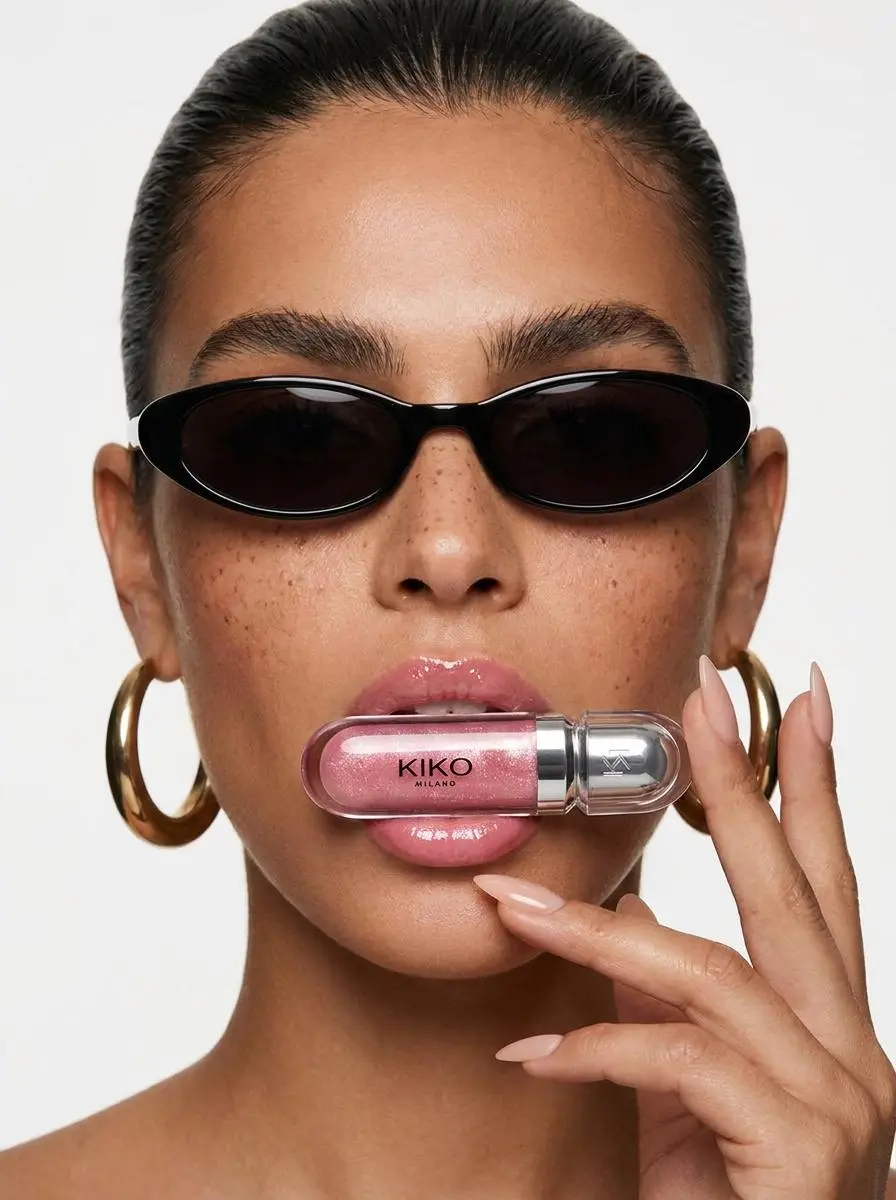
Create image concepts with a defined subject, palette, and space for campaign copy.
Direct answers about model inputs, workflows, settings, and availability.
Use a prompt or reference photo to explore new images, product concepts, and visual variations. The active version determines the controls available in the creation panel.
The current default is Nano Banana 2. The model selector displays the active version before you generate.
Upload the photo as a reference and describe the change you want to explore. Compare the generated result with the original image and refine your instructions.
Use the version links on this page to open the dedicated Nano Banana 2 and Nano Banana Pro pages and review their workflows.