Create from a clear visual brief
Describe the subject, setting, lighting, composition, and details that should remain consistent.
Create from a clear visual brief
Edit photos with FireRed Image Edit on WeShop AI. Upload an image, describe a portrait, background, or text change, and review the result beside the source.
Create a focused image from the documented input flow, then review the result against the brief.
Describe the subject, setting, lighting, composition, and details that should remain consistent.
Create from a clear visual briefChoose the available aspect ratio and image size for the intended placement before generating.
Control the formatCompare the result with the brief, preserve the settings, and change one instruction at a time for the next version.
Review focused variations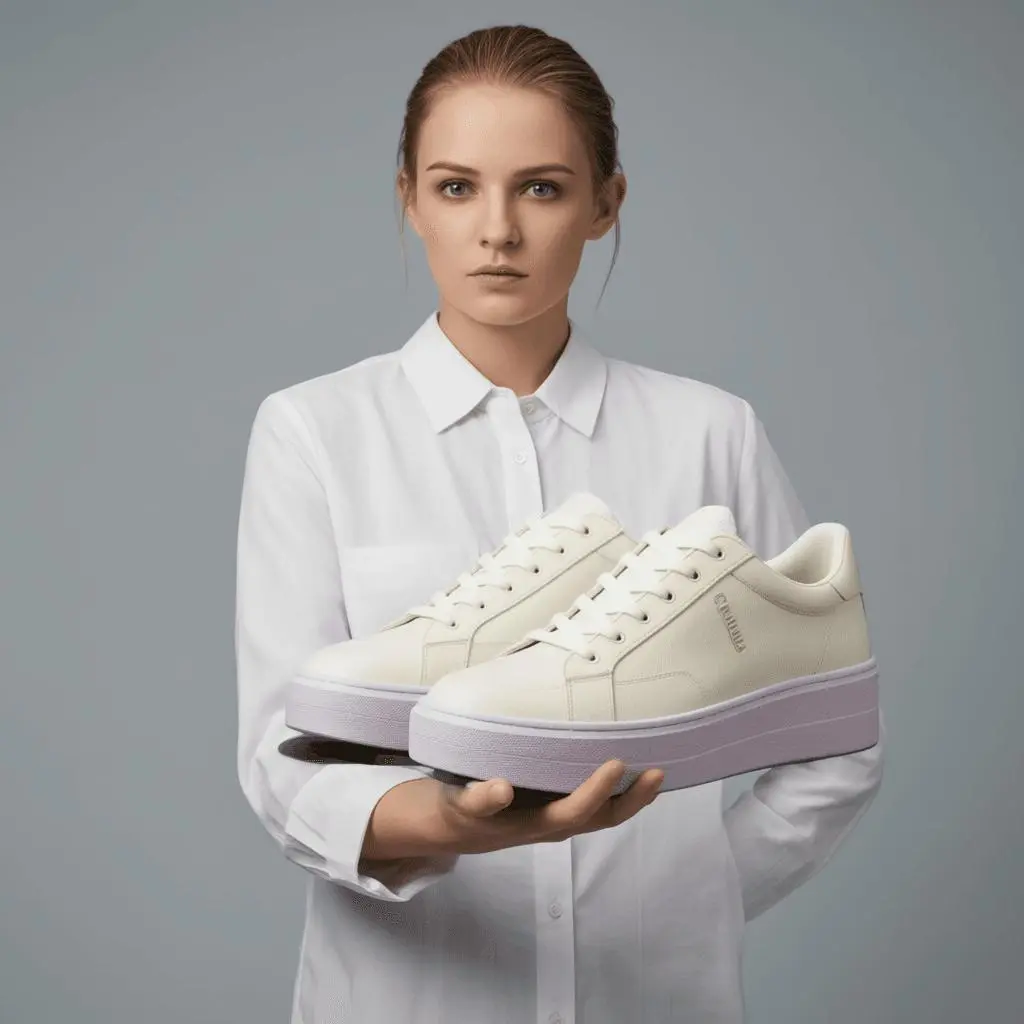
Review the generated result against the prompt, selected model, and format.
Replace the background with a soft gray studio backdrop. Keep the person’s face, hairstyle, clothing, pose, and expression unchanged. Use gentle even lighting.Revise a portrait background
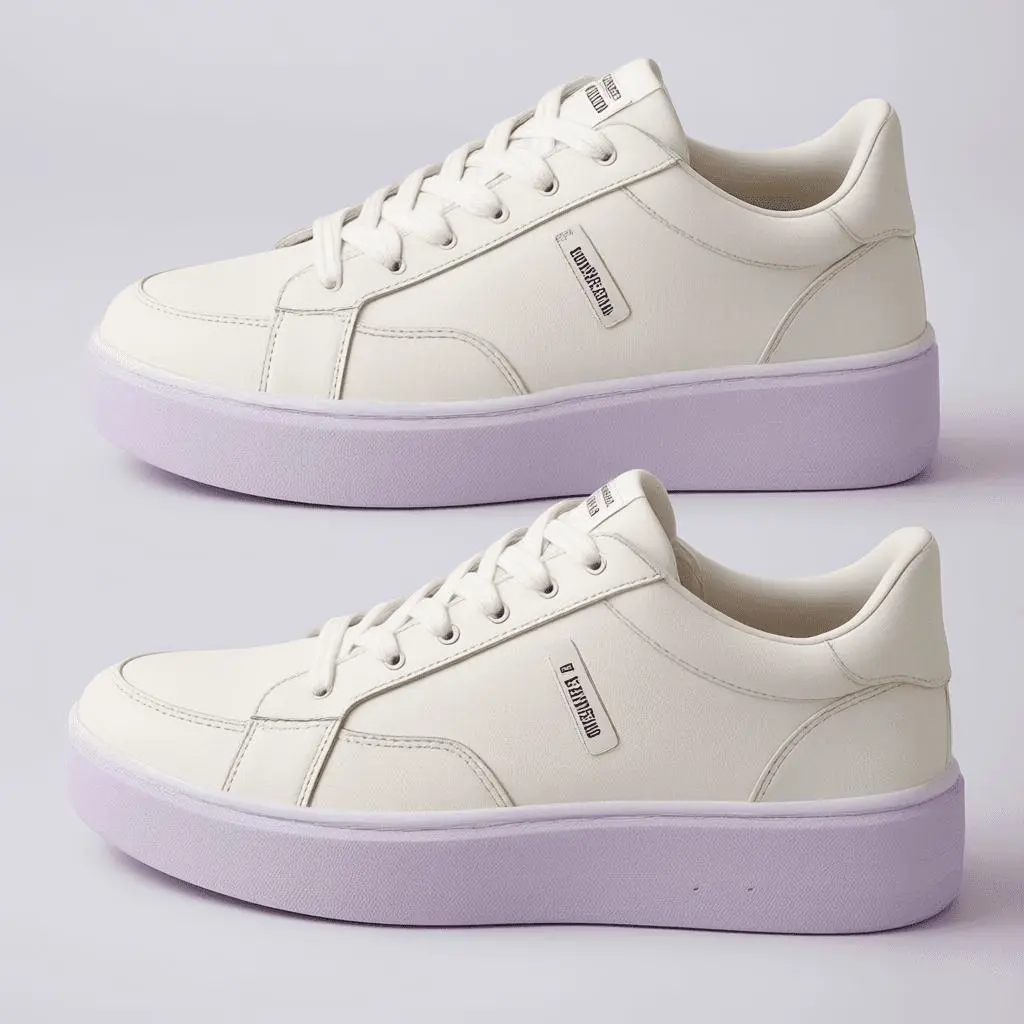
Review the generated result against the prompt, selected model, and format.
Replace "SUMMER EDITON" with "SUMMER EDITION" on the label. Keep the label position, typography style, product shape, and all other text unchanged.Correct text on a label
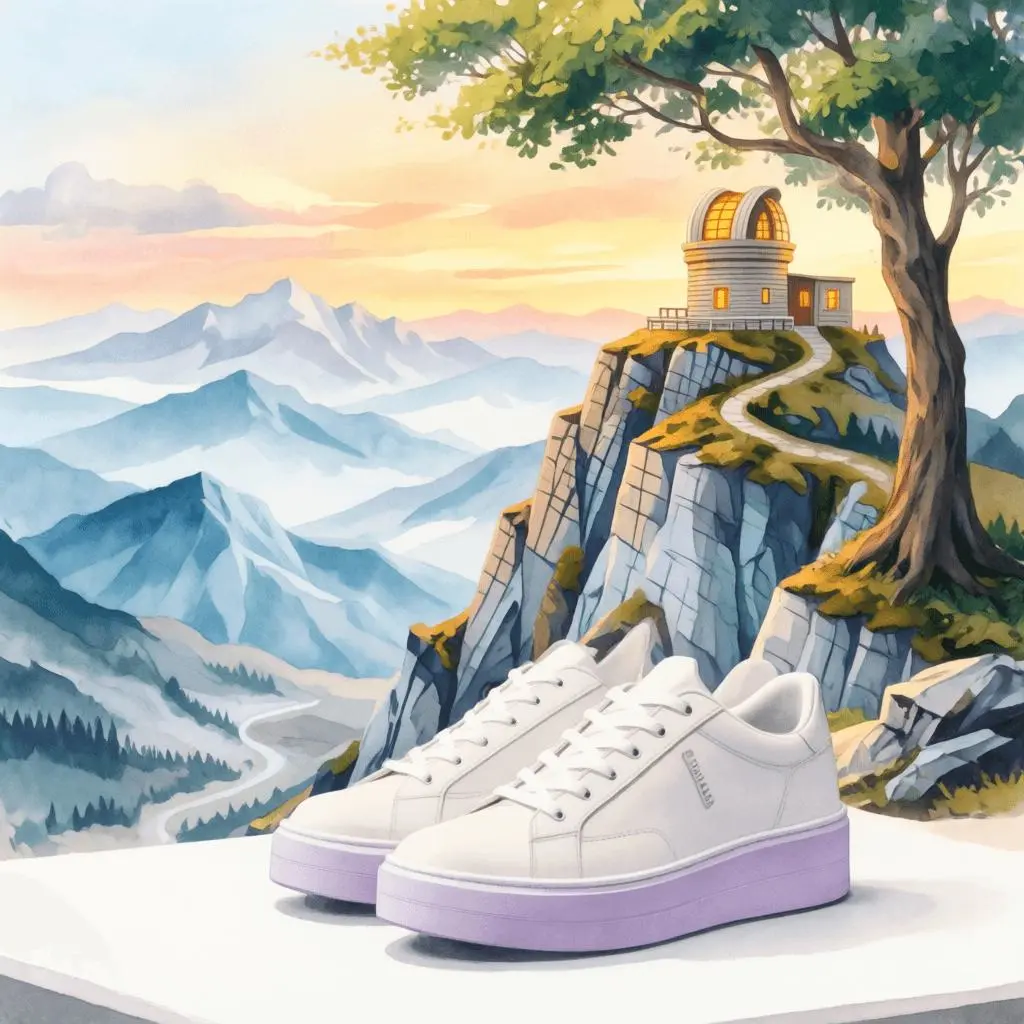
Review the generated result against the prompt, selected model, and format.
Restyle the scene as a soft watercolor illustration. Keep the building arrangement, street perspective, and main tree in their original positions.Restyle a scene
Enter a clear text brief and add a reference image when the selected workflow supports one.
1. Start with the inputChoose the available model, aspect ratio, image size, and quantity for the intended placement.
2. Set the formatReview the displayed point cost, generate, and inspect the full-size result before saving your choice.
3. Generate and reviewCheck the selected model and available options before you generate. Review the point cost displayed for your selected settings before generating.
Review Generation SettingsDirect answers about model inputs, workflows, settings, and availability.
Upload the image you want to edit, describe the requested change, choose the available aspect ratio and quantity, then generate. Review the output alongside the original.
Yes. State the exact text to replace and the desired wording. Inspect spelling, letter shapes, and the surrounding layout after generation.
Use a clear portrait and specify the facial features, hairstyle, pose, and expression to retain. Begin with a focused background or lighting change and review the face at full size.
Use the same source image and vary one instruction at a time. Save both prompts and outputs, then compare the requested change and the details you wanted to retain.