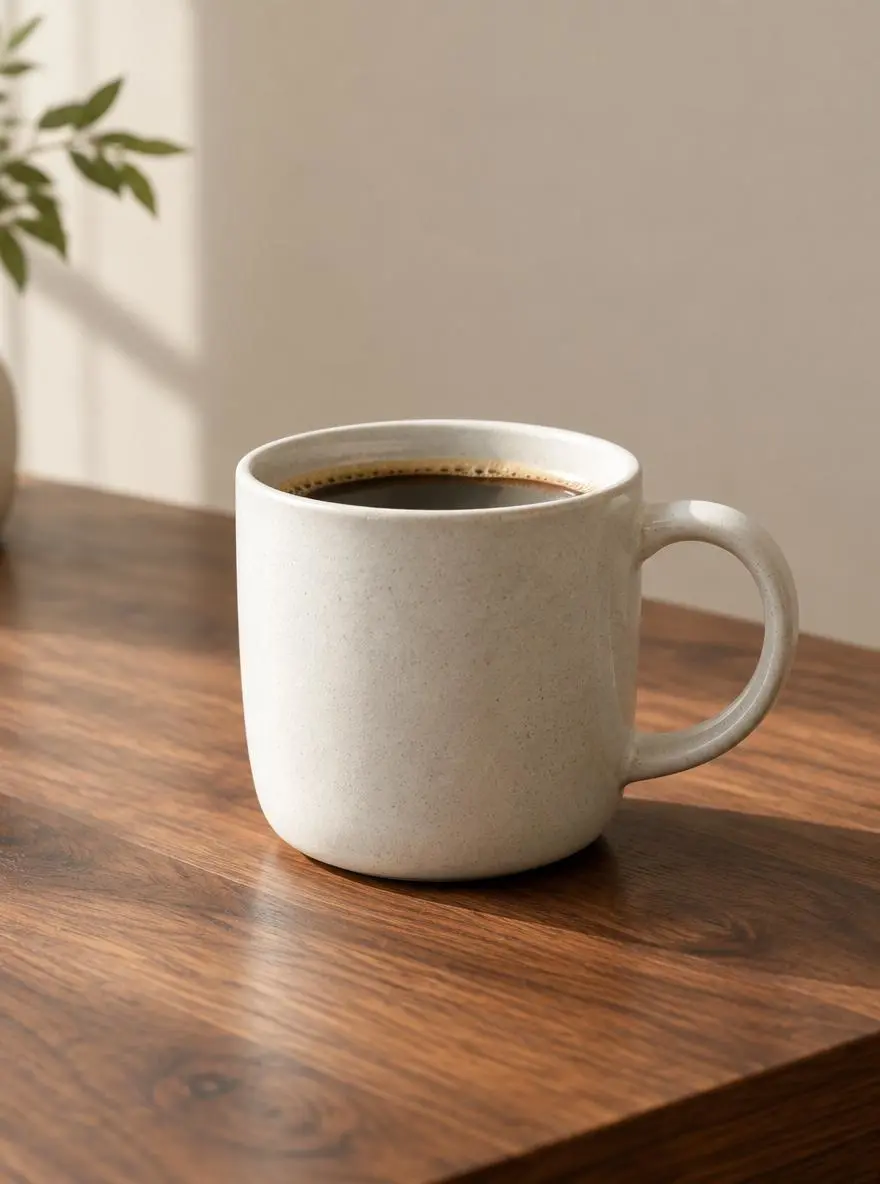
Product Composition
Create a focused product composition.
An unbranded ceramic coffee cup on a walnut table, soft window light, simple beige background, close-up product composition with natural shadows.

Create and edit images with GPT Image on WeShop AI. Describe a new visual or upload a reference photo, then refine your idea with the current model.
Describe the image you want to create, including the subject, layout, and visual style. For an edit, add a reference image and explain the specific change you want to explore.
Create a focused product composition.
An unbranded ceramic coffee cup on a walnut table, soft window light, simple beige background, close-up product composition with natural shadows.

Explore a clear poster layout and visual hierarchy.
A minimal poster concept for a weekend plant market, illustrated green leaves, cream background, a clear central space for the event title and details.
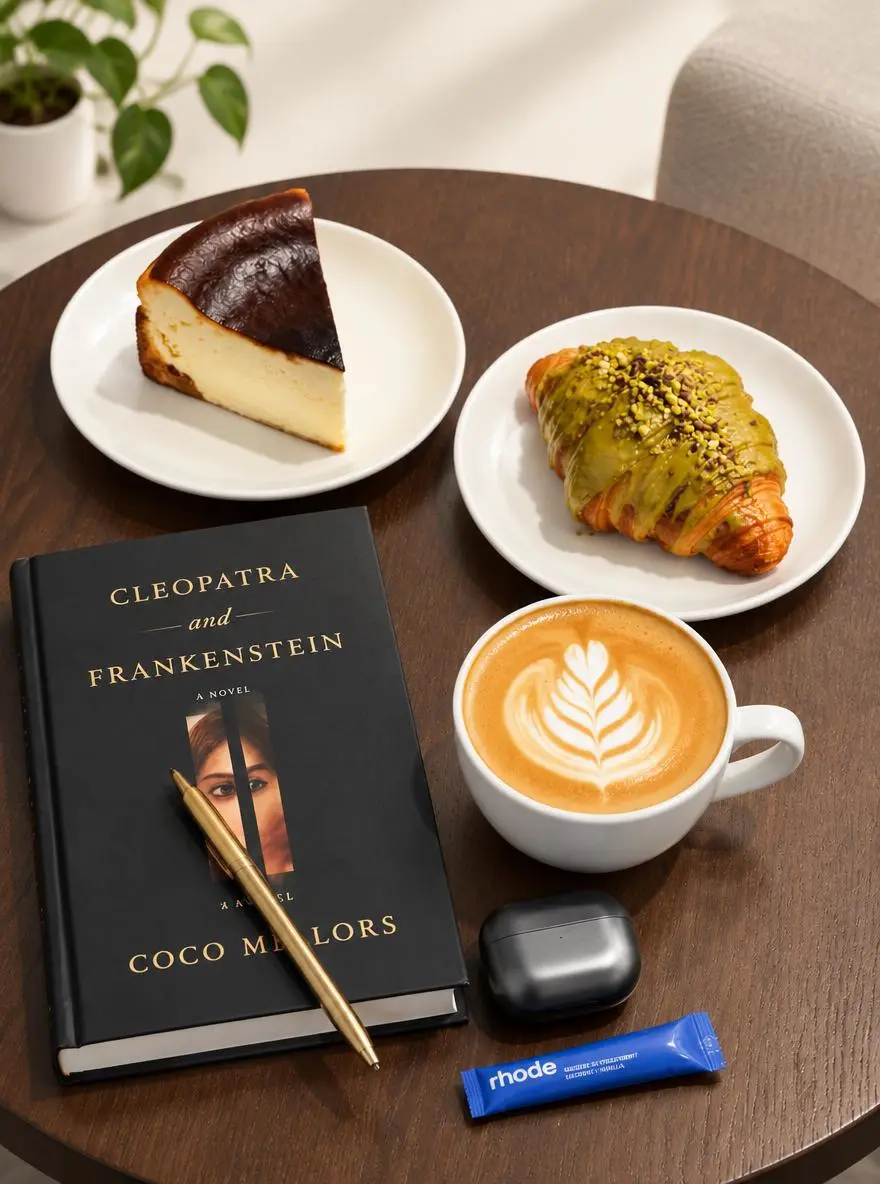
Edit your own reference with a specific instruction.
Use the uploaded photo as the reference. Explore a brighter studio background and softer shadows while focusing the composition on the main product.
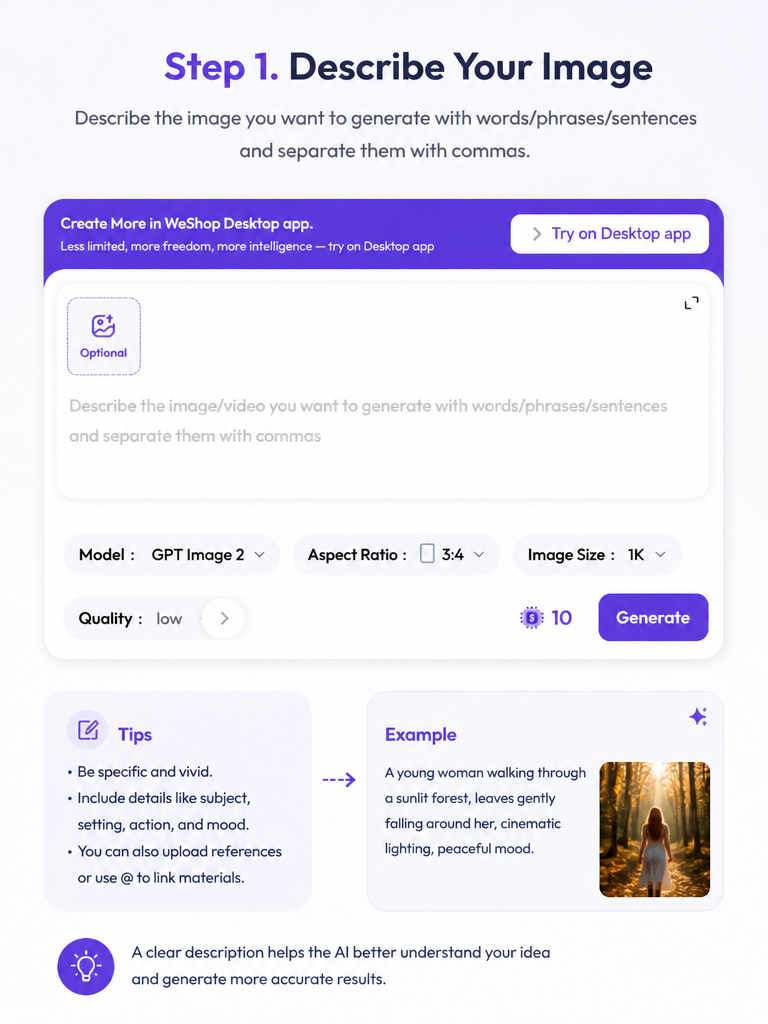
Write the subject, layout, style, and details that matter to your brief.
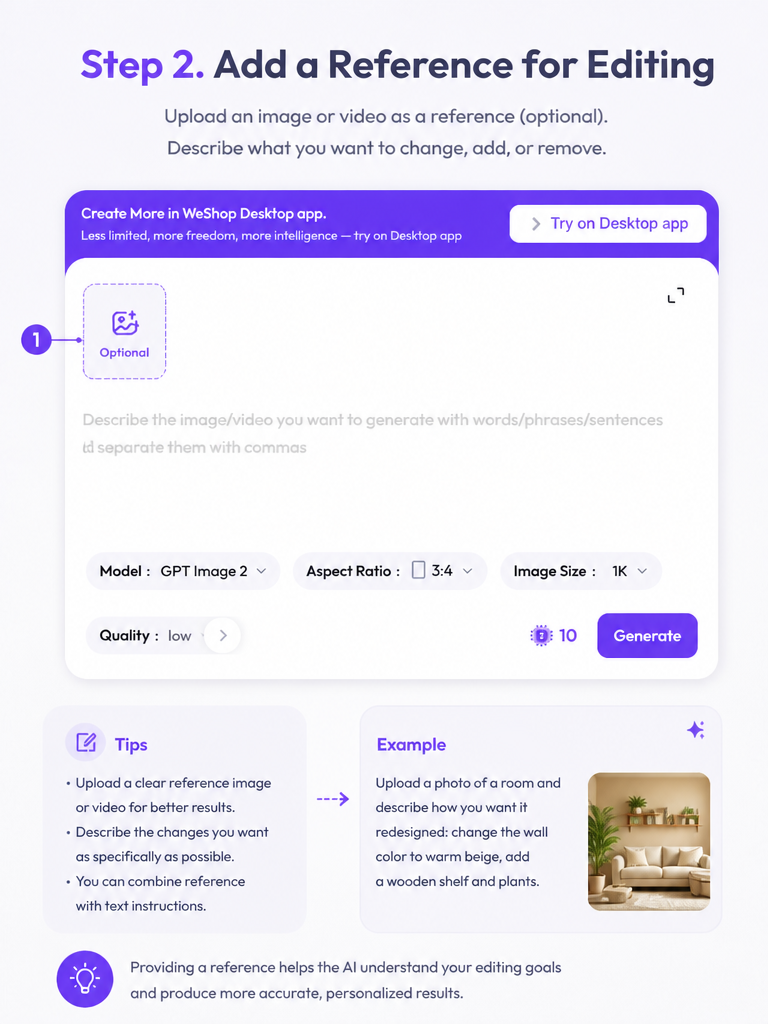
Upload an image when you want to work from an existing visual. Describe the change and review the selected model and output settings.
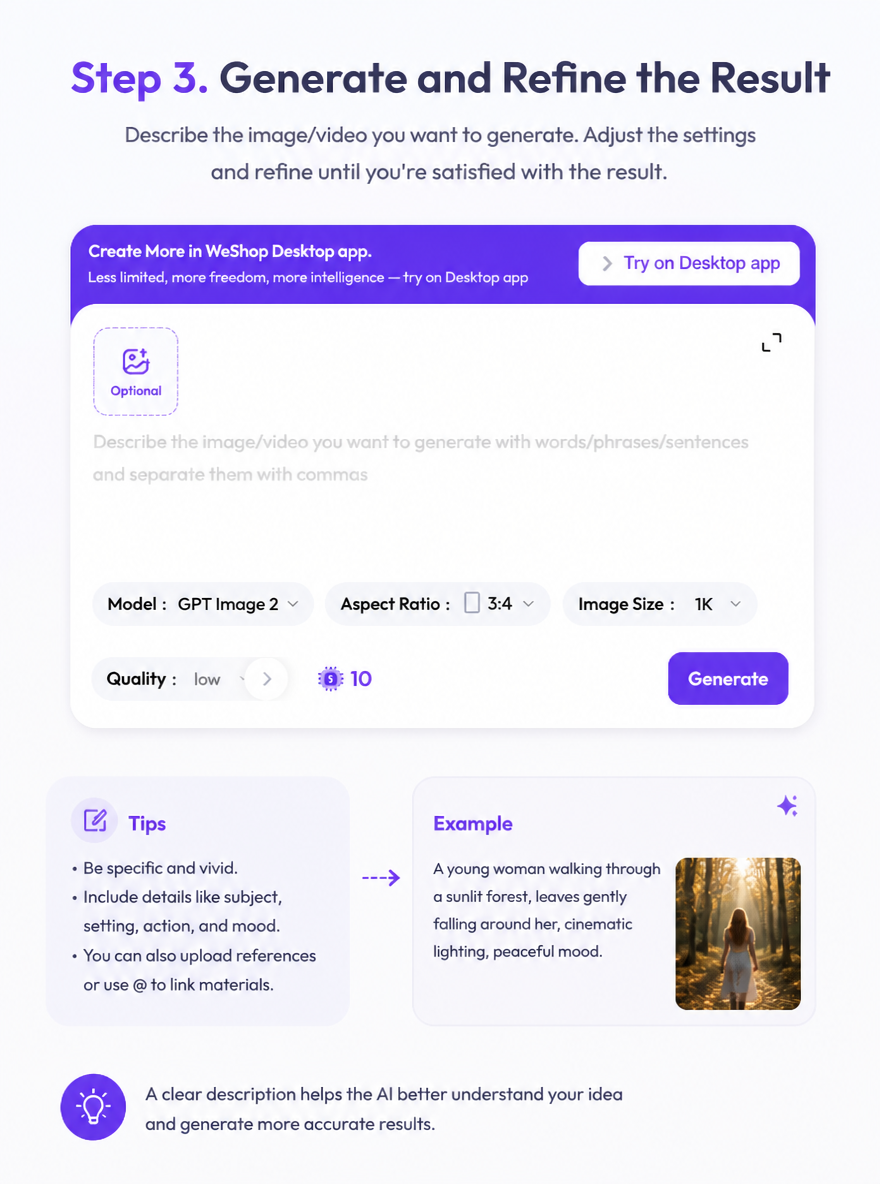
Review the points, generate the image, and compare it with your brief. Adjust the instructions for the next version.
The creation panel displays the model used for your request. Review the active version and its settings before generating or editing an image.
Review Generation Settings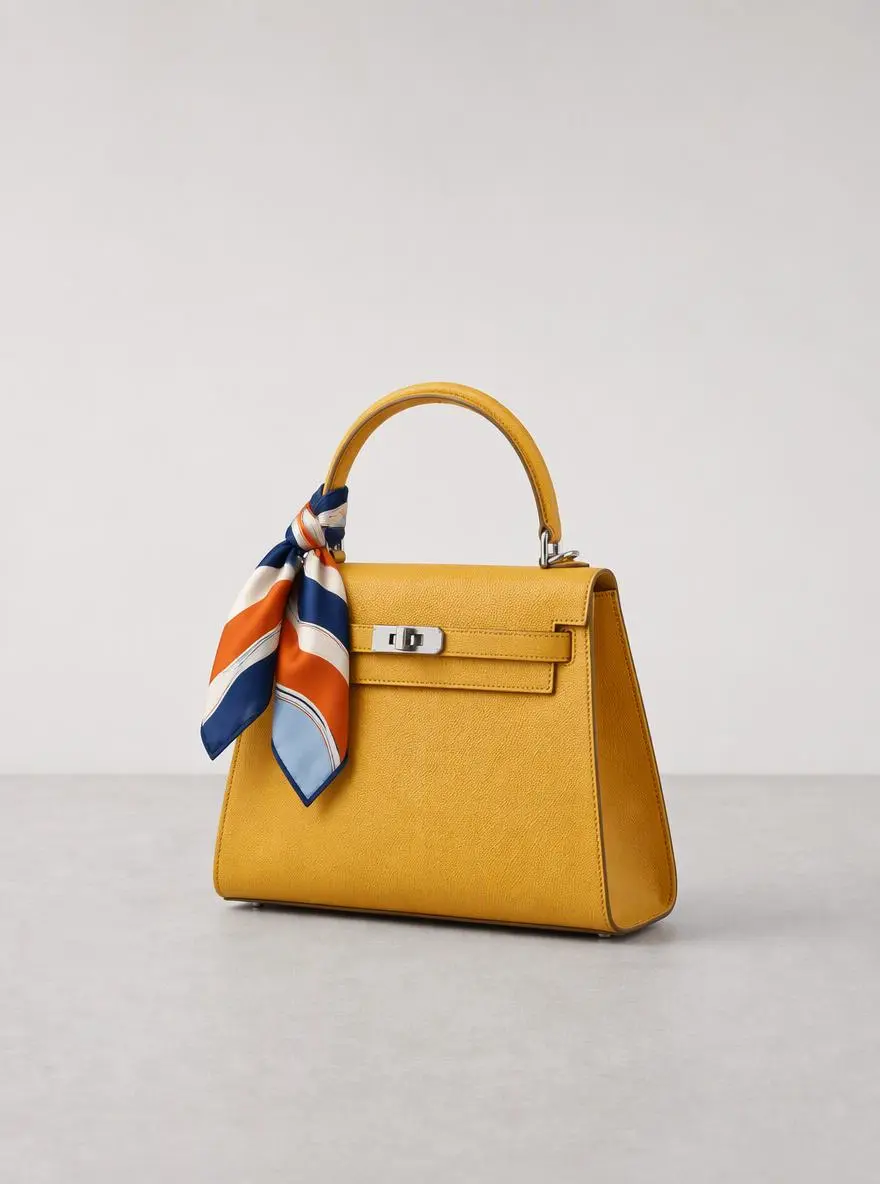
Explore compositions, settings, and visual directions for a product brief.
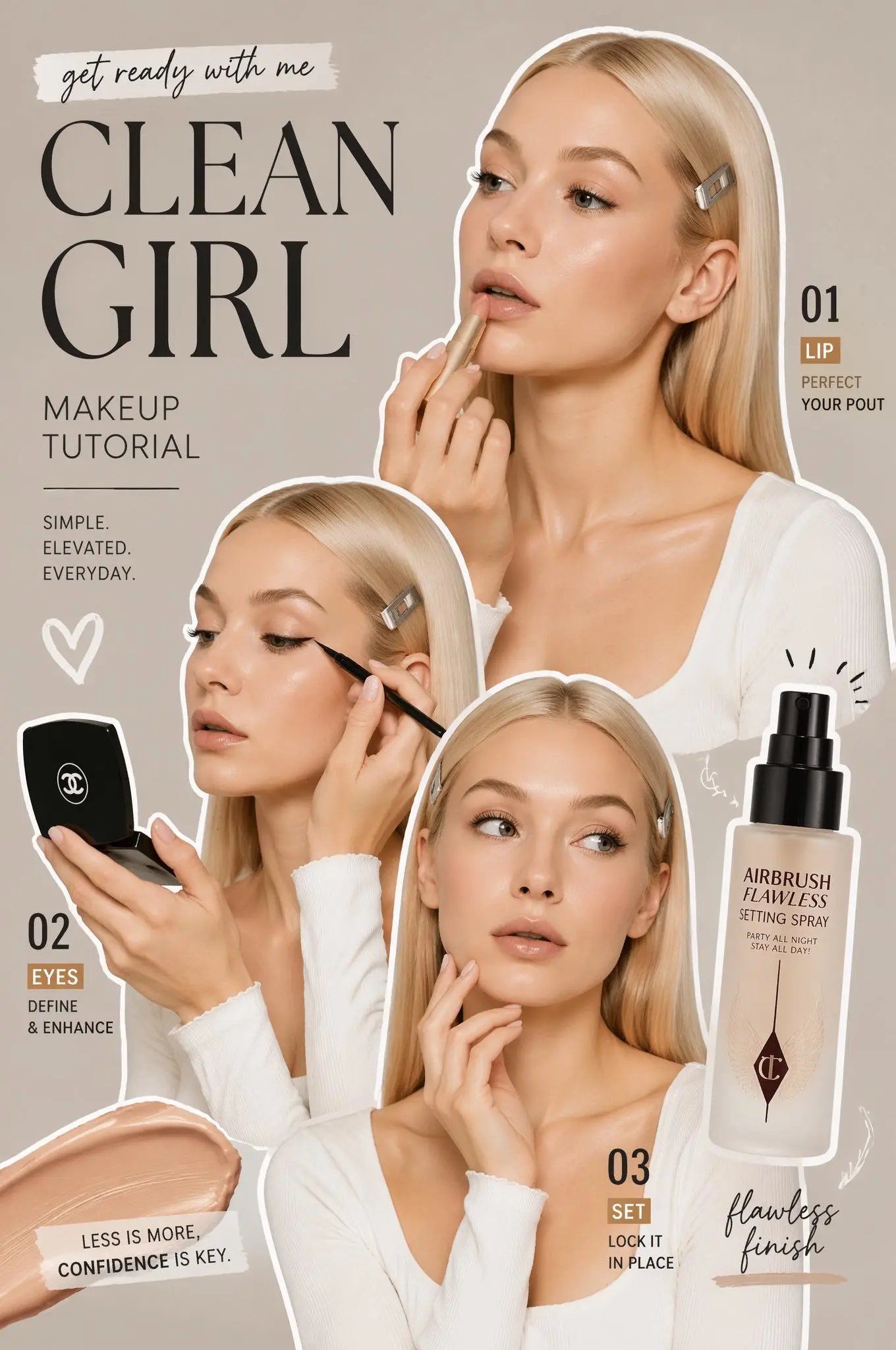
Develop a poster concept around a clear hierarchy and defined visual style.
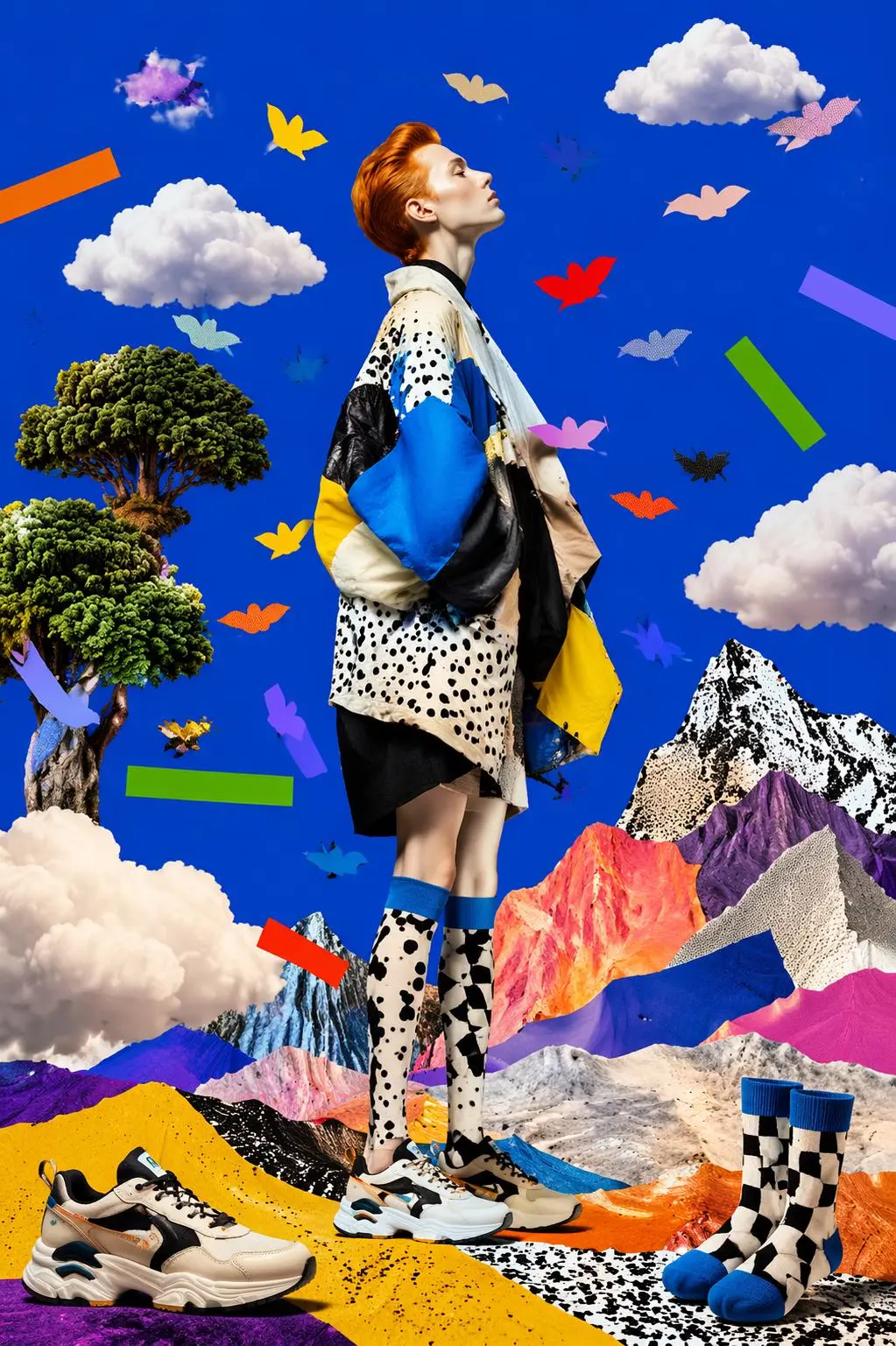
Use an existing image as the starting point for a specific visual change.
Direct answers about model inputs, workflows, settings, and availability.
The current creation panel uses GPT Image 2 by default. Check the model label beside the controls before generating.
Yes. Describe the subject, composition, lighting, and style in the prompt field, then review the settings and generate.
Upload a reference image and describe the change you want. Review the result against your original photo and adjust the instructions as needed.
Use the settings in the creation panel to review aspect ratio, size, quality, and image count. The displayed points update with the selected options.