Create posters, product visuals, and photo edits with GPT Image 2.5 Flare, OpenAI’s speed-focused image model. Start with a text brief or upload reference photos, then generate directly on this page.
See a photo restyle, a two-image makeup edit, and a text-led information graphic. Copy a prompt to try in the generator above, or open the linked case to view its saved setup. Use your own reference photos for edits.
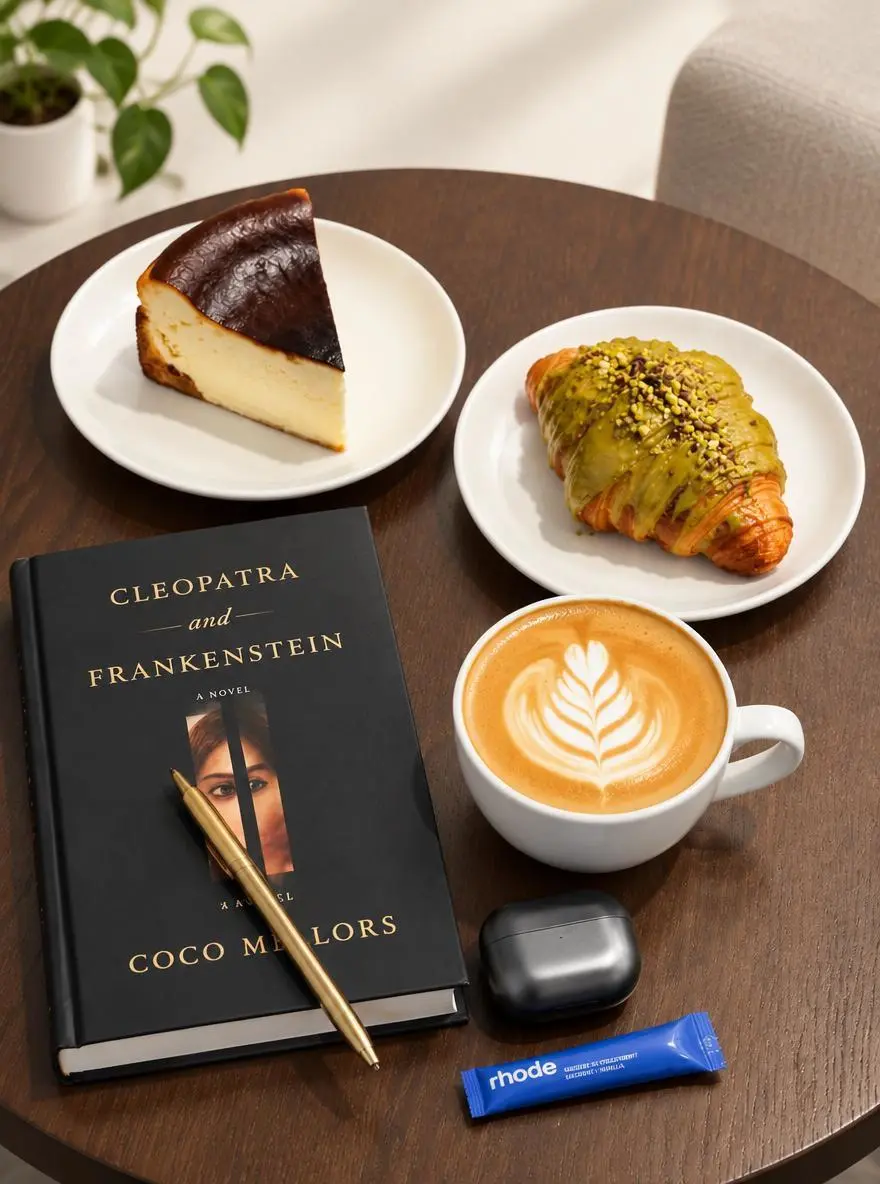
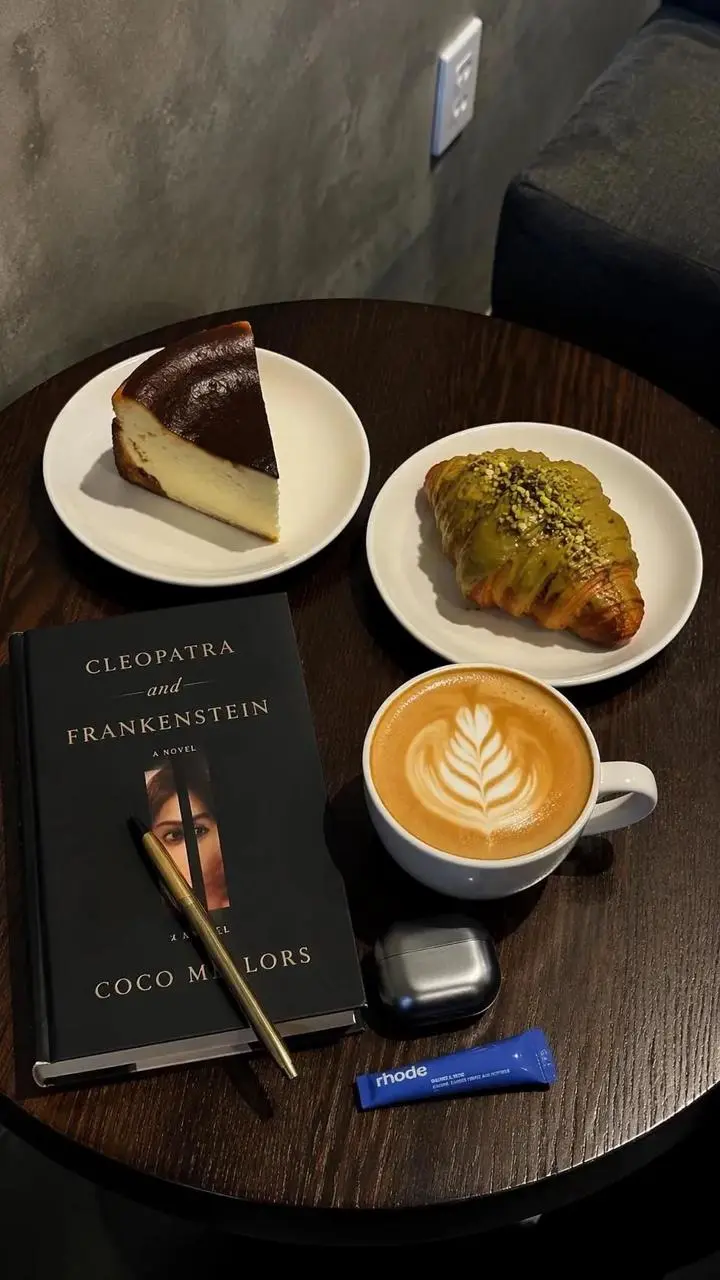
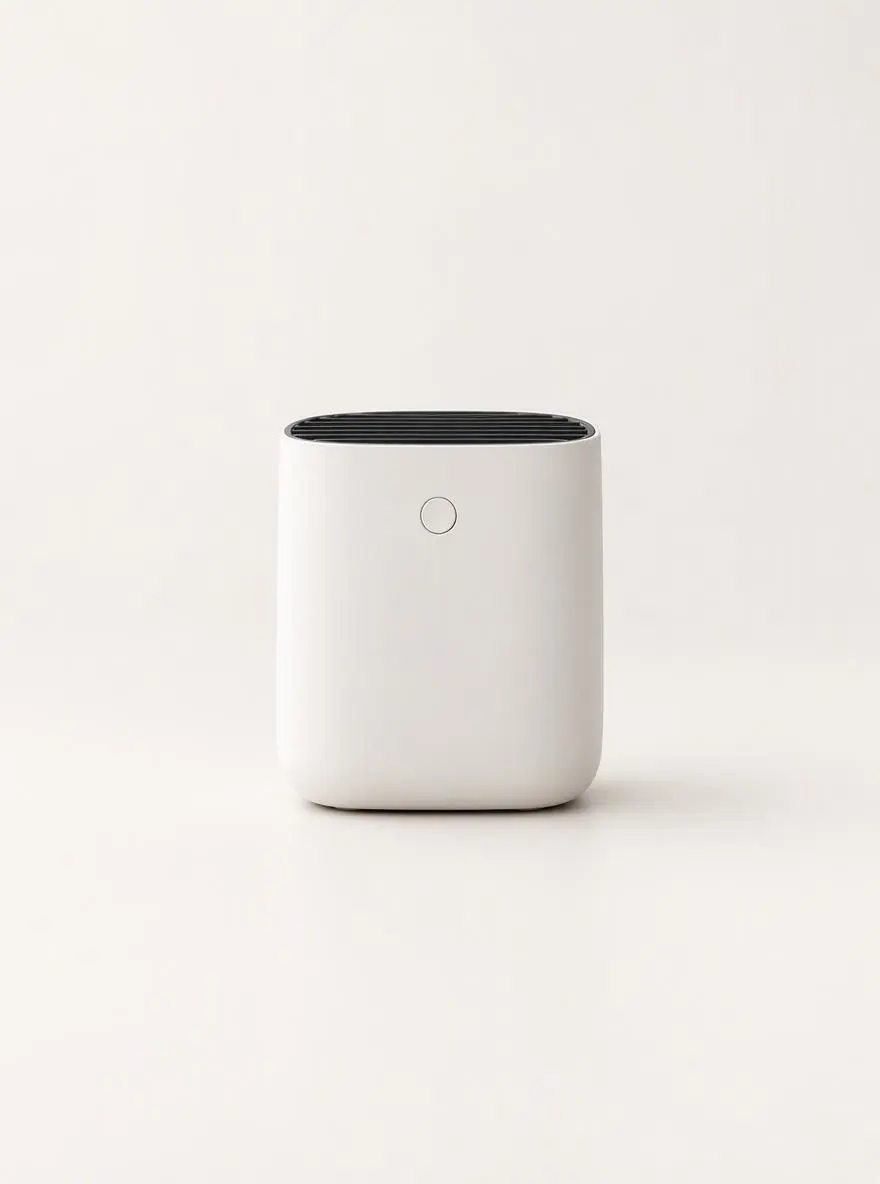
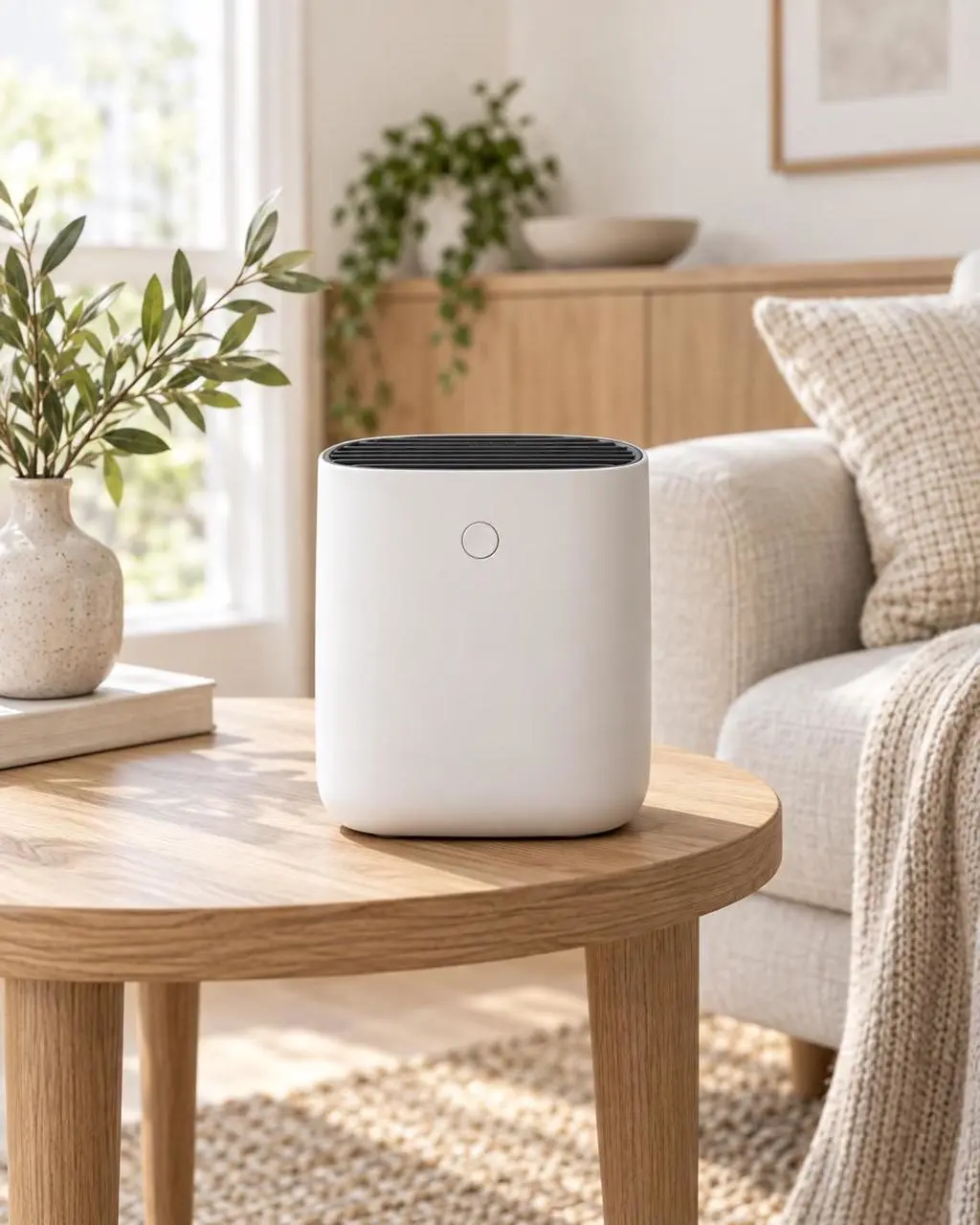
Restyle a Tabletop Product Photo
Rework a photo’s setting and lighting from an existing image. This case pairs a tabletop reference with a request for a brighter background and softer shadows.
Use the uploaded photo as the reference. Explore a brighter studio background and softer shadows while focusing the composition on the main product.
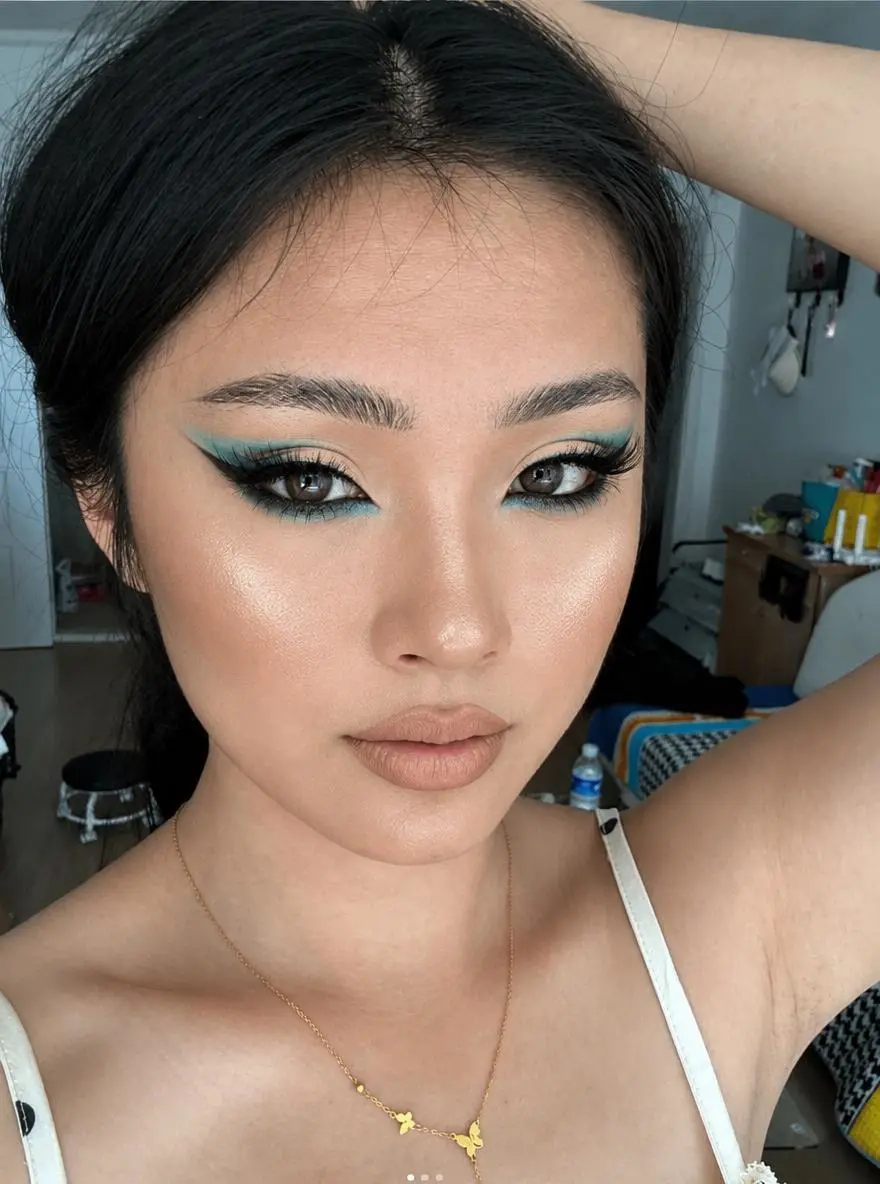
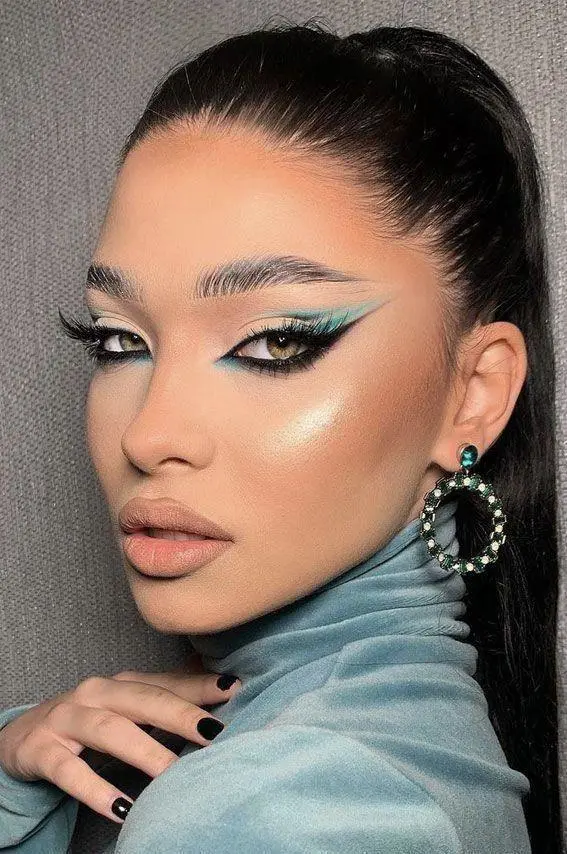
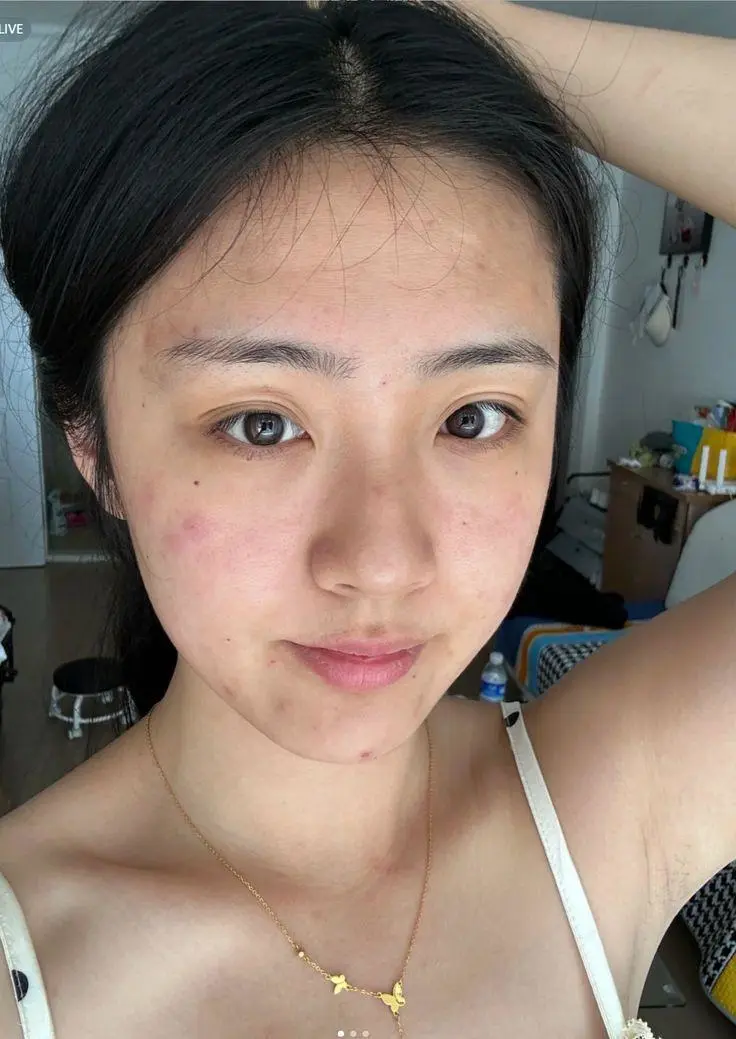
One portrait supplies the makeup look; another supplies the person. Both inputs are shown with the finished edit so you can see how the reference roles are used.
Transfer the makeup style from Image 1 to the person in Image 2. Only change the makeup on the person in Image 2, including eyeshadow, eyeliner, lashes, blush, contour, lip color, and overall makeup finish. Keep the person’s facial features, identity, hairstyle, clothing, pose, lighting, background, and photo style unchanged.
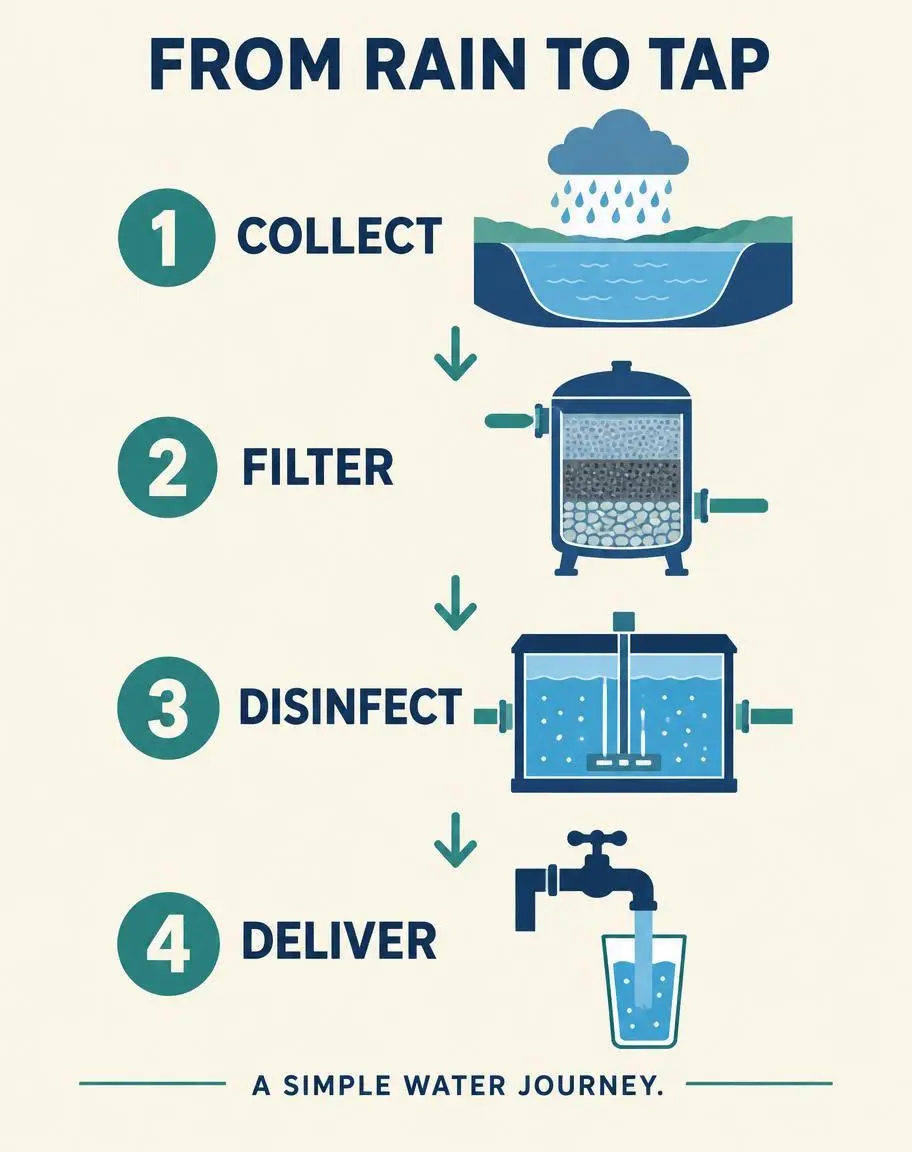
Turn a written brief into a visual sequence. This text-only example uses numbered stages, arrows, and specified labels to explain a simple rainwater journey.
Create a finished vertical 4:5 editorial infographic titled FROM RAIN TO TAP. Warm ivory background, navy typography, restrained teal accents. Arrange exactly four numbered steps in a clear top-to-bottom sequence connected by arrows. Exact labels: 1 COLLECT; 2 FILTER; 3 DISINFECT; 4 DELIVER. Each step has one simple flat illustration: a reservoir under a rain cloud, a filter tank, a treatment chamber, and a household tap filling a glass. Include exactly this footer: A SIMPLE WATER JOURNEY. Use only the specified text, with exact spelling and no extra words. Large readable lettering, generous margins, consistent icon style, professional educational design. Do not repeat any step or add a fifth step. No logos, watermark, photorealistic background, or decorative illegible writing.
GPT Image 2.5 Flare turns text and image inputs into images. OpenAI positions it for fast everyday creation, while Sunburst focuses on demanding quality and editing precision. Use Flare to develop a new visual or rework an existing photo.
A Speed-Focused Choice for Everyday Creation
Flare is the speed-oriented option in GPT Image 2.5. It is a starting point for exploring visual ideas and alternatives when frequent iteration matters. Actual generation time depends on the request and settings.
Graphics with Text and Structure
Create posters, labeled visuals, and information graphics that combine words with imagery. The information-graphic example shows a text-led brief organized into numbered stages and arrows.
Photo Edits Guided by Your References
Use an existing person, product, or scene as the starting point for a change. References can supply different ingredients: the makeup example uses one portrait for the look and another for the person.
WORKFLOWS
Start with a Brief or a Photo
Choose the starting point for your task. Both options use the Flare generator at the top of this page.
Create a New Image from Text
No source image is required. Describe the subject, setting, style, and composition—for example, a product concept or a poster. Include any words that should appear in the design.
Edit or Combine Reference Photos
Upload your own photos and explain the change you want. For several references, identify what each one supplies, such as a person, makeup look, outfit, or background.
PROMPT GUIDE
How to Write a GPT Image 2.5 Flare Prompt
Start with the image you want. For edits, explain what should change and what should stay. These six real examples show how that direction appears in a complete prompt. Copy one, return to the generator, and adapt it to your subject and references.
Name the Change You Want
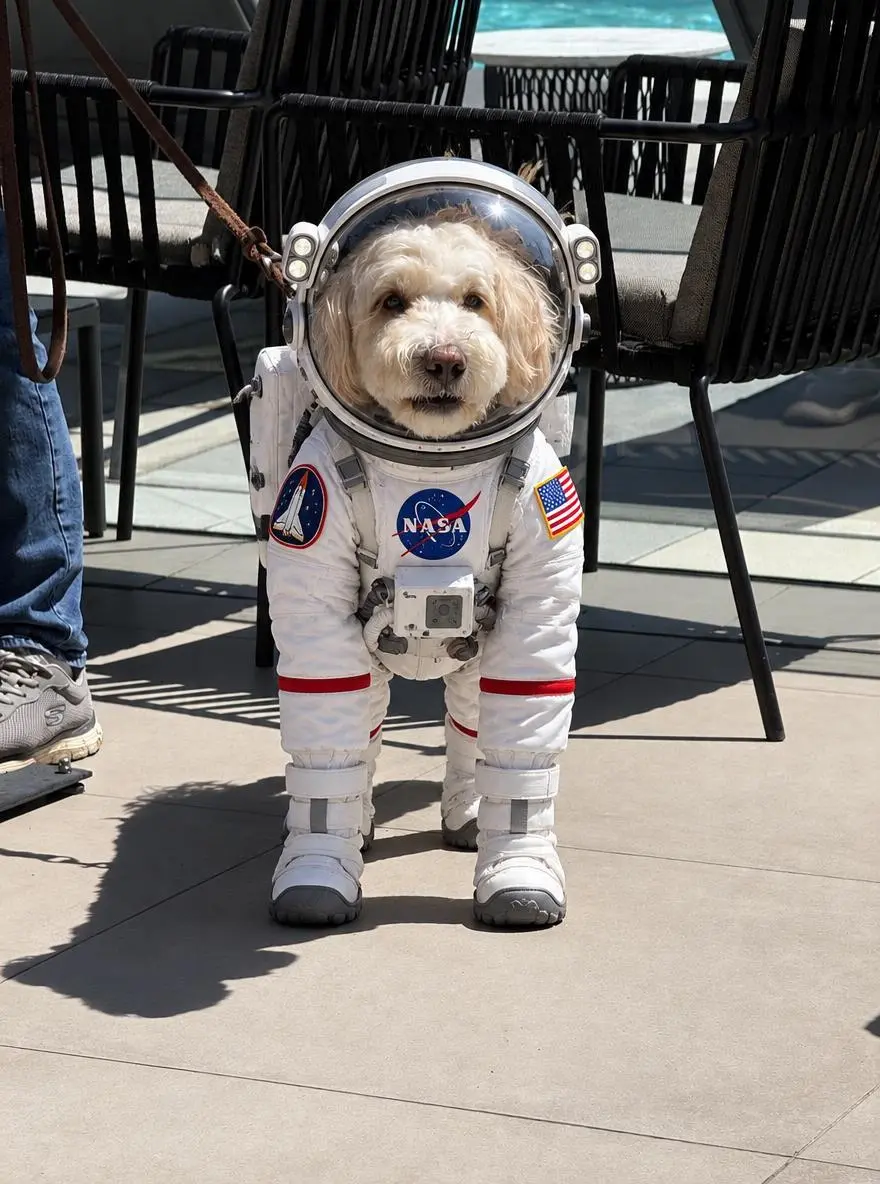
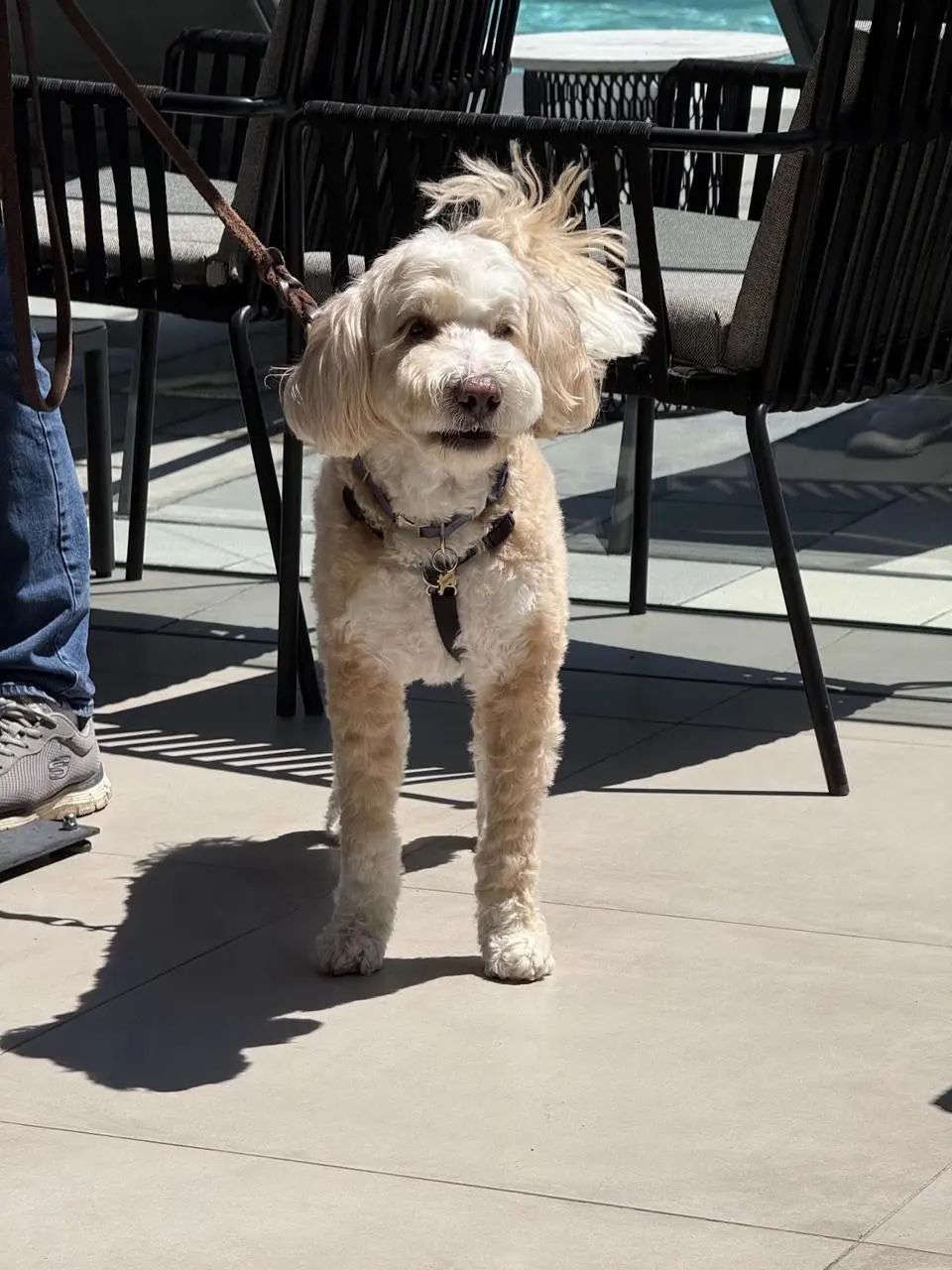
For a simple edit, describe the change directly. The dog example asks for an astronaut suit, while the uploaded photo provides the starting subject.
Dress the puppy in the picture in an astronaut Space suit
Separate the Edit from What Should Stay
State the requested change and retained details separately. The product example changes the background while naming the shape, label, cap, and position to keep.
Replace the existing background with a clean warm-white photography studio.
Keep the product’s shape, color, proportions, label, cap, reflections, and position unchanged.
Add a soft natural shadow directly beneath the product so it remains grounded on the surface.
Do not alter the product design, camera angle, crop, or packaging text.
Give Each Reference One Job
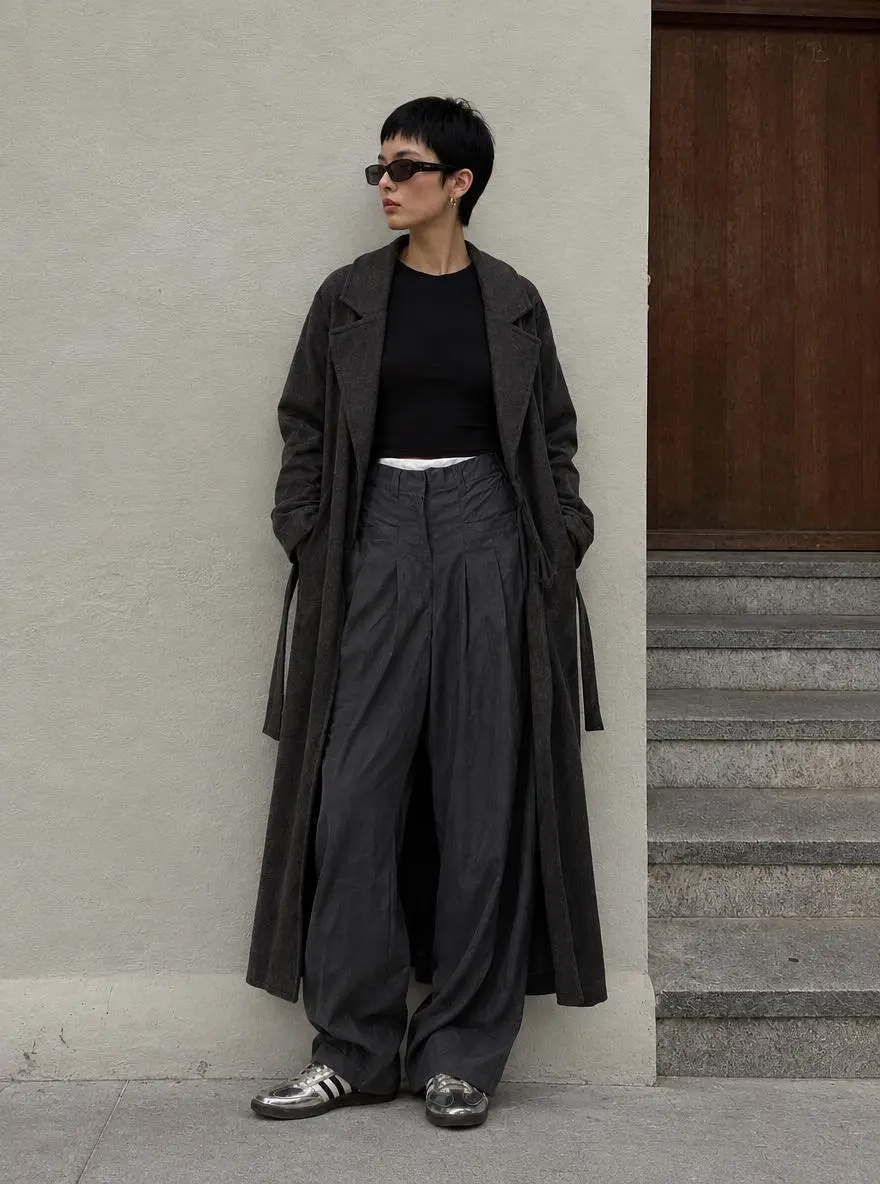
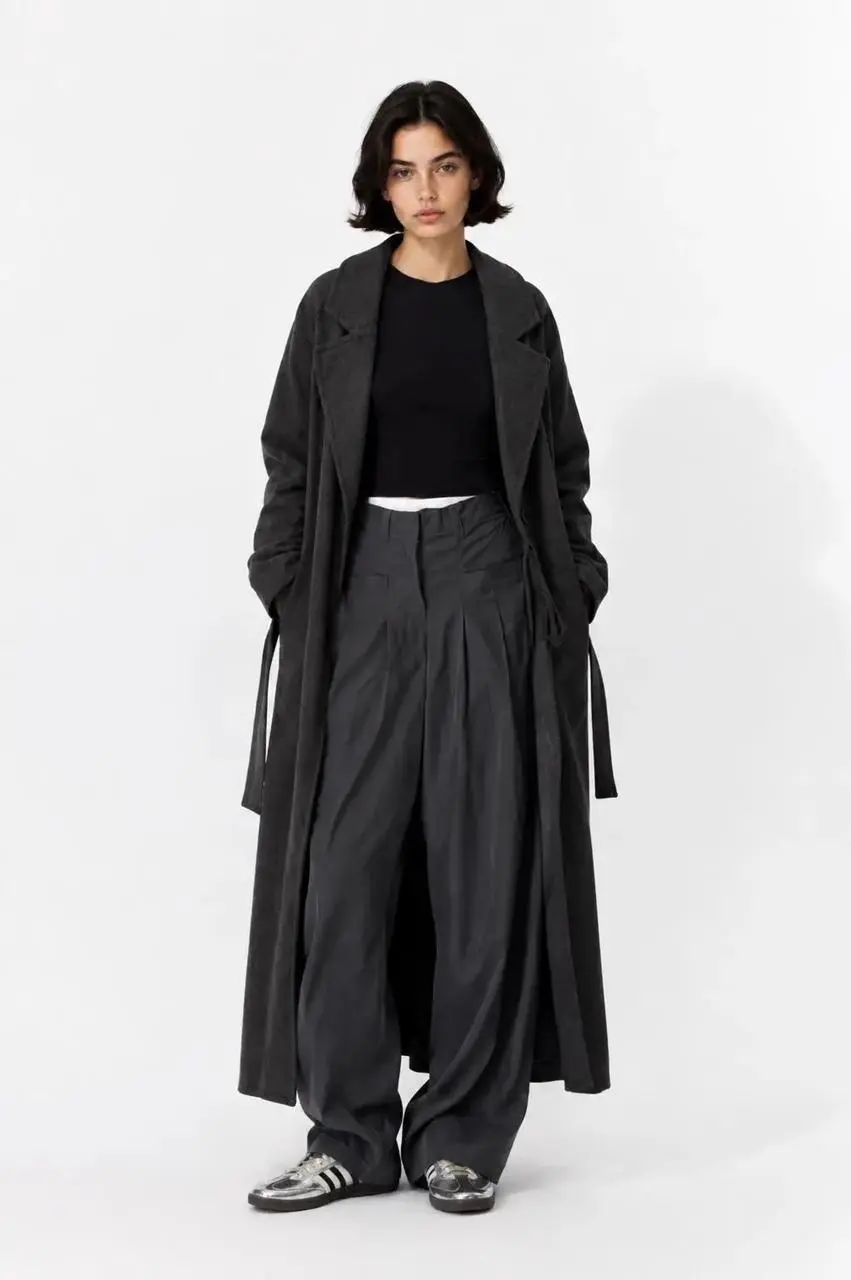
Identify which image supplies each ingredient. This fashion prompt assigns separate references to the person, clothing, and background.
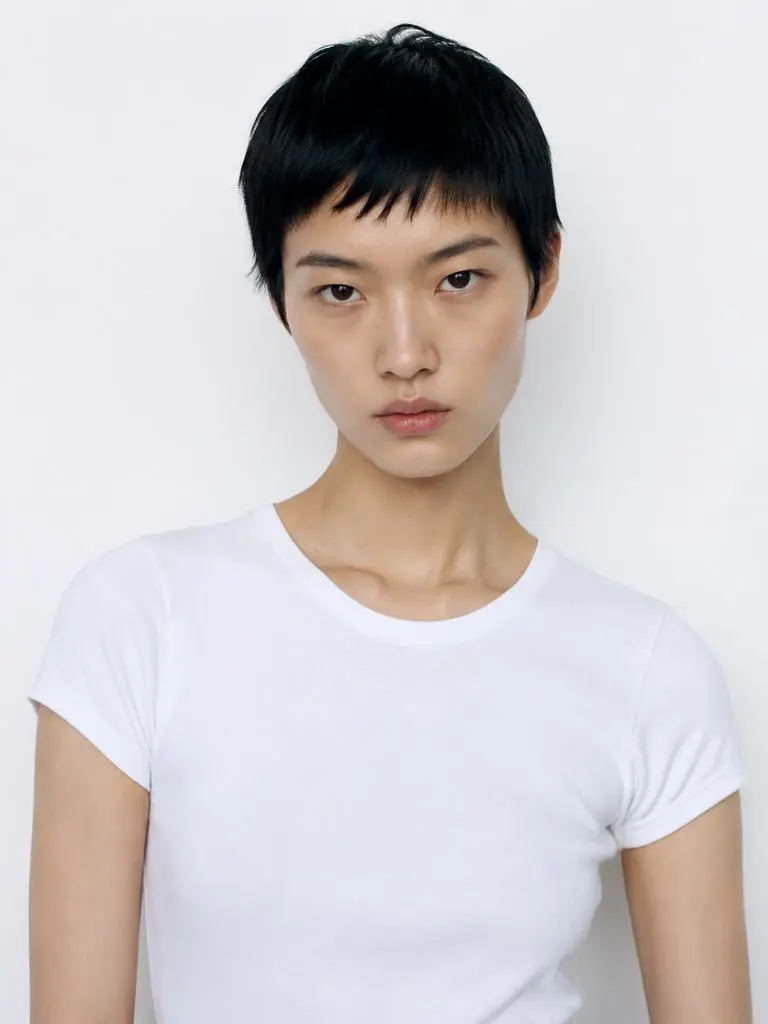
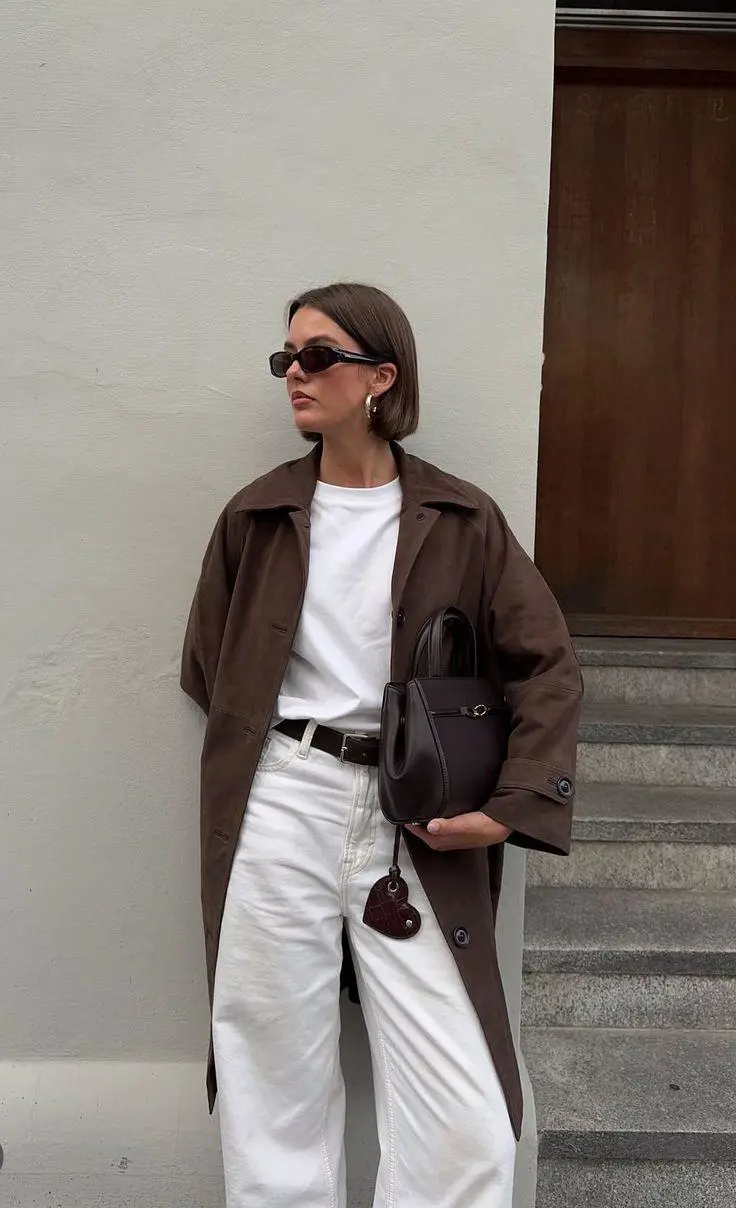
The model in Figure 2 is wearing the clothes from Figure 1 and standing against the background of Figure 3.
Leave Room for the Message
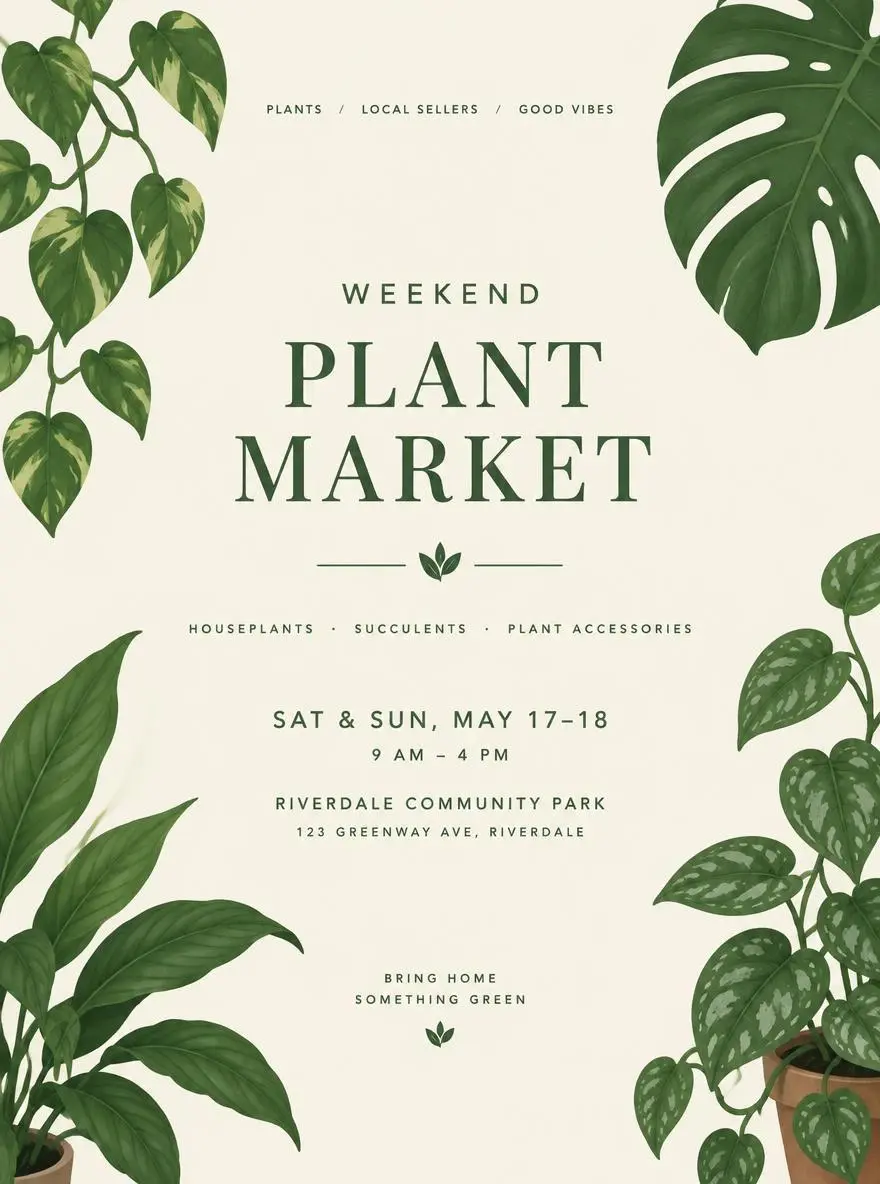
Describe where the artwork should leave space for copy. The plant-market example places leaf illustrations around a clear central area; it does not supply exact event wording.
A minimal poster concept for a weekend plant market, illustrated green leaves, cream background, a clear central space for the event title and details.
Place the Product in Its Use Context
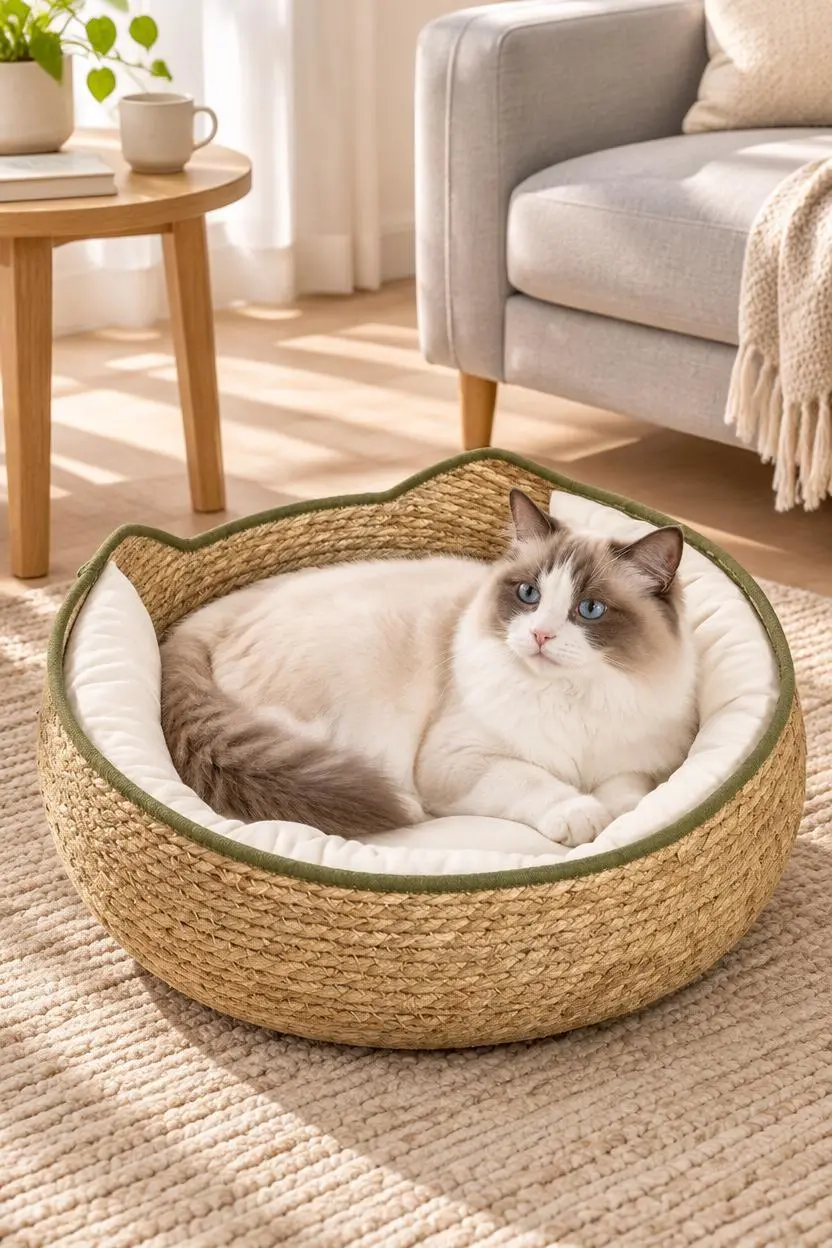
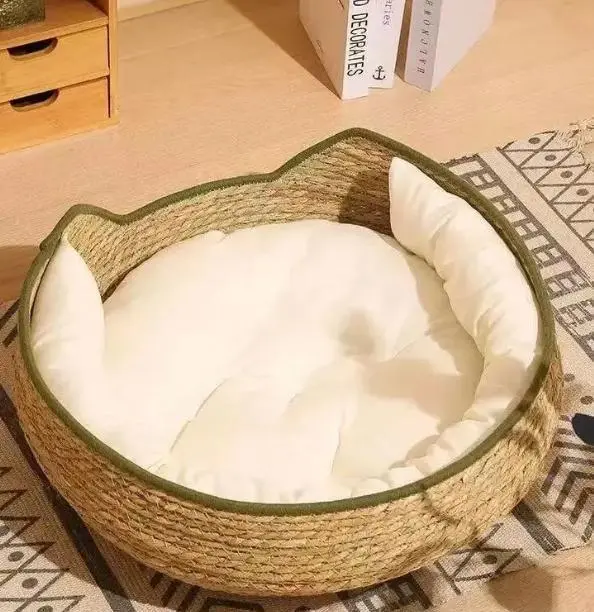
Describe how the product belongs in a scene. The pet-bed example combines the product reference with a cat, rug, sofa, and soft daylight for a home setting.
Based on the pet product images I uploaded, generate an image depicting a European/American family pet lifestyle. Please strictly preserve the original appearance, color, material, size proportions, and functional details of the product; do not alter the product structure. The scene should depict a clean, natural Ragdoll cat using the product in a light-colored living room, surrounded by a beige rug, light gray sofa, wooden side table, and soft sunlight. The product should be clearly visible, and the pet's expression should be natural, avoiding excessive anthropomorphism, cartoonish elements, fake smiles, or unnecessary limbs. The overall style should be warm, believable, and realistic, like a high-quality advertisement from a European/American pet brand's official website. Do not include Chinese characters, promotional text, watermarks, or incorrect logos.
Describe the Foreground and Background
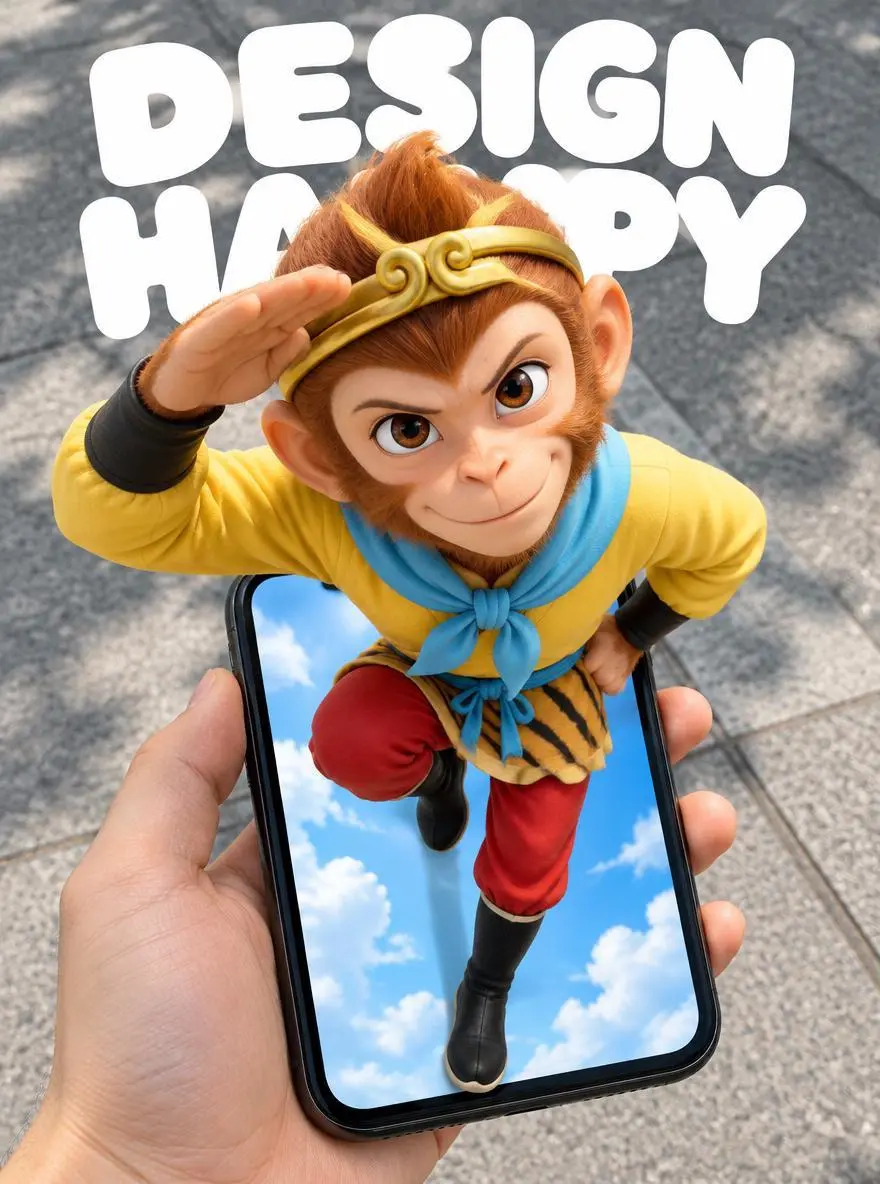
Explain which objects overlap to create depth. The phone-poster prompt separates a foreground hand and phone, a character projecting past the screen, and pavement behind them.
Create a 3:4 vertical POV surreal "pop-out" mobile poster. The subject is Sun Wukong, retaining the classic animated look from the reference image: monkey face, golden headband, yellow top, light blue scarf, red trousers, and black boots. Maintain the original pose: one arm raised and bent beside the head, the other hand at the waist, one leg bent and lifted, and the other extending downward toward the bottom of the phone screen. Do not change this to a standard standing pose or a pose involving the swinging of the golden staff.
Use a first-person, wide-angle, top-down perspective. A hand holds a black iPhone XR from the bottom-left of the frame; the phone is positioned in the lower half, slightly tilted, with the device fully visible and the hand-to-phone scale realistic. The character's head and shoulders are close to the lens and significantly enlarged, while the lower body diminishes in size with distance, creating a strong forced perspective.
The phone screen acts as a spatial portal. Sun Wukong's head, shoulders, chest, and raised arm clearly protrude from the screen, obscuring the top edge and parts of the sides, while the legs extend into the screen's interior. The entire body is continuous and intact, creating a clear 3D pop-out illusion through frame occlusion, contact shadows, and depth within the screen. It is neither a flat image on the screen nor a separate figure floating above the phone.
The background outside the phone is a realistic city sidewalk with gray concrete and natural daylight with soft shadows; the interior of the phone screen retains a bright blue sky with clouds, creating a contrast between the virtual world and the real ground. The hand and phone have a realistic photographic texture, while Sun Wukong retains his classic animated silhouette and color scheme, enhanced with three-dimensional shading and a sense of spatial depth.
At the top of the image, include large, rounded white text reading "DESIGN" and "HAPPY" on two separate lines. The text is positioned behind the character and naturally partially obscured by the head and shoulders, without blocking the face, hand gestures, or the phone itself.
The composition is clean and lively, possessing the strong visual impact of a social media poster. Feature only Sun Wukong, the hand holding the phone, and the phone itself; do not add other characters, interface buttons, or extra text. Avoid duplicated limbs, deformed fingers, body fragmentation, incorrect perspective, and conflicting lighting directions.
Use the generator at the top of this page. You can begin with your own brief or copy a prompt from an example.
Describe an Image or Add Your Photos
Write a brief for a new image, or upload photos for an edit. If you copied an example prompt, paste it into the description field and replace any reference assignments with your own.
Choose the Format and Output Settings
Select the aspect ratio, image size, quality, and number of images. The generator displays the points required for the selected options before you submit.
Generate and Refine
Click Generate, then open the result to review the image and any required text. Adjust the prompt for another attempt, or upload the result as a reference for a further edit.
Should You Choose Flare, Sunburst, or GPT Image 2?
Use the model roles below to choose a starting point. OpenAI provides the positioning; size and quality choices reflect the current WeShop form.
Dimension
GPT Image 2
GPT Image 2.5 Flare
GPT Image 2.5 Sunburst
Starting priority
An established GPT Image 2 workflow
Fast everyday generation and visual iteration
Demanding image quality or editing precision
Starting inputs
Text and image references
Text and image references
Text and image references
When to consider it
Your existing prompts already deliver the result you need
You want to explore new images or everyday reference edits with speed as a priority
A detailed brief or precise edit does not meet your requirements with the other choice
Image sizes in WeShop
1K, 2K, 4K
1K, 2K, 4K
1K, 2K, 4K
Quality choices in WeShop
Low, Medium, High
Low, Medium, High, XHigh, Max
Low, Medium, High, XHigh, Max
Starting priority
GPT Image 2
An established GPT Image 2 workflow
GPT Image 2.5 Flare
Fast everyday generation and visual iteration
GPT Image 2.5 Sunburst
Demanding image quality or editing precision
Starting inputs
GPT Image 2
Text and image references
GPT Image 2.5 Flare
Text and image references
GPT Image 2.5 Sunburst
Text and image references
When to consider it
GPT Image 2
Your existing prompts already deliver the result you need
GPT Image 2.5 Flare
You want to explore new images or everyday reference edits with speed as a priority
GPT Image 2.5 Sunburst
A detailed brief or precise edit does not meet your requirements with the other choice
Image sizes in WeShop
GPT Image 2
1K, 2K, 4K
GPT Image 2.5 Flare
1K, 2K, 4K
GPT Image 2.5 Sunburst
1K, 2K, 4K
Quality choices in WeShop
GPT Image 2
Low, Medium, High
GPT Image 2.5 Flare
Low, Medium, High, XHigh, Max
GPT Image 2.5 Sunburst
Low, Medium, High, XHigh, Max
Start with Flare for Frequent Iteration
Choose Flare When Speed Is the Priority
OpenAI recommends Flare as a starting point for fast everyday generation. Use your actual prompt and references to decide whether the result meets your needs.
Consider Sunburst for More Demanding Edits
Compare the Same Brief before Switching
If an image or edit falls short of your requirements, compare it with Sunburst using the same inputs and output settings. Choose by the result you need; a quality label alone does not establish equal output quality across models.
MORE IMAGE MODELS
Explore More Image Models
Open a related model page to review its capabilities, examples, and current generation options.
It is OpenAI’s speed-focused GPT Image 2.5 model for creating and editing images from text and image inputs.
What can I make with Flare?
You can create posters and information graphics from text, or use reference photos for tasks such as changing a setting, restyling a subject, and combining visual ingredients. The examples on this page show actual Flare requests and results.
Do I need to upload a photo?
No. Use text alone for a new image. Upload photos when the request needs an existing person, product, scene, or style to guide it.
When should I consider Sunburst instead?
OpenAI positions Sunburst for demanding quality requirements and editing precision. If Flare does not meet your brief, compare the same prompt and references with Sunburst before choosing a model for that task.
How do I try one of the example prompts?
Click Copy Prompt, return to the generator above, and paste it into the description field. For edits, upload your own reference photos and update the image roles. Use This Prompt opens the linked case and its saved setup; it does not automatically fill this page’s form.
Which sizes and quality levels are available here?
The current WeShop form lists 1K, 2K, and 4K image sizes, with Low, Medium, High, XHigh, and Max quality. Select the aspect ratio and image count in the form, and check the displayed points before generating.
What should I check in the generated image?
Check spelling, labels, composition, and any person or product details that matter to the task. If detail falls short, try a more specific prompt or compare a higher quality setting; a higher setting does not guarantee a better result for every request.