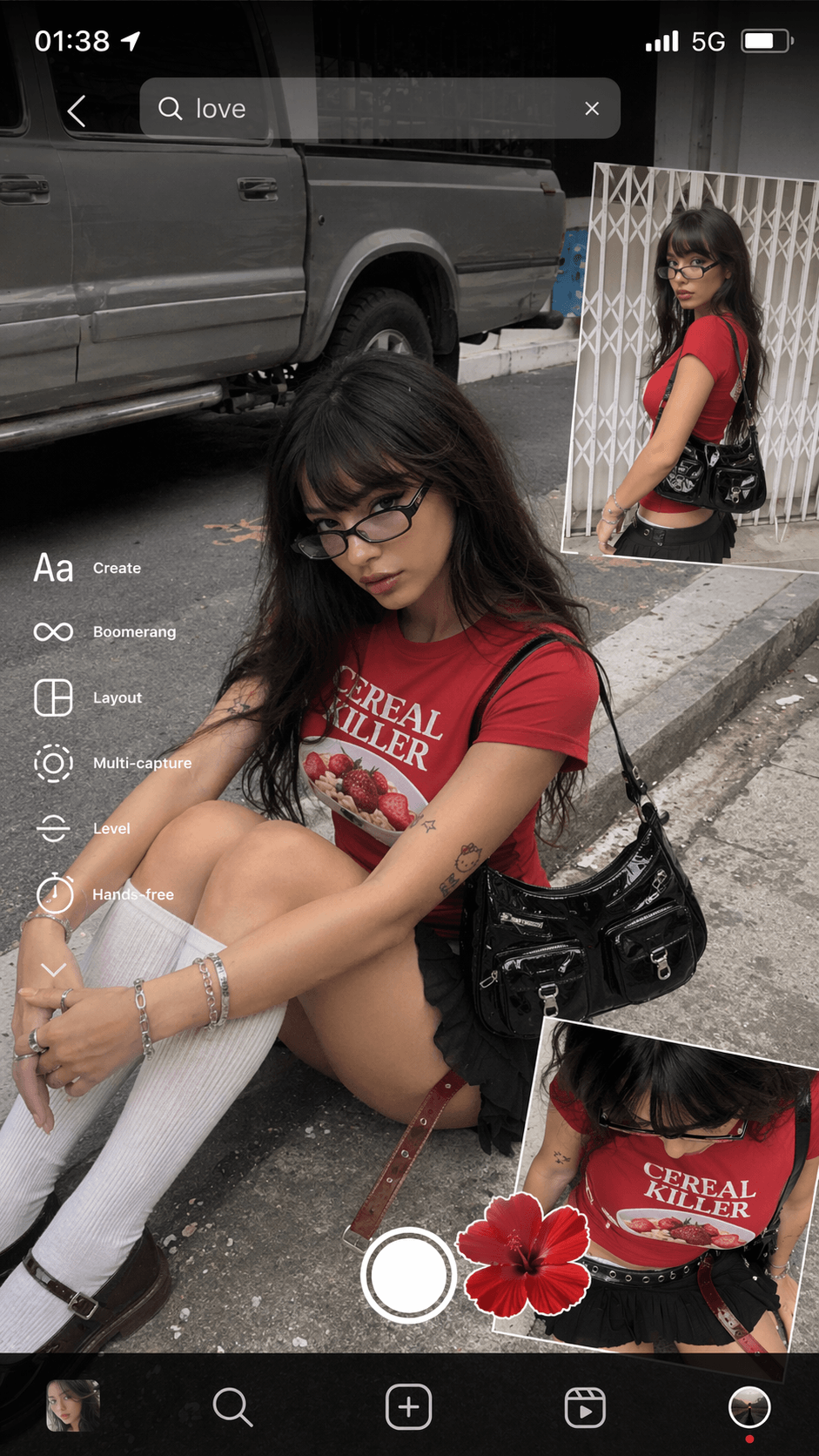
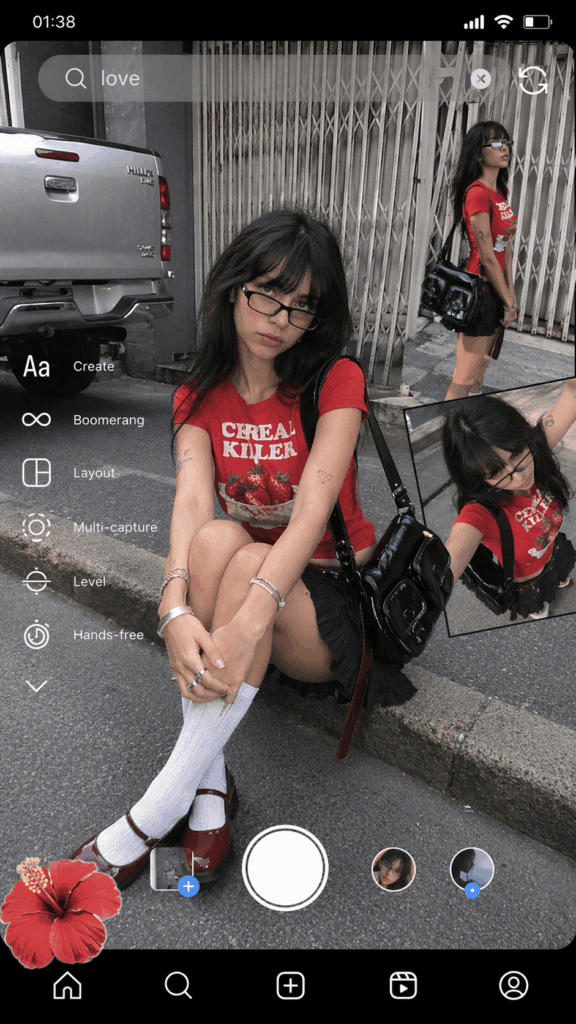
Lately, a brand new trend is taking over social media. People are completely obsessed with Y2K-style street photos that look like a raw Instagram Photo Collage. Do you want to create your own aesthetic pictures with a deep story vibe? Therefore, you might want them to look like a raw, candid snapshot taken on an old phone at 1:38 AM.
Fortunately, you do not need to look for complex street scenes. Furthermore, you do not need an expensive camera or pro editing skills. Today, this tutorial will show you how to use a powerful AI tool. By using a simple copy-and-paste method, you can generate a flawless, high-quality, and hyper-realistic Instagram Photo Collage in just 5 minutes. Are you ready to upgrade your social media game? Let us dive right in!
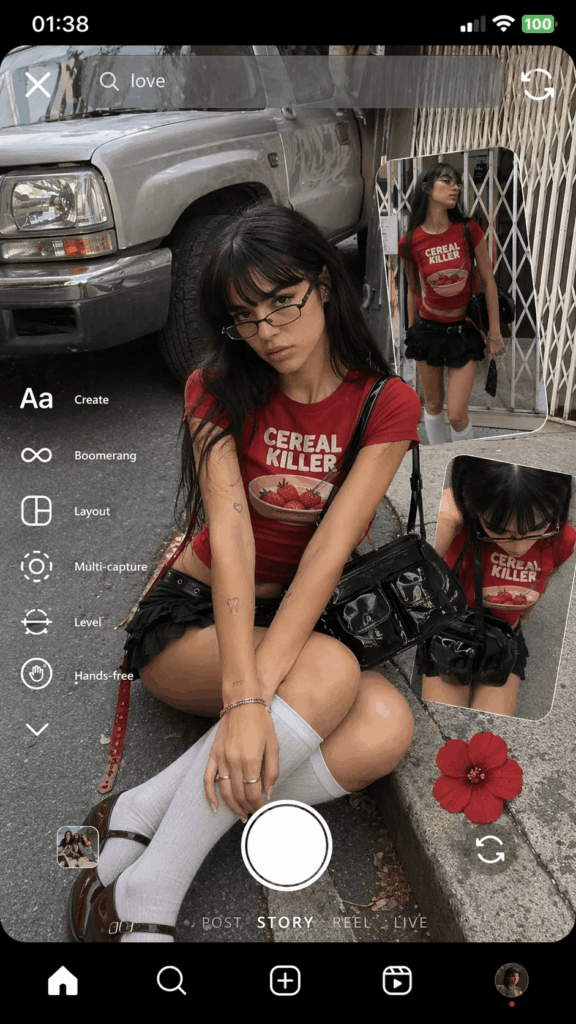
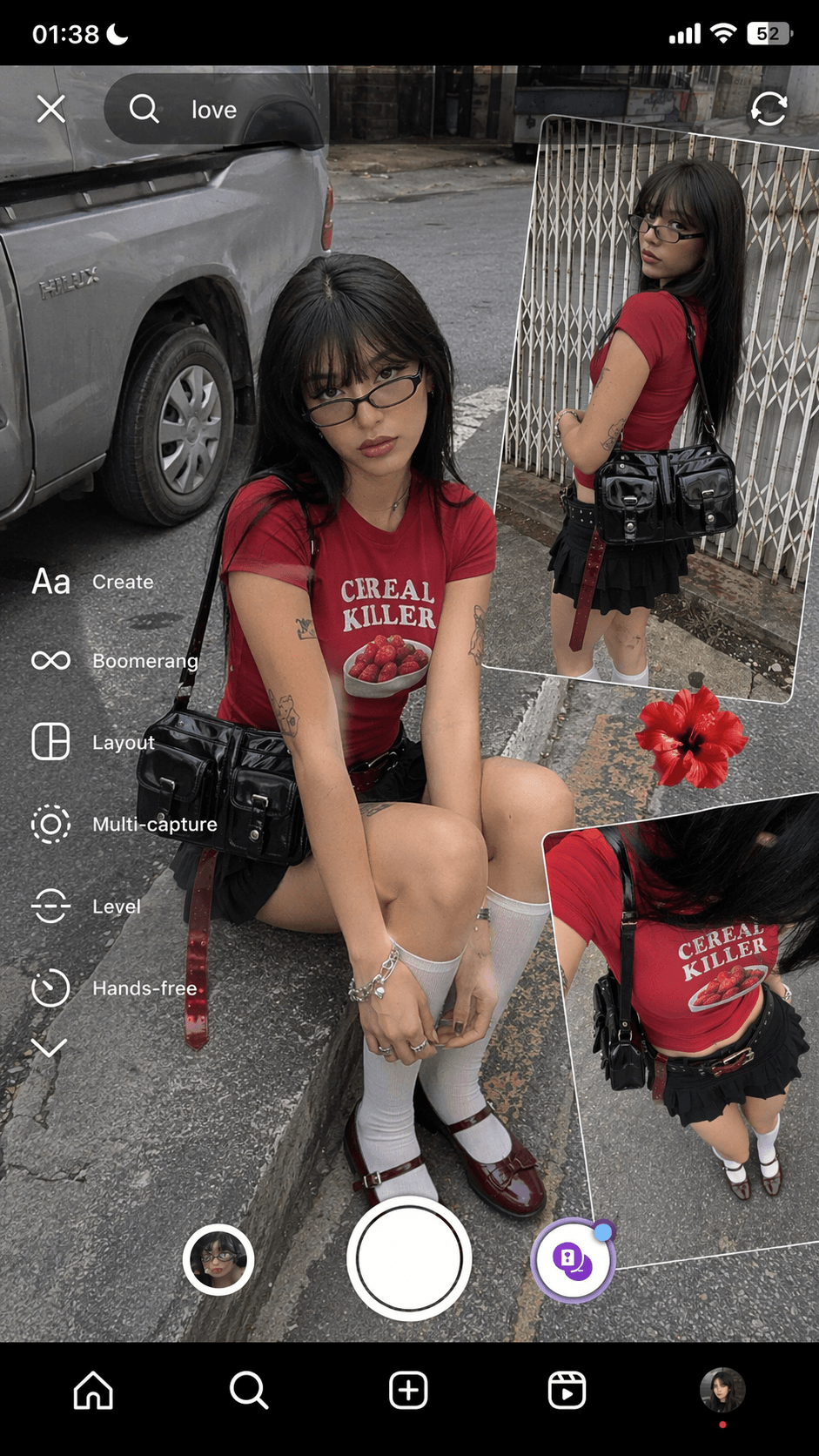
🛠️ Essential Tools for Your Instagram Photo Collage
Before we begin the magic, you need to prepare a few items. Consequently, this will make your creation process much smoother.
- Your Main Device: A computer or a phone. However, a computer browser is highly recommended for a better view and easier adjustments.
- The AI Platform: WeShop AI Image Generator. This specific tool is incredible at handling complex outfits, skin textures, and layouts.
- The Magic Formula: The advanced English copy-and-paste prompt provided in Step 2 of this article to lock in your perfect Instagram Photo Collage.
📝 Step-by-Step Instructions to Create an Instagram Photo Collage
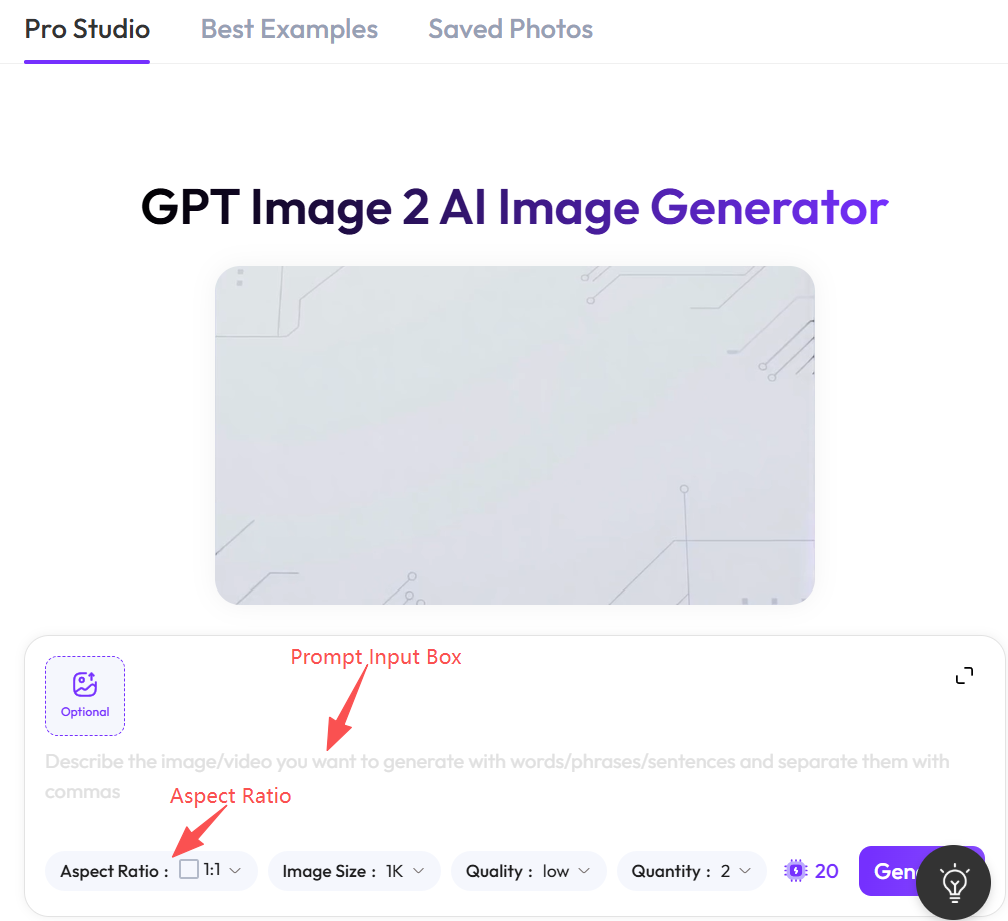
📲 Step 1: Open Your Workspace and Set the Aspect Ratio
First, click to visit the WeShop AI Image Generator. Once you enter the workspace, you will see a very clean and beginner-friendly interface.
- What to do: Find the prompt input box right in the center or at the bottom of the page.
- Key Setting: Look at the parameter panel on the right side. Next, change the image aspect ratio to 9:16 portrait mode. This is crucial because we want to mimic a true mobile screen experience for our Instagram Photo Collage.
✍️ Step 2: Input the Secret Copy-and-Paste Prompt
Now, this is the most exciting part of our lesson. Complex multi-panel layouts can be hard to describe. Therefore, I have written a highly optimized English prompt for you to generate a perfect Instagram Photo Collage.
This prompt covers precise clothing, natural skin texture, an urban backdrop, and the most important part—the Instagram UI overlays.
- What to do: Simply copy the text inside the block below. Then, paste it directly into the WeShop AI prompt box.
Plaintext
a candid smartphone screenshot collage of a young woman seated on a curb, with extra cutout panels of herself layered like an Instagram camera UI. She wears a vivid red CEREAL KILLER T‑shirt with a strawberry bowl graphic, a low-rise black ruffled mini skirt, white knee‑high socks, and dark burgundy Mary Janes. Long dark hair with blunt bangs; narrow rectangular glasses slightly low on the nose; silver bracelets and simple rings. A glossy black shoulder bag with two front pockets crosses her side, plus a thin black belt and a translucent deep‑red strap that hangs.

Skin: light neutral‑warm tone. Visible areas include face, neck, forearms and upper arms (small tattoos), a tiny midriff/hip sliver, and upper thighs/knees between skirt hem and socks. The skin reads velvety‑matte and warm to the touch, with a gentle natural sheen on the knees and subtle pores on the cheeks. Keep it real, not airbrushed.

Main pose: sitting on the curb, legs folded in, torso leaning slightly forward, hands near the shins; calm, cool gaze at camera with a soft pout. Inserts show a standing side profile and a dynamic overhead crop.

Environment: urban street. In the main frame a silver pickup truck sits to her left on grey asphalt; another panel shows a white metal accordion gate. Overcast/open‑shade daylight—soft, low‑contrast wrap; no flash. Keep smartphone‑deep DOF so the truck and gate stay readable.

Framing and style: vertical 9:16. Slight wide‑lens feel (about 24–28 mm). Minimal grain, crisp edges. Leave the UI overlays in-frame: top status bar at 01:38, a search bar with “love,” the left-edge menu (Create, Boomerang, Layout, Multi‑capture, Level, Hands‑free), a bottom site‑style nav bar, and a red flower sticker. Preserve the text direction (do not mirror).

Vibe: cool, playful Y2K street sensibility; authentic casual capture with mild tilt and flyaways. Let it feel like a memory—“It was 1:38am and the city was grey; the strawberries stayed red.”

Hard requirements: keep the red strawberry tee, the long dark hair with bangs, the narrow glasses, the ruffled mini skirt, the white knee socks, the glossy black multi‑pocket bag, the curbside seated main pose, the urban truck/gate backdrop, and the visible UI collage. Avoid studio polish, heavy bokeh, HDR glow, wrong hair/top/bag, or exaggerated curves.
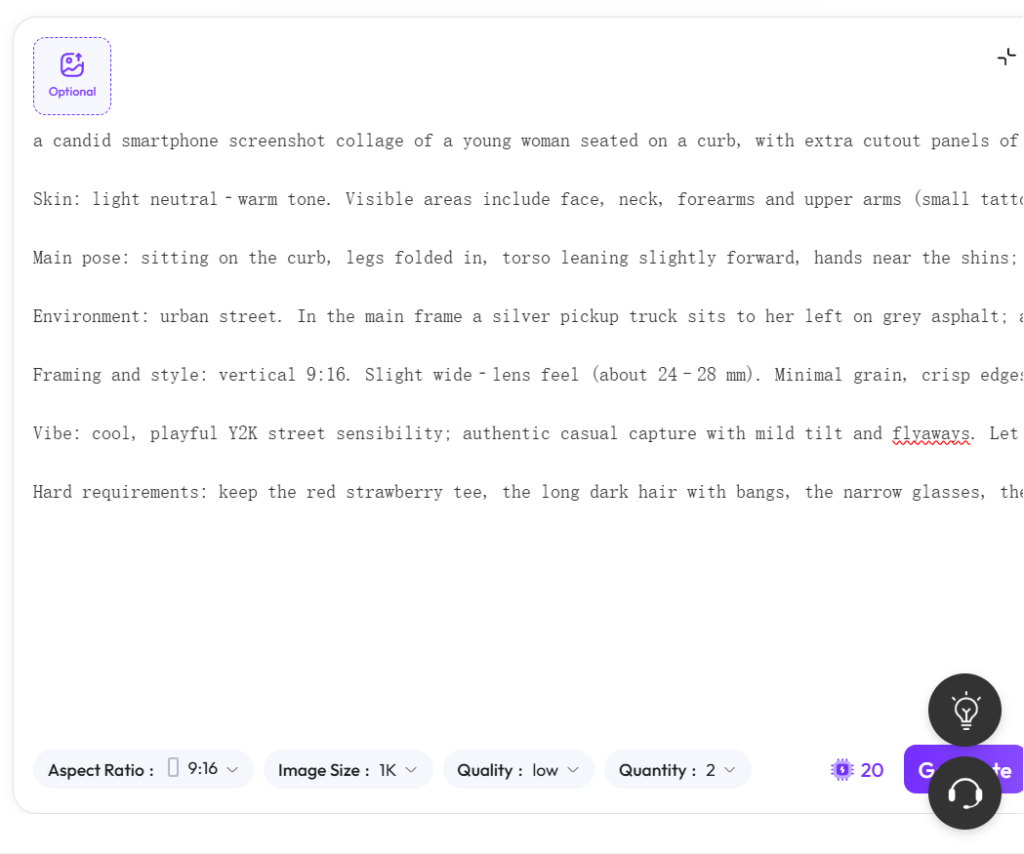
💡 Pro Tip:
This prompt contains strict commands like not airbrushed and Leave the UI overlays in-frame. As a result, they keep the image looking real. Please do not delete these words, because they are the secret to removing that fake, plastic AI look from your Instagram Photo Collage.
🎨 Step 3: Click Generate and Review the Result
After you double-check the 9:16 ratio and your prompt, take a deep breath. Now, you are ready to witness the magic.
- What to do: Click the “Generate” button next to the input box. Subsequently, wait about 15 seconds for the cloud rendering to finish.
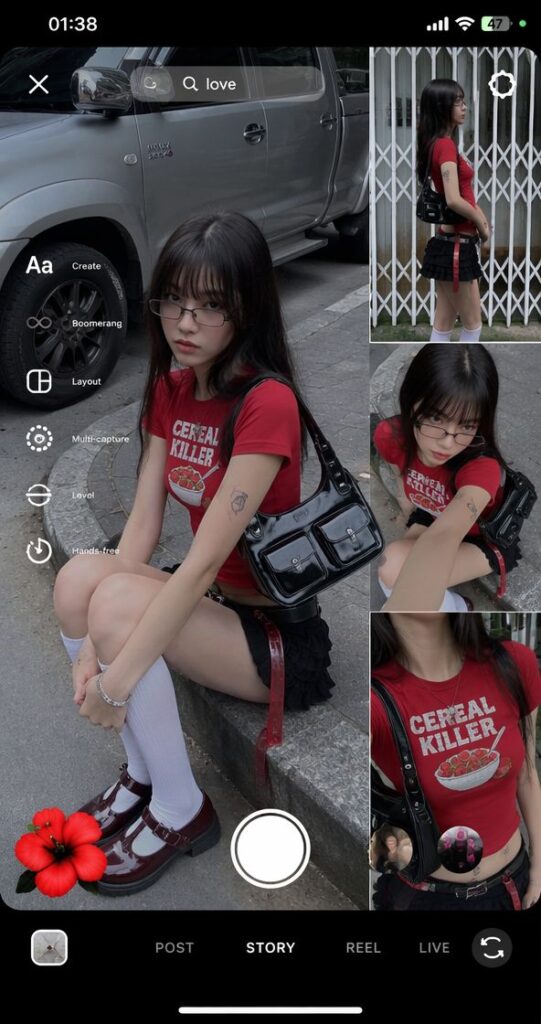
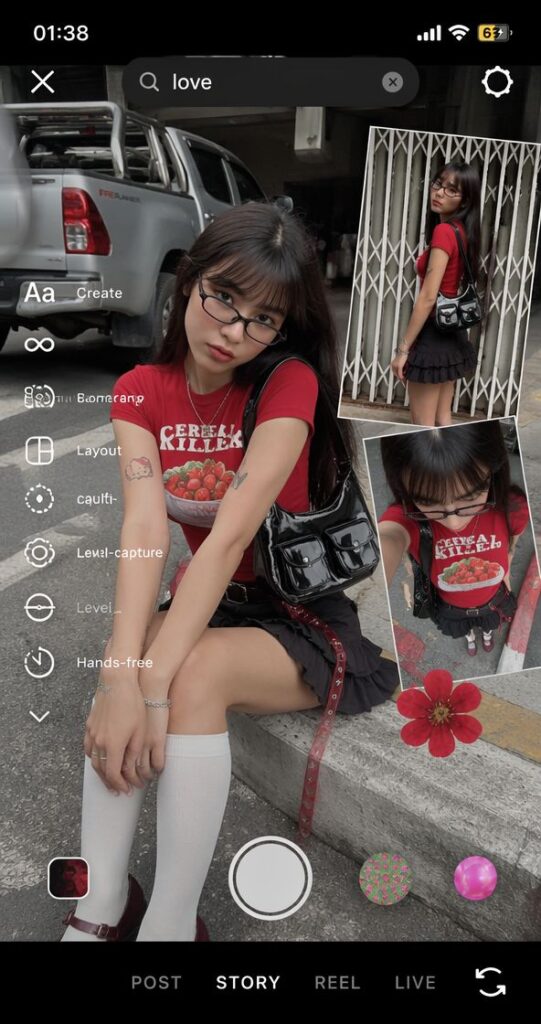
Finally, you will see a stunning result. The AI perfectly recreates the girl in the red top. In addition, it generates the left-side Instagram menu, the search bar, and the top time status bar.
The entire layout looks seamless. To see how amazing your Instagram Photo Collage looks across different versions, you can refer to the photo below.
💡 Advanced Tricks for Your Instagram Photo Collage
Once you learn the basics, you can add your own creative ideas. Here are two common questions from the community.
💬 Q1: Why are the English letters in the UI menu sometimes blurry or misspelled?
- Answer: Most AI models sometimes struggle with tiny text. Thus, you might see slight letter distortions on your Instagram Photo Collage.
- Quick Fix: If this happens, you can click generate again to try a new batch. Alternatively, you can use a phone app like Meitu to place a cute Emoji (like a strawberry 🍓 or a heart ❤️) over the glitch. Actually, this makes it look even more like a casual Y2K sticker collage!
💬 Q2: Can I change the red shirt to a different style?
- Answer: Yes, absolutely! You can customize the outfit easily.
- How to do it: Find the phrase
a vivid red CEREAL KILLER T-shirtin the prompt. Then, change it to whatever you like. For instance, you can typean oversized black vintage band tee. The AI will change the clothes seamlessly, while keeping the cool Instagram Photo Collage background exactly the same.
💖 Conclusion
With these 3 simple steps, your ultra-cool Y2K aesthetic picture is ready! This mix of a stylish outfit and a realistic UI frame is a total traffic magnet.
So, what are you waiting for? Open your workspace, copy the prompt from this article, and create your own viral Instagram Photo Collage today! If you get any cool results, leave a comment below. I will see you there!
Go to WeShop AI For Exploration: