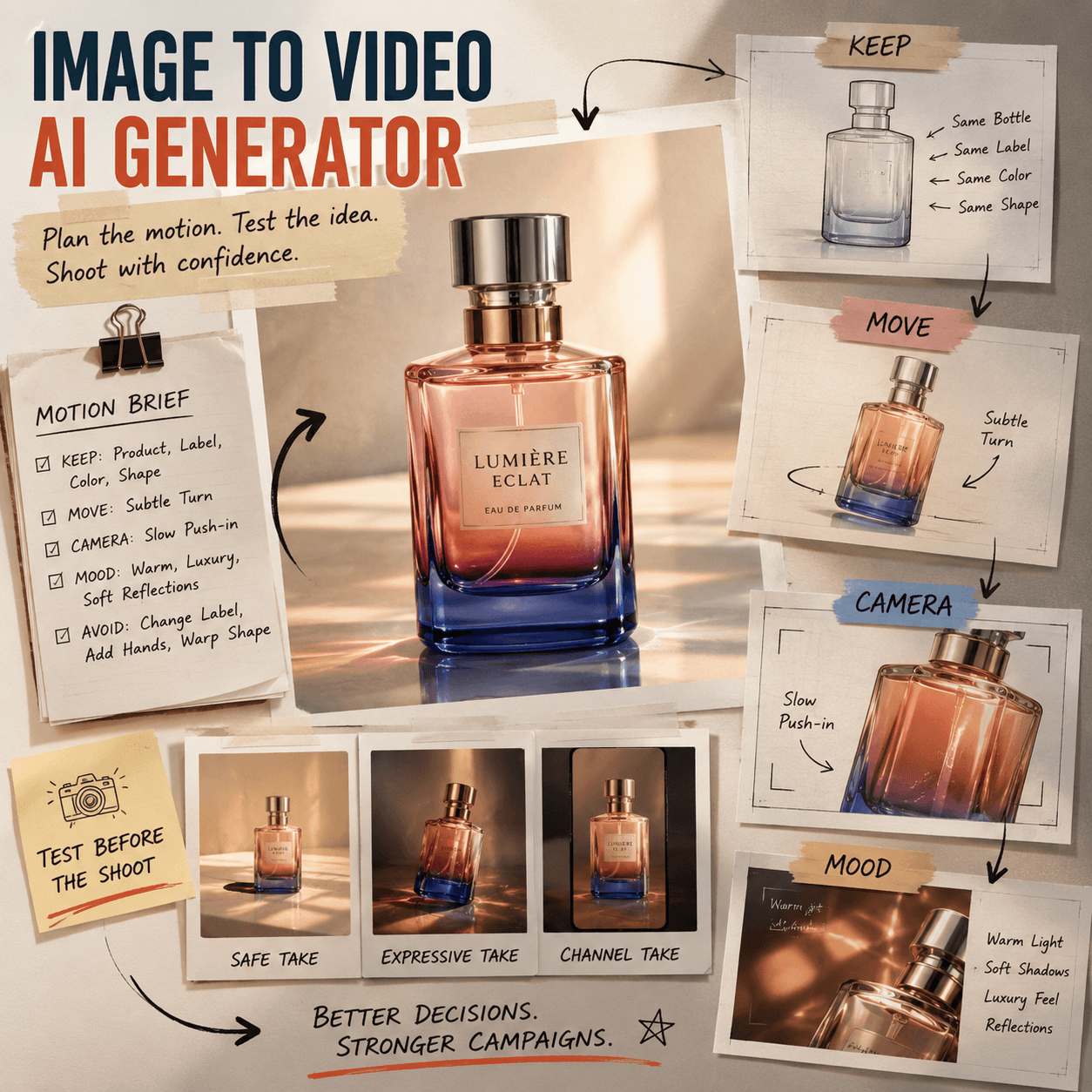
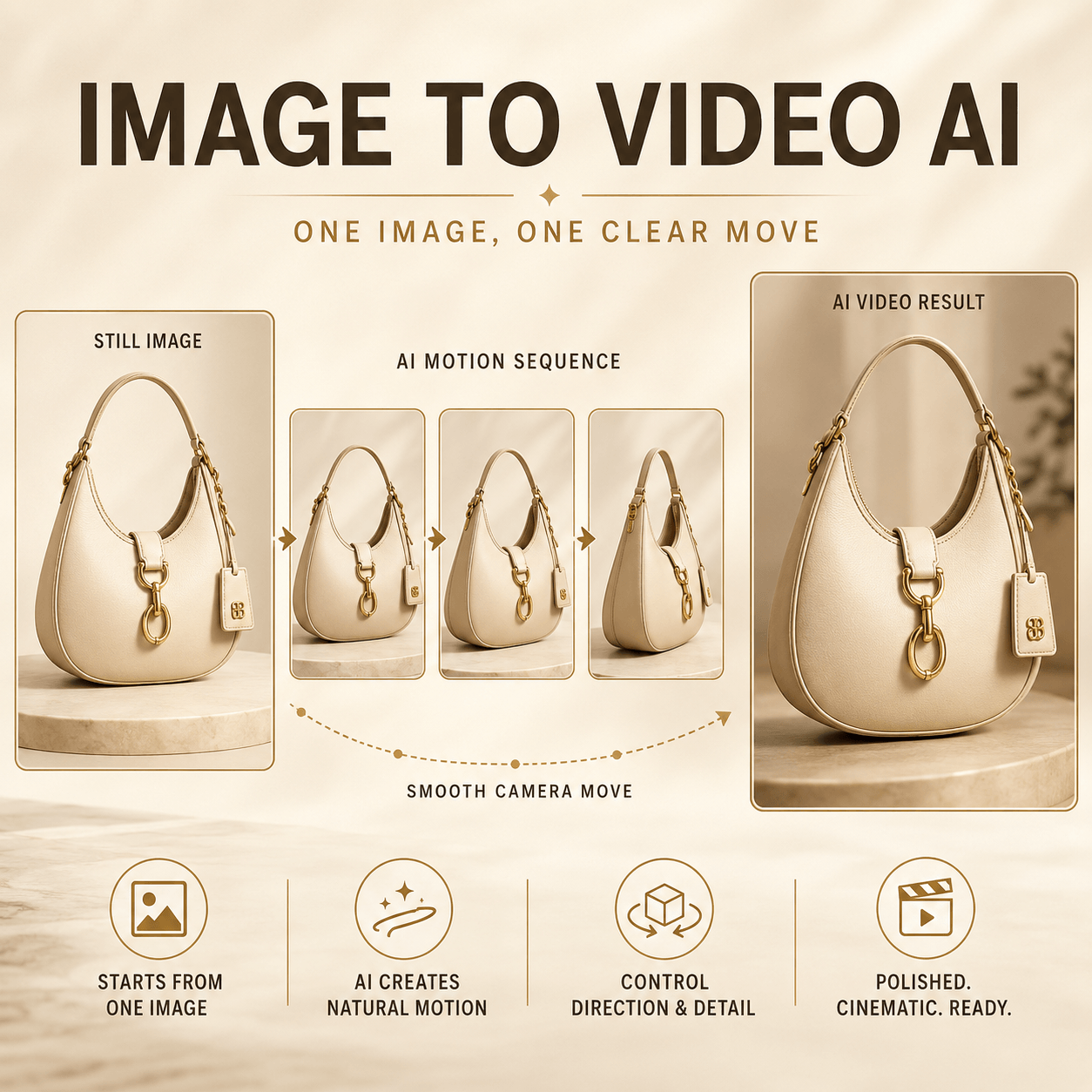
An Image to Video AI Generator can do more than animate a new product photo. It can also unlock value from images your team already owns.
Old campaign photos may have a second life. The same is true for event photos, unused crops, and brand-history images. However, the goal is not to make every file move. The goal is to find images that still have a useful job.
Many teams say they need more content. In fact, they often need a better archive system.
Strong visuals get buried after one launch. Meanwhile, social teams ask for new assets every week. A smarter review can connect those two problems.
Why an Image to Video AI Generator Starts With Better Selection
The first step is not generation. Instead, it is selection.
A clear source image gives the motion a strong base. Therefore, look for one main subject, useful detail, and a clear mood.
A product photo may show shape and texture. A portrait may carry emotion. Similarly, an event image may hold brand history.
Still, some images should remain in the archive. Heavy blur, lost details, crowded faces, or tiny text can create problems. In those cases, motion may make the weakness more obvious.
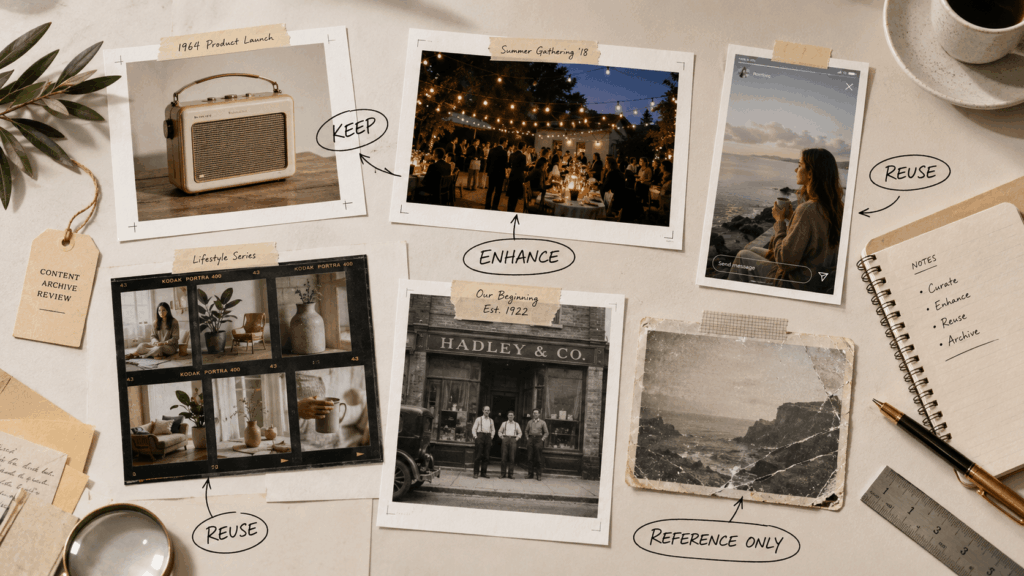
Use four simple labels during the review.
KEEP means the image is already strong.
ENHANCE means the image needs a crop, cleanup, or light adjustment.
REUSE means the image has a clear new video role.
REFERENCE ONLY means the image offers context, but it is too weak to animate.
As a result, the team spends time on images with real potential. It also avoids random testing.
Give Every Archived Image One New Job
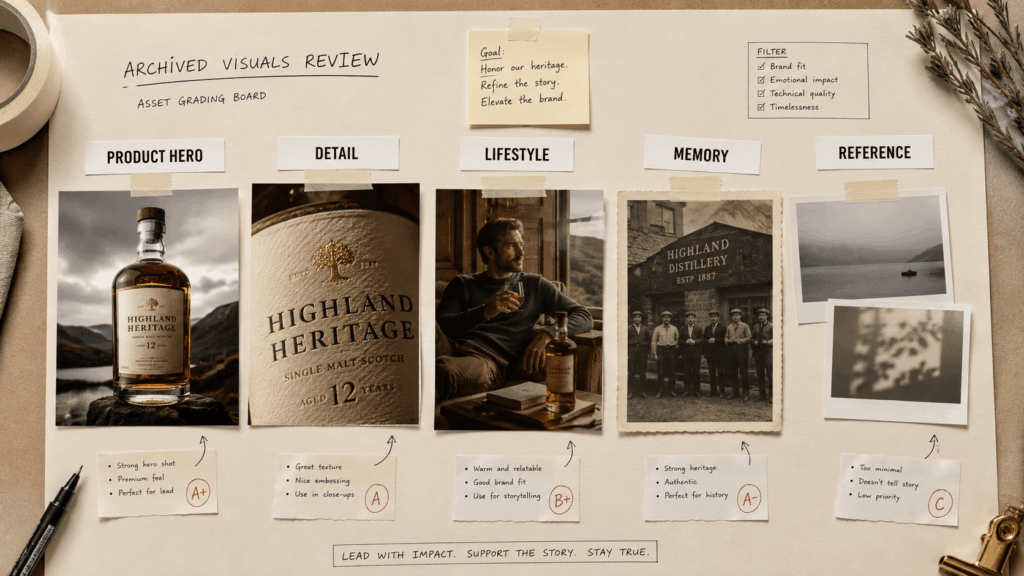
A photo should not become a video only because the tool allows it. Instead, each clip needs a purpose.
For example, a product still may become a homepage loop. An unused fashion crop may become a short collection teaser.
Meanwhile, a founder photo may support a brand-history story. An event image could also open an anniversary montage.
Before generation, finish this sentence:
“This clip will help us ______.”
A useful answer could be:
- introduce a new color;
- explain a product detail;
- add motion to a landing page;
- connect an old campaign with a new launch;
- open a short brand story.
If the sentence feels vague, the video idea is not ready. Therefore, define the use first.
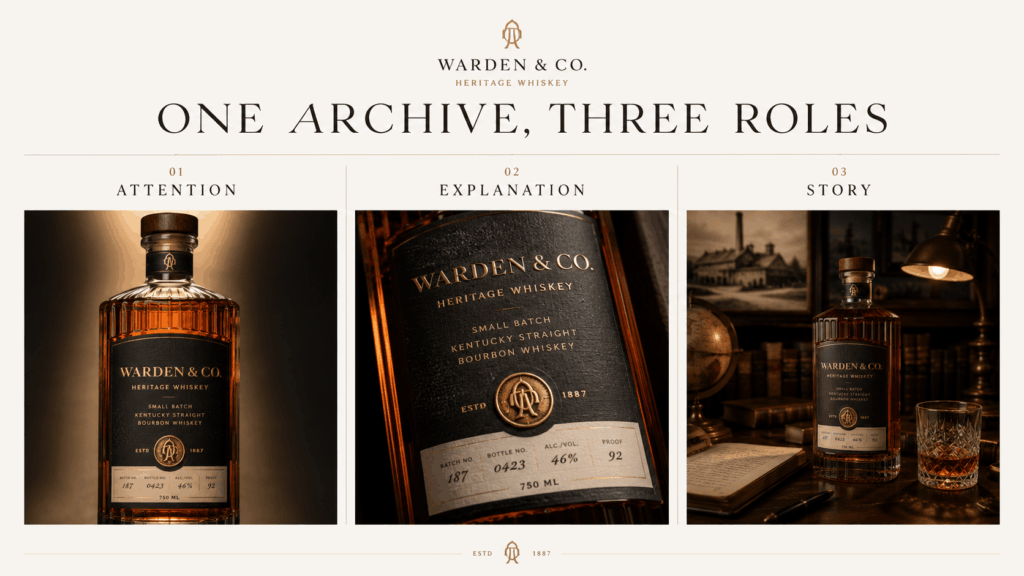
Use Attention Clips to Stop the Scroll
Attention clips need one strong visual change.
For instance, a close crop can pull back to reveal the full product. A shadow can move across bold packaging. Alternatively, a model can make one small turn.
However, the subject should remain easy to read. Fast movement is not always stronger. A clear reveal often works better than several effects at once.
Video Prompt:
“Keep the product shape, label, colors, and proportions unchanged. Begin with a close crop. Then pull back slowly to reveal the full product. Add one soft reflection across the surface. Do not add new objects.”
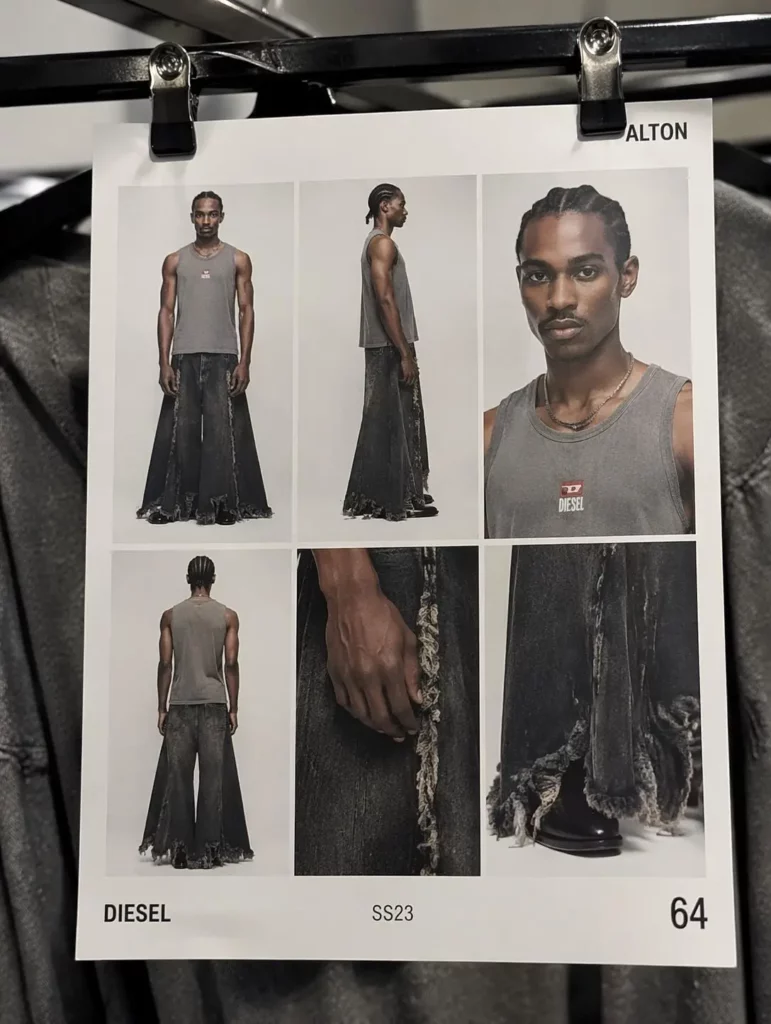
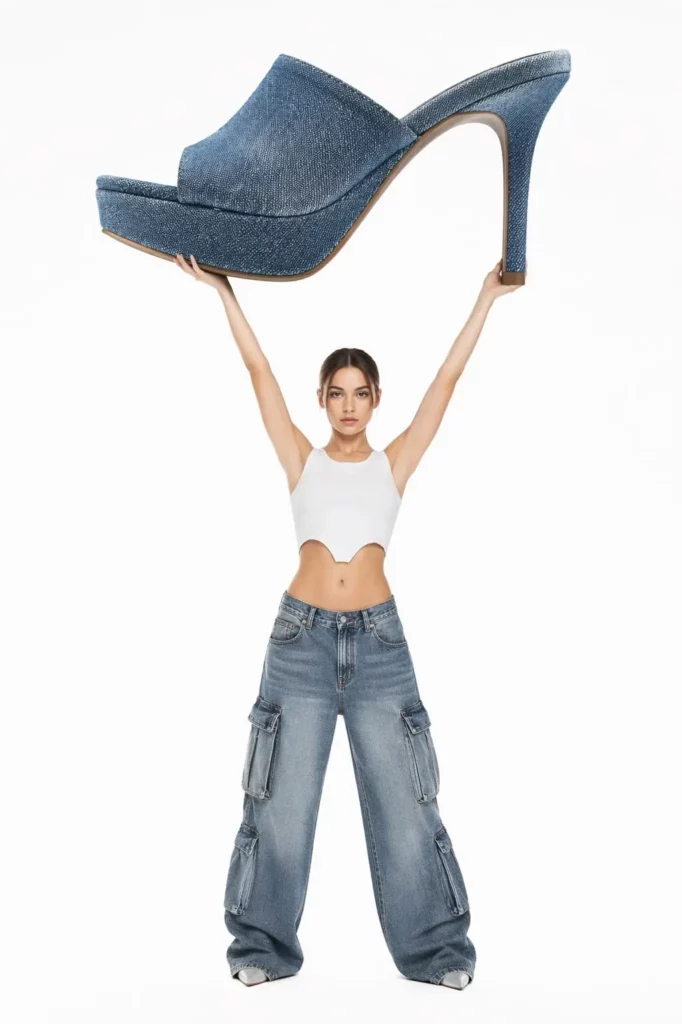
Use Explanation Clips to Show Useful Detail
Explanation clips help viewers notice form, texture, or build. Therefore, the movement should stay simple.
A bag can receive a short side slide. A serum bottle can use a slow push-in. Likewise, fabric can move gently near the hem.
In addition, light can reveal a glossy or matte surface.
Video Prompt:
“Use a slow left-to-right camera slide. Keep the item centered and fully visible. Add soft natural shadows. Preserve the logo, material, color, and design details.”
These clips can support product pages, launch emails, sales decks, and retailer pages.
Use Story Clips to Preserve Brand Memory
Some images matter because of their history.
For example, an early shop photo may show where the brand began. An old event image may recall a key community moment.
In this case, motion should respect the source. A gentle push-in, soft light shift, or slight background movement is often enough.
Otherwise, the result may feel like a remake rather than a memory.
Video Prompt:
“Add a gentle camera push-in and subtle natural light. Preserve the original people, clothing, location, colors, and period feeling. Do not add new people or modern objects.”
A Five-Step Image to Video AI Generator Archive Workflow
A repeatable process saves more time than random prompts. Moreover, it helps several team members make similar choices.
Step 1: Review the Full Folder
First, scan the whole campaign or project folder. Do not begin with the first attractive image.
Next, remove duplicates and weak exports. Then group the remaining files by role. Possible groups include product, lifestyle, event, portrait, and history.
This wider view often reveals a better story. It may also show that one image can support several channels.
Step 2: Protect the Important Details
Before adding motion, list what must stay correct.
For a product, protect:
- shape;
- label;
- logo;
- cap;
- material;
- color;
- proportions.
For a person, protect:
- identity;
- face;
- clothing;
- body proportions;
- key accessories.
Then decide what may move. Usually, the camera, light, shadow, hair, fabric, water, or background can create enough motion.
Step 3: Choose One Main Motion
One clear movement is easier to control.
Therefore, avoid adding a turn, zoom, light change, particles, and a new background at the same time.
Choose one main motion:
- a slow push-in;
- a short camera slide;
- a small product turn;
- gentle fabric movement;
- a moving reflection;
- soft background motion.
After that, add only one supporting effect if needed. This keeps the subject stable.
Step 4: Make the Clip Fit Its Channel
The same motion will not work everywhere.
For example, a homepage loop can begin slowly. In contrast, a social short needs a clearer first second.
For vertical video, keep the subject near the center. Meanwhile, leave space for captions when needed.
For a wide banner, use horizontal movement and a calm end frame. As a result, the clip feels designed for its destination. It does not look like a random crop.
Step 5: Save the Motion Recipe
Finally, save more than the exported video.
Record the source image, prompt, protected details, chosen motion, channel, and review notes. In addition, note what failed.
A weak test can still teach the team what to avoid.
Over time, these records become a team motion library. Therefore, future campaigns can start from tested ideas rather than a blank prompt box.
What Should Stay Still?
An Image to Video AI Generator is useful, but it is not the answer for every image.
Keep a photo still when:
- small text must remain exact;
- the frozen moment carries the emotion;
- several hands or faces overlap;
- the source is badly damaged;
- the image already suggests strong motion;
- animation adds style but no meaning.
Still images remain valuable. In fact, a strong photograph may communicate faster than a weak clip.
Therefore, the archive review should include the option to stop.
Turn One Good Clip Into Several Assets
Once a clip works, do not rush back to generation. Instead, reuse the strongest motion.
For a social short, start with the most active moment. Then trim any slow opening.
For a product page, choose the cleanest section. Also, keep the label visible.
For a story archive, use a wider crop and slower pace. Meanwhile, add a short date or line of context.
For email or a website loop, create a smooth ending. As a result, the clip can repeat without a hard jump.
Common Archive Mistakes to Avoid
The first mistake is choosing an image only because it looks old. History alone does not make a useful clip.
Instead, the image still needs a clear subject and story role.
Another mistake is changing too much. When the background, product, camera, and lighting all move, the source identity can disappear.
Teams also forget to name the final channel. As a result, they create good-looking clips that never get published.
Finally, many people save the output but lose the prompt. Therefore, they cannot repeat the result later.
FAQ About the Image to Video AI Generator
Can an Image to Video AI Generator Fix an Old Photo?
It can add motion and mood. However, it may not repair severe blur or missing detail. Clean the source first when needed.
Should Every Product Photo Become a Video?
No. Choose images with a clear subject and a clear use. Still photography may remain better for exact product detail.
How Much Motion Should I Add?
Start with one main action and one small support effect. For example, use a slow push-in with a moving reflection.
Can One Clip Work on Several Platforms?
Yes. However, adjust the crop, opening, pace, and length for each channel.
Give Existing Images a Better Second Life
Your next useful video may already exist as a photograph. It may sit inside an old launch folder, a product gallery, or a phone album.
An Image to Video AI Generator can unlock that value.
First, review the archive. Next, protect what matters. Then choose one useful movement and one real destination.
Most importantly, do not animate an image only because you can. Instead, animate it when motion gives the image a better next job.
Go to WeShop AI For Exploration: