An AI Video Enhancer can rescue a clip that looks blurry, dark, noisy, or too small for modern screens. However, better results do not begin with the Enhance button. First, you need to understand what is actually wrong with the footage.
That small step matters. A dark video needs a different fix from a low-resolution video. Likewise, soft focus is not the same as compression damage. Once you identify the problem, you can improve the clip without adding harsh sharpness or unnatural color.
This guide shows you how to diagnose weak footage, use enhancement more carefully, and decide when a video is still worth saving.
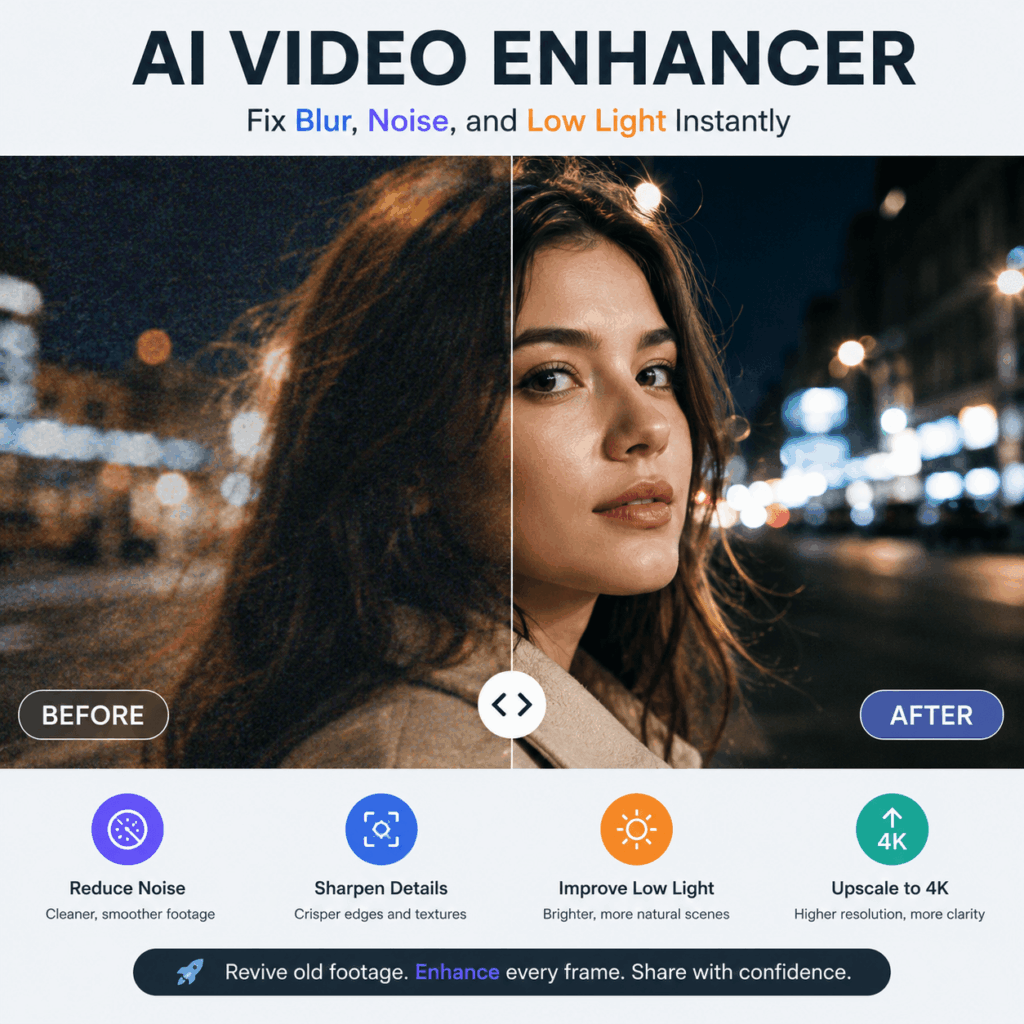
Why an AI Video Enhancer Should Start with Diagnosis
Many people describe every weak clip as “blurry.” In reality, several problems can create the same soft or messy look. Therefore, enhancement works best when you separate those problems before processing the file.
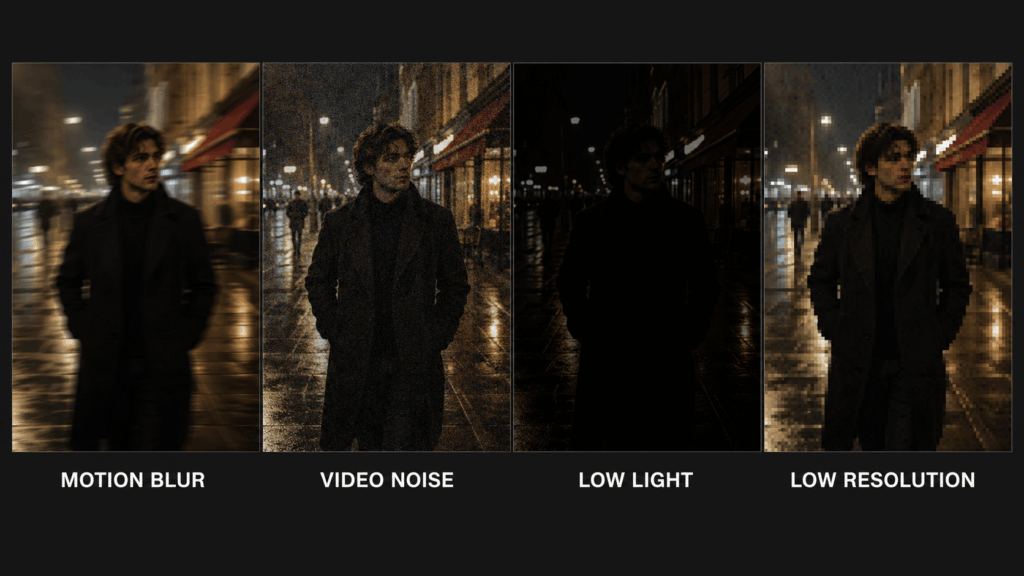
Blur Is Not Always the Same Problem
Motion blur appears when the camera or subject moves too quickly. Focus blur happens when the camera locks onto the wrong area. Meanwhile, compression blur removes small textures after a video has been exported or shared several times.
An AI Video Enhancer may reduce the visible damage. Still, it cannot treat every type of blur in exactly the same way. For that reason, watch the clip frame by frame. Check whether the softness follows movement, affects the full image, or appears mainly around edges and text.
Noise Often Hides Inside Dark Footage
Low-light videos may contain colored speckles, rough shadows, and unstable details. At first, the scene may simply look dark. Yet raising the brightness can reveal much more noise.
Therefore, do not brighten the footage first and sharpen it later. Instead, use a workflow that balances noise reduction, detail recovery, and lighting. This usually creates a cleaner result than pushing every setting to its maximum.
Low Resolution Is Different from Poor Focus
A low-resolution clip may look acceptable on a phone but weak on a larger screen. In contrast, an out-of-focus clip will remain soft even after its pixel dimensions increase.
Upscaling can create a larger and more usable file. However, more pixels do not guarantee perfect detail. The goal is a cleaner viewing experience, not a magical reconstruction of information that was never recorded.
A Four-Step AI Video Enhancer Workflow
The WeShop AI Video Enhancer works in a browser, supports common formats such as MP4 and MOV, and is designed to improve clarity, reduce noise, correct weak lighting, and upscale footage to 1080p or 4K. ew0
Even so, the quality of your workflow still matters. Use these four steps to avoid overprocessing.
Step 1: Choose the Best Source File
Start with the earliest version you can find. A video downloaded from a social platform has often been compressed already. A clip forwarded through a messaging app may have lost even more information.
Therefore, use the original camera file whenever possible. If several copies exist, compare their resolution, file size, and visible detail before uploading one.
Step 2: Test a Short, Difficult Section
Do not judge the tool only by the easiest frame. Instead, select a section with movement, hair, fabric, product labels, faces, or small background details.
These areas reveal common enhancement problems quickly. For example, too much sharpening may create bright outlines. Strong noise removal may make skin or fabric look waxy. A short test helps you catch those issues before processing the full clip.
Step 3: Enhance for the Final Viewing Size
Ask where the video will appear. A family clip viewed on a phone needs a different level of polish from a product video shown on a large website banner.
For most everyday uses, 1080p offers a practical balance between clarity and file size. However, 4K may be useful when you plan to crop the frame, display it on a larger screen, or reuse it in a future edit.
Step 4: Compare Details, Not Just Brightness
A brighter result often feels better immediately. Nevertheless, brightness alone can hide new problems. Check faces, hands, hair, lettering, straight edges, and moving objects.
Then compare the enhanced file with the original at the same viewing size. The better version should look cleaner and easier to watch. It should not look aggressively sharpened, oversaturated, or strangely smooth.
What an AI Video Enhancer Can Fix
A useful enhancer can improve several common problems at once. For example, it can make weak edges clearer, reduce distracting noise, balance a dark scene, and prepare low-resolution footage for a larger display.
Soft Smartphone Videos
Smartphone clips often suffer when they are filmed indoors, zoomed digitally, or cropped later. As a result, faces and objects may lose detail. Enhancement can make the footage more presentable for a vlog, story, reel, or personal archive.
Compressed Social Media Downloads
A clip may look fine before posting but weaker after downloading it again. Compression can damage hair, grass, water, text, and fast movement. Therefore, enhancing the best available copy can help before you reuse it in a new edit.
Old Family and Travel Footage
Older digital videos may have small dimensions, flat color, and visible noise. An AI Video Enhancer can make those memories easier to watch on current devices. More importantly, it can help you preserve a clearer working copy before the original file is lost or damaged.
Product and Tutorial Videos
Small text and material texture matter in a product demo. Likewise, hand movements and screen details matter in a tutorial. Enhancement can help viewers understand what they are seeing, especially when the source was recorded quickly or under weak light.
What an AI Video Enhancer Cannot Fully Repair
A trustworthy workflow also needs limits. AI can estimate missing detail, but it cannot recover every fact from a severely damaged file.
For example, extreme motion blur may hide the shape of a moving object. A face that occupies only a few pixels may not contain enough information for an accurate reconstruction. Likewise, clipped white areas and completely black shadows may have no usable detail left.
Therefore, treat enhancement as repair rather than invention. Keep the original file, review important details, and avoid using a reconstructed result when exact visual evidence matters.
Five Mistakes That Make Enhanced Video Look Worse
1. Enhancing a Recompressed Copy
Every extra export may remove information. Therefore, always begin with the cleanest source.
2. Choosing 4K Without a Reason
A larger file is not automatically a better file. In addition, unnecessary upscaling can slow storage, editing, and uploading.
3. Judging Only One Still Frame
Video quality includes motion consistency. As a result, you should inspect transitions, moving faces, hands, and textured surfaces.
4. Adding More Sharpening After Enhancement
Extra sharpening can create halos and crunchy edges. Instead, compare the first enhanced result before applying another filter.
5. Deleting the Original Video
Enhancement preferences change. Moreover, future tools may produce a better result. Keep the untouched source as your master copy.
A Simple Quality Check Before You Export
Before downloading the final file, ask five questions:
- Are faces and hands still natural?
- Is small text more readable without changing shape?
- Do shadows look cleaner rather than plastic?
- Does movement remain stable from frame to frame?
- Is the output resolution suitable for its real destination?
If the answer is yes across the list, the enhancement is probably helping. However, if the clip only looks brighter or more saturated, revise the result before publishing.

Frequently Asked Questions About AI Video Enhancer Tools
Can an AI Video Enhancer Make Any Video 4K?
It can upscale a smaller video into a 4K-sized output. However, the final detail still depends on the source. A clean 1080p clip usually gives the system more useful information than a heavily compressed 360p file.
Will Video Enhancement Change Faces or Products?
It can sometimes alter fine details because the system reconstructs missing visual information. Therefore, check facial features, logos, labels, patterns, and product shapes before using the result publicly.
Should I Enhance a Video Before or After Editing?
In many cases, enhance the clean source before adding text, graphics, or heavy effects. That approach gives the tool access to the original image details. However, keep a short test version first so you do not process unnecessary footage.
Is an Online AI Video Enhancer Suitable for Beginners?
Yes. Browser-based tools remove much of the manual setup used in traditional editing software. The WeShop tool is designed for online processing and does not require a complex installation.
Final Thoughts: Save the Clip Before You Reshoot It
Poor video quality does not always mean the moment is lost. Often, the footage still contains useful movement, emotion, information, or product detail. It simply needs a more careful repair process.
First, identify the real problem. Next, choose the cleanest source. Then test the most difficult section and review the result at its final viewing size.
With that approach, an AI Video Enhancer becomes more than a one-click filter. It becomes a practical way to recover videos that are still worth seeing.
Go to WeShop AI For Exploration: