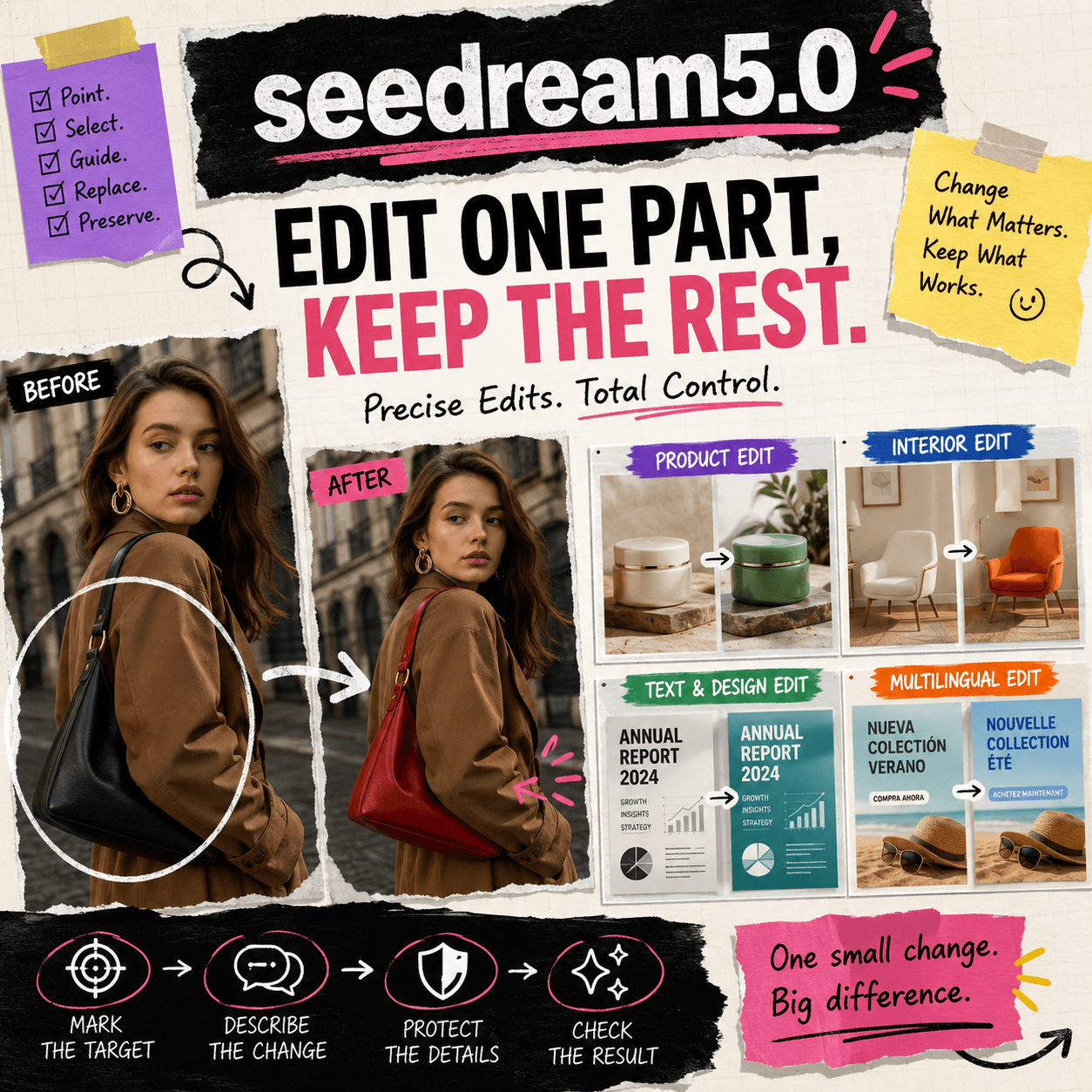
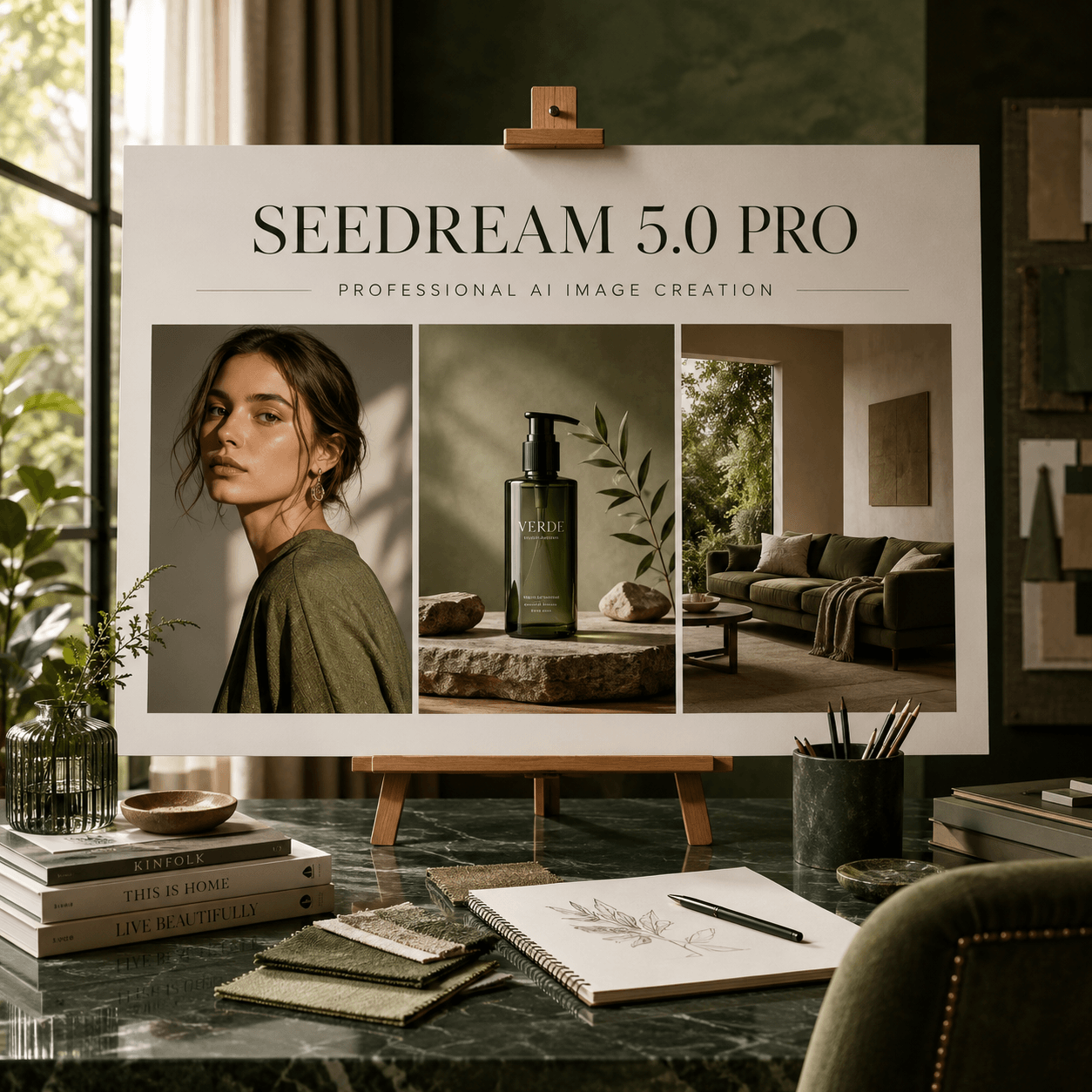
Many Seedream 5.0 Pro prompts sound smart. However, they often give the model very little useful information.
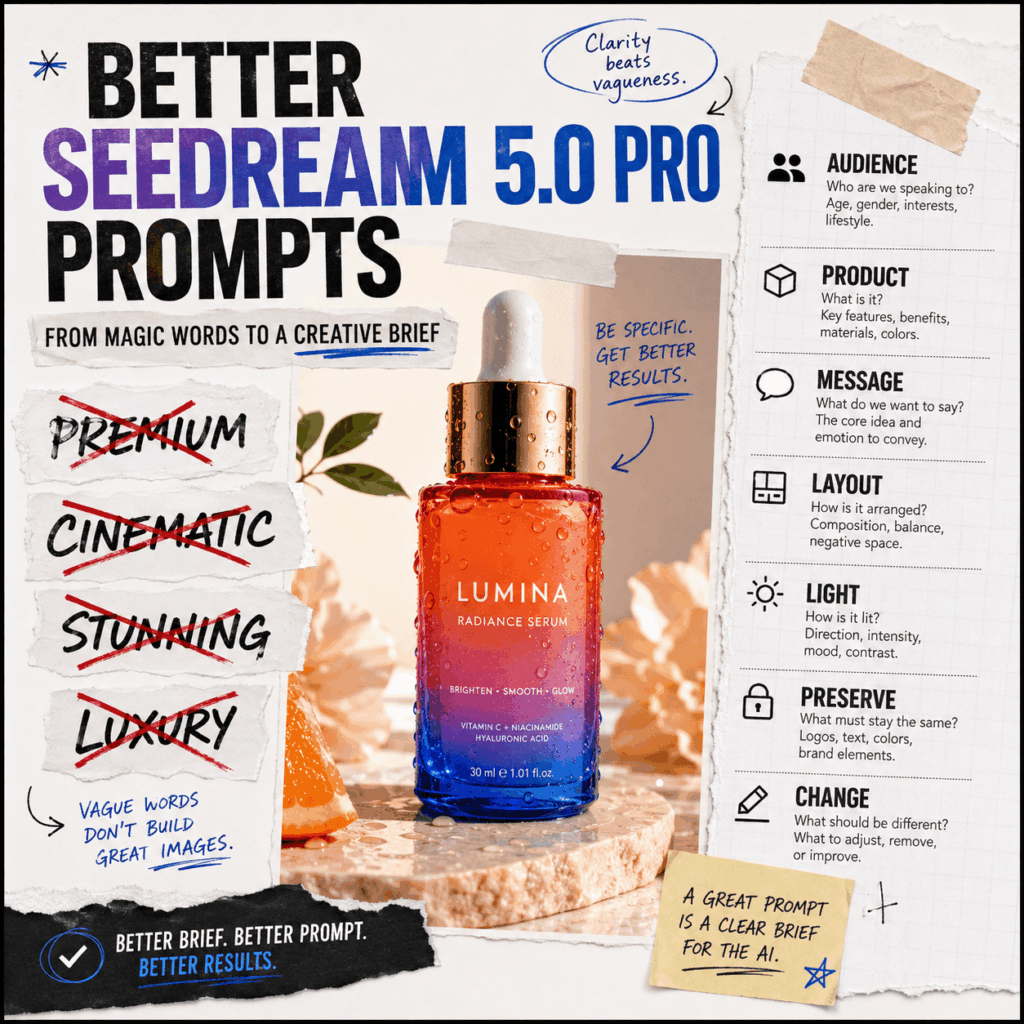
A common prompt may include words such as “premium,” “cinematic,” “luxury,” and “stunning.” These words can set a mood. Still, they do not explain what the image needs to do.
For example, who is the image for? What should people notice first? Where should the text appear? Which product details must stay the same?
Without clear answers, the result may look good but still be hard to use.
A better approach is simple. Treat the prompt like a creative brief.
Instead of adding more fancy words, make more clear decisions. Tell Seedream 5.0 Pro what matters, what can change, and what must stay untouched.
That is how better Seedream 5.0 Pro prompts begin.
Why Style Words Are Not Enough
Style words are not useless. In fact, words such as “minimal,” “playful,” or “editorial” can help set a direction.
However, they should not be the whole prompt.
Look at this example:
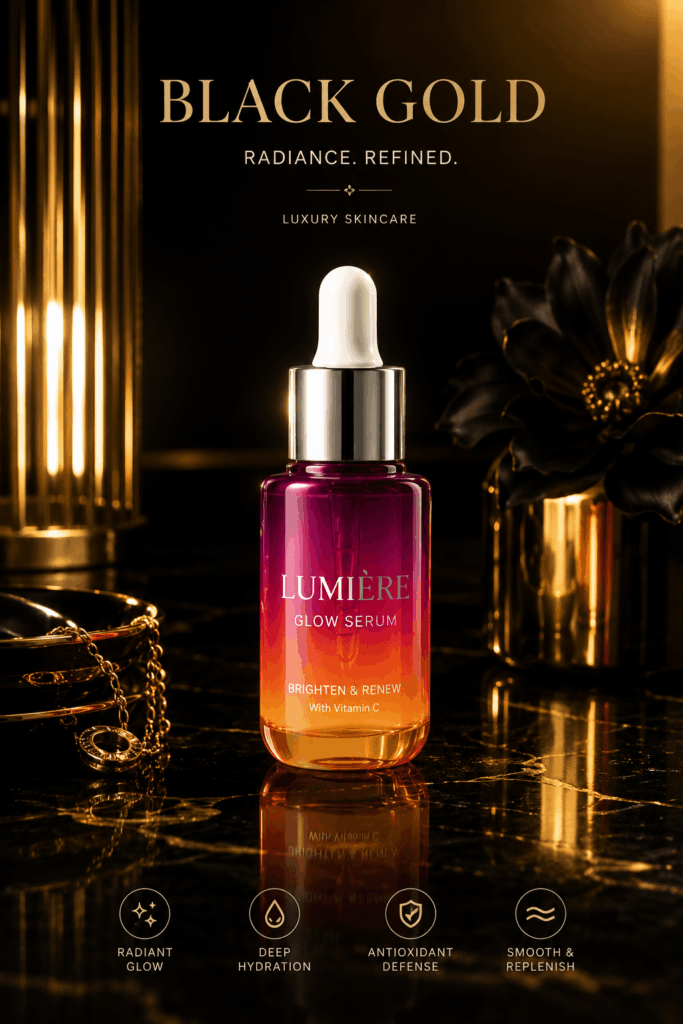
Create a premium, cinematic, stunning, luxurious skincare advertisement with professional lighting.
At first, it sounds polished. Yet almost every important detail is missing.
The target customer is unclear. The main product has no set position. There is no text plan. The lighting is also vague.
Even the word “premium” can mean different things.
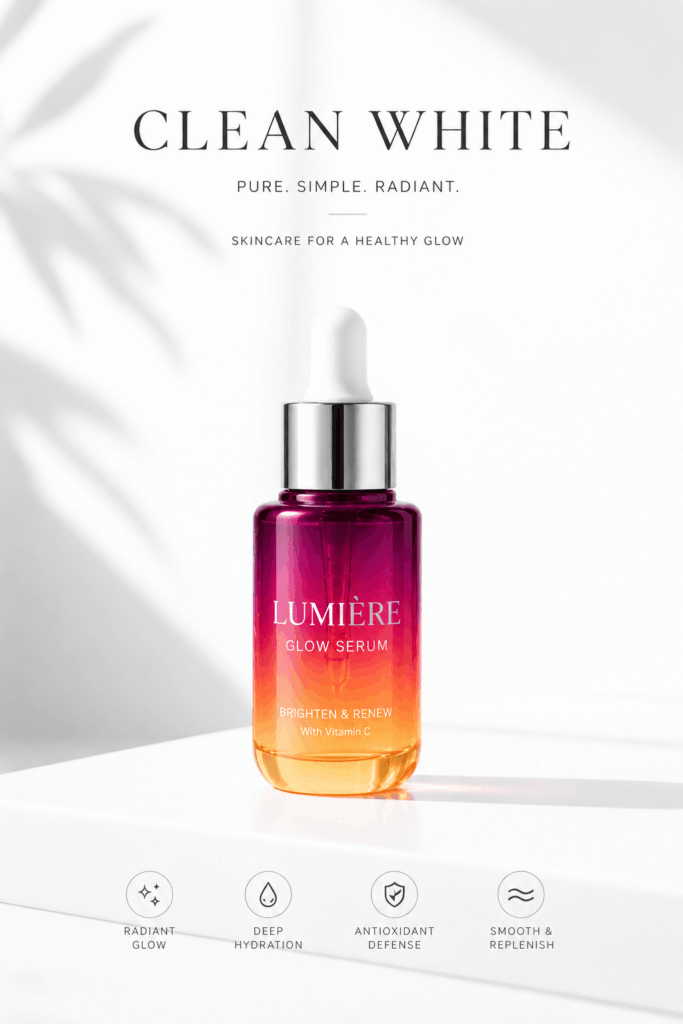
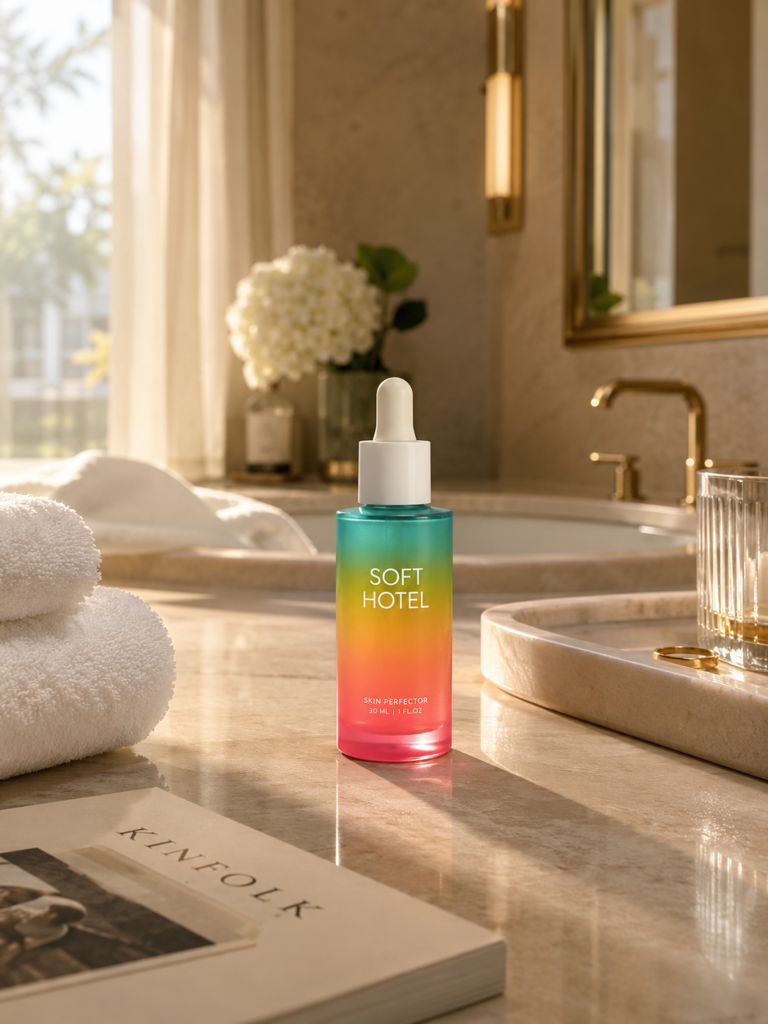
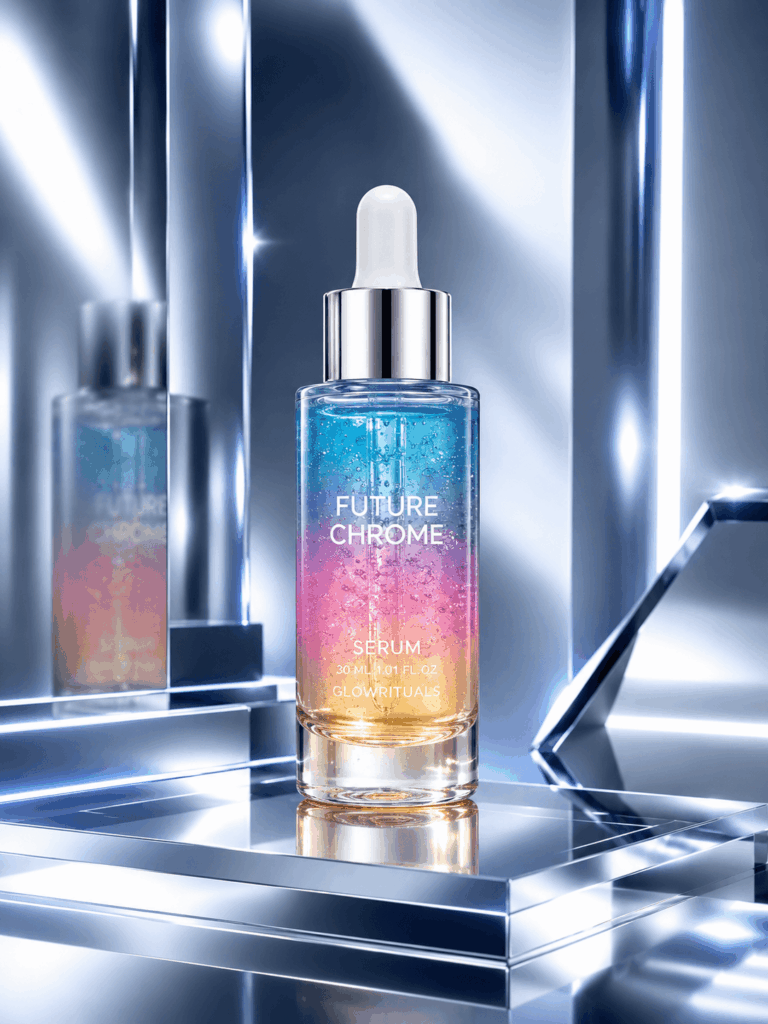
For one brand, premium may mean black packaging and hard shadows. For another, it may mean soft daylight and a clean white background.
Therefore, style words need support. They should sit inside a clearer plan.
Why Magic Prompts Often Fail
Many creators search for the perfect phrase. As a result, they keep adding more words:
Masterpiece, award-winning, ultra-detailed, high-end, dramatic, perfect composition.
However, more words do not always create more control.
First, these terms do not show what matters most. A flower, shadow, or background object may become more noticeable than the product.
Next, vague prompts make editing harder. When something looks wrong, it is difficult to know which part of the prompt caused the problem.
Teamwork can also become messy. One designer may see “modern luxury” as warm beige and soft light. Meanwhile, another may imagine silver surfaces and dark blue shadows.
So, the same prompt can lead to very different images.
A creative brief solves this problem. It gives the project a shared direction.
Turn Seedream 5.0 Pro Prompts Into Creative Briefs
A creative brief does not have to be long. Instead, it should answer a few useful questions.
Start with the goal. Then define the audience and the main subject. After that, plan the layout, text, and lighting.
Most importantly, separate two things:
What must stay the same
and
What should change
This simple split makes the prompt easier to follow. It also makes later edits much easier.
Eight Clear Decisions for Better Seedream 5.0 Pro Prompts
1. Start With the Audience
Avoid a vague line such as:
For young customers.
Instead, describe a more specific group:
For women aged 22–35 who discover skincare products on social media and like clean, modern brands.
This choice affects the whole image.
For example, a younger social media audience may respond to brighter colors and closer framing. In contrast, a product page may need more space and fewer props.
So, define the audience before choosing the visual style.
2. Choose the Main Focus
Seedream 5.0 Pro should know which part of the image matters most.
A useful instruction could be:
Make the serum bottle the main focus. Keep it larger than the props and place it near the center.
Now the model has a clear priority.
The background can still support the idea. However, it should not compete with the product.
3. Set the Reading Order
Most ads contain more than one message. Still, viewers should not notice everything at once.
A simple reading order could be:
Product name first, main benefit second, supporting detail third, and call to action last.
Then turn that order into a visual instruction:
Make the product name the largest text. Place the main benefit below it. Keep the supporting line smaller. Put the call to action near the bottom.
As a result, the image becomes easier to scan.
4. Add the Exact Text
Do not ask the model to “add some promotional copy.”
Instead, provide the final wording:
Headline: “Hydration That Lasts”
Supporting line: “48-Hour Moisture Support”
Button text: “Discover the Formula”
You can also explain which line should be largest.
Still, generated text always needs a final check. Product names, numbers, and claims must be correct before publishing.
5. Explain the Layout
Words such as “editorial composition” sound useful. Yet they do not describe the real layout.
A stronger instruction would be:
Use a square format. Place the serum bottle in the lower center. Leave open space above for the headline. Add one small ingredient on each side. Keep the label visible.
This direction is easy to understand.
More importantly, every area now has a purpose.
6. Describe the Light
“Cinematic lighting” can create many different results.
So, explain the light source instead:
Use soft daylight from the upper left. Add a light shadow behind the bottle. Keep the front label bright and readable.
Now the result is easier to review.
You can quickly check the light direction, shadow, and label clarity.
7. Protect Important Details
When you use a reference image, list the details that must not change.
For example:
Preserve the bottle shape, cap color, label design, logo position, product size, and front-facing angle.
This gives the edit clear limits.
Otherwise, a simple background change may also change the package. In some cases, even the logo may shift.
Therefore, always protect the details that matter.
8. Limit the Change
After listing the protected details, explain the exact edit.
For instance:
Replace the plain background with a warm bathroom setting. Add morning light, one folded towel, and a small stone tray. Do not change the product or label.
This instruction is focused.
Instead of asking for a new image, it asks for one controlled change.
Magic Prompt vs. Creative Brief
Now compare two Seedream 5.0 Pro prompts for the same serum product.
The Magic Prompt
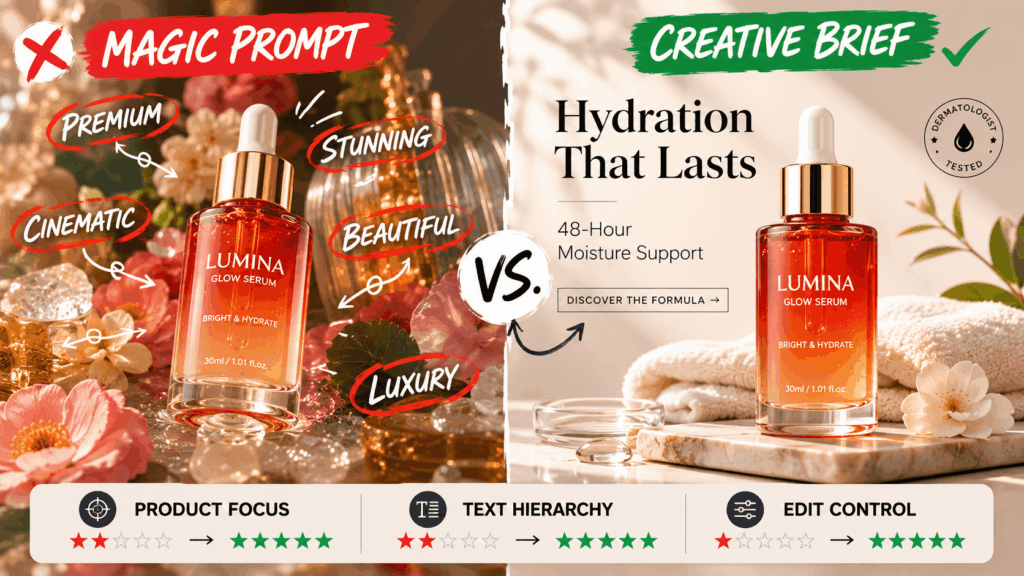
Create a premium, cinematic, stunning, luxurious, and beautiful skincare advertisement with professional lighting and an elegant editorial mood.
The Creative Brief
Create a square launch ad for a hydrating facial serum. The audience is women aged 22–35 who like clean, modern skincare brands. Make the serum bottle the main focus. Preserve its shape, cap, label, logo, size, and front-facing angle. Place it in the lower center. Leave open space above for the headline. Add the headline “Hydration That Lasts” and the line “48-Hour Moisture Support.” Use soft daylight from the upper left. Create a warm bathroom background with one folded towel and a small stone tray. Keep the label readable. Do not add other products.
The second prompt is longer. However, length is not the main reason it works better.
Each part has a clear job.
The audience guides the style. Product priority controls the focus. Exact text supports the message. Meanwhile, the preservation list protects the packaging.
The first result may still need edits. Even so, the creator now knows what to check.
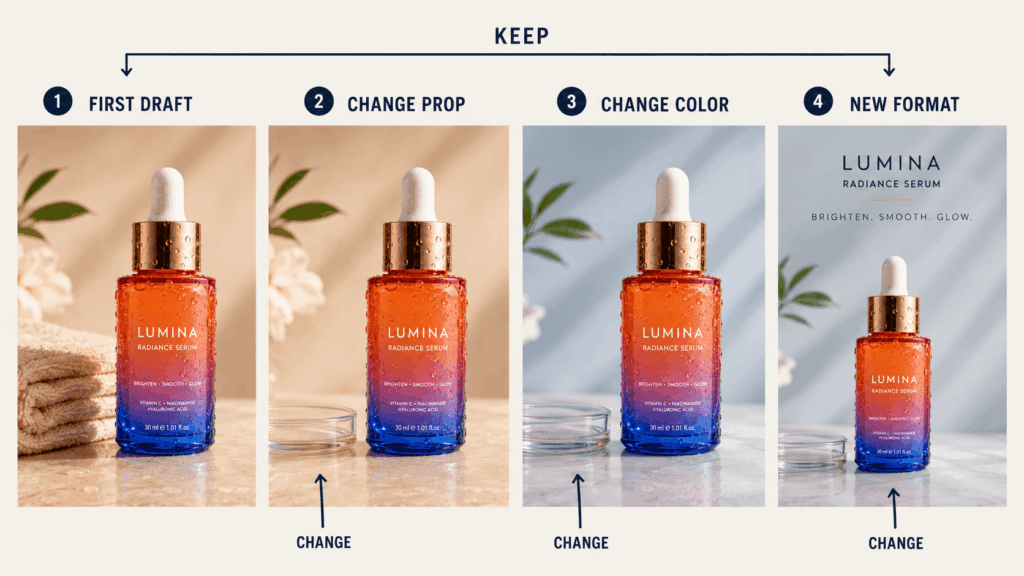
Use the First Image as a Draft
The first result should not be the final result.
Instead, treat it as a starting point.
For the first edit, you could write:
Keep the product, text, light, and layout unchanged. Replace the towel with a small glass dish.
Next, test a color change:
Preserve the full layout. Change only the background from warm beige to soft blue-grey.
After that, create another format:
Keep the product and text hierarchy unchanged. Create a vertical version with more space above the headline.
Because the original brief set clear limits, each new edit can stay focused.
As a result, the campaign is less likely to lose its original look.
A Simple Creative Brief Template
Use this structure before writing new Seedream 5.0 Pro prompts.
Project Goal
Explain what the image needs to achieve.
Audience
Describe the people who should respond to it.
Main Focus
Name the product, person, or message that should lead the image.
Message Order
Decide what viewers should notice first, second, and third.
Exact Text
Add the final headline, supporting copy, labels, and call to action.
Layout
Set the format, subject position, text area, and empty space.
Light and Style
Describe the light source, background, colors, camera angle, and mood.
Protected Details
List the parts that must stay unchanged.
Planned Changes
Name only the parts that should be added, removed, or replaced.
Final Use
State whether the image is for an ad, product page, social post, banner, or presentation.
Not every section needs a long answer. However, each one should contain a clear choice.
Check the Brief Before You Generate
Before using the prompt, look for four things.
First, confirm that the main subject is obvious.
Next, check whether the text and layout have a clear order.
After that, review the protected details and planned changes.
Finally, remove words that sound impressive but do not add real direction.
A good brief should be easy for another person to understand. If someone else can follow it, the model has a better chance too.
Better Seedream 5.0 Pro Prompts Start With Clear Choices
There is no secret phrase that can guarantee a perfect image.
However, a clear process can make the result easier to control.
Begin with the goal. Next, define the audience. Then choose the main focus and reading order. After that, protect the important details. Finally, describe the exact change.
Better Seedream 5.0 Pro prompts do not need more magic words.
They need clearer choices.
Go to WeShop AI For Exploration: