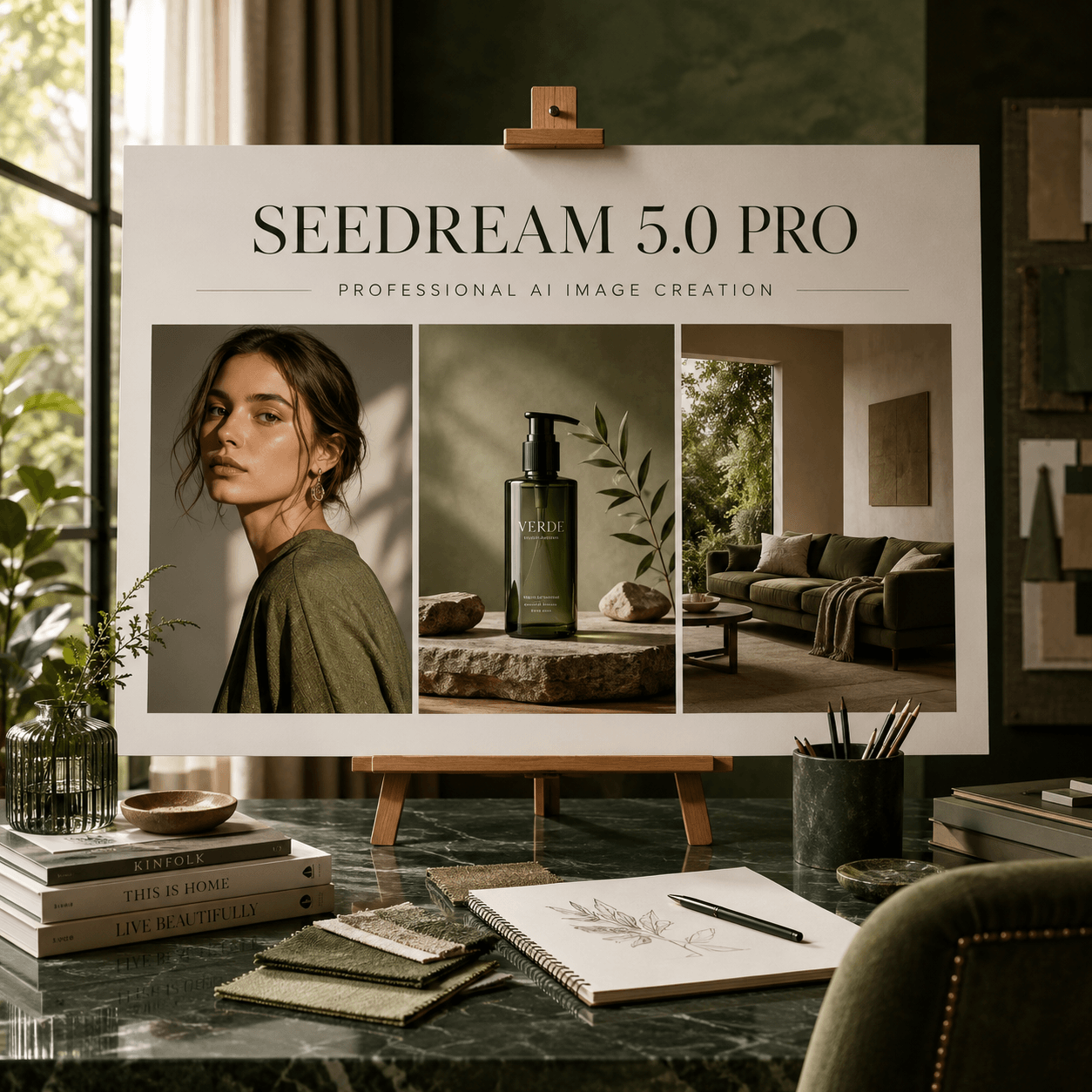
AI image editing often creates a new problem while fixing the first one. You ask for a blue jacket, but the face changes too. You remove one object, yet the lighting shifts. seedream5.0 offers a more focused way to work. It helps you mark the exact area that needs a change while keeping the rest of the image more stable.
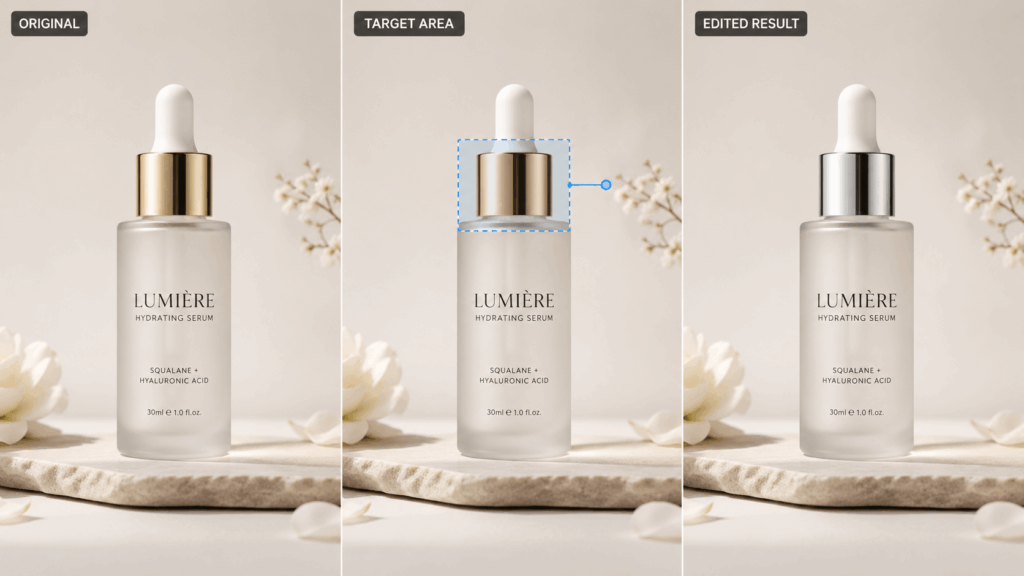
Stop asking the model to guess what you mean.
Why Small AI Edits Can Change the Whole Image
Many AI editors do not treat a small change as a true edit. Instead, they rebuild parts of the image. That is why a simple request can affect the face, pose, background, or camera angle.
Location words can also be unclear. “The chair on the left” may sound obvious to you. However, the model may choose the wrong chair, especially when several objects look alike.
Another problem is missing limits. Most users explain what they want to change. They do not say what must stay the same. As a result, the model has too much freedom.
A better edit needs three things. First, show the target. Next, explain the change. Finally, list the details that must remain untouched.
How seedream5.0 Makes Editing More Focused
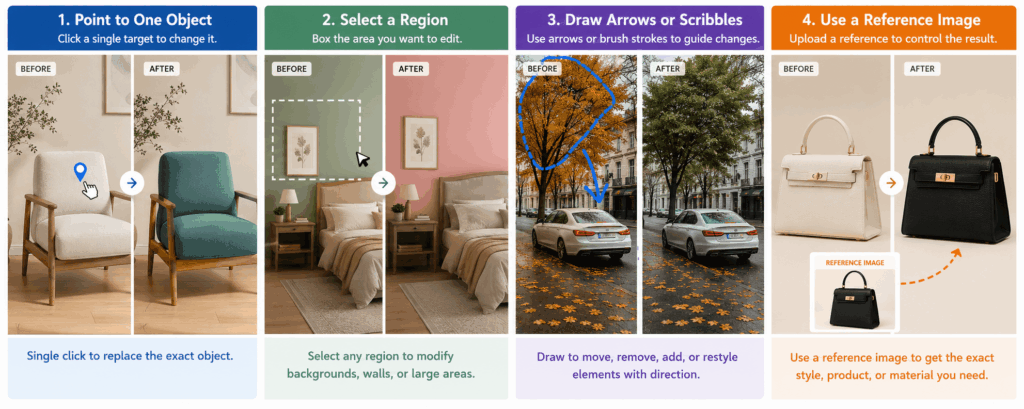
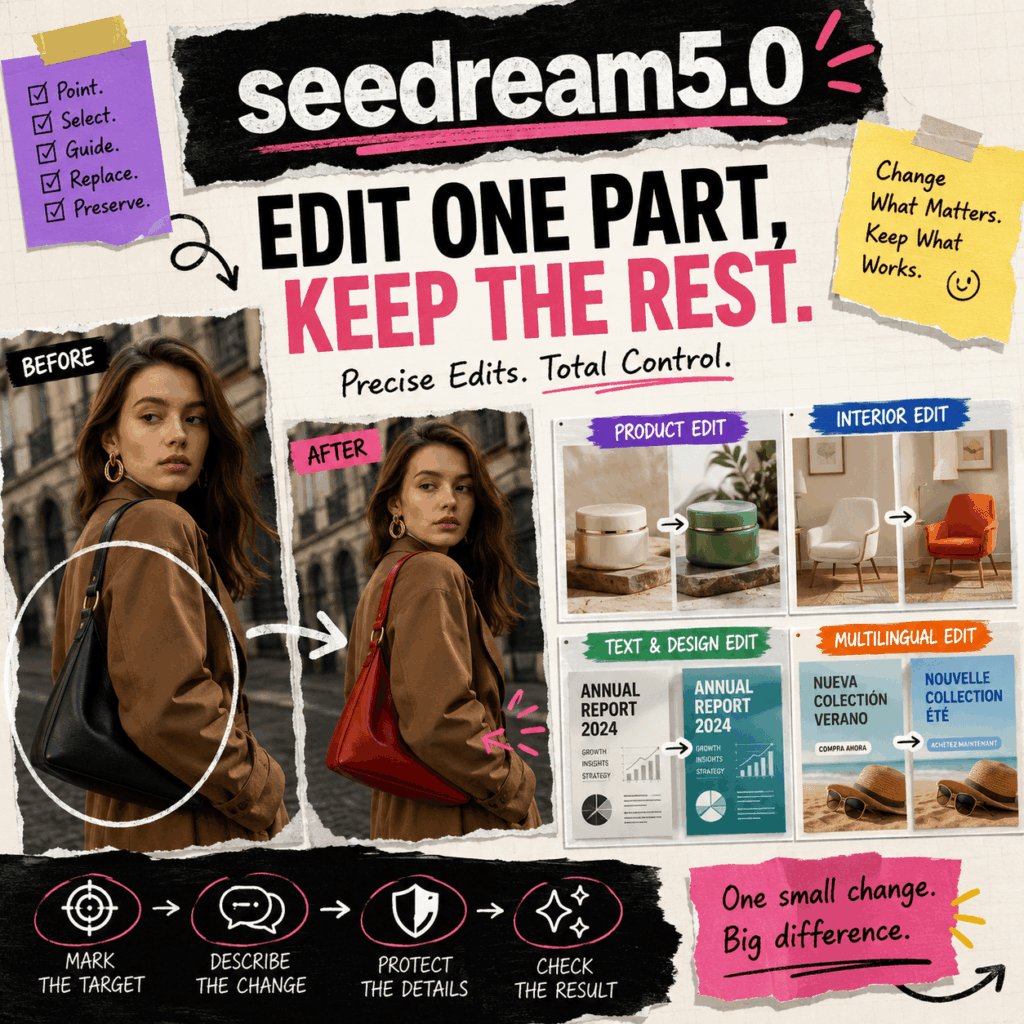
seedream5.0 supports a more visual editing process. You can guide the model with a point, a selected area, a sketch, or a reference image.
Point to One Object
Use a point when the image has one clear item to edit. It may be a bag, chair, label, jacket, lamp, or product. This removes much of the guesswork.
Select a Larger Area
A selected region works better for a wall, floor, background, or text block. Keep the area as tight as possible. A large selection gives the model more space to redraw.
Add Arrows or Simple Marks
Arrows can show direction. A rough line can show where an object should move. Meanwhile, color marks can separate two editing tasks.
Use a Reference Image
A reference image helps when you want a specific result. For example, you may want the exact chair, package, fabric, or visual style shown in another image. Still, explain how it should match the scene in scale, angle, light, and position.
A Simple seedream5.0 Editing Workflow
A good edit starts with the right base image. If the subject, layout, and camera angle already work, editing makes sense. When the whole scene feels wrong, starting again may be faster.
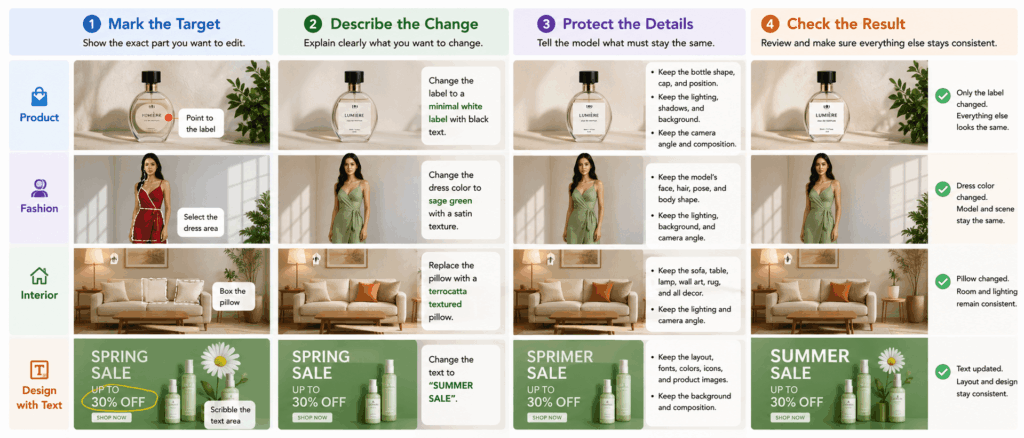
Step 1: Mark the Smallest Useful Target
Choose only the part that needs work.
For a dress color change, mark the dress rather than the model’s full body. For a label update, select the label instead of the whole package.
Step 2: Describe One Clear Change
Use a direct action word, such as change, replace, remove, add, move, or recolor.
Avoid vague requests like “make it better.” They give the model no clear finish line.
For example:
“Change the marked jacket to deep navy blue with a soft cotton texture.”
Step 3: Say What Must Stay the Same
This step protects the image.
For a fashion photo, keep the face, hair, pose, body shape, light, and background. A product image may need stable logos, package shapes, reflections, and shadows. In an interior scene, protect the windows, room size, walls, floor, and camera view.
Step 4: Check the Result at Full Size
Small previews can hide mistakes. Inspect the edges, text, hands, shadows, and reflections.
Then compare the result with the original. When one detail is wrong, make one more focused edit instead of rewriting the whole request.
Use the Change, Replace, Preserve Formula
Long prompts are not always better. A short structure is often easier to control:
Target + Requested Change + Details to Preserve
Here are three examples:
“Change the marked handbag from black to red. Keep its shape, stitching, metal parts, position, and shadow unchanged.”
“Replace the selected chair with the chair in the reference image. Match the same scale, angle, light, and shadow. Keep the rest of the room unchanged.”
“Remove the marked bottle from the table. Rebuild the table surface. Keep the person, background, crop, and camera angle unchanged.”
Each prompt answers three questions: Where should the model work? What should it do? Where should it stop?
Where seedream5.0 Can Be Most Useful
Focused editing has the most value when an image is already close to finished.
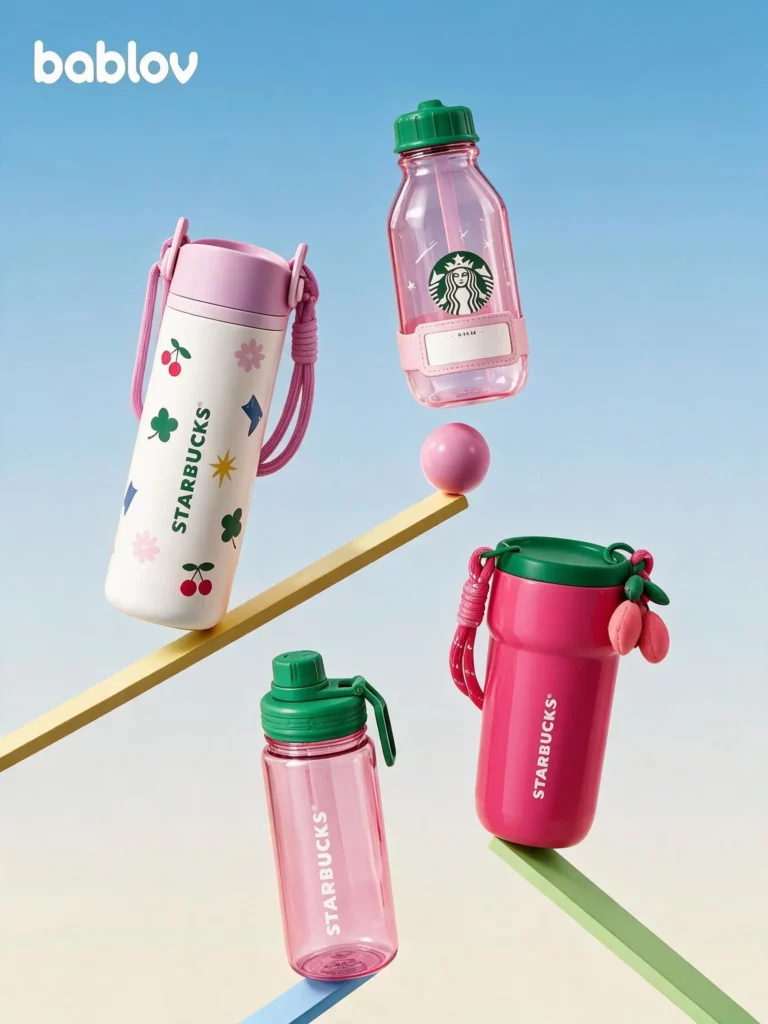
Product and Ecommerce Images
A seller may need a new label, color, badge, background object, or offer. However, the product shape should remain stable.
With seedream5.0, one approved image can support several store or campaign versions.


Fashion and Portrait Images
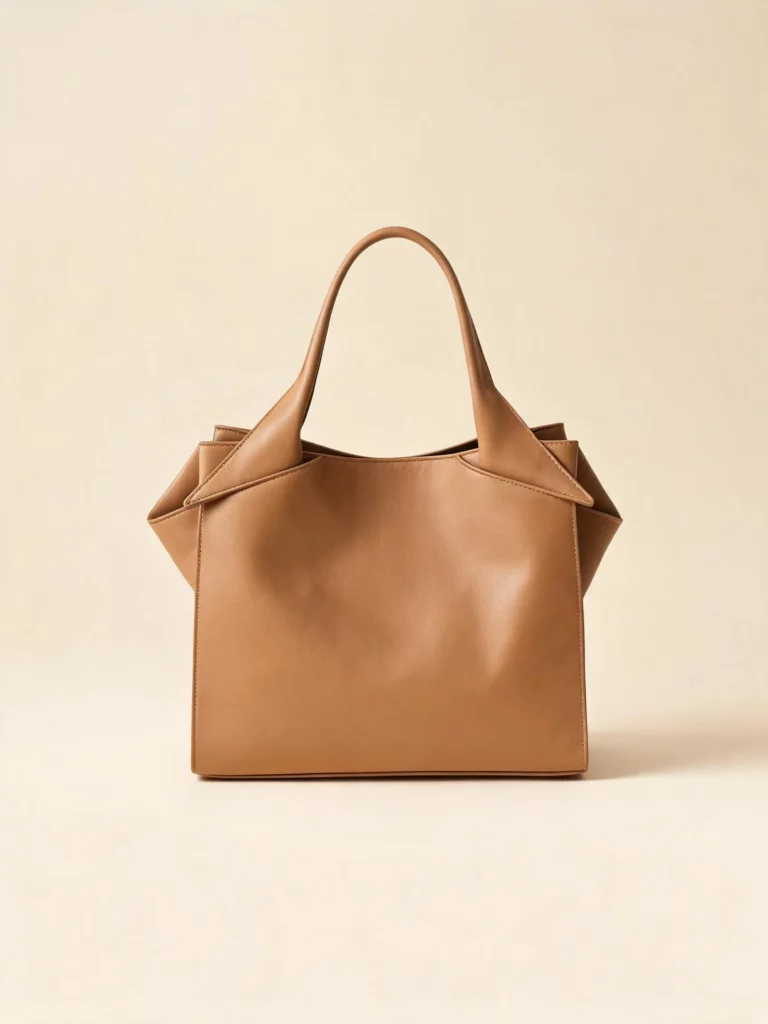
A creator may want to change an outfit color, fabric, or accessory. At the same time, the face and pose must stay consistent.
Use a narrow mark around the clothing or item. Then name the identity details that should remain unchanged.
Posters, Infographics, and Text-Rich Designs
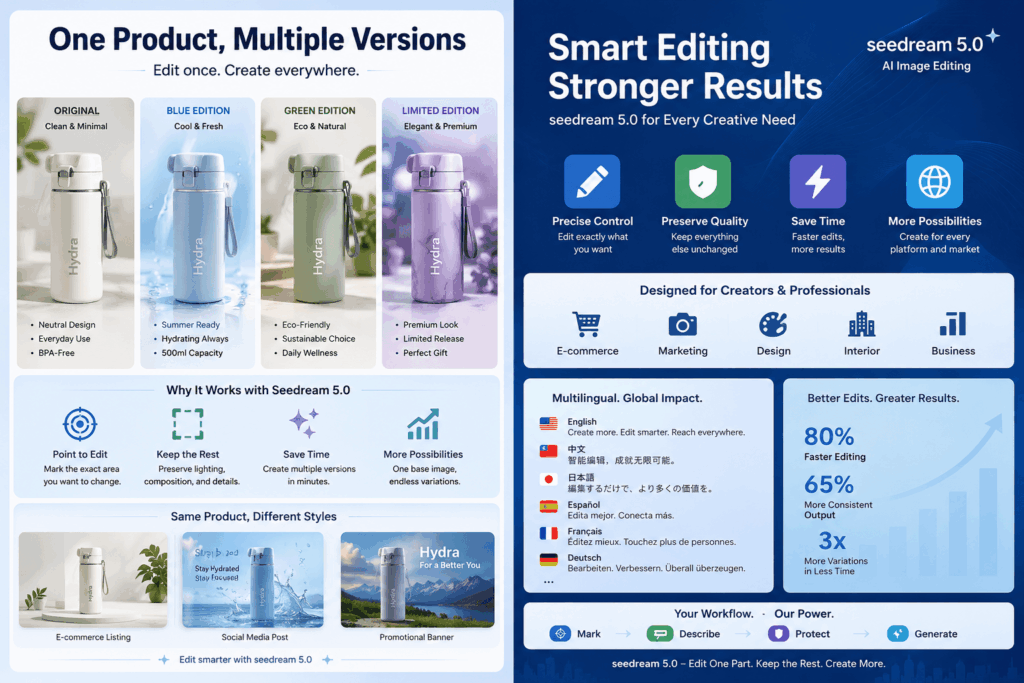
Some edits involve text rather than objects. A brand may need a new headline, language, label, or layout block.
In this case, mark the text area. Also protect the icons, images, color system, and visual order.
Interior and Design Images
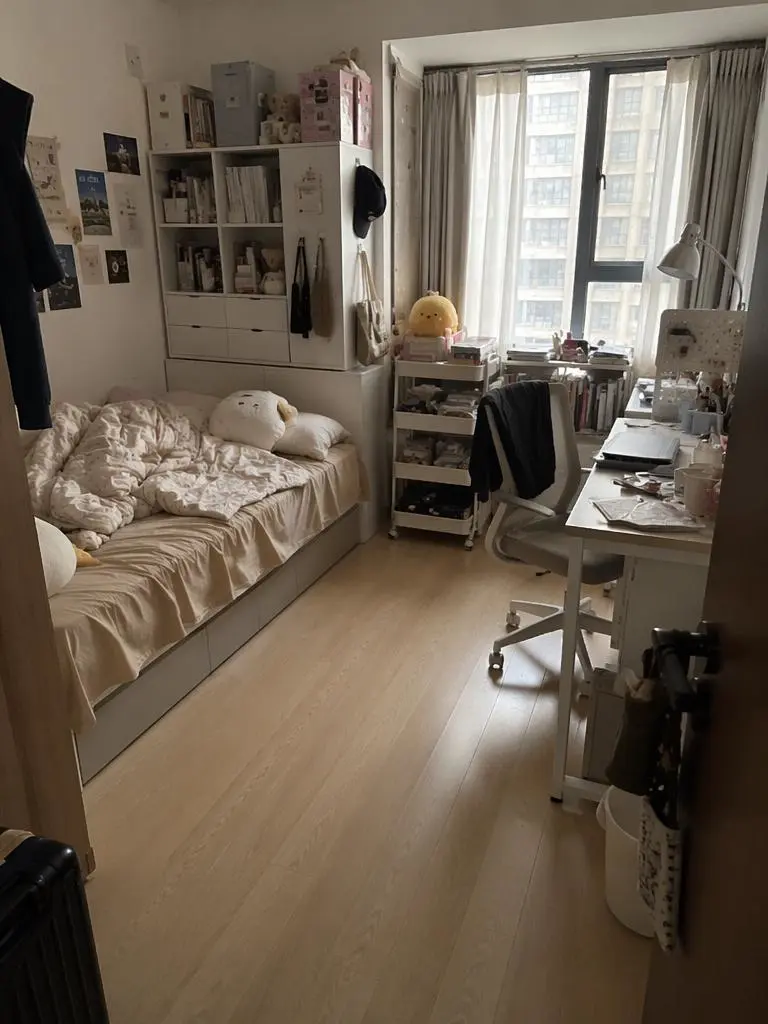
Design teams often need to test a new chair, wall color, material, or decor item. Yet the room view and structure should remain the same.
A reference image can guide the replacement while keeping the setting recognizable.
Localized Campaign Assets
One campaign may need several language or market versions. The main brand style should still feel consistent.
A strong base design can be adapted with new text, labels, or offer details. This works well for social posts, banners, and regional ads.
What Should Stay Unchanged?
Before you edit, make a short checklist. It may include:
- Subject identity
- Product shape
- Logo and label
- Pose and body size
- Camera angle
- Crop and layout
- Light direction
- Shadows and reflections
- Background structure
- Brand colors
Do not add every item to every prompt. Choose the details that matter most for the final image.
When to Edit and When to Start Again
Editing is best when most of the image already works. It is ideal for one or two clear problems.
Start again when the main subject is wrong. A new image may also be better when you need a different angle, layout, or scene.
This choice saves time. It also prevents endless repairs on a weak base image.
Final Thoughts on seedream5.0
Better AI image editing is not only about image quality. Control matters just as much.
seedream5.0 can help you focus on one object or region. Clear marks reduce guesswork. Short prompts define the change, while preservation notes protect the parts you already like.
Before you create another full batch, review the image in front of you. If most of it works, do not throw it away.
Point to the problem. Change that detail. Keep the rest.
Go to WeShop AI For Exploration: