Have you ever posted a gorgeous dinner photo on WeChat or Instagram, only to feel it looks a bit flat and lonely? You probably envy those top lifestyle influencers. Their photos are always full of life, packed with cute hand-drawn doodles and cozy inner monologues. However, if you are a “hand-cricket” artist who can’t draw a straight line to save your life, creating that casual, heartwarming vibe feels completely impossible.
But do not worry at all! Thanks to generative AI, you don’t need a single ounce of drawing skill today.
In this ultimate guide, I will show you how to use a magical prompt with WeShop AI (GPT Image 2 AI Image Generator). This tool acts just like a professional Ghibli Filter, instantly transforming your boring, everyday photos into viral masterpieces. It automatically traces your images and adds adorable, hand-drawn Japanese-style annotations. In less than 5 seconds, this Ghibli Filter magic will rescue your worst photos and turn them into perfect social media content!
🛠️ Prerequisites / Tools You Need
Before we start our creative journey, make sure you have these two essential tools ready:
- The Main Tool: WeShop AI (GPT Image 2 AI Image Generator). This is a powerful AI tool that scans your image elements and applies a whimsical, hand-drawn Ghibli Filter effect.
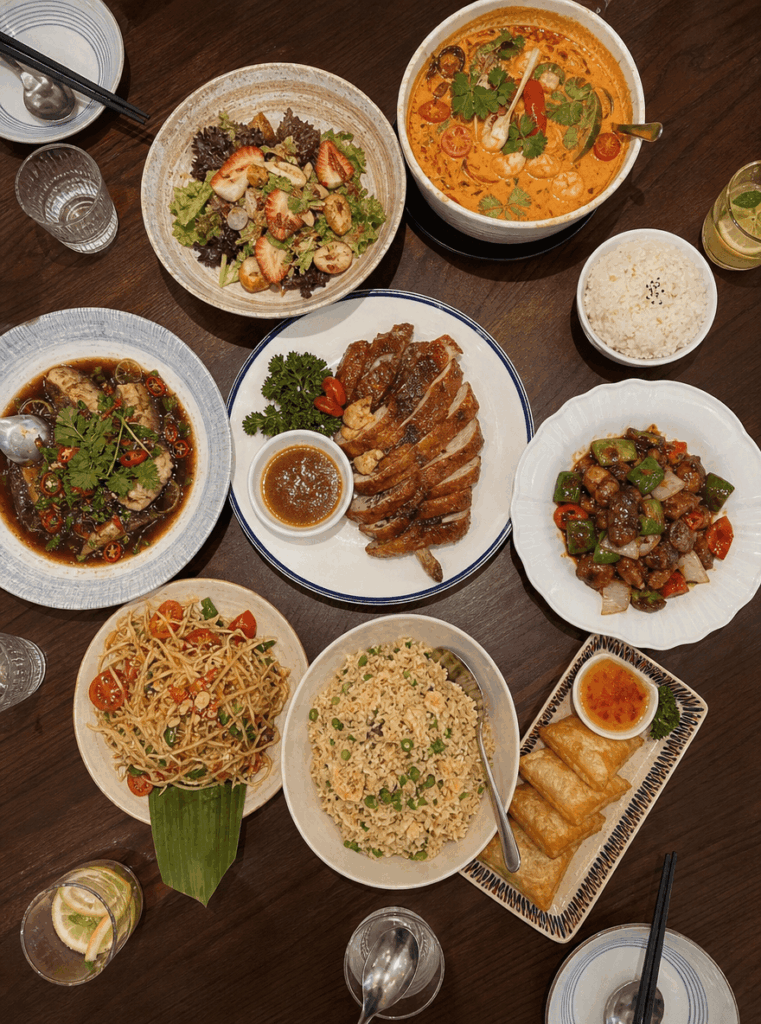
- Your Raw Photo: Choose a clear everyday picture. A multi-element food photo, like the one in 3.1.jpg, works beautifully for your very first try.
📐 Step-by-Step Guide
📂 Step 1: Open WeShop and Upload Your Photo
First, visit the WeShop AI GPT-Image page. Locate the upload area on the clean, user-friendly dashboard. Next, upload the plain photo you want to redesign.
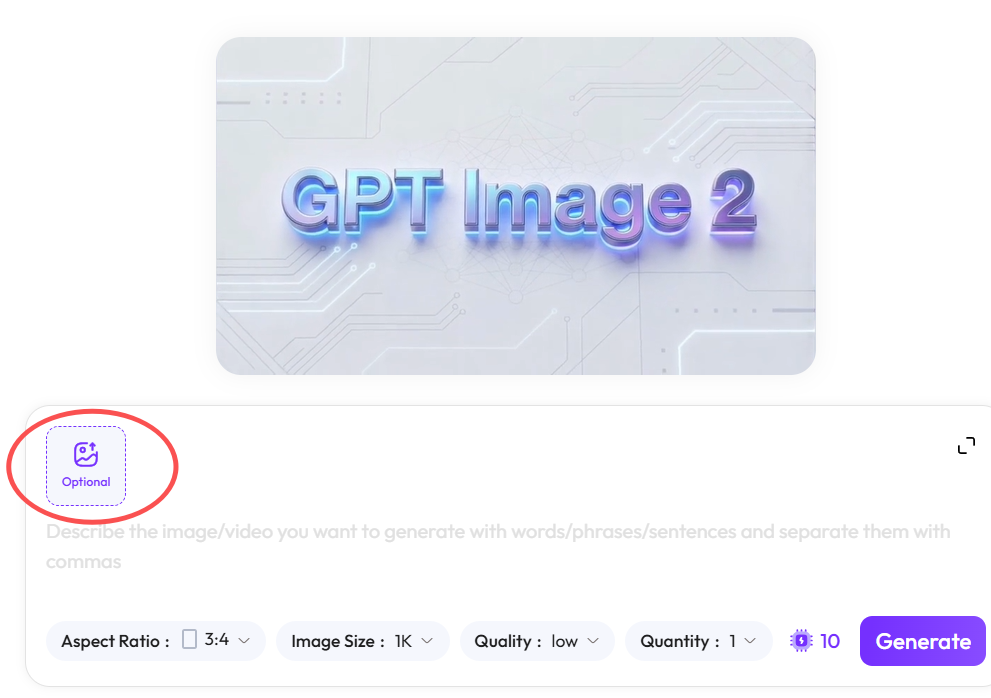
✍️ Step 2: Input the “God-Tier” Ghibli Filter Prompt
This second step is the absolute secret to unlocking the perfect cozy aesthetic. Instead of letting the AI add random text, you must give it strict, clear rules to simulate a authentic Ghibli Filter look.
Once your photo finishes uploading, simply copy and paste the exact prompt below into the command box. You can easily tweak the words inside the brackets to match your specific image:
Plaintext
Please carefully observe the elements in the photo and add meaningful, hand-drawn style annotations to each main object. Please follow these rules strictly:

[Drawing Rules]
- Use thin, white, hand-drawn style lines (like a white gel pen).
- Casual, continuous line art style with a slightly sketchy, uneven feel.
- Draw rough outlines/borders around the main objects.
- Use small arrows or dashed lines to point to the objects.

[Text Rules]
- Use a cute, handwritten aesthetic font.
- Keep the text very short, like a casual diary entry or inner monologue.
- The tone should be cozy, relaxed, and slightly emotional.

[Annotation Content Rules]
- For Drinks: Describe taste, temperature, or mood (e.g., "Refreshing", "A bit sweet", "Just right").
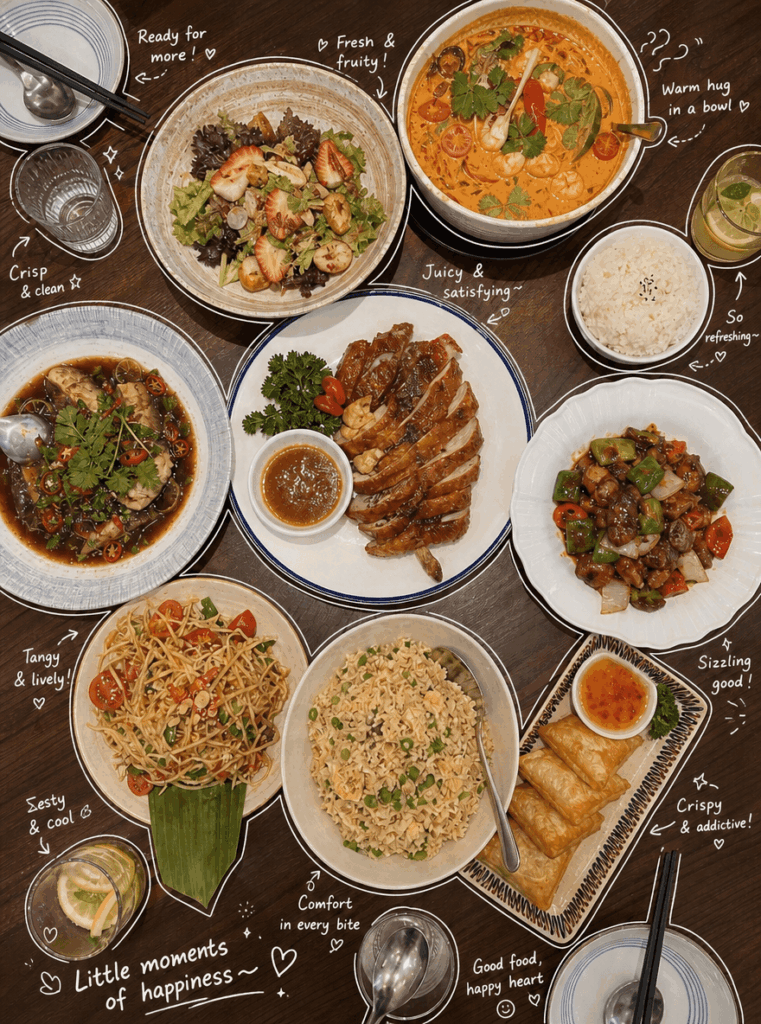
- For Food: Describe texture or tastiness (e.g., "Super yummy!", "Juicy", "So satisfying~").
- For Objects/Space: Describe the vibe or function (e.g., "Relaxing corner", "Love this vibe", "My daily essential").
- Overall Vibe: Add one summarizing sentence (e.g., "Little moments of happiness~", "Perfect day!").

[Decorations]
- Moderately add cute doodles like steam, sparkles, mini hearts, stars, or simple smiley faces.
- Do not over-clutter the image. Please leave enough negative space to keep it clean and breathable.
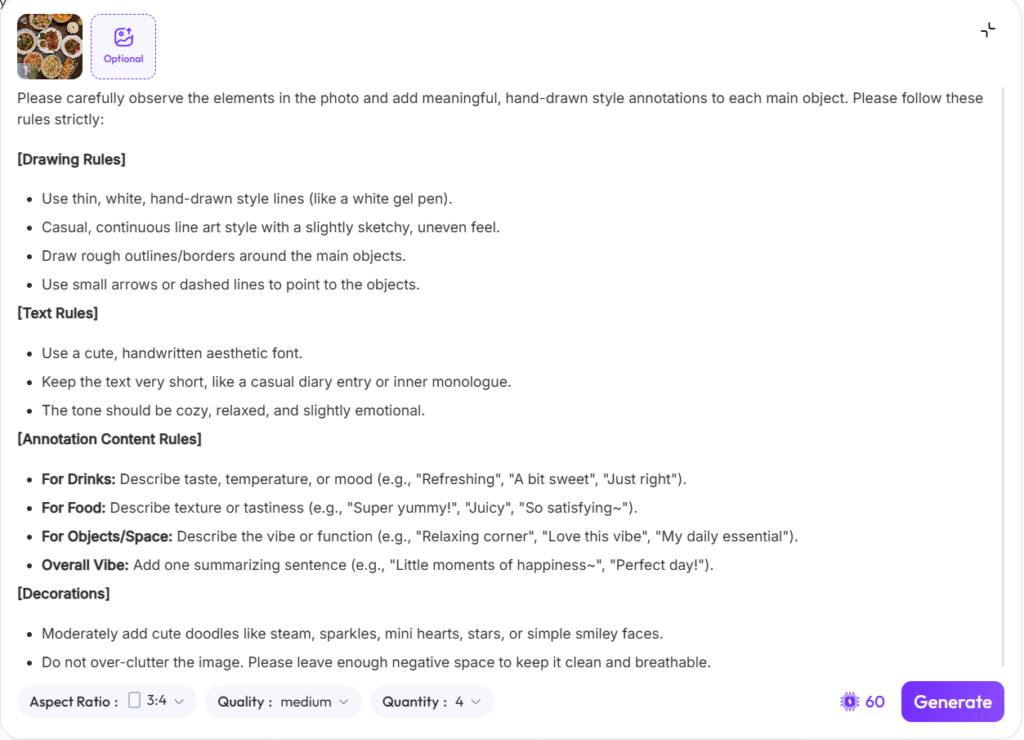
🚀 Step 3: Click Generate and Enjoy the Magic
Finally, hit the Generate button. Now, give WeShop AI a few seconds to work its sweet magic.
The AI accurately identifies the food items, like the soup, rice, and spring rolls. Then, it instantly wraps them in beautiful white lines and emotional text, creating an authentic Ghibli Filter style. Phrases like “Warm hug in a bowl ♡” or “Juicy & satisfying~” pop up naturally. Consequently, your basic dinner picture turns into a warm, cinematic movie frame!
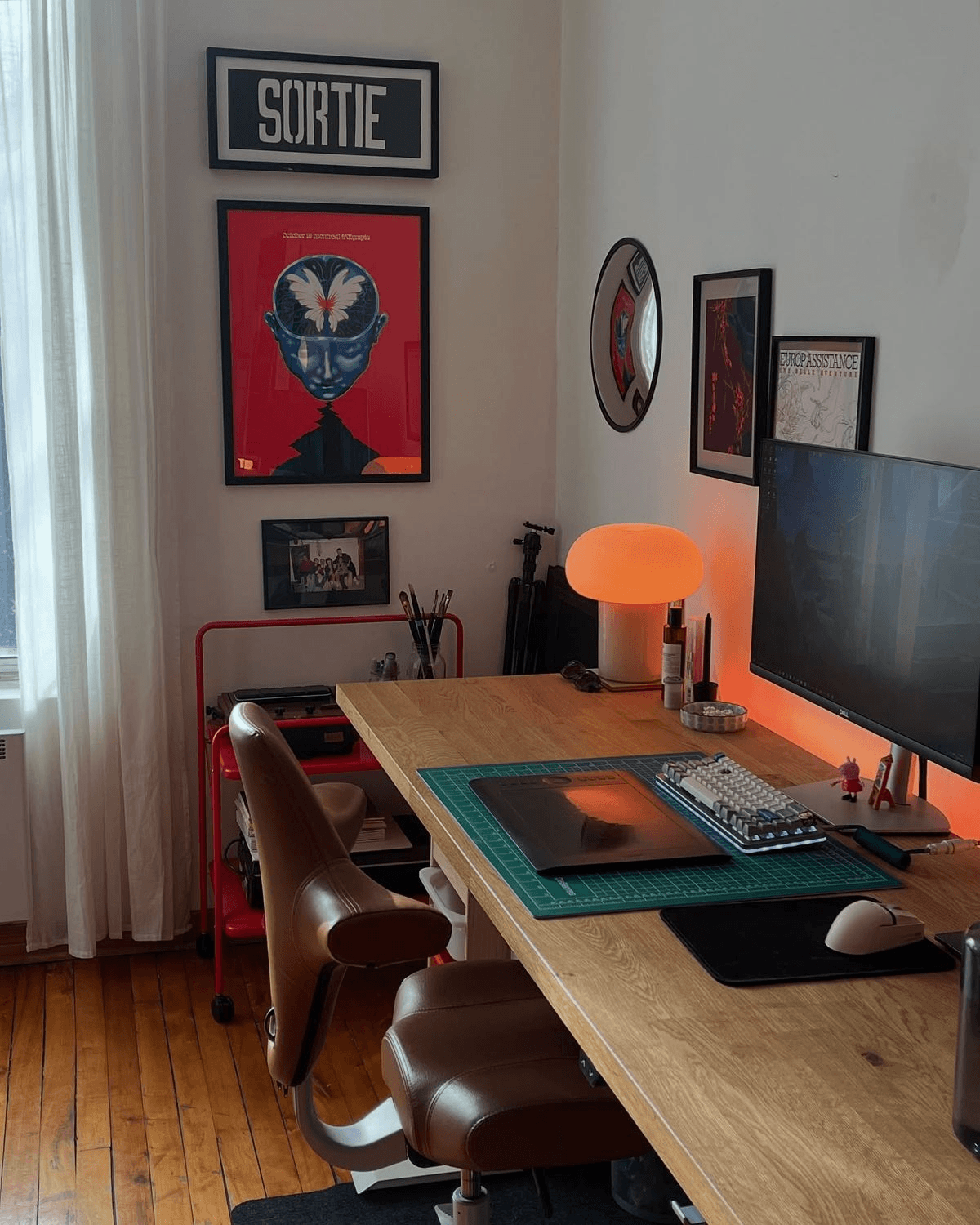
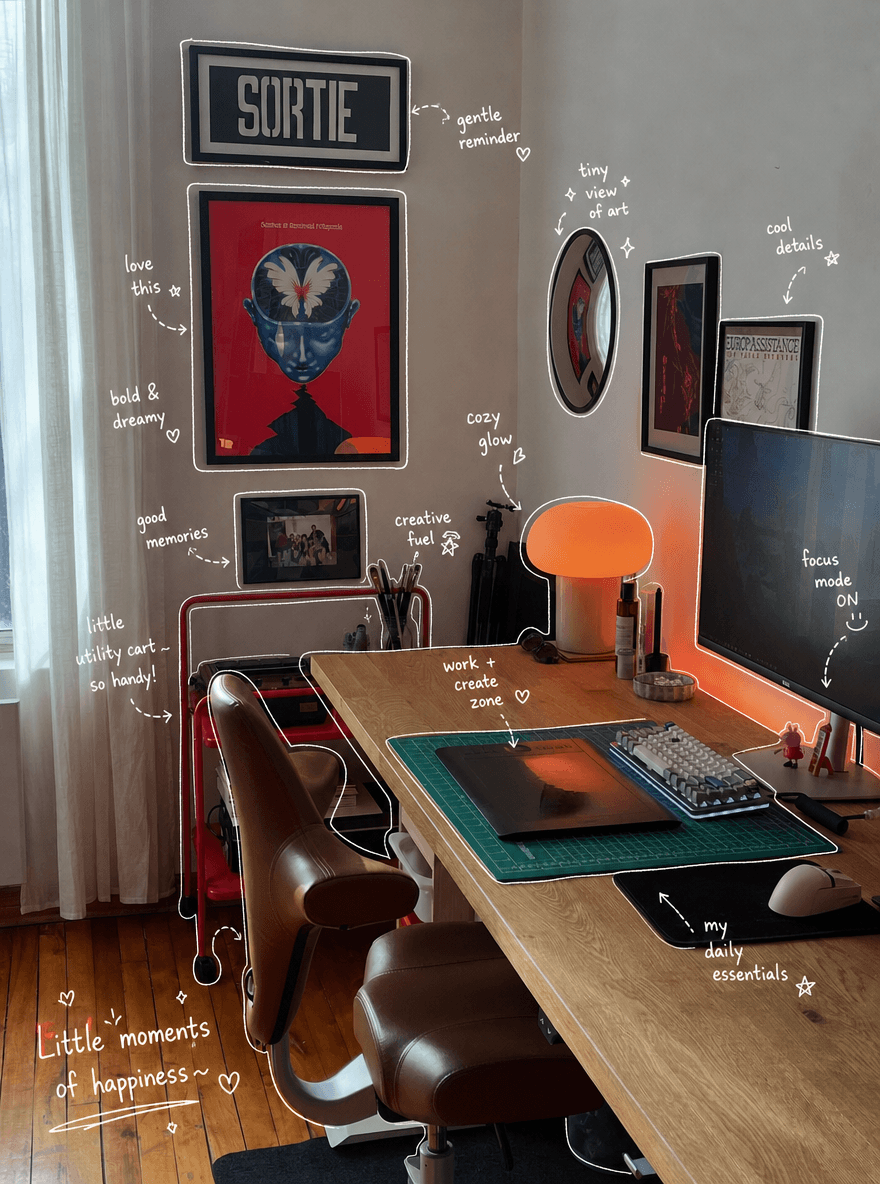
💡 Quick Pro-Tip: If your first result looks a bit too crowded or blocks your main subject, don’t worry. AI generation thrives on random beauty. Therefore, just click generate a few more times and pick the cleanest, most stylish layout.
💡 Advanced Pro-Tips for Your Ghibli Filter (FAQ)
❓ Why are my Ghibli Filter outlines breaking or blurry?
Answer: This usually happens because your original photo is too dark or lacks strong contrast. As a result, the AI struggles to find the crisp edges of your objects.
- The Fix: Before uploading your photo to WeShop, open your default phone editor. Simply boost the brightness and contrast slightly. This simple step helps the AI apply the Ghibli Filter lines flawlessly!
❓ Can I use this cozy Ghibli Filter on non-food photos?
Answer: Absolutely yes! The core logic of this technique is simply “object recognition + emotional labeling.” Therefore, you can use this creative Ghibli Filter style on almost anything:
- OOTD (Outfit of the Day): You can point to your shoes and add “Walk with comfort”, or label your bag as “My daily favorite”.
- Desk Setup: Highlight your coffee, keyboard, or iPad to build a cozy, high-vibe aesthetic.
- What’s in My Bag: Turn a cluttered pile of travel gear into a clean, charming diary layout.
- Be Creative: Simply swap the “Food/Drinks” category in the prompt rules for things like “Clothing materials” or “Gadget brands” to level up your content game.
✍️ Final Thoughts
In our fast-paced digital life, photos are more than just memories. They represent our personal attitude towards life. By mastering the right prompt and using a clever tool like WeShop AI, you can breathe warmth and life into any boring photo. Turn on your Ghibli Filter mindset tonight, grab an old photo from your gallery, and try it out. This emotional, hand-drawn look will definitely send your social media likes through the roof!
Go to WeShop AI For Exploration: