Funny, messy, and full of internet meme energy — GPT painting styles are becoming one of the biggest AI image trends online. Instead of polished AI portraits, people are now using GPT painting tools to create ugly-cute doodles, chaotic crayon sketches, sarcastic travel diary comics, and intentionally “bad-looking” meme art from ordinary photos. The charm of GPT painting is that it feels playful, handmade, and unexpectedly expressive. With just one uploaded image and a well-written prompt, AI can transform a normal selfie or travel picture into a hilarious GPT painting filled with rough marker textures, speech bubbles, uneven coloring, and hand-drawn internet humor in seconds.
Recently on social media, you must have come across those **”ugly-cute”, full of childlike innocence and a bit of a funny “meme” flavor** graffiti photos! Many people exclaimed, “OMG, this is so cute! I’m literally swooning over it!”
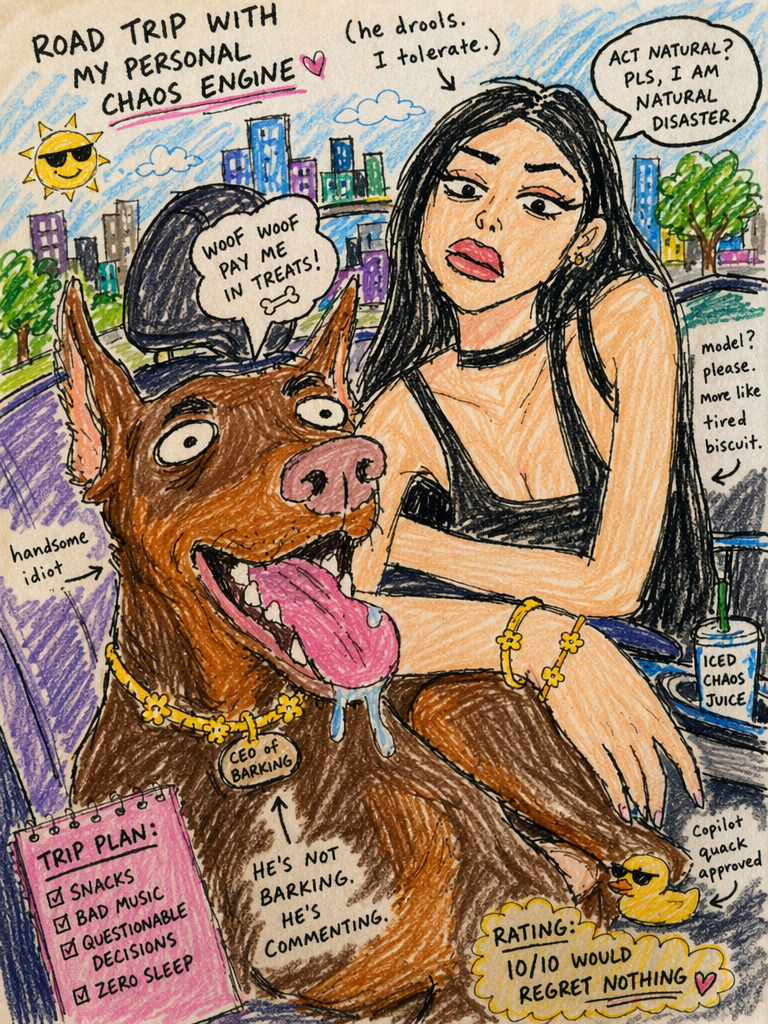
Actually, this kind of comic that looks like it was casually drawn on a travel diary with cheap crayons doesn’t require you to have any drawing foundation at all. Thanks to the current powerful GPT image generation technology, you only need to upload an everyday photo and pair it with a **”magic command”**, and AI can instantly generate a highly internet-savvy hand-drawn graffiti work for you.
This tutorial will guide you step by step on how to use professional AI tools to transform ordinary landscape or portrait photos into exclusive hand-drawn graffiti that makes people burst out laughing and can’t put it down. Are you ready? Let’s get started!
Preparation / Required Tools
Before you begin, please ensure you have the following two items ready:
- Image Creation Tool: WeShop AI – GPT Image (This is a very powerful and easy-to-use AI image generation tool that supports the image-to-image function).
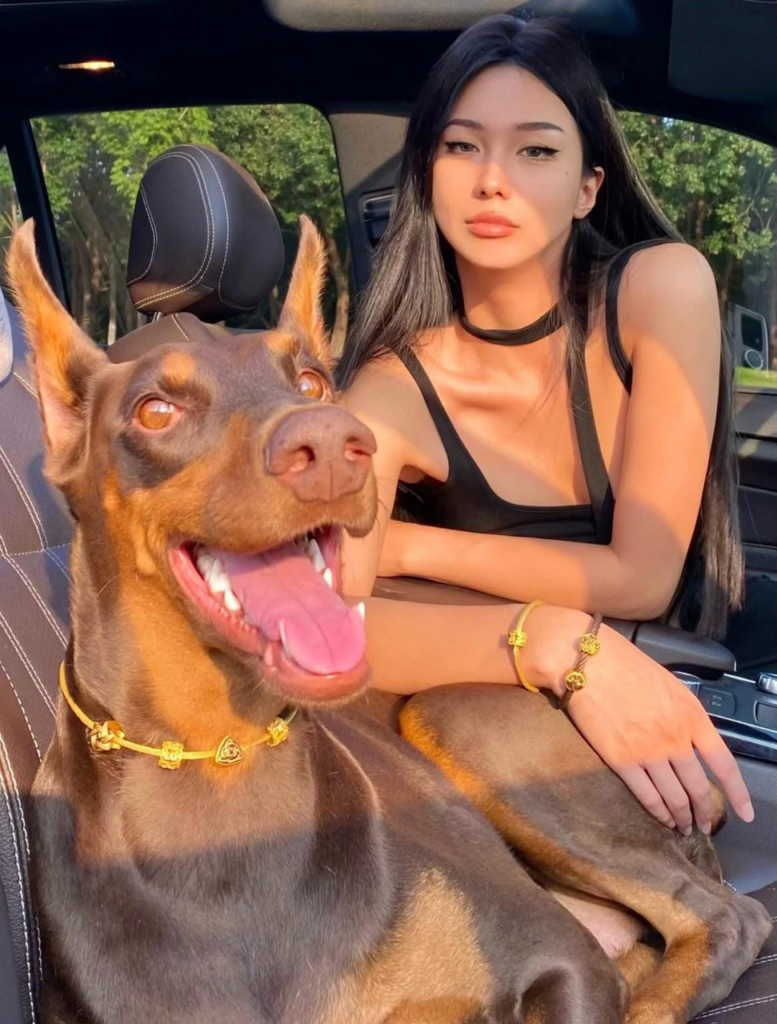
- Creative Photo: A photo you want to convert (it could be a selfie, a funny photo of a friend, or a landscape/street view photo taken during a trip. The more vivid the facial expression, the funnier the effect!)
Detailed Step-by-Step Guide
Step 1: Open the AI painting tool and import the photo
First, open the
in your computer or mobile browser.
After entering the page, find the <b> “Upload Image” </b> or <b> “Attach File” </b> button (usually a photo icon or plus sign) in the workspace. Click it to select the creatives photos you have prepared in advance from your local photo album and upload them to the dialog box.
[🖼️ Image Display Position 1]
(Tip for the author: Insert a screenshot here, highlighting the location of the WeShop AI image upload button with a red box to help newbies quickly find the entry point.)
Step 2: Enter the exclusive English magic command for “ugly cute doodles”
After the photo upload is completed, the most crucial step arrives – you need to give the AI an accurate prompt.
To ensure that AI can accurately understand and generate the best results,please directly copy the English prompt I have translated and optimized for you belowand paste it into the input box:
Turn this photo into a funny and ugly doodle painting. Make it look like this:
- Medium: A quick sketch drawn with cheap markers or crayons.
- Features: Messy, rough, and full of childishness; bad perspective and mismatched proportions; slightly exaggerated facial features.
- Additions: Simple cartoon backgrounds (such as buildings, trees, streets), casual thick lines and details, uneven coloring, and obvious brushstrokes.
- Style: Looks like a casual drawing, unpolished, with a sense of humor, somewhat silly "meme" style, casual internet vibe.
- DO NOT: Make it look realistic.
- DO ADD: A small amount of handwritten notes, speech bubbles, arrows, roasting text/funny sarcastic comments, and anthropomorphic small details, making the picture look like a travel diary doodle comic.
💡 Tips / Pitfall Avoidance Guide:
Why use English? Currently, the mainstream underlying large AI painting models understand English instructions most accurately. In this instruction, the logic of “not realistic, but add sarcastic text” in the original creatives has been logically reorganized through explicit
DO NOTandDO ADDto ensure that the AI does not get confused.
Step 3: One-click Generation and Effect Acceptance
After confirming that the photo has been uploaded and the English instructions have been pasted, click the Send/Generate button (usually the Enter key or the send arrow on the right).
Wait for about a dozen seconds, and GPT Painting will present you with a perfect reproduction of “travel diary doodles with marker sketches, messy thick lines, and sarcastic speech bubbles”!
[🖼️ Image Display Position 2]
(Hint to the author: Insert a side-by-side comparison of “original image vs. ugly-cute doodle image after AIgeneration” here to visually showcase the extremely adorable visual impact!)
If you are not satisfied with the result of the first generation, you can click “Regenerate” or make a slight adjustment in the instruction (see Advanced Techniques below) until you draw the most satisfactory “divine graffiti”.
Advanced Techniques / Frequently Asked Questions (FAQ)
Q1: How to make the picture more “exclusive”?
A: Customize your speech bubble text! In the default instructions, the AI randomly adds roasting text. If you want the speech bubble to say something specific, you can add a clear instruction at the end of the prompt, for example:Please add a speech bubble saying "OMG!".
Q2: Why does my generated photo still look too realistic?
A: Try to strengthen the “negative prompt” or adjust the weight. If the AI is a bit reluctant to distort your beautiful original image, you can emphasize the tone at the beginning of the prompt and change funny and ugly doodle painting to EXTREMELY ugly and childish crayon doodle to force the AI to abandon the sense of realism.
Q3: What kind of original image works best?
A: Photos with large action ranges and layered backgrounds. For example, photos of you jumping in front of a landmark building or your friend laughing and making a funny face. AI will automatically capture the buildings in the background and turn them into wobbly cartoon houses, while retaining exaggerated facial expressions, perfectly fitting the theme of “Travel Diary”.
Who could have thought that the “ugly-cute content style” we once casually doodled on the margins of textbooks could now become so vivid and interesting through AI! Whether it’s used as a WeChat avatar, to create exclusive emojis, or to document daily travel experiences, this little trick of WeShop AI will definitely earn you countless likes on your WeChat Moments.
Go ahead and try turning photos of your friends or pets into “meme”! If you encounter any issues during the operation, or create a super funny work, feel free to leave a message or share with pictures in the comment section, and let’s all be charmed together!👇
Go to WeShop AI For Exploration: