
1. Image Review Failed: Adjust Your Prompt and Source Image
If your task shows “Image review failed” as pictured below, the image has been blocked by the content review process. In the situation covered by this guide, the task involves NSFW (Not Safe for Work) content or overly revealing imagery.

Review both your prompt and your original image. Change content that is sexually explicit or overly revealing, and keep the request focused on a non-explicit image or clothing showcase. Then submit a revised task that follows the platform’s content guidelines.
Do not repeatedly submit the same restricted request or try to bypass the review. If you believe a non-explicit image was restricted incorrectly, share the task ID with support for investigation.
For more guidance, see WeShop AI NSFW Policy and Clothing Tutorials.
2. Peak-Time Rate Limits: Try Again Later
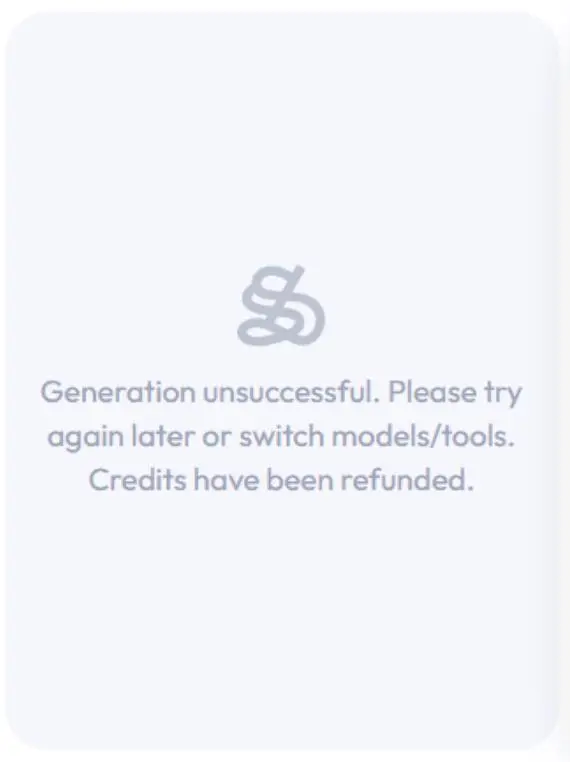
During periods of heavy use, generation capacity can be limited and tasks may be rate-limited. The example below shows:
Generation unsuccessful. Please try again later or switch models/tools. Credits have been refunded.
For the high-usage situation covered here:
- Wait a while before submitting the task again.
- Try generating outside busy periods when possible. No fixed off-peak schedule is guaranteed.
- Alternatively, try another available model or tool, as the message suggests. Review its settings and displayed point cost before submitting.
The screenshot states that credits for that failed task have been refunded. Check your point records if you need to confirm the return. This notice does not establish the refund outcome for every other type of failure.
The message alone does not identify every possible underlying cause. If the issue continues after retrying later, send the task ID to support so the team can investigate.
3. Any Generation Problem: Share Your Task ID with Support
For any task that cannot generate successfully, contact hi@weshop.ai and describe what happened. Include the task ID, the identifier beginning with “Task” or “task” and followed by a number. For example, Task-123456 is an illustrative ID; send your actual task ID.
Find the affected task in your workspace task list or history and share the ID shown for it. A screenshot of the message and the model or tool used can also help the support team investigate.
You may receive the following request from support:
Hi! Could you please let us know what issue you encountered during the generation process?
You can share the corresponding task ID (the number starting with “task”), and we’ll be happy to look into the issue, identify the possible cause, and help you resolve it.
Thank you for your patience and cooperation!
Reply with your task ID and a brief description of the problem. The support team can then look into the task and help identify the possible cause and next steps.