
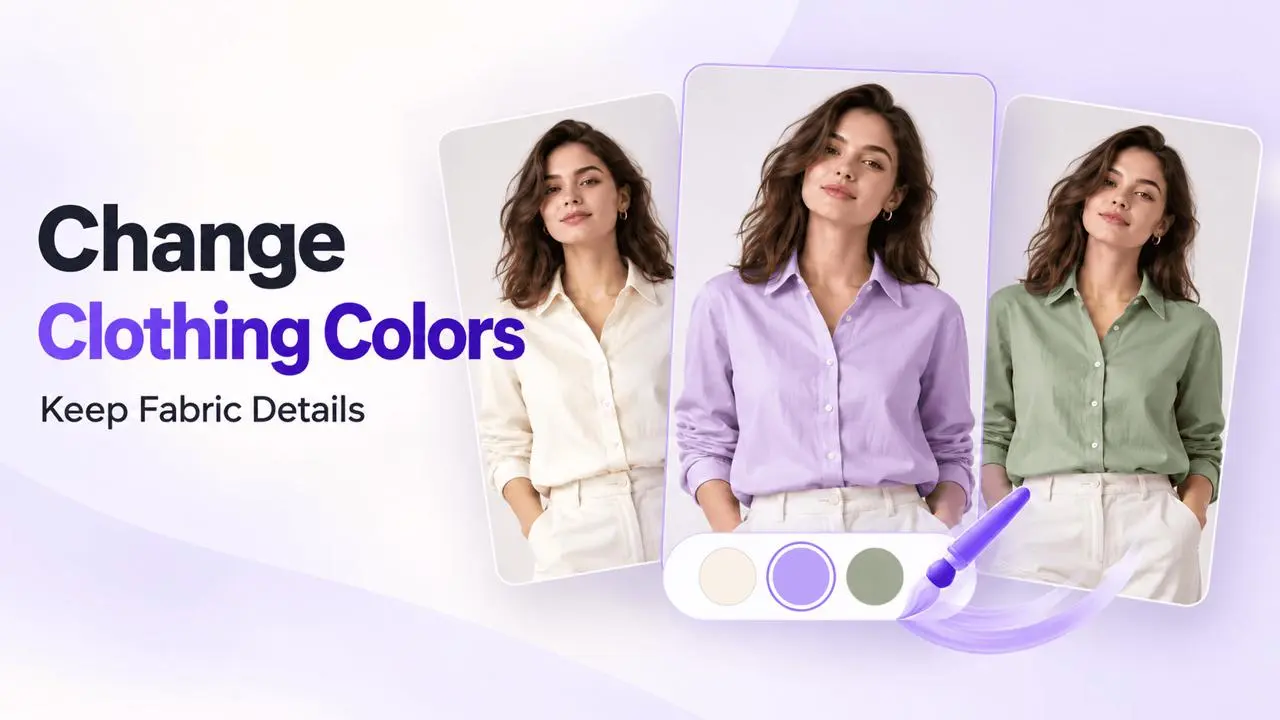
Prepare Your Image
Choose a clear, well-lit photo with the clothing easy to see. This guide follows the AI Model mask-and-prompt workflow shown in the original tutorial.
Step 1: Select What Should Stay Unchanged
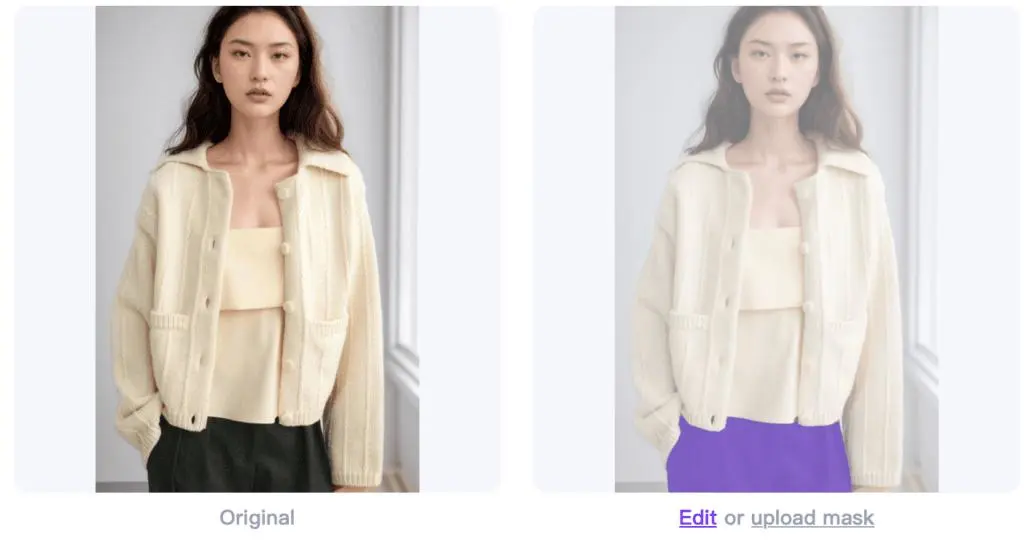
Upload the photo and open Edit Mask. In this AI Model workflow, select the parts you want to keep. The example preserves the lower garment so that the top can be regenerated in another color.
Step 2: Choose a Model, Scene, and Color Prompt
Select an AI model and an AI location. Add the color you want to the prompt. The tutorial uses:
wearing blue tops
Review the mask before generating so the garment you want to recolor is not included in the preserved area.
Step 3: Generate and Compare
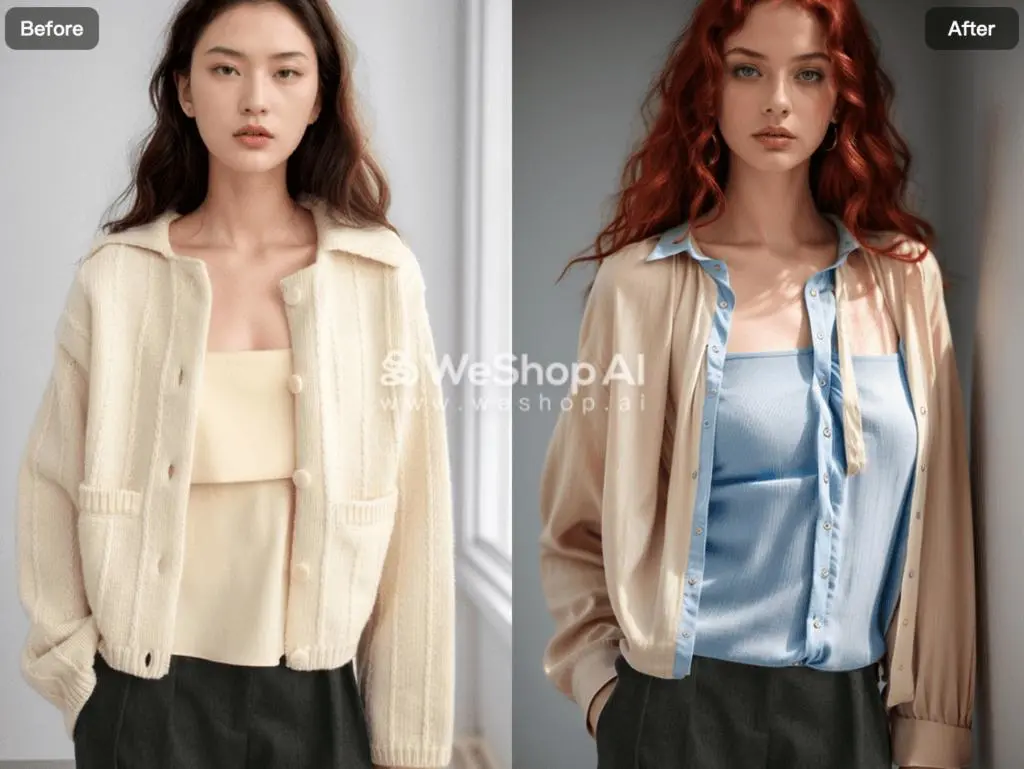
Generate the image. Change the color wording and try another result when needed. Compare the output with the source, especially the garment cut, buttons, seams, fabric texture, and other details that matter to the image.
This generation workflow can change more than color, so review the full garment rather than judging the color alone.
Color Examples
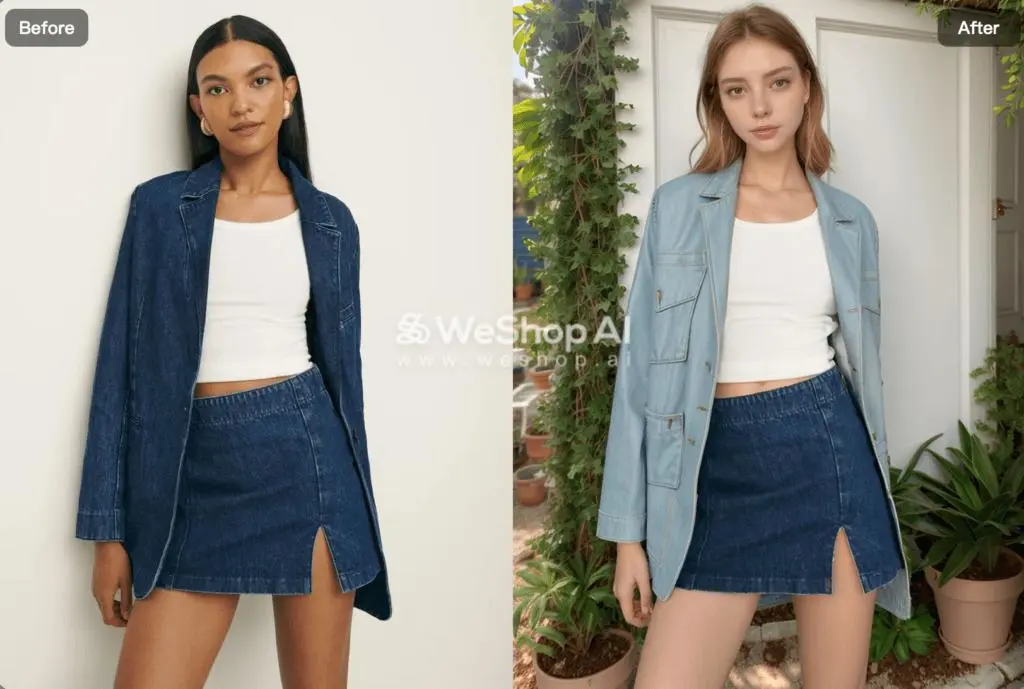
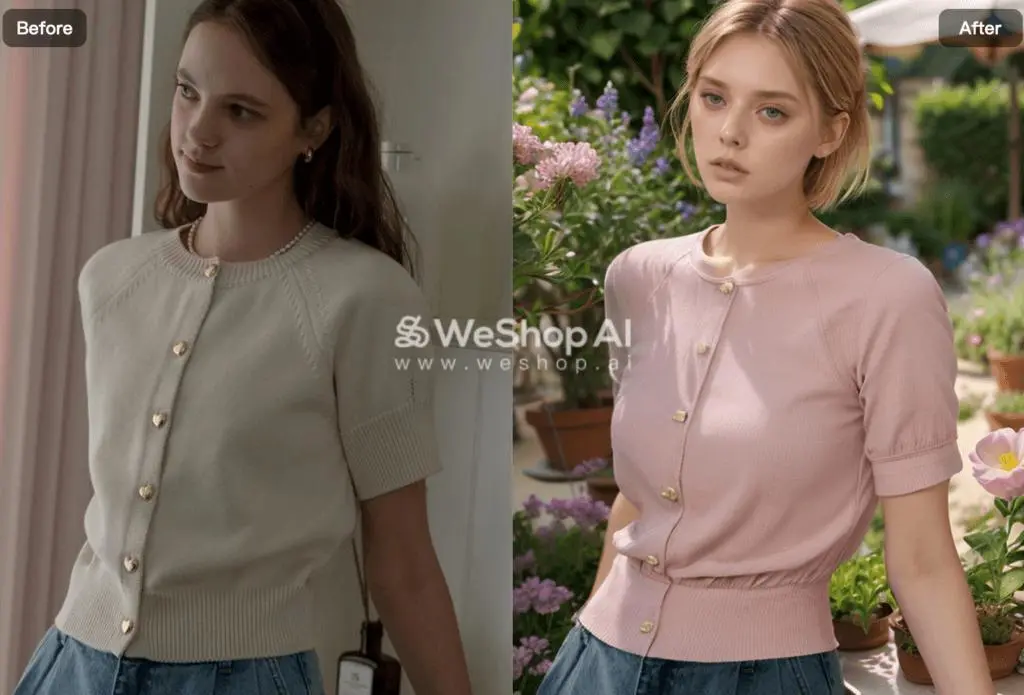
Improve the Comparison
Change one color direction at a time and keep your other settings as consistent as possible. Use the final image only after the edited garment and the preserved parts both look suitable.