
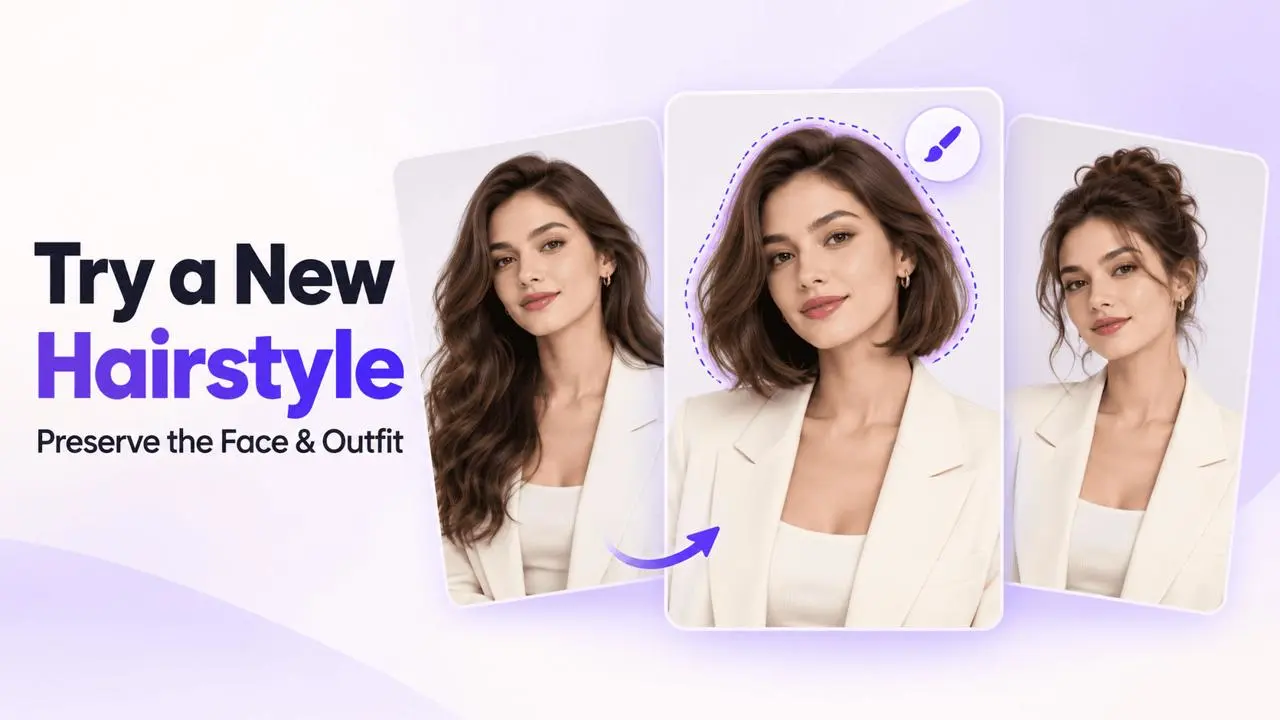
Start with a Clear Portrait
Choose a photo where the face, hairline, and clothing are easy to see. This guide follows the original AI Model hairstyle workflow: preserve the face and clothing, leave the hair available for generation, and describe the new hairstyle.
Step 1: Upload and Edit the Mask
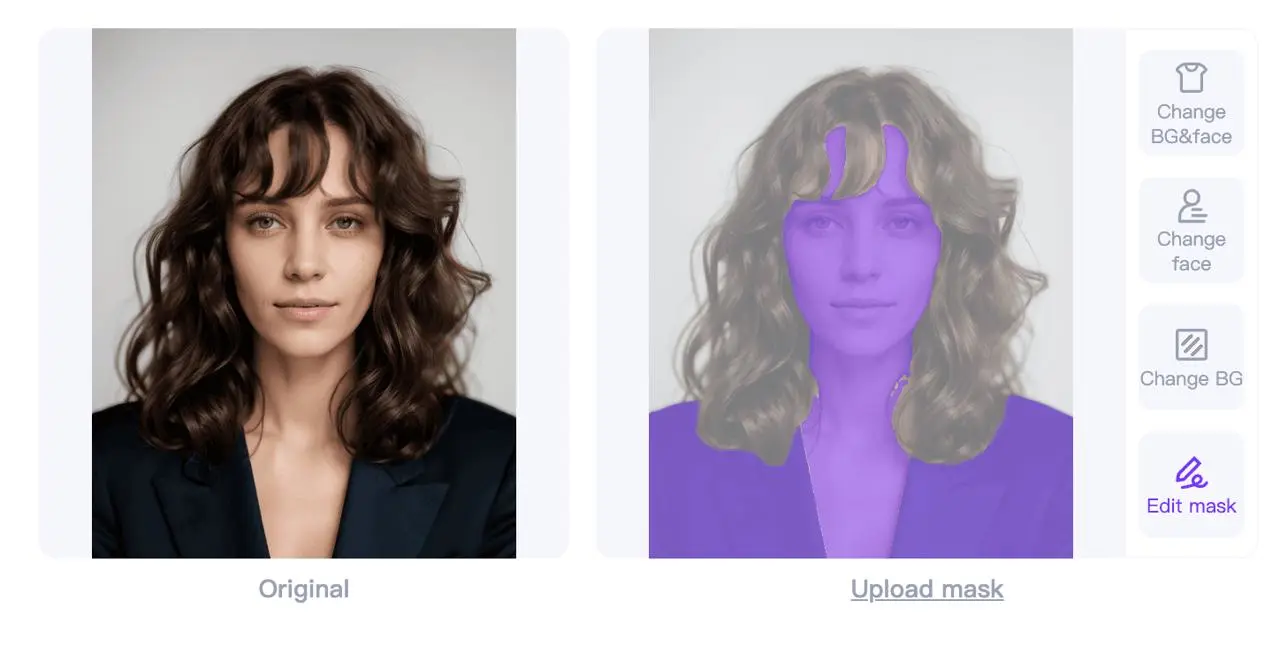
Upload the portrait and select Edit Mask. Manually select the face and clothing as the areas to keep unchanged. Leave the hair outside that preserved selection.
Step 2: Describe the Hairstyle
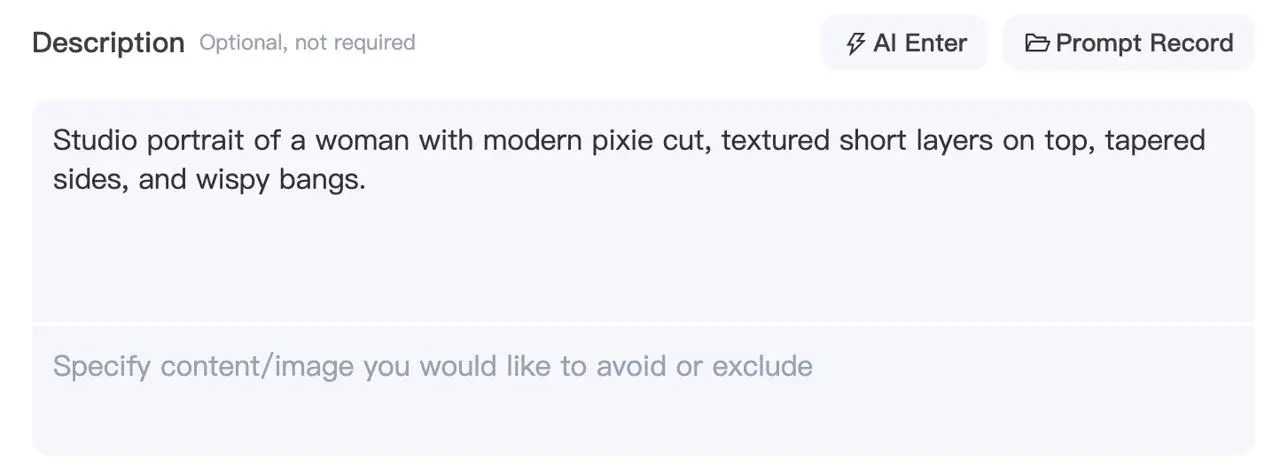
Describe the desired length, shape, texture, and color. Use one clear hairstyle direction so that the result is easy to compare with the original.
For example:
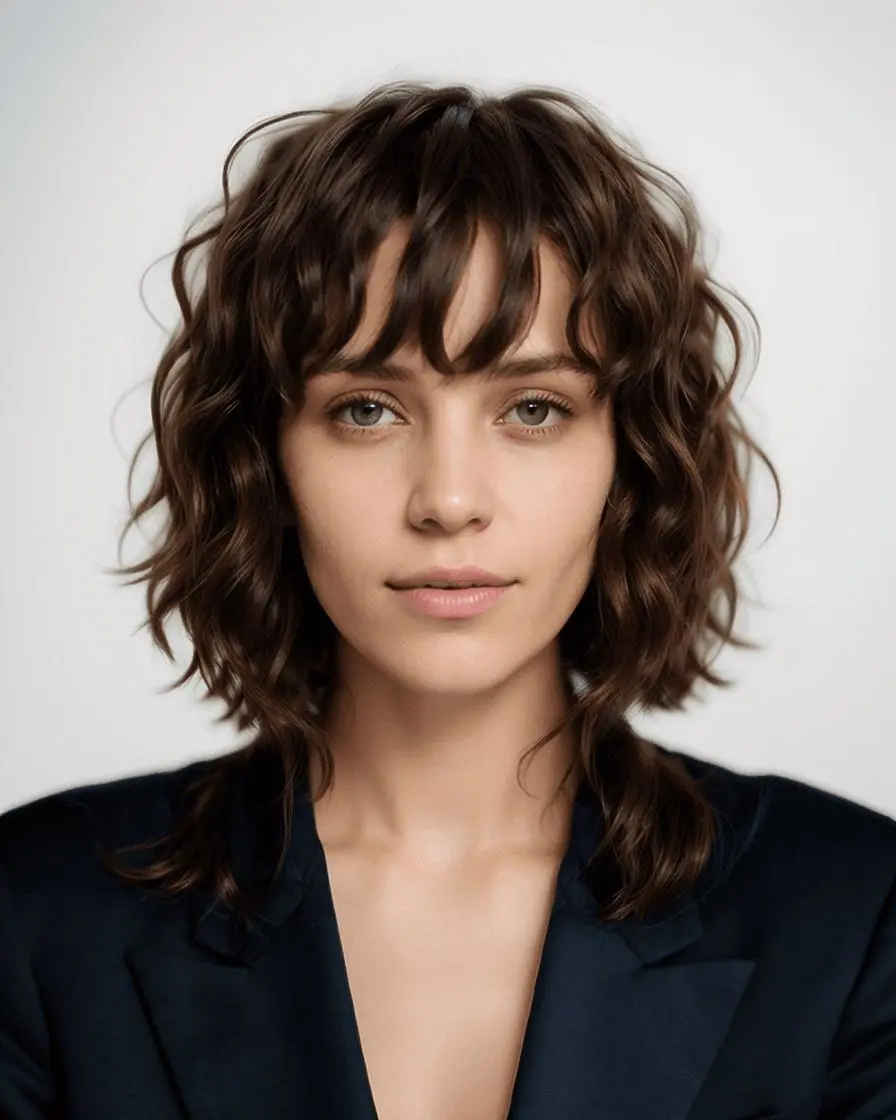
Shoulder-length dark brown hair with soft waves and a center part.
Check that the description matches the hair you want to generate and does not ask for unrelated changes.
Step 3: Generate and Review
Generate the image and compare it with the source portrait. Check the face, expression, hairline, hair edges, lighting, and clothing. If the face or outfit changes unexpectedly, review the mask before trying again.
Before-and-After Example
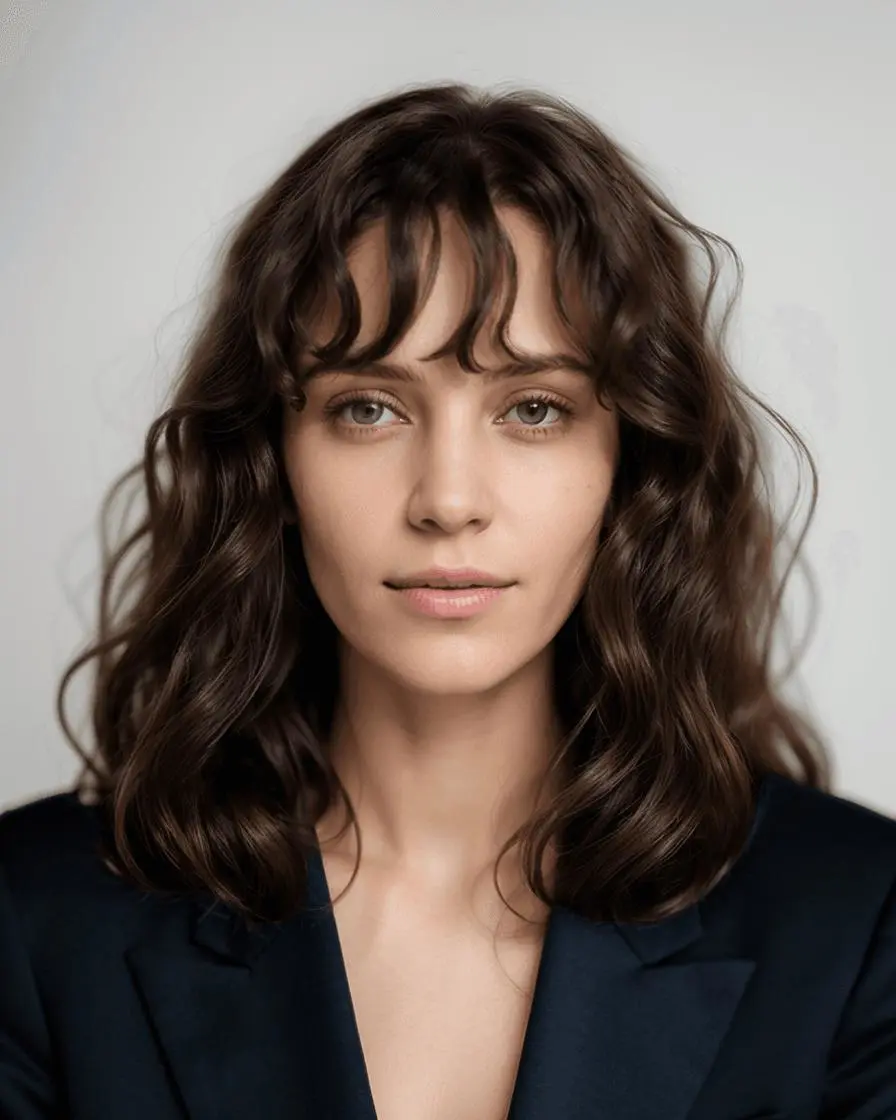
Try Another Variation
Keep the same portrait and change one feature at a time, such as length, bangs, texture, or color. A clear input image and a focused description make the variations easier to judge.