Seedream 5.5 is ByteDance’s image generation and editing model for successive revisions, transparent assets and text-led visuals. It is not integrated into WeShop yet. Explore the examples, prompts and version choices below.
Explore local replacements, scene-lighting edits and poster layouts through their inputs, changes and results.
Successive Edits to Accessories and Expressions
Compare successive changes to the person’s accessories and expression, checking the identity, clothing and background you want to retain. Specify the target and desired state for each edit, then inspect surrounding details.
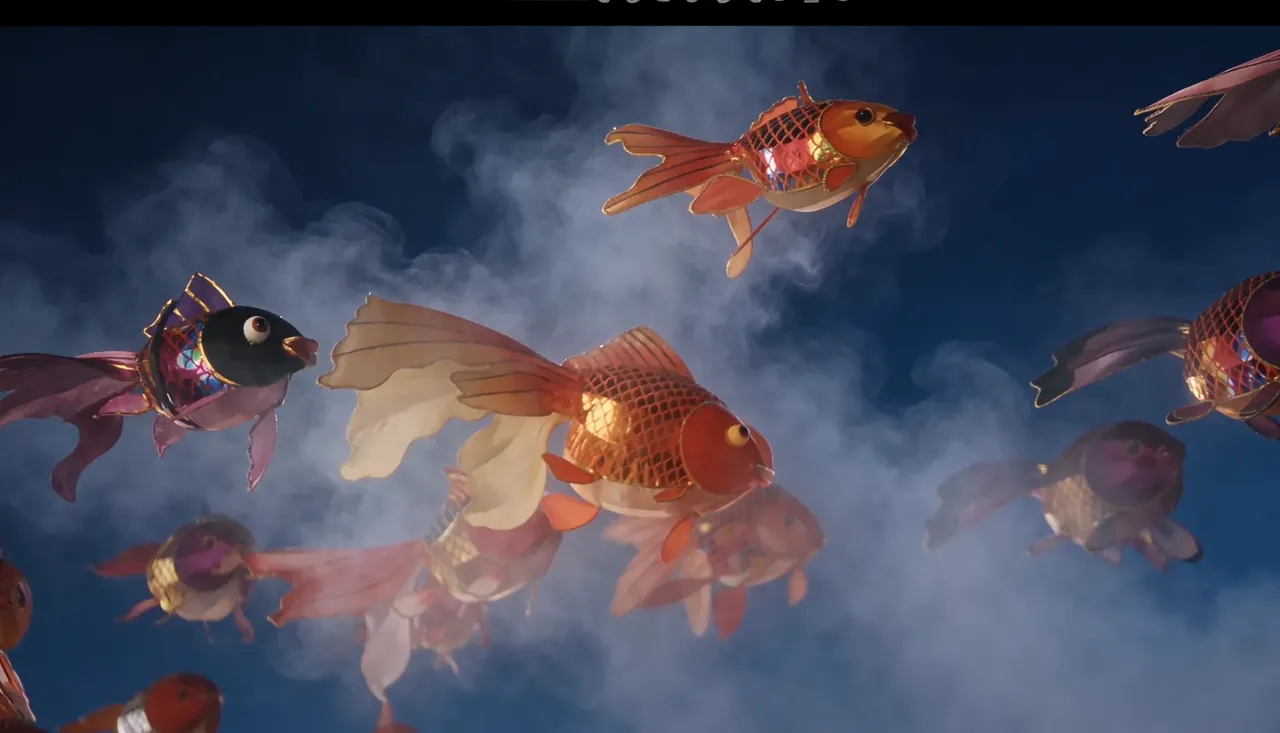
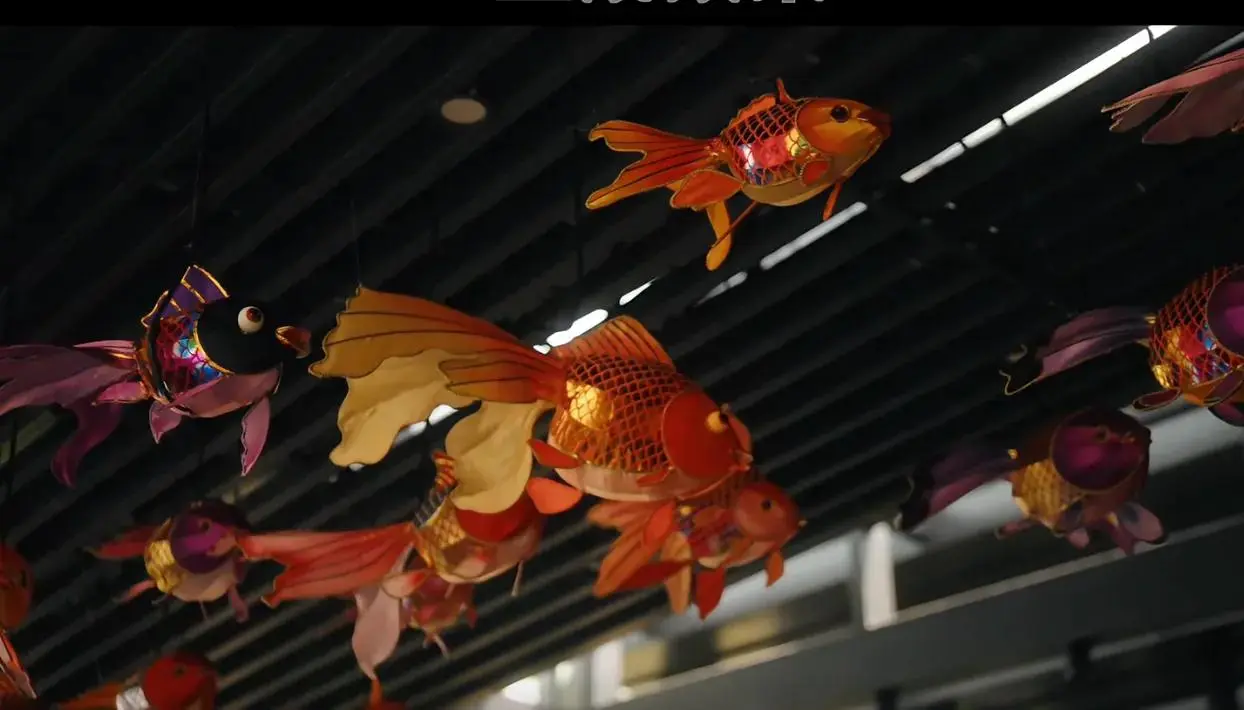
Add Smoke to a Lantern Scene
Compare the source and edited image for the translucency of smoke, the overlap around the lanterns and the transition in lighting. The reference shows the scene before smoke was added.
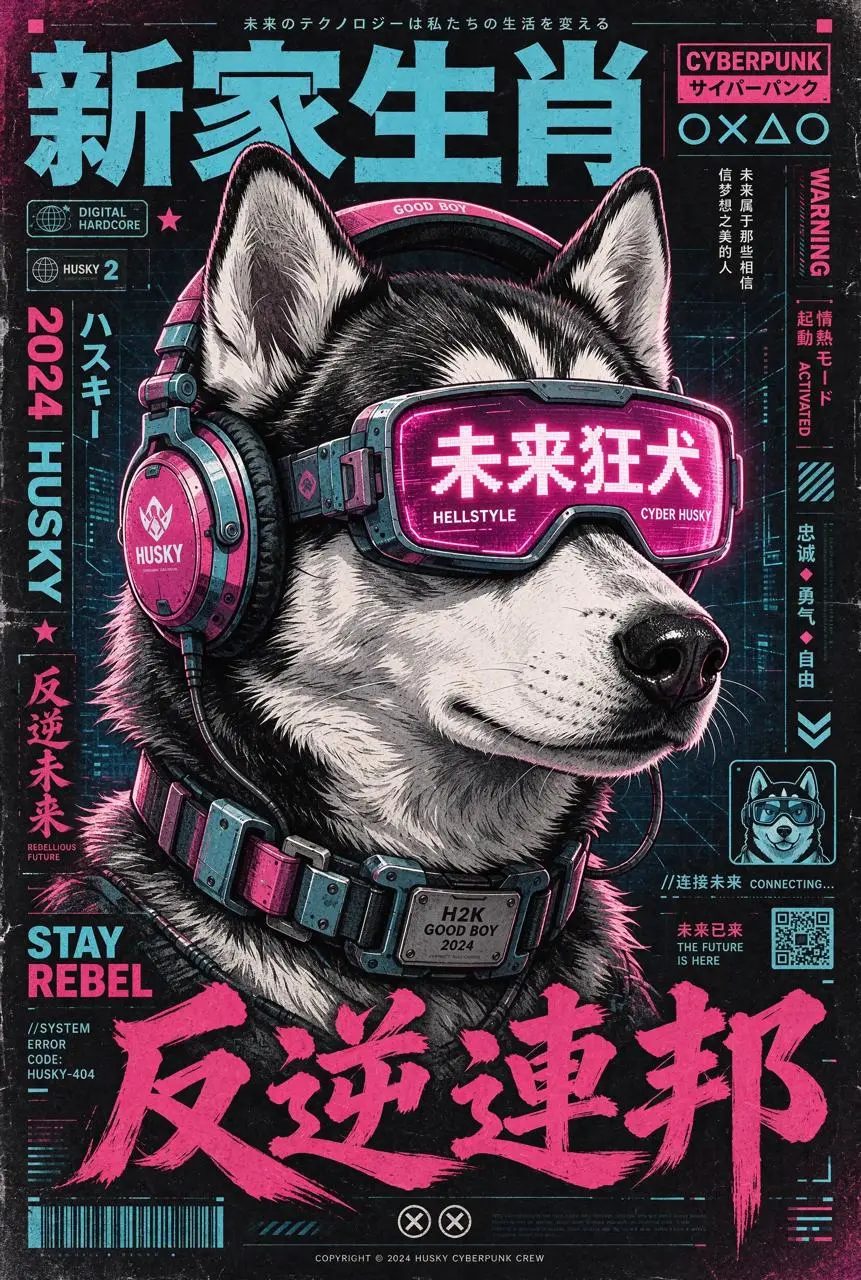
Arrange Multilingual Text in a Complex Poster
The poster organizes a subject, headline, small peripheral copy and multiple languages in one layout. Inspect character shapes, hierarchy and the relationship between text and imagery, then proofread the result.
MEET SEEDREAM 5.5
What Is Seedream 5.5 and What Is It Useful For?
Seedream 5.5 is ByteDance Seed’s image model, released on November 9, 2026. It focuses on successive edits, standalone design assets and detailed image creation for styling changes, compositing, photographic visuals and text-led layouts.
Keep Refining the Same Image
Refine a defined region through successive edits to product colors, accessories or a person’s look. The hero ring and portrait example show local changes; compare the subject and surrounding details after each revision.
Transparent Assets and Layer-Based Revisions
Native RGBA supports transparent and semi-transparent assets for stickers, products and decorative elements. Separate an image into background, element and text layers to replace assets, revise wording and prepare other language versions.
People, Materials and Composited Light
Describe facial expression, body proportions, product materials and scene lighting for a natural look. When combining references, specify relative scale, perspective and light. The lantern comparison illustrates translucency and overlapping elements.
Multilingual Text and Detailed Layouts
Organize small text, dense copy and multiple languages in posters, product labels and infographics. Supply exact wording, punctuation and hierarchy, then inspect character shapes, spacing and reading order.
INPUTS & WORKFLOWS
Create from Text or Keep Editing Reference Images
Decide whether to make a new image, revise existing content or create reusable elements, then prepare the corresponding input.
Create a New Image from Text
Specify the subject, setting, composition, lighting and intended use. For a poster or infographic, provide exact wording and a clear information hierarchy.
Edit with Image References
Assign each reference a role: subject, product detail, style or layout. List what to retain, replace, remove or add. For product displays, establish the cut, colors, patterns and identifying marks before specifying a flat lay, hanging display or on-model presentation.
Reuse Assets and Revise a Design
For standalone elements, identify transparent areas and visible content. For an existing design, specify the background, elements and text to separate or replace, and give a line-by-line mapping from old wording to new wording.
PROMPT GUIDE
How to Write a Seedream 5.5 Prompt
Study three approaches alongside their results: specify the subject to extract, request separate elements, and describe photographic lighting and composition. The first two videos include creation and downstream design use; the third is a text-to-image result.
Name the Subject and Transparent Output
The flamingo instruction identifies the subject to extract and requests a standalone RGBA layer. Watch the source image, extraction and subsequent design process in the demonstration; inspect fine feather edges when compositing your own asset.
Extract the flamingo from the image and output it as a separate RGBA layer with a transparent background.
Request Separate Elements Explicitly
The character instruction establishes a shared appearance, then requests distinct shapes and expressions with separate outputs. The demonstration combines the resulting characters in different layouts, illustrating a reusable-asset workflow.
Create a playful blue plush 3D cartoon character with a rounded body, big eyes and short limbs. Add three characters in the same style with distinct shapes and expressions. Output each character as a separate image with a transparent background, so the four characters can be separated and combined like puzzle pieces.
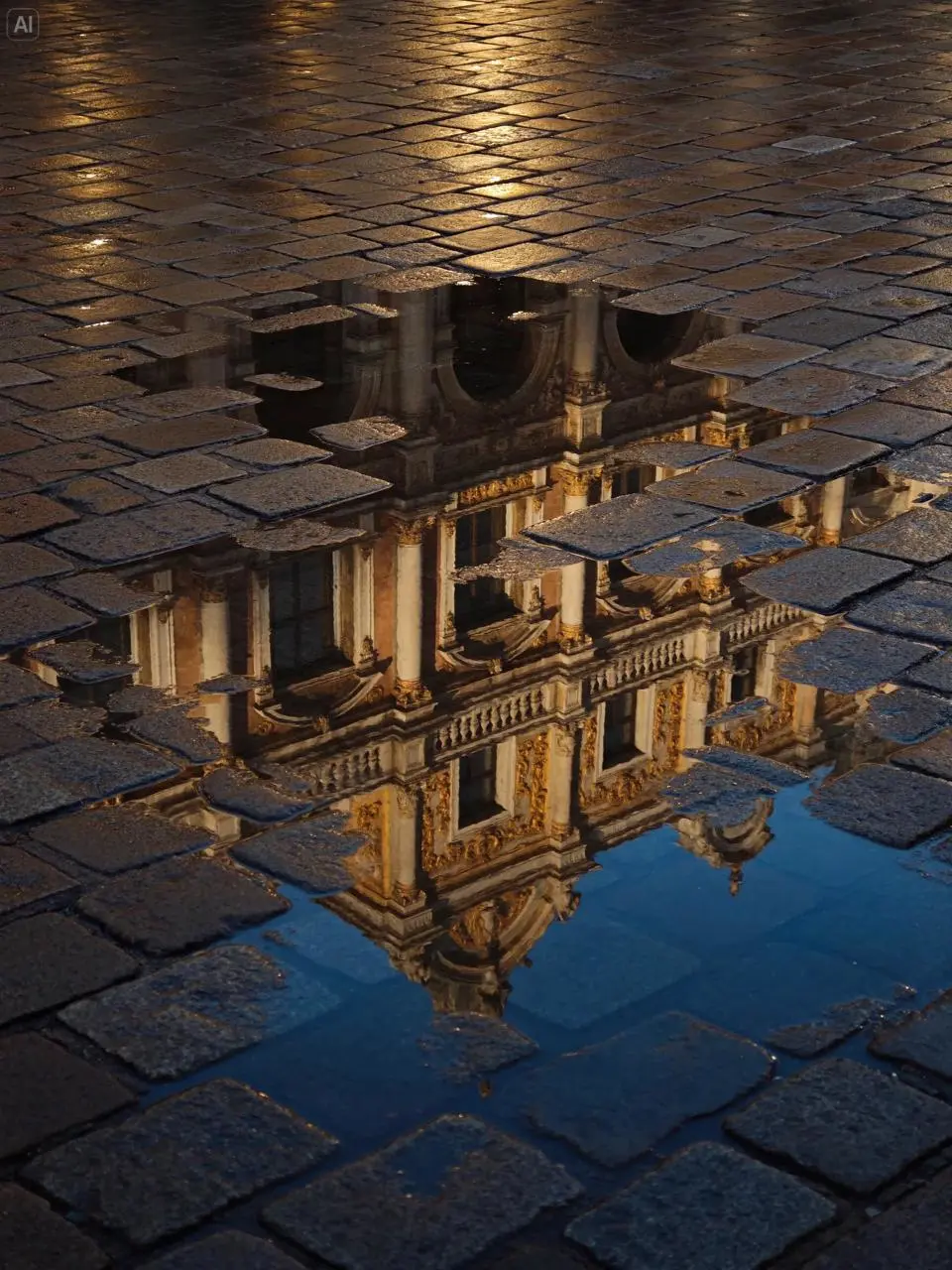
Describe Light, Surfaces and Framing Limits
This text-to-image instruction specifies a low camera angle, wet paving, fragmented reflections and contrasting light. It also excludes full buildings and people. Compare the result with these instructions to inspect the composition.
A vertical 3:4 street photograph after rain, taken from a low angle looking down at wet paving stones and irregular puddles. Reflections of an old building’s golden carvings, window frames and colonnades are fragmented by exposed stones, puddle edges and ripples. Warm golden light contrasts with deep-blue reflections, preserving worn joints and wet surface textures. No full building, people or vehicles appear.
HOW TO TRY IT
How to Get Started with Seedream 5.5
Use a platform where Seedream 5.5 is available. Prepare your input, choose a prompt approach and refine the result in stages.
Select Seedream 5.5
Select Seedream 5.5 in Jimeng, Doubao or the Volcano Engine experience center where it is available. Access and account requirements depend on the platform you choose.
Supply the Input and Specific Requirements
Use the image actually supplied for the current round. State the current subject, target change and details to retain. Continue from the approved previous output, and make each instruction independently understandable instead of relying on vague references to edit history.
Inspect the Original File and Refine
Check lettering, subject details and retained areas. Inspect the alpha channel of a transparent asset in an image editor, and save approved versions before continuing to the next edit.
Seedream 5.5, 5.0 Pro or Lite: Which Should You Choose?
Seedream 5.5 focuses on successive edits and native transparent assets. Seedream 5.0 Pro and Lite have their own WeShop entry points for different layout, reference and editing tasks. Image creation and editing are shared capabilities.
Choose by task
Seedream 5.5
Seedream 5.0 Pro
Seedream 5.0 Lite
Tasks to consider
Successive revisions and standalone transparent assets
Information layouts, annotated local edits and photographic detail
Multiple-subject relationships, reference understanding and scene changes
Starting input
Text or reference images
Text or reference images
Text or reference images
Editing workflow
Successive changes to specified regions with surrounding content retained
Spatial annotations and reference-guided changes
Instruction-led reference-image editing
Current WeShop access
Model overview; generation not available
Dedicated model page with generation controls
Dedicated model page with generation controls
WeShop size options
Not integrated
1K / 2K
2K / 3K
Tasks to consider
Seedream 5.5
Successive revisions and standalone transparent assets
Seedream 5.0 Pro
Information layouts, annotated local edits and photographic detail
Seedream 5.0 Lite
Multiple-subject relationships, reference understanding and scene changes
Starting input
Seedream 5.5
Text or reference images
Seedream 5.0 Pro
Text or reference images
Seedream 5.0 Lite
Text or reference images
Editing workflow
Seedream 5.5
Successive changes to specified regions with surrounding content retained
Seedream 5.0 Pro
Spatial annotations and reference-guided changes
Seedream 5.0 Lite
Instruction-led reference-image editing
Current WeShop access
Seedream 5.5
Model overview; generation not available
Seedream 5.0 Pro
Dedicated model page with generation controls
Seedream 5.0 Lite
Dedicated model page with generation controls
WeShop size options
Seedream 5.5
Not integrated
Seedream 5.0 Pro
1K / 2K
Seedream 5.0 Lite
2K / 3K
Choose Seedream 5.5
Explore 5.5 when you need continued revisions to one image or native transparent and semi-transparent assets. Review the examples, then follow the steps to try it on a platform where it is available.
Consider 5.0 Pro for information-rich layouts, spatially annotated local edits and detailed photographic visuals. Open its model page for corresponding examples and generation settings.
Consider 5.0 Lite for multiple subjects, relationships between reference images or scene rearrangements. Specify each subject’s attributes, what every reference contributes and which relationships should change or remain.
Seedream 5.5 is not available for generation in WeShop yet. This page explains the model and links to the Seedream 5 versions currently offered on their own WeShop pages.
Is Seedream 5.5 the same as Seedream 5.5 Pro?
This page covers Seedream 5.5. In its November 9, 2026 announcement, ByteDance said a Pro version would follow; it is a separate version from the model introduced here.
Can Seedream 5.5 create transparent images?
Yes. ByteDance describes native RGBA output with full and partial transparency, from text or reference images. Inspect the exported alpha channel and edges before compositing the asset.
What should I check when editing an image repeatedly?
Base each round on the image supplied, and state the current subject, target state and details to retain. Supply the approved previous result when continuing an image. Avoid vague references to an object added earlier, and repeat important preservation requirements.
Does it support multilingual text and dense small lettering?
It can arrange multilingual copy and dense small text. Supply complete wording, capitalization, punctuation and symbols, then define reading order, rows, columns and spacing. Proofread each detail in the result.
What image size or resolution should I select?
Use the output settings offered in the platform where you run Seedream 5.5, and check the downloaded file’s actual pixel dimensions. WeShop does not currently provide Seedream 5.5 size controls.
Is Seedream 5.5 free in WeShop?
WeShop does not currently offer Seedream 5.5 generation or a points quote for it. Access and fees on an official experience platform follow that platform’s own account terms.
Should I use Seedream 5.5 or Seedream 5?
Explore 5.5 for continued revisions or native transparent assets. Consider 5.0 Pro in WeShop for information layouts, spatially annotated edits and photographic visuals, or 5.0 Lite for multiple-subject relationships, reference understanding and scene rearrangements. Compare representative examples and available settings before changing an established workflow.
Are a transparent background and a transparent material the same?
No. A transparent material such as glass describes the subject’s appearance, while the background may still be a complete scene. For a standalone asset, explicitly request a transparent background or RGBA output and identify transparent, translucent and opaque areas.
Can Seedream 5.5 separate layers and revise text?
It supports separating an image into background, element and text layers for wording changes, asset replacement and other language versions. Specify the old-to-new wording and the line count, alignment and spacing to retain.