Reference-Based Product Scene
Guide a product video with your own reference.
Use the uploaded bottle as the product reference. Place it on a dark reflective surface and move the camera slowly from left to right under soft studio lighting.

Create videos with Kling 3.0 Omni using prompts and visual references. Shape a scene, explore frame controls, and review audio settings before generating.
Upload images or video references and describe how they should shape the scene. Use the available reference and frame controls to guide the next shot or explore a change to your video.
Guide a product video with your own reference.
Use the uploaded bottle as the product reference. Place it on a dark reflective surface and move the camera slowly from left to right under soft studio lighting.
Use a video reference to explore another mood.
Use the uploaded clip as a reference for the scene. Explore a warmer evening mood, soft background light, and a slower camera movement.
Connect planned opening and closing frames.
Begin with the uploaded opening frame and end with the closing frame. Describe a smooth camera move that connects the two compositions.
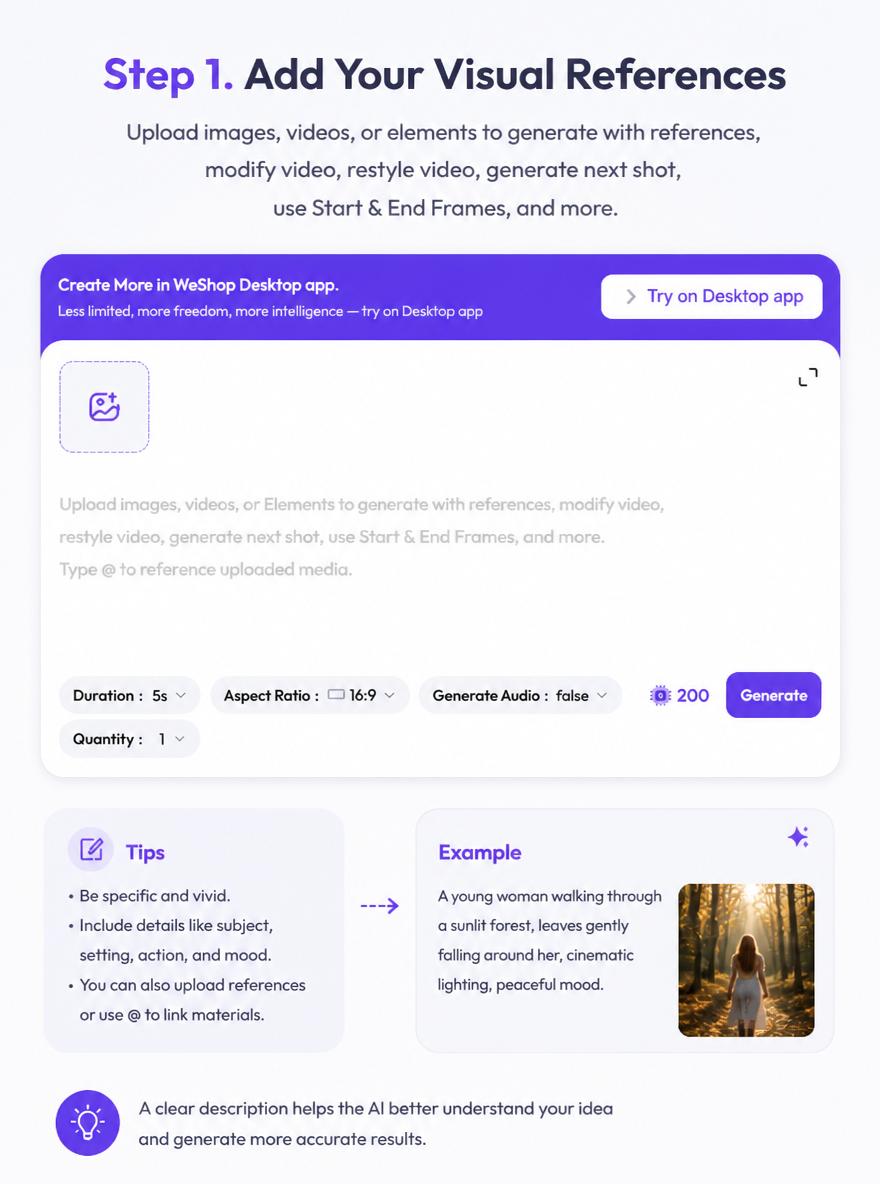
Upload the images, video, or available reference assets that define your scene.
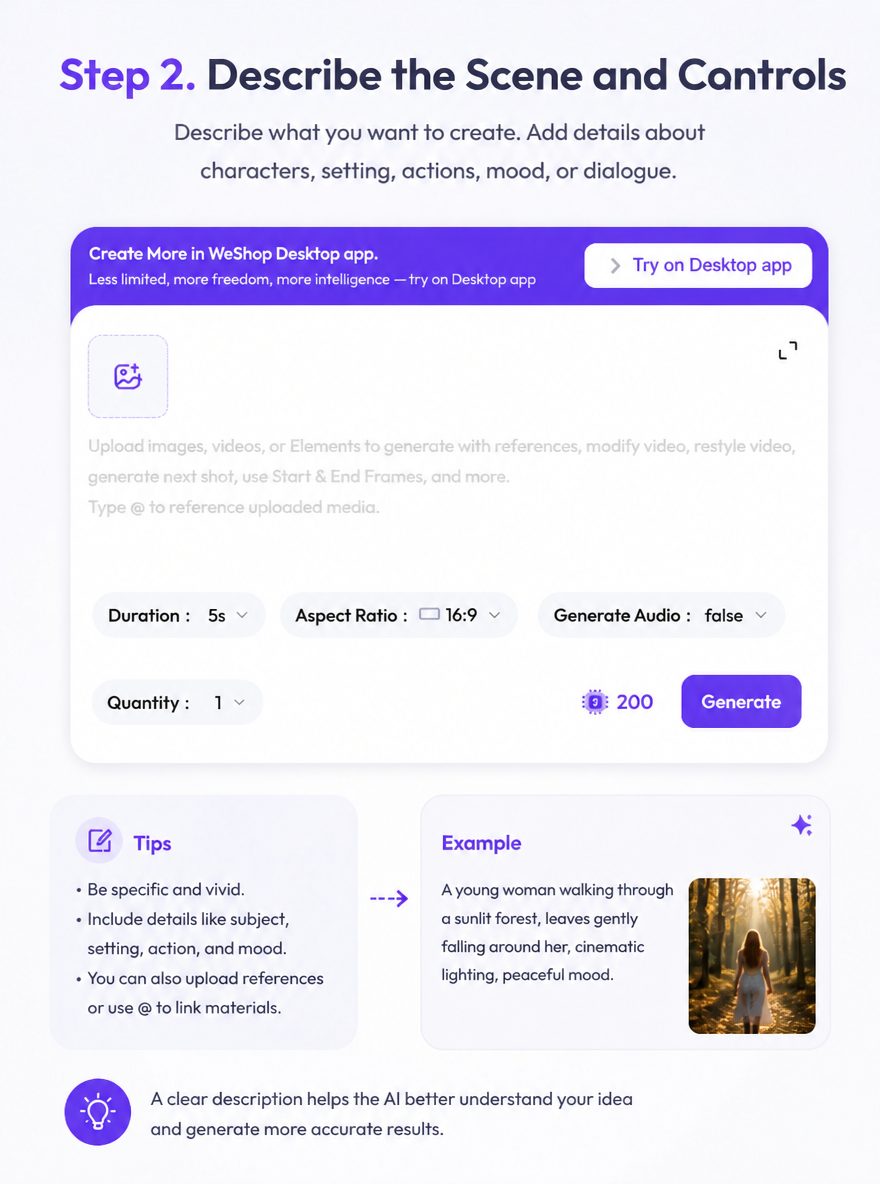
Explain the subject, action, camera movement, and role of each reference. Review the frame and audio settings available in the panel.
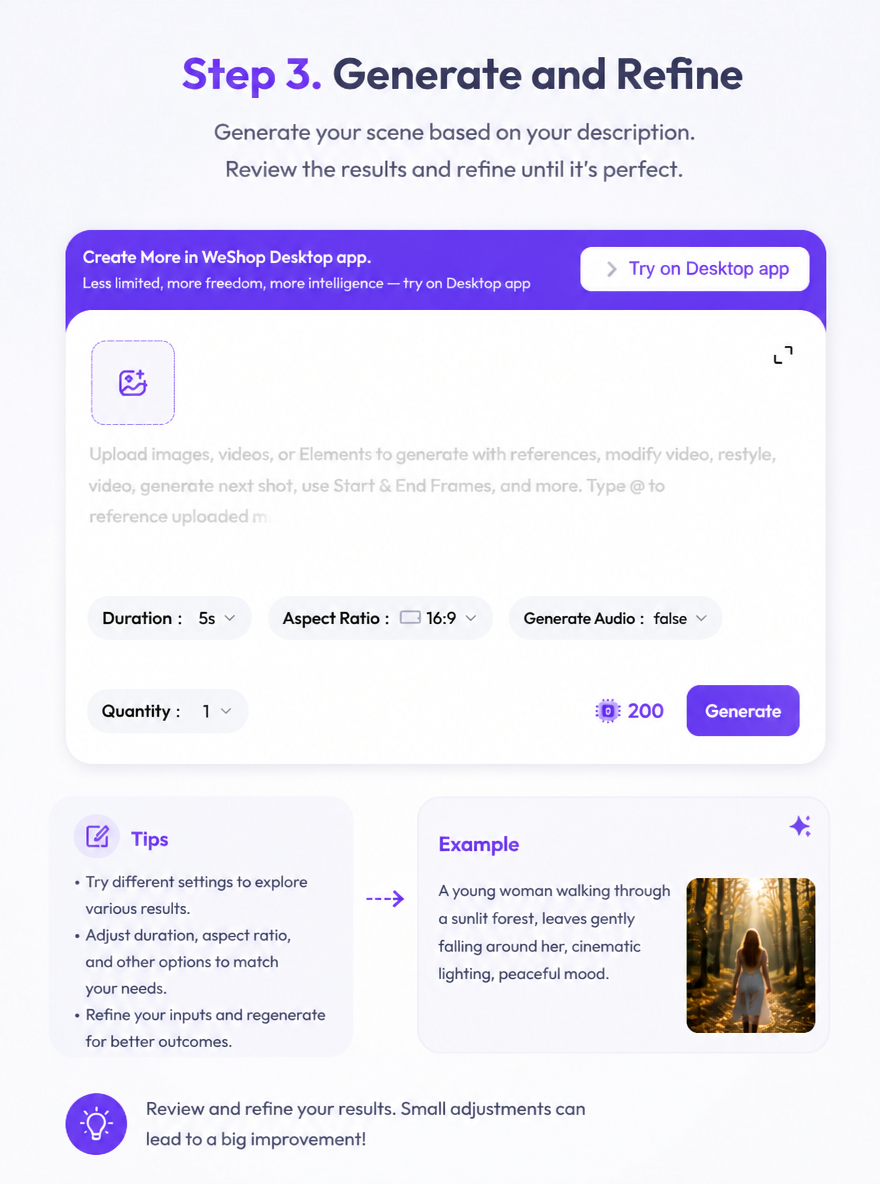
Review the points and generate your video. Compare the result with your brief and adjust the reference direction or prompt.
This page opens the Omni workflow in the Kling 3.0 family. Review the active references, frame controls, and audio selection before creating a video.
Review Generation SettingsDirect answers about model inputs, workflows, settings, and availability.
It is the Kling 3.0 Omni video workflow available on this page. Use prompts, visual references, and the controls shown in the creation panel.
Yes. The reference area supports image and video inputs. Explain how the reference should affect the scene in your prompt.
Review the audio option before generating. The current panel starts with audio turned off, and you can change the available setting for your task.
This page focuses on the Omni workflow. Visit the Kling overview to explore the wider model family and related creation options.