Create an image-led shot with Kling 3.0, from a character action to a product sequence. The model supports audiovisual and shot-based creation; use the frame controls available here.
Explore the tasks shown by these actual Kling 3.0 results. Copy a prompt to try in the generator, or open the linked case for its saved setup. Supply your own images or clips when the request uses references.
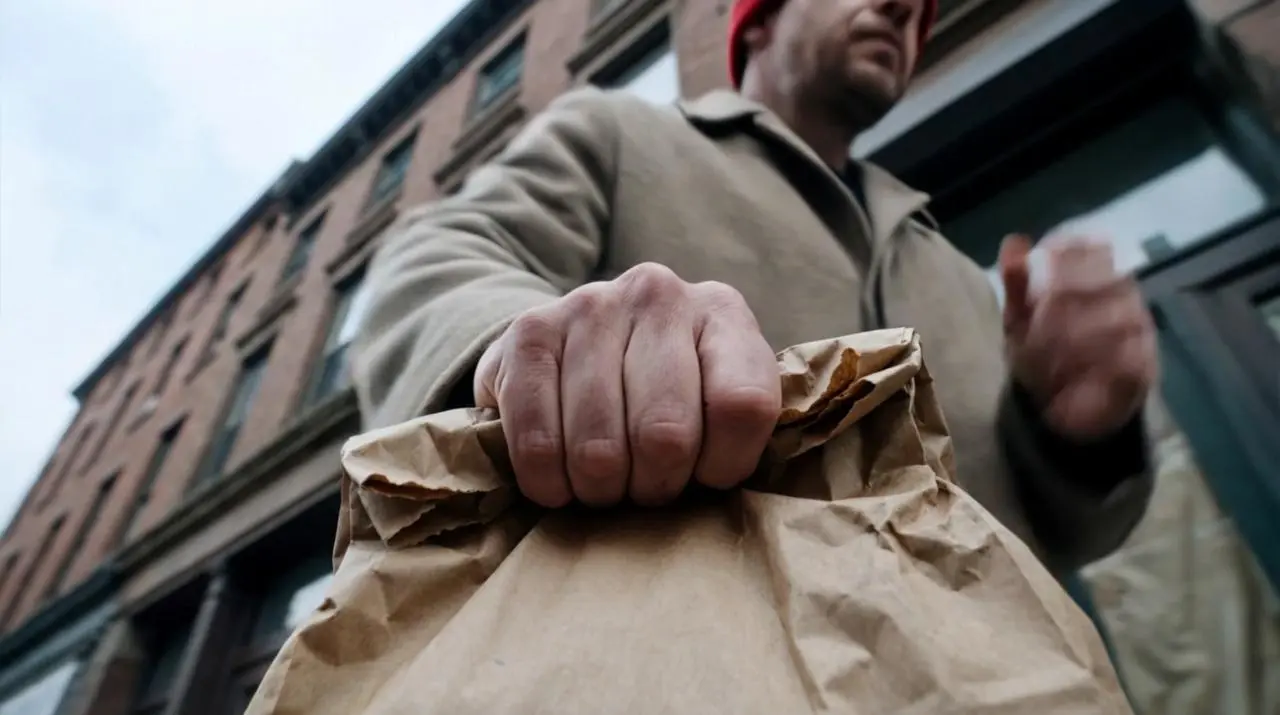
Low-Angle Tracking around a Moving Subject
Use a low, wide tracking viewpoint around a moving subject carrying a paper bag, giving the camera a specific visual anchor.
Low-angle wide-angle tracking shot focused on a crumpled brown paper bag held tightly in a man’s hand. The camera is rigidly locked to the bag with precise tracking — the bag stays centered and stable while the world rushes past. The man is running away from someone, sprinting forward; his arm pumps hard, aggressive vertical and lateral motion transferred directly to the bag. Strong grip, whitening knuckles, paper creasing and vibrating from speed.
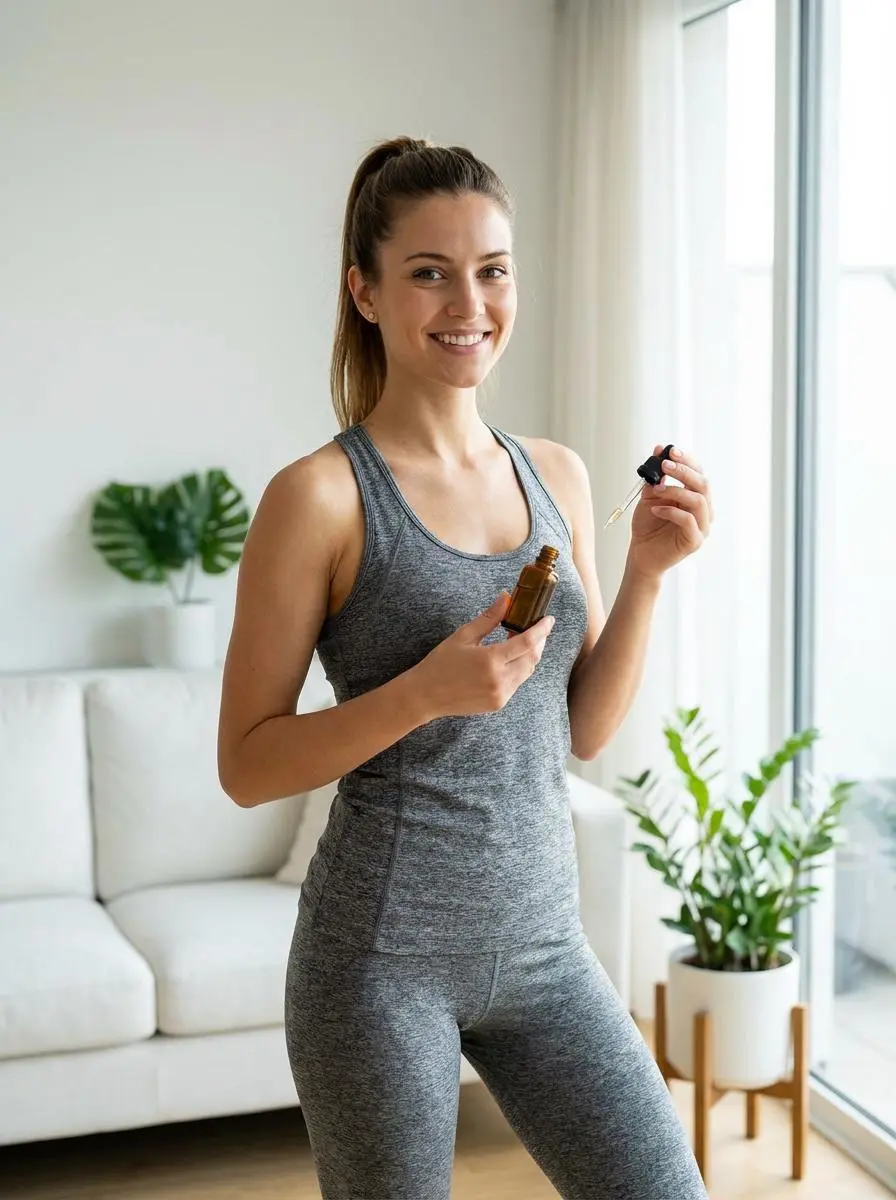
Connect a product demonstration with a later application shot, using the subject’s actions to organize the sequence.
The girl first demonstrates the product, then the camera transitions to her applying the essential oil to her face—this is a close-up shot—before switching to filming the essential oil product itself.
Kling Video 3.0 is Kuaishou’s video model for narrative direction, subject continuity, and audiovisual creation.
Picture and Sound Together
The 3.0 release documents native audiovisual generation. Dialogue or environmental sound can be part of a scene, subject to the actual request settings.
Connected Shot Direction
Kling 3.0 supports multi-shot storytelling. The sequence can describe different framings and actions around a connected subject.
Longer Room for an Action
The official release supports clips up to 15 seconds. WeShop’s listed duration and frame mode determine the options for this page.
WORKFLOWS
Choose Your Starting Input
Use the Kling 3.0 input mode that matches the material you have.
Animate an Opening Image
Upload the frame that establishes the subject and scene. Describe the action, environmental movement, or camera direction that follows it.
Guide the Opening and Ending Frames
Supply both images, then describe the action or transition connecting their compositions. Choose a duration offered for this mode.
PROMPT GUIDE
How to Direct Kling 3.0 with a Prompt
Learn from the actual instructions behind these results. Each example keeps its complete original prompt and available inputs. For a new request, replace its subject and reference assignments with your own.
Establish the Visual Starting Point
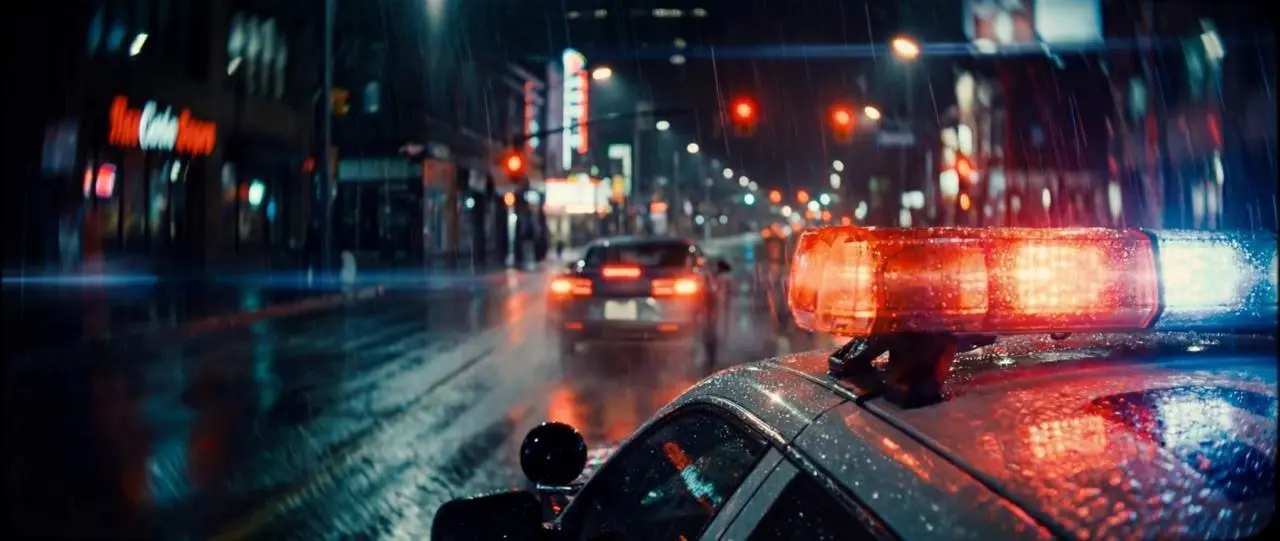
The request defines the subject and setting. Use it to study scene description rather than treating it as evidence of a particular motion or sound control. In this case: “A cinematic, high-speed car chase at night on a wet city street during a rainstorm.”
A cinematic, high-speed car chase at night on a wet city street during a rainstorm. The camera is mounted on the front hood of a police car, capturing the flashing red and orange emergency lights in the foreground.
A silver sedan is seen speeding away through traffic, splashing through puddles. The police car accelerates, weaving through the wet streets to catch up. The chase reaches a climax when the silver sedan loses control, clips another vehicle, and flips over spectacularly in mid-air, spinning toward the camera amidst a spray of water and debris. The lighting is dramatic, with city neon and streetlights reflecting off the wet pavement.
Specify the Intended Speech or Song
Identify the speaker or performance and its relationship to the visible scene. Check the delivered audio separately from the picture. In this case: “She speaks with emotion and confidence, occasionally looking down at her tablet notes.”
A cinematic personal brand video of a female blogger sitting in a warm podcast studio, sharing her story and journey. She speaks with emotion and confidence, occasionally looking down at her tablet notes. Soft close-ups, elegant lighting, glowing logo behind her, calm professional atmosphere, inspiring founder-story video.
Give the References Different Jobs
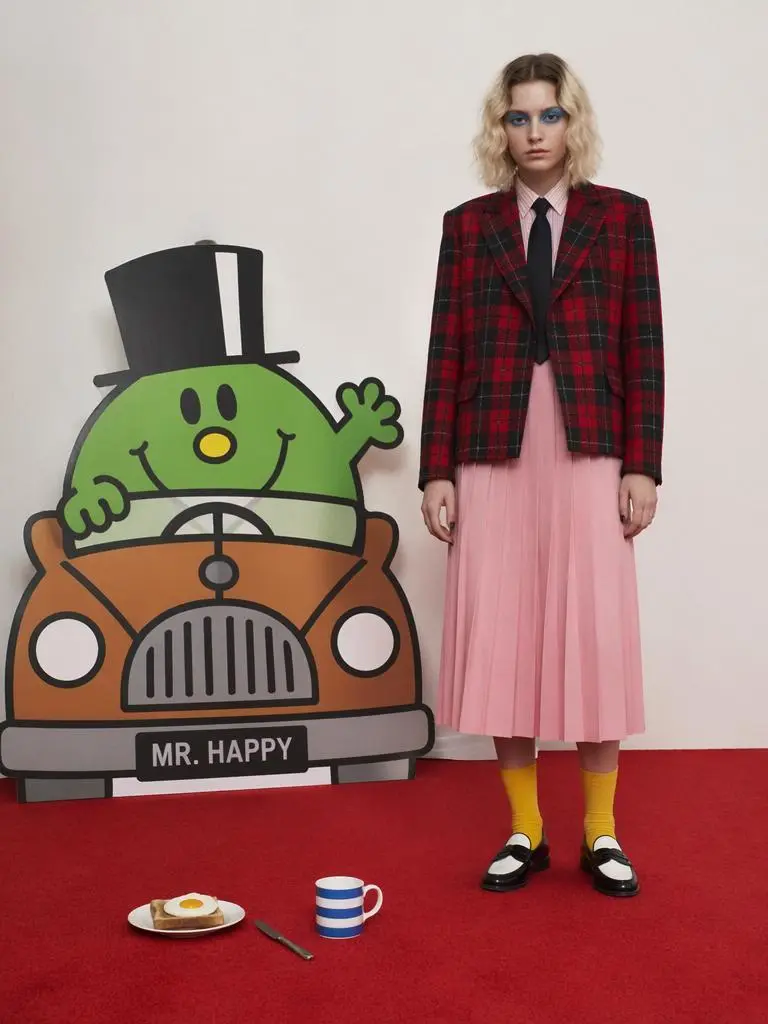
Identify what each supplied image contributes before describing the combined result. In this case: “A fashion model standing motionless in a colorful pop-art room.”
A fashion model standing motionless in a colorful pop-art room. Suddenly the cartoon character beside her comes alive and waves at the camera. The toy car starts driving around the room. The fried egg on the plate becomes a giant glowing sun. The coffee mug jumps and begins dancing. The red floor transforms into an endless checkerboard runway. The model remains perfectly still while the world around her becomes increasingly chaotic. Cartoon elements multiply and flood the space. Pop fashion editorial, playful surrealism, vibrant colors, whimsical motion, highly stylized visual storytelling.
HOW TO USE
Create Your First Kling 3.0 Video
Start in the generator on this page. To reuse an example, click Copy Prompt, return to the description field, and adapt the prompt to your own inputs.
Provide the Scene and Inputs
Upload the opening image that establishes the scene, then describe its movement.
Choose the Output Options
Choose an offered duration, aspect ratio, and other available output options. Check the form’s displayed points before submitting.
Generate and Review
Click Generate and review the resulting video. Check movement, framing, continuity, and any delivered audio. Adjust your prompt or references for the next attempt.
Compare the documented model roles and the inputs and options currently listed in WeShop. Model names or matching settings do not by themselves establish equal output quality or a fixed generation-time difference.
Dimension
Kling 3.0
Kling 3.0 Omni
Kling O1
Model role
Native audiovisual generation and shot direction
Unified multimodal direction and subject references
Earlier unified multimodal generation and editing model
Inputs listed for the page
Animate an Opening Image; Guide the Opening and Ending Frames
Direct a Scene with References; Build a Scene from Text
Build a Scene from Text; Direct a Scene with References; Animate an Opening Image; Guide the Opening and Ending Frames
Current WeShop options
Duration: 3–15 seconds
Duration: 3–15 seconds
Duration: 3–10 seconds
Model role
Kling 3.0
Native audiovisual generation and shot direction
Kling 3.0 Omni
Unified multimodal direction and subject references
Kling O1
Earlier unified multimodal generation and editing model
Inputs listed for the page
Kling 3.0
Animate an Opening Image; Guide the Opening and Ending Frames
Kling 3.0 Omni
Direct a Scene with References; Build a Scene from Text
Kling O1
Build a Scene from Text; Direct a Scene with References; Animate an Opening Image; Guide the Opening and Ending Frames
Current WeShop options
Kling 3.0
Duration: 3–15 seconds
Kling 3.0 Omni
Duration: 3–15 seconds
Kling O1
Duration: 3–10 seconds
When to Consider Kling 3.0
Match the Model to Your Task
Consider Kling 3.0 for audiovisual, shot-based work using its exposed frame modes. Compare Omni when reference-guided direction is central to the brief.
MORE VIDEO MODELS
Explore More Video Models
Open a related model page to review its capabilities, examples, and current generation options.
Answers about this version, its inputs, and how to get started.
What is Kling 3.0?
Kling Video 3.0 is Kuaishou’s video model for narrative direction, subject continuity, and audiovisual creation.
What is a good task to consider it for?
Consider Kling 3.0 for audiovisual, shot-based work using its exposed frame modes. Compare Omni when reference-guided direction is central to the brief.
What do I need to provide?
Animate an Opening Image. Upload the frame that establishes the subject and scene. Describe the action, environmental movement, or camera direction that follows it. Guide the Opening and Ending Frames. Supply both images, then describe the action or transition connecting their compositions. Choose a duration offered for this mode.
Which output settings are offered here?
Duration: 3–15 seconds
How do I try an example prompt?
Click Copy Prompt, return to the generator, and paste it into the description field. Add your own required references and update their roles. Linked case previews and Use This Prompt open the saved case; they do not automatically fill this page’s form.
What should I know about this version?
The model’s broader shot and sound capabilities do not mean every vendor control is exposed by this form.