







Kling 3.0 Omni Hotel Lobby: Recast the Duo with Your Photos
Recreate the Hotel Lobby AI video trend with Kling 3.0 Omni on WeShop. Use two identity photos and a reference video, then check motion, framing, and output.
Two new performers, the same orange stage, and a silver microphone hanging between them. This Kling 3.0 Omni Hotel Lobby case uses two portrait photos and a reference video to recast a recognizable performance: a woman in a dark suit on the left and a woman in pink sportswear on the right.
The useful part is the division of roles. The photos supply the new identities and visible clothing; the video supplies the performance, staging, and camera reference. Here is how to reuse that setup in WeShop, with the actual case settings and the details to check before sharing.
The Hotel Lobby look this case recreates
The reference comes from Quavo and Takeoff’s “HOTEL LOBBY – A COLORS SHOW” performance. Its orange backdrop, hanging microphone, and two-person staging are the visual cues behind this remix format. COLORS discusses the AI trend and the human work behind the original performance in its October 2026 newsletter.
In this case, the generated clip retains the recognizable stage and moves from a wide view into closer framing. The replacement characters echo pointing gestures, turns, and exchanges from the reference. Their dark suit and pink outfit remain distinct in the inspected frames.
Treat those as observations from this example. The prompt asks for unchanged backgrounds and precise movement, but those instructions do not guarantee identical frames, flawless hands, or exact lip-sync.
Prepare two identity photos and one performance video
Use three inputs, each with a clear job:
| Input | What it supplies | This example |
|---|---|---|
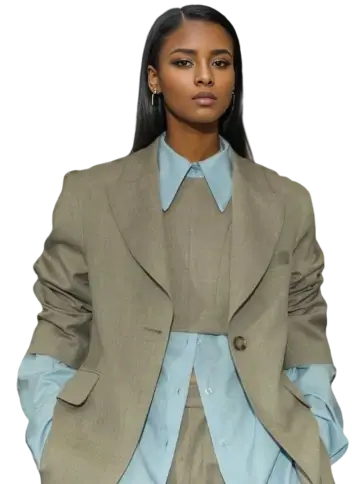
| Image 1 | First character’s face, hair, and visible outfit | Dark hair, dark suit, white blouse |
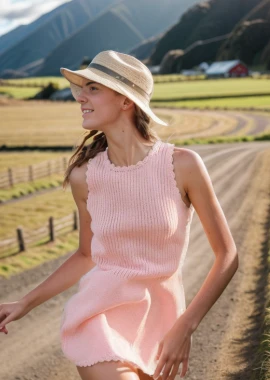
| Image 2 | Second character’s face, hair, and visible outfit | Blonde hair, pink sportswear |
| Video 1 | Stage, gestures, timing, framing, and camera reference | The Hotel Lobby performance excerpt |
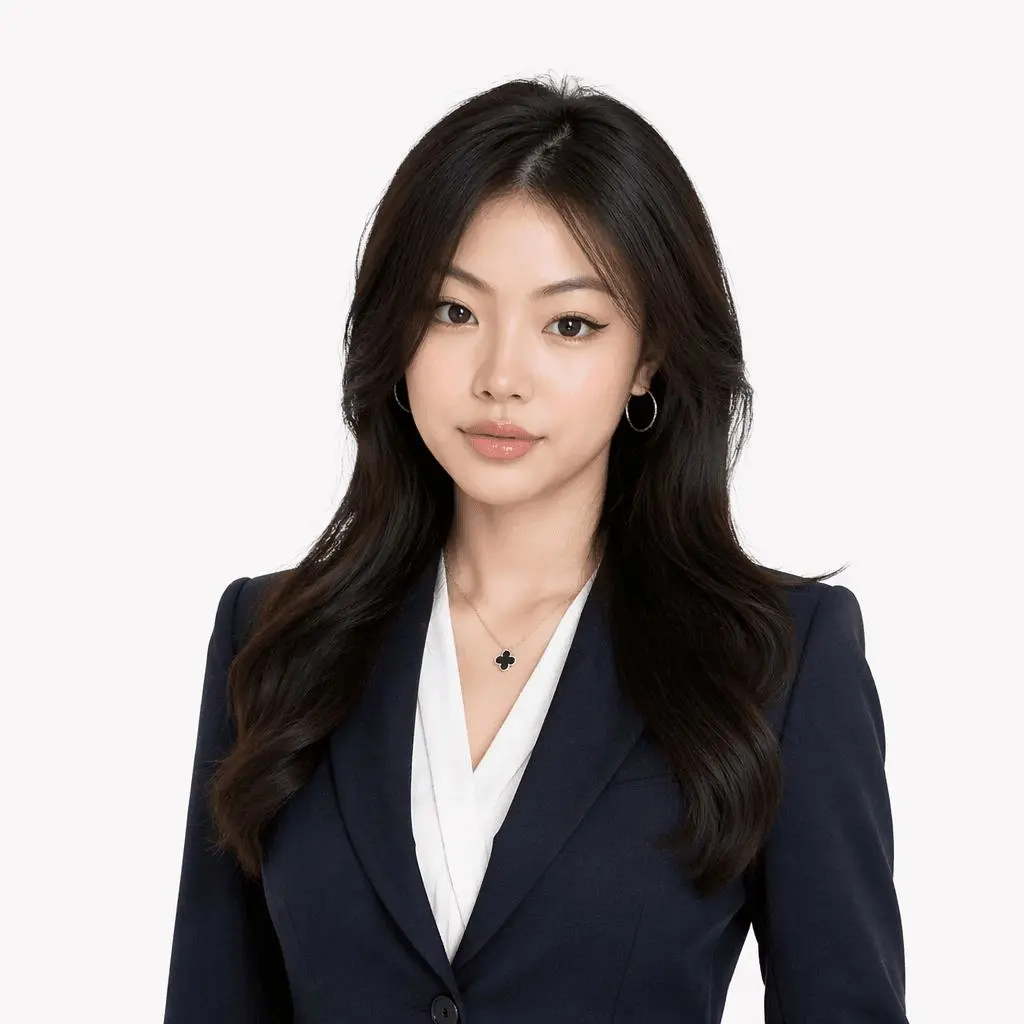
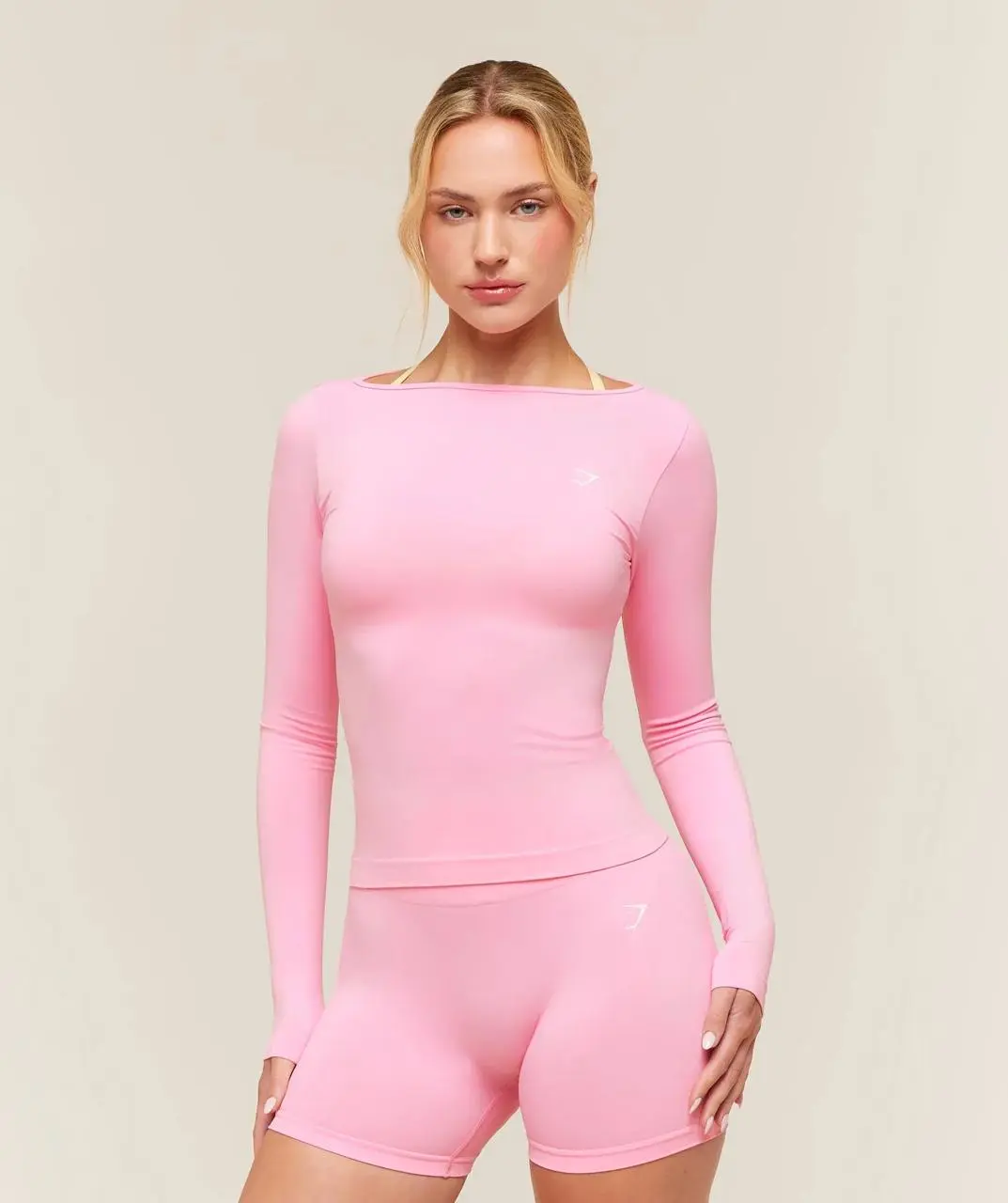
Choose photos with clear faces and enough clothing detail for the shot you want. A head-and-shoulders portrait cannot specify unseen trousers or shoes; the model must fill in those areas. A full-body reference gives you more information to work with when the video opens on a wide shot.
The video must be uploaded as an actual reference input. Describing the orange stage in text alone does not reproduce this image-and-video workflow.
Load the case in Kling 3.0 Omni
Open Kling 3.0 Omni on WeShop, or use the interactive case beside this article. Replace Image 1 and Image 2 with your chosen portraits. Keep the loaded Video 1 for the same motion reference, or replace it with a clip you can use.
Before generating, confirm that both image thumbnails and the video input are present. State the mapping explicitly: Image 1 replaces the left performer, and Image 2 replaces the right performer. This keeps the intended roles clear when both people gesture or turn.
The supplied case used these settings:
| Setting | Recorded value |
|---|---|
| Model | Kling 3.0 Omni (Kling_V3_Omni) |
| Aspect ratio | 16:9 |
| Duration setting | 9s |
| Generate Audio | true |
| Original batch quantity | 4 |
| Selected downloaded output | 1920 × 1080, approximately 14.7 seconds |
Check the finished file’s duration. In this run, the interface recorded 9s, while the selected output was approximately 14.7 seconds, close to the reference clip’s length. Do not assume the duration label describes the downloaded result. The reusable template currently opens with quantity 1, so you can inspect one result before generating more.
Write the prompt around identity, motion, and preservation
Separate what should change from what should stay recognizable. Name the two identity inputs first, assign their positions, then describe the video’s role.
The following is an edited prompt based on the supplied case, with clearer left/right mapping and consistent landscape framing. It has not been tested as a separate generation. The loaded template retains the original case prompt.
Use Image 1 as the identity reference for the performer on the LEFT. Use Image 2 as the identity reference for the performer on the RIGHT. Use Video 1 as the reference for the scene, performance, and camera work.Replace only the two main performers. Preserve each replacement person's recognizable face, hairstyle, skin tone, and the clothing visible in their reference photo. Keep their identities assigned to the same roles throughout.
Keep the orange stage, hanging microphone, lighting, composition, and background details consistent with Video 1. Follow the reference gestures, body turns, spacing, movement timing, shot changes, and camera framing. Adapt the new characters naturally to the performance.
Landscape 16:9. Avoid identity swapping, merged faces, changing outfits, extra limbs, warped hands, sliding feet, flicker, and background drift.
The original prompt ends with “vertical 9:16,” even though the recorded setting and output are 16:9. When reusing it for this landscape example, remove that conflicting phrase and keep the prompt aligned with your chosen format. The edited prompt also replaces generic walking instructions with performance-specific gestures and turns.
Inspect the full clip before choosing a result
Play the result through the wide shot, closer framing, and final movement. Check that each face stays with the intended role, clothing remains recognizable, and the microphone and backdrop remain stable. Look closely when hands cross the torso, point toward the camera, or approach the other performer.
Compare the movement with the reference, especially around turns and shot changes. A good opening thumbnail cannot establish that the whole clip works. If roles drift, reinforce the Image 1/left and Image 2/right mapping. If unseen outfit details are wrong, provide a fuller reference photo.
The supplied task history includes successful clips and failed runs. It does not establish a guaranteed success rate or a single cause for those failures. Likewise, Generate Audio = true records an enabled setting; it does not establish that the original soundtrack or mouth movements were reproduced exactly. Listen to the complete output and check the audio you intend to publish.
Try your own Hotel Lobby duo
You can try it directly using the tool on the right.
Replace the two identity photos, confirm the video reference, and generate one clip to review. Keep the recognizable stage and performance as your comparison points while judging how well the new cast holds together.
Use photos, footage, and music you have permission to use, credit the original performance where relevant, and label shared results as AI-edited. This example demonstrates a recasting workflow; it does not imply endorsement by the original artists or COLORS.