

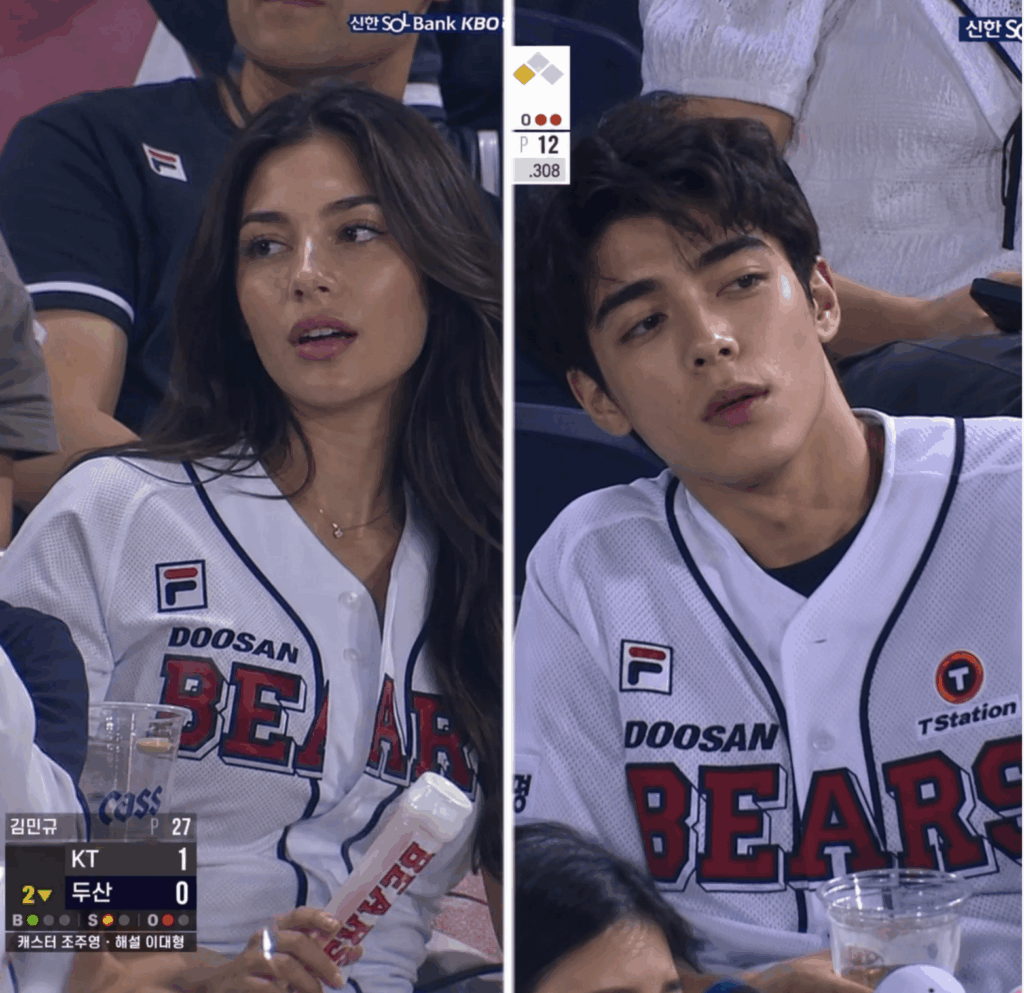
Ever scrolled through your feed and seen a “random” fan caught on a live sports broadcast? They aren’t posing; they are just living in the moment—hair slightly messy, skin glowing under harsh stadium lights, looking a bit surprised by the camera. These clips go viral because they feel human, unscripted, and authentic.
Thanks to the evolution of gpt image2, you no longer need a ticket to a stadium or a professional camera crew to star in your own viral moment. By leveraging the specific realism of this tool, anyone can turn a standard phone selfie into a high-definition, live-broadcast masterpiece. In this guide, we’ll explore how to master gpt image2 to achieve that perfect, unpolished look that stops the scroll.
Preparation and Essential Tools
Before diving into the generation process, ensure you have the right toolkit. The gpt image2 engine is the cornerstone of this workflow, but it requires a few supplementary elements to truly shine.
| Tool / Item | Usage | Direct Link |
| WeShop GPT Image | Generate “broadcast style” photos based on prompt + frontal photo using the gpt image2 engine. | Click the button above |
| WeShop Kling 3.0 | Turn static photos generated by gpt image2 into 4K cinematic dynamic videos. | Direct Link |
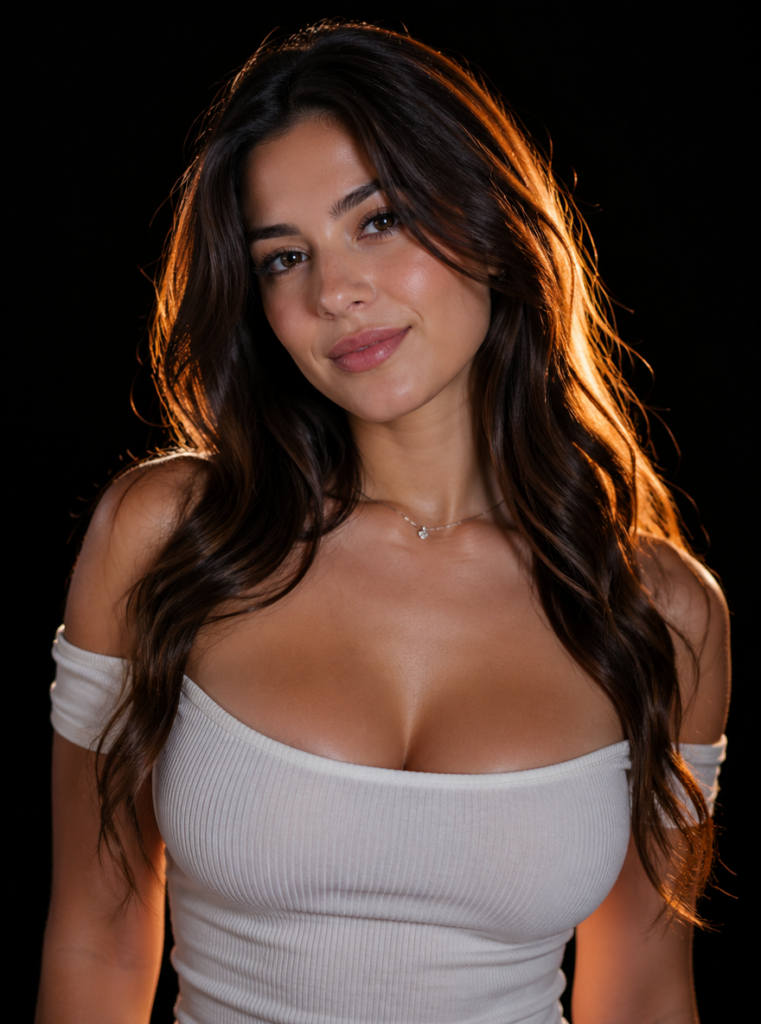
| Frontal Photo | Clear, no excessive beauty filters, natural expression for the best mapping. | Mobile camera is fine |
| Master Prompt | Ensures a candid, realistic, non-influencer style in the gpt image2 output. | Copy from text below |
The Philosophy of “Authentic AI” with gpt image2
Most AI models suffer from “over-perfection.” They produce plastic skin and cinematic lighting that screams “fake.” However, the gpt image2 engine is designed to handle environmental nuances that other models often ignore. When we use this generator, we aren’t looking for a glamour shot; we are looking for a documentary shot.
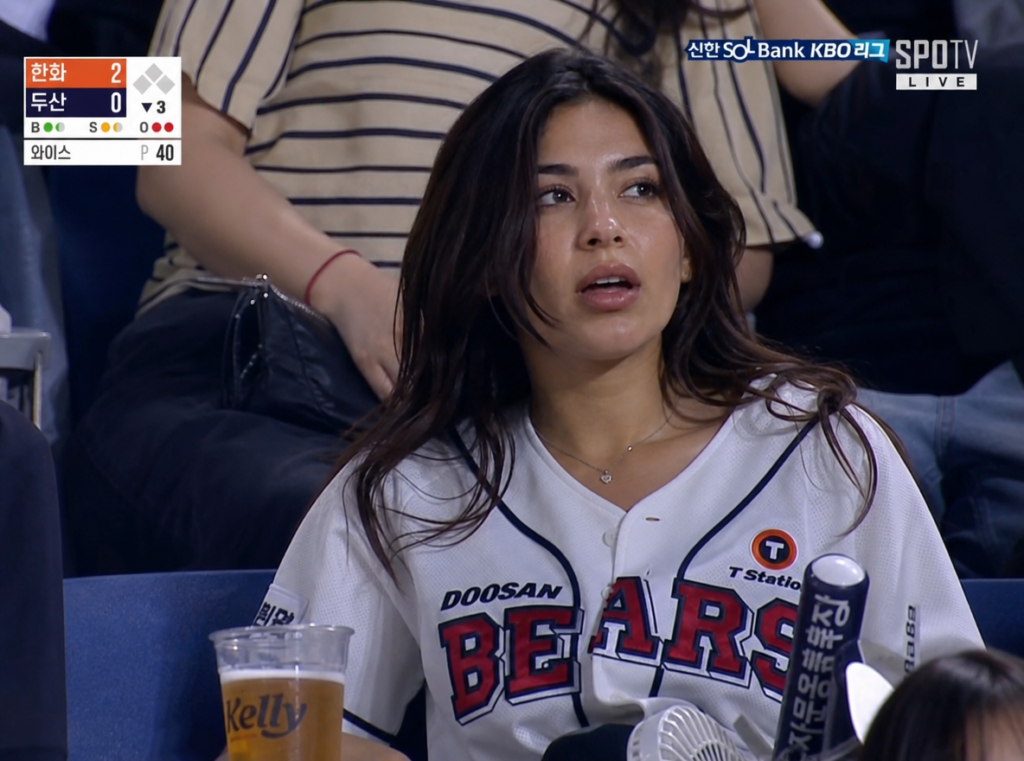
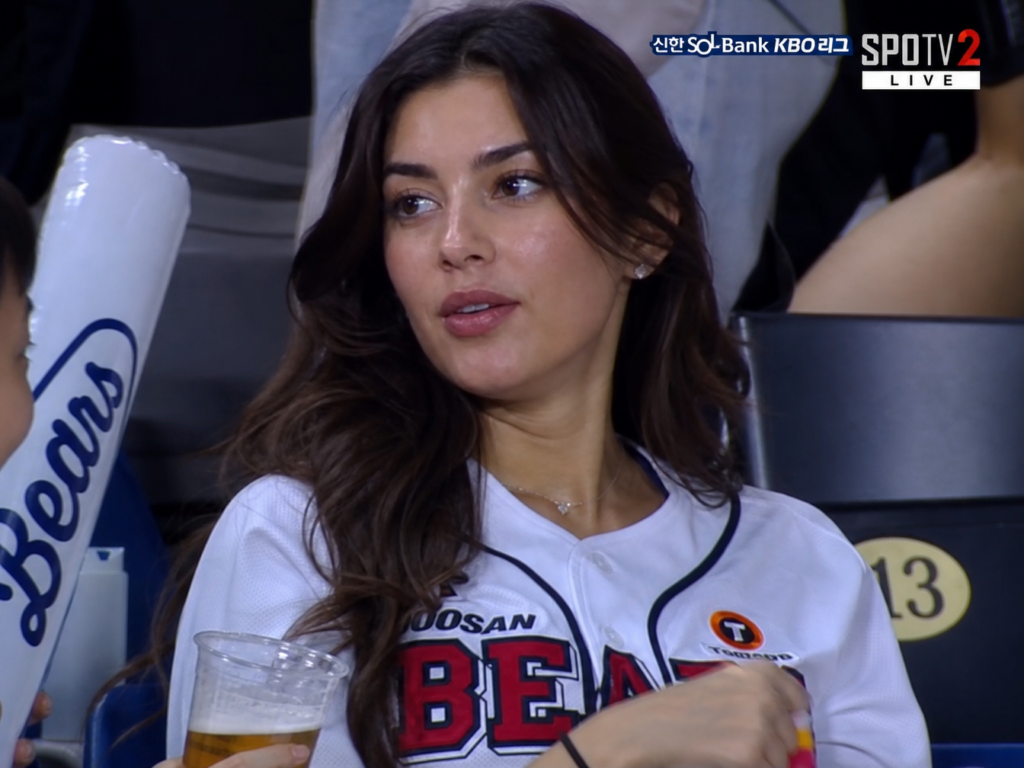
The secret to a viral video starts with a static frame that tells a story. The gpt image2 tool excels at generating these story-driven frames by simulating camera artifacts, lens flares, and the specific low-bitrate texture of live television. It understands that “real” life isn’t filtered.
Step 1: Generating the “Broadcast Feel” in gpt image2
Before you even think about animation, you must perfect the base image. Your primary tool here is the gpt image2 interface. Unlike standard image generators, this model allows for a higher degree of “real-world” texture mapping, which is essential for that broadcast aesthetic.
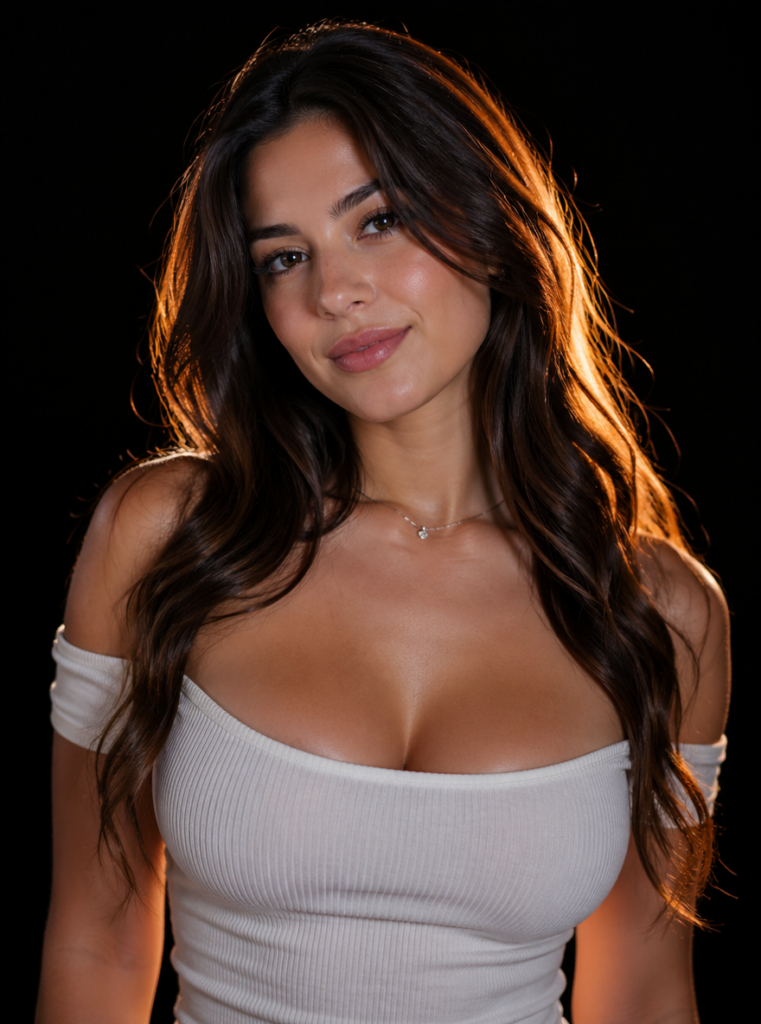
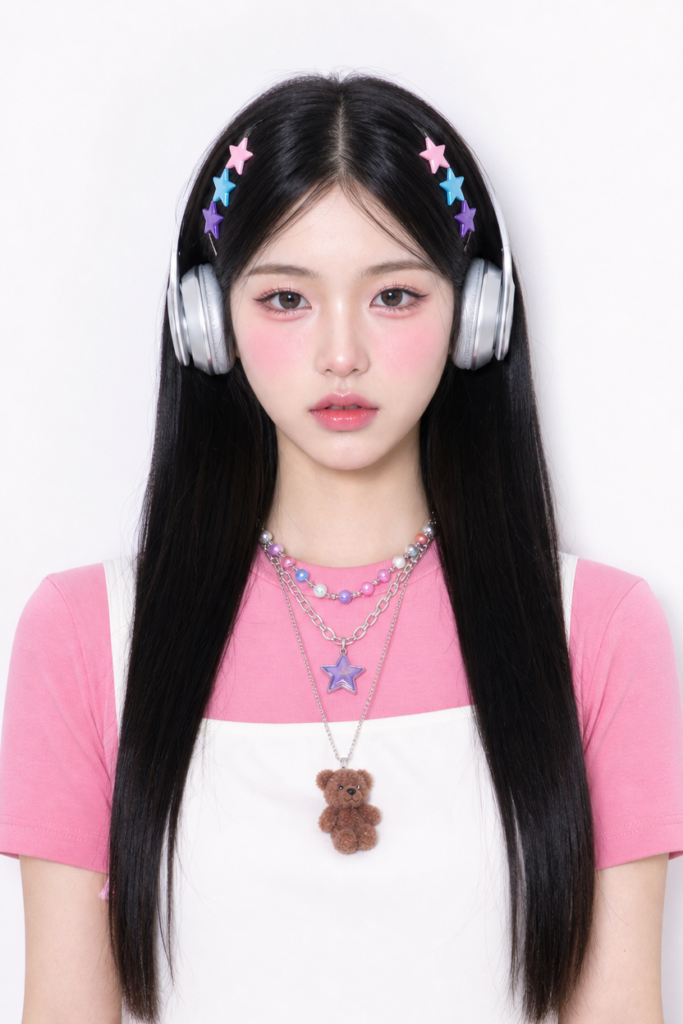
💡To get the most out of the engine, start with a “raw” selfie.Avoid using photos that have already been processed by beauty apps. The system needs original skin textures and natural lighting to calculate how you would look under stadium floodlights. Using gpt image2 with a filtered photo often leads to a “double-processing” effect that looks unnatural.
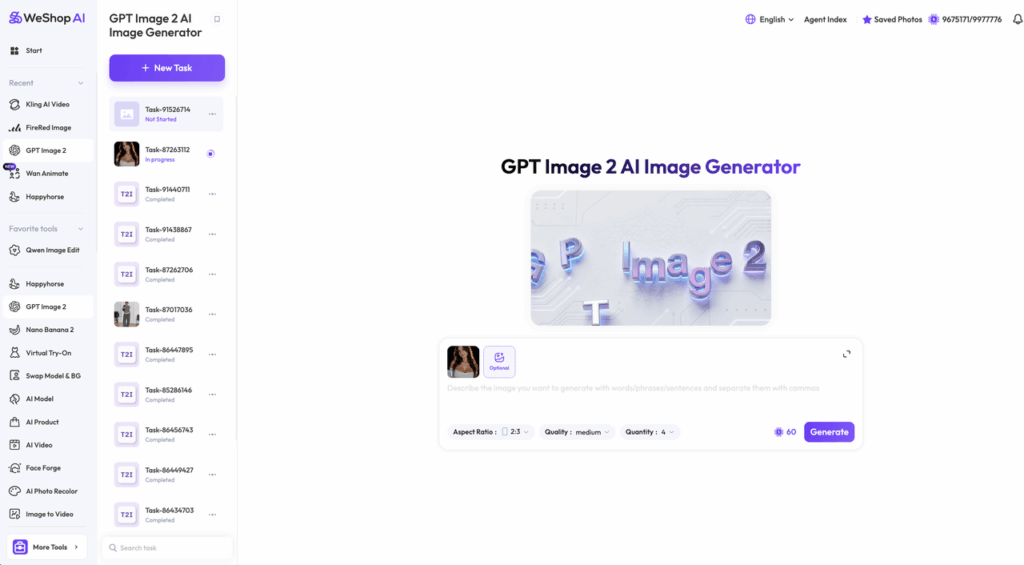
The Master Prompt for gpt image2:
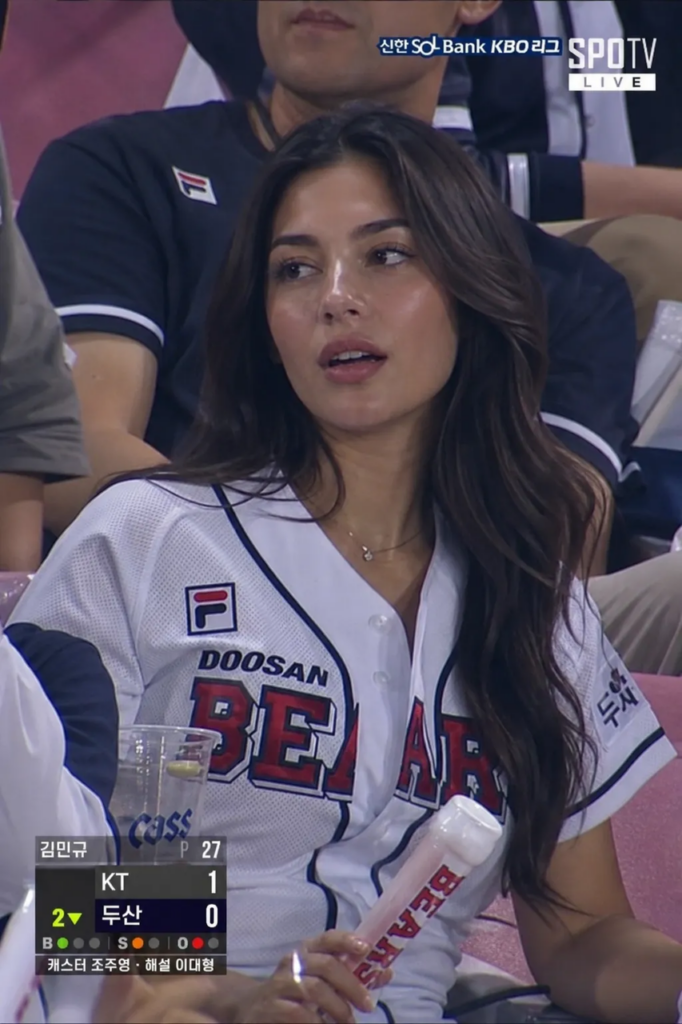
Realistic sports broadcast screenshot-style documentary photo set in the spectator stands of a professional baseball game. The uploaded person is captured naturally by a live broadcast camera while sitting in the crowd. NOT a model shoot, NOT influencer photography, NOT beauty photography. Slightly awkward candid posture, natural facial asymmetry, realistic skin texture, visible pores, flyaway hair, oily skin shine from humidity, mild motion blur, compression artifacts, interlaced live TV quality, soft focus from zoom lens, uneven stadium lighting. Expression feels unintentionally caught on camera – curious, distracted, slightly surprised. Realistic live sports broadcast frame via gpt image2. NO beauty retouching, NO enlarged eyes, NO V-line jaw edit, NO porcelain skin, NO influencer vibe, NO magazine photoshoot, NO AI beauty look.
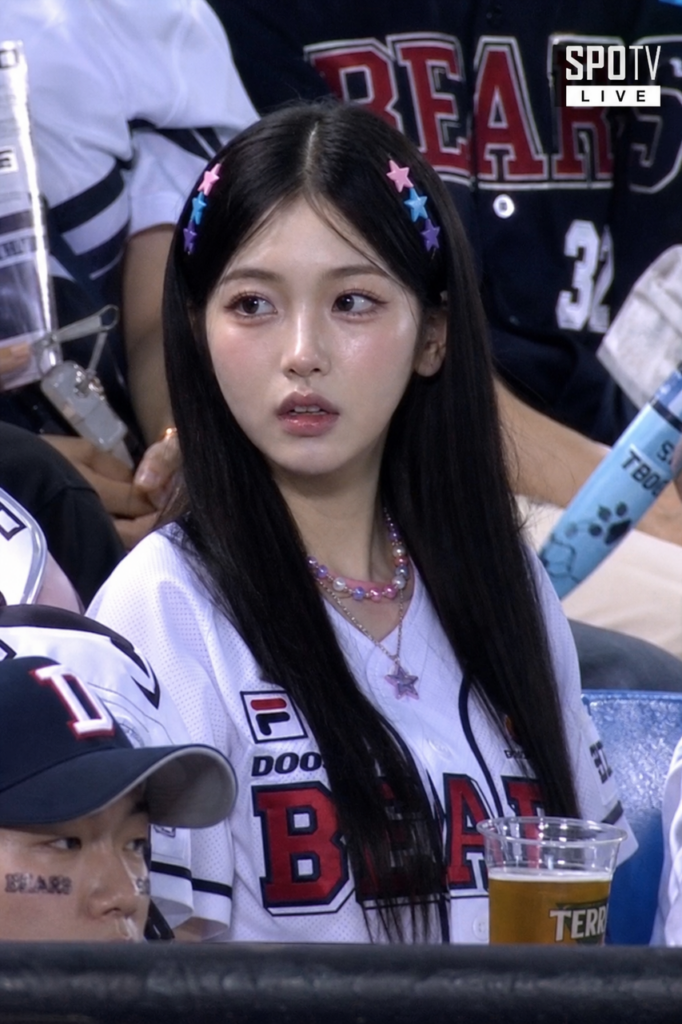
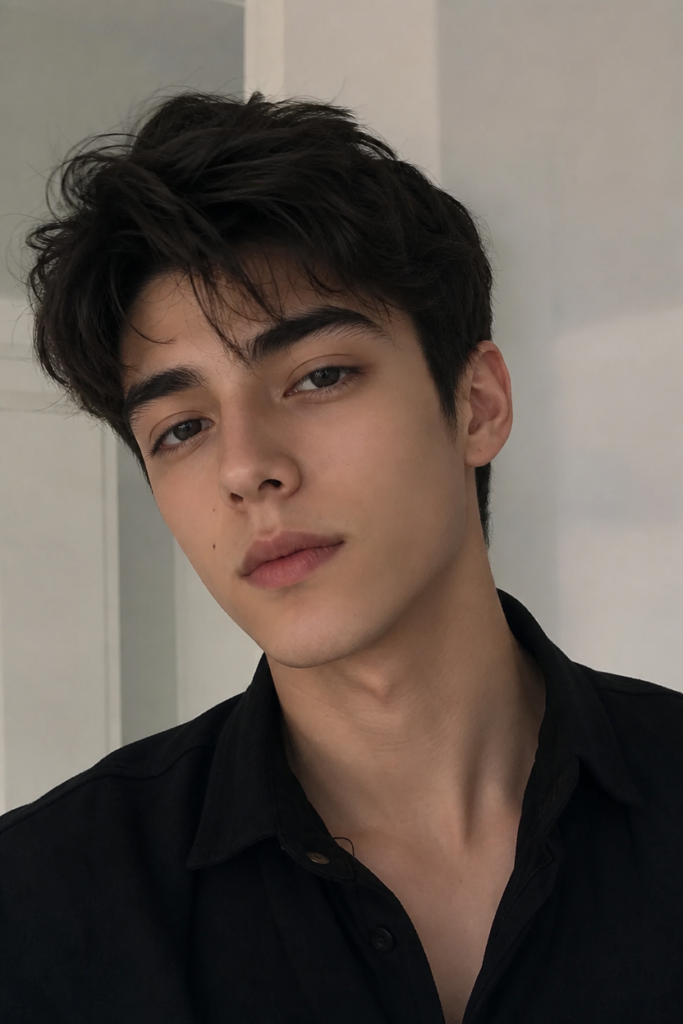
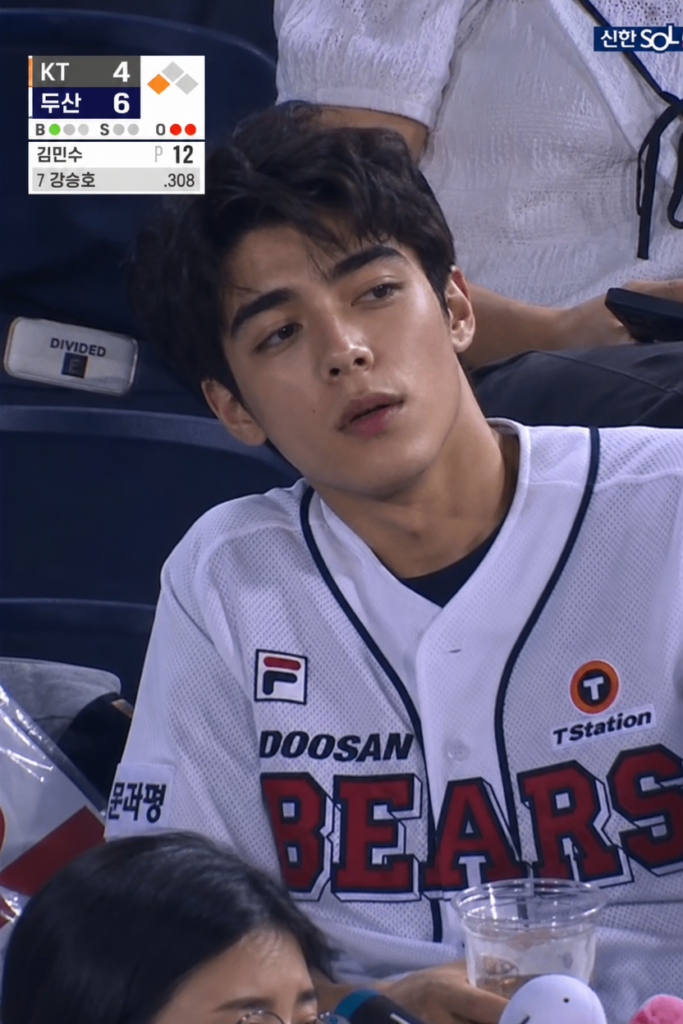
Step 2: Advanced Tuning for Realism
If your initial result looks too “clean,” it’s time to tweak. One of the hidden strengths of gpt image2 is its ability to understand “imperfection” keywords.
- Texture Control: Add “oily skin” or “flyaway hair” to your prompt. This forces the generator to move away from the doll-like aesthetic and lean into the grit of a live event.
- Environment Mapping: Use the tool to specify team colors. For example, “wearing a team jersey” helps gpt image2 set the color palette of the entire scene, making the person blend into the background seamlessly.
- Camera Angle: Request a “handheld camera shake” or “low-angle candid” view. The model will adjust the perspective to make it look like a cameraman just spotted you in the crowd.
Step 3: Breathing Life into Your Frames
Once you have your high-quality PNG from gpt image2, it’s time for the animation magic. While the image engine handles the visual DNA, a motion tool like Kling 3.0 provides the movement.
- Importing the Asset: Upload your generated image as the “First Frame.”
- The Continuity Check: Because the gpt image2 output is so detailed, ensure your motion settings are set to “Subtle” or “Low.” You don’t want your face to morph; you just want to breathe. (Optional but recommended: Set the Last Frame as the same image).
- Prompting Motion: Use a prompt like: “The camera stays still, the person in the crowd moves slightly naturally — hair gently moving, eyes blinking, very small shoulder motion. Live broadcast handheld camera micro-shake.”
| Parameter | Suggestion |
| Duration | 5-8 seconds (most realistic) |
| Motion Range | Low or Medium (avoid distortion) |
| Resolution | 1080p or 4K |
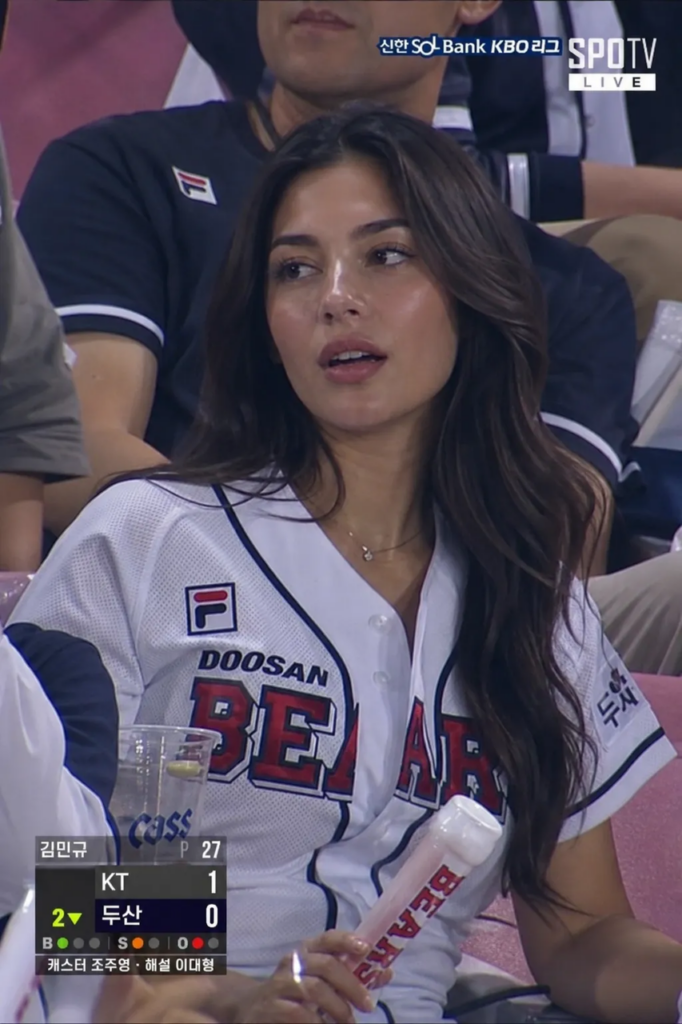
Why gpt image2 is the Modern SEO Choice
From a creator’s perspective, focusing on gpt image2 isn’t just about quality—it’s about relevance. Search engines and social algorithms are increasingly favoring “realistic” and “original” AI content over mass-produced, shiny avatars.
By focusing your workflow on this specific engine, you are producing content that has a higher watch time because users spend those first few seconds wondering if the video is actually real. Furthermore, the gpt image2 infrastructure is optimized for high-resolution exports. Whether you are posting to TikTok, Instagram Reels, or YouTube Shorts, the clarity provided ensures your video looks professional across all platforms.
Advanced Tips and FAQ
How do I make expressions more “candid” in gpt image2?
The prompt already includes keywords like “slightly surprised” or “distracted.” If the result still looks too posed, try adding: “expression even more blank, like daydreaming, no smile, just zoning out.” Real broadcast captures often catch people in neutral “blank” states.
Can I change the sport or jersey?
Absolutely. You can replace “professional baseball game” in your gpt image2 prompt with “NBA basketball game,” “World Cup soccer match,” or “Tennis Grand Slam crowd.” Just keep the “sports broadcast screenshot” and “realistic skin” parts of the command intact.
What if I want a “funny” fail video?
Intentional “faking” is a fun trend. Use a heavily filtered selfie but ask gpt image2 for a “realistic broadcast.” The resulting conflict often creates a hilariously surreal “glitchy” look that does very well on social platforms.
Final Thoughts
The secret to going viral in 2026 is authenticity. By mastering gpt image2, you bridge the gap between “AI-generated” and “human-captured.” It’s about using technology to tell a story that feels remarkably real.
Start experimenting with the gpt image2 engine today, and transform your everyday selfies into cinematic moments that capture the world’s attention.
Go to WeShop AI For Exploration:


