An AI YouTube Banner Maker guide for clear, consistent channel art
A YouTube banner can look perfect on a large monitor and fail completely on a phone. The subject may disappear. The channel name may be cut in half. Meanwhile, the carefully designed background may become a narrow strip.
An AI YouTube Banner Maker helps creators plan the image around the channel niche, audience, colors, and visual identity. More importantly, it can create a wide composition with the main subject near the center.
That central placement matters because YouTube shows a different part of the banner on each device. Mobile, desktop, and television screens do not display the full image in the same way.
Therefore, a good banner is not simply a beautiful wide picture. It is a flexible design that remains clear after every crop.
Why YouTube Banners Change Across Screens
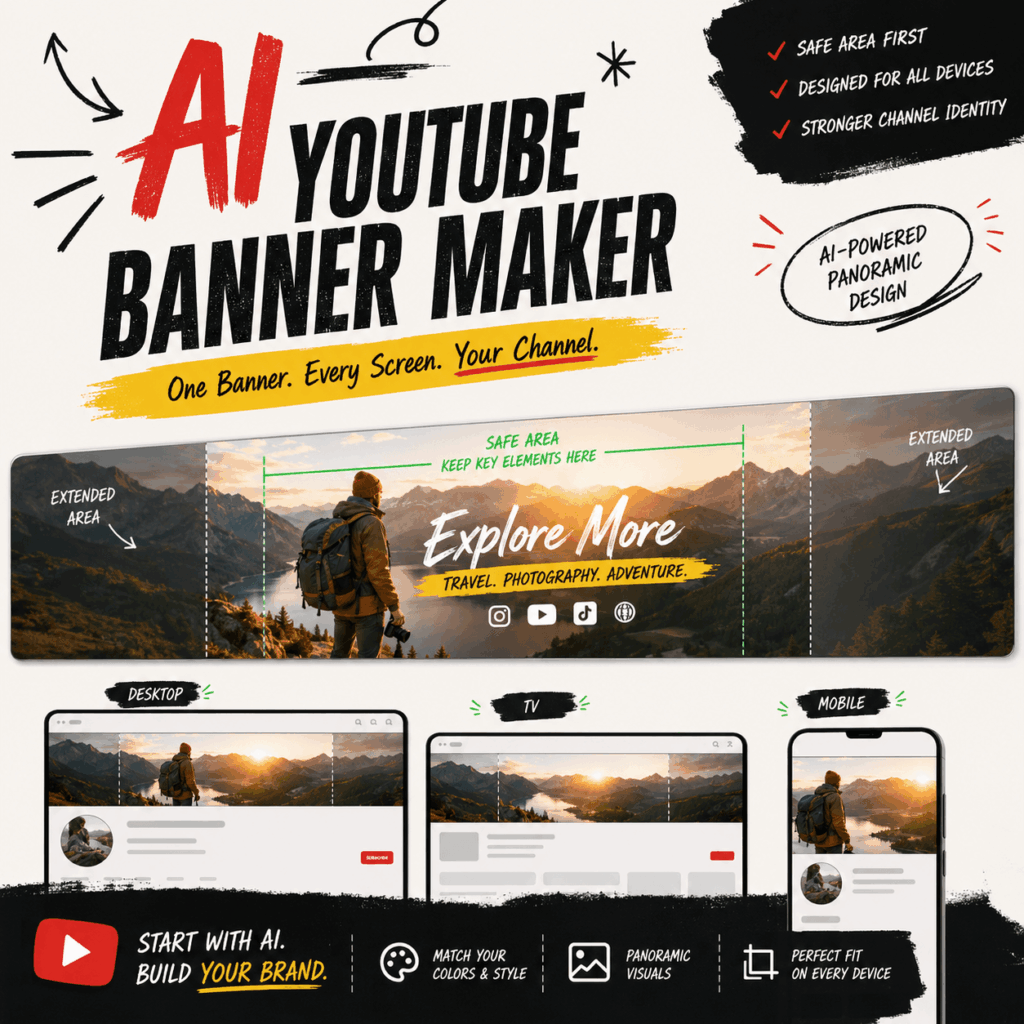
YouTube uses one uploaded banner across several screen sizes. However, each screen reveals a different section of that image.
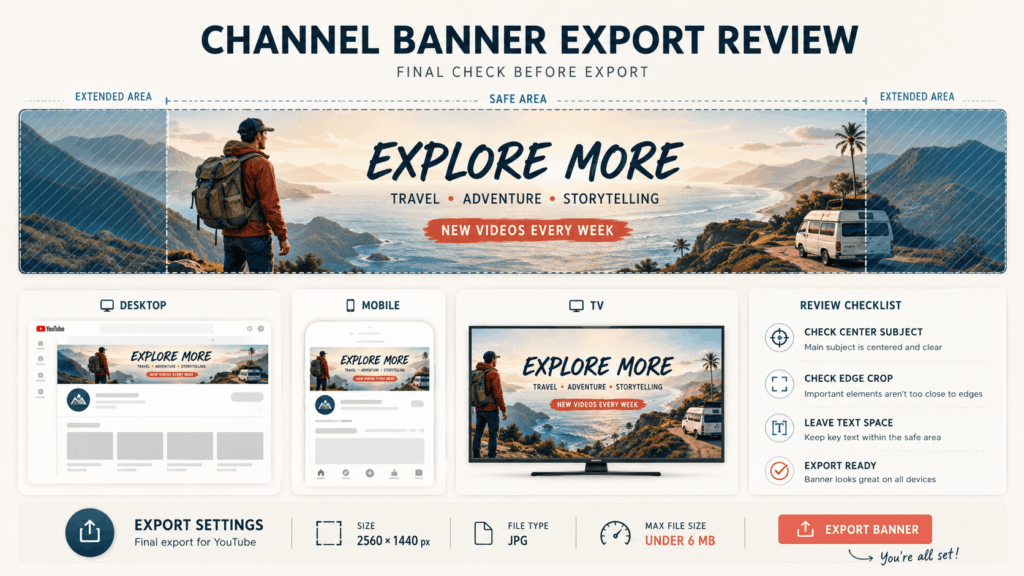
A television may show most of the full background. A desktop screen usually displays a shorter horizontal section. On mobile, viewers often see only the central area.
As a result, a design that depends on its outer edges may not survive the crop.
The Full Canvas Is Not the Safe Area
The full image gives you room to create a wide environment. Still, that does not mean every part of it is equally important.
YouTube recommends a banner size of 2560 × 1440 pixels. The minimum upload size is 2048 × 1152 pixels with a 16:9 aspect ratio.
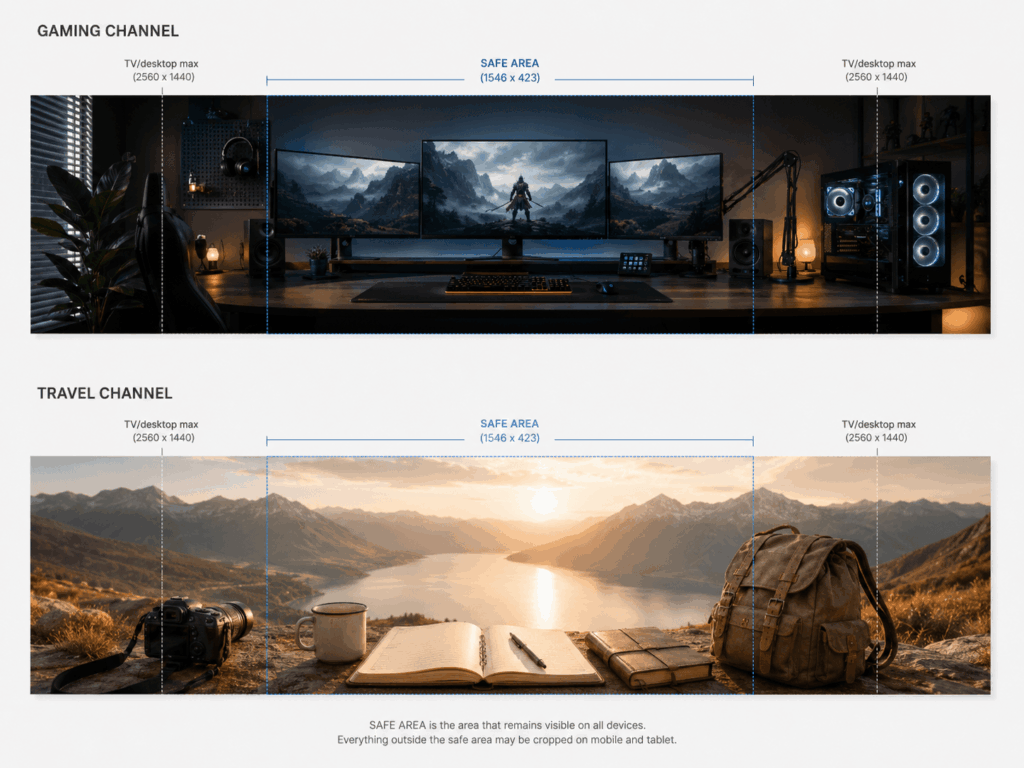
At the minimum size, the safe area for text and logos is 1235 × 338 pixels. Therefore, names, faces, logos, and key objects should stay close to the center.
Edge Content Should Be Optional
Details near the left and right sides can improve the television view. For example, a gaming room may include extra monitors, lights, and wall details.
However, the channel should still make sense when those objects disappear. Important information should never depend on the edges.
How the AI YouTube Banner Maker Solves Cropping
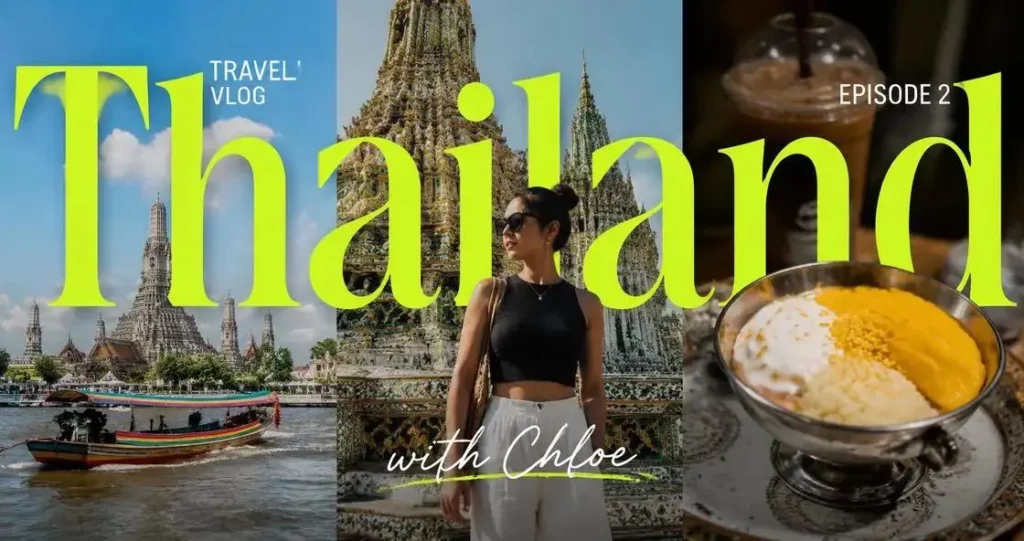
The AI YouTube Banner Maker lets creators define the layout before generating the final artwork. Instead of creating a normal image and forcing it into a banner later, users can request a panoramic design from the beginning.
A useful prompt should describe where the main subject belongs. It should also explain what can appear near the sides.
For example, you can ask for a travel camera and journal in the center. Then, mountains, clouds, and sunlight can continue toward the outer areas.
Keep the Main Focal Point Near the Center
Place the face, product, logo, or most recognizable object near the center of the banner.
The subject does not need to sit at the exact middle. A slightly off-center position can still feel dynamic. However, it should remain close enough to survive a narrow crop.
Create Natural Negative Space
Negative space is an area with limited visual detail. It gives you room to add a channel name, slogan, or posting schedule later.
Ask the AI YouTube Banner Maker to create clean negative space inside the central region. Avoid placing this empty area at the far edge, since it may disappear on smaller screens.
Let the Background Extend Outward
The central area should carry the message. Meanwhile, the background can create depth across the full width.
This structure gives television viewers a complete visual world. At the same time, mobile viewers still see the essential channel identity.
Build Channel Identity Before Generating the Banner
A banner should show viewers what kind of channel they have found. Therefore, do not begin with vague style words such as “cool,” “modern,” or “cinematic.”
Start with the channel itself.
Define the Niche
Describe the main subject of the videos.
The niche might be gaming, travel, education, beauty, technology, product reviews, or podcasting. A focused niche gives the AI YouTube Banner Maker a clearer visual direction.
For example, a technology channel may use a clean desk, product silhouettes, and controlled lighting. A slow-travel channel may use a camera, notebook, mountain view, and softer sunlight.
Define the Audience
Consider who watches the channel.
A gaming channel for competitive players may need sharper contrast and more energy. In contrast, a channel for casual players may feel brighter and more welcoming.
The target audience can influence color, lighting, texture, and the amount of detail.
Choose One Memorable Idea
The banner does not need to explain every video category.
Instead, select one main scene, object, or mood that viewers can remember. A strong visual idea creates more identity than a collection of unrelated symbols.
Use the AI YouTube Banner Maker for Niche-Specific Art
Generic templates often use the same layout for every channel. The creator may change the title and colors, but the final result still looks familiar.
An AI YouTube Banner Maker can begin with the content niche instead. Therefore, the environment, objects, mood, and composition can all support the creator’s identity.
Gaming Channels
A gaming banner may use a command center, layered screens, bold lighting, and a central area for the channel name.
However, the scene should remain organized. Too many bright objects can make the banner difficult to read.
Travel Channels
A travel banner can use a wide landscape with a few personal objects. For example, a camera and open journal can sit near the center while mountains extend toward the sides.
This creates a personal travel identity without filling every part of the image.
Education and Review Channels
An education channel may use clean shapes, organized objects, and a calmer palette. Meanwhile, a review channel can feature one central product category with supporting details near the edges.
In each case, the design should communicate the content before viewers read the channel description.
Make the Center Work Without Making It Boring
Keeping important elements near the center does not mean every banner must use a stiff, symmetrical layout.
You can still create movement through pose, light, shadows, lines, and background depth.
Use Directional Composition
A person can stand near the center while looking toward the text area. Likewise, a desk, road, or light beam can guide the viewer’s eyes across the banner.
These visual lines add energy without moving the key subject outside the safe area.
Use Size to Create Hierarchy
The most important element should be easier to notice than the supporting details.
For example, a travel camera can appear larger near the center. Smaller mountains, clouds, and journal objects can then support the main idea.
Protect Faces and Products
Avoid placing a face directly beside the edge of the mobile crop. In addition, do not allow an important product to extend too far across the banner.
A partial object may look intentional on television. However, it can look like an error on mobile.
Build a Recognizable Color System
A professional banner does not need many colors. In fact, a small color system is often easier to remember.
Choose one main color, one supporting color, and one contrast color. Then, repeat part of that system in your thumbnails, profile image, intro, and social content.
Match the Channel Mood
A calm travel channel may use warm earth tones, pale blue, and soft white. A gaming channel may use dark surfaces with controlled violet or cyan highlights.
Meanwhile, a beauty channel may use clean neutrals with one richer accent.
Keep Enough Contrast
The subject should not disappear into the background. Therefore, use light, shadow, or color contrast to separate the main focal point.
Also, remember that text will need a clear area later. A busy background can make even a strong font difficult to read.
The AI YouTube Banner Maker can generate several palette directions. As a result, you can compare the options before adding text.
A Simple AI YouTube Banner Maker Workflow
A clear process saves time and produces more consistent results. It also prevents you from asking the tool to solve too many design problems at once.
Step 1: Write a Short Channel Brief
Summarize the niche, audience, personality, and mood in two or three sentences.
For example:
A slow-travel YouTube channel for young independent travelers. The videos focus on photography, quiet journeys, and personal field notes. The visual style should feel warm, calm, and cinematic.
Step 2: Choose Two to Four Visual Symbols
Select only the objects that best represent the channel.
For a travel channel, these may include a compact camera, journal, mountain landscape, and soft sunrise.
Too many symbols can weaken the main idea.
Step 3: Set the Panoramic Layout
Ask for a wide horizontal composition. Keep the main subject and future text area near the center.
Next, place supporting scenery near the sides. Make sure those details can be cropped without harming the message.
Step 4: Generate Several Options
Create more than one banner.
However, change one main variable at a time. You might test a different central object, lighting style, or color palette.
This makes the results easier to compare.
Step 5: Check Every Crop
Preview the image as a wide television banner, a shorter desktop banner, and a narrow mobile banner.
Check whether the subject remains clear. Also, confirm that there is still room for the channel name.
Step 6: Add Text and Export
Add the exact channel name after selecting the final artwork.
Finally, export the banner at the recommended size. Keep the file at 6 MB or less.
AI YouTube Banner Maker Prompt Formula
A useful prompt should describe the channel, audience, mood, colors, objects, layout, and cropping needs.
Use this formula:
Create a panoramic YouTube banner for a channel about [channel niche]. The target audience is [audience]. Use a [mood] visual style with [main color] and [supporting color]. Place [main subject] near the central safe area. Add [supporting details] toward the left and right sides. Leave clean negative space near the center for the channel name. Make sure the main subject remains visible after mobile, desktop, and television cropping. Generate artwork without text.
AI YouTube Banner Maker Prompt for Gaming
Create a panoramic YouTube banner for a competitive gaming channel. Build an organized futuristic command center with violet and cyan lighting. Keep the central area clean for the channel name. Place layered monitors and atmospheric light toward the sides. Keep all important subjects within the central safe area. Generate artwork without text.
AI YouTube Banner Maker Prompt for Travel
Create a panoramic YouTube banner for a slow-travel and photography channel. Place a compact camera and open travel journal near the center. Add a sunrise mountain landscape that extends toward both sides. Use warm earth tones, pale blue, and soft natural light. Leave clean space for the channel name. Generate artwork without text.
Common YouTube Banner Mistakes
Even a strong image can fail when the layout ignores real display conditions.
Placing Important Details at the Edges
The outer sections may disappear on mobile and desktop. Therefore, keep names, faces, logos, and key objects near the center.
Adding Too Many Ideas
A banner does not need to show every topic on the channel.
Instead, use one clear concept and a few supporting objects. This makes the design easier to recognize.
Copying a Generic Template
A template can save time. However, it may also make the channel look similar to many others.
Use the AI YouTube Banner Maker to define a scene around your own niche, audience, and personality.
Generating Final Text Inside the Artwork
AI-generated text may contain spelling or spacing problems. It may also appear outside the safe area.
Therefore, generate the background artwork first. Then, add accurate text in a separate layout step.
Ignoring the Profile Picture
The profile image may cover part of the banner in some views. As a result, do not place an important face or product too close to the lower-left area without checking the final channel preview.
AI YouTube Banner Maker FAQs
What Size Should a YouTube Banner Be?
YouTube recommends 2560 × 1440 pixels. The minimum upload size is 2048 × 1152 pixels with a 16:9 aspect ratio.
At the minimum size, keep text and logos inside the 1235 × 338-pixel safe area. The final file should be 6 MB or smaller.
Do I Need Design Experience?
No advanced design experience is required to create an initial concept.
However, you should still review the crop, subject position, color consistency, and final text before publishing.
Should the AI YouTube Banner Maker Add Text?
It is usually better to generate the artwork without text.
Afterward, add the channel name with a font and layout tool. This gives you better control over spelling, alignment, size, and safe-area placement.
Can I Use the Banner Commercially?
Commercial use depends on the platform terms and the rights connected to any uploaded logos, photographs, characters, fonts, or reference images.
Therefore, review the relevant permissions before publishing branded or client work.
Create a Banner That Survives Every Crop
A successful YouTube banner does not need to display every detail on every device. Instead, it needs to protect the right details.
Keep the channel identity, main subject, logo, and text near the center. Then, use the outer areas to expand the environment and atmosphere.
The AI YouTube Banner Maker helps turn a short channel brief into a wide visual concept. It also makes it easier to test layouts, colors, negative space, and niche-specific ideas before adding the final text.
Start with one clear channel identity. Generate several panoramic options. Then, check the mobile, desktop, and television crops before publishing.
With the right layout, one banner can remain clear, recognizable, and attractive on every screen.
Go to WeShop AI For Exploration: