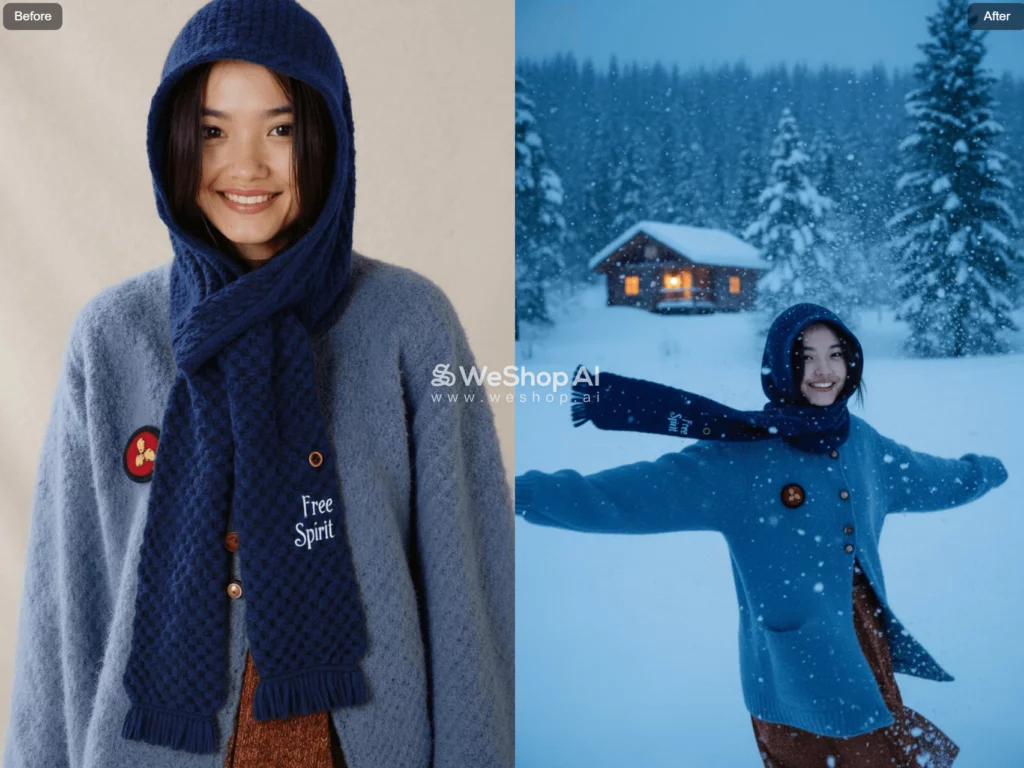
As the holiday season approaches, the air is filled with the joy and excitement of Christmas. For e-commerce businesses, this is the perfect time to capture the festive spirit and showcase your products in the most enchanting way possible. In this post, we will walk you through every click of WeShop AI’s AI Pose tool, turning an everyday model photo into a warm, gift-ready Christmas scene. Keep reading; by the end, you will know exactly how to swap poses, add holiday props, and pick yuletide backgrounds—no studio, no photographer, no stress.
Introducing WeShop AI’s AI Pose Feature
WeShop AI is a cutting-edge platform that revolutionizes e-commerce photography. With its AI Pose feature, you can effortlessly create dynamic and engaging images of your products. This feature allows you to place your products on virtual models or mannequins in a variety of poses, making them look as if they are part of a real-life Christmas scene. From cozy sweaters by the fireplace to elegant dresses at a holiday party, WeShop AI can bring your products to life with just a few clicks.
Creating the Perfect Christmas Pose using AI Pose
When it comes to Christmas, the right pose can make all the difference. A well-thought-out pose can evoke the festive spirit and make your products more appealing. With WeShop AI, you can choose from a wide range of pre-designed poses or create your own custom poses. We’re going to offer some tips to help you create the perfect Christmas pose. But before that, let’s look at some of the best examples of how we use the Change Pose tool.
AI Pose Step-by-Step Guide to Creating a Christmas Pose
To make sure that you have an idea of what makes a great Christmas pose, let’s walk through the step-by-step process of creating one with WeShop AI:
Step 1 – Ask an AI wordsmith for help
Open any text-AI you like (ChatGPT, Claude, etc.) and type:
“Give me 5 short English prompts for festive model poses, include words like ‘holding a gift,’‘sitting by tree,’‘wearing Santa hat.’”
Copy the line you love, then you’ll paste it in a moment.
Step 2 – Upload & drop the prompt
In WeShop AI, click Change Pose, upload your original model image, then paste the Christmas prompt into the text box.
Feel free to tweak the wording right there—add “smile,”“snowy background,” or any detail you want.
Step 3 – Generate, review, refine
Hit Generate. If the pose is perfect, you’re done!
If something bugs you—maybe an extra hand or a crooked hat—click Edit, adjust the prompt, or open Magic Eraser and simply brush away the part you don’t like.
Generate again; you can repeat this tweak-loop until the picture feels 100% holiday-ready.
Before & After: Best Christmas Makeovers with AI Pose
Below are three real cases.
For each one you’ll see:
- the original plain shot
- the exact prompt I typed
- the festive finals that came back after I hit Generate
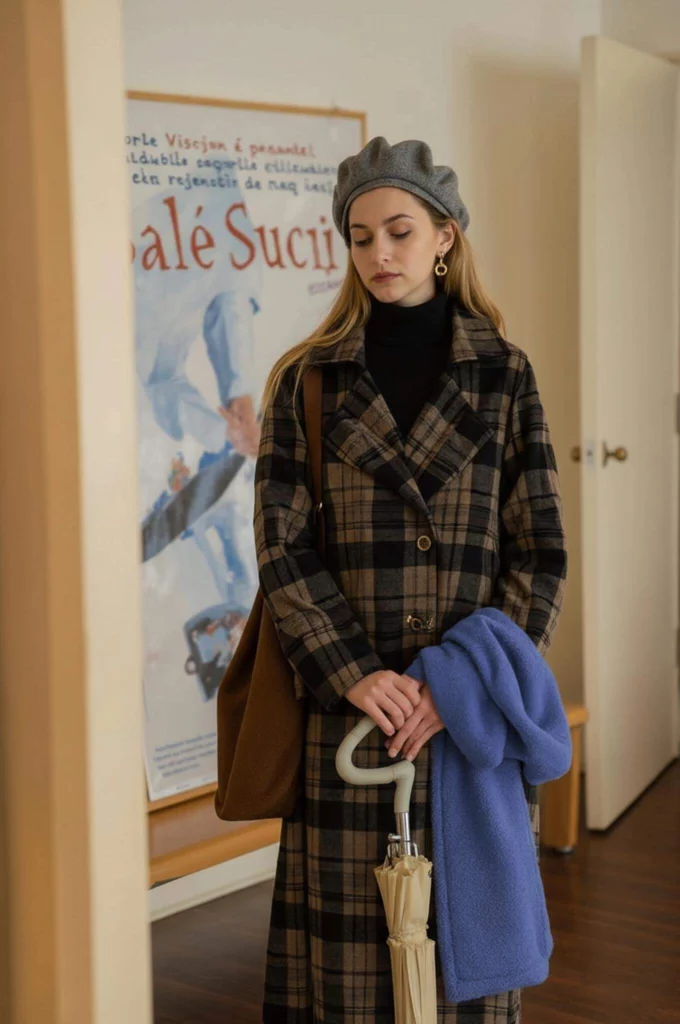
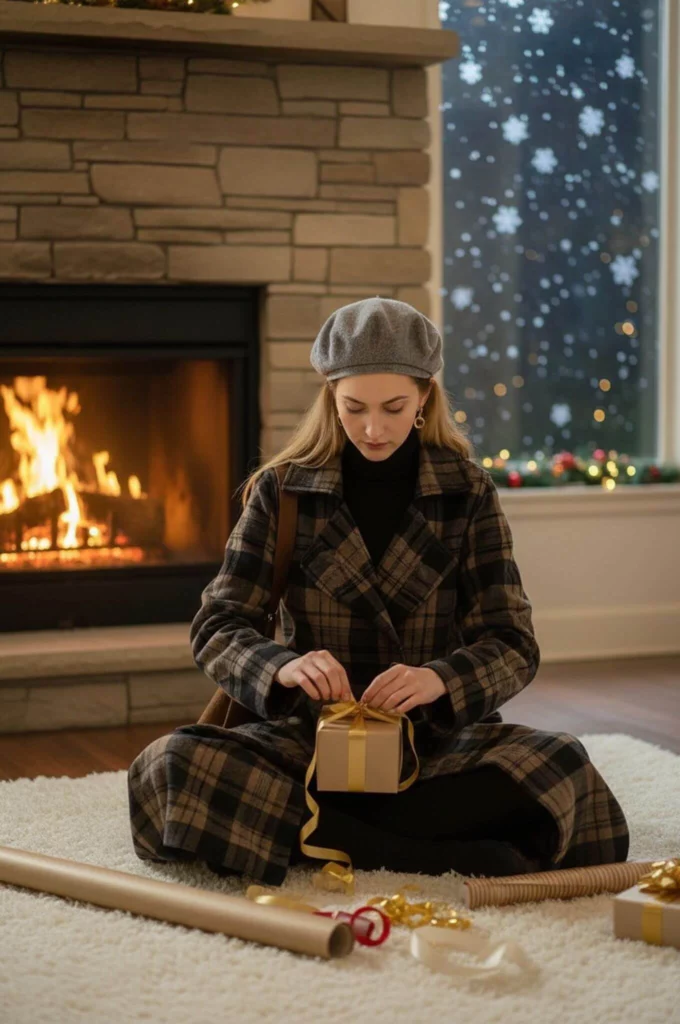
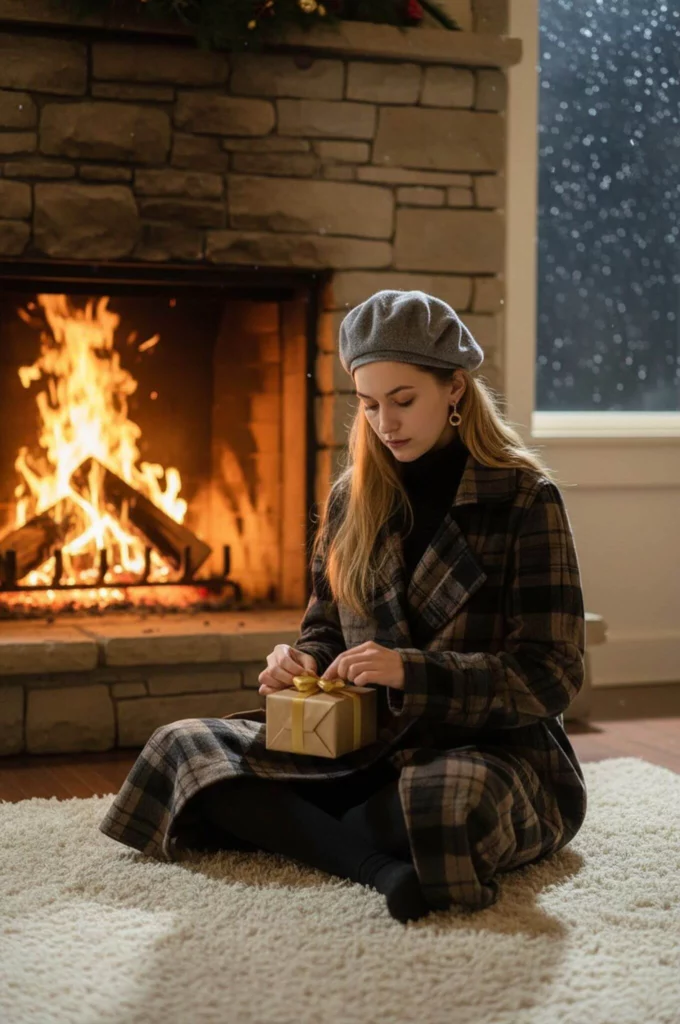
Prompt:”change pose, sitting cross-legged on a fluffy white rug in front of a blazing fireplace, wrapping a small gift box with golden ribbon, snowflakes falling outside the window, soft warm cinematic lighting,35mm photography, shallow depth of field, Christmas eve mood, ultra-sharp.”
Prompt: “joyful girl, scarf flying, spinning with arms wide open in fresh white snow, snowflakes swirling around, twilight blue hour, distant cozy cabin windows glowing warm, cinematic motion blur on scarf ends, ultra-real.”
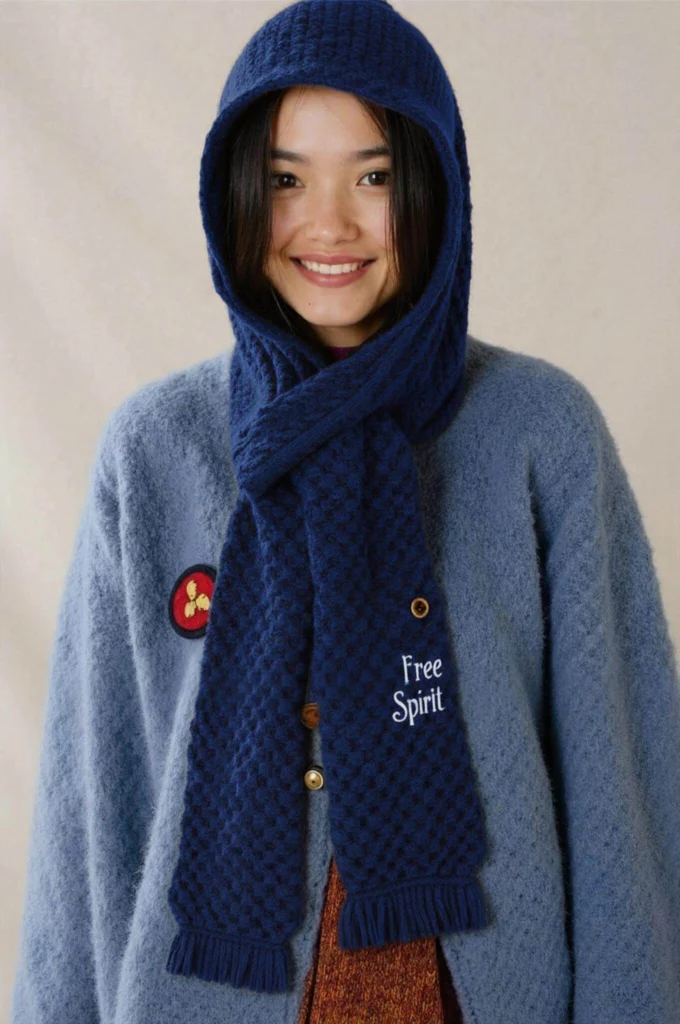
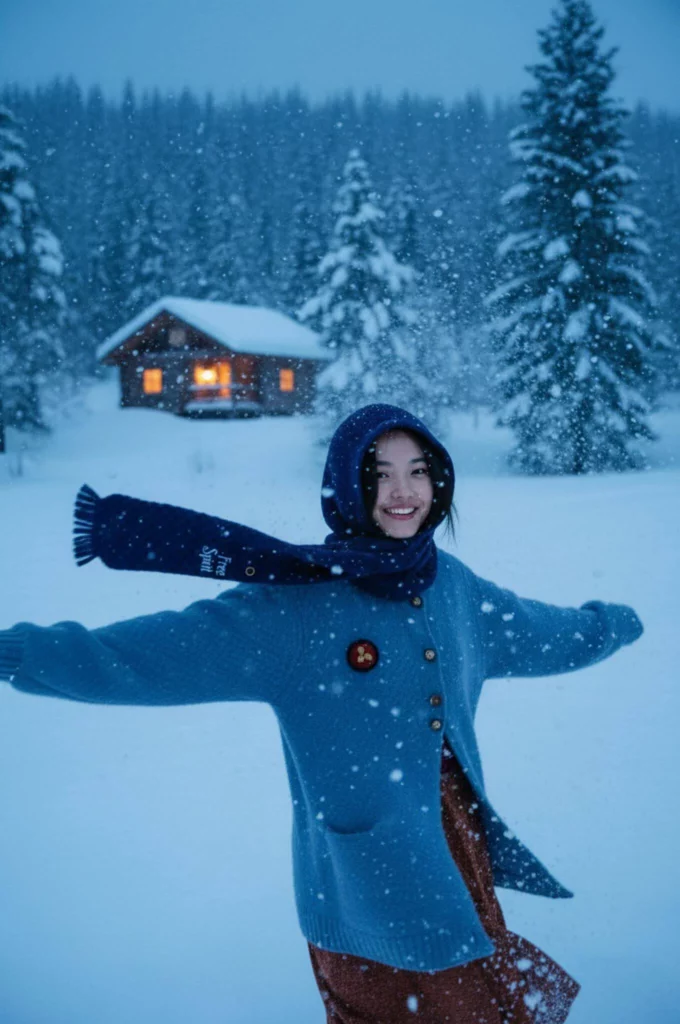

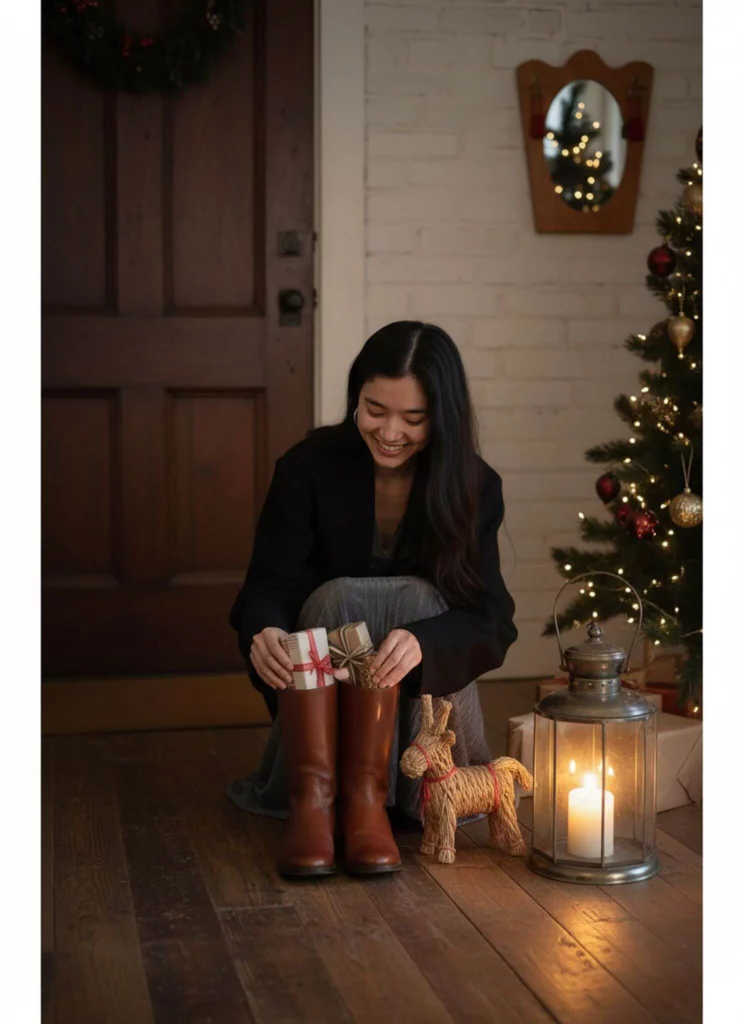
Prompt:”change pose, girl kneeling at front door, with happy smile, arranging polished boots to receive small wrapped gifts, straw Yule goat figurine and Christmas tree, beside, candle lantern glow, rustic wooden floor, nostalgic Christmas mood.”
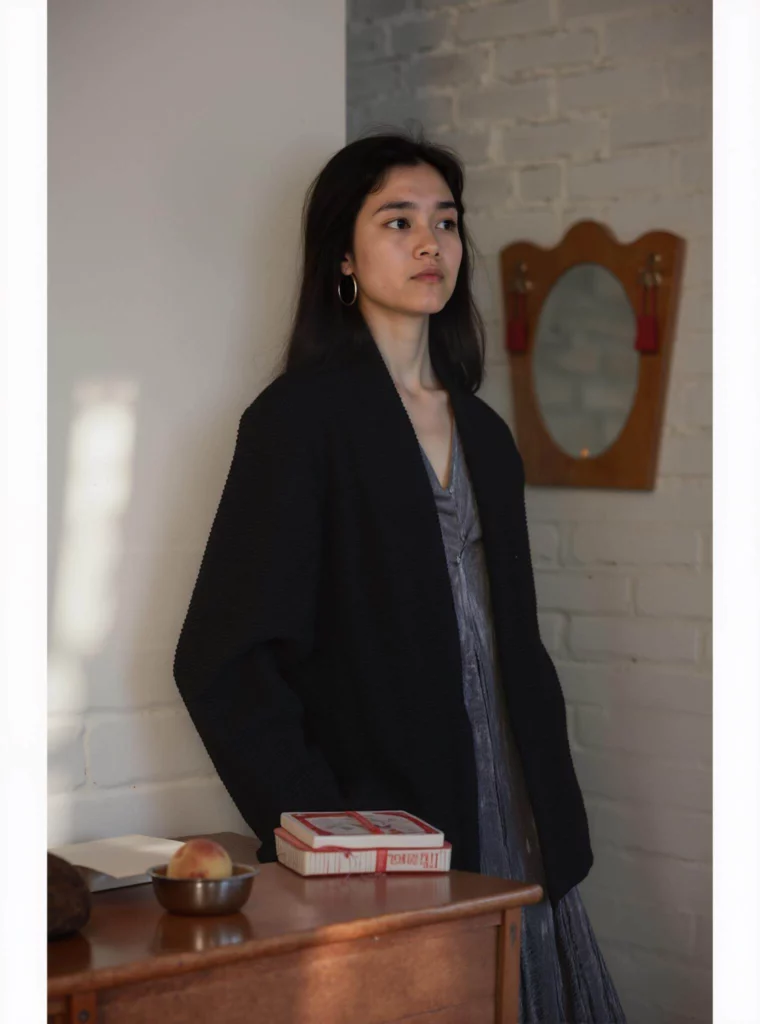
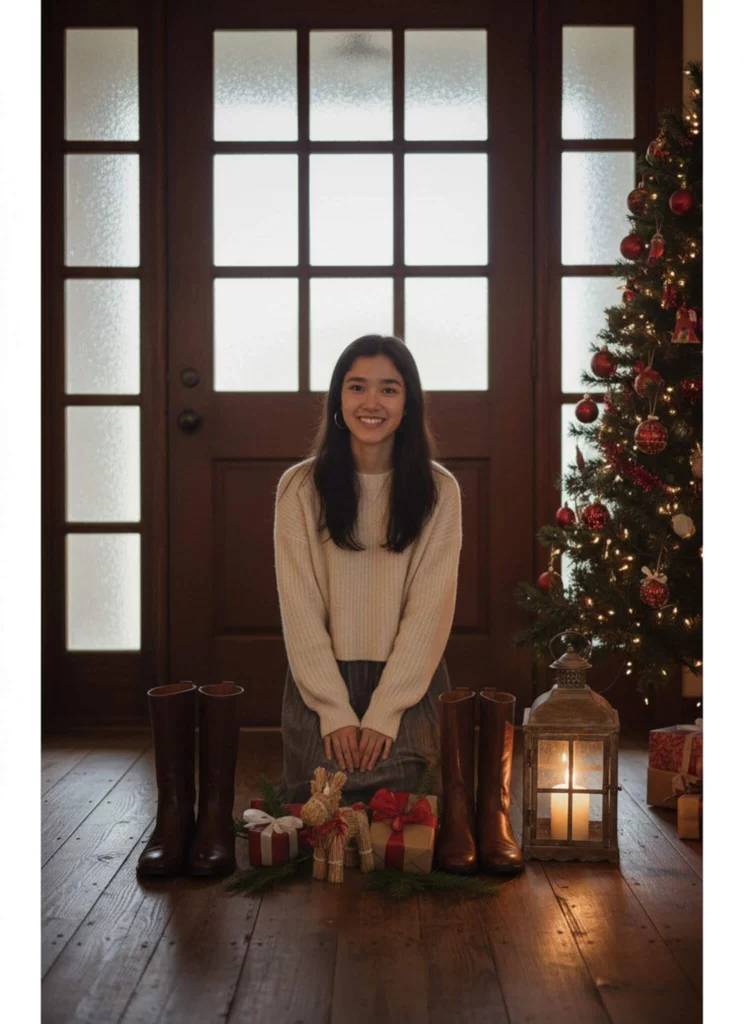
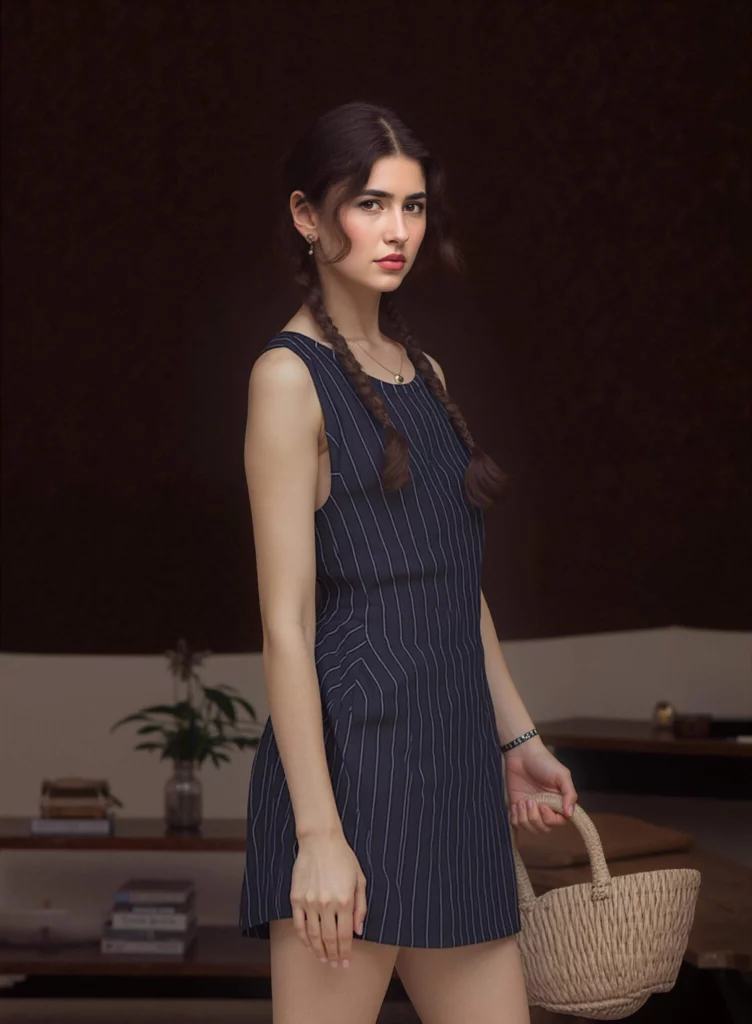
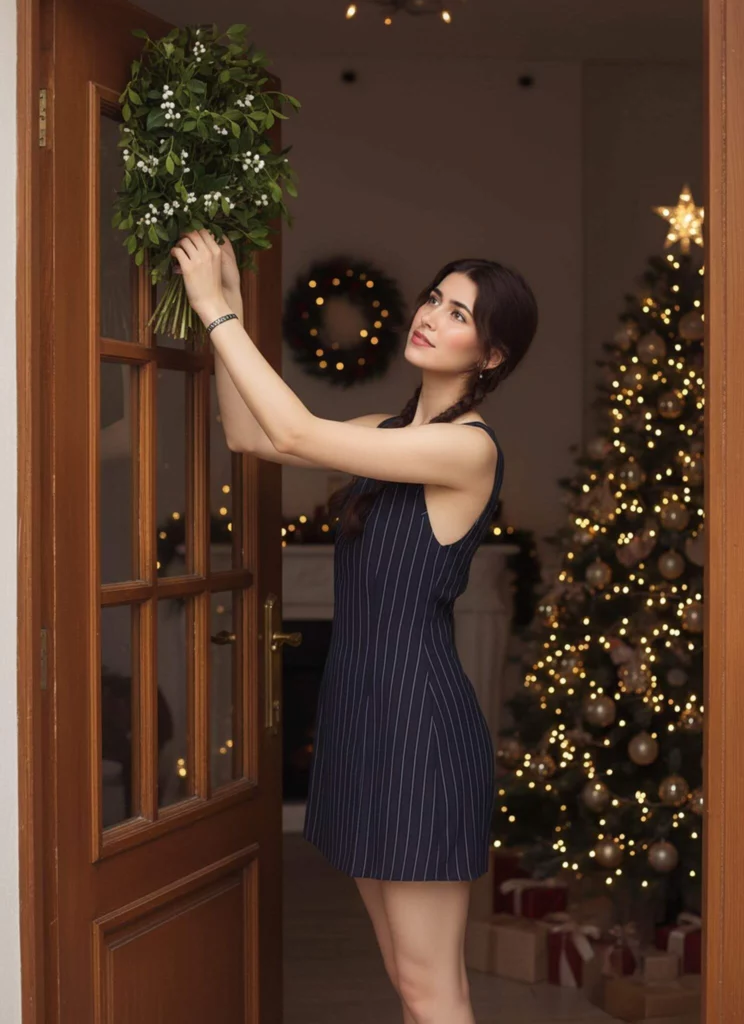
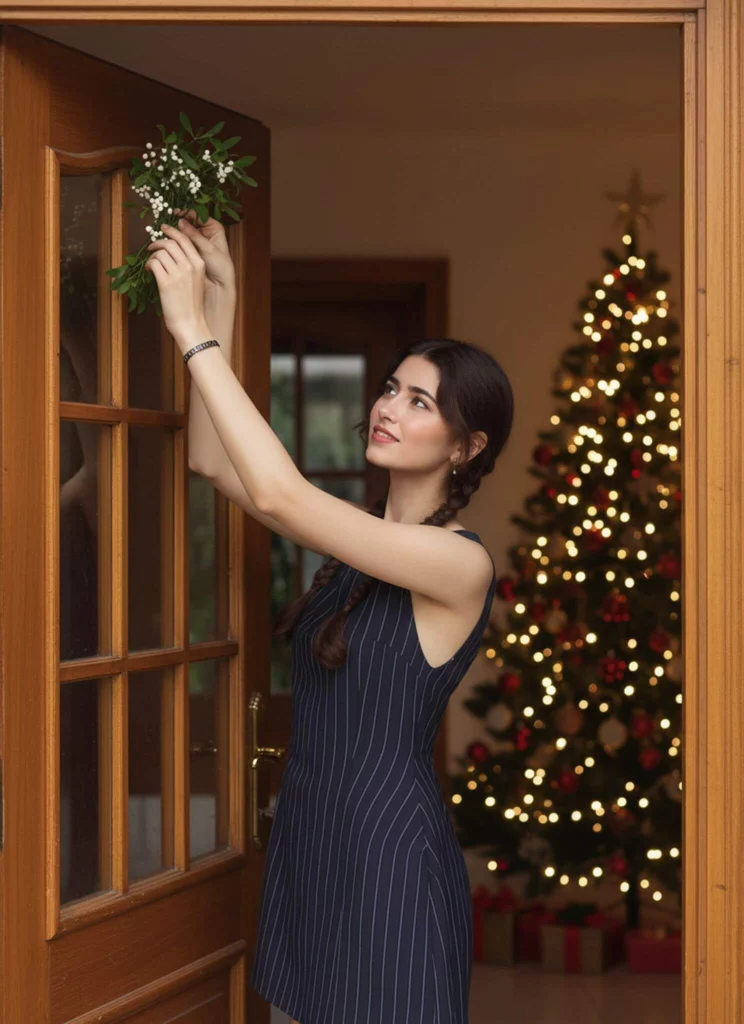
Prompt: “change pose, girl standing on tiptoes inside doorway, pinning a mistletoe bunch above the frame, gentle smile, warm fairy lights reflection in her eyes, cozy home interior, with Christmas tree beside, 50 mm photography.”
Other Tips – Deck the Pic with WeShop AI’s Extra Tools
1. Pick the right face
Open AI Model, choose a model card that looks cosy, festive or child-like, then drop your sweater on her. A single click swaps the whole cast while the garment stays put.
2. Drop in a holiday scene
Go to Virtual Try-On, click Background, type “warm living room, tree lights, snow window” and hit Apply. Your model is now celebrating inside a Christmas postcard.
3. Add or delete props in seconds
Want a gift box but it’s missing? Type “holding red gift box” in the Text Prompt box and Generate.
Need to erase a stray price tag? Select Magic Eraser, brush over the tag, tap Remove—gone, no trace.
Conclusion
You don’t need a studio, snow machine, or Santa-clad crew to flood your store with Christmas cheer. Grab the prompts we shared, fire up WeShop AI’s Change Pose, Model, Background and Magic Eraser tools, and turn every flat shot into a festive scene that sells. Test, tweak, replicate—then watch the holiday orders roll in. Happy creating, and merry selling!