How to Change Background Color
Background removal is a technique used to isolate the main subject of an image from its background, creating a cleaner and more focused look. This is particularly valuable in scenarios where the background is blurry or irrelevant to the subject of the photo. WeShop AI’s background removal function is designed to cater to a wide range of needs, making it an invaluable tool for various professional and creative applications and for various color background.
When to Use Background Removal for Black or White Backgrounds?
1. Product Photography: E-commerce platforms and online retailers rely heavily on high-quality product images to attract customers and boost sales. A cluttered or inconsistent background can detract from the product itself, making it less appealing. By removing the background and replacing it with a pure white or black background, WeShop AI helps create a sleek and uniform look that is essential for professional product photos. This technique enhances the product’s details, making colors pop and ensuring that the product stands out, whether it’s a piece of jewelry, clothing, or electronics.


2. Professional Portraits: In corporate settings, the presentation of professional portraits is crucial. Whether it’s for a company website, LinkedIn profile, or business card, having a clean and professional image is key. Background removal can turn an ordinary portrait into a studio-quality image by eliminating distracting elements and replacing them with a neutral black or white background. This not only draws attention to the subject but also gives a polished and consistent look across all professional images.


Changing Backgrounds: Beyond Black and White
While pure black and white backgrounds are popular for their simplicity and professionalism, there are times when a touch of creativity or contextual relevance is needed. WeShop AI goes beyond just making backgrounds plain; it allows users to change the background entirely, adding a new dimension to their images.
Steps for Creating your Unique Background
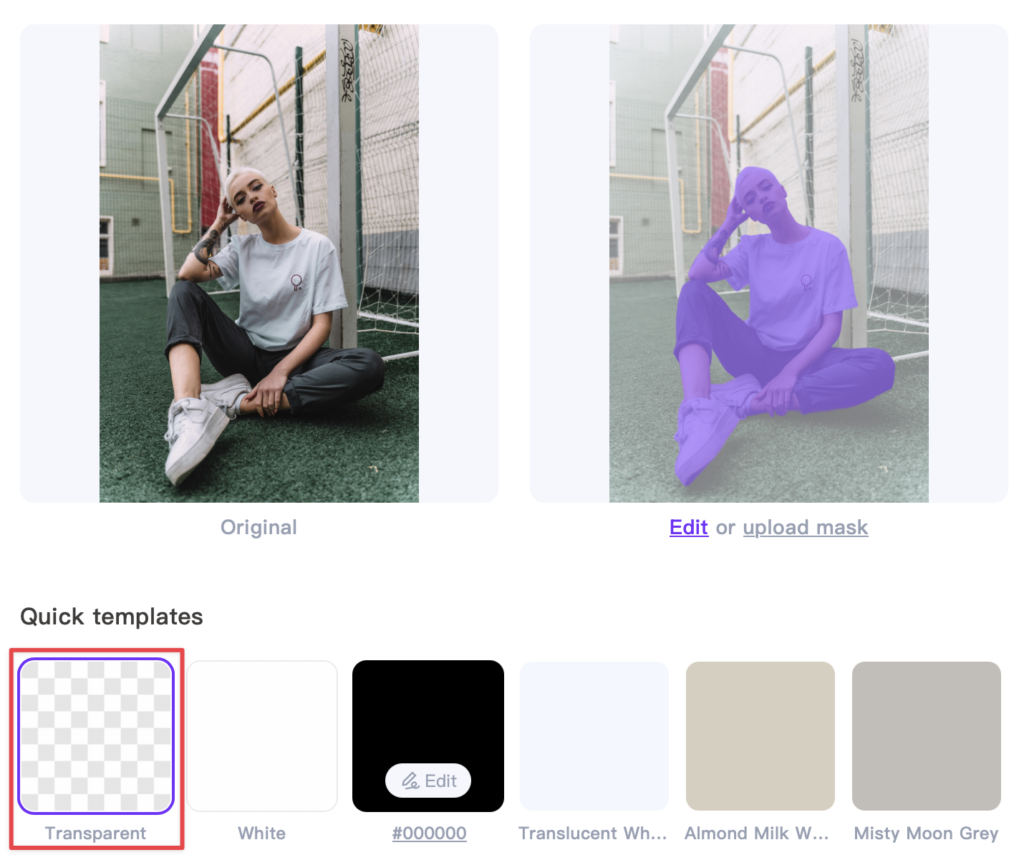
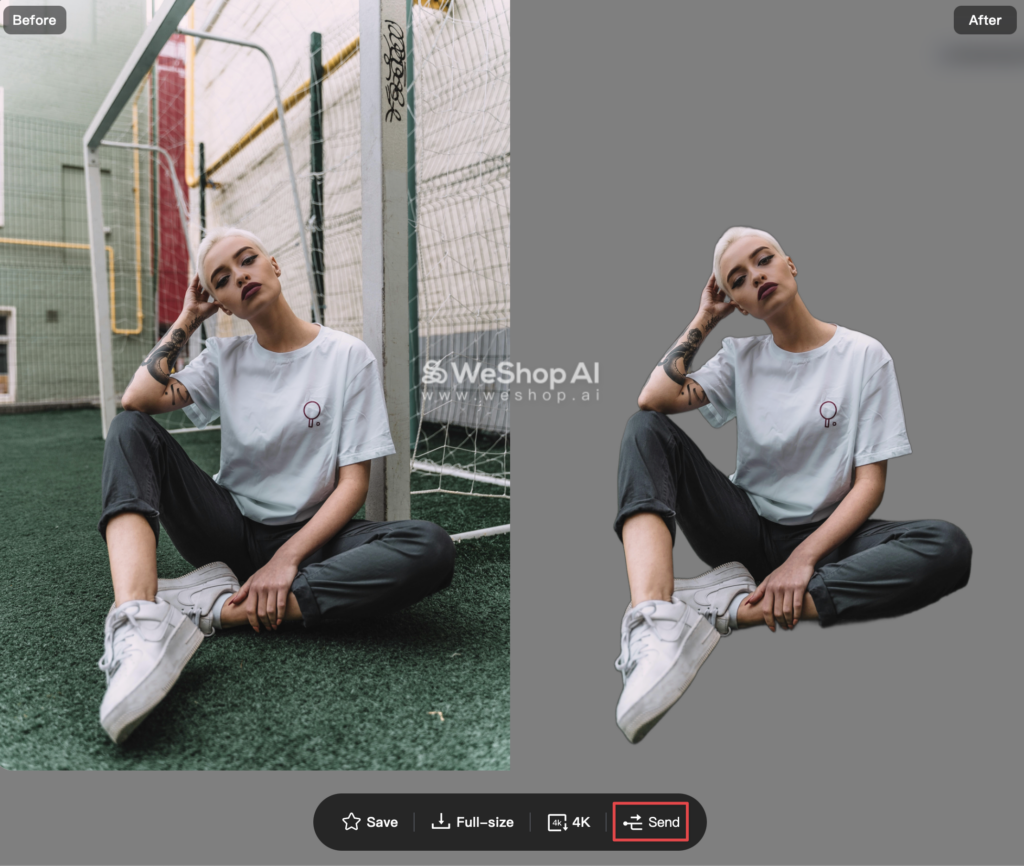
1. Generate a Transparent Background Image
When using the background removal feature, select the Transparent option to isolate the subject of the photo. Once the image has been processed, click Send to forward it directly to our AI Model workspace for further editing.
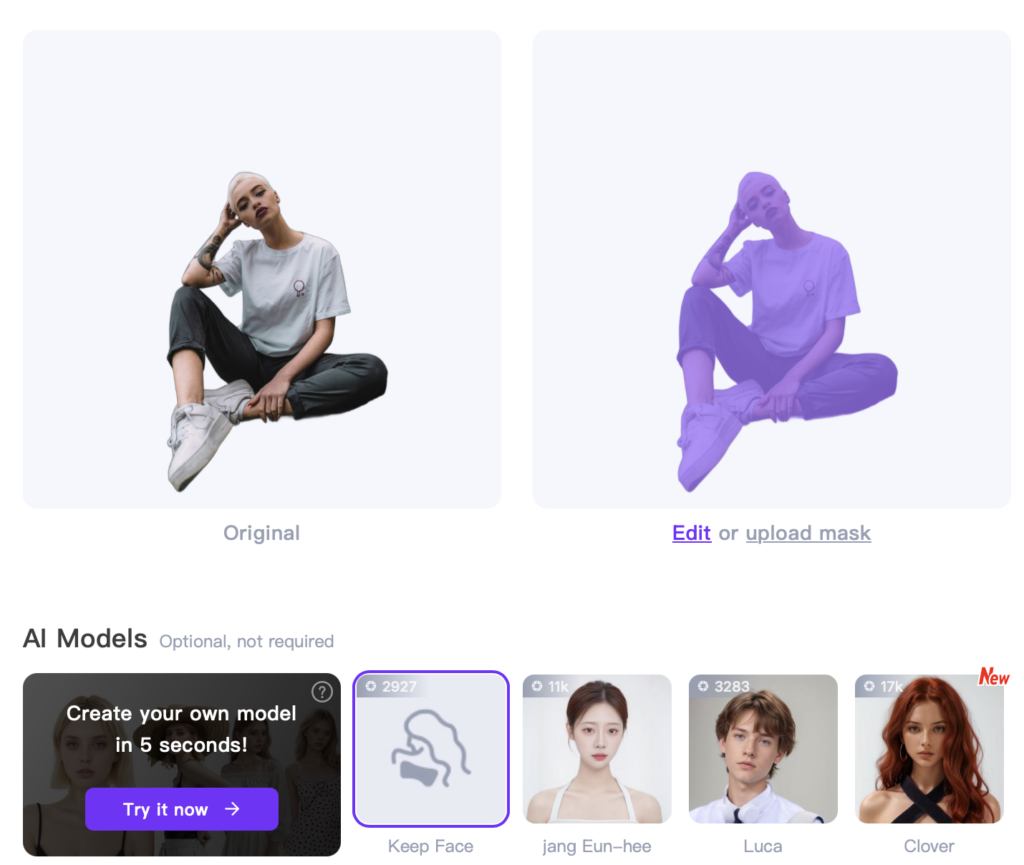
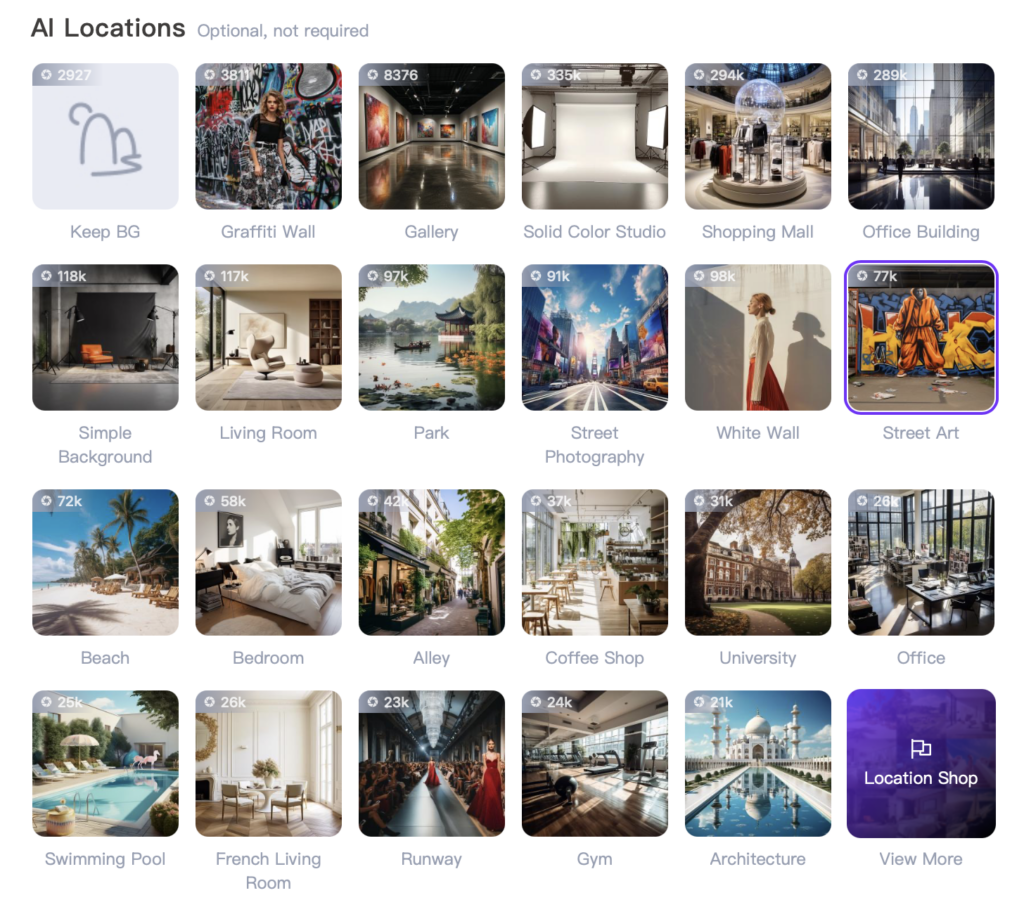
2. Find a Background Tailored Just for You
To keep the original model intact, click Keep Face, then browse through the AI Locations to find your ideal background. Alternatively, you can describe the background you’d like to create for a more personalized touch.
3. Before and After Comparison


Tips and Tricks for Best Results
After changing the background of an image, the lighting conditions between the new background and the subject may not always match perfectly, which can create a visual conflict and make the photo appear unnatural. To tackle this issue, WeShop AI offers an Relight feature, which allows you to adjust the lighting on the subject to harmonize with the new background. This tool intelligently analyzes both the subject and the background, then applies the appropriate lighting adjustments to create a cohesive and natural-looking image.