The AI Clipart Generator helps teachers create custom classroom visuals from simple text descriptions. Instead of searching several stock libraries for matching graphics, educators can generate worksheet images, flashcard illustrations, classroom labels, and reward stickers for a specific lesson.
You do not need drawing skills or advanced design software. Simply describe the subject, visual style, colors, and background you need. Then, review the result and add it to your worksheet, slide, or printable activity.
What Is the AI Clipart Generator?
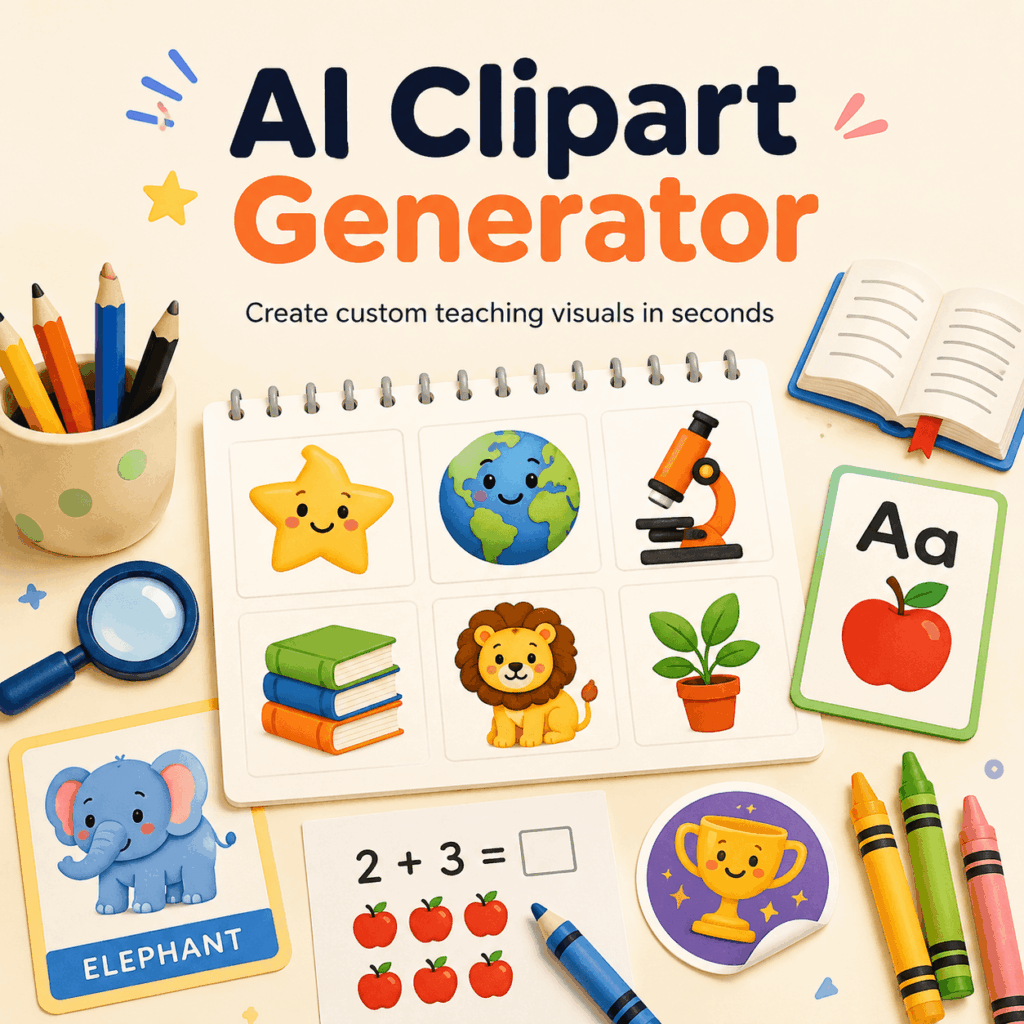
The AI Clipart Generator is a text-to-image tool designed to create simple illustrations, icons, stickers, and printable graphics. A teacher can enter an idea such as “a smiling planet for a science worksheet” and turn it into a visual asset.
Unlike a complete scene or realistic photograph, clipart usually has a clear subject and a simple composition. Therefore, it is easier to place beside questions, vocabulary words, instructions, or activity sections.
Teachers can also guide the result by requesting:
- A cute cartoon or flat vector style
- Bold and readable outlines
- A limited color palette
- A white or transparent background
- Black-and-white printable artwork
- Simple details for younger students
As a result, the generated graphics can fit different age groups, subjects, and classroom formats.
Classroom Materials You Can Make with AI Clipart Generator
The AI Clipart Generator can support many everyday teaching tasks. However, it works best when each prompt has one clear purpose.
Worksheet Images
Simple objects, animals, food, shapes, and school supplies can make worksheets easier to understand. For example, teachers can generate apples for counting practice, animals for vocabulary exercises, or weather symbols for a science activity.
Because each image is created for a specific task, teachers can avoid unrelated decorations and overly complex stock illustrations.
Flashcards and Classroom Labels
A consistent set of clipart can be used for vocabulary cards, classroom zones, storage labels, and daily schedule boards.
For instance, a reading corner might use a book icon, while an art area could use a paintbrush. In addition, younger students may recognize a clear image more quickly than a text-only label.
Reward Stickers and Progress Charts
Stars, rockets, trophies, rainbows, and friendly animals can become classroom rewards. Teachers can also match them to an existing classroom theme.
A space-themed class might use planets and astronauts. Meanwhile, a forest-themed class could use foxes, trees, and acorns.
How to Use AI Clipart Generator for Teaching Materials
Creating classroom clipart does not require a long design process. Still, a little planning can make the results much more useful.
Start with One Lesson Need
First, decide what the image needs to do.
Instead of asking for “classroom graphics,” choose a specific task such as:
- Farm animal vocabulary cards
- Weather icons for a daily chart
- Fruit images for counting practice
- Space-themed classroom rewards
A focused idea gives the AI Clipart Generator a clearer visual direction.
Write a Specific Clipart Prompt
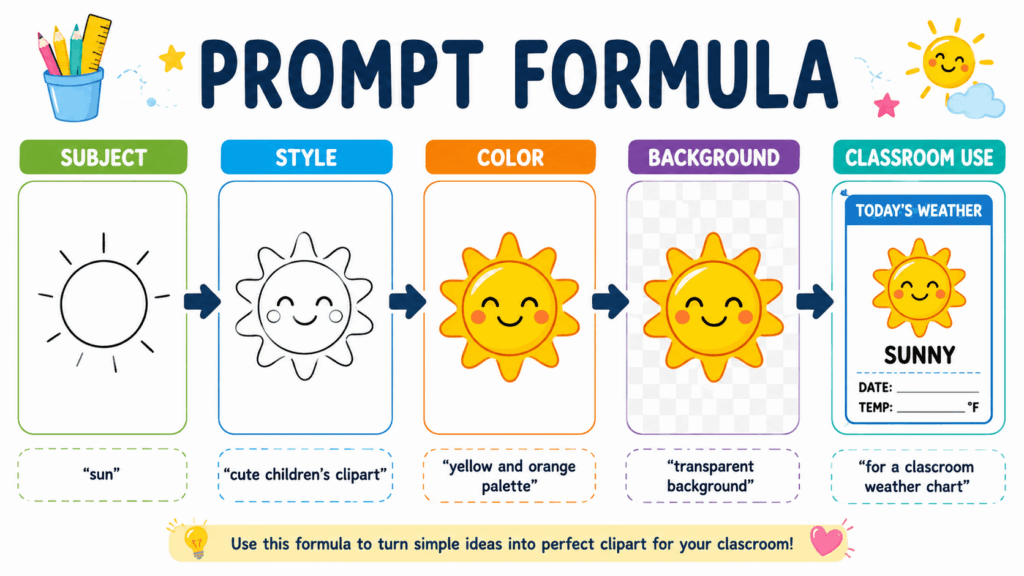
Next, describe the subject, style, colors, background, and intended use.
For example:
“Cute smiling apple clipart, simple cartoon style, bold clean outline, bright colors, transparent background, suitable for a kindergarten counting worksheet.”
This prompt is more useful than simply entering “apple.” It tells the tool what the image should look like and where it will be used.
Repeat the Same Style Words
Teachers often need several related images rather than one isolated graphic. Therefore, keep the style section of each prompt unchanged.
For an ocean animal set, you could repeat:
“Simple children’s clipart, bold outline, soft bright colors, front view, minimal details, transparent background.”
Then, replace only the subject with dolphin, whale, octopus, sea turtle, or starfish.
This method helps the AI Clipart Generator produce a more cohesive visual set.
Review Before Downloading
Finally, check the image before adding it to a lesson.
Look for unusual shapes, incorrect animal features, unclear edges, or unnecessary background objects. If the first result is not suitable, revise one part of the prompt rather than changing every instruction.
A Simple AI Clipart Generator Prompt Formula
A strong prompt can follow this structure:
Subject + Style + Outline + Colors + Background + Classroom Use
Here are several examples.
English Vocabulary Flashcard
“Friendly cartoon firefighter clipart, front view, bold clean outline, simple red and yellow colors, transparent background, suitable for an English vocabulary flashcard.”
Math Counting Worksheet
“Five separate yellow stars, simple flat clipart style, evenly spaced, no shadows, white background, suitable for a kindergarten counting worksheet.”
Classroom Weather Board
“Cute smiling cloud with light rain, simple children’s clipart, thick outline, blue and gray palette, transparent background, suitable for a classroom weather chart.”
Printable Coloring Activity
“Black-and-white butterfly clipart, large clear sections, bold outline, no shading, no background, suitable for a children’s coloring worksheet.”
These prompts can be adjusted for different subjects without rebuilding the full structure every time.
How to Keep Classroom Clipart Consistent
Consistency matters because unrelated styles can make a worksheet feel disorganized.
Use the same viewpoint across a set. For example, keep every animal facing forward rather than mixing front, side, and overhead views.
Moreover, limit the main colors. A small palette of blue, yellow, orange, and green can make multiple graphics feel connected.
Line thickness should remain similar as well. Bold outlines often work better for younger students and printed worksheets, while thinner lines may suit presentation slides.
Most importantly, keep the level of detail stable. A highly detailed rabbit will look out of place beside a very simple bear. Repeating the same visual instructions helps the AI Clipart Generator maintain a clearer direction.
A Quick Classroom Project: Build a Weather Board
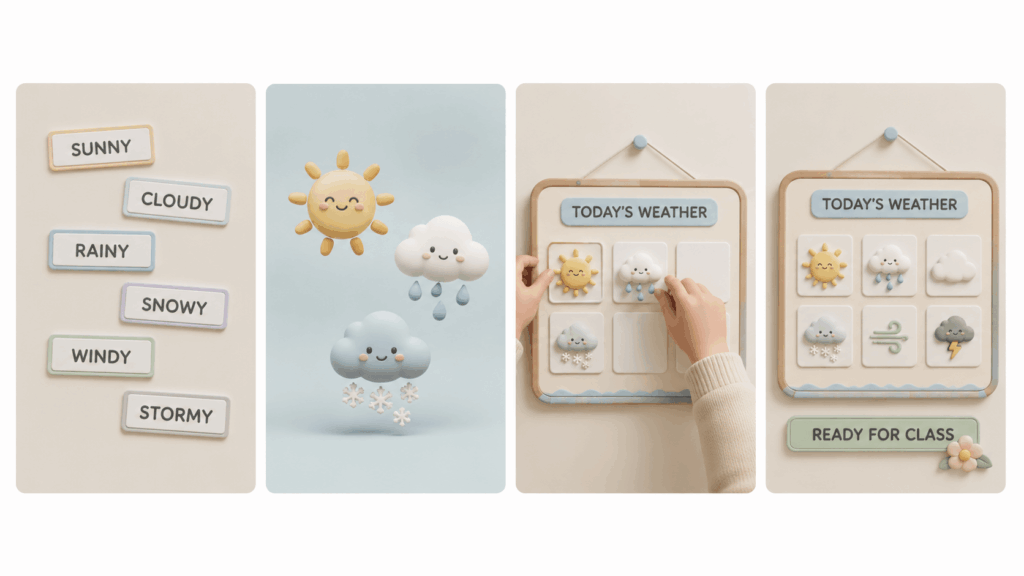
A weather board is a simple first project because it only needs a small set of recognizable images.
Start by listing the required conditions: sunny, cloudy, rainy, snowy, windy, and stormy.
Then, create one base style description:
“Friendly children’s weather clipart, bold rounded outline, soft bright colors, simple face, minimal details, transparent background.”
After that, replace the weather condition in each prompt while keeping the remaining description unchanged.
Once the images are ready, add them to a daily weather chart in Canva, PowerPoint, or another classroom design tool. As a result, students can select the correct image during a morning activity.
What to Check Before Using AI Clipart in Class
Although the AI Clipart Generator can reduce preparation time, every image should still be reviewed by a teacher.
Make sure that the subject is easy to recognize when displayed at a small size. Also, print a test page if the material will be distributed on paper.
For science, history, culture, or human anatomy lessons, check factual accuracy carefully. A visually attractive image can still contain incorrect details.
Teachers should also avoid copyrighted cartoon characters, protected logos, and copied artist styles. If the materials will be sold or widely redistributed, review the relevant usage and licensing requirements first.
Frequently Asked Questions
Is AI Clipart Generator Useful for Worksheets?
Yes. The AI Clipart Generator can create clear objects, animals, icons, and decorations for counting exercises, vocabulary sheets, matching activities, and printable games.
However, simple prompts usually work better than requests for complicated classroom scenes.
Can Teachers Create Black-and-White Clipart?
Yes. Add instructions such as “black-and-white outline,” “no shading,” and “large clear shapes.”
This style is especially useful for coloring pages, low-cost printing, and worksheets that students complete by hand.
Can One Prompt Create a Complete Clipart Pack?
One prompt may generate several related ideas, but creating each subject separately usually provides better control.
For more consistent results, reuse the same style, colors, viewpoint, outline, and background instructions in every prompt.
Create Classroom Visuals Without Drawing
Teachers should not have to spend an entire planning period searching for one matching image.
With the AI Clipart Generator, educators can turn a lesson idea into worksheet graphics, flashcards, labels, reward stickers, and printable classroom materials. The process is simple: define the teaching task, write a focused prompt, repeat the same visual direction, and review every result.
Start with one small project, such as a weather board or a four-card vocabulary set. Once you find a prompt style that works, you can reuse it across future classroom materials.
Go to WeShop AI For Exploration: