Nothing ruins a professional website faster than a blurry hero image. You might take a high-resolution shot, but the moment you upload it, the clarity disappears. This usually happens because most people use the wrong JPG converter. If you want your photos to stay sharp, you need a tool that understands pixels, not just file extensions.
Modern web standards in 2026 demand both speed and beauty. A heavy file slows down your site. A blurry file drives away your customers. This guide will show you how to convert to jpeg while keeping every detail crisp. We will look at the best tools and the smartest techniques to get the job done in seconds.
Why You Need a High-Quality JPG Converter
Most free online tools are “lossy.” This means they delete data to make the file smaller. If you use a basic pic converter, your edges will look jagged. You might see “ghosting” around text or fine lines. This is a nightmare for photographers and designers.
When you convert jpg image files, you are trying to find a balance. You want a small file size for fast loading. But you also want the colors to pop. A high-quality JPG converter uses advanced algorithms like MozJPEG or WebP-to-JPG bridges. These tools preserve the “vibrancy” of your original shot.
Using a professional jpeg image converter ensures that your work looks the same on a 5K monitor as it does on a smartphone. It prevents the “muddy” look that comes from over-compression. In 2026, clarity is a competitive advantage.
Top 5 Tools for Your Next JPG Converter
Not all tools are built the same. Some are great for privacy, while others focus on AI upscaling. Here are the five best options to help you convert to jpeg today.
1. Adobe Express: The Professional JPG Converter
Adobe is the gold standard for a reason. Their web-based JPG converter is free and incredibly powerful. It does not just change the format. It allows you to resize and crop while maintaining a high DPI (Dots Per Inch).
- Best for: Maintaining color accuracy and professional workflows.
- Top Feature: One-click background removal during the conversion process.
2. Squoosh.app: The Best JPG Converter for Speed
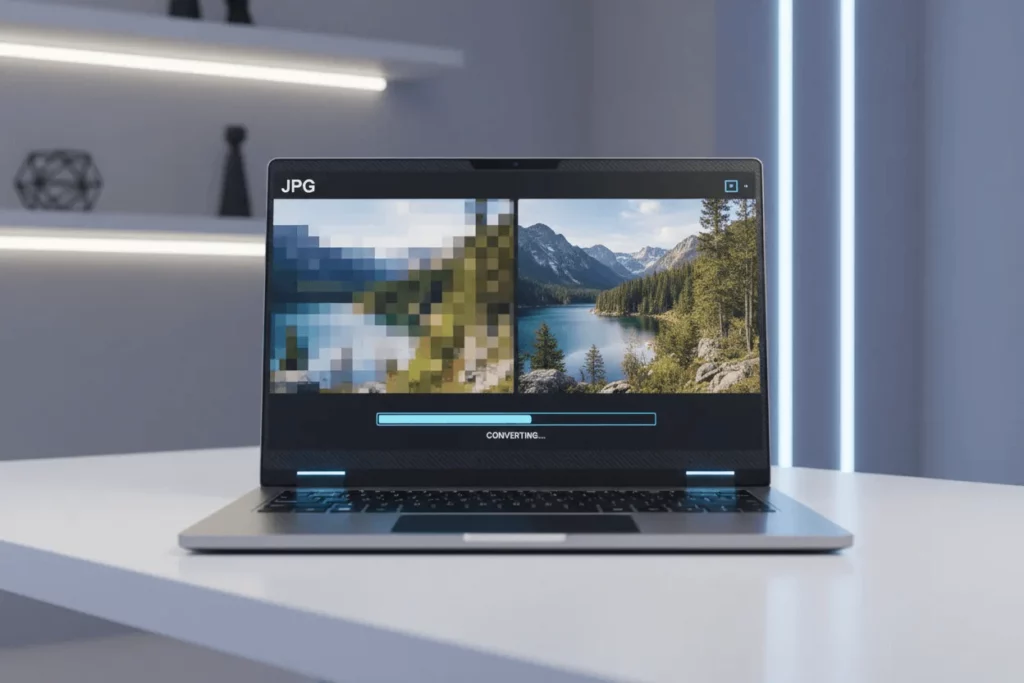
Squoosh is an open-source tool by Google. It is a favorite for web developers. It lets you see a “side-by-side” comparison in real-time. You can slide a bar to see exactly how your image looks at 90% quality vs. 70% quality. It is the most transparent file converter to jpg available.
- Best for: Web optimization and tiny file sizes.
- Top Feature: Real-time visual feedback on compression artifacts.
3. CloudConvert: The Multi-Tasking Pic Converter
If you have a weird file type like a CAD drawing or a high-end RAW file, CloudConvert is your best bet. It is a robust pic converter that supports over 200 formats. It is safe, reliable, and deletes your data after the job is done.
- Best for: Converting obscure file types to high-quality JPGs.
- Top Feature: Batch processing of up to 25 files at once for free.
4. Topaz Photo AI: The Ultimate AI JPG Converter
Sometimes, your original photo is already low-quality. You need to upscale it. Topaz uses artificial intelligence to “clean” the image. As a jpeg image converter, it actually adds detail back into the photo. It fixes motion blur and removes digital noise.
- Best for: Fixing old or tiny photos.
- Top Feature: “Autopilot” mode that detects and fixes flaws automatically.
5. Canva: The Best JPG Converter for Social Media
Most people use Canva for design, but its conversion engine is excellent. When you convert jpg image files here, you can choose specific quality settings. It is perfect if you need to turn a heavy PDF into a sharp image for Instagram.
- Best for: Content creators and social media managers.
- Top Feature: Direct export to social platforms with optimized settings.
How to Use a JPG Converter for Professional Results
Having a tool is one thing. Knowing how to use it is another. To get a crystal-clear result, you must follow a specific process. Most people just click “convert” and hope for the best. You can do better than that.
First, always look at your source file. If you are starting with a low-res GIF, a JPG converter cannot magically make it a 4K masterpiece unless it has AI features. Start with the highest resolution possible.
Second, check your compression levels. In most file converter to jpg tools, the default is 80%. This is usually okay for mobile. But for a desktop website, try 90%. You will double the file size, but the quality jump is massive.
Upscaling with an AI JPG Converter
If your image is small, don’t just stretch it. Use an AI-based JPG converter. These tools use “Generative Fill” to create new pixels. This keeps the lines of a face or a building sharp. It prevents that “watercolor” look that happens with old-school scaling.
Choosing the Right Color Space
When you convert to jpeg, check if the tool supports sRGB. This is the standard color space for the web. Some professional pic converter tools might try to use CMYK (for printing). This will make your colors look dull and grey on a screen. Always stick to sRGB for digital use.
Common Myths About Using a Pic Converter
Many people think that PNG is always better than JPG. This is not true. PNG is better for logos and icons. But for a photo of a sunset, a JPG converter is much better. It handles gradients of color smoothly. A PNG of a photo will be five times larger without looking any better.
Another myth is that “100% Quality” is the best setting. In reality, the human eye cannot tell the difference between 95% and 100%. However, the file size at 100% is often three times larger. Using a smart jpeg image converter at 92% is usually the perfect “sweet spot.”
Technical Secrets of a File Converter to JPG
Deep inside your file converter to jpg, there is something called “Subsampling.” This is a fancy word for how the computer looks at colors. Professional tools use “4:4:4” subsampling for the best quality. Cheaper tools use “4:2:0,” which makes colors look a bit flat.
If you are using a tool like Squoosh, you can toggle these settings. It allows you to convert jpg image files with the precision of a laboratory. You should also look for “Progressive” rendering. This allows the image to load in stages on a website. It makes your site feel faster, even if the file is large.
Understanding Metadata in Your JPG Converter
Every photo has hidden data. It shows the camera used, the date, and even the GPS location. A good JPG converter gives you the choice to keep or delete this. If you are a photographer, keep it. If you are uploading to a public forum, delete it for privacy.
The Role of DPI in Your Pic Converter
DPI stands for Dots Per Inch. For the web, 72 DPI is the standard. If you are going to print your image, you need 300 DPI. Make sure your pic converter allows you to set this. Converting to 300 DPI will not make the screen look better, but it will make the print look amazing.
Final Thoughts on Your JPG Converter Strategy
Mastering your images is about taking control. Don’t let a random website decide how your photos look. Choose a JPG converter that offers the features you need. Whether it is AI upscaling from Topaz or the precision of Squoosh, the right tool makes all the difference.
When you convert to jpeg, remember the 90% rule. Keep your original files in a safe place. Only convert a copy so you never lose the “Master” version. With these steps, your images will be the sharpest on the web.
Stop settling for “good enough.” Use a high-end file converter to jpg today. Your audience will notice the difference immediately. Sharp images build trust, and trust builds business.