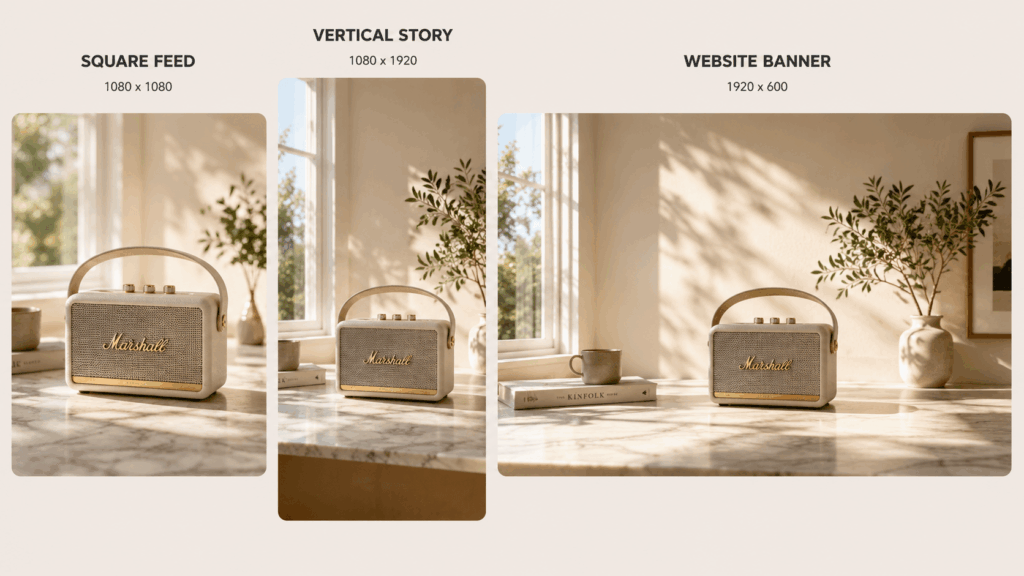
A strong product photo may look perfect in one format but awkward in another. The square version works for a social feed, yet the same crop cuts off the product in a website banner. A vertical image may suit a Story, although it leaves no space for a headline. AI Image Expander solves this problem by extending the composition around the original subject instead of stretching or repeatedly cropping it.
This approach is useful because modern content rarely stays in one place. A single campaign image may need to appear on a product page, social post, mobile ad, email header, marketplace listing, and homepage banner.
However, image expansion is not only a resizing shortcut. It is also a composition decision.
Before extending the frame, you need to know what must remain protected, where the new space should appear, and how the final image will be used.
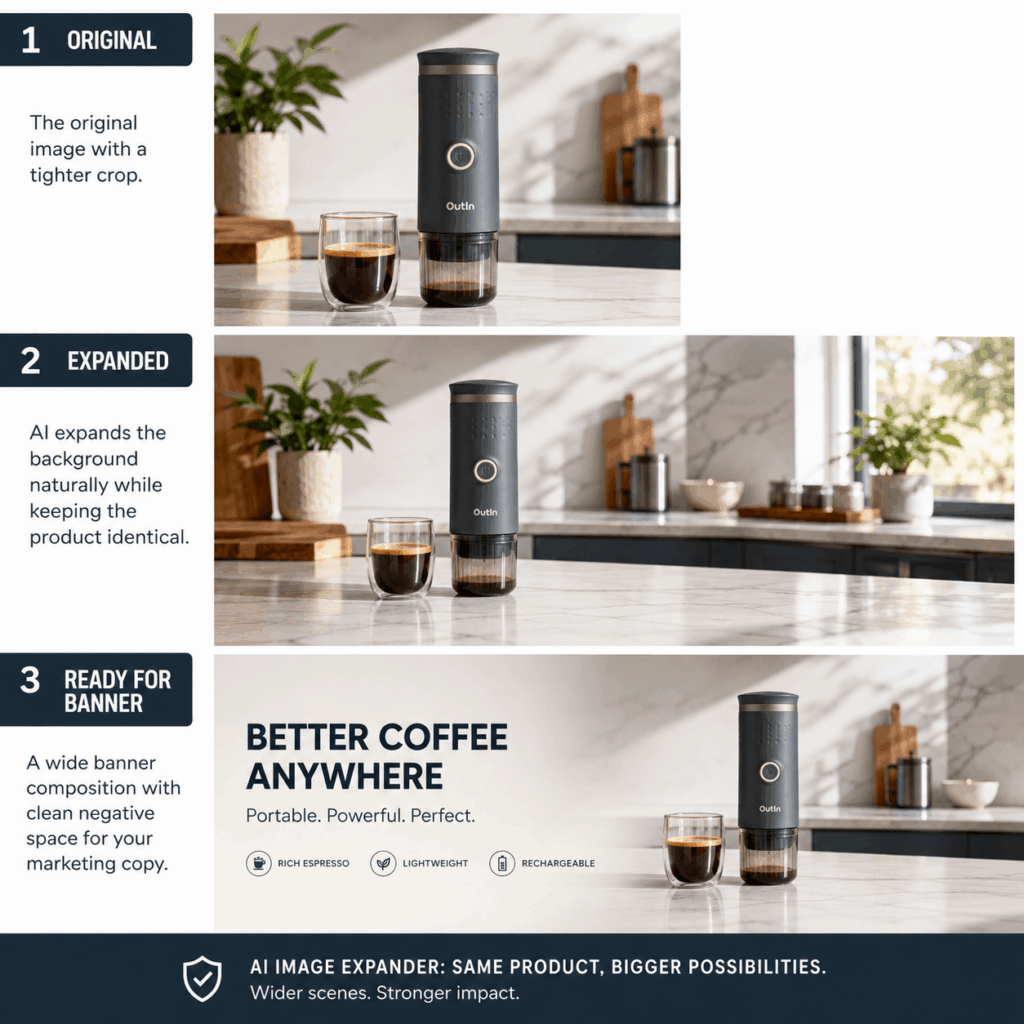
What Does AI Image Expander Actually Change?
An AI Image Expander adds new visual space around an existing image. It analyzes the original background, lighting, textures, perspective, and nearby objects before creating a larger composition.
The central subject should remain recognizable. Meanwhile, the surrounding scene grows to fit a different format.
For example, a vertical skincare image may show a bottle on a bathroom counter. When the image needs to become a horizontal banner, the tool can extend the wall, counter, shadows, and surrounding atmosphere to the left and right.
As a result, the bottle stays intact while the image gains space for a headline or button.
How AI Image Expander Protects the Main Subject
Traditional stretching changes the shape of everything inside the frame. Product packaging may become wider, faces can look unnatural, and circular objects may turn into ovals.
Expansion takes a different approach.
Instead of enlarging every element, it generates new content outside the original boundaries. Therefore, the product can maintain its proportions.
This distinction matters for ecommerce images. Customers rely on visuals to understand shape, color, size, and construction. A distorted product may look polished, but it no longer communicates reliable information.
How AI Image Expander Creates Useful Canvas Space
Marketing images often need room for more than the subject.
A finished layout may also include:
- A campaign headline
- A product benefit
- A discount message
- A brand logo
- A call-to-action button
- Platform interface elements
When the original frame is already crowded, adding copy can cover the product. Expanding the background creates negative space without shrinking the main subject.
Consequently, the finished design feels planned rather than compressed.
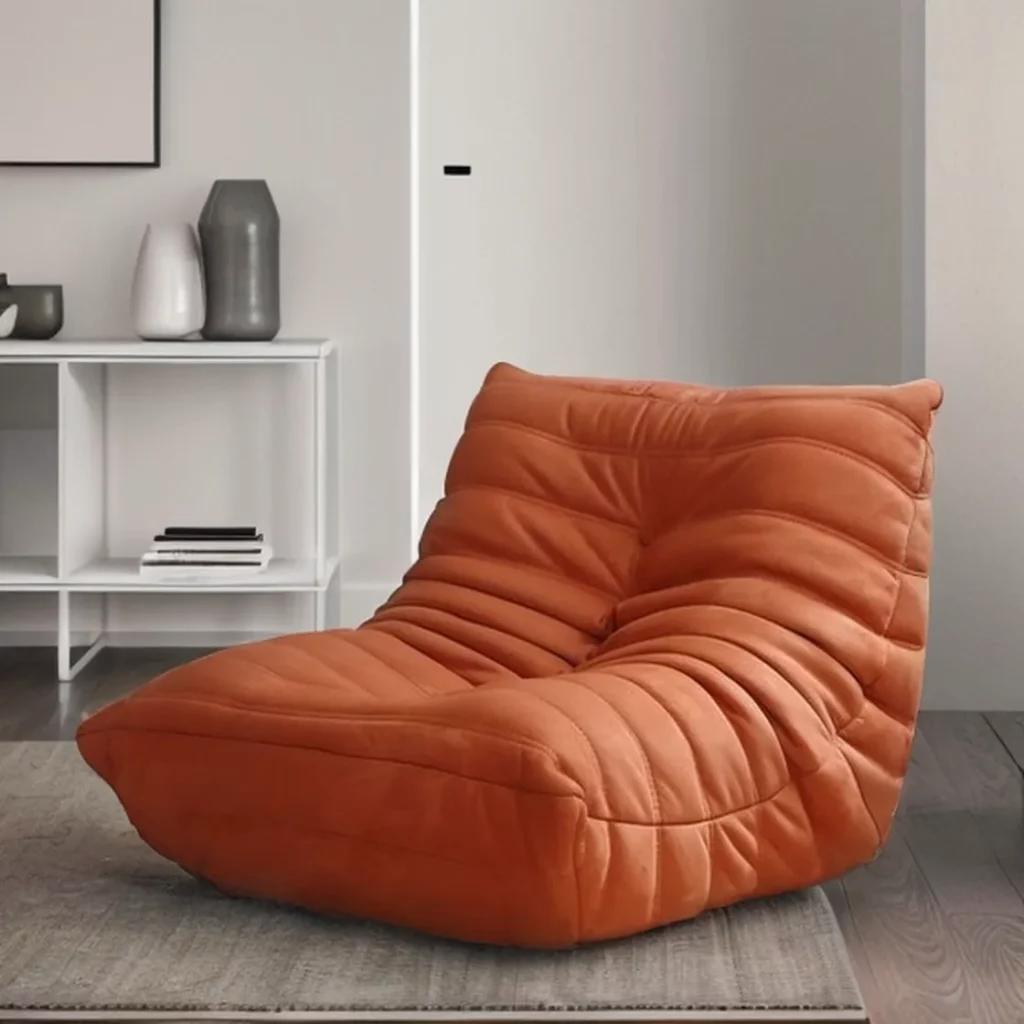
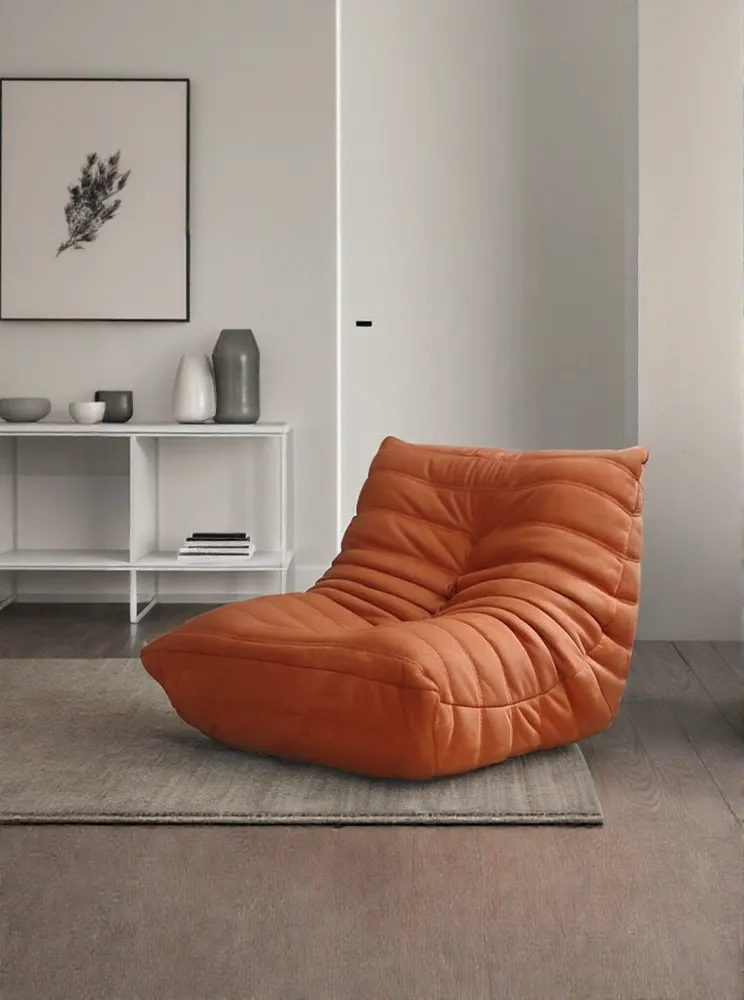
Why Cropping Fails Before AI Image Expander
Cropping is useful when the original image contains enough space around the subject. However, it becomes risky when the product already fills most of the frame.
A close-up handbag image may work well as a square product post. Once converted into a wide banner, the handles may disappear. A portrait of a fashion model can fit a vertical Story, but a landscape crop may remove the outfit or part of the pose.
Repeated cropping also changes the visual hierarchy.
The product may be large in one format and unusually small in another. In addition, the background balance can shift from calm to crowded.
Tight Crops Remove Important Product Details
Customers may need to see packaging text, garment length, accessories, or the relationship between the product and its environment.
A tight crop can remove those details even when the original photograph contains them.
For instance, cropping a home décor image may preserve the lamp but eliminate the table beneath it. Without that context, shoppers lose a useful sense of scale.
Therefore, do not judge a crop only by whether the subject remains visible. Consider whether the image still communicates the same information.
Different Channels Need Different Compositions
A centered product often works in a square post. Nevertheless, website banners usually need an open area for text.
Similarly, a vertical ad may require the product to sit lower in the frame so that interface elements do not cover it.
The answer is not to keep the exact same composition everywhere. Instead, preserve the product identity while adapting its position within each format.
Use AI Image Expander for Different Platforms
Every platform places different pressure on an image. As a result, the expansion direction should follow the final use rather than a fixed template.
AI Image Expander for Square Social Posts
Square images benefit from a clear focal point and balanced spacing.
If the source image is vertical, expand the sides rather than cutting off the top and bottom. This method can preserve a model’s pose, a tall product package, or an important background element.
Still, avoid filling the new areas with too many props. Social images are often viewed at a small size, so the main subject must remain easy to recognize.
The extended background should create balance, not visual competition.
AI Image Expander for Vertical Stories and Reels
Stories, Reels, and other vertical formats need space above and below the subject.
However, buttons, usernames, captions, and navigation controls may cover the edges of the screen. Important product details should stay inside a safe central area.
The upper section can hold a short headline. Meanwhile, the lower section may remain simple enough for a CTA or platform caption.
When expanding vertically, pay close attention to floors, walls, furniture legs, and repeating patterns. These elements can reveal visual inconsistencies quickly.
AI Image Expander for Website Banners
Horizontal banners often need the subject on one side and the message on the other.
For example, a coffee maker can sit on the right while the left side contains a headline and button. A fashion model may appear on the left, leaving the opposite side open for campaign copy.
Do not add equal space to both sides automatically.
Instead, determine where the text will appear before expanding the image. A directional extension usually produces a more useful result than a perfectly symmetrical one.
AI Image Expander for Email and Display Ads
Email headers and display ads are often shorter and wider than ordinary photographs.
Because these images may appear at reduced sizes, fine background details are less important than clear structure. Keep the product visible and use the new space to simplify the layout.
In addition, test the final image on both desktop and mobile. A wide composition may still be cropped by some email templates or advertising placements.
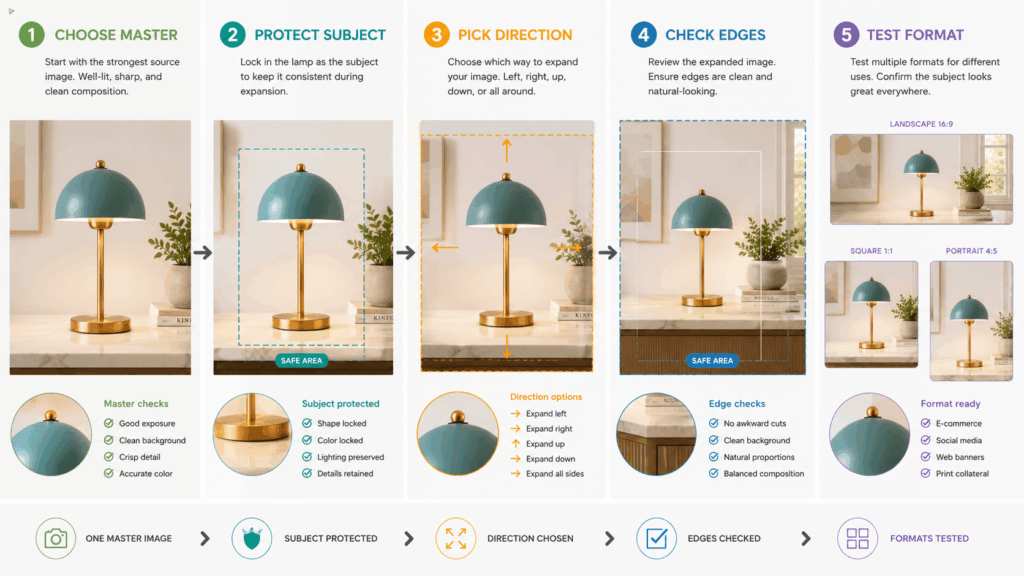
A Practical AI Image Expander Workflow
Good expansion begins with a clear layout goal. Randomly enlarging every side often creates unnecessary background and weakens the composition.
Use the following process to protect the original image while building a usable new format.
AI Image Expander Step 1: Select a Strong Master Image
Start with the most accurate version of the product or subject.
A useful master image should have:
- Clear subject edges
- Accurate colors
- Visible product details
- Natural lighting
- Adequate resolution
- A readable composition
Although expansion can add background space, it should not be expected to repair an inaccurate product image.
Choose the image that best represents the item before adapting it for additional channels.
AI Image Expander StepStep 2: Mark the Protected Area
Next, identify everything that must remain unchanged.
Protected elements may include:
- The product
- Packaging text
- Logos
- A model’s face
- Hands and feet
- Garment details
- Important props
- Existing shadows
Once these elements are defined, new content should be generated around them rather than over them.
This step is especially important when the original subject sits close to the image boundary.
AI Image Expander Step 3: Choose the Best Expansion Direction
The final layout should decide where the new space belongs.
For example:
- Extend left for a headline
- Add space above for campaign copy
- Expand downward for a CTA
- Increase both sides for a wide banner
Avoid enlarging every edge unless the final format truly requires it.
A specific direction gives the tool a clearer compositional task. Moreover, it reduces the amount of invented content that needs review.
AI Image Expander Step 4: Check the Generated Background
After expansion, inspect more than the main subject.
Review:
- Repeated objects
- Broken furniture
- Bent walls or floors
- Duplicated patterns
- Uneven shadows
- Inconsistent textures
- Abrupt color changes
- Impossible reflections
A result can look convincing at first glance while still containing small structural errors.
Zoom in before publishing, especially around the boundary between the original image and the generated extension.
AI Image ExpanderStep 5: Test the Final Platform Crop
Expansion creates a larger canvas, but the publishing platform may still crop part of it.
Preview the image in its actual placement.
Check whether the headline remains readable, the product stays visible, and interface elements avoid important details. Then adjust the composition if necessary.
Common AI Image Expander Mistakes to Avoid
Image expansion can make one asset far more flexible. Nevertheless, the result still needs careful creative review.
Asking the Tool to Invent Product Features
An expanded background should support the original subject.
It should not create a missing handle, extend an incomplete garment, invent packaging text, or add an accessory that customers may believe is included.
When product information is missing from the source, use a verified reference or another editing workflow.
Expansion is safest when the protected subject is already complete.
Expanding the Canvas Too Far at Once
A small extension usually gives the tool enough context to continue the scene naturally. By contrast, an extreme expansion may require it to invent most of the environment.
That can lead to duplicated furniture, inconsistent architecture, or a background that no longer matches the original image.
For very different aspect ratios, expand the image in controlled stages. Review each stage before creating more space.
Ignoring Perspective in the Expanded Background
The generated area needs to follow the same camera angle as the original photograph.
Table edges should continue in the correct direction. Floor lines must remain consistent, while walls and windows need believable proportions.
Perspective errors are especially visible in interiors and architectural scenes.
Simple studio backgrounds are usually easier to extend than rooms with many geometric details.
Filling Every New Area with Extra Objects
Negative space is useful.
It gives the product room to breathe and creates a place for copy. Therefore, the expanded area does not need to contain plants, decorations, furniture, or extra products.
A quiet background can be more valuable than a visually busy one.
Losing Believable Product Scale
The product may remain technically unchanged while the new background affects how large or small it appears.
For example, expanding a room too widely can make a chair look unusually small. Adding a large table can also change the perceived size of a beauty product.
Compare the final composition with the original and ask whether the scale still feels believable.

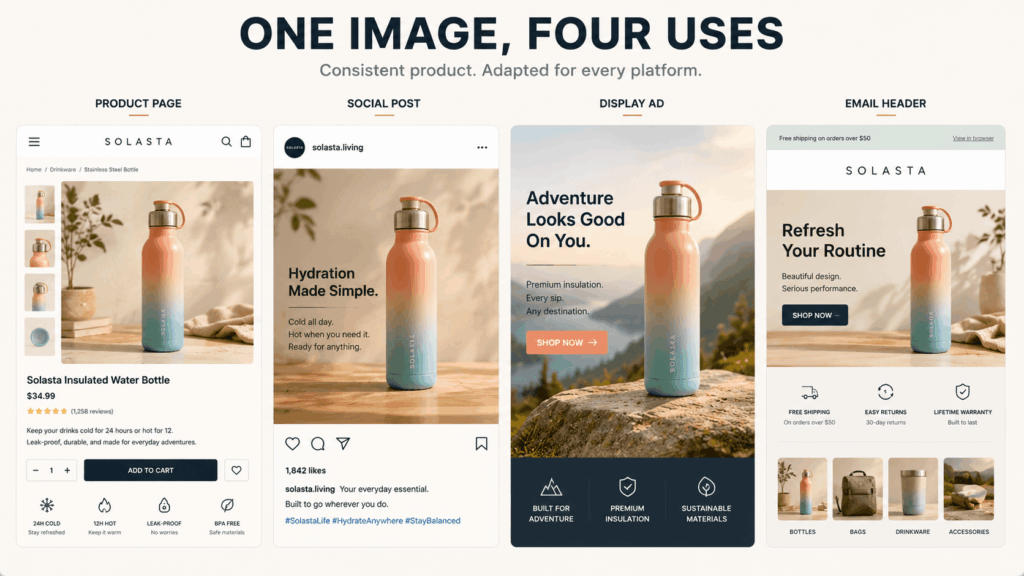
Build a Reusable Content System with AI Image Expander
The greatest value of expansion appears when it becomes part of a repeatable content workflow.
Instead of creating one isolated banner, develop a small family of approved formats from the same master image.
Create a Clear Product Page Version
The product page should prioritize clarity.
Keep the item large enough to inspect, and avoid generated decorations that could confuse shoppers about what is included.
A simple extension may be useful when the page layout needs more breathing room around the subject.
Prepare a Mobile-Friendly Social Version
Social content can use more mood and visual movement.
Even so, the product should remain clear when the image appears as a small thumbnail. Test the composition at mobile size before approving it.
The social version may use a closer crop than the website banner while still sharing the same background and lighting direction.
Design an Ad with Space for Copy
Advertising layouts need room for a message.
Expand the image toward the area where the headline and CTA will sit. Keep that section simple enough for readable typography.
Rather than placing the product and copy in the center together, use an asymmetrical composition to establish a clearer hierarchy.
Adapt the Image for Email Headers
Email banners need simple shapes and strong contrast because they often appear at reduced sizes.
Use the extended background to separate the product from the headline. Avoid tiny details that disappear on mobile screens.
Finally, test whether the email template crops the top, bottom, or sides.
Frequently Asked Questions About AI Image Expander
Does AI Image Expander Stretch the Product?
The goal is to create new surrounding content rather than stretch the original subject.
However, every result should still be compared with the master image. Check product proportions, packaging text, facial features, and other protected details before publishing.
Can AI Image Expander Turn a Portrait into a Banner?
Yes, a portrait image can be extended horizontally to create a wider composition.
The result usually works best when the main subject is clear and the surrounding environment has a consistent visual structure.
A clean wall, studio floor, outdoor sky, or simple tabletop may be easier to extend than a crowded room.
Which Images Are Harder to Expand?
Images with busy crowds, mirrors, complex architecture, repeated text, tightly cropped hands, or detailed patterns may require closer review.
The tool needs enough visual context to continue the scene. Therefore, a clear original image often provides a stronger foundation.
Can the Expanded Area Hold Marketing Text?
Yes. One of the most useful applications is creating negative space for a headline, logo, product benefit, or CTA.
For reliable typography, add the final text during the design stage rather than expecting the background expansion to generate it.
How Far Should You Expand an Image?
Extend only as far as the final format requires.
When a major aspect-ratio change is necessary, use smaller stages and inspect each result. Controlled expansion usually makes it easier to catch perspective, texture, or repetition problems.
What Should You Review Before Publishing?
Check the protected subject first. Then inspect generated edges, shadows, reflections, patterns, perspective, and scale.
Finally, preview the image inside the actual platform layout. The result should work in context, not only as a standalone file.
Final Thoughts on Smarter Image Expansion
A strong product photo should not be trapped inside one aspect ratio.
With AI Image Expander, one master image can support square social posts, vertical Stories, wide website banners, email headers, and advertising layouts. The product remains the visual anchor, while the surrounding composition adapts to each channel.
However, successful expansion requires more than adding pixels around an image.
Protect the subject. Choose a clear direction. Leave intentional negative space. Then inspect every generated edge before publishing.
That process turns image expansion from a quick resizing trick into a practical cross-platform content system.
Go to WeShop AI For Exploration: