

An AI Skinny Filter is made for that one photo you almost posted. The lighting looks good. Your outfit works. The vibe is there. However, something still feels slightly off. Maybe the camera made your face look softer than usual. Maybe the angle changed your body shape. Or maybe the photo simply needs a cleaner, more balanced look before it feels ready to share.
Instead of opening a heavy editing app, you can use an AI Skinny Filter to make quick, natural-looking changes online. With WeShop AI, the process is simple: upload a photo, describe what you want, and let AI adjust the face, body, waist, arms, or overall proportions.
Even better, the goal is not to make you look like someone else. Instead, it helps turn a decent photo into the more polished version you actually wanted.
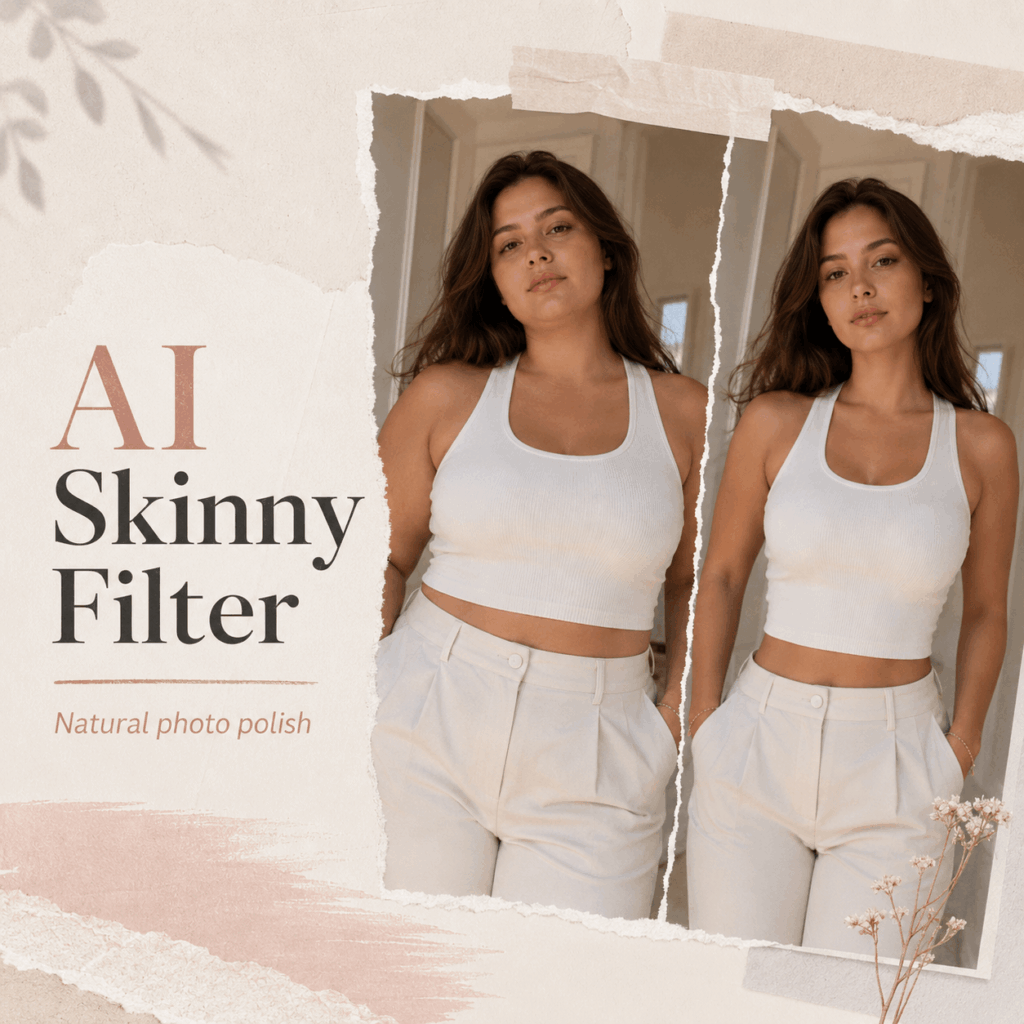
Why AI Skinny Filter Works for Modern Photo Editing
AI Skinny Filter Turns a “Good Enough” Photo into a Post-Ready One
Most people do not need a dramatic transformation. In fact, they usually want the opposite. They want a selfie to look less puffy, an outfit photo to look cleaner, or a full-body shot to look closer to how they feel in real life.
That is why an AI Skinny Filter works so well for everyday photos. It can slim the face, refine the jawline, adjust the waist, and smooth the body line. At the same time, it can keep the image natural enough for social media, profile pictures, and casual posts.
Therefore, this tool feels less like a fake beauty filter and more like a quick photo polish.
It Uses Text and Image Together
The best part is the workflow. You do not need to drag, pinch, mask, or manually reshape anything. Instead, you upload a photo and type a simple prompt.
For example, you can write:
“Make this person look slightly slimmer while keeping the face and body natural.”
Then, the tool follows your instruction and edits the image based on both the photo and the text. As a result, the process feels more flexible than a one-click filter, but much easier than professional retouching software.
It Helps Keep the Result Natural
A strong AI Skinny Filter should not make the person unrecognizable. Also, it should not bend the background, stretch clothing, or turn a real photo into a plastic-looking edit.
With the right prompt, you can ask for a slimmer effect while still keeping the person’s identity, pose, outfit, and background realistic. So, instead of chasing an extreme edit, you can create a more natural “better angle” version of the same photo.
How to Use AI Skinny Filter Online
Step 1: Upload a Clear Photo
First, choose a photo where the face or body is easy to see. A clear selfie, mirror photo, outfit shot, or full-body image usually works better than a blurry or heavily cropped picture.
Also, try to avoid images where the body is blocked by bags, furniture, or other people. The cleaner the photo is, the easier it is for the AI Skinny Filter to create a smooth result.
Good photo types include:
- Selfies
- Profile photos
- Full-body shots
- Outfit photos
- Fitness progress photos
- Lifestyle photos
Step 2: Write a Simple Prompt
Next, describe the edit you want. You do not need a long prompt. In fact, a short and clear sentence often works better.
You can start with:
“Make this person slimmer, both face and body, while keeping the result natural and realistic.”
However, if you want more control, you can be more specific. For example, you can mention the jawline, waist, arms, torso, or full-body shape.
Here are some easy prompt ideas:
For a soft selfie edit:
“Make the face look slightly slimmer and more polished. Keep the person recognizable and natural.”
For a full-body photo:
“Refine the waist, arms, and body line naturally. Keep the pose, outfit, and background realistic.”
For an outfit photo:
“Make the body proportion look cleaner and more balanced so the outfit appears more flattering.”
For a fitness-style preview:
“Create a subtle slimmer version as a fitness goal preview. Keep the edit realistic and respectful.”
Step 3: Generate the Edited Image
After that, click Generate and wait for the result. Since the tool is browser-based, you do not need to install extra software or learn a complicated editing workflow.
Once the image is ready, compare it with the original. Look closely at the face, body shape, clothing, and background. If the edit looks smooth and natural, the photo is ready to use.
Step 4: Adjust the Prompt If Needed
Sometimes, the first result may be too subtle or too strong. That is normal. So, instead of starting over, adjust the prompt.
If the effect is too obvious, try:
“Make the slimming effect more subtle and natural.”
If the effect is not clear enough, try:
“Make the waist and face slightly more defined, but keep the edit realistic.”
Because the AI Skinny Filter responds to text instructions, small prompt changes can help you get closer to the look you want.
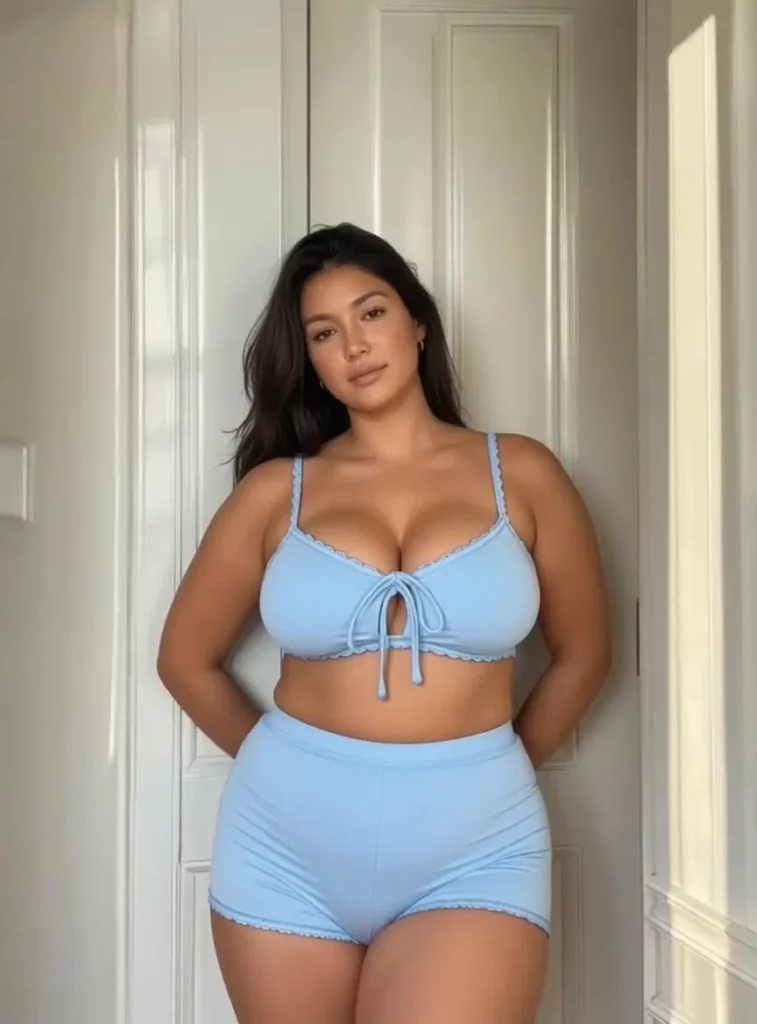
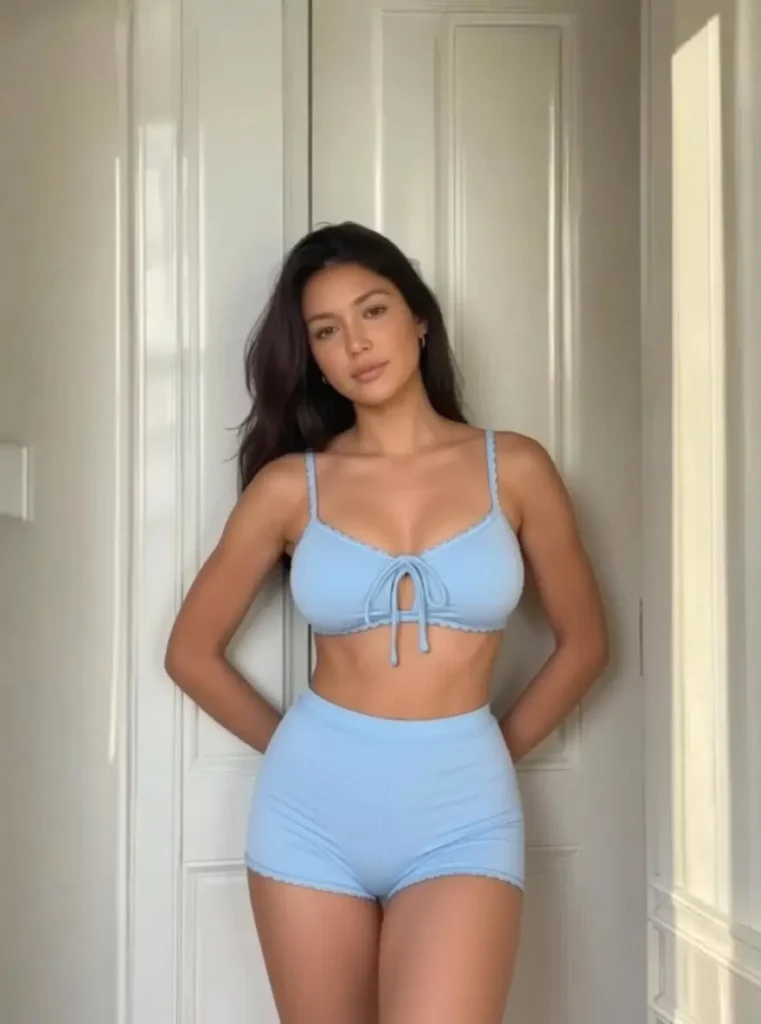
Best Uses for AI Skinny Filter
AI Skinny Filter for Selfies
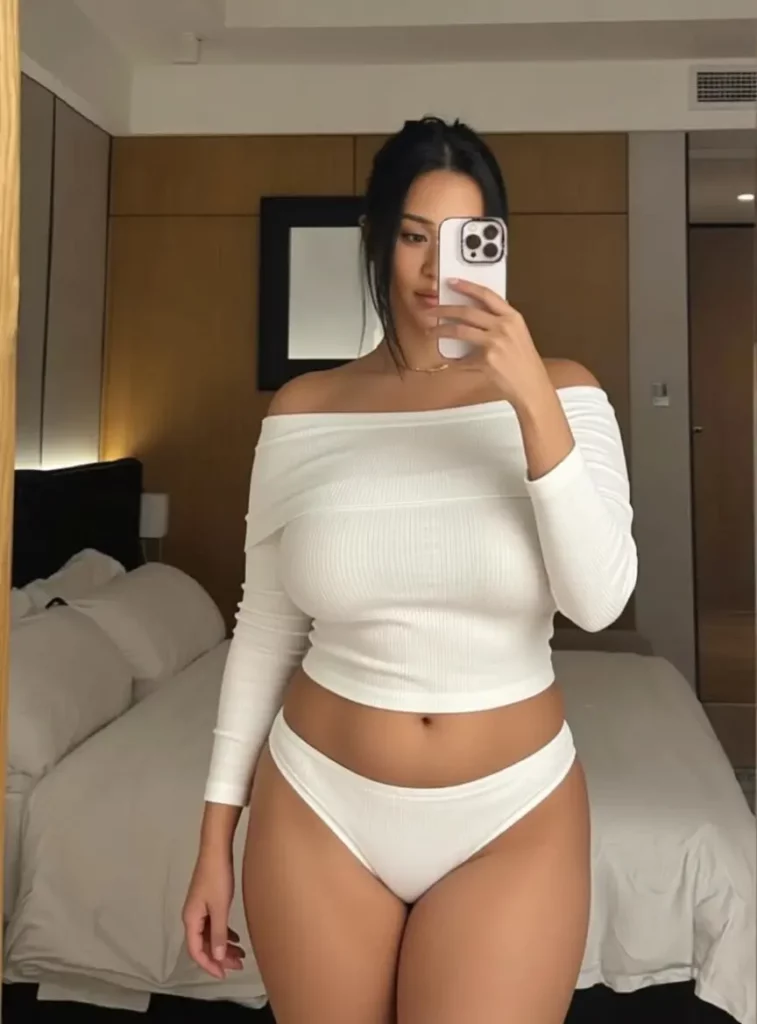
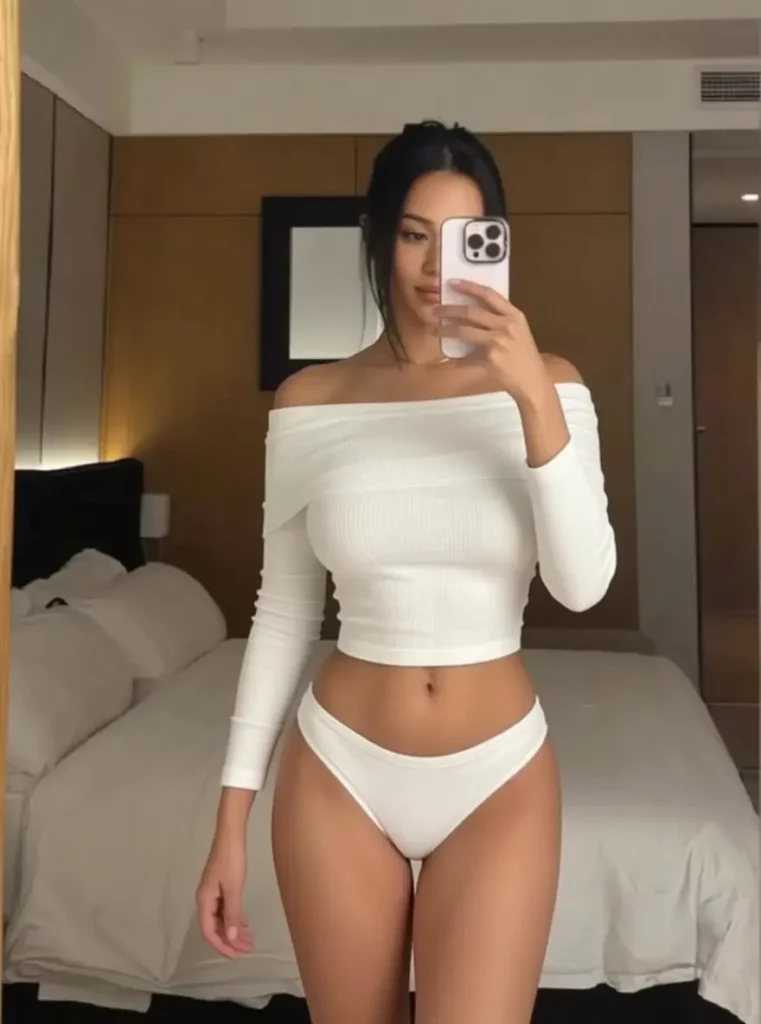
Sometimes, a selfie has the right light and expression, yet the face still looks a little wider because of the camera angle. In that case, an AI Skinny Filter can help slim the face, soften the double chin area, and refine the jawline.
This is especially useful for profile pictures, social media selfies, and casual portraits. More importantly, the result can still look like you, just a little cleaner and more photo-ready.
AI Skinny Filter for Outfit Photos
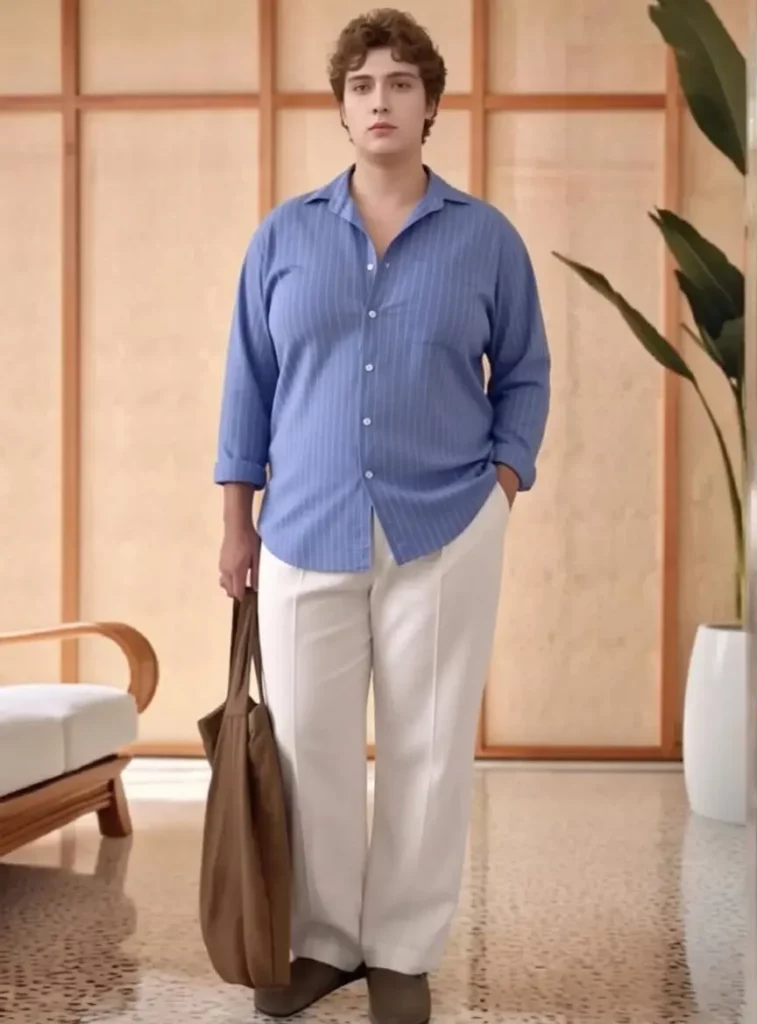

Outfit photos can be tricky. A great outfit may look less flattering if the camera angle is too low, the pose is awkward, or the fabric sits strangely. Therefore, body proportion editing can make the full image look more balanced.
With the right prompt, the tool can refine the waist, arms, and overall body line while keeping the outfit design realistic. As a result, the final photo can feel more polished without looking heavily retouched.
AI Skinny Filter for Fitness Preview Images
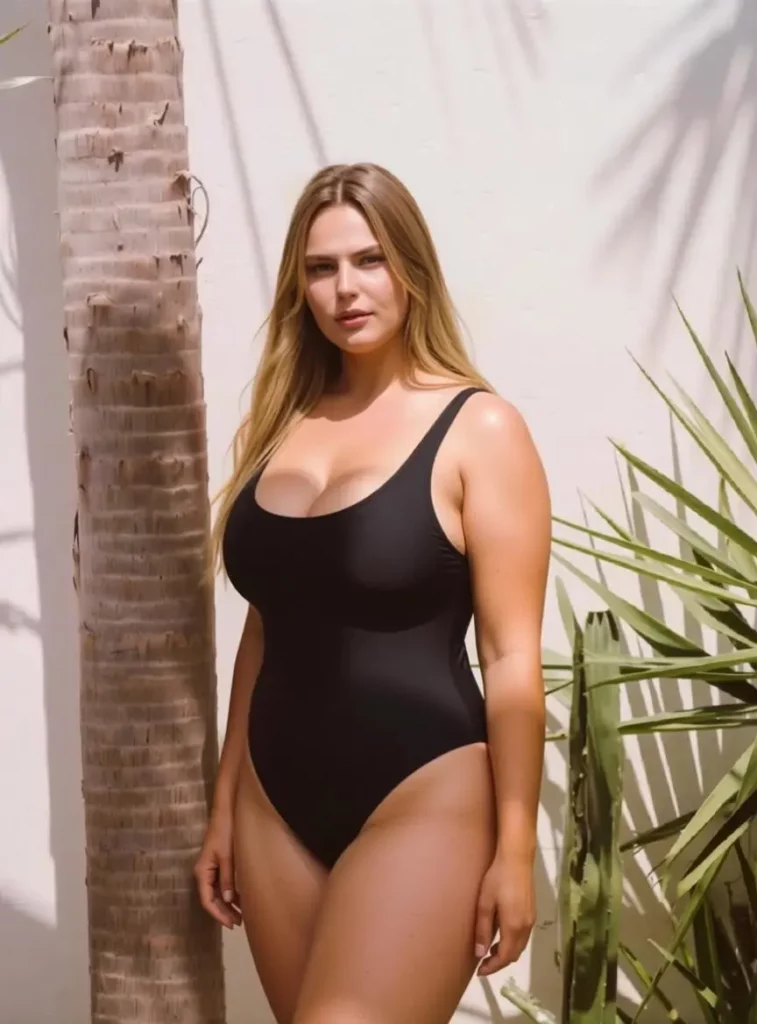
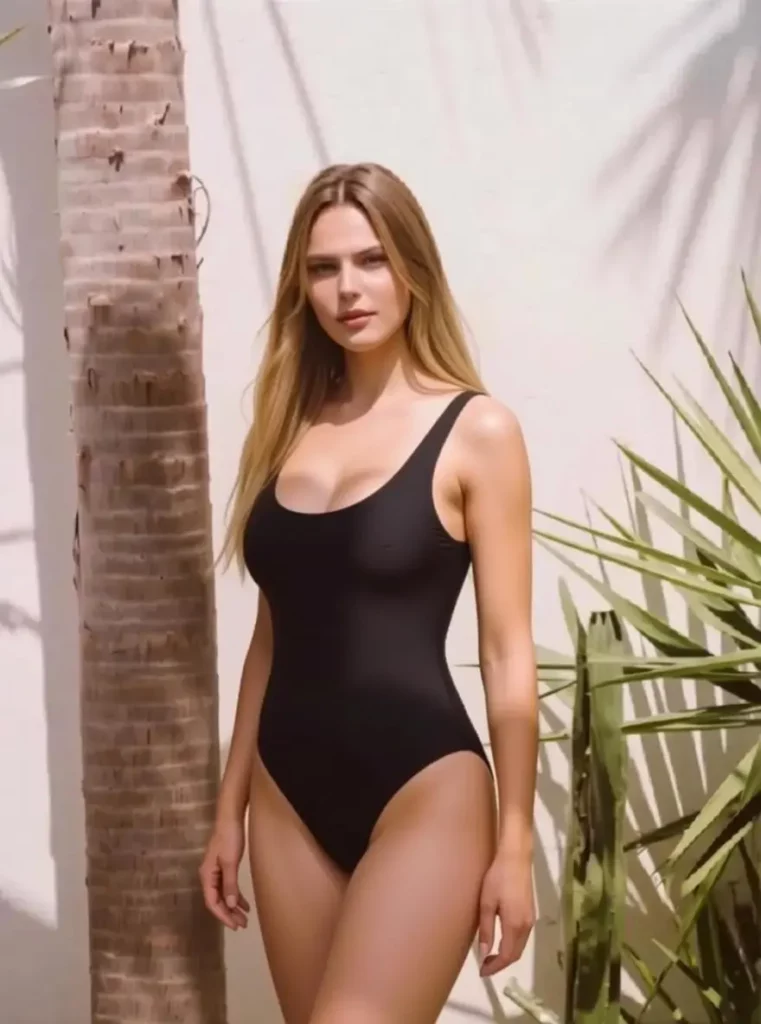
For fitness and lifestyle content, this tool can also create visual references. For example, users can preview a slimmer body-shape idea, build a before-and-after style concept, or make motivational images for personal goals.
However, the best way to use it is with a natural and respectful prompt. Instead of asking for an extreme transformation, focus on balance, proportion, and realism.
AI Skinny Filter for Profile Photos
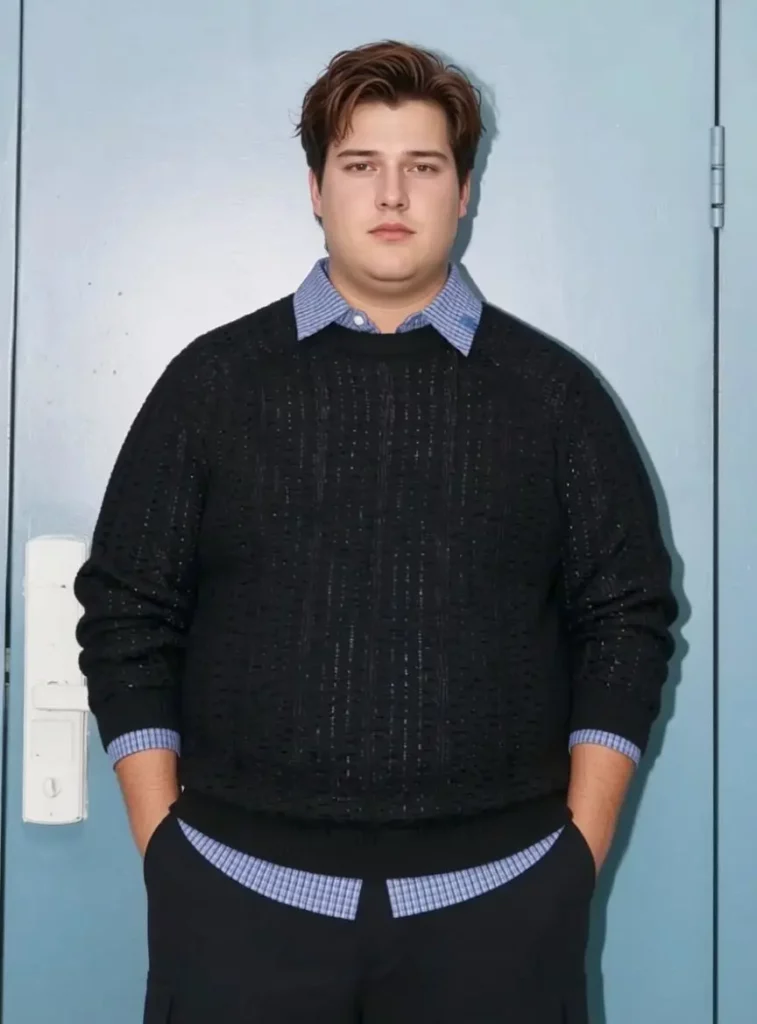
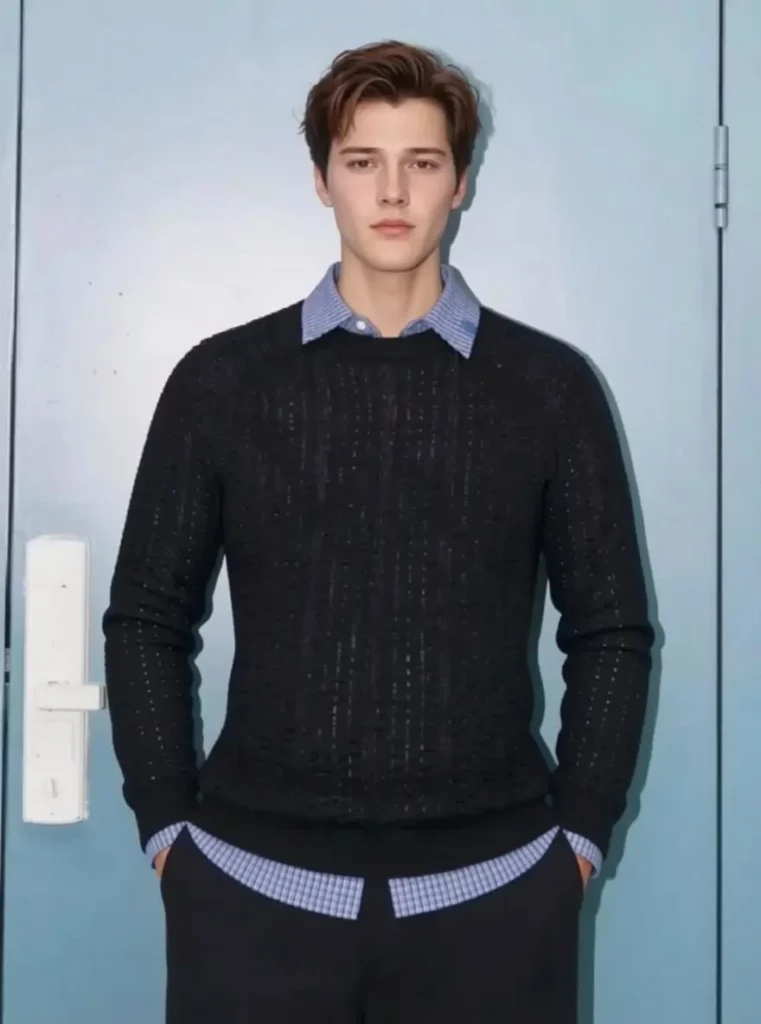
A profile photo often needs to feel clean, confident, and natural. Because of that, an AI Skinny Filter can be useful for creators, freelancers, small business owners, students, and anyone building a personal brand.
A slightly slimmer face, a smoother body line, or a more balanced portrait can make the photo feel more polished. Meanwhile, the edit can still stay casual enough for Instagram, WhatsApp, LinkedIn-style profiles, or personal websites.
AI Skinny Filter for Quick Social Media Content
Social media moves fast. Therefore, many users do not want to spend an hour fixing one photo. They just want a quick edit that makes the image easier to post.
That is where this tool fits well. You can upload a photo, type a prompt, generate a result, and use it for a post, story, avatar, content thumbnail, or lifestyle update.
Prompt Tips for Better AI Skinny Filter Results
Start with a Natural Edit
A natural prompt usually creates a better result than an extreme one. So, instead of saying “make me very skinny,” try asking for a subtle, balanced edit.
Better prompt:
“Make the person look slightly slimmer while keeping natural face and body proportions.”
Tell the AI What to Preserve
To avoid strange results, tell the tool what should stay the same. For example, mention identity, pose, clothing, and background.
Useful prompt line:
“Keep the person recognizable, preserve the outfit, and avoid background distortion.”
Focus on Specific Areas
If you only want to edit one part of the image, say that clearly. Otherwise, the tool may adjust more than you expected.
Examples:
“Refine the jawline and cheeks only.”
“Slim the waist slightly while keeping the rest of the body natural.”
“Make the arms look more defined without changing the pose.”
Avoid Overediting
Even though an AI Skinny Filter can create visible changes, a softer edit usually looks more believable. Besides, photos often look better when the changes are small enough that people notice the improvement, not the editing.
What to Avoid When Using AI Skinny Filter
Do Not Make the Edit Too Extreme
If the final photo no longer looks like the original person, the edit has gone too far. A good result should feel polished, not fake.
Therefore, use words like “slightly,” “natural,” “balanced,” and “realistic” in your prompt.
Do Not Use Low-Quality Photos
Blurry photos, dark lighting, and cropped body parts can make the result less stable. So, choose a clear image whenever possible.
A good photo gives the AI Skinny Filter enough visual information to create a smoother edit.
Do Not Forget to Check the Background
After generating the result, always check the background. Look at doors, walls, windows, floor lines, and furniture. If those areas look bent or stretched, the slimming effect may be too strong.
In that case, reduce the intensity in your next prompt.
Do Not Treat It as a Body Standard
This matters. An AI Skinny Filter should be used as a creative photo editing tool, not as a rule for how anyone should look.
Use it to polish photos, test visual ideas, or create social content. However, keep the edit respectful and realistic. Confidence is the point, not pressure.
Who Should Try AI Skinny Filter?
Social Media Users
If you often take selfies, profile photos, or outfit pictures, this tool can help you fix the “almost perfect” ones faster.
Creators and Influencers
Creators need clean visuals all the time. Therefore, an AI Skinny Filter can help create profile images, post covers, before-and-after visuals, and lifestyle content without a long editing process.
Fitness and Lifestyle Bloggers
For fitness, wellness, and lifestyle content, the tool can help build goal previews, transformation concepts, and visual references. Still, subtle edits work best.
Beginners Who Do Not Use Photoshop
Not everyone wants to learn professional editing software. Fortunately, this tool keeps things simple. Upload a photo, write a prompt, and generate the result.
That is the whole workflow.
FAQ About AI Skinny Filter
What is an AI Skinny Filter?
An AI Skinny Filter is an online photo editing tool that uses artificial intelligence to create a slimmer-looking face or body in a photo. It can help refine proportions while keeping the result natural.
Can AI Skinny Filter slim both face and body?
Yes. The tool can be used for face slimming, body slimming, waist refinement, arm adjustment, and full-body proportion editing.
Does the result still look natural?
Yes, it can look natural when the prompt is clear. For better results, ask the tool to keep the person recognizable, preserve the outfit, and avoid obvious distortion.
Is AI Skinny Filter only for full-body photos?
No. It can work on selfies, portraits, outfit photos, profile pictures, and full-body images, depending on the photo quality and editing goal.
Can I use AI Skinny Filter for social media?
Yes. It is useful for selfies, Instagram posts, profile photos, fitness visuals, lifestyle content, and personal branding images.
Do I need editing skills to use it?
No. The workflow is beginner-friendly. You upload a photo, type what you want, and generate the edited result online.
What prompt should I use for a natural result?
Try this:
“Make this person look slightly slimmer while keeping the face, body, pose, outfit, and background natural and realistic.”
Can I adjust the slimming effect?
Yes. You can change the prompt to make the result softer or more noticeable. For example, write “make the slimming effect more subtle” if the edit feels too strong.
Final Thoughts
The best photos are not always the most edited ones. Often, they just need a cleaner angle, a softer face line, or a more balanced body shape. That is why an AI Skinny Filter can be useful for everyday content.
With WeShop AI, you can upload a photo, describe the look, and create a natural-looking edit in seconds. As a result, your almost-perfect photo can finally become the one you actually want to post.
Go to WeShop AI For Exploration:


