

Have you ever imagined seeing yourself on a giant K-pop concert screen at a sold-out stadium show?
Instead of a simple Photoshop edit or studio portrait, AI can turn your photo into a realistic concert jumbotron moment, with glowing lightsticks, phone screens, and fans cheering from the crowd.
That is why the K-pop concert screen trend is becoming so popular on TikTok, Instagram, and Xiaohongshu.
The workflow is simple: upload one photo, generate a realistic concert screen image with AI, then animate it into a short fan-cam style video.
However, the best results are all about the details. A strong image should not look like a clean AI poster. Instead, it should feel like a real concert clip captured by a fan from the audience.
In other words, this trend works because it mixes fantasy with realism. You are not just making another AI portrait. You are creating a concert moment that feels instantly familiar and believable.
In the final image or video, you should see:
- A fan recording from the crowd
- A giant LED screen showing your idol close-up
- Pink and purple lightsticks in the audience
- Phone screens glowing in the foreground
- Concert lights moving across the stadium
- A soft slow zoom, just like a viral fan-cam
As a result, the final video feels much more immersive than a normal AI portrait. It looks like a real paused moment from a live concert.
In this tutorial, you will learn how to create the full AI K-pop concert screen effect step by step. You will also get the exact image prompt, video prompt, styling tips, and common fixes.
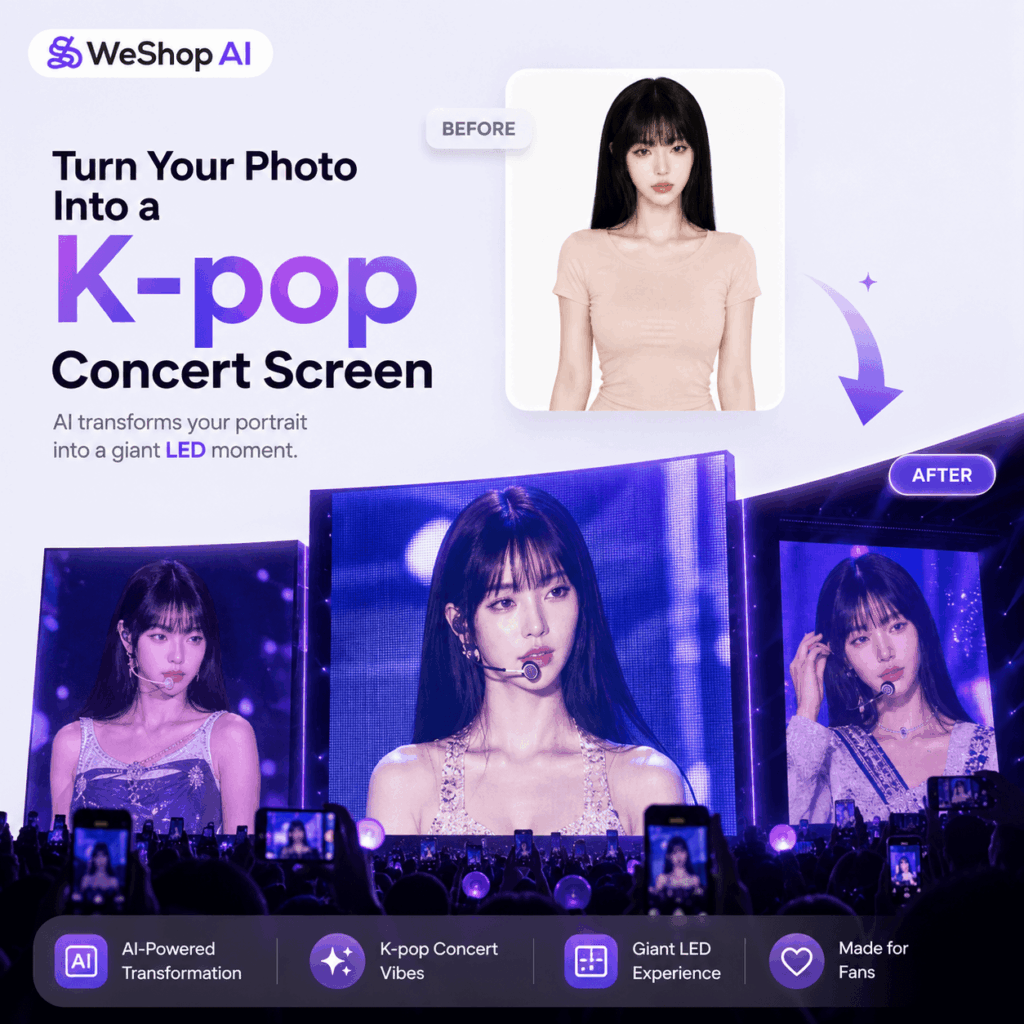
What Is the AI K-pop Concert Screen Trend?
The AI K-pop concert screen trend turns a normal portrait into a realistic concert jumbotron scene.
Instead of placing you directly on stage, the AI places you on the giant LED screen inside a stadium. This difference is important. It makes the image feel more believable, because real K-pop concerts often show close-up idol shots on huge screens.
Meanwhile, the audience, lights, phones, and lightsticks create a fan-cam feeling. Because of that, the result looks less like an AI-generated poster and more like a real video captured by someone in the crowd.
In short, this trend works because it creates a fantasy that feels familiar: you are not just dressed like an idol. You are shown in the exact place where an idol would appear during a major concert.
Tools You Need
Before we get into the actual prompt, let’s quickly go over the tools you need. This step matters because each tool has a different job.
First, GPT Image 2 creates the concert screen image. Then, Kling adds motion and turns that image into a short video.
As a result, the workflow becomes much easier to control. You are not asking one tool to do everything at once. Instead, you are building the final effect step by step.
Before you start, prepare these tools and materials.
① WeShop AI GPT Image 2
Use GPT Image 2 to create the first frame of your AI K-pop concert screen image.
This step builds the main concert scene. It turns your uploaded photo into an idol displayed on a huge LED screen during a stadium concert.
At this stage, the goal is not only to make the person look good. More importantly, the goal is to create a believable concert environment.
You need:
- A giant LED jumbotron
- A real audience viewpoint
- A phone-recording feeling
- A dark concert arena
- Lightsticks and stage lighting
- A clear idol close-up on the screen
Once the first image looks realistic, the video will also feel much more convincing later.
② Kling
Use Kling to turn the image into a video:
Kling can add motion to your AI K-pop concert screen image. For example, it can create:
- Slow camera movement
- Moving lightsticks
- Flickering LED lights
- Crowd motion
- Concert haze
- Floating confetti
- A subtle handheld fan-cam feel
This step makes the image feel alive. However, the motion should stay natural. The video should look like a fan recorded it from the audience, not like a polished music video.
③ One Clear Photo of Yourself
For the best result, choose a photo with:
- A clear front-facing face
- Upper-body framing
- Visible facial features
- Natural lighting
- A complete hairstyle
- No heavy filters
- No strong face covering
Try to avoid:
- Over-edited selfies
- Blurry screenshots
- Strong beauty filters
- Sunglasses or masks
- Hair covering the face
- Extreme angles
- Very low-resolution images
This matters because the AI K-pop concert screen effect depends on identity recognition. If the photo is too blurry or too edited, the AI may create a random idol face instead of keeping your original look.
In general, the cleaner your input photo is, the better the final result will be. However, that does not mean the photo needs to look professional. A simple, clear selfie can work well as long as the face is visible.
For this reason, avoid using photos with heavy filters or strong makeup apps. Otherwise, the AI may treat the edited face as a new identity and create a result that no longer looks like you.
Therefore, the best input image is usually simple, clear, and natural.
④ Concert Prompt
You also need a strong prompt.
A good prompt should do four things:
- Lock the person’s identity
- Place the person only on the LED screen
- Build a real audience fan-cam viewpoint
- Add enough motion elements for video generation
The full prompt is provided below. You can copy it directly.
Step-by-Step Guide
Now that the tools and photo are ready, you can start generating the first image. This is the most important part of the workflow because the video will be based on this image later.
Therefore, do not rush this step. A strong first image will make the final video look much more realistic.
Step 1: Open GPT Image and Enter the Prompt
Open GPT Image 2 on WeShop AI.
Upload your photo. Then, copy and paste the prompt below.
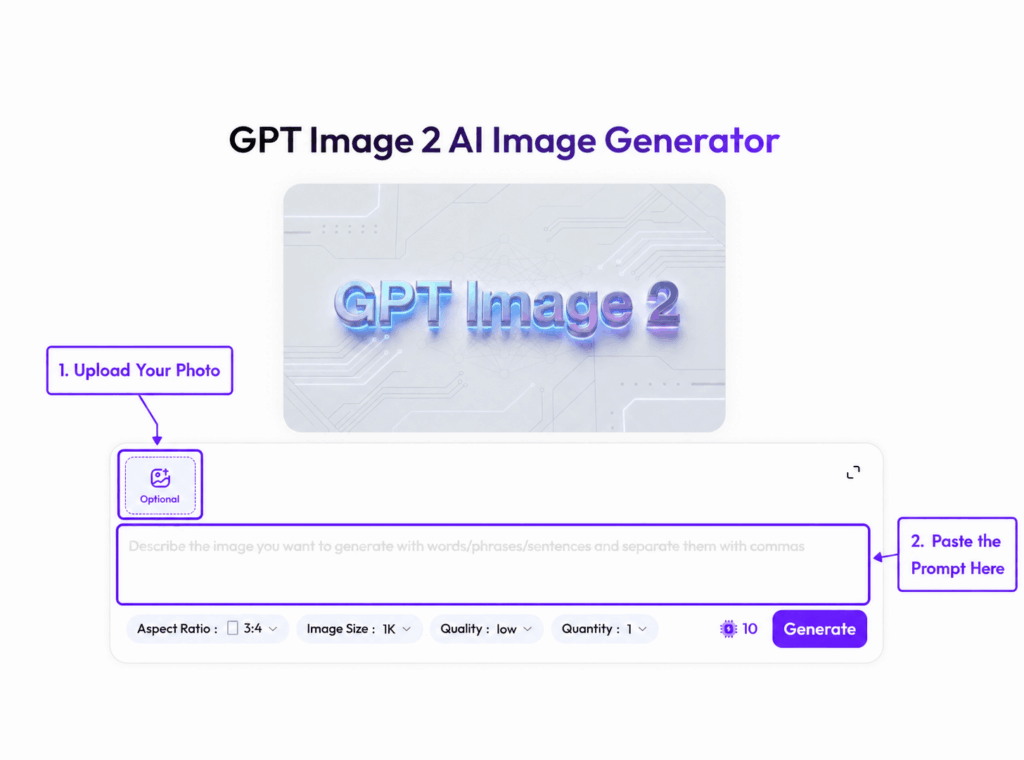
Image Generation Prompt
Transform the uploaded person into a world-famous K-pop idol displayed ONLY on a giant concert jumbotron screen during a sold-out stadium concert.

The final image must look like a real fan secretly recording with an iPhone zoom lens from the audience during a live concert. The image should feel like a paused frame from a viral concert video, NOT a promotional poster, NOT a studio portrait.

[CORE OBJECTIVE]
The idol appears ONLY on the giant LED screen.
The actual performer on stage is completely invisible.
The giant concert screen dominates the composition.
The image must immediately feel like an authentic concert fan-cam photo.
Create strong cinematic depth and realistic live-event atmosphere suitable for image-to-video animation.
The image should feel like a frozen moment from a live concert video rather than a designed artwork.

[IDENTITY LOCK]
Preserve facial structure, face proportions, eyes, eyebrows, nose, lips, jawline, hairstyle, hair color, skin tone, and recognizable identity.
The idol must clearly look like the SAME person from the uploaded image.

DO NOT:
- change ethnicity
- generate a random face
- stylize into anime
- beautify into another person
- distort facial features
- alter identity

[SCENE COMPOSITION]
Audience viewpoint.
Slightly far away.
Realistic handheld iPhone zoom photo.
The giant LED screen dominates the frame.
Dark arena surrounding the screen.
Audience silhouettes visible in foreground.
Several audience members holding phones recording.
Pink glowing lightsticks.
Purple lightsticks.
Blue concert lighting.
Huge sold-out stadium atmosphere.
Natural concert crowd density.
No empty seats.

IMPORTANT:
NO visible performer on stage.
ONLY the LED screen contains the idol.

[DYNAMIC ELEMENTS]
Create natural motion opportunities for video generation:
- waving lightsticks
- moving audience silhouettes
- glowing phone screens
- animated concert lighting beams
- floating confetti
- subtle haze
- atmospheric particles
- crowd energy
- depth layers from foreground audience to background screen

[EXPRESSION & GAZE]
Soft emotional smile.
Dreamy elegant idol aura.
Natural candid concert moment.
Looking slightly off-camera.
Relaxed stage presence.
Luxury K-pop celebrity energy.

[STYLING]
Luxury K-pop stage outfit.
Silver, navy and white tones.
Rhinestones.
Subtle glitter.
Premium concert styling.
Headset microphone.
In-ear monitor.
Glossy Korean idol makeup.
Silky styled hair.
Minimal elegant jewelry.
High-end arena performance aesthetic.

[LIGHTING]
Pink concert lights.
Purple concert lights.
Blue concert lights.
Realistic LED glow.
Cinematic night concert mood.
Cool-toned realistic skin.
Natural live-event lighting.
No studio lighting.

[LED SCREEN DETAILS]
Realistic LED pixel texture.
Subtle moire pattern.
Authentic jumbotron quality.
Live-feed appearance.
Slight overexposure.
Realistic contrast.
Screen refresh artifacts.
Concert broadcast realism.

[PHOTO QUALITY]
Realistic iPhone concert photo.
iPhone 15 Pro Max zoom look.
Slight low-light grain.
Subtle motion blur.
Natural handheld camera shake.
Digital zoom softness.
Photorealistic.
Cinematic but natural.
NOT AI-looking.
NOT poster-like.
NOT overly sharp.
NOT commercial photography.

[OUTPUT]
Vertical 9:16.
Ultra realistic.
Ultra detailed.
Photorealistic stadium concert atmosphere.
Viral social media quality.
Looks exactly like a fan secretly recorded a real K-pop concert.
Why This Prompt Works
This prompt is long, but each part has a clear purpose.
First, it tells the AI where the person should appear. The line “ONLY on the giant LED screen” is especially important. Without it, the AI may place the idol directly on stage.
Next, it locks the person’s identity. This helps the AI keep the same face, hairstyle, and overall look from the uploaded photo.
Then, the prompt adds fan-cam details. Words like iPhone zoom lens, low-light grain, and handheld camera shake make the result feel more realistic.
Finally, the prompt adds LED screen texture. Details like LED pixel texture, moire pattern, and screen refresh artifacts make the screen look like a real concert jumbotron.
At this point, you may notice that the prompt repeats some ideas. That is intentional. For example, the prompt mentions several times that the idol should appear only on the giant LED screen.
This repetition helps reduce common AI mistakes. Otherwise, the model may place the person directly on stage or turn the image into a normal idol portrait.
In addition, the prompt includes camera details, lighting details, and screen texture details. Together, these small details make the final image feel less artificial and more like a real fan-cam screenshot.
Overall, these details help create a stronger AI K-pop concert screen image.
Step 2: Check the Generated Image
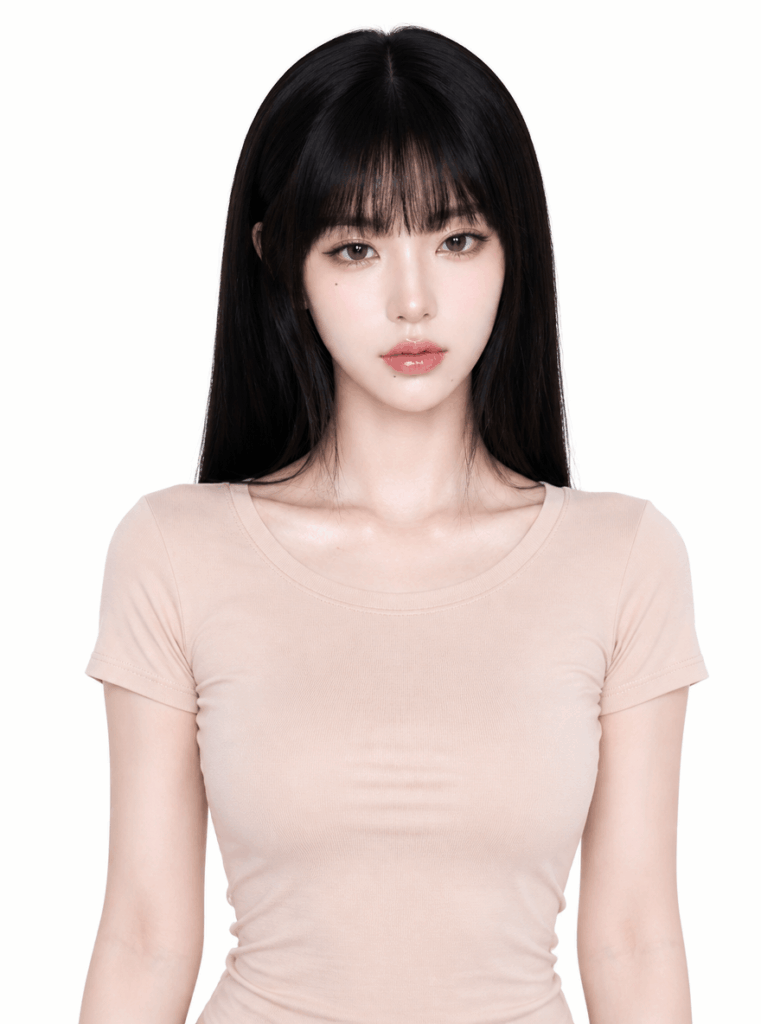
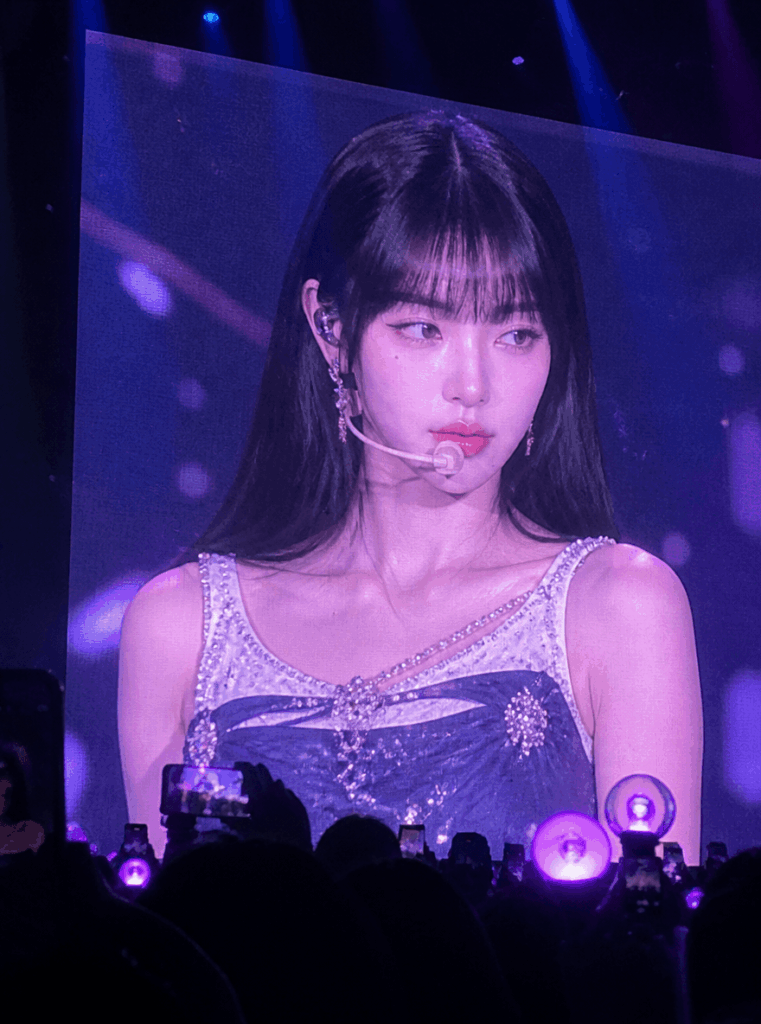
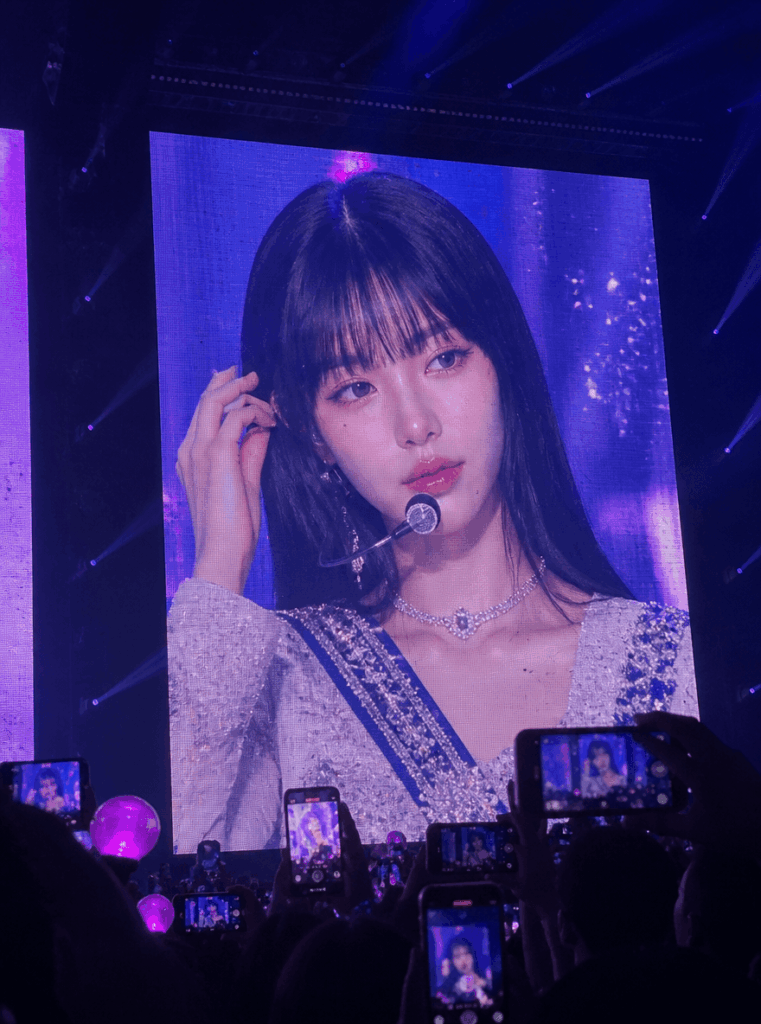
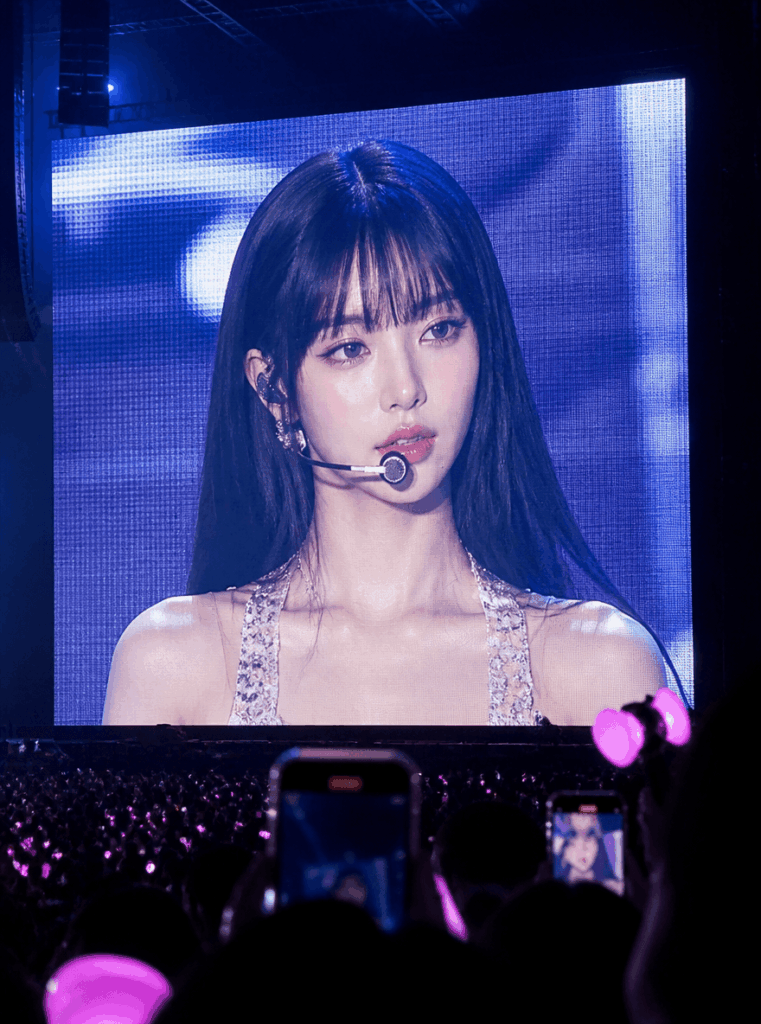
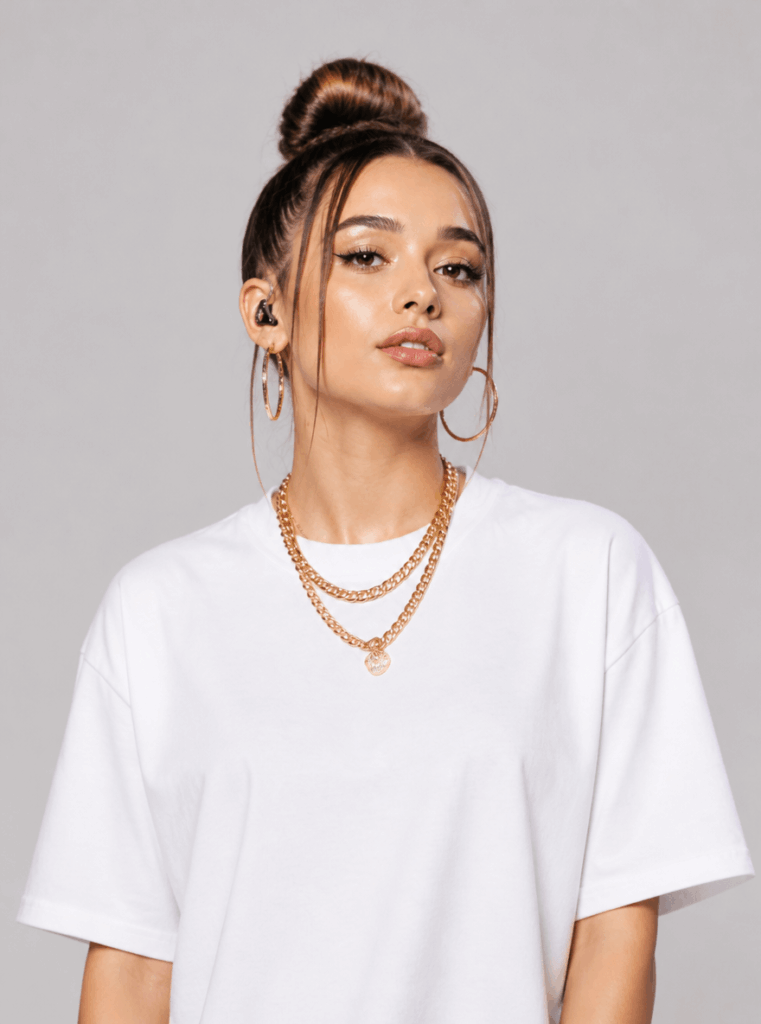
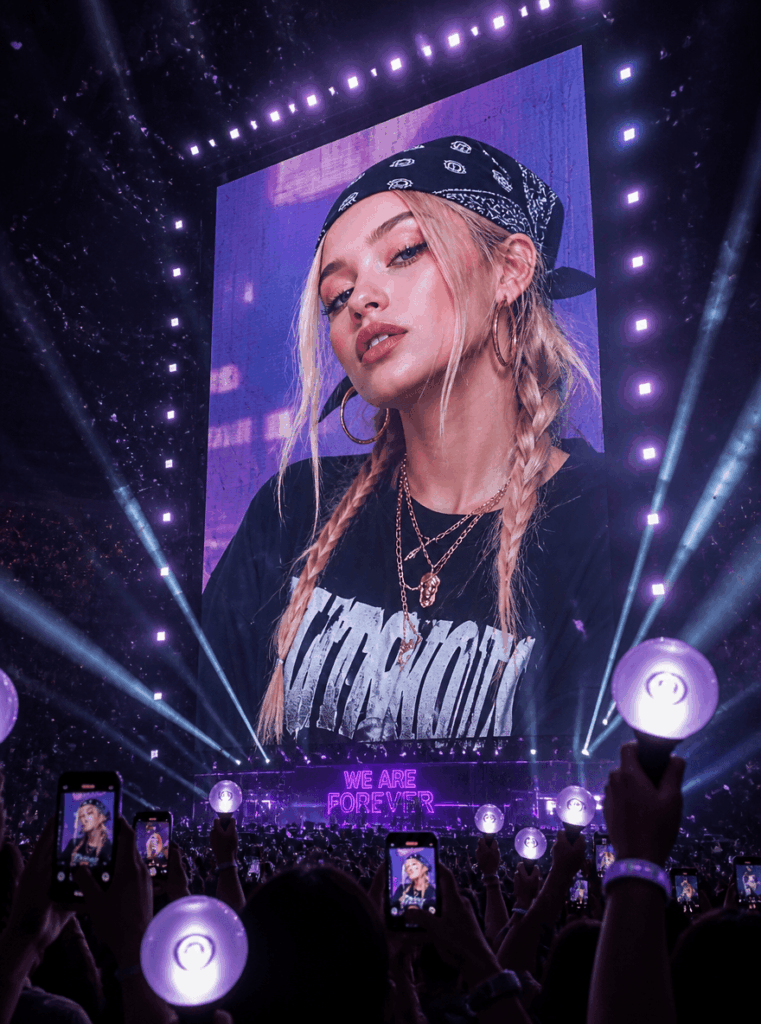
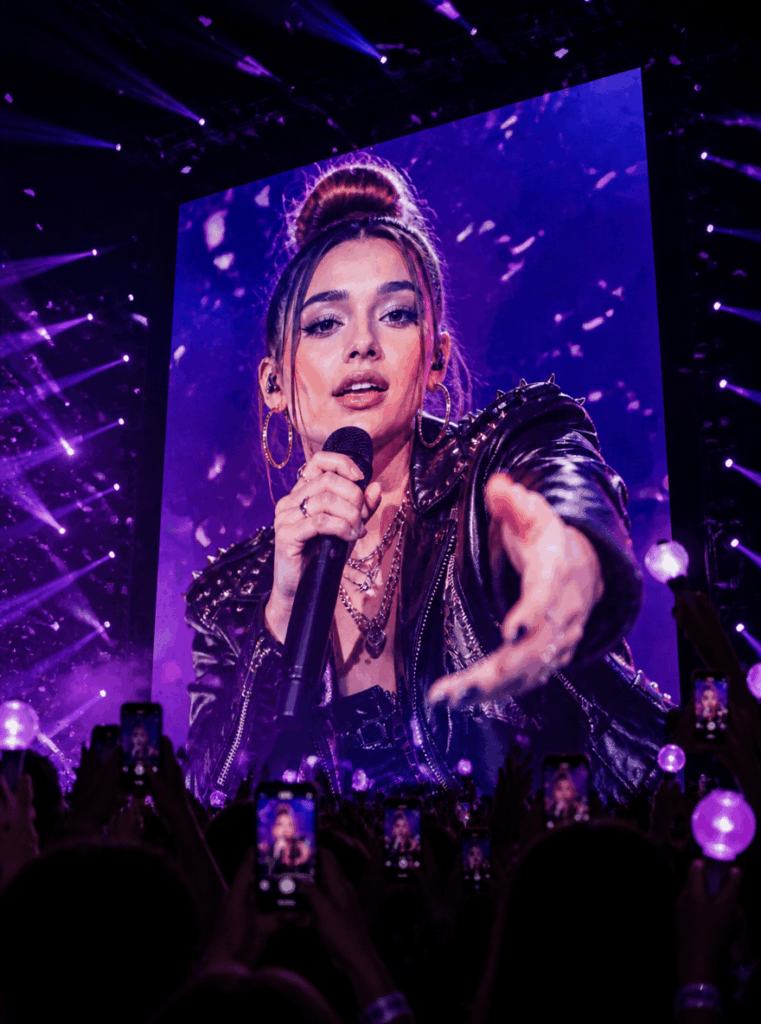
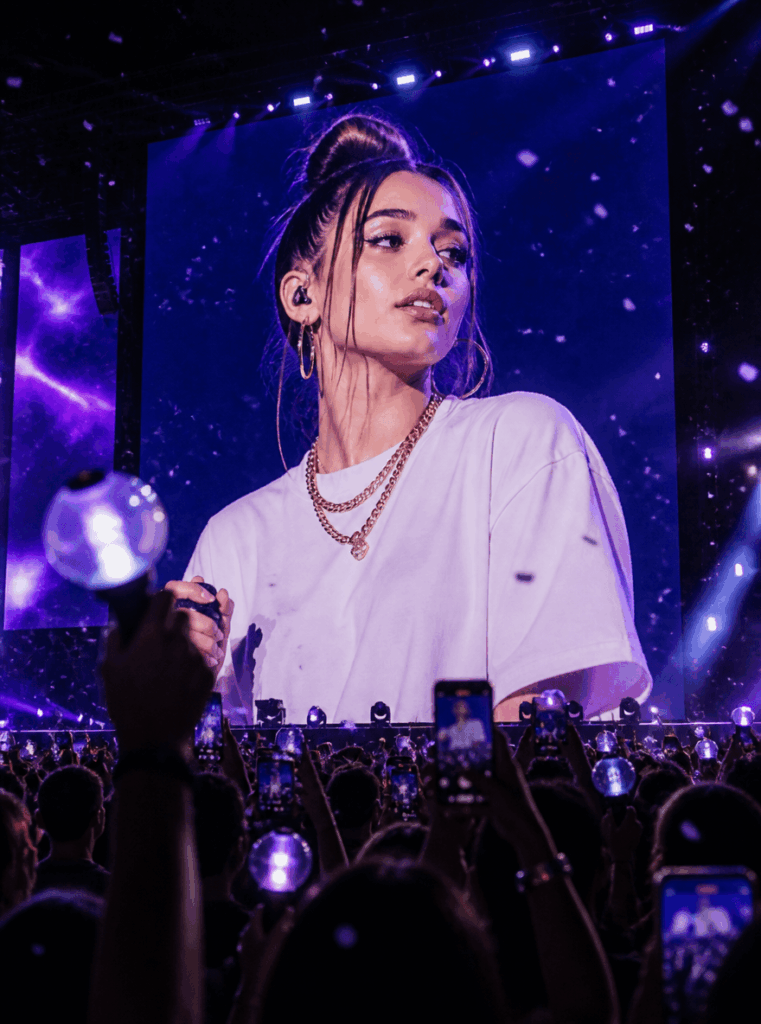
After the image is generated, take a moment to review it carefully. This step is easy to skip, but it is actually very important.
If the image already has problems, the video will usually make those problems more obvious. For example, if the face is slightly wrong in the image, it may drift even more in the video. Similarly, if the concert screen looks fake, the animated version will also feel fake.
Therefore, it is better to fix the image first before moving to Kling.
Before video generation, check whether the image works as a strong first frame.
Image Quality Checklist
Look at the result and ask yourself these questions:
- Is the idol only shown on the giant LED screen?
- Is there no real performer visible on stage?
- Does the image look like it was taken from the audience?
- Are there phones, lightsticks, and crowd silhouettes?
- Does the LED screen have pixel texture or moire details?
- Does the image feel like a real concert, not a poster?
- Does the person still look like the uploaded photo?
- Does the frame have enough details for video animation?
If most answers are yes, you can move on to the video step. If not, use the fixes below.
Fix 1: If the Image Looks Too Clean
Add this line to the prompt:
realistic iPhone fan-cam photo, low-light grain, digital zoom softness, handheld camera shakeThis makes the image feel less like a polished poster and more like a real fan recording.
Fix 2: If the Face Does Not Look Like You
Add this line:
Preserve recognizable identity. The idol must clearly look like the same person from the uploaded image.For even stronger identity control, you can also add:
Do not change the face. Keep the original facial structure, eyes, nose, lips, jawline, hairstyle, and face proportions.Fix 3: If the LED Screen Looks Fake
Add this line:
LED pixel texture, moire pattern, live-feed contrast, slight overexposure, screen refresh artifactsThis gives the image a more authentic jumbotron look.
Step 3: Use Kling to Create the Video
Once you have a strong image, you can move on to the video step. At this stage, the goal changes.
Instead of redesigning the whole scene, you only want to add natural movement. In other words, Kling should bring the existing image to life, not create a completely different concert shot.
Because of this, the video prompt should stay short and clear.
Open Kling 3.0 AI Video Model on WeShop AI.
Upload the generated AI K-pop concert screen image. Then, paste the video prompt below.
Video Generation Prompt
A fan recording a sold-out K-pop stadium concert.

The giant LED screen displays the idol smiling softly.

Crowd cheering.

Pink and purple lightsticks waving.

LED lights flickering naturally.

Subtle handheld iPhone camera movement.

Slow zoom-in.

Confetti drifting through the air.

Dreamy concert atmosphere.

Photorealistic.

Looks like a real viral concert clip.
Why the Video Prompt Should Be Simple
As you can see, this prompt is much simpler than the image prompt. That is because the image already contains the most important information, including the person, the LED screen, the crowd, and the concert lighting.
Now, Kling only needs to understand how the scene should move. For example, the lightsticks can wave, the camera can slowly zoom in, and the confetti can drift through the air.
As a result, the final video feels active without losing the original composition.
Therefore, the video prompt should focus on motion. It should not redesign the whole scene.
The best motion details are:
- Subtle handheld camera movement
- Slow zoom-in
- Waving lightsticks
- Flickering concert lights
- Floating confetti
- Light crowd movement
- A real fan-cam feeling
In other words, the video step should make the image move naturally. It should not create a completely new scene.
This is one of the most important tips for making a stable AI K-pop concert screen video.
Step 4: Preview the Result
Video Quality Checklist
When previewing the video, check these details:
- Does the face stay stable?
- Does the person still look recognizable?
- Does the LED screen still feel like a real jumbotron?
- Is the camera movement natural?
- Are the crowd and lightsticks moving slightly?
- Does it feel like a real fan-cam?
- Did the AI accidentally create a performer on stage?
If the face starts to shift too much, make the motion prompt more controlled:
Subtle motion only. Keep the idol’s face stable and recognizable. Gentle handheld camera movement. Slow zoom-in only.A good AI K-pop concert screen video should feel alive. At the same time, it should not feel chaotic.
Styling Tips for a Better K-pop Idol Look
In addition to the prompt, styling also plays a big role. Even if the concert scene looks realistic, the outfit still needs to match the idol concept.
For that reason, it helps to use fashion details that are commonly associated with K-pop stages. These details make the character easier for the AI to understand.
The styling can make or break the result.
To help the AI understand that this is a live K-pop performance, use stage-ready fashion and accessories.
Recommended Outfit Choices
- Silver performance outfit
- White music-show outfit
- Deep navy stage outfit
- Glitter stage top
- Rhinestone straps
- Minimal but shiny jewelry
- Elegant concert styling
Details to Add
- Rhinestones
- Glitter
- Headset Mic
- In-ear Monitor
- Stage Jewelry
- Silky Styled Hair
- Glossy Korean Idol Makeup
Details to Keep
- Korean-inspired stage makeup
- Smooth styled hair
- Simple jewelry
- Original facial features
- Natural skin tone
- Recognizable identity from the uploaded photo
These styling words help the AI understand the role of the person in the image.
The person is not just taking a selfie. Instead, the person is an idol being shown on a massive LED screen during a live concert.
That is the core of the AI K-pop concert screen effect.
Advanced Tips and FAQ
Even with a strong prompt, the first result may not always be perfect. This is normal. AI image generation often needs small adjustments, especially when identity, lighting, and scene composition all matter at the same time.
Fortunately, most problems can be fixed with a few prompt changes. Below are the most common issues and the easiest ways to improve them.
Q1: Why Does the Result Not Look Like Me?
This usually happens when the uploaded photo is not clear enough.
For example, the photo may be blurry, heavily edited, or partly covered by hair. In some cases, the AI may also over-beautify the face and create a different-looking person.
Common Reasons
- The uploaded photo is blurry
- The face is heavily edited
- The hairstyle covers the face
- The facial features are not clear
- The identity lock is too weak
- The AI over-beautifies the face
How to Fix It
Add this line:
Preserve recognizable identity.Then, add this line too:
The idol must clearly look like the same person from the uploaded image.For stronger control, use:
Do not change the face.
Do not beautify into another person.
Keep the original facial structure and proportions.
Maintain the same eyes, nose, lips, jawline and hairstyle.
Also, try a clearer photo. A front-facing image with natural lighting usually works best.
Q2: Why Does the Image Look Like a Promotional Poster?
This happens when the image is missing real concert details.
A promotional poster is usually clean, sharp, and perfectly lit. However, a fan-cam image should feel darker, slightly grainy, and more spontaneous.
Common Problems
- The face is too clean
- The background is too perfect
- The lighting looks like a studio
- There is no audience
- There are no phones or lightsticks
- The LED screen has no texture
- The image looks too professional
How to Fix It
Add these LED details:
LED pixel texture

moire pattern

live-feed contrast

slight overexposure
Then, add these fan-cam details:
realistic iPhone concert photo

low-light grain

digital zoom softness

handheld camera shake

audience silhouettes in foreground

phone screens recording
As a result, the AI K-pop concert screen image will feel more like a real fan recording.
Q3: Why Does the Video Look Like a Still Image With Motion Added?
This usually means the first image does not include enough moving elements.
Kling needs details that can move naturally. For example, lightsticks, confetti, haze, and lighting beams give the video model more room to animate the scene.
Add These Elements Before Video Generation
- Confetti
- Lightsticks
- Crowd
- Lighting Beams
- Haze
- Phone Screens
- Atmospheric Particles
You can add this line:
waving lightsticks, floating confetti, animated concert lighting beams, moving audience silhouettes, glowing phone screens, subtle hazeIf the image only has a face and a screen, the final video may feel flat. However, if the image includes a crowd, phones, haze, and lights, the video will feel much more alive.
Q4: Why Does It Not Look Like a Fan Secretly Recorded It?
The image may be too clean, too stable, or too polished.
A real concert fan-cam often has small imperfections. These imperfections actually make the image feel more real.
Fan-Cam Details to Add
- A slightly distant viewpoint
- Low-light grain
- Digital zoom softness
- Subtle motion blur
- Handheld camera shake
- Audience silhouettes in the foreground
- Glowing phone screens
- A slightly imperfect composition
Use this line:
iPhone zoom photo

digital zoom softness

low-light grain

subtle motion blur
You can also add:
real fan secretly recording from the audience

slightly imperfect handheld composition

foreground audience silhouettes

glowing phone screens
These details make your AI K-pop concert screen image look less like an official photo and more like a viral concert clip.
Q5: Why Does the Person Appear on Stage?
This is one of the most common problems.
AI often reads “K-pop idol concert” as “an idol performing on stage.” However, for this trend, the person should only appear on the giant LED screen.
How to Fix It
Repeat this line:
The idol appears ONLY on the giant LED screen.Then, add:
NO visible performer on stage.
The actual performer on stage is completely invisible.
ONLY the LED screen contains the idol.
If the AI still creates a stage performer, move these lines closer to the beginning of the prompt. Generally, earlier instructions have stronger influence.
Q6: Why Does the LED Screen Not Look Real?
A real concert LED screen is not perfectly clean.
It often has pixels, light bloom, refresh marks, and slight overexposure. These details make the screen feel like a real object inside the concert venue.
LED Details to Add
- LED pixels
- Moire pattern
- Screen refresh marks
- Bright glow
- Slight overexposure
- Strong contrast
- A live-feed look
Use this line:
realistic LED pixel texture
subtle moire pattern
screen refresh artifacts
live-feed appearance
slight overexposure
authentic jumbotron quality
This helps the image look like someone recorded a real screen, not like a portrait pasted onto a background.
Q7: What Is the Difference Between the Image Prompt and the Video Prompt?
The image prompt builds the world.
It decides:
- Who the person is
- Where the person appears
- What the scene looks like
- What the lighting feels like
- What the outfit looks like
- How realistic the LED screen is
- Whether the image feels like a fan-cam
The video prompt brings that world to life.
It controls:
- Slow zoom-in
- Lightstick movement
- Crowd motion
- Flickering lights
- Floating confetti
- Handheld camera feel
- Concert atmosphere
Because of this, do not overload the video prompt with too many new character details. If you redesign the scene during the video step, the face or composition may drift.
For a stable AI K-pop concert screen video, keep the video prompt short and motion-focused.
Q8: How Can I Make the Final Video More Viral?
The most shareable results are not always the prettiest ones. They are usually the ones that feel real.
A strong viral version often includes:
- A real fan-cam viewpoint
- A slightly imperfect phone-recording look
- A huge LED screen
- A visible crowd
- Waving lightsticks
- Glowing phones
- Subtle camera shake
- Natural facial expression
- A clear “I am on the concert screen” moment
In other words, the video should feel like a real fan captured a once-in-a-lifetime moment.
The magic of this trend is not just becoming an idol. It is seeing yourself in the exact place where an idol would appear: on a massive LED screen in front of thousands of fans.
That is what makes the AI K-pop concert screen effect so addictive.
Final Thoughts
By now, you can see that this effect is not created by one magic keyword. Instead, it comes from a full visual system: the LED screen, the audience, the phone-recording style, the lighting, the outfit, and the video motion all work together.
That is why small details matter so much. When each part feels realistic, the final result becomes much more convincing.
The AI K-pop concert screen trend is more than another AI portrait idea.
It is a full mini-scene. First, GPT Image 2 creates a realistic concert jumbotron image. Then, Kling adds movement, light, crowd energy, and fan-cam atmosphere. Together, they turn one simple photo into a short concert-style video that feels surprisingly real.
If your result is not realistic enough, check these points first:
- Is the person only shown on the LED screen?
- Is there no visible performer on stage?
- Are there enough motion elements?
- Does the image have a fan-cam feeling?
- Is the LED screen texture visible?
- Does the person still look recognizable?
- Does the image avoid a poster-like style?
Small details make a big difference.
A realistic AI K-pop concert screen video should not feel like perfect AI artwork. Instead, it should feel like a fan in the crowd pulled out their phone, zoomed in, and captured a once-in-a-lifetime concert moment.
Ultimately, this trend is popular because it feels personal and cinematic at the same time. It lets you imagine yourself in a moment that usually belongs to idols on stage.
In the end, you are not just making an AI image. You are creating your own concert-screen moment, complete with crowd energy, glowing lightsticks, and a viral fan-cam feeling.
Go to WeShop AI For Exploration:


