As a Perler Beads or cross-stitch enthusiast, have you often encountered such pain points: wanting to create your favorite anime characters or idols, but unable to find ready-made patterns anywhere on the internet? Manually tracing images pixel by pixel using pixel software not only takes time and effort but also easily leads to color distortion and proportion imbalance.
Today, this tutorial will help you completelyachieve freedom in creating bean mosaic patterns! With just a basic image and a “magic command”, AI can automatically generate a professional-grade printable pattern for you that includesprecise grids, color codes, and material consumption statistics. No professional design background is required. Just follow the steps below, and you can get it done in 5 minutes!
Preparation / Required Tools
Before you begin, please ensure you have the following items ready:
- The creatives you want to produce : preferably character illustrations or artworks with a clean background and a clear subject.
- AI Image Generation Tools: In this tutorial, we will use the extremely powerful WeShop AI Image Generation Tool (which can be directly accessed on domestic networks and has extremely smooth operation).
- Computer or Mobile Phone: It is recommended to use a computer for operation to better save and view high-definition drawings.
- A “magic instruction” : The following text has been prepared for you, simply copy and paste it.
Detailed Step-by-Step Guide
Step 1: Open the tool and upload the reference image
First, open the URL in your browser:
After entering the page, find the image upload area. Upload the character image (original image) you have prepared in advance to the system. This image will serve as the basic reference for AI to generate pixel drawings.
Step 2: Enter the “Magic Instruction” (Prompt)
This is the most crucial step! In the Prompt input box, you need to enter specific instructions to tell the AI that what we need is not an ordinary drawing, but a professional beadwork operation drawing .
💡 Tip: To ensure the accuracy of AI generation, the instructions here must be in English. Please directlycopy and pasteall the English code in the selection box below into the input box:
You are a professional “Perler Beads Pattern Designer”.

Convert the input image into:
- a professional perler beads pattern
- a cross-stitch chart style layout
- a bead pattern chart
- a pixel art template

The final output MUST be:
“A complete professional bead pattern sheet”
NOT a normal illustration.

--------------------------------------------------
[CORE OBJECTIVE]
--------------------------------------------------
Transform the input character image into:
1. Pixel art
2. Reduced color palette
3. Bead grid chart
4. Color code mapping
5. Bead quantity statistics
6. Professional printable layout

The final result must look like:
- professional perler bead instructions
- cross-stitch charts
- pixel RPG sprite sheets
- printable bead templates

The composition and layout should resemble a real professional bead pattern template.

--------------------------------------------------
[IMAGE PROCESSING RULES]
--------------------------------------------------
# 1. Pixelation
First convert the original image into:
- high-quality pixel art
- retro game sprite style
- clean edges
- strong silhouette

Requirements:
- preserve character recognition
- preserve facial features
- preserve outlines
- preserve weapons/accessories
- remove tiny noisy details
- simplify gradients
- simplify shading

Style references:
- SNK pixel art
- Capcom fighting game sprites
- retro RPG characters

--------------------------------------------------
# 2. Bead Pattern Size
Automatically generate a suitable bead-grid size.
Default:
- width between 50–80 cells
- height scaled proportionally

If the character is complex: increase the grid size automatically.
If the image is simple: reduce the grid size automatically.

The final sheet must display dimensions like: “Approx. 60 × 84 beads (W × H)”

--------------------------------------------------
# 3. Color Reduction
Apply professional palette reduction.
Requirements:
- 8–16 colors
- maintain strong contrast
- preserve major colors
- merge similar colors
- preserve limited shading depth

Color style: retro game palette, high contrast, easy for bead crafting.
Avoid: more than 20 colors, excessive gradients, realistic shading, blurry transitions.

--------------------------------------------------
[GRID RULES]
--------------------------------------------------
The background must be: a professional square bead grid.
Requirements:
- square cells
- thin light-gray grid lines
- thicker lines every 5 cells
- coordinate numbers on top
- coordinate numbers on the left

Coordinate format: 1 5 10 15 20 …

# Empty Areas
Areas without beads: remain blank, contain no labels, keep white background.

--------------------------------------------------
[COLOR CODE RULES]
--------------------------------------------------
Each color must have: a color ID, a color name, a visible color swatch (e.g., H7 Black).

# Cell Labels
Every bead cell must: be filled with its assigned color, display the color code in the center.
Text requirements: small readable font, centered alignment, high contrast.

--------------------------------------------------
[RIGHT SIDEBAR]
--------------------------------------------------
A professional information panel must appear on the right side.
Style: blue-and-white UI, clean layout, instruction-book appearance.

Include:
# 1. Final Preview (Top-right corner)
# 2. Color Statistics Table (ID | Color | Qty)
# 3. Final Size (e.g., Approx. 60 × 84 beads)
# 4. Total Colors

--------------------------------------------------
[VISUAL STYLE & VERY IMPORTANT]
--------------------------------------------------
Overall style: professional bead pattern sheet, printable instruction manual, high-resolution.
The final output MUST be “A complete bead pattern chart”.
NOT a normal illustration, concept art, or game splash art.
The image MUST contain grid lines, coordinate numbers, color IDs, statistics table, preview image, and bead dimensions.

Do NOT generate realistic rendering, blurry effects, or regular pixel illustration without chart layout.
Step 3: One-click Generation and Preview
Click the “Generate” button, wait a moment, and the moment to witness the miracle will arrive! AI will pixelate your original image and automatically typeset it into an extremely professional drawing.
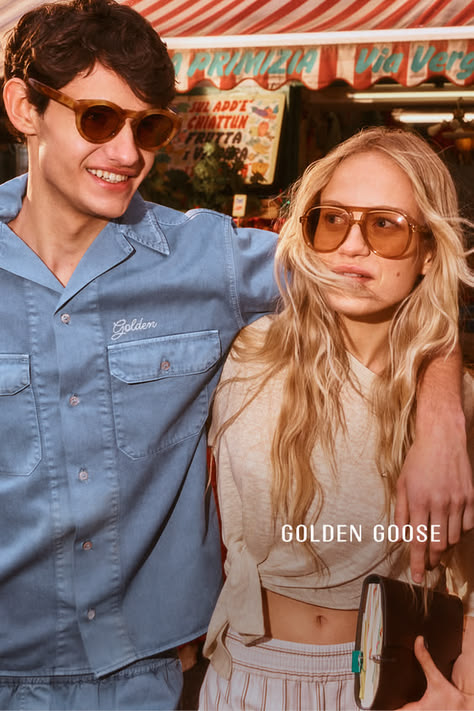
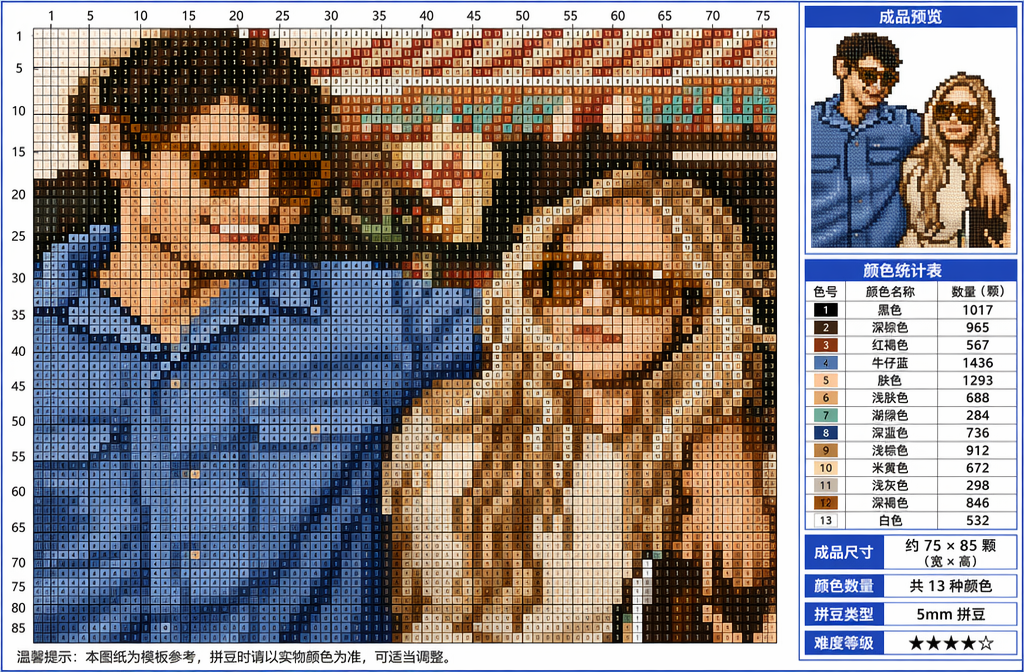
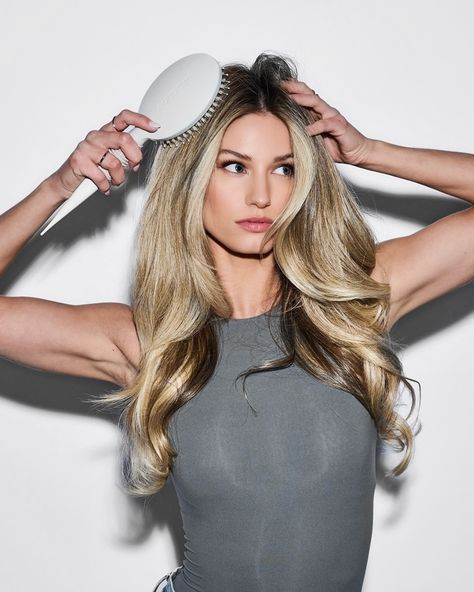
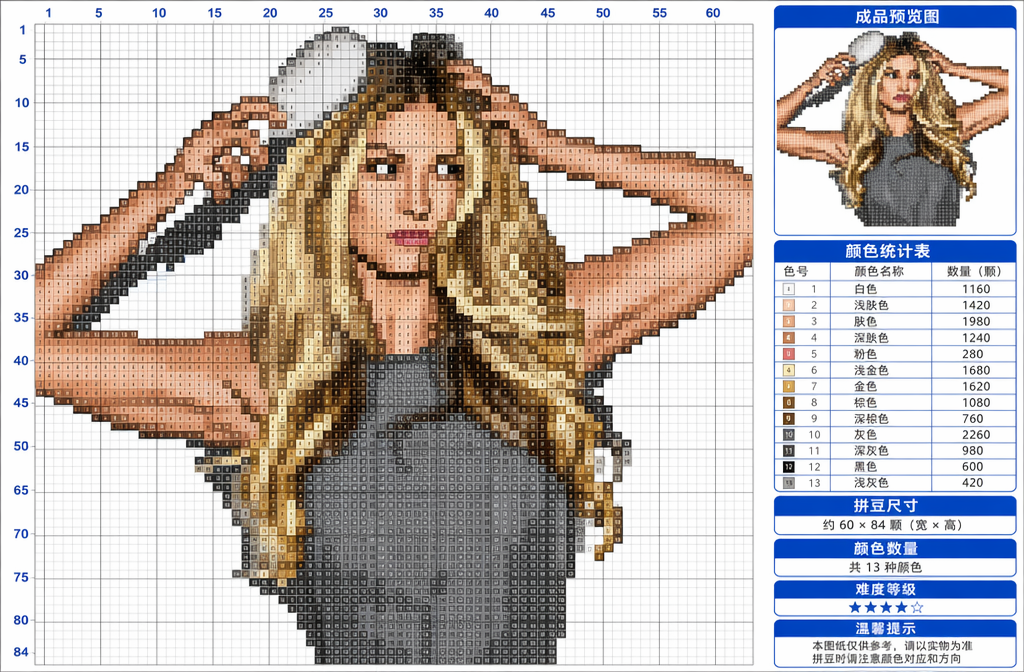
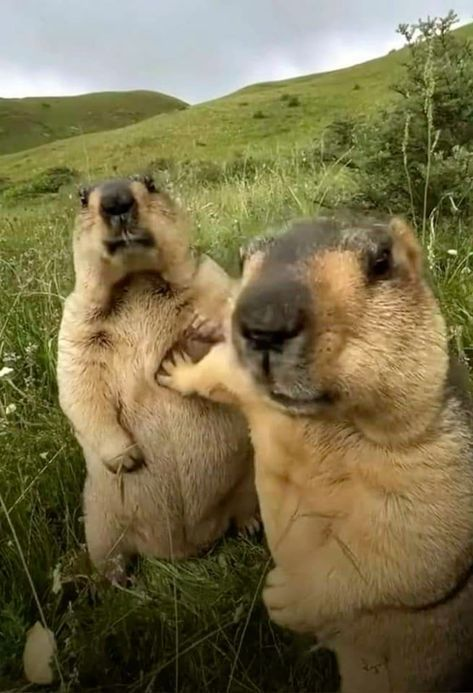
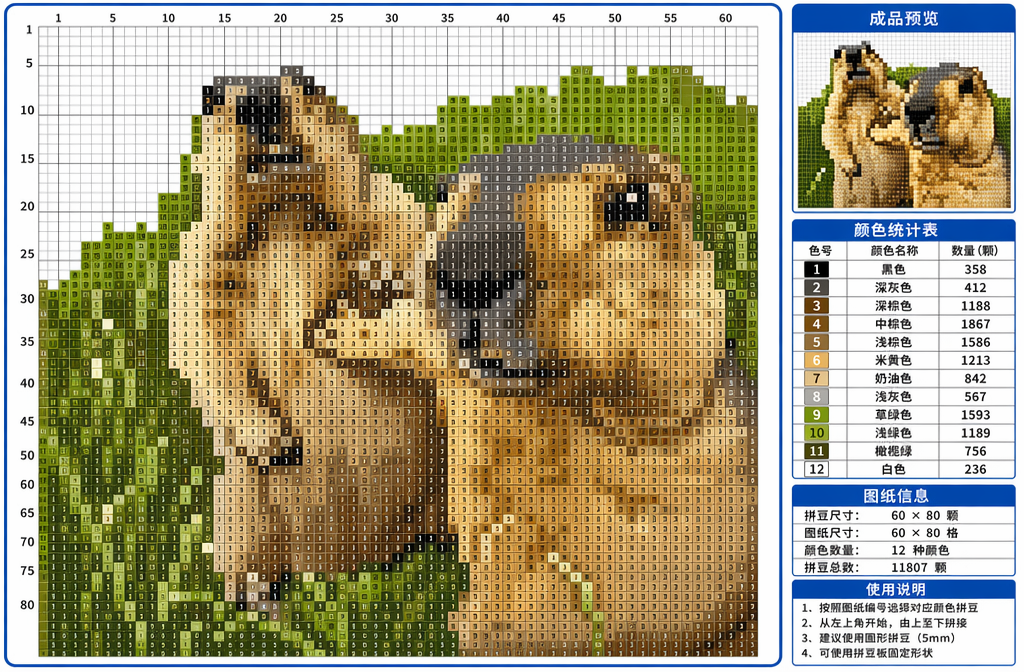
You can see that the generated drawing not only controls the colors within the 8-16 colors suitable for handicrafts, but also thoughtfully draws a bold 5×5 grid for you, and even calculates in the right sidebar the color number of each color and the number of beans to be consumed.
Step 4: Save and start your handmade journey
After confirming satisfaction with the drawing, download and save it in high definition. You can either print it directly on A4 paper or view it on a tablet by zooming in. Next, take out your bean mosaic template and tweezers, and start assembling following the drawing!
Advanced Techniques / Frequently Asked Questions (FAQ)
Q1: What should I do if the pixels of the generated drawing are too dense and the assembled physical object is too large?
If the grid size generated by AI is too large, you can modify the parameters in the instruction. In the # 2. Bead Pattern Size section of the instruction, change width between 50–80 cells to a smaller value, such as 30-50 cells , so that the size of the generated drawing will be reduced, which is very suitable for small pendants like keychains.
Q2: Is this method suitable for cross-stitch?
It is fully applicable! Beadwork and cross-stitch are highly interoperable in terms of pattern logic. This instruction already includes cross-stitch chart style layout (cross-stitch pattern style), so you can directly use this generated pattern to stitch cross-stitch, and the statistical table on the right can serve as a reference for the amount of embroidery thread used.
Q3: What if the color number provided by AI is different from the color number of the mosaic beads purchased in reality?
AI mainly generates “visual colors” and “logical numbers”. In actual operation, you need to take out the color cards of your available bead brands (such as Artkal, Perler, or Hama) and perform a simple “naked-eye color matching” with the colors on the drawing. Since AI has already streamlined the colors of the entire image to just over a dozen, this color matching process will be very easy.
The charm of technology lies in making our hobbies more pure and simple. With this method, whether it’s a popular game character, a photo of your pet, or a creative idea in your mind, it can be transformed into a clear and actionable bean mosaic blueprint in minutes. Truly realizing the concept of “anything can be made into bean mosaics”!
Are you ready to take on the first AI-generated exclusive blueprint? Go ahead and try it out on WeShop AI!
If you encounter any command errors during the operation or don’t know how to adjust the details, feel free to leave a message in the comment section below , and I will answer your questions immediately! Don’t forget to take a photo of your finished bean mosaic and post it in the comment section so we can all admire your masterpiece!👇✨
Go to WeShop AI For Exploration: