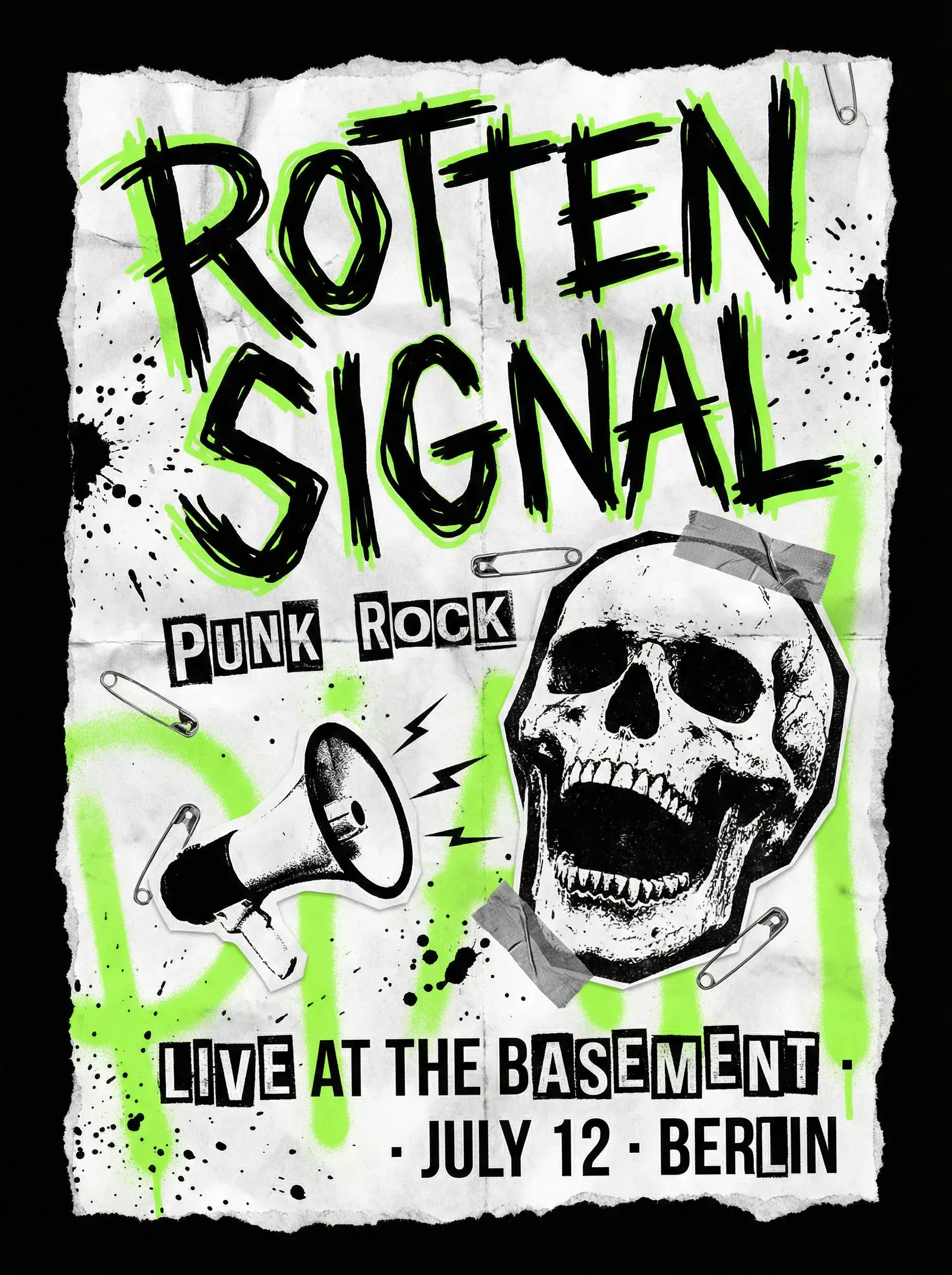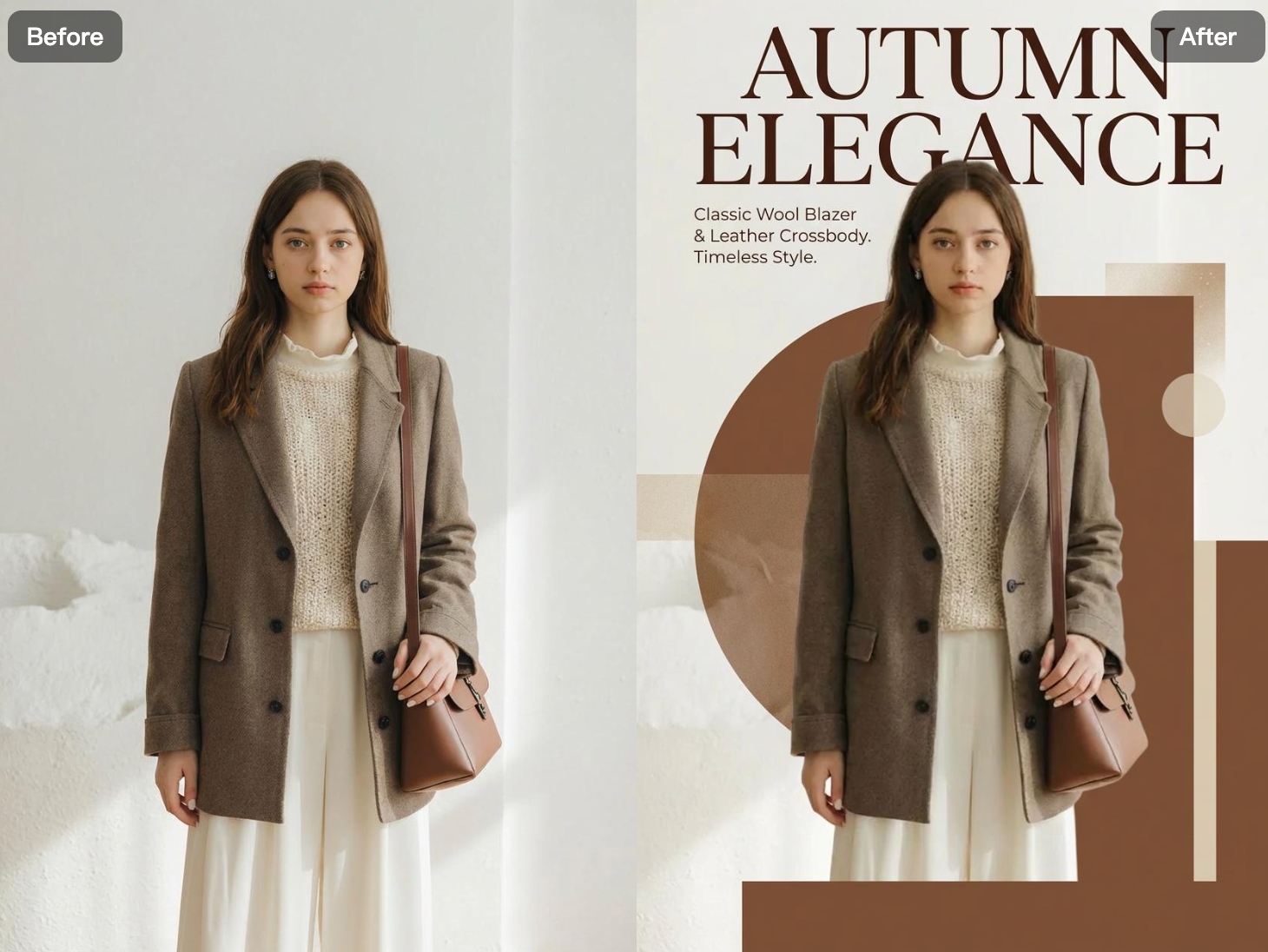
A YouTube banner is often the first thing people see when they visit your channel. It needs to show your style, your content focus, and your brand—clearly and fast. However, designing YouTube banners usually takes time, design skills, and the right dimensions. That’s where WeShop AI’s AI Poster Generator helps.
Instead of starting from a blank canvas, you can describe your channel style and let AI generate a YouTube banner for you. From colorful and playful designs to clean and modern layouts, the AI adjusts composition and typography to fit different content types. As a result, you can create eye-catching YouTube banners quickly, without complex design tools.
Next, let’s walk through how you can use WeShop AI’s AI Poster Generator to create YouTube banners step by step.
How to Create a YouTube Banner with AI Poster Generator (Step-by-Step)
Creating a YouTube banner with WeShop AI is simple and flexible. You don’t need design skills or special templates.
Step 1: Open the AI Poster Generator
First, open WeShop AI and go to the AI Poster Generator tool.
This is where you create banners, posters, and other visual designs using AI. Once you’re there, you’re ready to start.
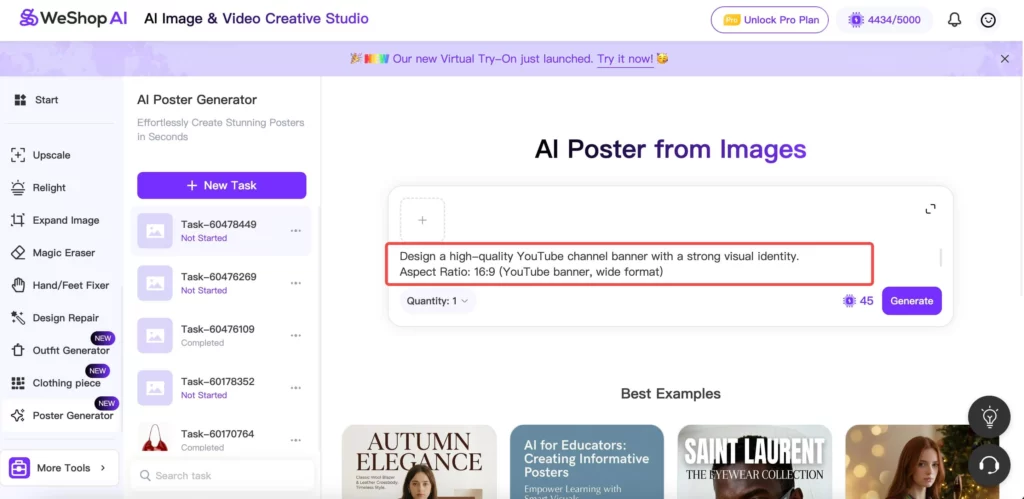
Step 2: Enter Your YouTube Banner Prompt
Next, use the input box to describe the YouTube banner you want to create.
Here, you can include details such as:
- Your YouTube channel name
- Channel type (gaming, education, music, tech, lifestyle, etc.)
- Banner style (colorful, minimal, modern, bold, playful)
- Any text or tagline you want to show
- Aspect ratio: 16:9 (YouTube banner)
Because YouTube banners are cropped on different devices, it’s important to mention in your prompt that key text and logos should be placed near the center. This helps keep important information visible on desktop, tablet, and mobile screens.
Step 3: Let AI Generate the Banner
Once your prompt is ready, click generate.
From there, the AI automatically creates a YouTube banner layout for you. It handles composition, typography, and visual balance, so the banner fits your channel branding.
As a result, you get a banner that looks clean, readable, and ready to use.
Step 4: Edit Again Until You’re Happy
If something doesn’t look right, you can simply click edit again.
You can tweak your prompt, adjust the style, or refine the text. Then let the AI generate a new version.
This way, you can explore different banner ideas until you find the one that fits your channel best.
Step 5: Download and Use Your Banner
Finally, once you’re satisfied, download the banner and upload it directly to your YouTube channel.
With this workflow, you can go from idea to a finished YouTube banner in minutes.
Best Prompt Examples for YouTube Banners
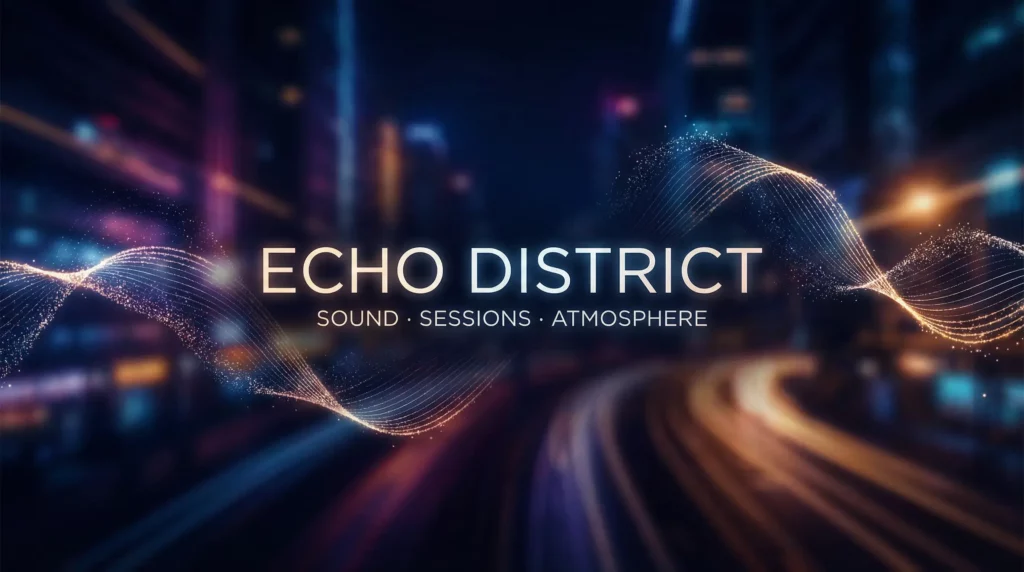
When creating a YouTube banner, the key is not stacking content in the center, but designing for a wide horizontal safe area. Below are updated prompt examples that follow this rule. You can copy them directly or adjust the details.
Education / Tutorial Channel
Educational banners should stay clean and easy to scan.
Prompt example:
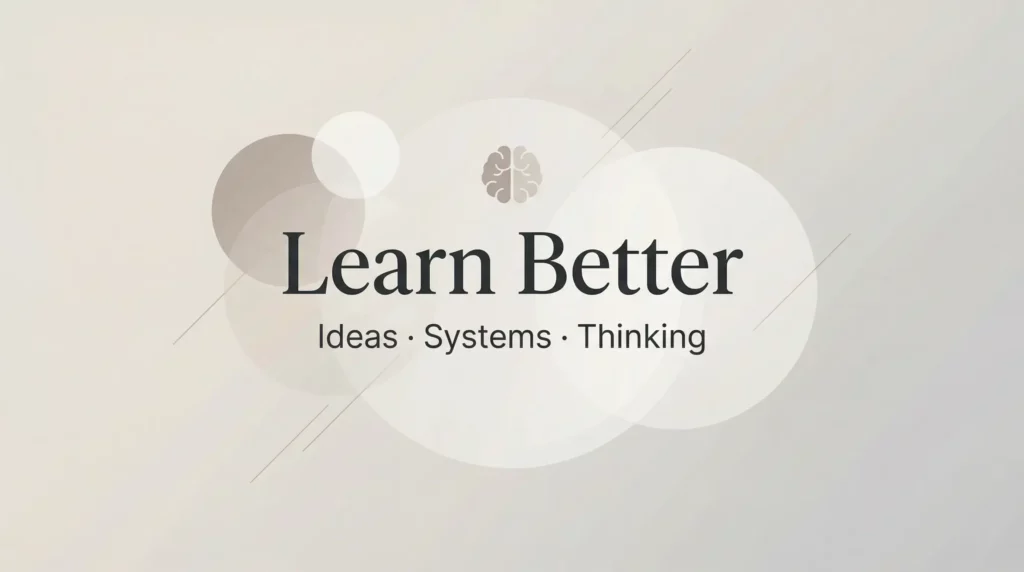
Design a clean YouTube banner for an education channel named “Learn Better”. Style is minimal and professional with soft colors and clear typography. Aspect ratio 16:9. Place all key text within the horizontal center safe area so it remains visible after cropping.
This works well for tutorials and long-term content.
Lifestyle / Vlog Channel
Lifestyle banners benefit from balance and openness.
Prompt example:
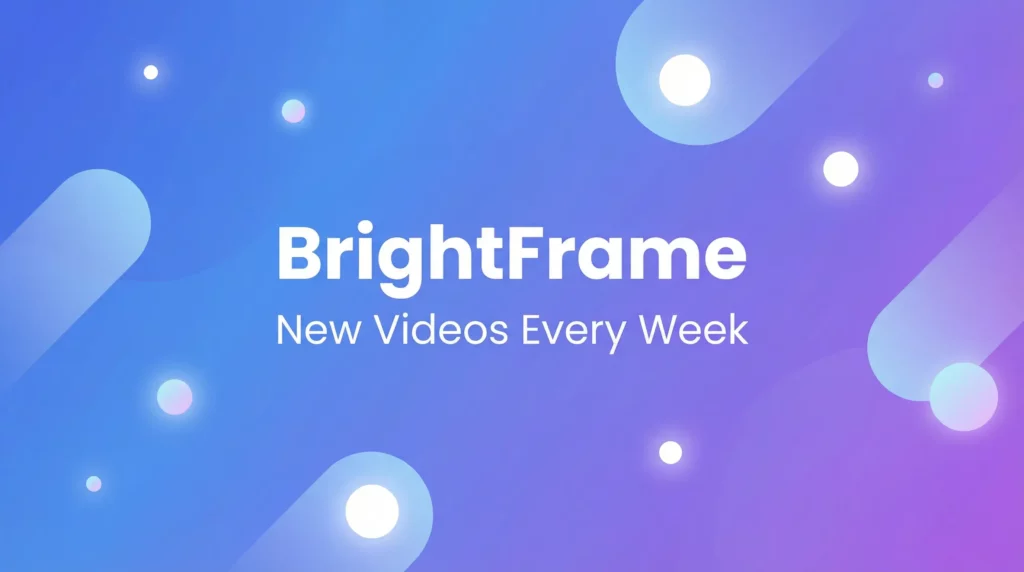
Design a YouTube banner for a lifestyle vlog channel named “BrightFrame”. Style is bright and friendly with soft gradients and simple shapes. Aspect ratio 16:9. Keep the channel name and tagline inside the center horizontal safe area. Avoid placing text near the edges.
This ensures a clean look across devices.
Creative / Design Channel
Creative banners can be expressive, but text still needs structure.
Prompt example:
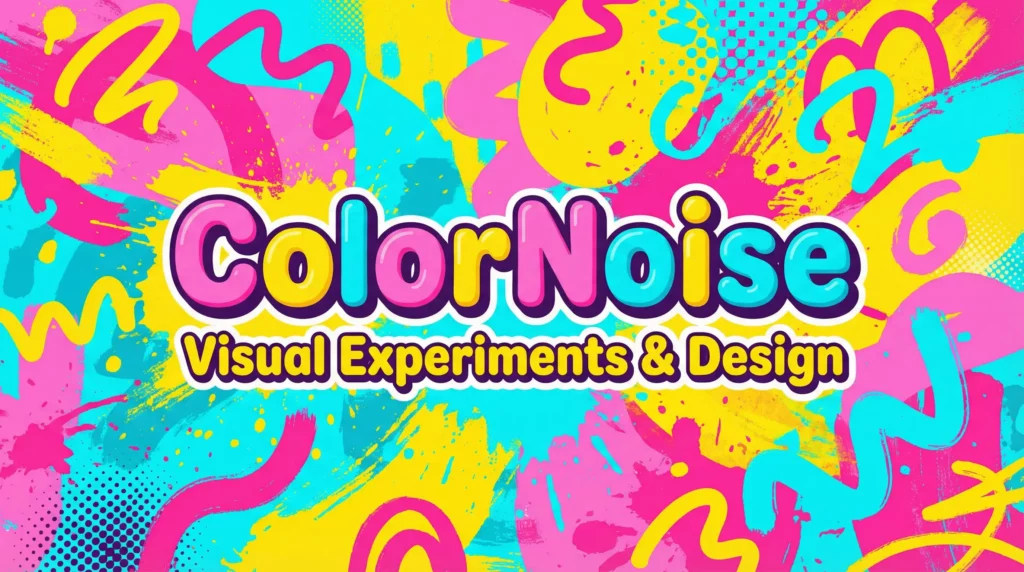
Create a colorful YouTube banner for a creative design channel called “ColorNoise”. Style is bold and artistic with abstract shapes and vibrant colors. Aspect ratio 16:9. Keep all important text and logos within the horizontal safe area across the center of the banner.
This allows strong visuals while keeping text readable.
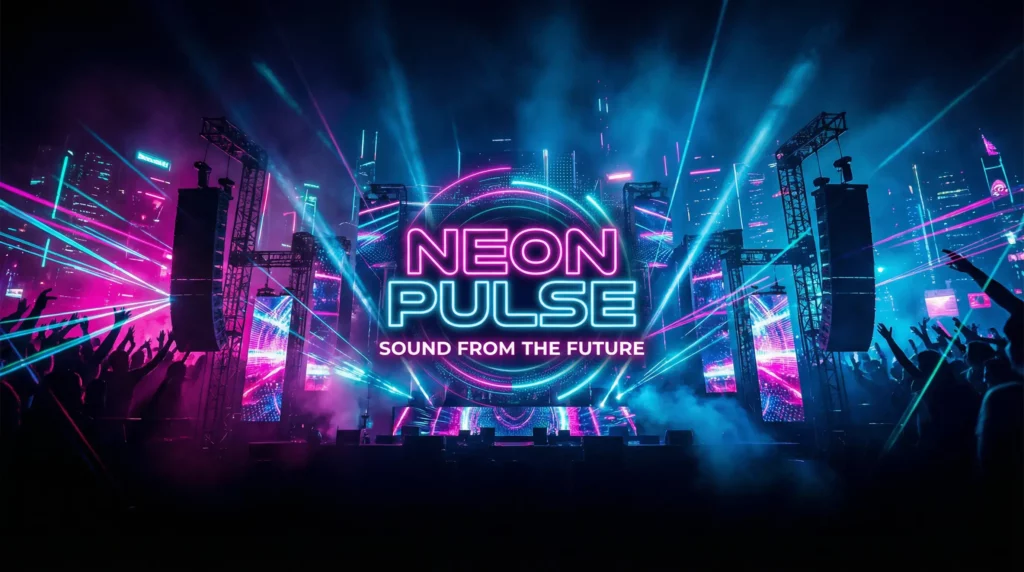
Gaming Channel
Gaming banners usually benefit from strong visuals and clear branding.
Prompt example:
Create a YouTube banner for a gaming channel called “Neon Pulse Gaming”. Style is futuristic and energetic with neon colors and bold typography. Aspect ratio 16:9. Keep the channel name and main text placed within the center horizontal safe area. Avoid important elements near the left and right edges.
This keeps the banner readable on desktop, tablet, and mobile.
AI Poster Generator vs Canva: Which Is Better for YouTube Banners?
Both AI Poster Generator and Canva can be used to create YouTube banners. However, the workflow and experience are very different.
Workflow: Describe vs Design
With Canva, you usually start by choosing a template. Then you adjust text, resize elements, and manually align everything to fit YouTube’s banner layout.
In contrast, WeShop AI’s AI Poster Generator works in a more direct way. You describe your YouTube channel, banner style, and key text. From there, the AI generates a complete banner layout for you. As a result, you spend less time arranging elements and more time refining ideas.
Speed and Effort
Canva gives you control, but it also requires time. You need to think about spacing, alignment, and safe areas, especially for YouTube banners that get cropped on different devices.
With an AI poster generator, layout and composition are handled automatically. This means you can create a YouTube banner much faster, even if you don’t have design experience.
Creative Flexibility
Canva works best when you want to tweak existing templates. However, templates can feel limiting if you have a specific style or mood in mind.
On the other hand, the AI Poster Generator lets you describe your vision in words. Whether you want a bold gaming banner, a clean education channel look, or a cinematic music banner, the AI adapts the design based on your prompt.
Who Each Tool Is Best For
- Canva is a good choice if you enjoy manual design and want full control over every detail.
- AI Poster Generator is better if you want to create YouTube banners quickly and avoid manual layout work.
The Bottom Line
If you prefer hands-on design and templates, Canva is a solid option.
However, if you want a faster, simpler way to create YouTube banners by describing what you need, WeShop AI’s AI Poster Generator offers a more efficient workflow.
Common YouTube Banner Mistakes
Many YouTube banners fail because of small design mistakes. Common issues include placing text too close to the edges, using fonts that are too small, or adding too much information. As a result, banners often look cluttered or get cropped on different devices.
The AI Poster Generator helps avoid these problems by handling layout and spacing automatically. It keeps key text within the horizontal safe area and maintains clear visual hierarchy. This way, you get a YouTube banner that looks clean, readable, and ready to use—without manual fixes.
Tips for Better YouTube Banners
- Design for a 16:9 layout and keep key text within the center horizontal safe area
- Focus on one main message, such as your channel name or tagline
- Use large, readable text so it stays clear on mobile devices
- Match the banner style to your channel content for stronger branding
- Regenerate and refine until the layout feels balanced
These small tips help the AI Poster Generator create YouTube banners that look clean and professional across all devices.
Conclusion
Creating a YouTube banner doesn’t have to be complicated. With WeShop AI’s AI Poster Generator, you can turn a simple prompt into a ready-to-use banner in minutes.
By describing your channel style and keeping key elements within the horizontal safe area, you can generate banners that look clean across all devices. Instead of spending time on manual design, you focus on your content—while AI handles the layout.
If you’re looking for a faster and easier way to create YouTube banners, the AI Poster Generator fits naturally into your workflow.