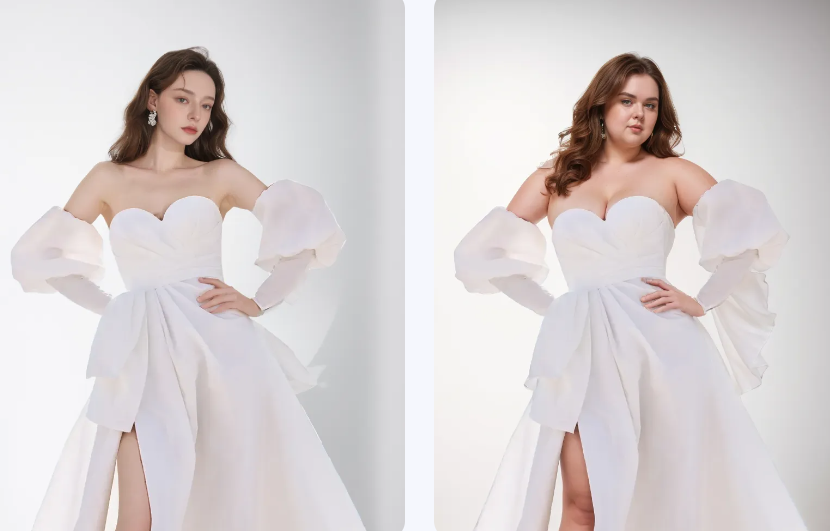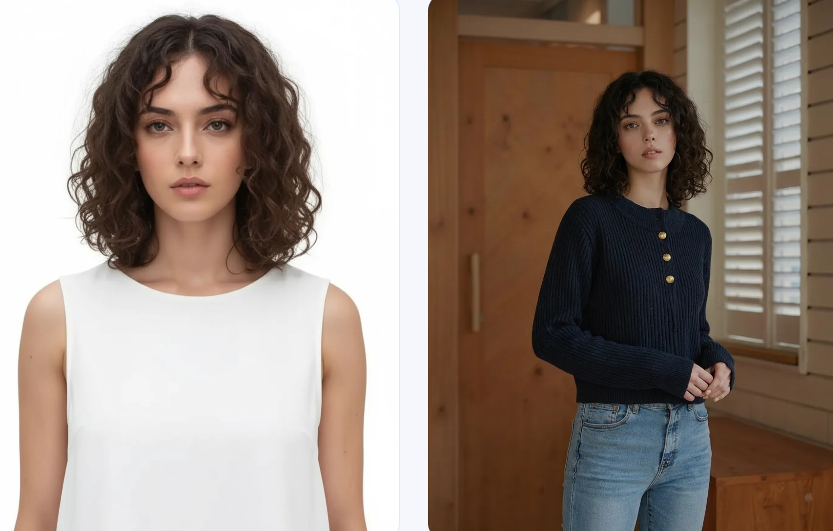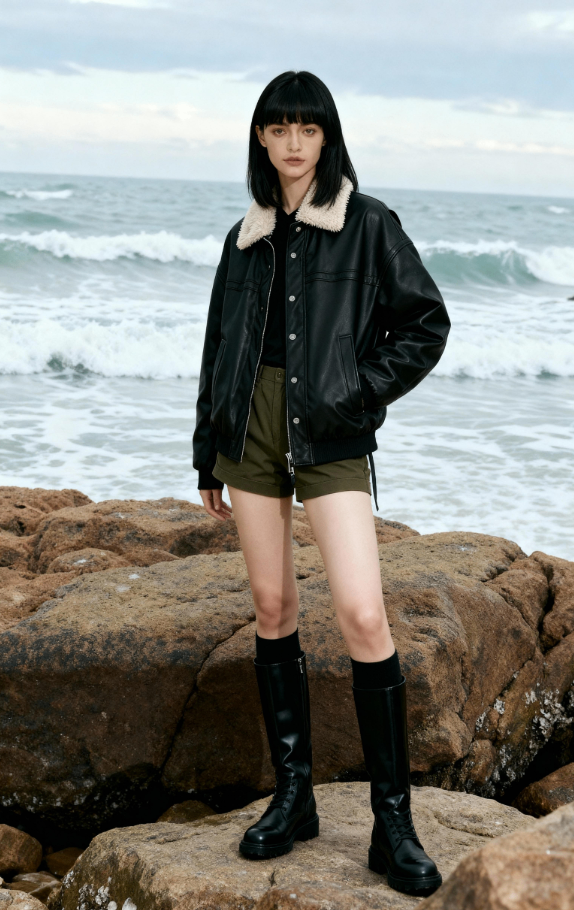
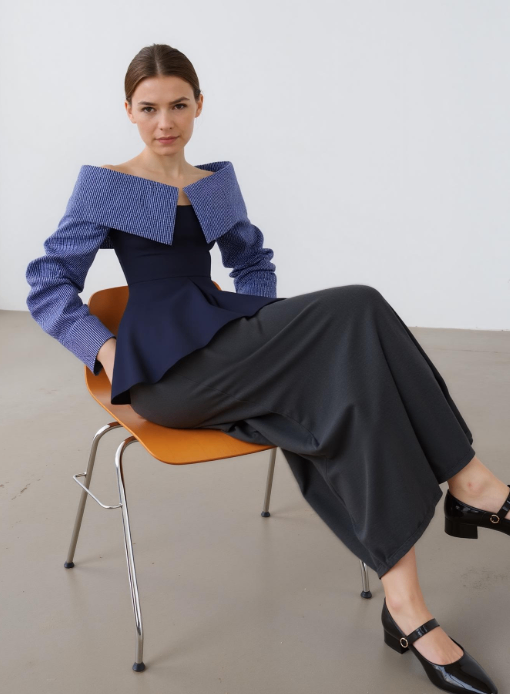
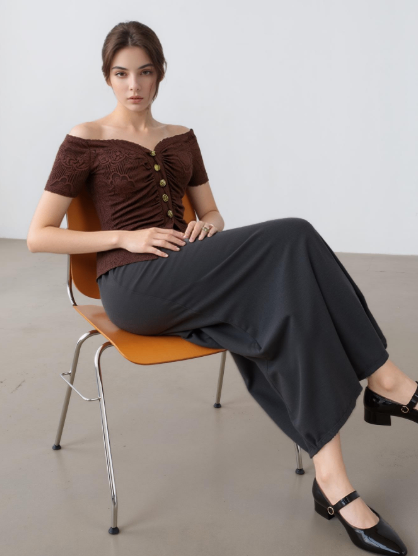
Have you ever looked at big-brand shoe ads and thought,“I wish I could show my sneakers on a real model without booking a studio, hiring a photographer, or chasing the perfect light”? Good news—WeShop’s AI Model function does exactly that. In this post I will walk you through every click, from the moment you open the browser to the second you download the finished picture. No long sentences, no tech talk—just short, clear steps and plenty of transition words so you never get lost.
Why footwear on a AI model sells better
Let’s pause for a second and talk about what happens in the buyer’s mind. When shoppers see a shoe floating on a white background, they think, “Nice shoe.” But when they see that same shoe on a walking model, their brain adds two extra words: “Nice shoe—and it fits someone like me.” The laces fall naturally, the sole bends, the heel cup hugs the ankle. Those tiny signals scream “comfortable” and “true-to-size,” the two biggest worries in online footwear. In short, a model turns a product shot into a trust shot.
The best part? You don’t pay a photographer, rent a studio, or ship samples across the country. WeShop gives you the model, the lighting, and the location in under a minute. So before you hit “Generate,” remember: you are not just making a prettier picture; you are removing doubt, building trust, and quietly telling the shopper,“Go ahead, press Buy Now.”
Step By Step Guide: How to Put Your Footwear on an AI Model
Step 1: Log in and create a new task
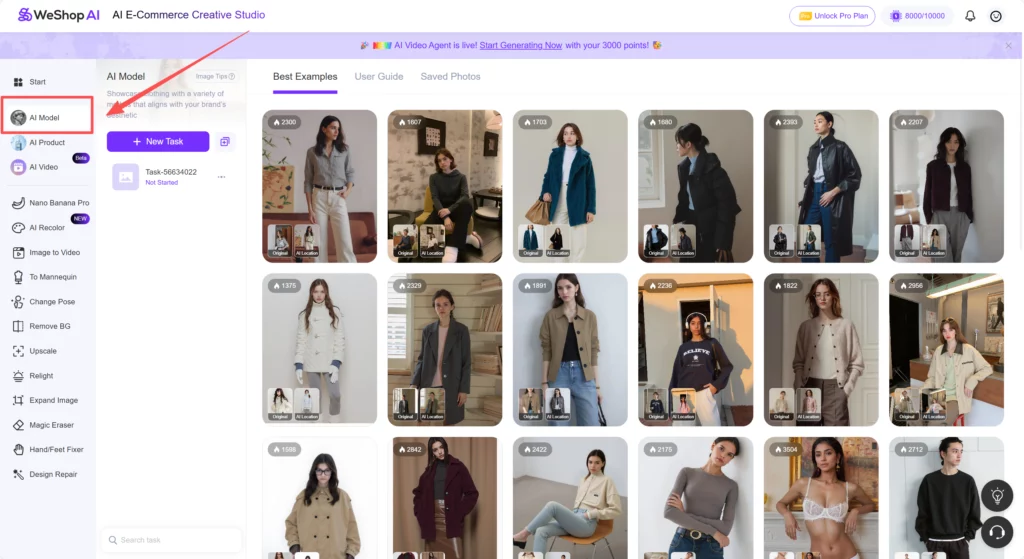
First, open Weshop AI platform and sign in. Choose AI Model on the left side bar. Now you are inside the correct workspace.
Step 2: Upload your footwear photo
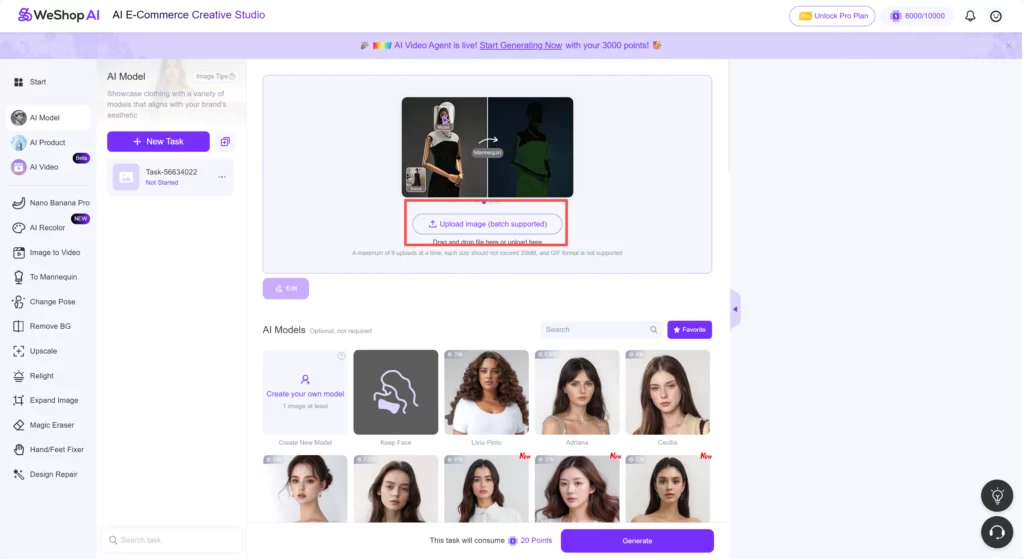
Next, drag and drop your footwear picture into the big upload box. Almost any angle works—top-down, side,45°, even a flat-lay. But remember these quick tips:
- The shoe should cover at least one-quarter of the frame.
- Keep the background simple; white or light grey is perfect.
- Make sure the sole or heel is clean; tiny dust spots can confuse the AI.
Step 3: Choose the AI model type
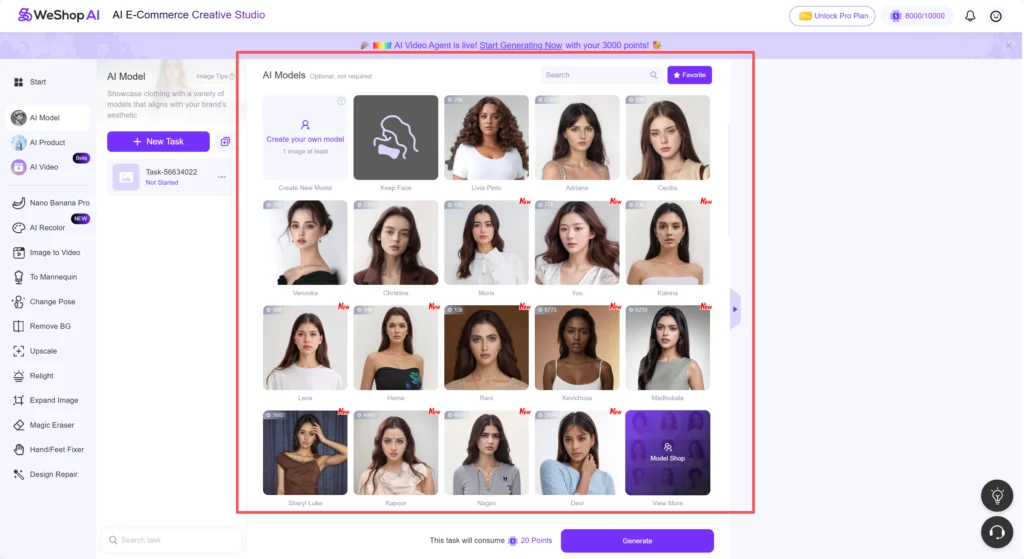
Now the fun part: choosing the person who will wear your footwear. Look at the Model Library. Don’t rush; scroll slowly. Ask yourself three quick questions:
- Who buys my shoes?
- Where do they wear them?
- What vibe do I want—sporty, city-cool, outdoor, or luxury?
For running shoes, pick the athletic guy in shorts. For Chelsea boots, choose the slim-fit model in a leather jacket. If you sell kids’ sneakers, click the playful child in dungarees.
Step 4: Pick a location (or skip it)
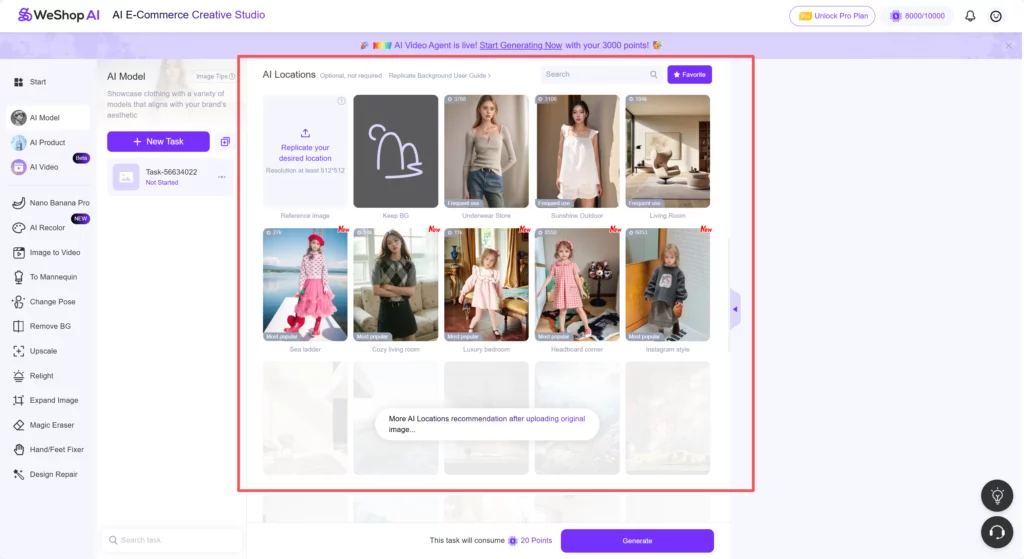
Below the model list you will see scene thumbnails: city street, cozy living room, underwear store, and so on. You can choose one, or you can leave it and let the AI surprise you.
Step 5: Write a short prompt
There are two description boxes under the location. Many users skip it, yet two lines here can lift your image from “okay” to “wow”. Type something like:
- “Model wearing white sneakers, denim jeans, early morning light, shallow depth of field.”
- “Side view, left foot stepping forward, autumn leaves on ground.”
You can also write something need to be avoided in the box to remind AI.
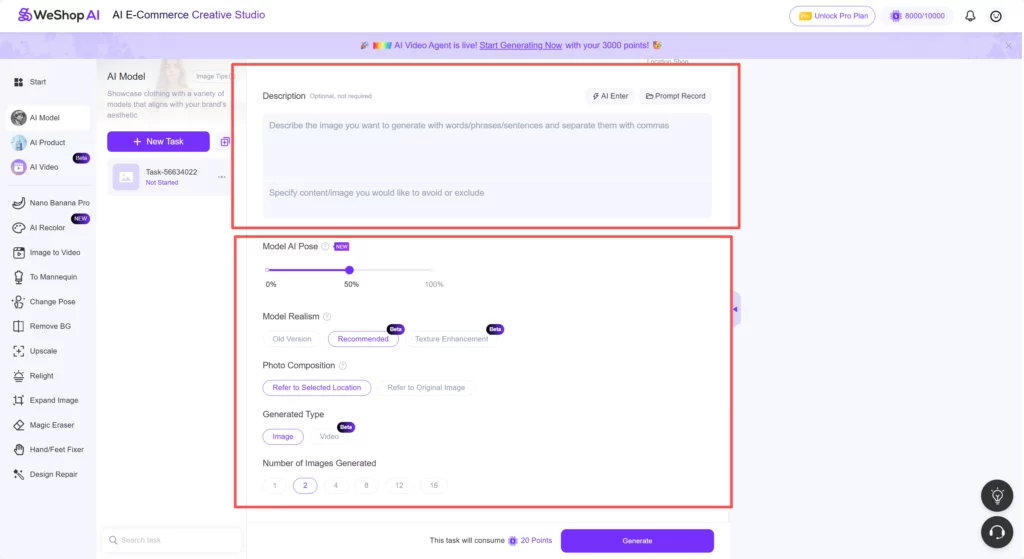
You can alo choose the Model Realism, Photo Composition and Generated Type here.
Step 6: Generate and wait
Hit the bright “Generate” button. A timer starts; usually it takes 40–60 seconds. While you wait, do not refresh the page. Feel free to open a new tab and answer emails—WeShop AI will ping you when the job is done.
Pro Tips That Save Time and Credits
- Batch your photos. Upload three angles at once, mask them one by one, and use the same model. You will finish an entire listing in under ten minutes.
- Stay under 2 MB per file. Large files slow upload; 800 KB–1.5 MB is the sweet spot.
- Keep the shoe color real. If the AI changes the hue, write “true color” in the prompt box.
- Add a shadow. A faint ground shadow makes the shoe look planted. Type “soft shadow under sole” in the prompt.
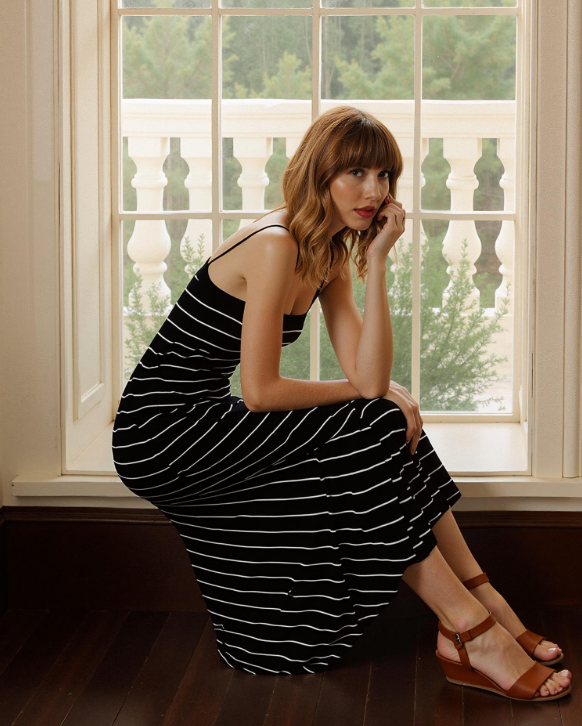
Conclusion
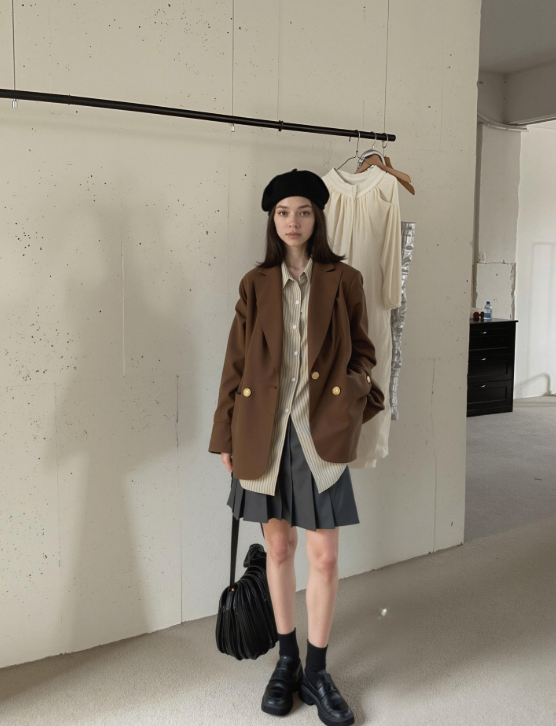
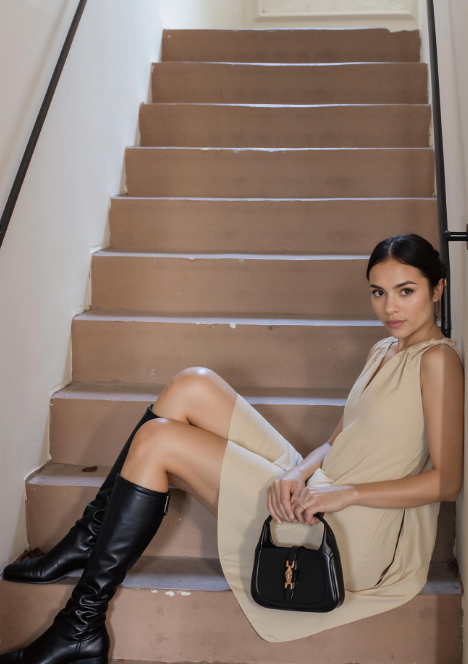
That’s it! In under five minutes you turned a simple shoe photo into a model-grade shot that sells. You uploaded, masked, picked the perfect face and place, added a short prompt, and pressed one button. No studio lights, no model fees, no all-day shoot.
So open WeShop AI now, run one test, and watch your click-through rate climb. Your footwear deserves real-world context—give it a model, give it a story, give it sales.