
Use a New Email Address with Your Existing Account
If you want to use a new email address while keeping the points in your existing WeShop AI account, start with Update Email in that account’s profile menu. This updates the email associated with the existing account; it is different from creating a separate account and transferring points between accounts.
1. Sign In to the Account That Has Your Points
Sign in to your current WeShop AI account. Open My Points to check the balance and confirm you are using the account you want to keep. Note the balance before starting so you can check it afterward.
2. Open Update Email
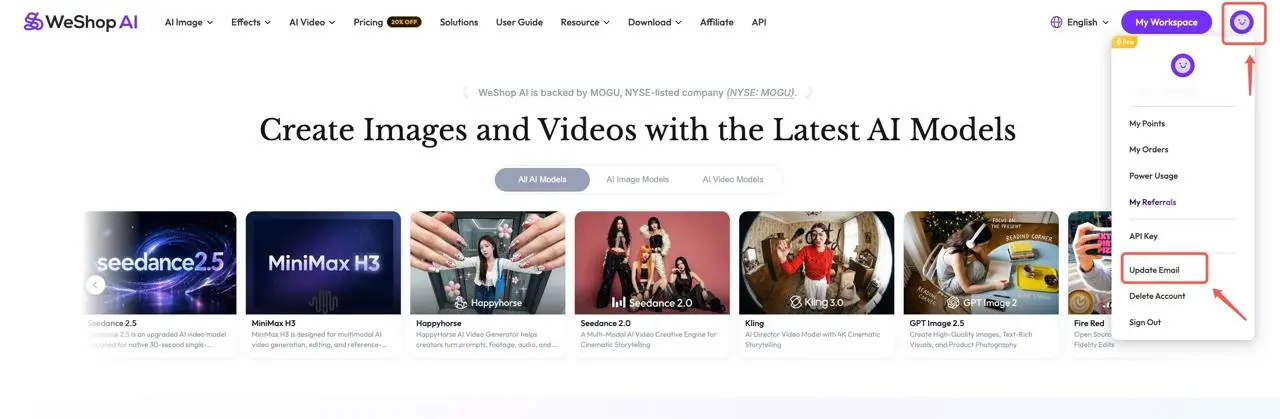
- Click the profile avatar in the upper-right corner of the website, beside My Workspace.
- In the account menu, choose Update Email. In the screenshot, it is below API Key and above Delete Account.
3. Complete the Email Update
Follow the instructions displayed on the Update Email page to enter your new email address and complete any verification requested. Check the address carefully and make sure you can receive messages at that inbox. Wait for the website to confirm that the update is complete.
The screenshot shows the menu entry. Use the actual instructions on the next screen for verification and confirmation.
4. Check Your Account and Points
After the update, check the email shown for your account and open My Points again to confirm your balance. Continue using the updated account. If the website asks you to sign in again, follow its sign-in instructions for the updated email.
Changing the email is intended to let you keep using the same account and its existing points. It does not extend point validity or add new points. For point-expiry information, see How Points Work.
Is This the Same as Transferring Points to Another Account?
If by “account transfer” you mean using a new email for the account that already holds your points, use Update Email from that original account.
If you have already created two separate accounts and want to move or combine their points, contact hi@weshop.ai before proceeding. The Update Email menu alone does not establish that separate accounts can be merged or that their points can be transferred. Include the two account email addresses and explain which account has the points and which email you want to use.
If You Cannot Complete the Update
- If the new email is reported as already in use, contact support for help with the existing accounts.
- If you cannot access the original account or cannot complete the verification requested, contact support and describe where you are blocked.
- If the point balance looks different afterward, check that you are signed in to the intended account and send support the account details and a screenshot of the issue.
Do not delete the original account as part of an email update. For page errors or unresponsive controls, see Troubleshoot Generation and Website Issues.