
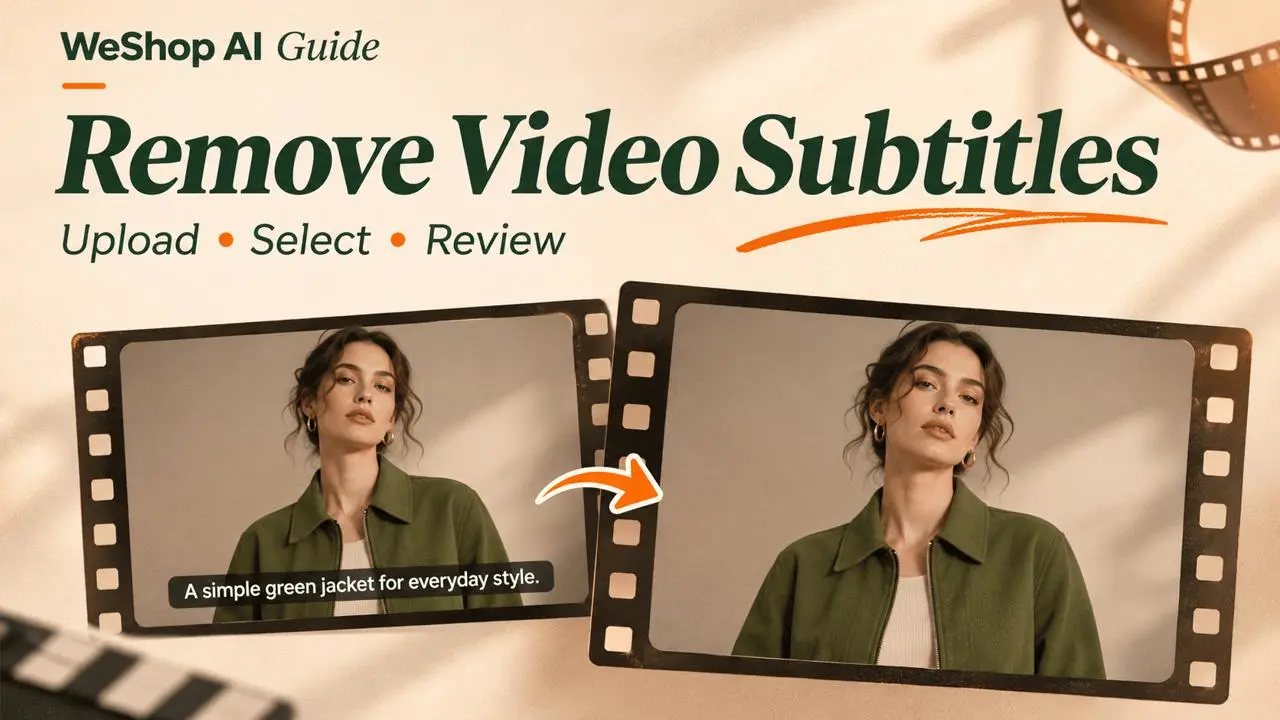
Remove Subtitles from a Video
Use WeShop AI’s Watermark Video Remover Free Online tool to select visible subtitles in a video for removal. This guide follows the English website interface shown in the screenshots. If you searched for “Remover legendas”, follow the same steps below.
1. Open the Video Removal Tool
- Sign in to WeShop AI and open your workspace.
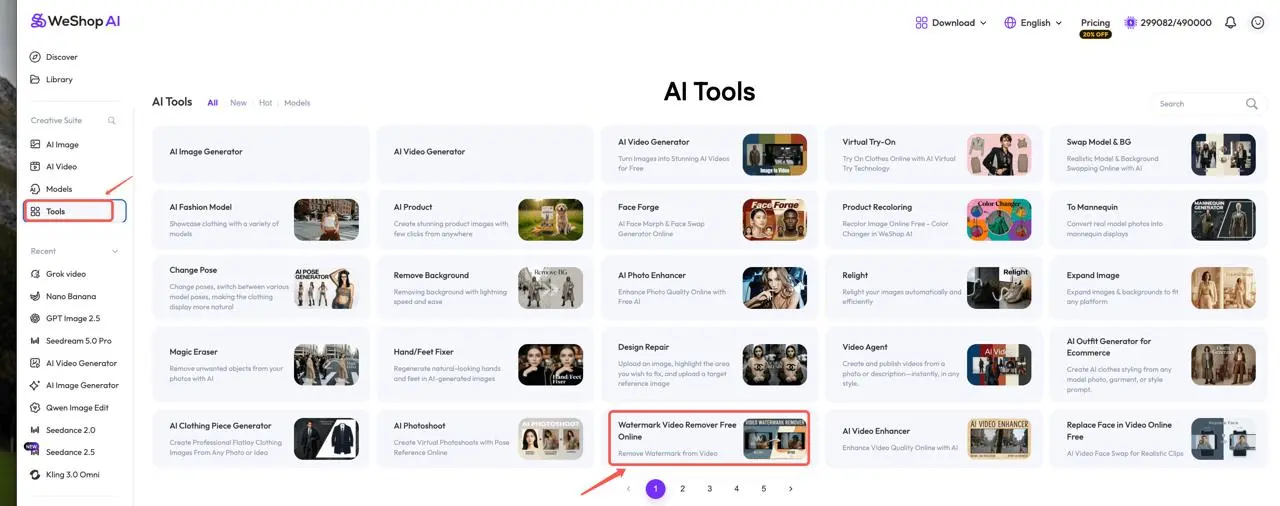
- Click Tools in the left sidebar.
- Find and open Watermark Video Remover Free Online in the AI Tools list. The card description reads Remove Watermark from Video. Use the tool list search or pagination if needed.
2. Upload Your Video
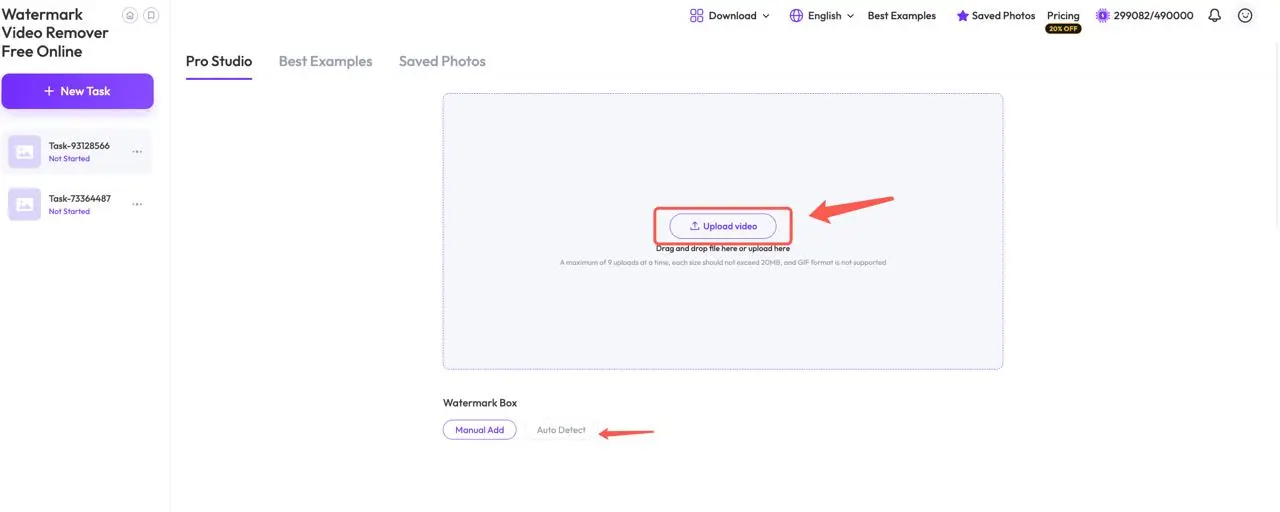
In Pro Studio, click Upload video, or drag your video into the upload area. Keep a copy of the original so you can compare the result later.
The upload panel shown below allows up to 9 uploads at a time, with each file no larger than 20 MB. GIF is not supported. Follow the limits displayed in your current workspace if they differ.
3. Select the Subtitle Area
After the video loads, use the controls under Watermark Box:
- Manual Add: add a selection box over the subtitle area. Keep the selection close to the text and avoid covering faces, products, or other details you want to retain.
- Auto Detect: if available after upload, use it to detect candidate areas, then review the selection before continuing. Check that the subtitle area is covered; automatic detection may need adjustment.
If the subtitle position changes, review the different positions in your clip and adjust the selection using the available controls. The screenshot shows these selection options before a video has been uploaded.
4. Process and Review the Result
Once the video is uploaded and the subtitle area is selected, follow the processing controls displayed in the workspace. Check any point cost or processing notice shown before submitting.
When processing finishes, play the result and check the beginning, middle, and end of the clip. Look for remaining letters, blur, flicker, or changes to nearby details. If needed, refine the selection and try again. Save the result using the download option provided with the completed task.
Tips for Better Results
- Start with a short clip to check the result before working through a longer video.
- Select the complete subtitle text while keeping the box as small as practical.
- Pay extra attention when text overlaps a moving person, clothing, or a detailed background. Reconstructed areas may need another attempt.
- If subtitles can be switched off in your original video editor or player, check that option first. This workflow is for text visible in the video picture.
If Uploading or Processing Fails
Check the file size and the supported formats shown in the upload panel. GIF files are not accepted in the interface pictured above. For a stalled upload or an unresponsive page, see Troubleshoot Generation and Website Issues. If the issue continues, email hi@weshop.ai with the error message and a screenshot.